INTRODUCTION
Transaction elevation with Odoo Website Wallee Payment Acquirer!
Wallee payment solution provides multiple payment options to customers so they can select the required one and make the payment. Additionally, it is a reliable and secure payment method that can aid business owners to receive payments with ease.
Therefore, we integrated Wallee with Odoo to create Odoo Website Wallee Payment Acquirer. This integration adds a diverse and secure online payment option to your Odoo website. Moreover, it provides customers with a seamless and secure payment experience.
Further, the Odoo app can help reduce cart abandonment issues as customers can choose the desired payment methods (from available ones).
FEATURES
- It integrates Odoo with the Wallee payment acquirer.
- It enhances the checkout experience, resulting in quick payment.
- The Odoo app allows you to receive national and international payments.
- You can integrate numerous payment gateways to Wallee for payment at Odoo’s end.
- Oodo Website Wallee Payment Acquirer secures transaction details via the PCI-DSS-Compliant payment process.
INSTALLATION
- Once you purchase the App from Webkul store, you will receive the link to download the zip file of the module.
- Extract the file on your system after the download finishes. You will be able to see a folder named- ‘wk_payment_wallee.’
- Copy and paste this folder inside your Odoo Add-Ons path.
- Now, open the Odoo App and click on the Settings menu. Here, click on Activate the Developer Mode.
- Then, open the Apps menu and click on ‘Update Modules List.’
- In the search bar, remove all the filters and search ‘wk_payment_wallee.’
- You will be able to see the module in the search result. Click on ‘Install’ to install it.
WORKFLOW
Moving on to the configuration of Odoo Website Wallee Payment Acquirer.
CONFIGURATION (ODOO BACKEND)
1. Go to ‘Invoicing> Configuration> Payment Providers’ after installation.

2. Select the ‘Wallee’ payment provider on the next page.
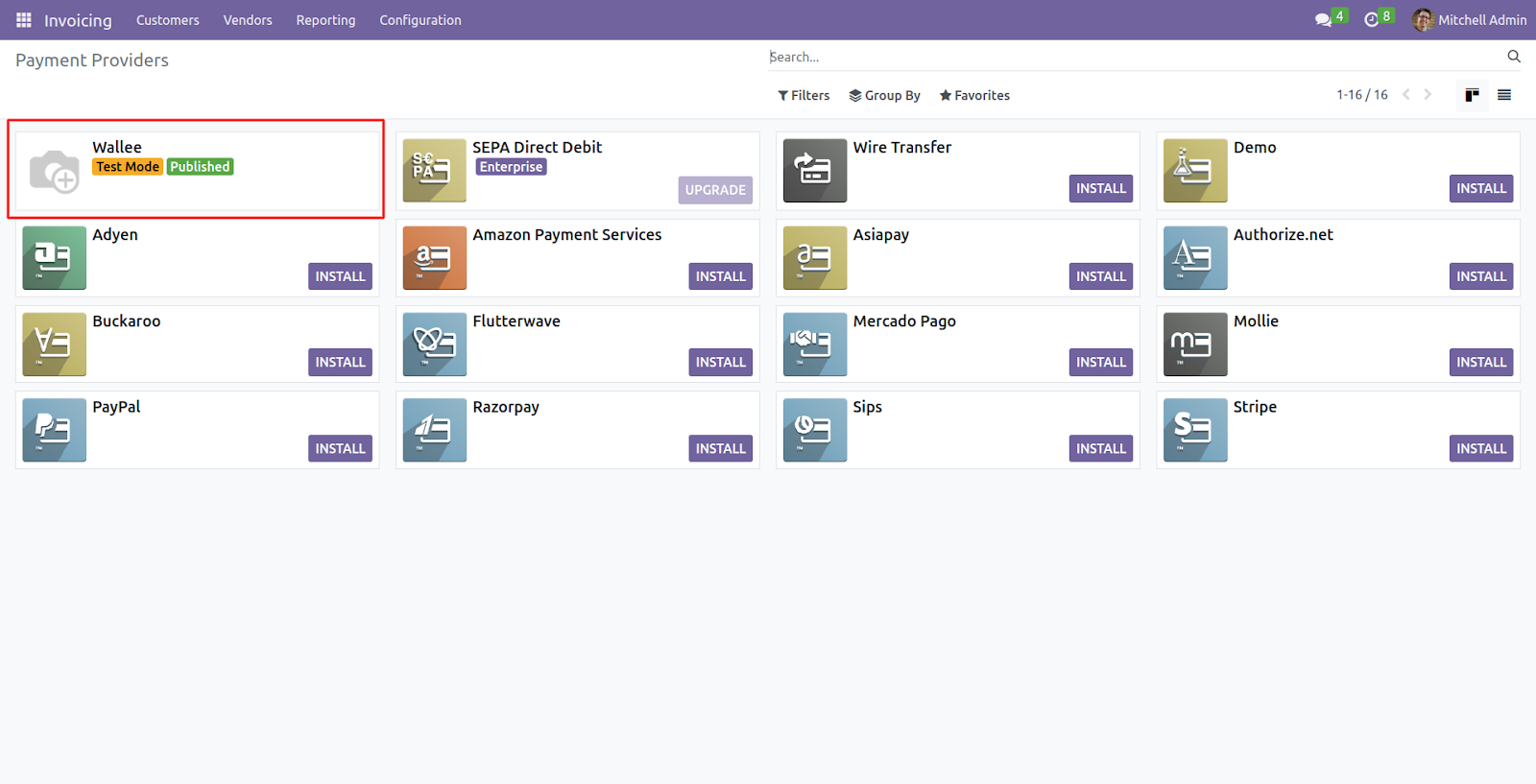
3. On the page, enter the ‘Wallee User ID, Authentication Key, and Space ID’ in the ‘Credentials’ tab. Refer to Wallee’s account to know the mentioned details.

4. Move to the ‘Configuration’ tab and select ‘Payment Journal.’ You can also enter the Display name, supported payment icons, countries, and maximum amount.

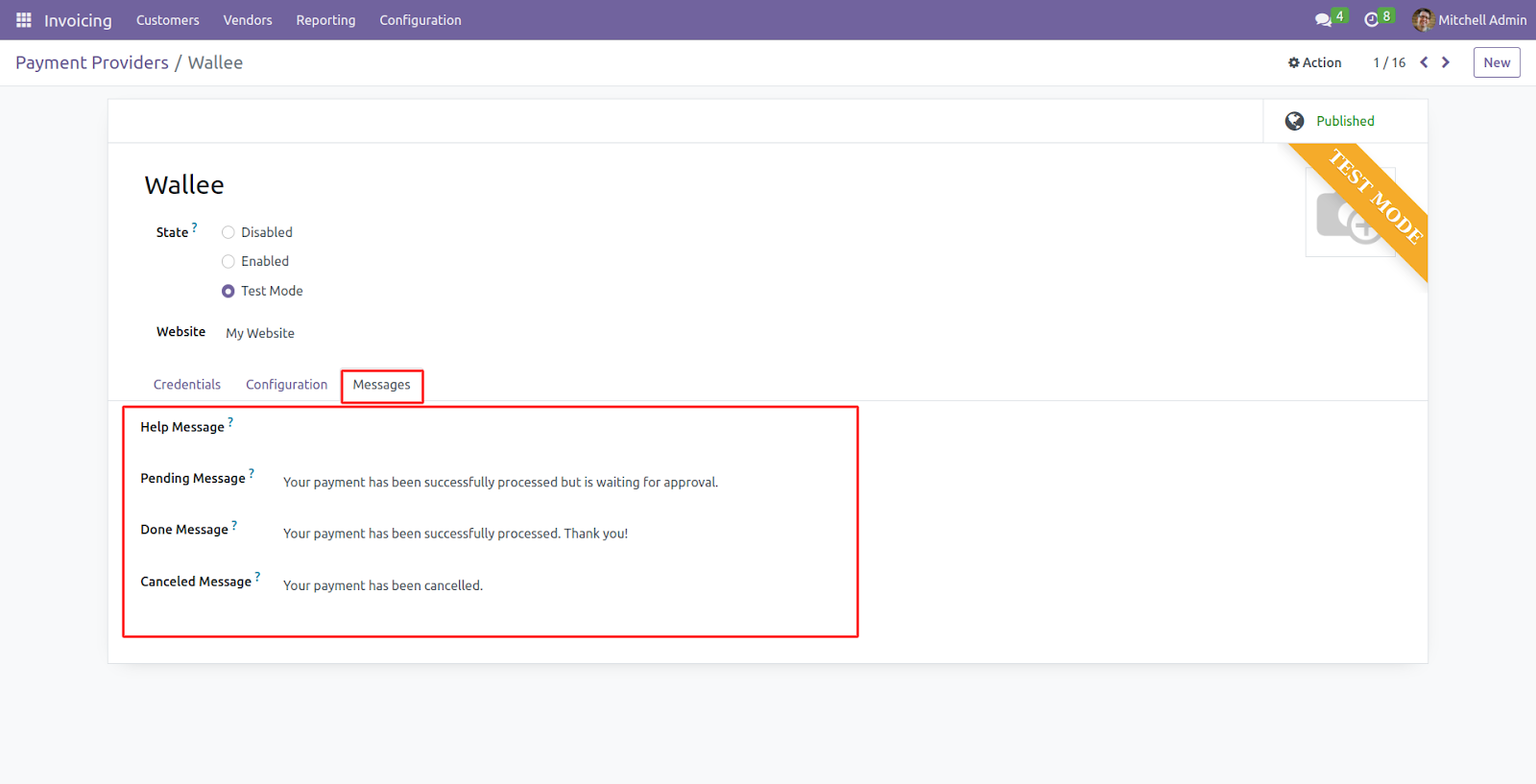
5. Next, open the ‘Messages’ tab and enter the messages for the listed scenarios.
ODOO WEBSITE
6. Navigate to the Odoo website, open the ‘Shop’ page, select and open a product, and add it to the Cart. On the checkout page, you can view the ‘Wallee’ payment option, select it, and click ‘Pay Now.’

7. On the Payment Gateway page, you must enter the card details and click the ‘Pay’ button.
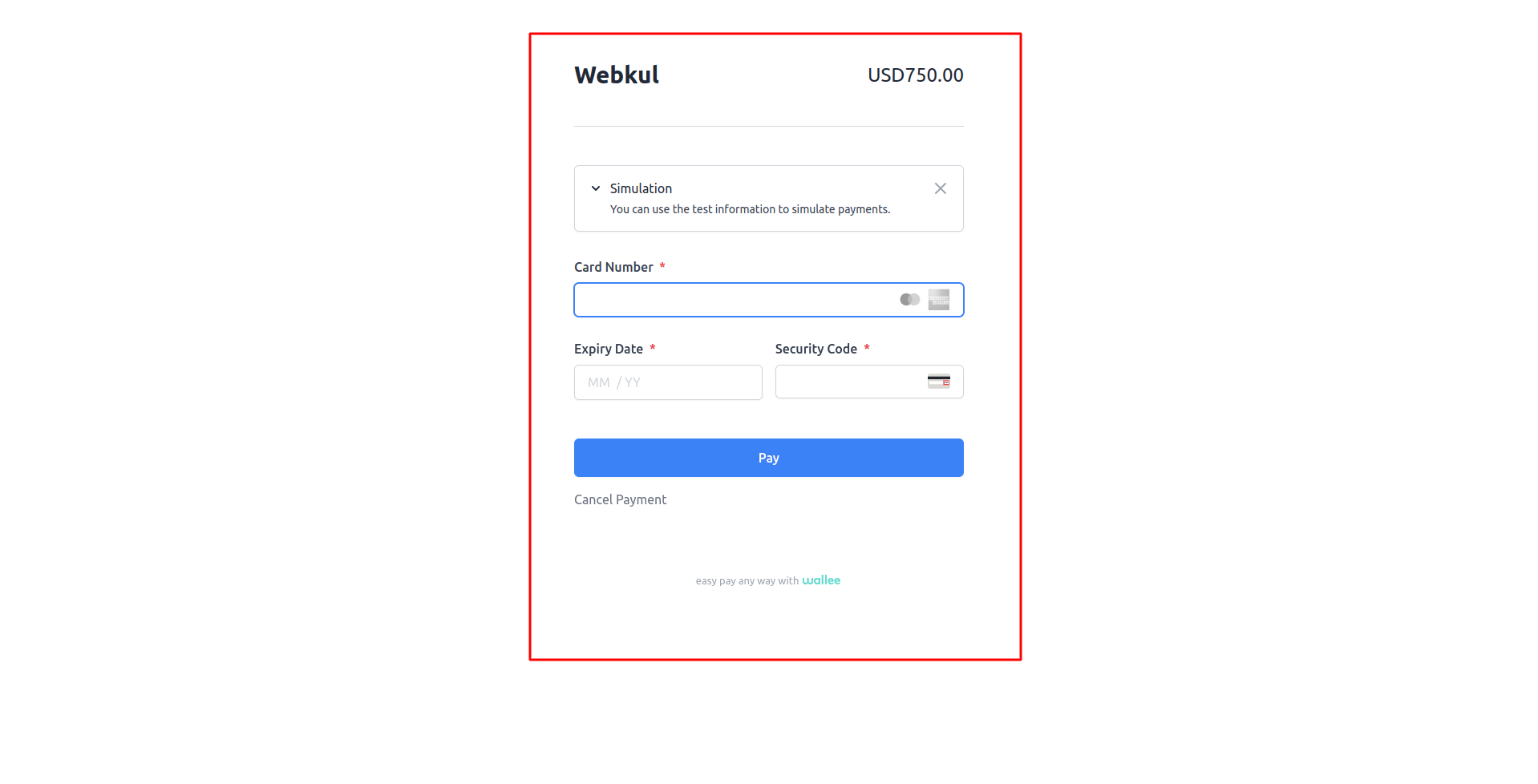
8. After it verifies the payment details, the system will process the payment automatically, and you will see the ‘Success or Failure’ message based on the transaction output.

9. Now, enable the ‘Debug/ Developer Mode’ and open the ‘Configuration> Payment Transaction’ section.
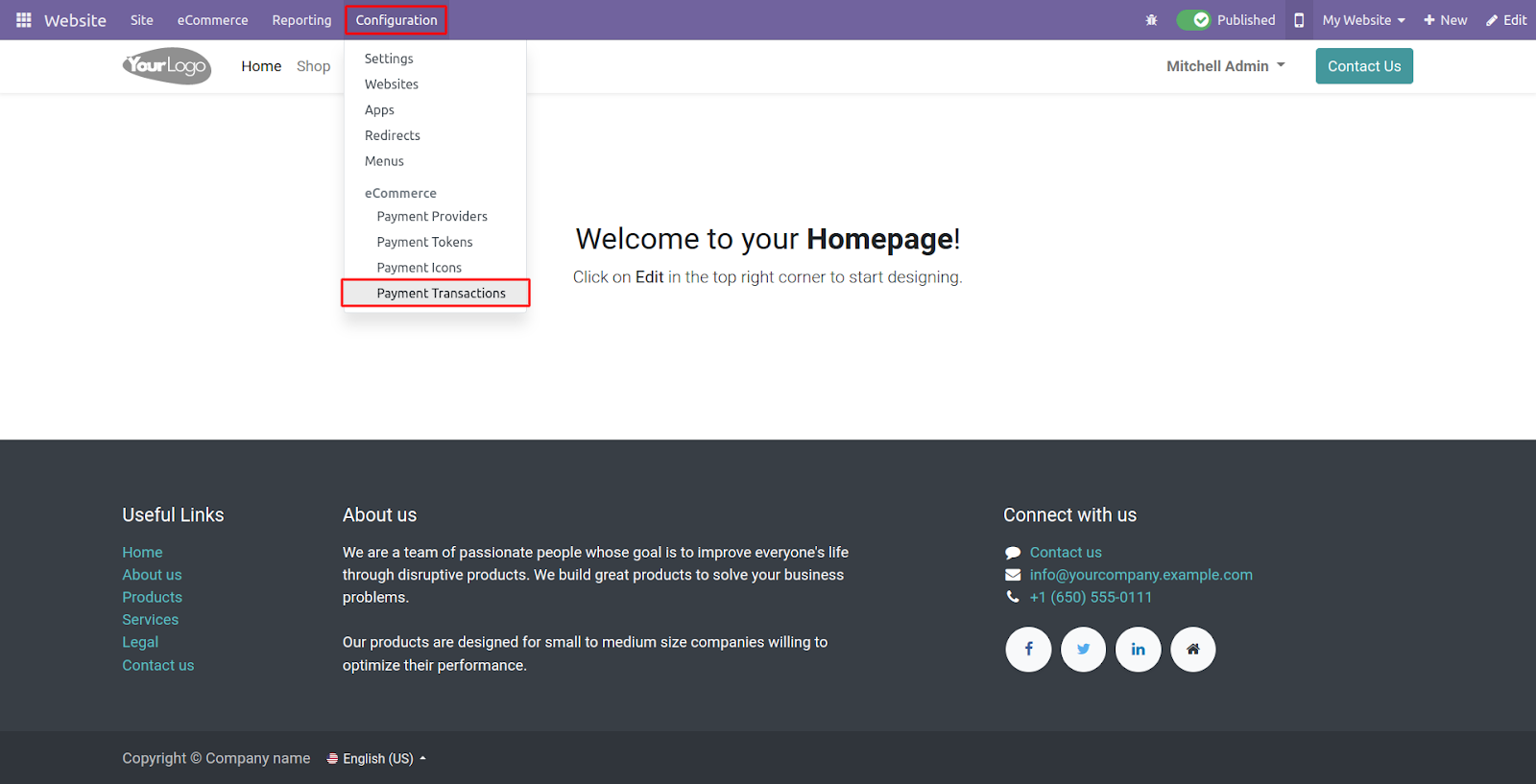
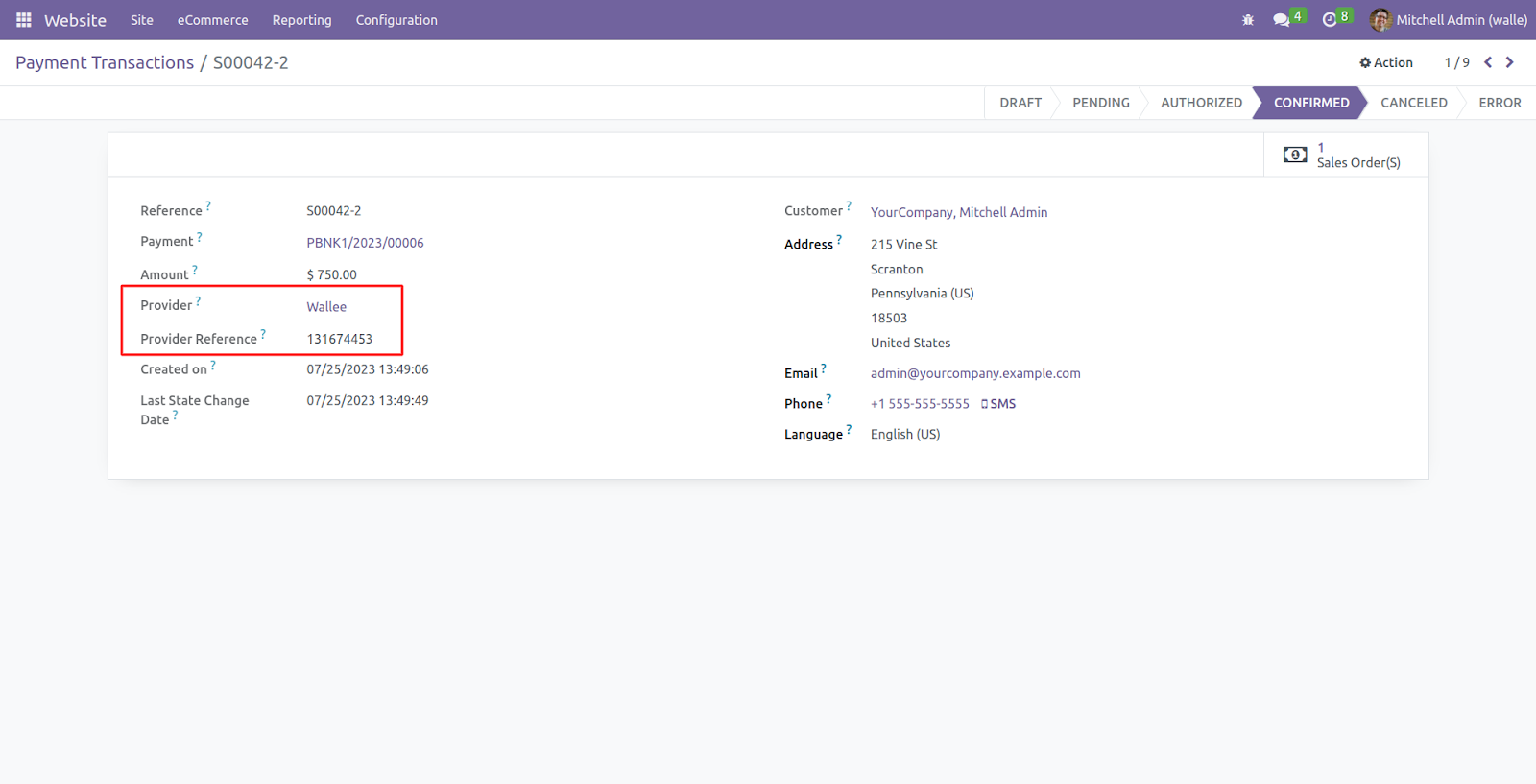
10. The transaction payment page shows all the transactions completed by various payment methods. Click and open any of the payments completed using Wallee.

11. The transaction details page shows the ‘Provider and Provider References’ with other payment details.
OTHER ODOO WEBSITE MODULES
- Odoo Website Razorpay Checkout Payment Acquirer
- Website CCAvenue IFrame Checkout Payment Acquirer
- Odoo Payrexx Payment Acquirer
- Odoo Cash Free Payments
- Website Braintree ACH Payment Acquirer
- Odoo Payment Acquirer PayLater
NEED HELP?
Hope you find the guide helpful! Please feel free to share your feedback in the comments below.
If you still have any issues/queries regarding the same, please raise a ticket at https://webkul.uvdesk.com/en/customer/create-ticket/.
Also, please explore our Odoo development services & an extensive range of quality Odoo Apps.
For any doubt, contact us at [email protected].
Thanks for paying attention!!
Current Product Version - 1.0.0
Supported Framework Version - Odoo 16


Be the first to comment.