INTRODUCTION
Link multiple Pipedrive solutions with Ooo using Odoo Multi CRM Pipedrive Solution!
Making customers happy and keeping them satisfied is one of the most challenging business tasks. But the question is, how to make customers happy and keep them satisfied?
For managing healthy and beneficial relationships with customers, CRM software is created. This software helps you make a healthy and fruitful with customers. But what is the role of Pipedrive in it?
Out there, Pipedrive is one most flexible, focused, and easy-to-use CRM solutions. The maintenance cost of Pipedrive s high, and managing multiple Pipedrive solutions can be a burden for mid-cap companies.
So, to make things easier and allow you to manage multiple Pipedrive solutions in a single place, we created Odoo Multi CRM Pipedrive Solution. This module enables you to integrate Pipedrive with your Odoo. Hence, you can manage your whole business from a centralized location.
NOTE: Odoo Multi CRM Pipedrive Solution Module works in conjunction with the following module:
You would require to install these modules first for Odoo Multi CRM Pipedrive Solution to work correctly.
FEATURES
- Link multiple Pipedrive solutions with your single Odoo.
- Automatically runs the cron after a fixed interval to sync data.
- Run cron to evaluate the feeds in the scheduled time.
- Also, after the scheduled time, the cron automatically deleted the synchronization history.
- Common import/export button for all connections.
- Just select the connection and object (you need to import).
- Select the records and export them to desired connection.
- Moreover, the module has a centralized location to store data in a simplified form.
- Feeds let you store data in text form.
- Feeds get automatically deleted once the related record is created in Odoo.
- Data cards direct you to the dashboard of the selected connection.
- Additionally, track all the data of every connection from the chart.
- Use a line graph to analyze the data of all connections.
- Select the period to show the data (weekly or monthly).
- Further, track the data of all the connections from the Line graph.
INSTALLATION
- Once you purchase the App from Webkul store, you will receive the link to download the zip file of the module.
- Extract the file on your system after the download finishes. You will be able to see a folder named- ‘pipedrive_odoo_bridge.’
- Copy and paste this folder inside your Odoo Add-Ons path.
- Now, open the Odoo App and click on the Settings menu. Here, click on Activate the Developer Mode.
- Then, open the Apps menu and click on ‘Update Modules List.’
- In the search bar, remove all the filters and search ‘pipedrive_odoo_bridge.’
- You will be able to see the module in the search result. Click on ‘Install’ to install it.
WORKFLOW CONFIGURATION
ODOO BACKEND CONFIGURATION
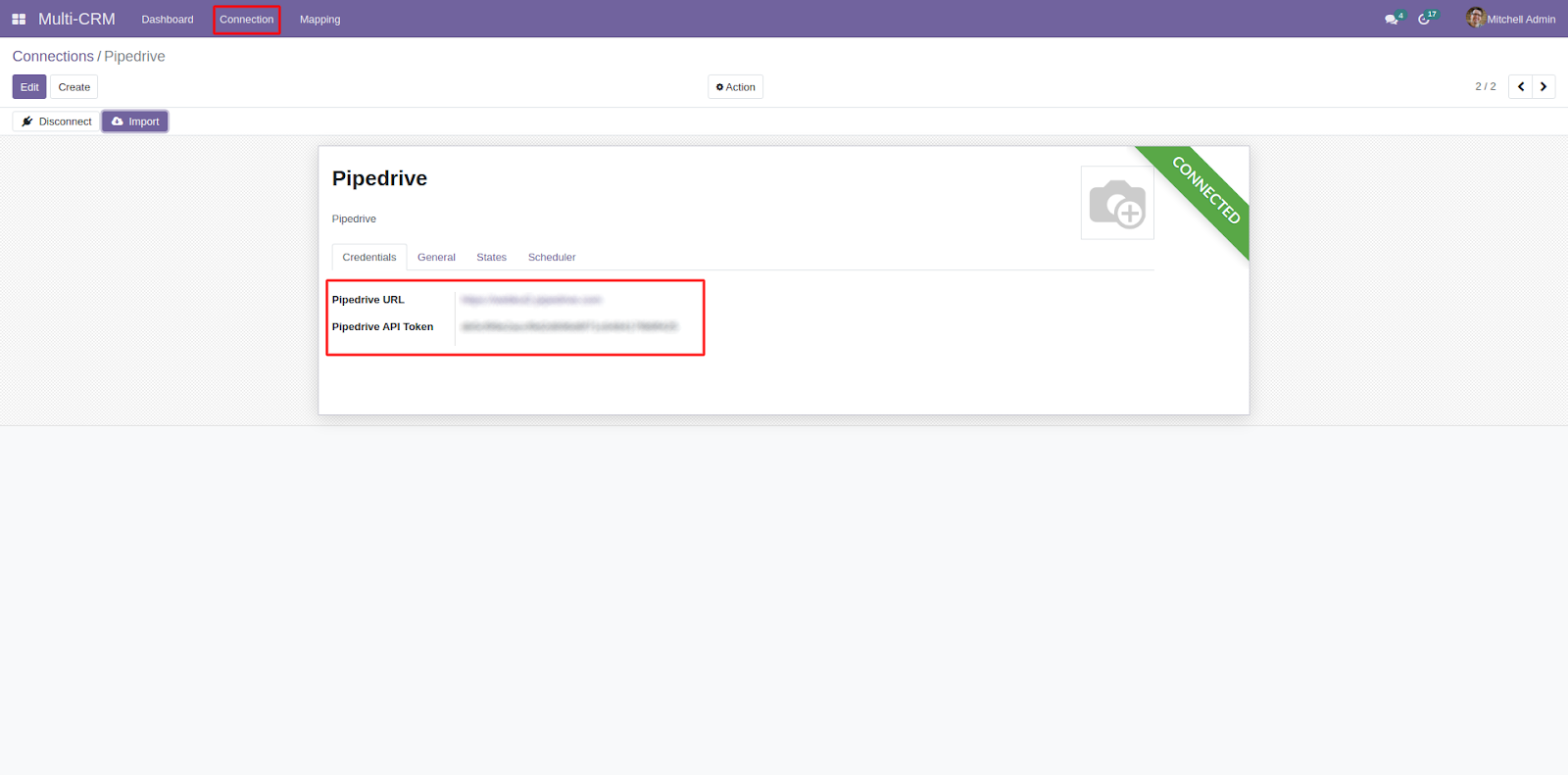
1. Firstly, log in to your Odoo backend and then go to ‘Multi-CRM> Connection> Pipedrive’ to view the connection status.
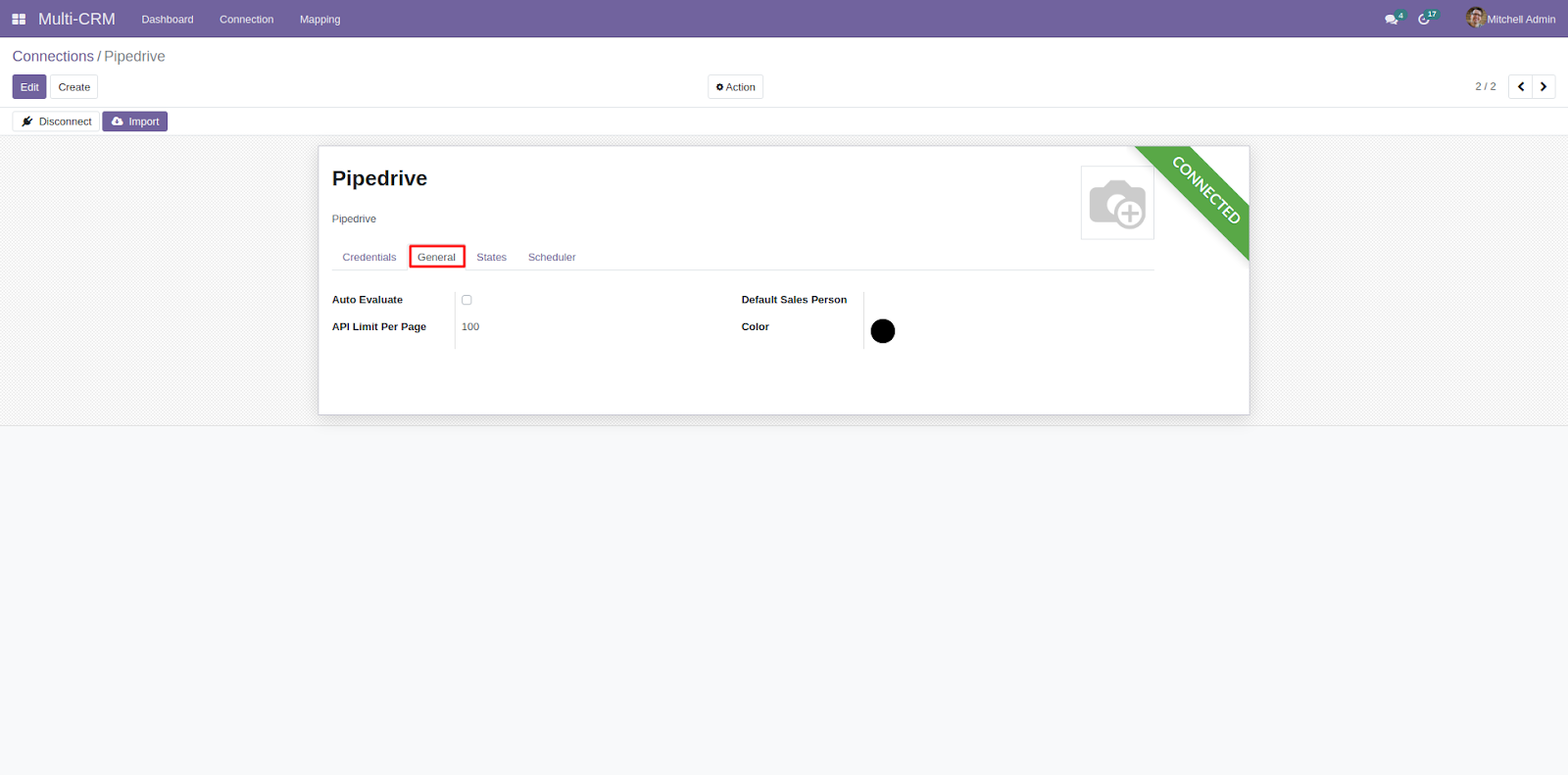
2. Next, go to general settings to configure the ‘API Limit, Color, Auto-Evaluate, and Default Sales Person’ settings.
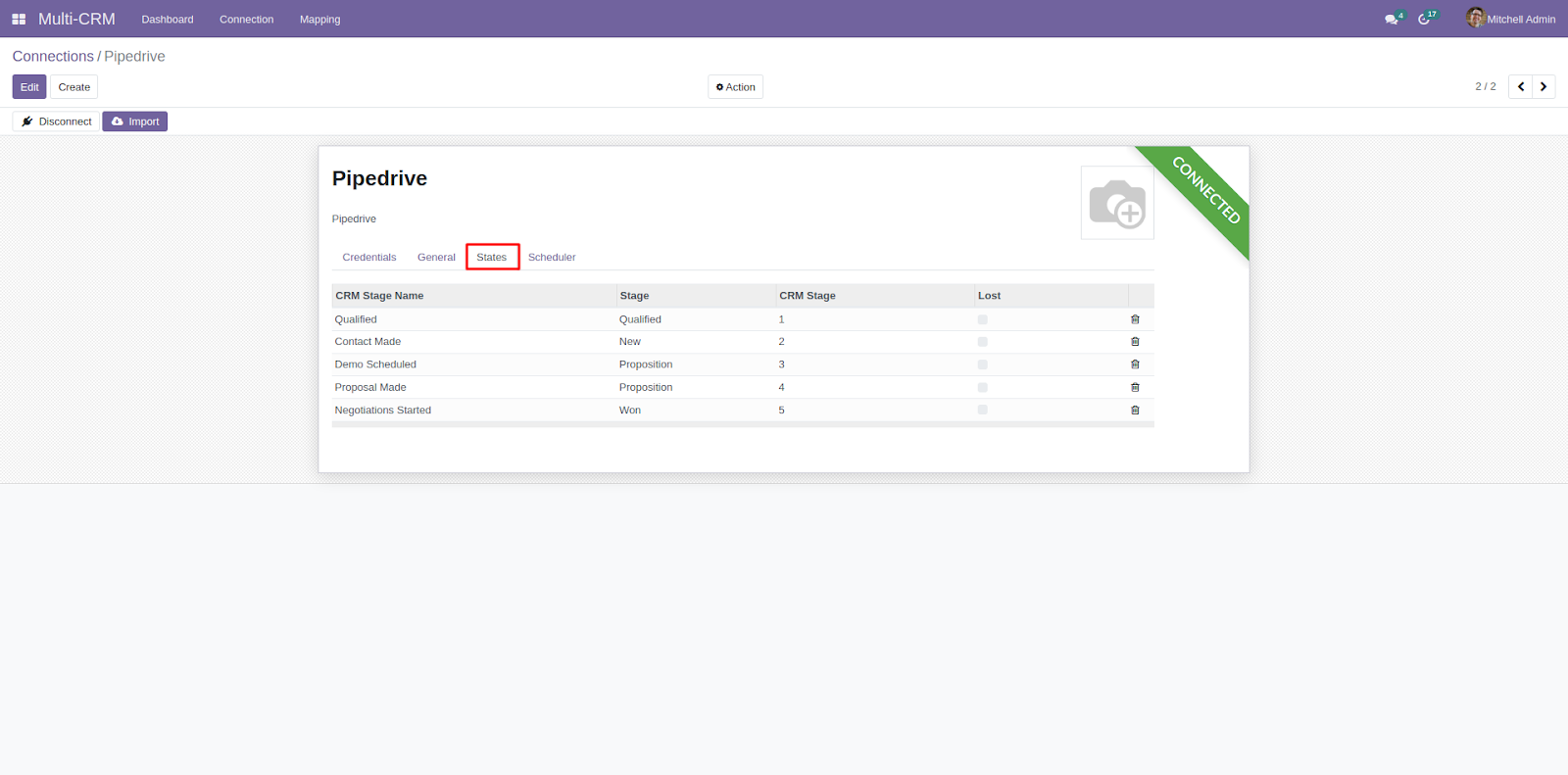
3. After that, move to the next tab where you will see all the ‘States.’ Here you will see all the pipeline states fetched from Pipedrive.
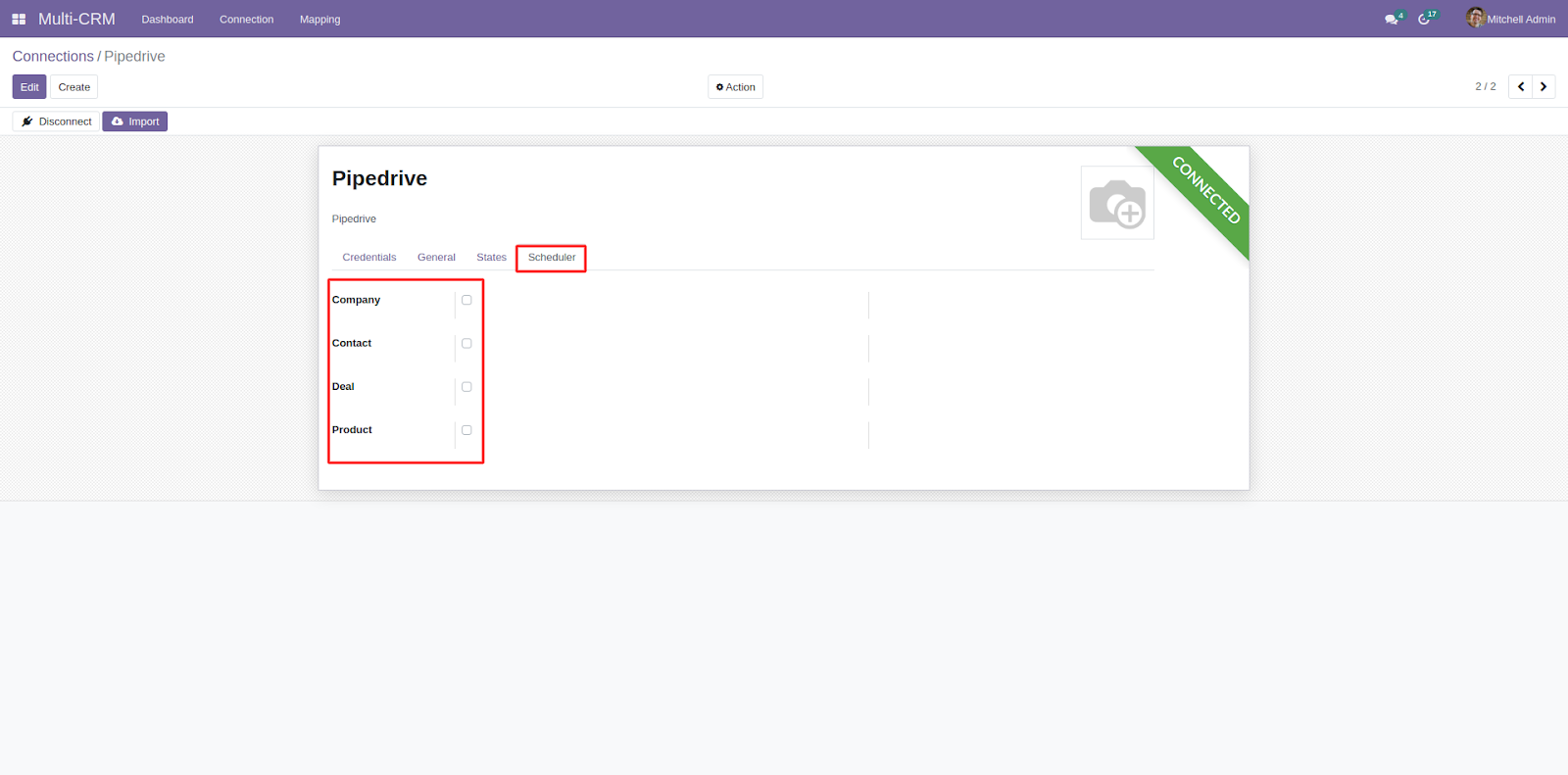
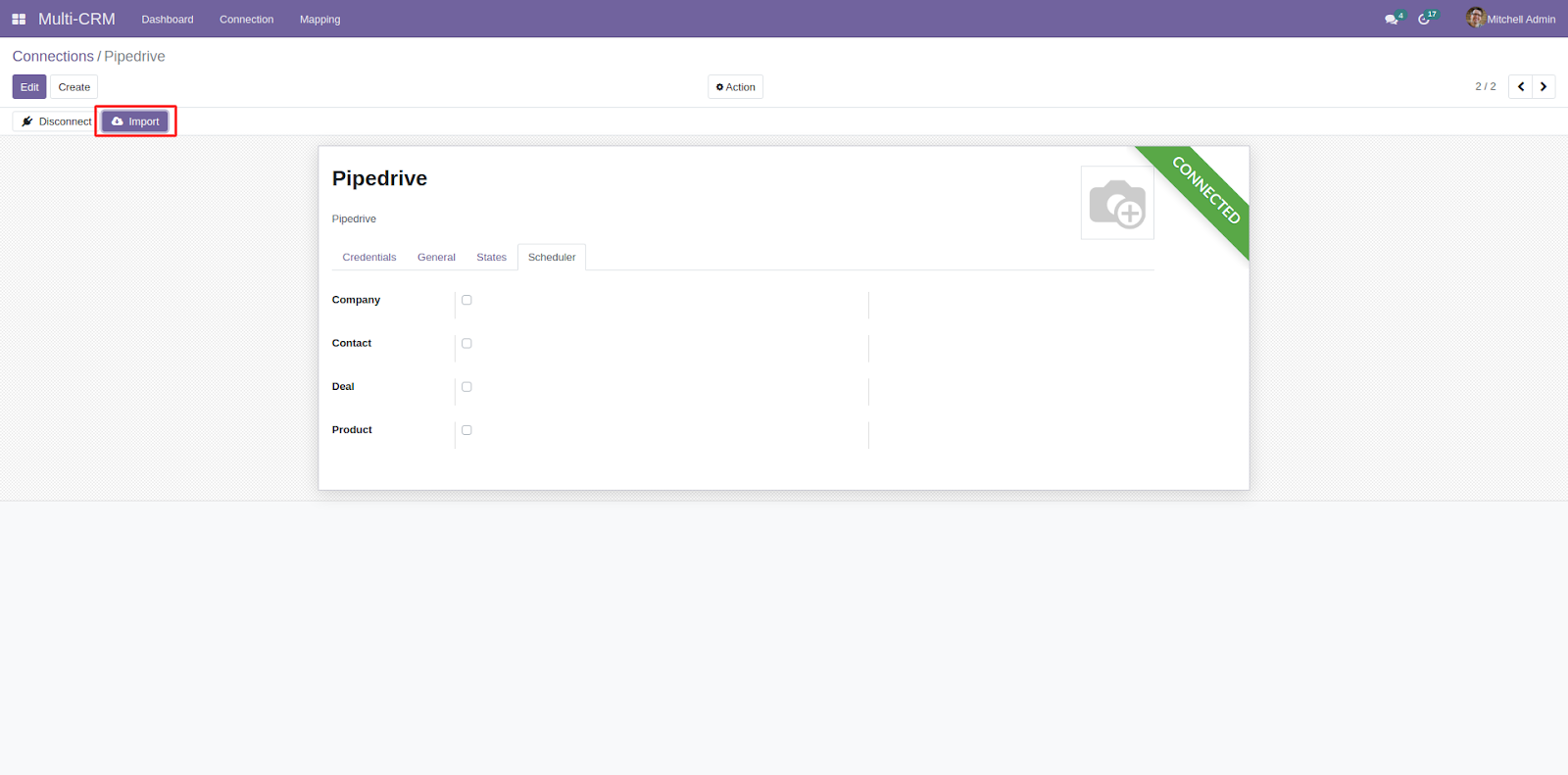
4. The last tab is ‘Scheduler,’ where you can find the options that let you fetch data from Pipedrive to Odoo.
5. After configuration, click the ‘Save’ button then click the ‘Import’ button for importing data.
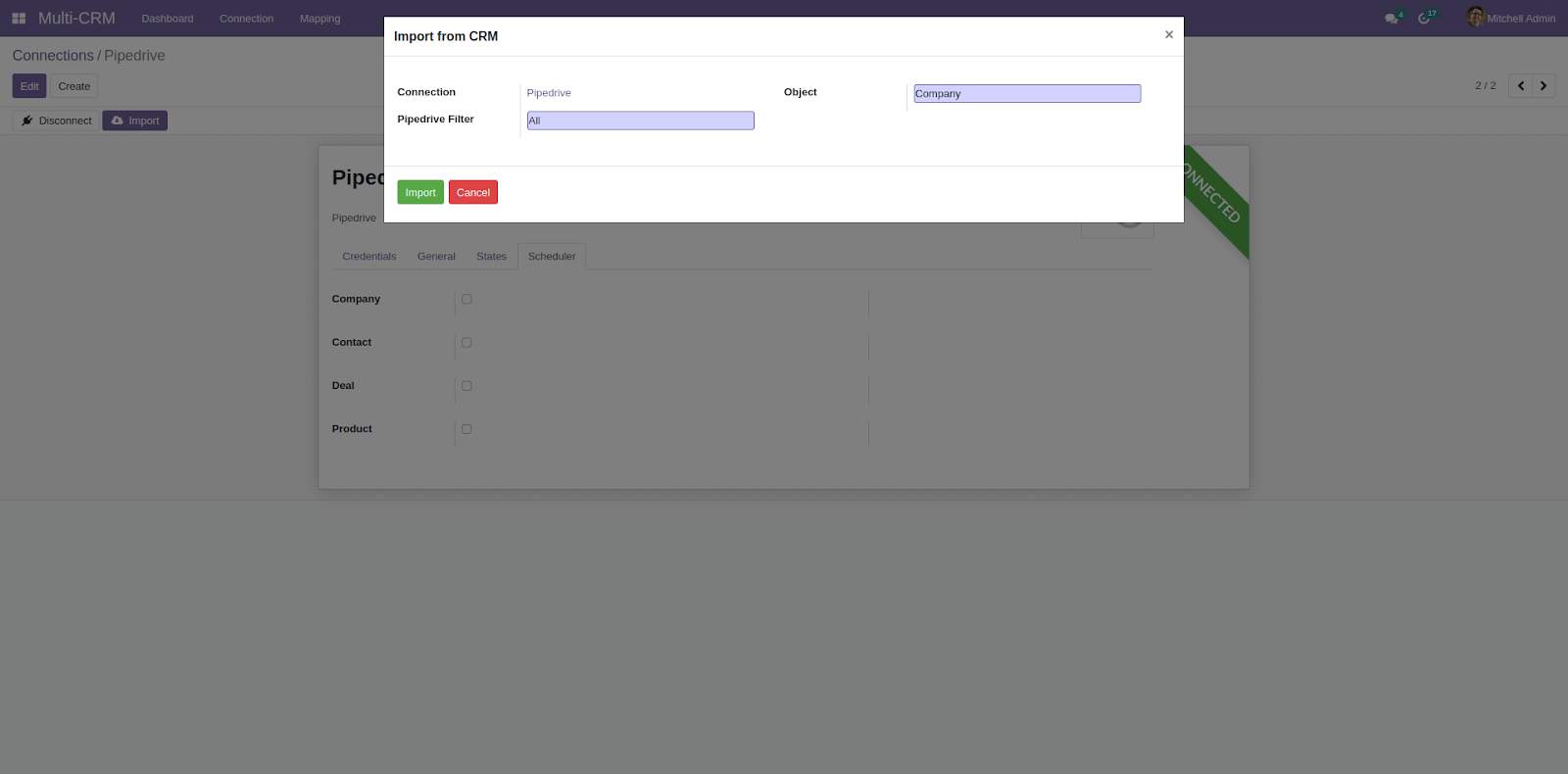
6. In the popup that appears on your screen, select the ‘Pipedrive Filter and Object,’ and after selection click the ‘Import’ button.
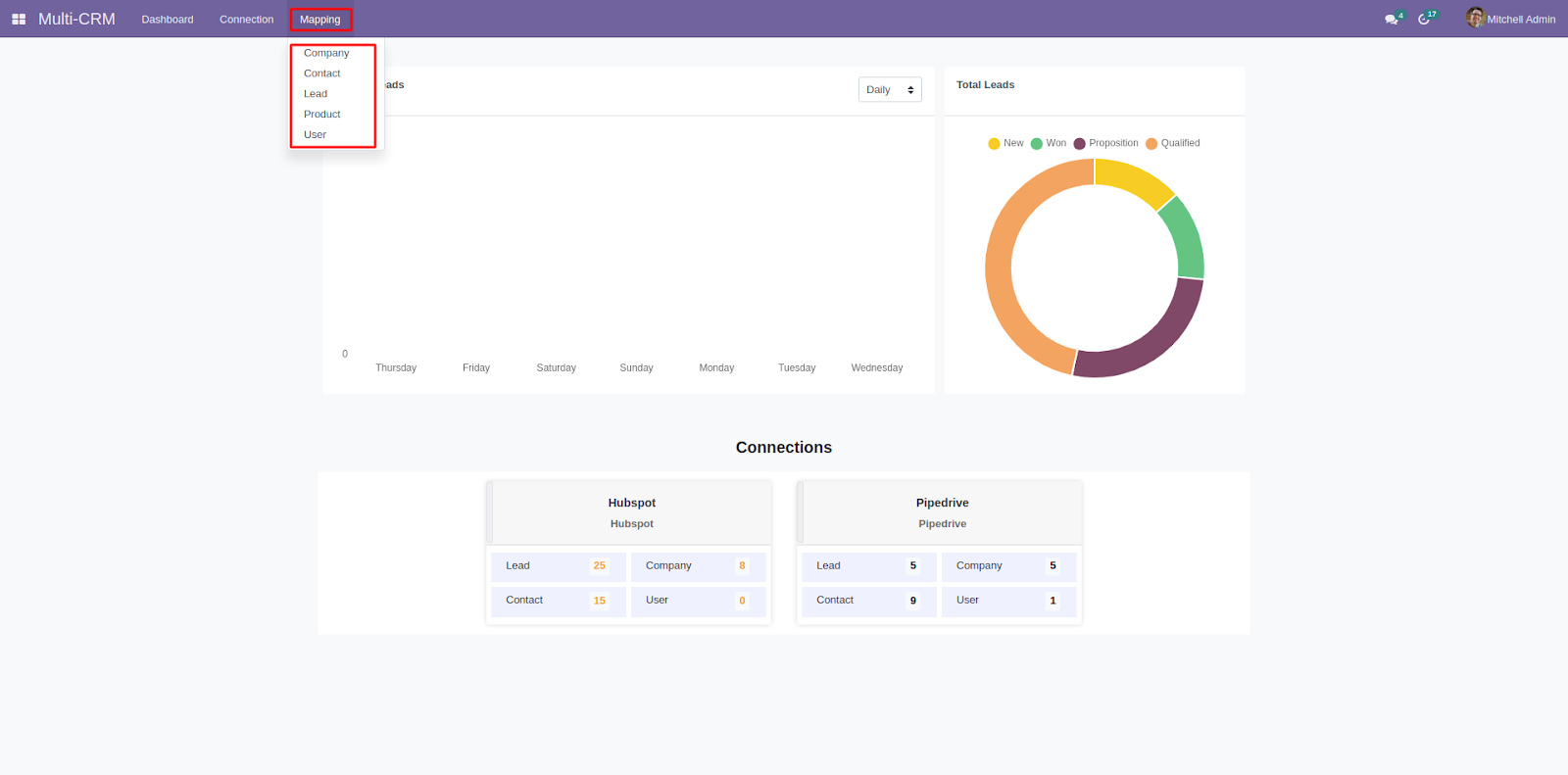
7. Next, go to the ‘Multi-CRM’ dashboard, click on ‘Mapping’ and open any of the mappings.
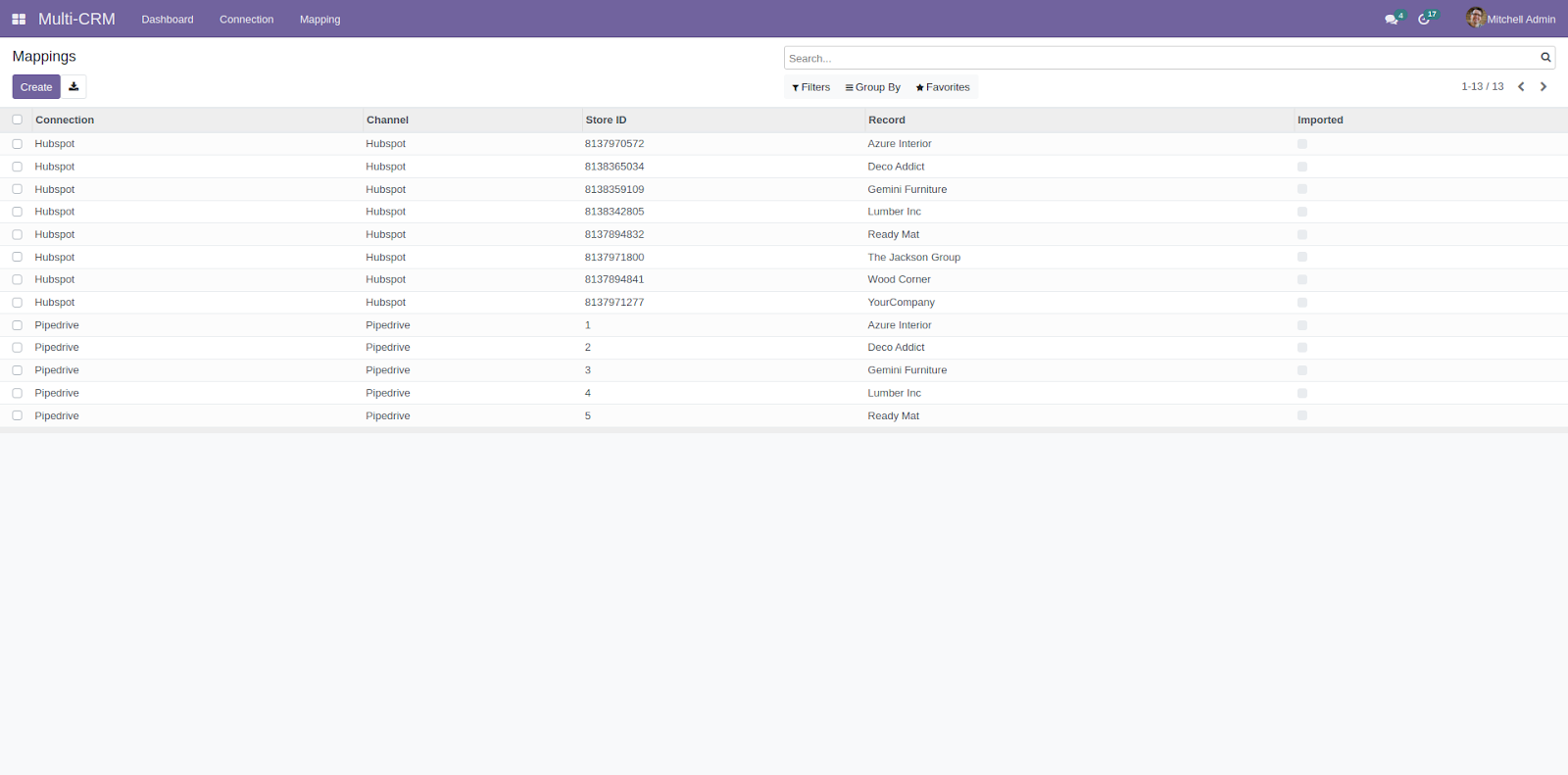
8. On clicking ‘Mappings> Company,’ you can view all the mappings, and click a particular mapping to view its details.

9. Similarly, on clicking ‘Mapping>Contact,’ you can view all the mapped contact and view their details by opening them.

PIPEDRIVE CONFIGURATION
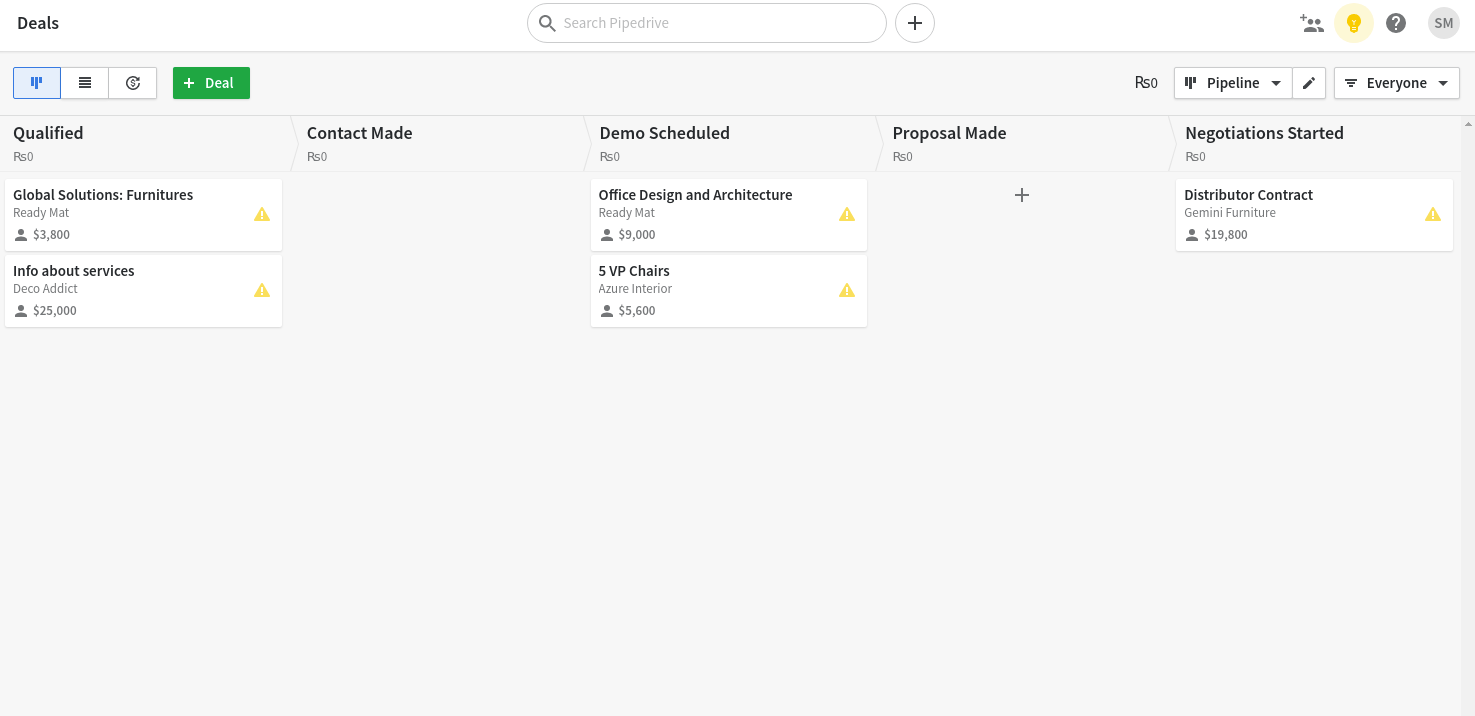
10. On the Pipedrive CRM, you can view all the stages and leads, and finalize deals on the dashboard.
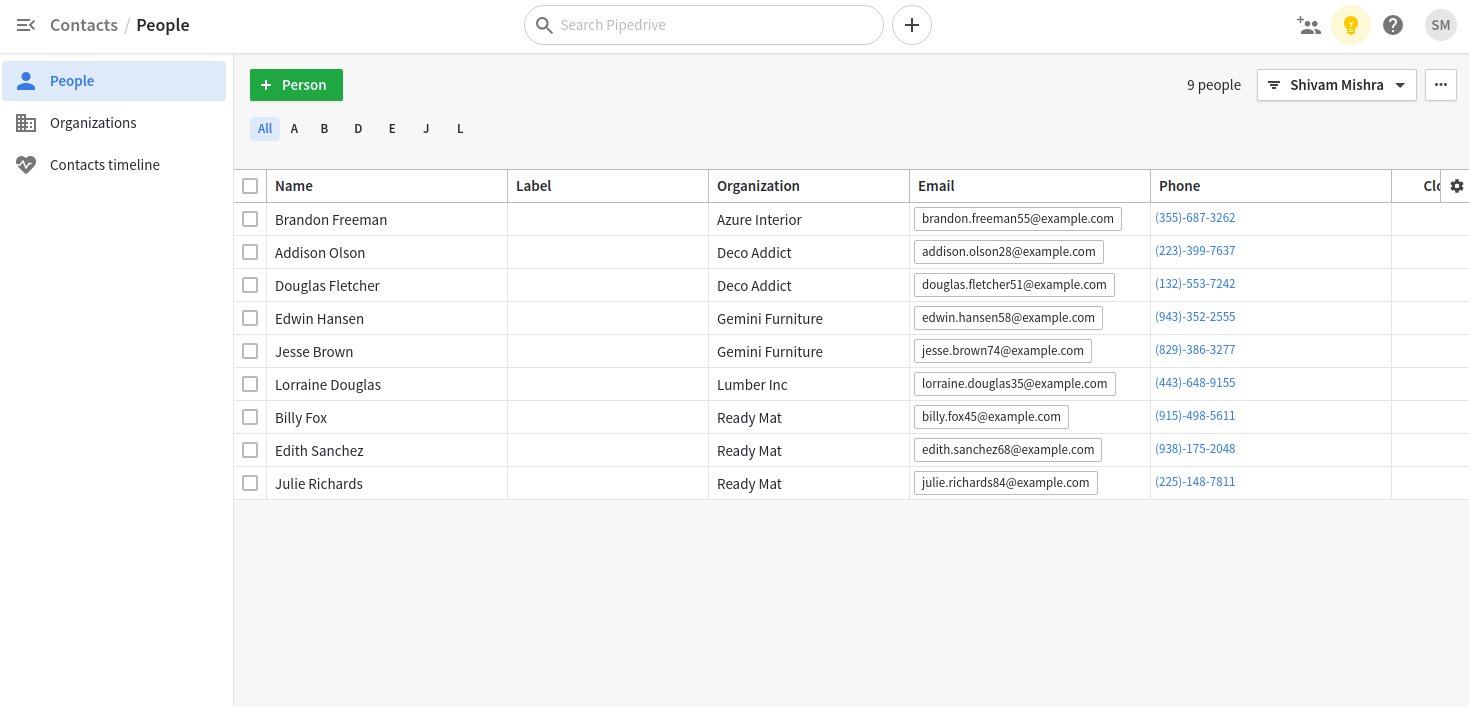
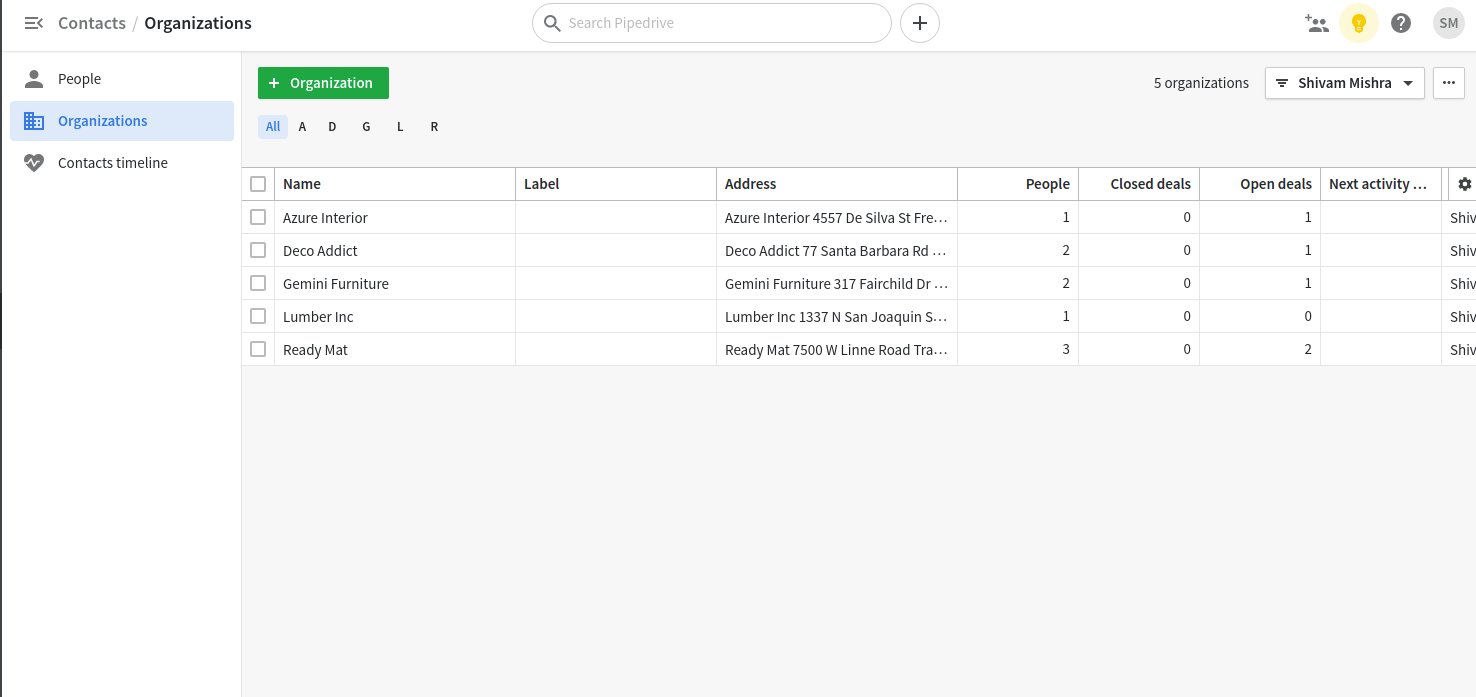
11. Additionally, from the menu you can view ‘Contact>People/Organization.’
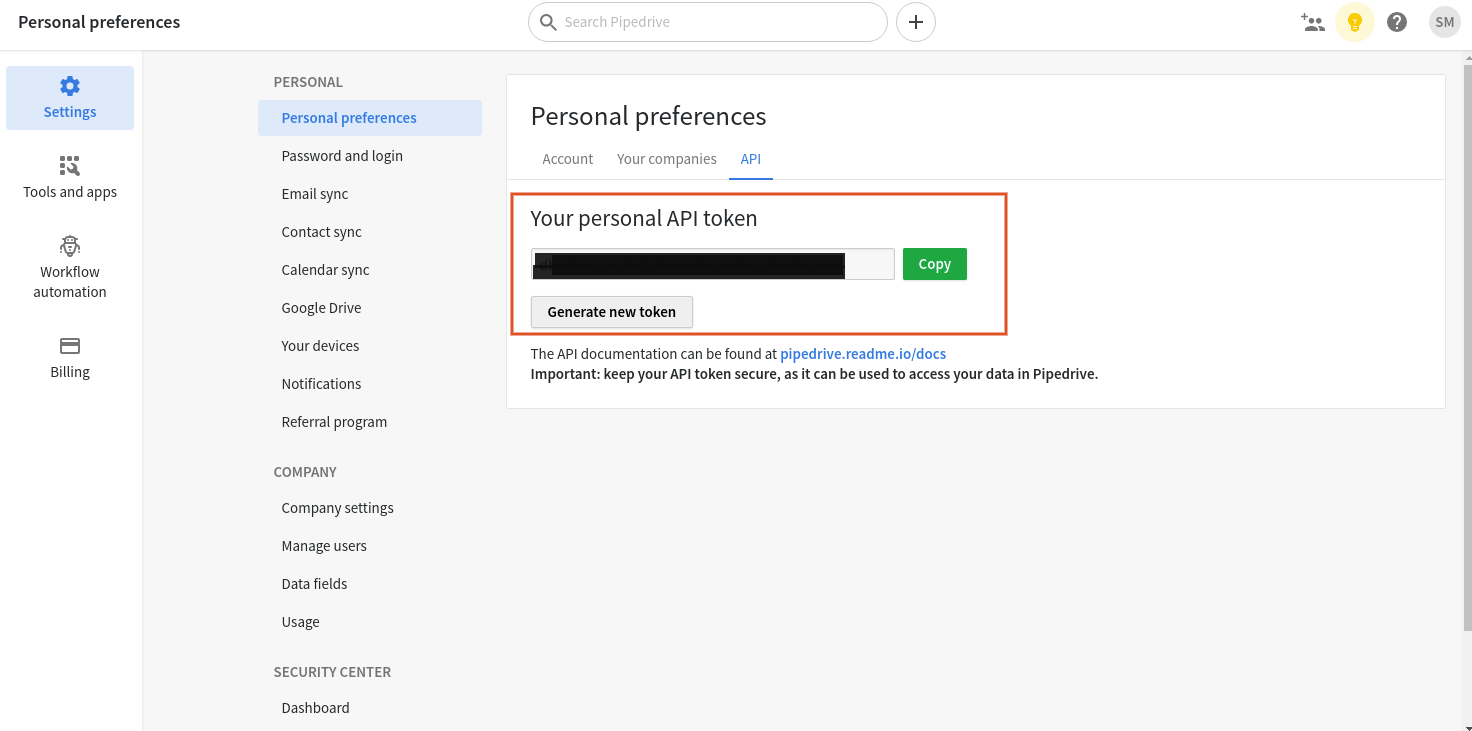
12. In the Pipedrive, go to ‘Settings> Personal Preferences>API’ to copy and link it to Odoo.
13. Your Pipedrive is connected and configured to Odoo. Now, use it as per your need.
OTHER ODOO MODULES
- Odoo Multi Branch in CRM
- Odoo Multi CRM HubSpot Solution
- Multi Vendor ERP Integration For Magento 2
- Odoo Multi Branch Stock
- Odoo POS Multi Category
- Website Multi Variant Add To Cart
- Odoo Multi Vendor Mobile App
- Odoo Website Product Multi Images
- Marketplace Product Multi-Videos
- Odoo Multi Branch Website
- Odoo Multi Channel Sale
- POS Multi Currency
NEED HELP?
Hope you find the guide helpful! Please feel free to share your feedback in the comments below.
If you still have any issues/queries regarding the module, please raise a ticket at https://webkul.uvdesk.com/en/customer/create-ticket/.
Also, please explore our Odoo development services & an extensive range of quality Odoo Apps.
For any doubt, contact us at [email protected].
Thanks for paying attention!!
Current Product Version - 1.3.3.1
Supported Framework Version - V15, V14


Be the first to comment.