Introduction
Odoo Low Stock Notification for Product helps businesses automatically monitor product quantity and receive alerts when stock falls below defined limits.
It works based on minimum stock levels or reordering rules and prevents stock shortages through timely notifications.
The module sends alerts via Email and Discuss, ensuring better inventory monitoring and replenishment planning.
Features
- Automated stock monitoring
- Product-based minimum stock alerts
- Reordering rule-based alerts
- Email notification support
- Discuss channel integration
- Individual product alerts
- Combined stock report option
- Scheduled automatic stock checking
- PDF low stock report attachment
Installation
- Once you purchase the App from the Webkul store, you will receive a link to download the module’s zip file.
- Extract the file on your system after the download finishes. As a result, you will be able to see a folder named ‘odoo_low_stock_notification’.
- Copy and paste this folder inside your Odoo Add-Ons path.
- Now, open Odoo Apps and click on the Settings menu. Click Activate Developer Mode here.
- Then, open the Apps menu and click on ‘Update Modules List.’
- In the search bar, remove all the filters and search ‘odoo_low_stock_notification.’
- You will be able to see the module in the search results. Click on ‘Activate’ to install it.
Prerequisites for using Odoo Low Stock Notification for Product
For Odoo online(SAAS) users, you first need to have Odoo.sh tool before installing Odoo Low Stock Notification for Product at Odoo end because Odoo restricts third-party software installations on Odoo online(SAAS).
Workflow
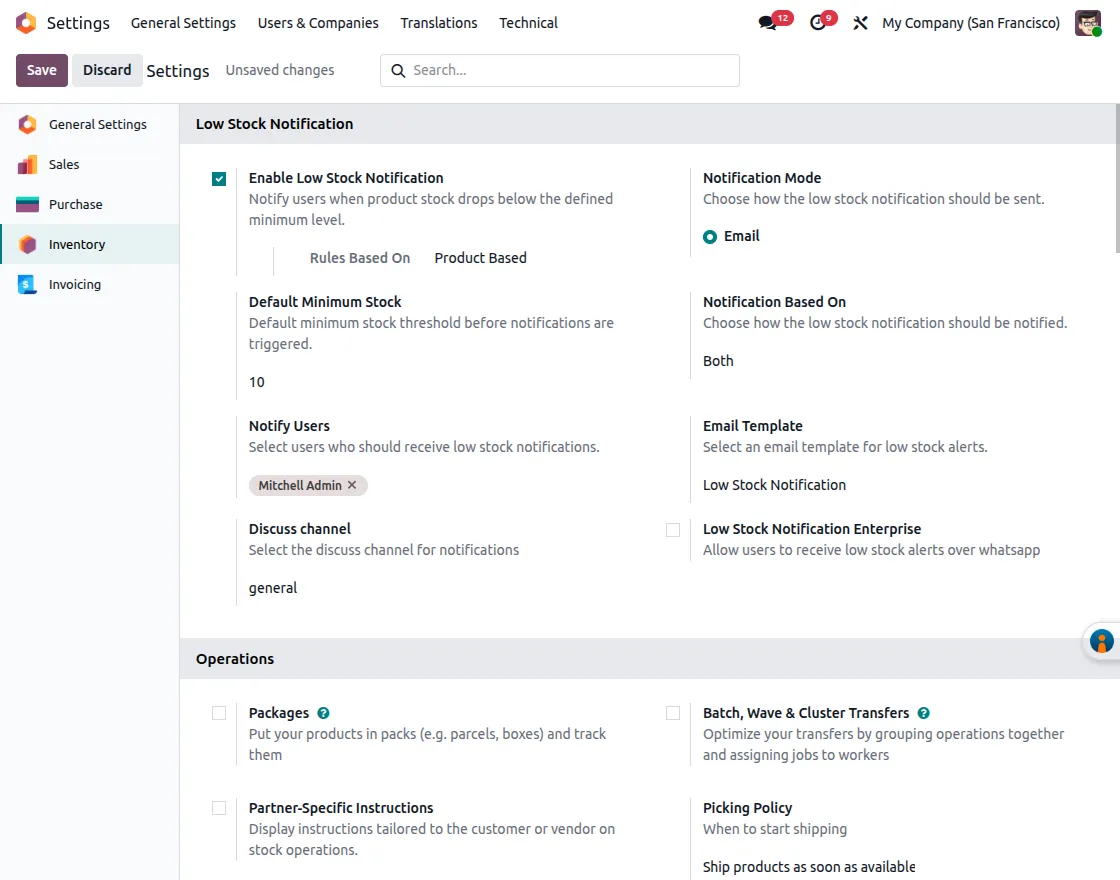
1. Enable Low Stock Notification (Product-Based): Enables low stock alerts based on the minimum stock defined at the product level. Users, notification mode, and alert type can be configured here. Navigation: Settings → Inventory → Low Stock Notification
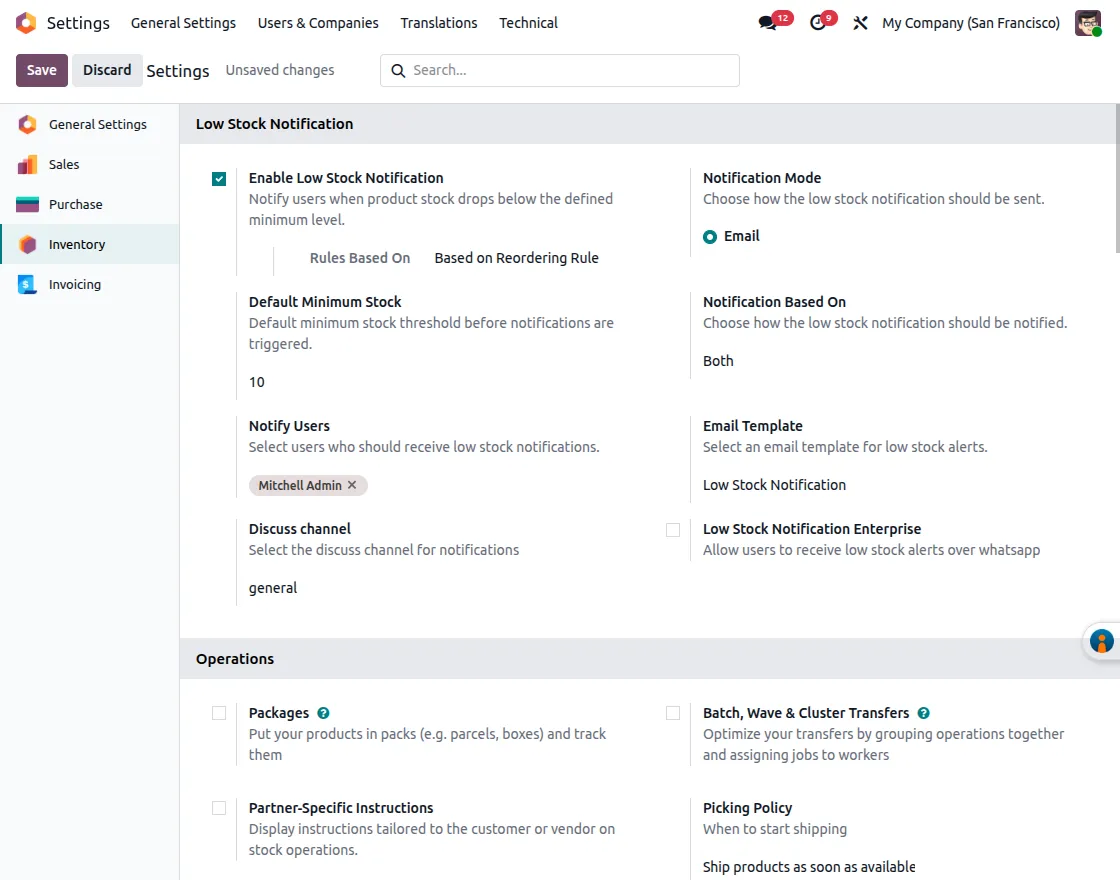
2. Enable Low Stock Notification (Based on Reordering Rule): This configuration allows alerts based on reordering rules. Notifications trigger when the quantity to order becomes greater than zero. Navigation: Settings → Inventory → Low Stock Notification
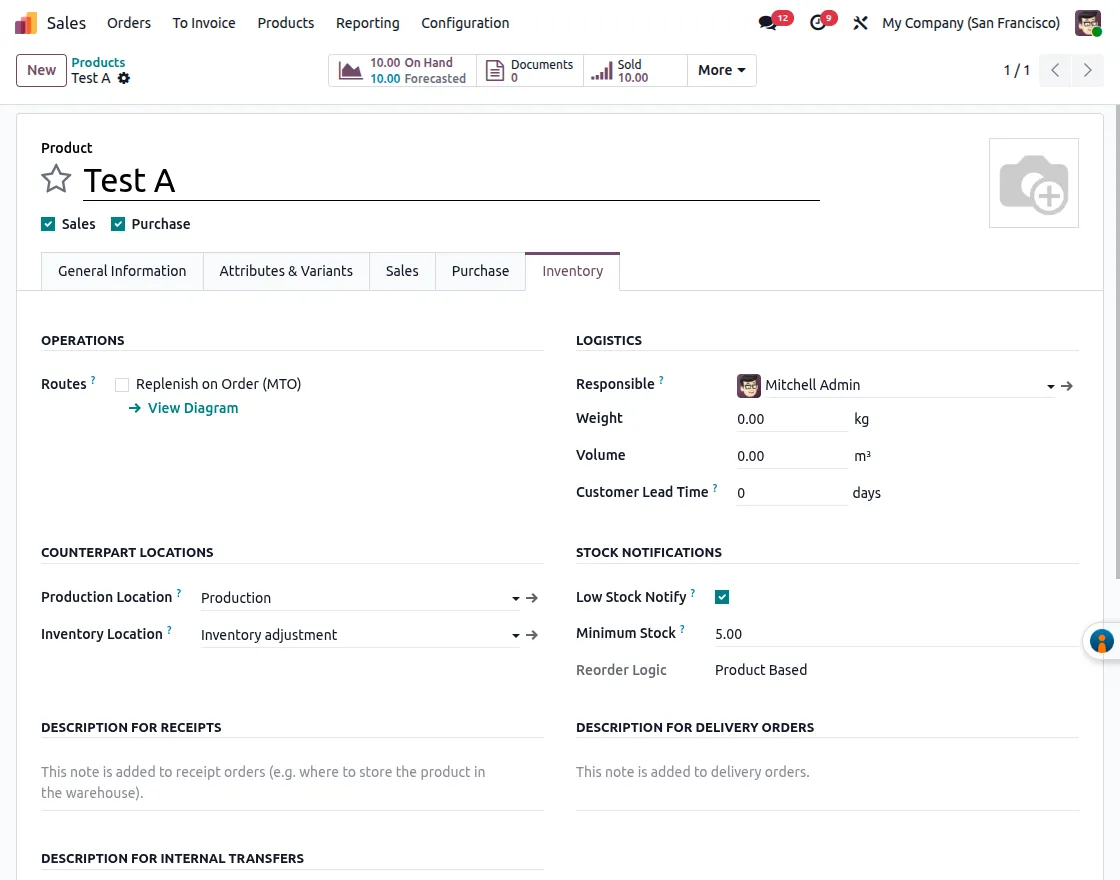
3. Configure Product Minimum Stock: Enable Low Stock Notify and define the minimum stock quantity. Alerts trigger when the stock falls below this value. Navigation: Inventory → Products → Open Product → Inventory Tab
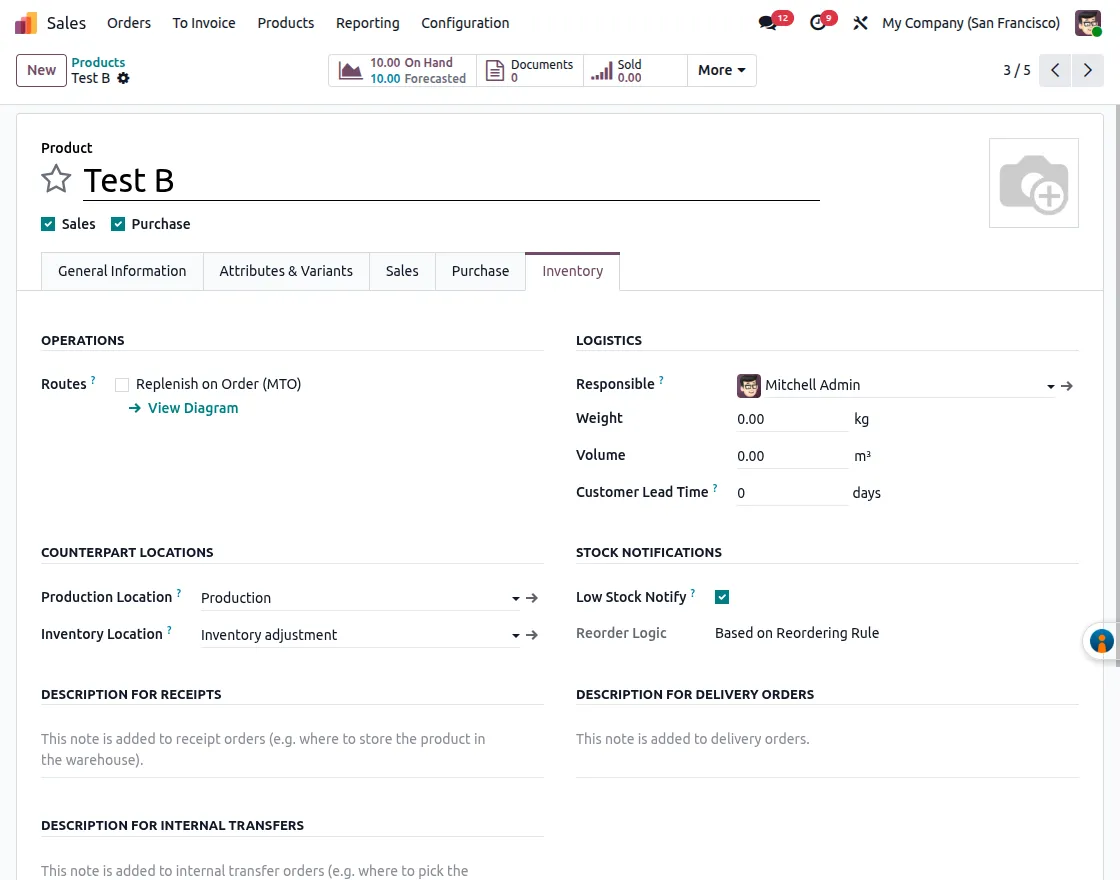
4. Configure Reordering Rule: Set minimum and maximum quantity for products. When replenishment is required, the system triggers a notification. Navigation: Inventory → Configuration → Reordering Rules
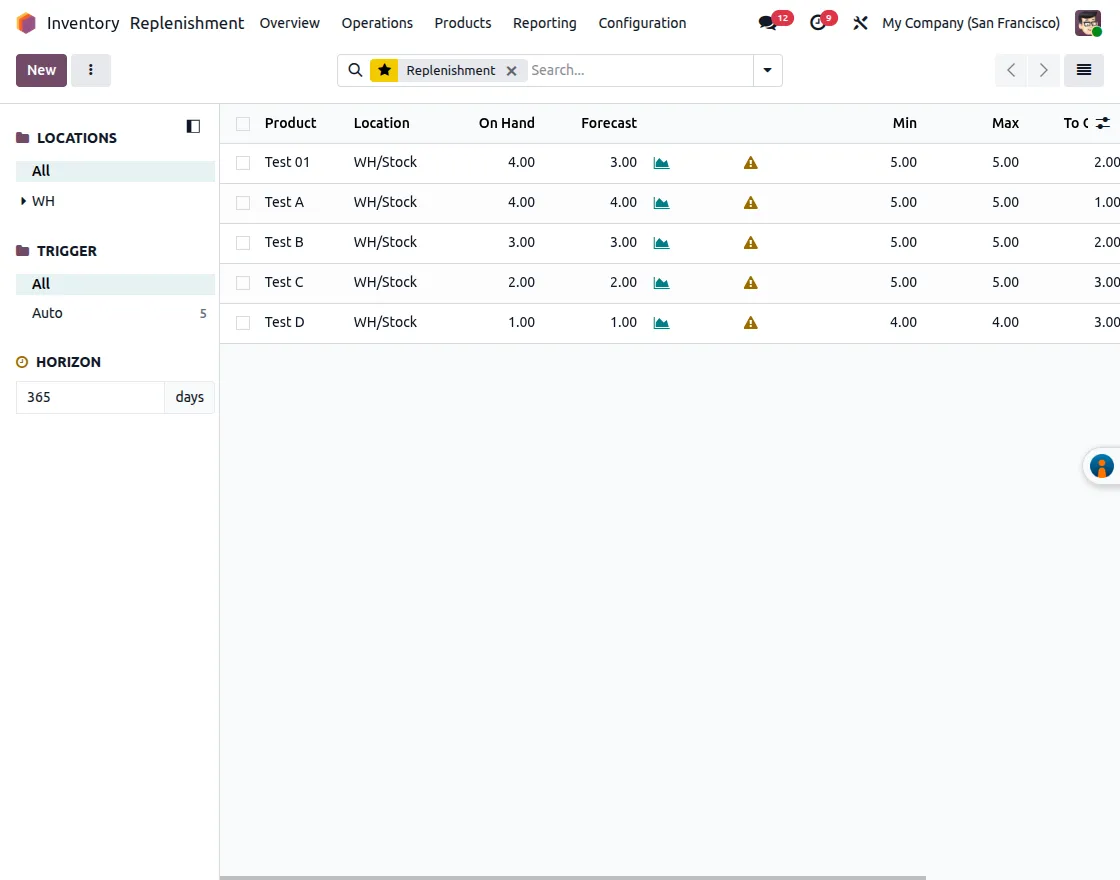
5. Replenishment List View: displays products requiring replenishment with min, max, and quantity-to-order details. Navigation: Inventory → Operations → Replenishment
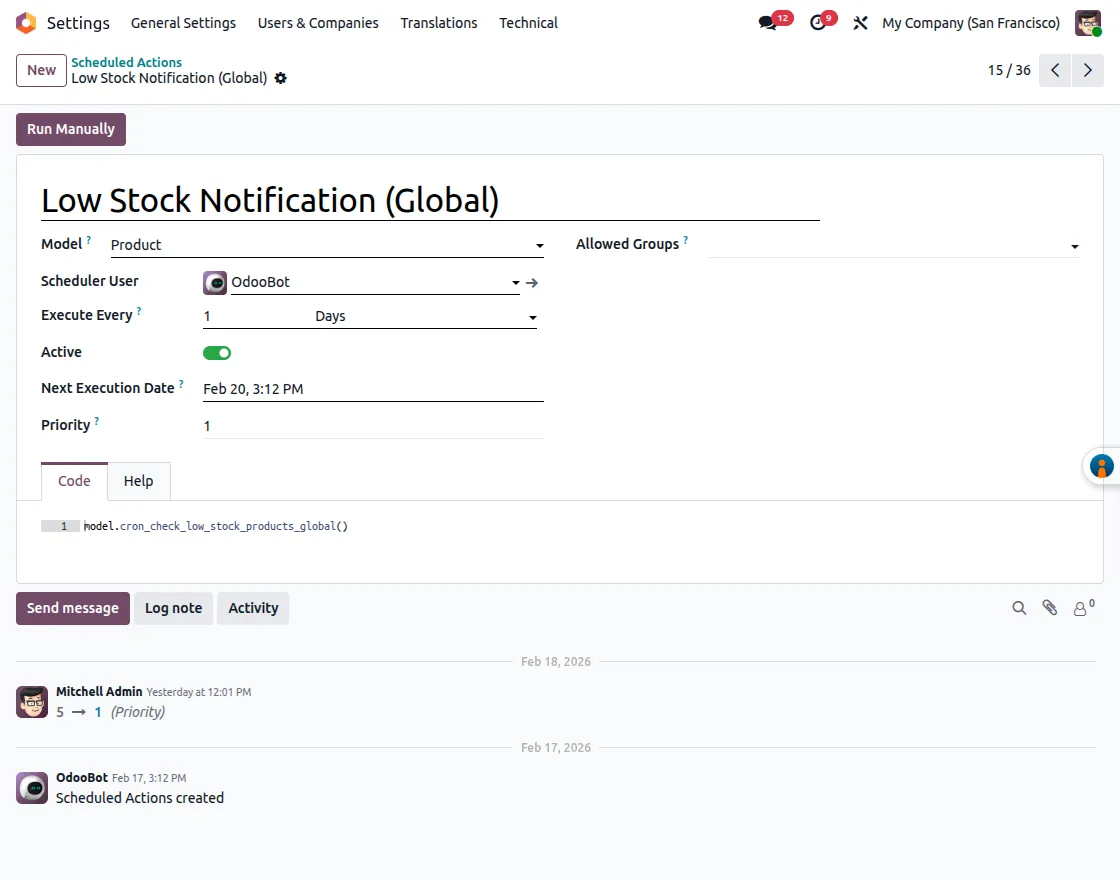
6. Global Scheduled Action (Automatic Cron): Cron job automatically checks low stock products globally at defined intervals. Navigation: Settings → Technical → Scheduled Actions
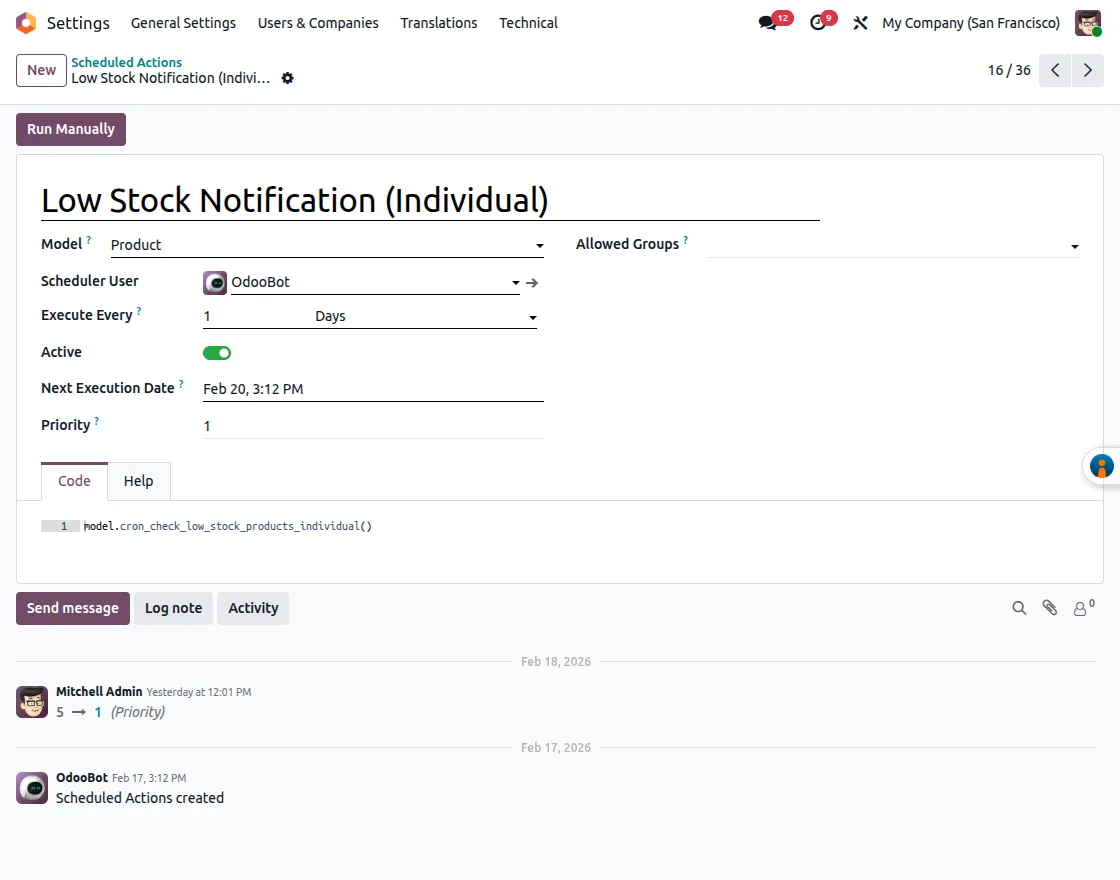
7. Individual Product Scheduled Action: Scheduled action triggers notifications for individual product-based stock monitoring. Navigation: Settings → Technical → Scheduled Actions
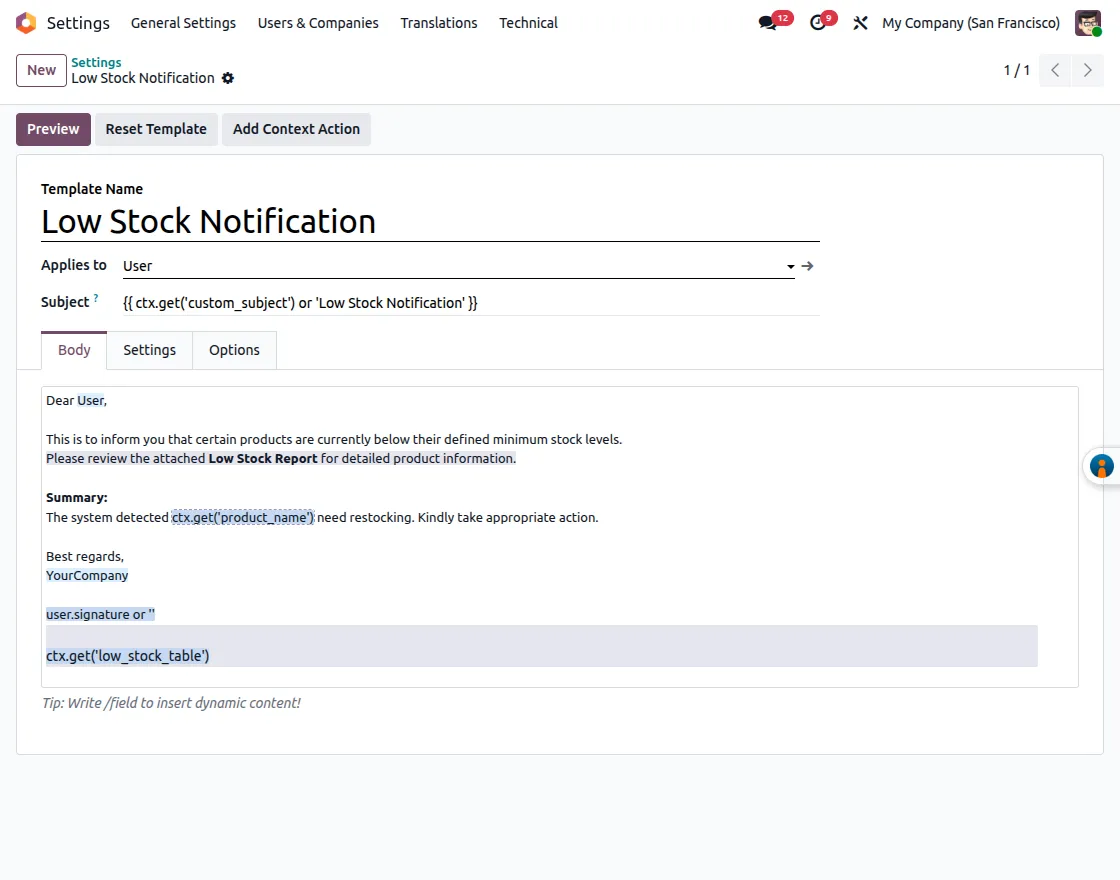
8. Email Template Configuration: Email template used for low stock alerts, including dynamic product details. Navigation: Settings → Technical → Email → Templates
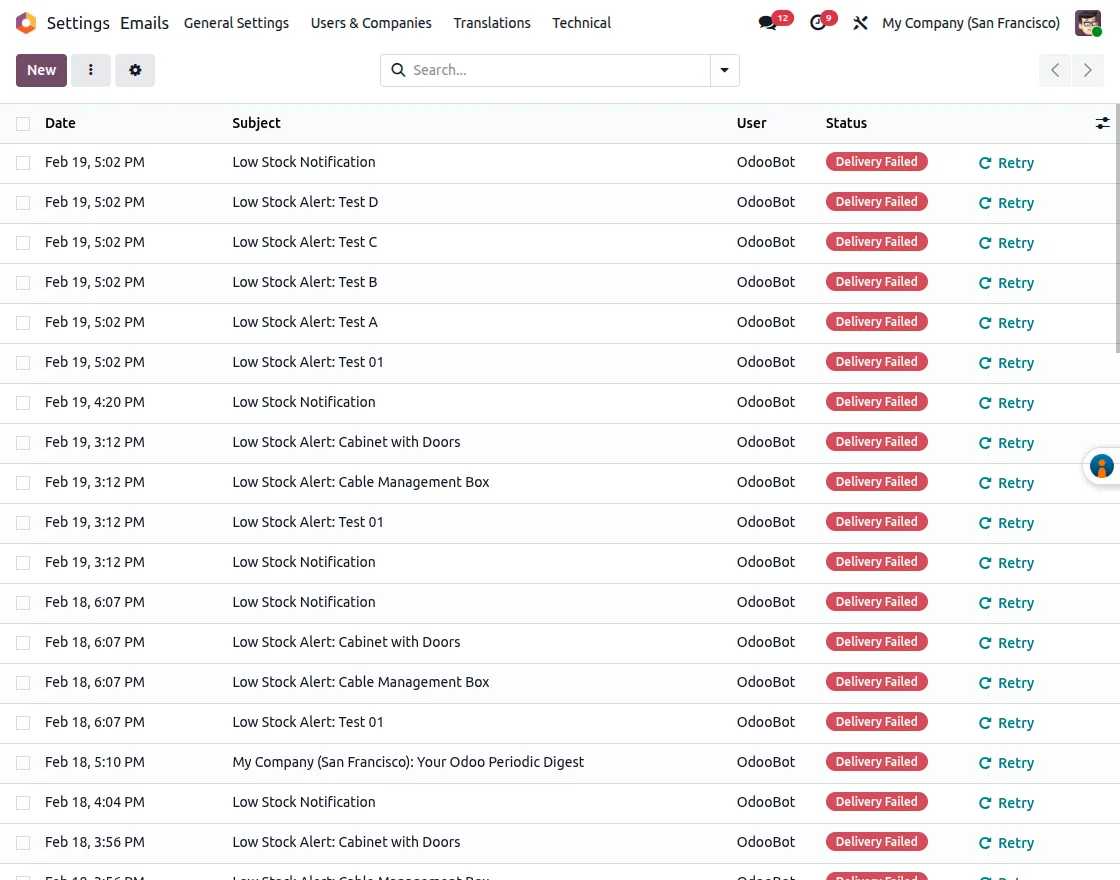
9. Email Notification Log: Sent or failed low stock notification emails for tracking purposes. Navigation: Settings → Technical → Emails
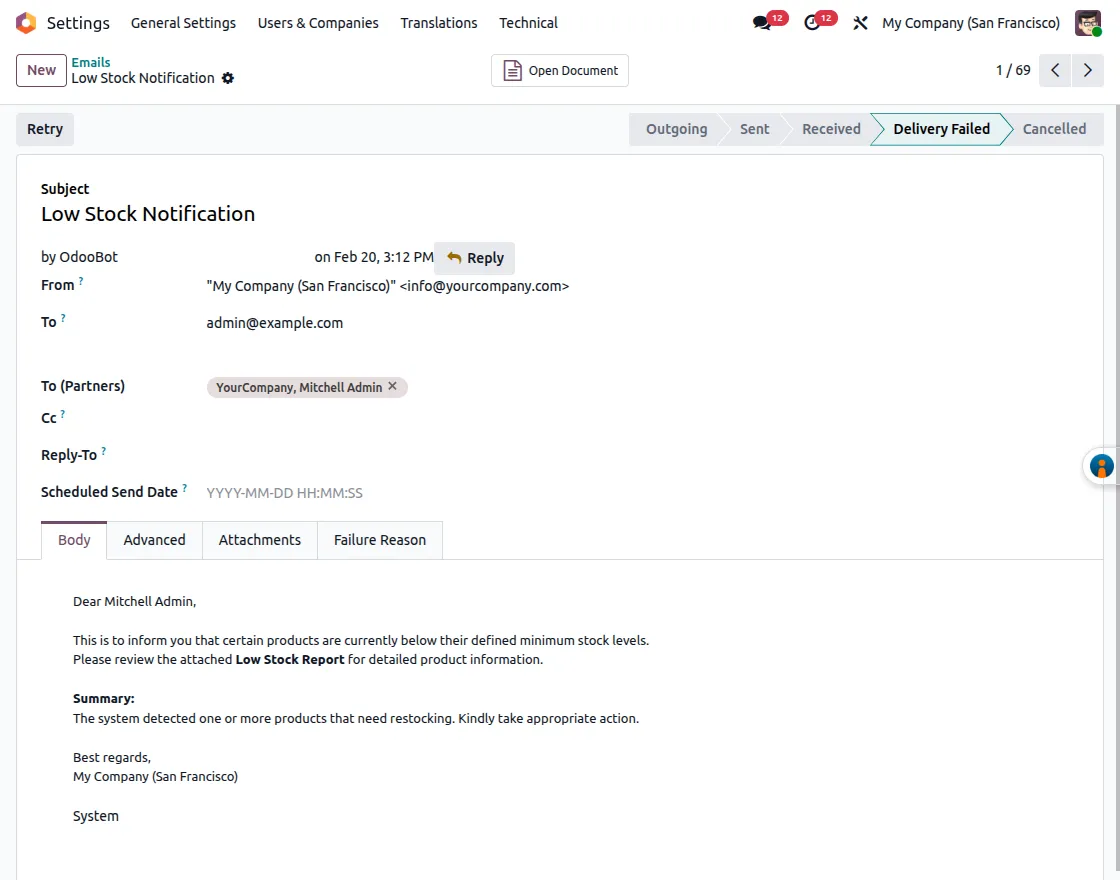
10. Email with Low Stock Report Attachment: Low stock notifications include a PDF attachment containing detailed product stock information. Navigation: Settings → Technical → Emails → Open Email
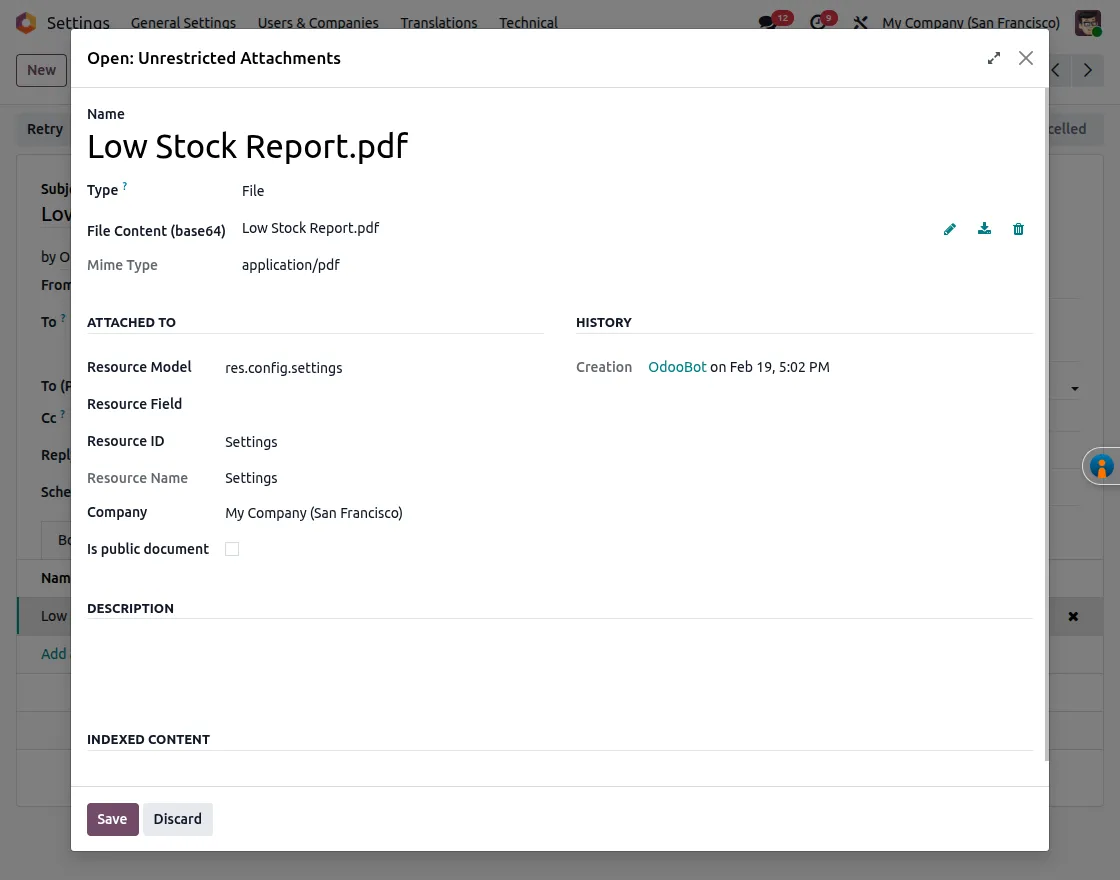
11. Low Stock Report PDF: The attached report lists products below the minimum stock to assist in replenishment planning. Navigation: Open Attachment from Email
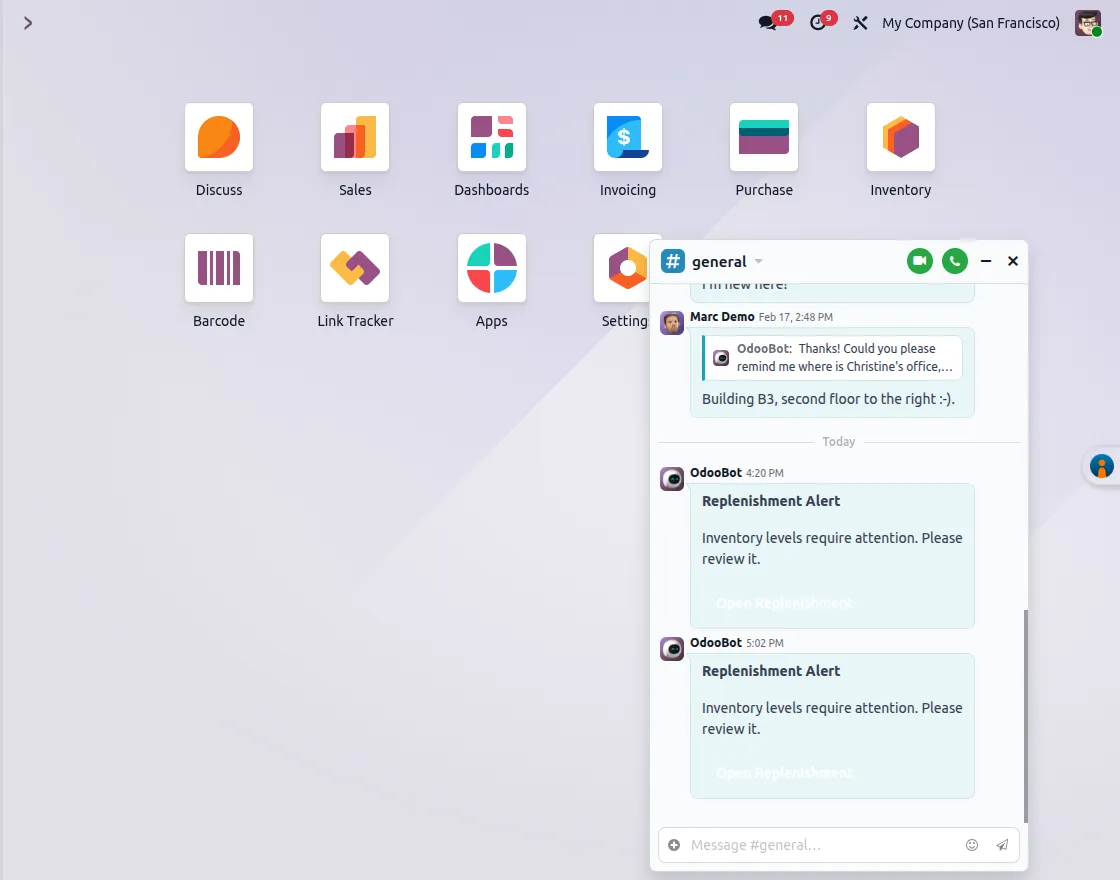
12. Discuss Channel Notification: Low stock alerts are also posted in Discuss, allowing quick access to replenishment details. Navigation: Discuss → Channel (e.g., General)
Need Help?
Hope you find the guide helpful! Please feel free to share your feedback in the comments below.
If you still have any issues/queries, please create a ticket at the UV Desk.
I hope this helps. In case of any further queries, contact us at our support email.
Thanks for paying attention!!
Current Product Version - 1.0.0
Supported Framework Version - Odoo 17, Odoo 18, Odoo 19


Be the first to comment.