Here we will see how to update or remove any existing menu in magento admin in magento2.
First create menu.xml file in your module.
In this file remove or update menu by its id.
Update Existing Menu
<config xmlns:xsi="http://www.w3.org/2001/XMLSchema-instance" xsi:noNamespaceSchemaLocation="urn:magento:module:Magento_Backend:etc/menu.xsd">
    <menu>
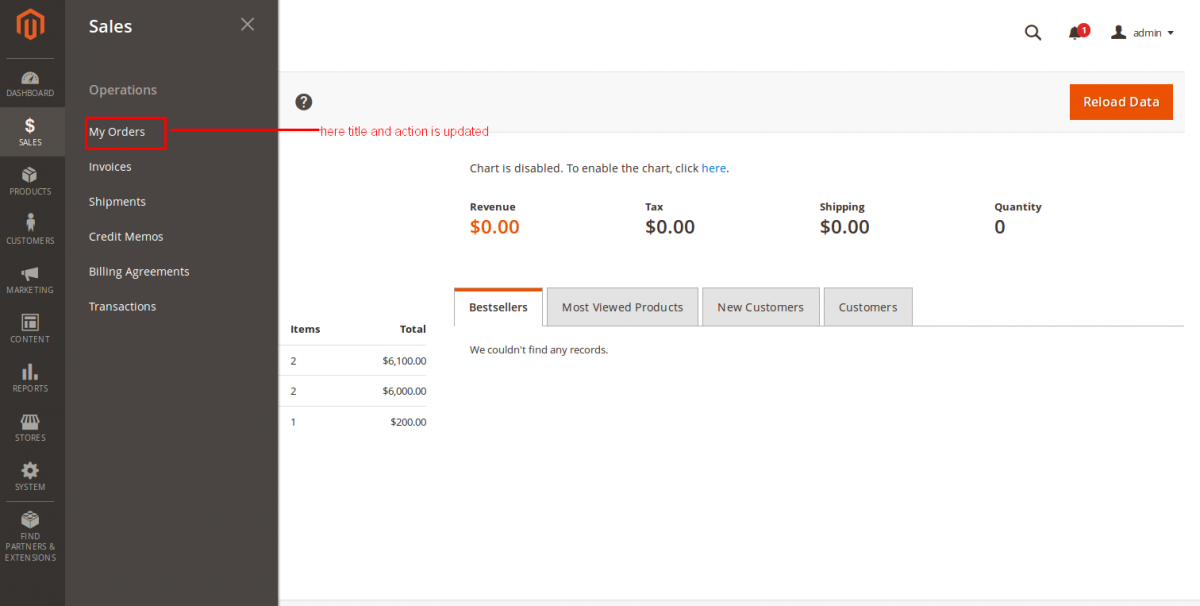
        <update id="Magento_Sales::sales_order" title="My Orders" action="demo/demo/demo"/>
    </menu>
</config>
Here i updated order menu title to “My Orders” and its action to “demo/demo/demo”.
In this way you can update any existing menu. id=”Magento_Sales::sales_order”. You will find id in sales module’s menu.xml file.

Remove Menu
Now if you want to remove any menu or menu item, use following code.
<config xmlns:xsi="http://www.w3.org/2001/XMLSchema-instance" xsi:noNamespaceSchemaLocation="urn:magento:module:Magento_Backend:etc/menu.xsd">
    <menu>
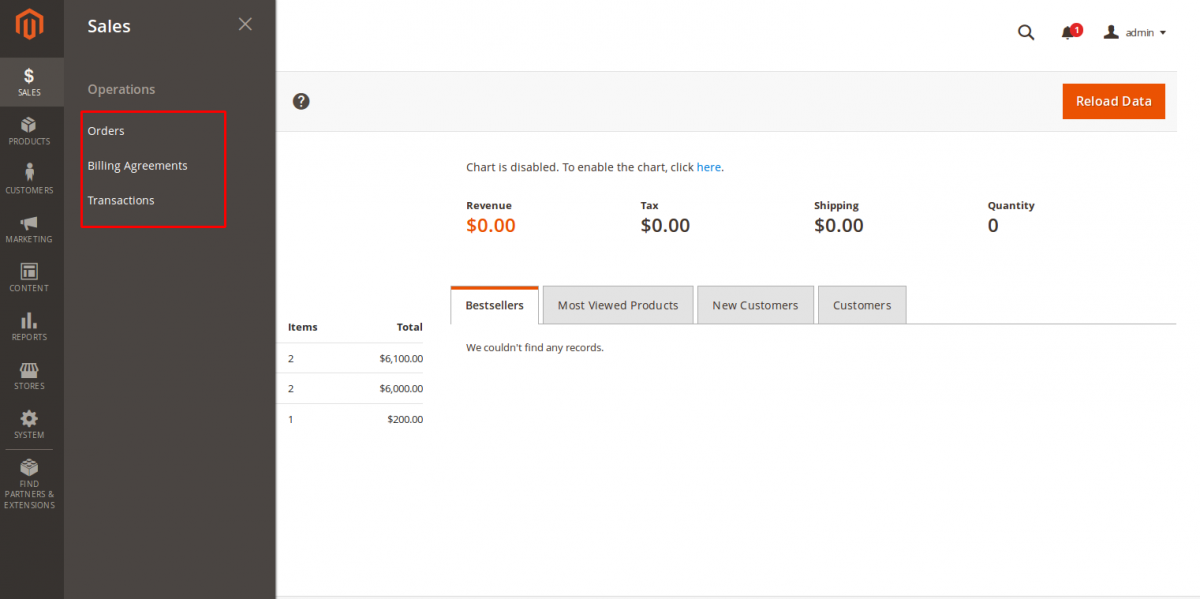
        <remove id="Magento_Sales::sales_invoice" />
        <remove id="Magento_Sales::sales_shipment" />
        <remove id="Magento_Sales::sales_creditmemo" />
    </menu>
</config>
Here i removed Invoice, Shipment and Creditmemo menu from Sales menu.
That’s All.
If you have any query or issue, comment below.


Be the first to comment.