UnoPim BigCommerce Connector allows you to connect your BigCommerce store with the UnoPim platform.
With the help of this integration, you can manage your entire catalogue from UnoPim.
Using this module, you can export products, categories, product options, media images, custom fields, and multiple images, from UnoPim to the BigCommerce store.
Features
- Connect UnoPim with your BigCommerce store
- Add and manage many BigCommerce store accounts
- Export categories from UnoPim to BigCommerce
- Export simple products from UnoPim to BigCommerce
- Export configurable product and variants
- Import categories from BigCommerce to UnoPim
- Import products from BigCommerce to UnoPim
- Map UnoPim attributes with BigCommerce fields
- Create custom field mapping for extra product data
- Map product images, price, SKU, and other attributes
- Reduce manual work and save time with easy data moves
Basic Requirement
- This module works with UnoPim version v1.0.0
- For the UnoPim installation, make sure your server meets these system requirement
Installation
Download and unzip the extension, then merge the “packages” folder into the project’s root directory.
- Go to config/app.php and add the following line under ‘providers’:
Webkul\BigCommerce\Providers\BigCommerceServiceProvider::class,
- Go to composer.json, add the following line under ‘autoload psr-4’:
"Webkul\\BigCommerce\\": "packages/Webkul/BigCommerce/src"
Run Setup Commands
Run the following commands from the project root directory:
- Dump Composer Autoload
composer dump-autoload
- Install BigCommerce Package
php artisan bigcommerce:install
- Clear Application Cache
php artisan optimize:clear
Generate BigCommerce API Credential
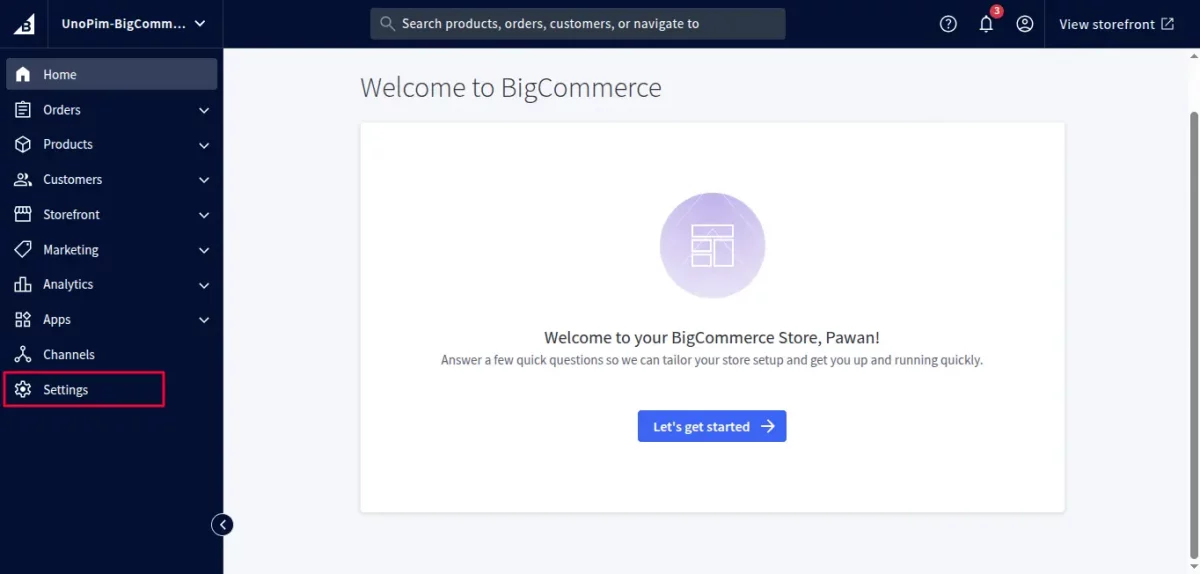
Login to your BigCommerce and click on the settings.
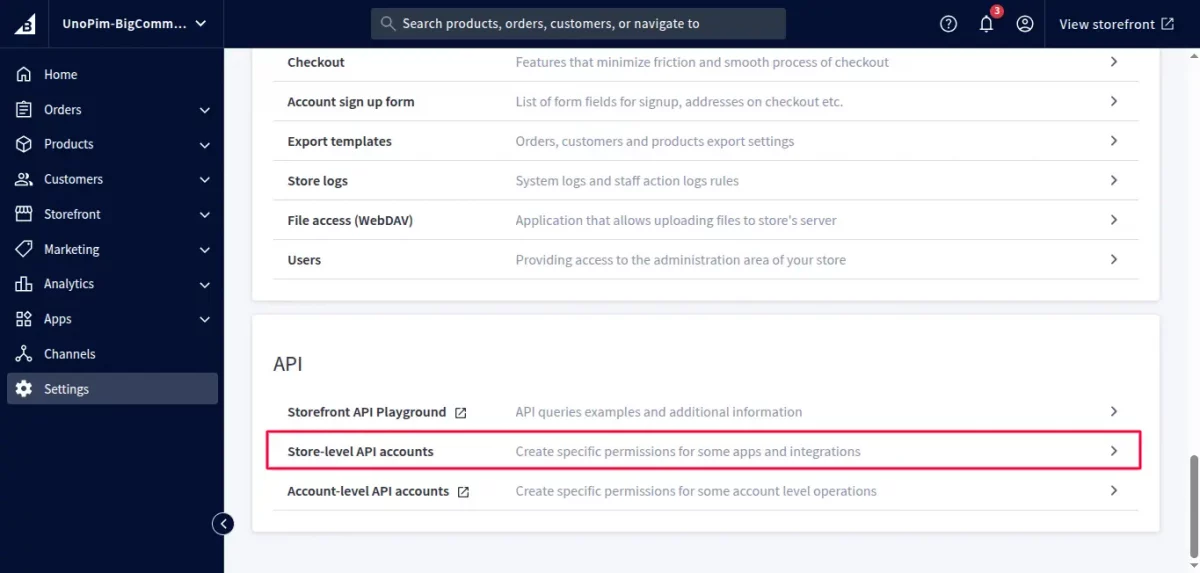
Now, scroll down to API section, and click on Store-level API accounts.
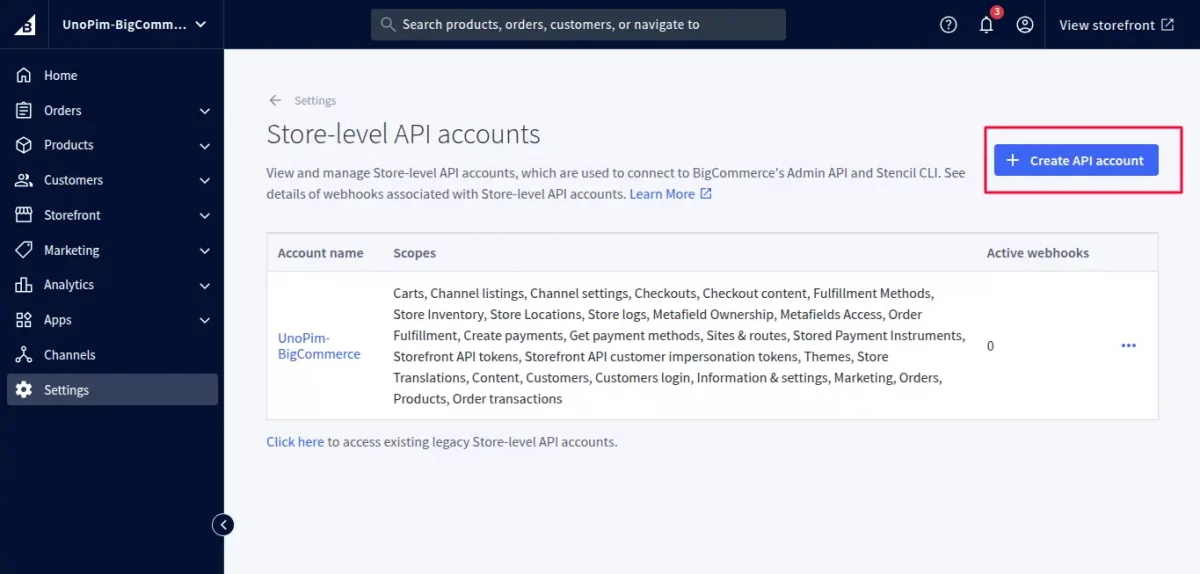
Click on the Create API account
Fill these Fields:
- Token type: Select V2/V3 API token
- Name: Enter the API account name
- API path: Copy the API path URL for later saving the credentials on the UnoPim end.
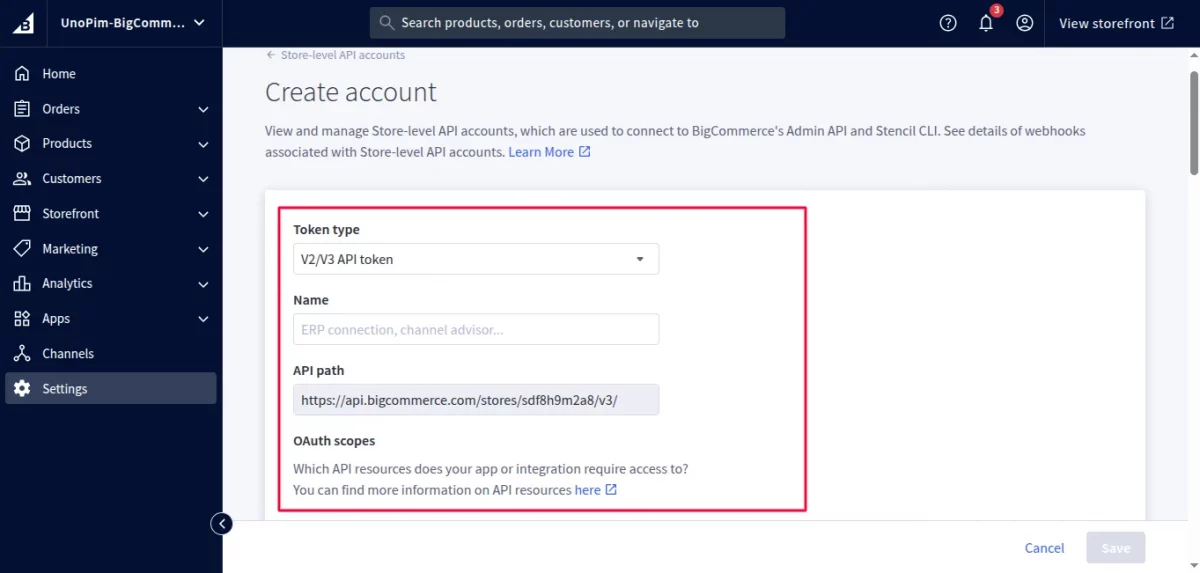
After that, you need to select the ‘modify‘ scope for ‘Products‘ and Information & Settings options and then click to Save.
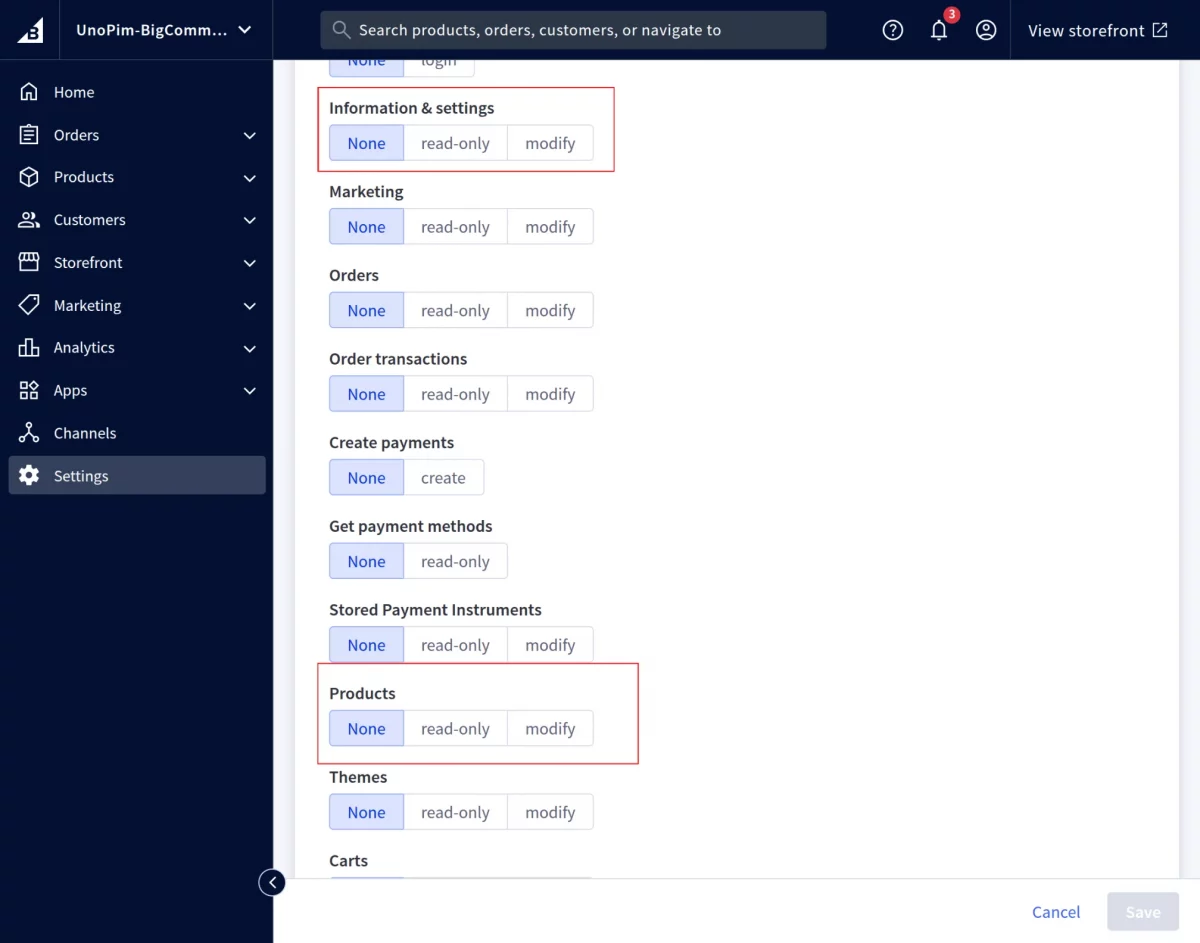
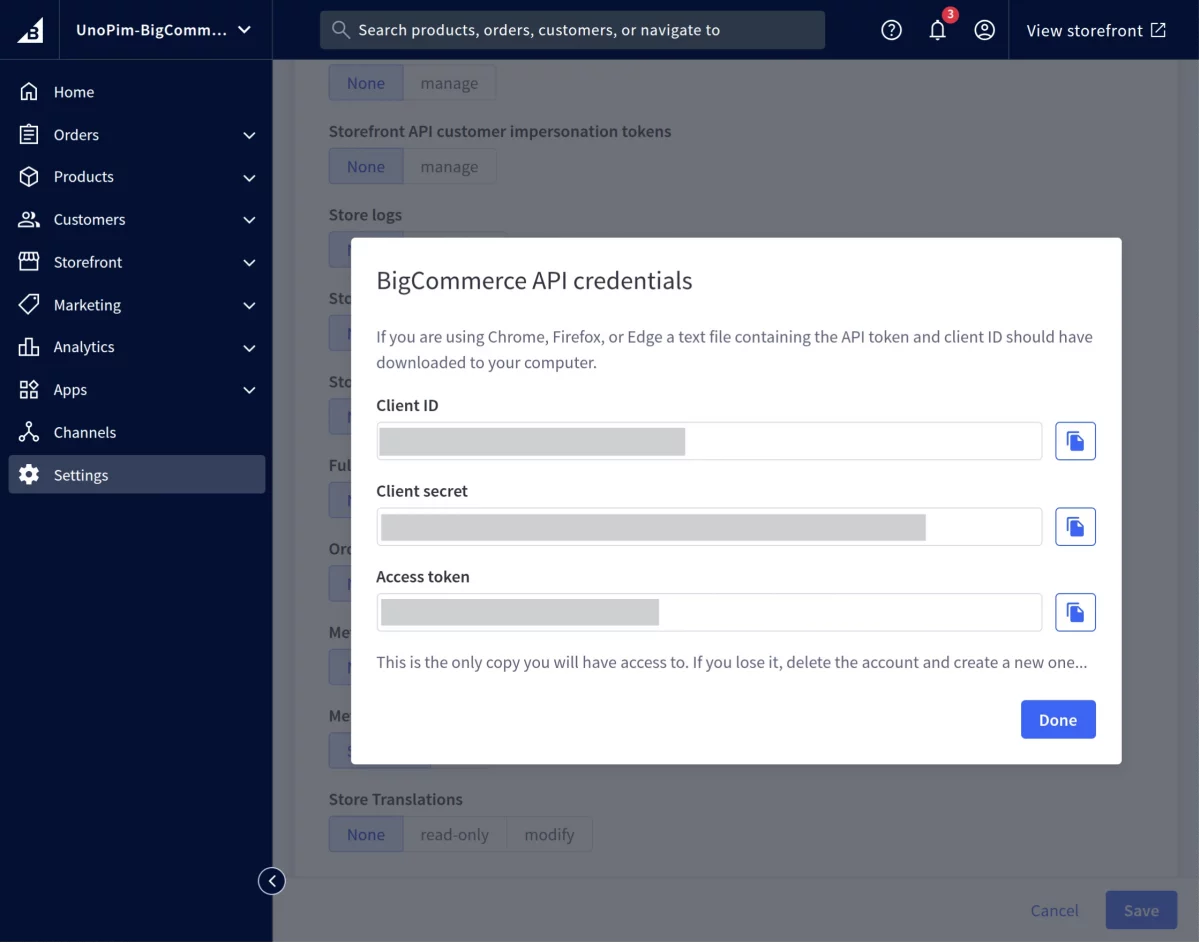
Once you click the Save button, the API credentials will be visible to you. Please copy and save them securely.
Also, a text file will be downloaded automatically containing these credentials.
Setup BigCommerce Credential in UnoPim
After successfully installing the module in UnoPim, you will see the BigCommerce option on the left side of the Navigation panel.
Then navigate to BigCommerce -> Credentials
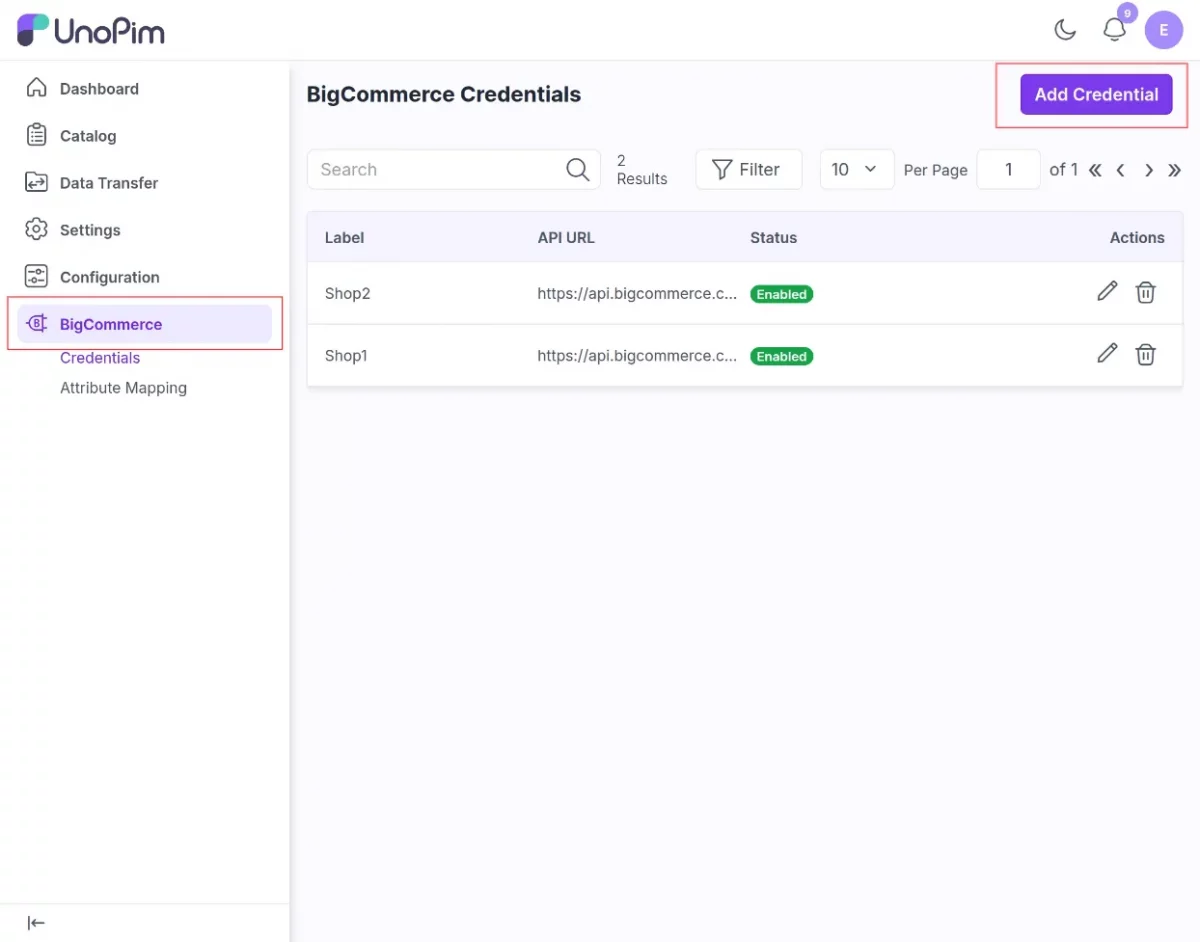
Credentials:
After that, click on the Add Credentials. The following page appears, where you need to enter the following:
- Label
- API URL
- Client ID
- Client Secret
- Access Token
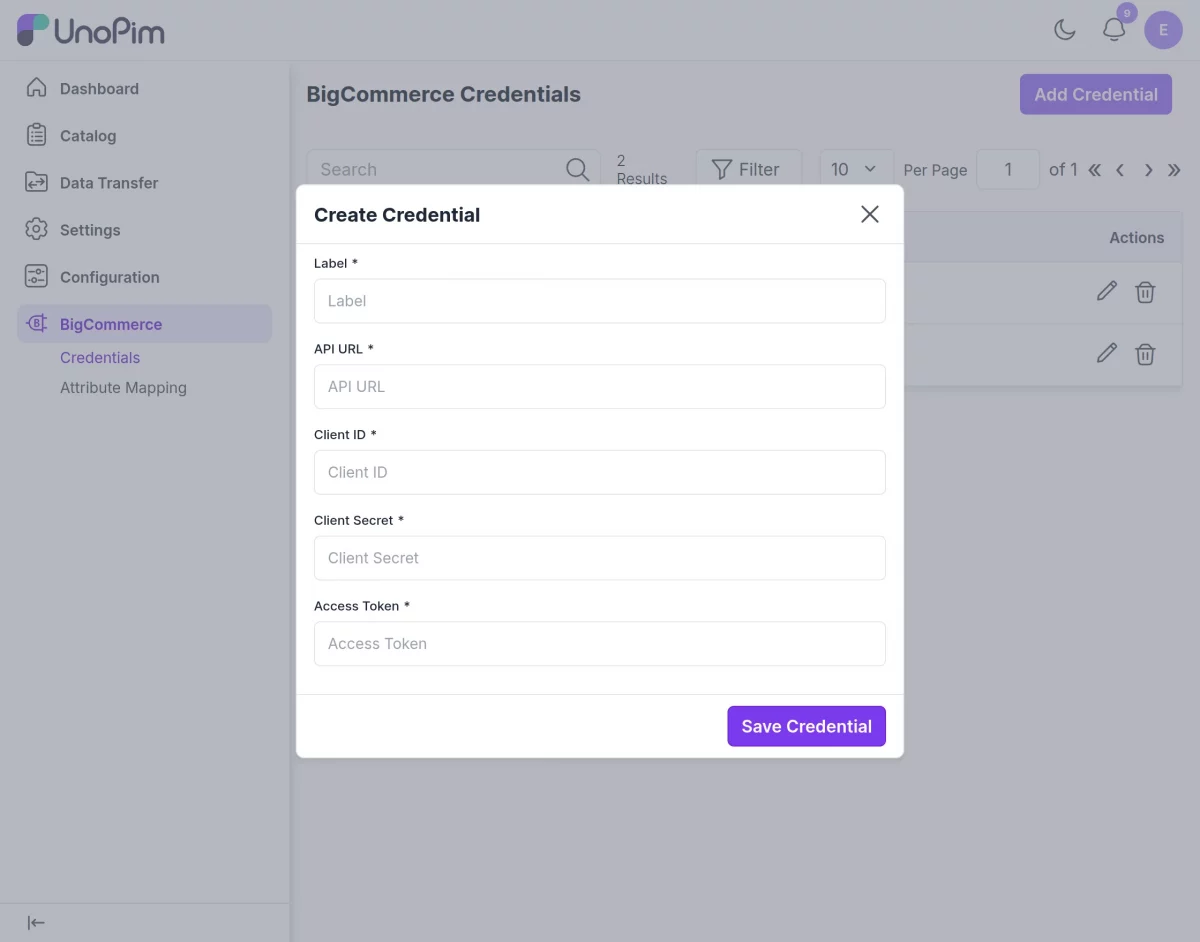
You can add multiple credentials in the UnoPim BigCommerce Connector.
You need to activate the credentials to export/import the product data from UnoPim to BigCommerce.
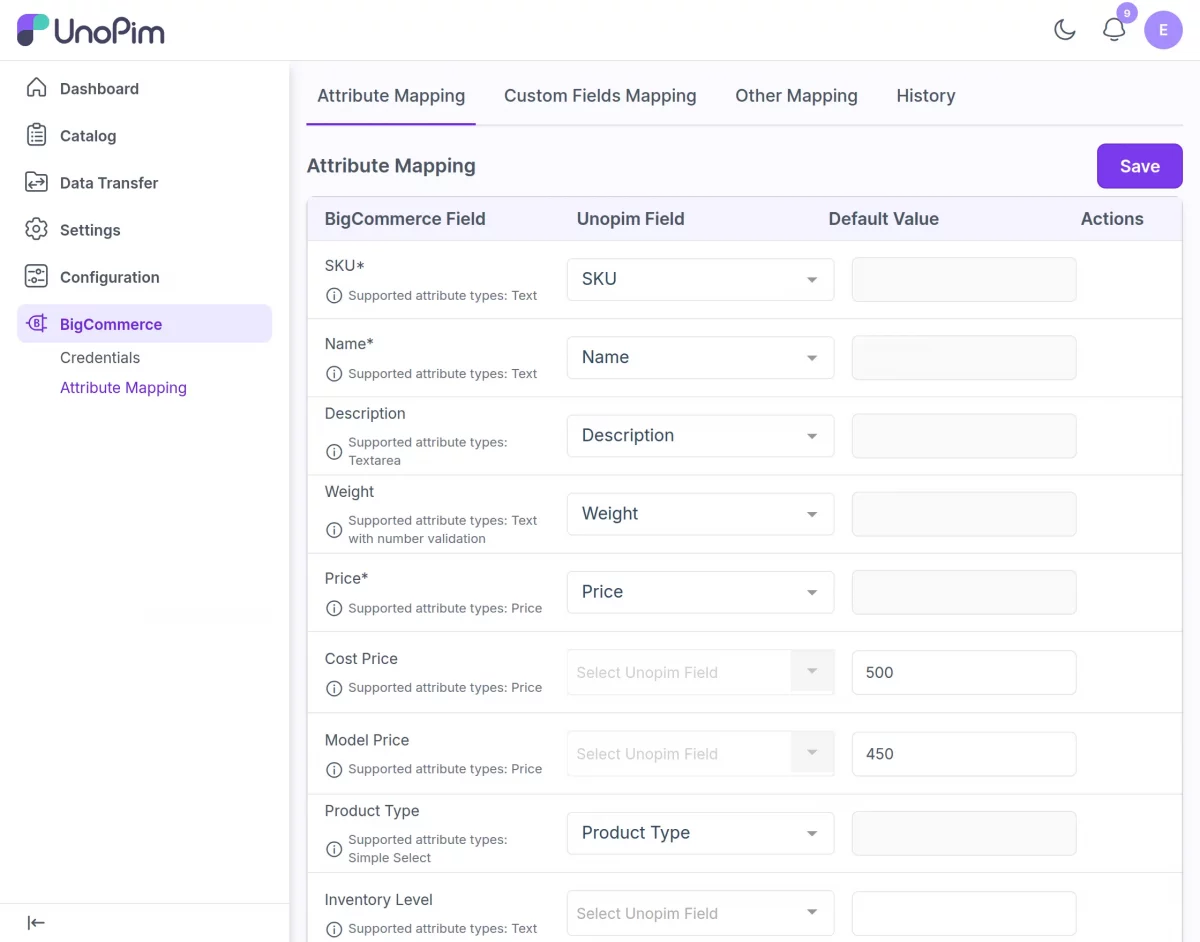
Attribute Mapping:
You need to do the attribute mapping of UnoPim attributes with BigCommerce product fields.
While exporting products from UnoPim to BigCommerce, various information is sent to your e-commerce store.
You can send the following product information from Akeneo
Standard Mapping:
- SKU
- Name
- Description
- Weight
- Price
- Cost Price
- Model Price
- Product Type
- Meta Title
- Meta Keywords
- Meta Description
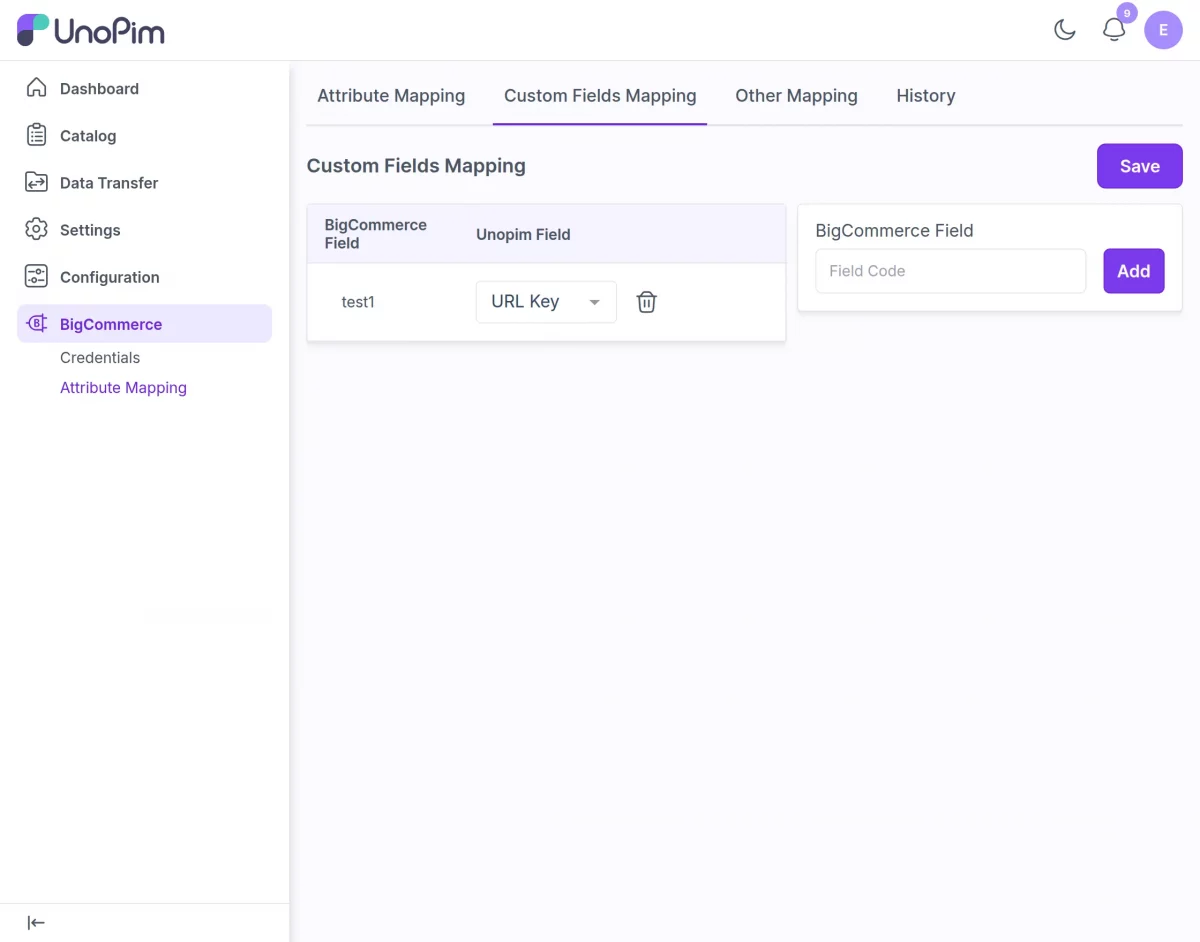
Custom fields Mapping: You can add custom fields to export with the product apart form the standard attribute mapping.
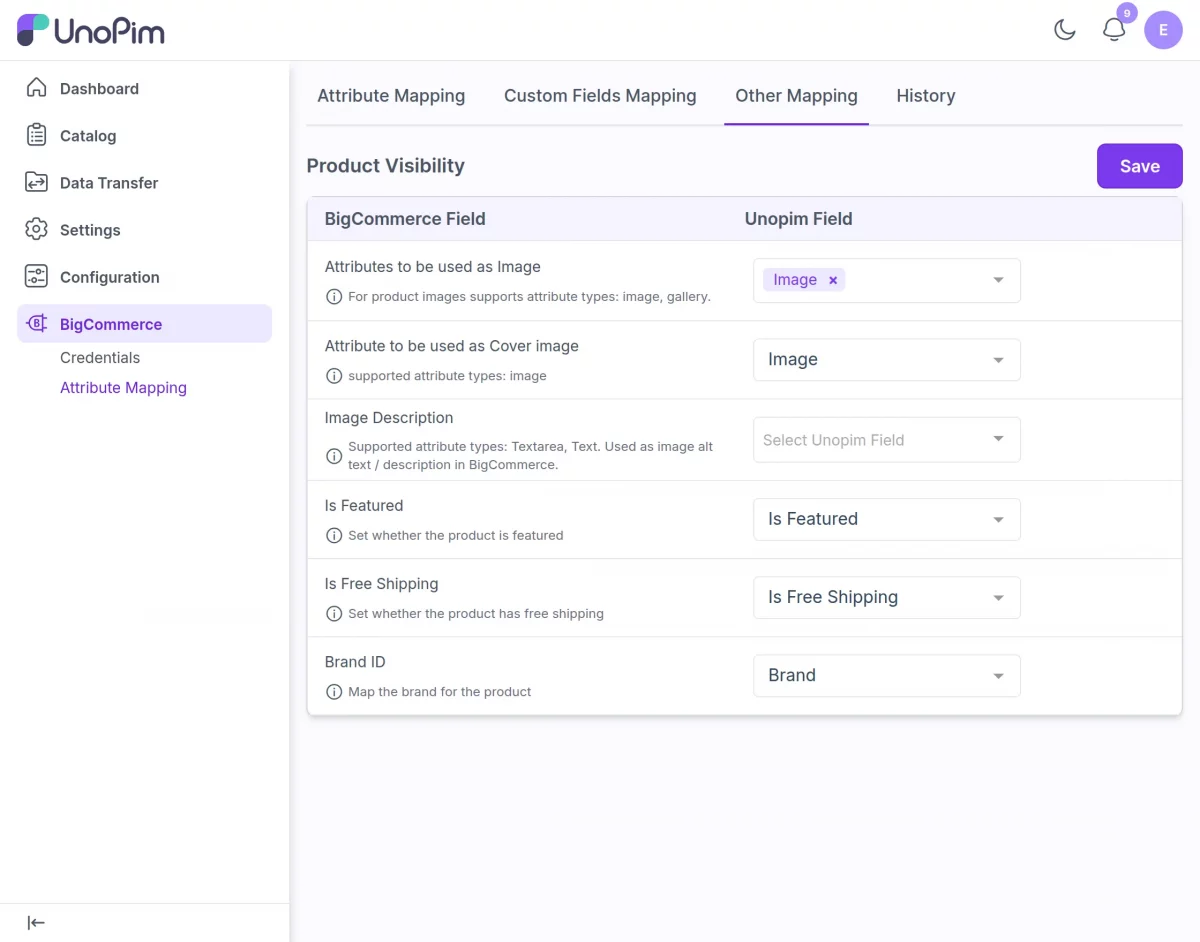
Other Mapping:
- Attributes to be used as Image
- Attribute to be used as Cover Image
- Image Description
- Is Featured
- Is Free Shipping
- Brand Id
Export & Import Jobs
BigCommerce Export Jobs:
The UnoPim BigCommerce Connector allows users to export the mapped data from UnoPim to their BigCommerce store through dedicated export jobs.
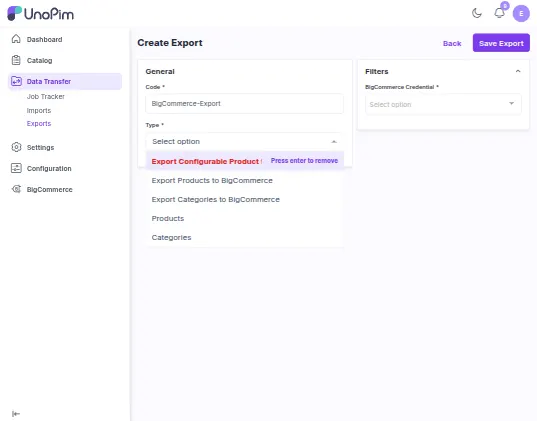
To set up Export jobs, the user navigates to Data Transfer>Exports as per the image below.
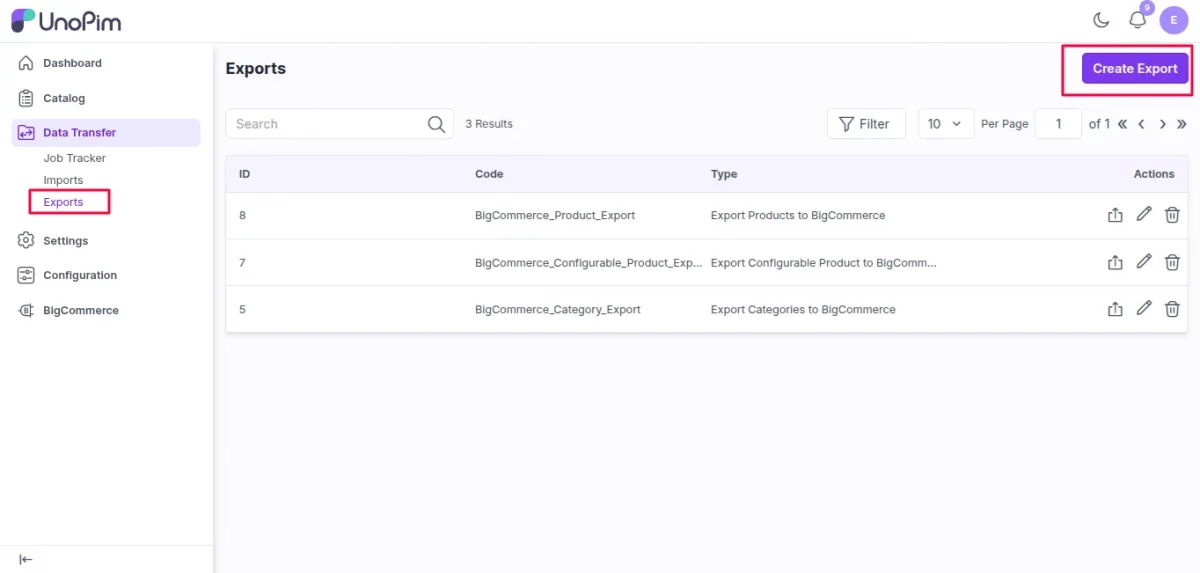
UnoPim BigCommerce Connector provides these export jobs:
- Export Categories to BigCommerce
- Export Configurable Product to BigCommerce
- Export Products to BigCommerce
Enter the code, select the job type, and choose the BigCommerce store credentials where you want to export the data.
BigCommerce Import Jobs:
To import your product data from BigCommerce to UnoPim, you need to create a job profile. First, go to Import -> Create Import Profile.
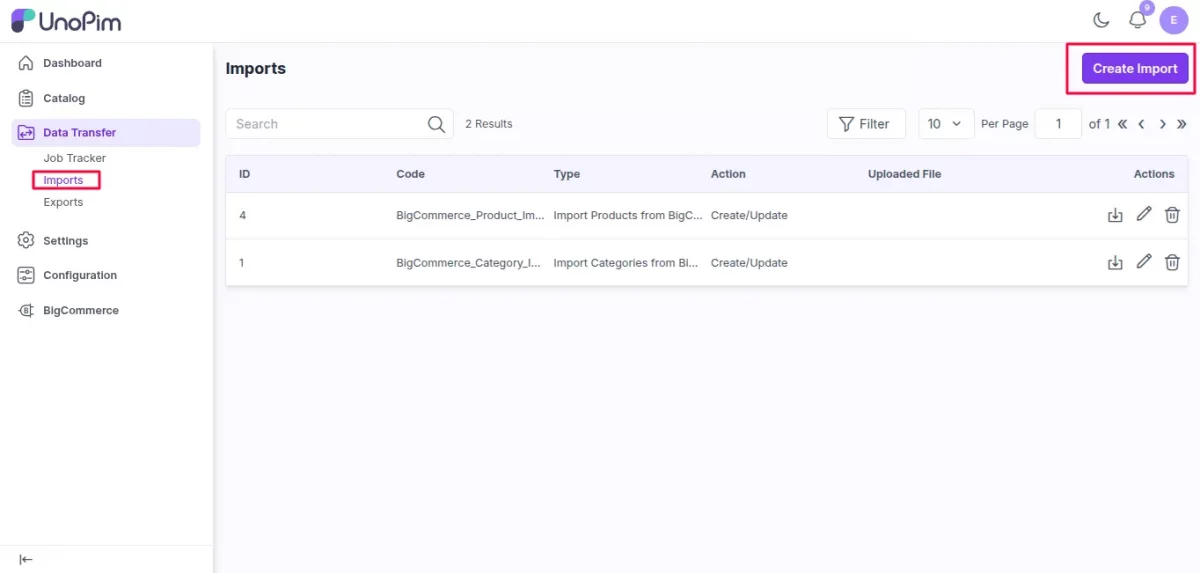
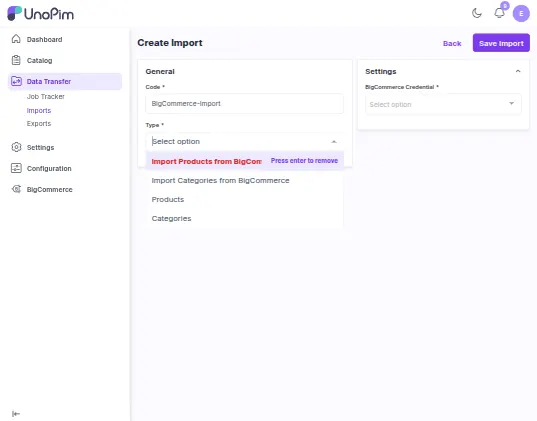
Here you can import products and categories from BigCommerce to UnoPim using the following jobs:
- Import Categories from BigCommerce
- Import Products from BigCommerce
Enter the code, select the job type, and choose the BigCommerce store credentials from which you want to import the data.
Support
So that is it for the UnoPim BigCommerce Connector and its functionalities.
If you have any more queries or require further assistance, please email us at [email protected] or create a ticket.
Current Product Version - 1.0.0
Supported Framework Version - 1.0.0


Be the first to comment.