What is Theme Fallback in magento 2
Theme Fallback is a mechanism that checks the source file genealogically. if a view file is not found in the current theme, the system searches in the parent themes and module files in magento 2.
for example-
If we have a child theme, if the instance needs a source file first it will check in the current child theme and use it, if not found in the current child theme after that parent theme.
In this tutorial, we’ll override the template, layout, and static file
first, we create a custom child theme
to create a theme check – create a custom theme in magento 2
In this blog we’ll change a product page, using template overriding we’ll change the attribute to a custom text, using layout overriding we’ll remove the product page breadcrumb, and using static file overriding we’ll change the store logo.

Template overriding:
The fallback mechanism flows for templates :
- Current theme templates:
<current_theme_dir>/<Vendor>_<Module>/templates - Parent themes templates
<parent_theme_dir>/<Vendor>_<Module>/templates - Module templates:
<module_directory>/view/frontend/templates
To create a template overriding, we need to create a folder named <vendor>_<module>.
so we’ll create Magento_catalog, then create a templates directory.
<vendor>_<module>/templates
create a template file that you want to override with the same name and same folder structure in templates.
ex- we’ll override attribute text so we need to override attribute.phtml. so we need to create
Magento_Catalog/templates/product/view/attribute.phtml
In this file, I have just written “simple text”
<?='custom attribute'; ?>

Layout Overriding:
In the layouts, the fallback mechanism is not working. The system collects layout files in the following order
- Current theme layouts:
<theme_dir>/<Vendor>_<Module>/layout/ - Parent theme layouts :
<parent_theme_dir>/<Vendor>_<Module>/layout/ - All module layout files are in sequence, defined in
app/etc/config.php.For each module:-
<module_directory>/view/frontend/layout/
-
For Create layout overriding. we’ll create a layout folder inside the Magento_Catalog directory.
<vendor>_<module>/layout
create a layout .xml file that you want to override with the same name and same folder structure in layout.
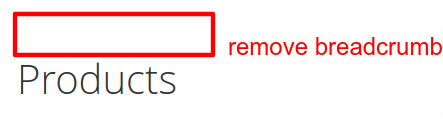
ex- we’ll hide the breadcrumb from the product page so we need to override the product page layout :
Magento_Catalog/layout/catalog_product_view.xml
<page layout="1column" xmlns:xsi="http://www.w3.org/2001/XMLSchema-instance" xsi:noNamespaceSchemaLocation="urn:magento:framework:View/Layout/etc/page_configuration.xsd">
    <body>
        <referenceBlock name="breadcrumbs" remove="true" />
    </body>
</page>
Static file overriding
The fallback mechanism flows for static assets :
- Current theme module files
<theme_dir>/<Vendor>_<Module>/web/. Example:app/design/frontend/Webkul/CustomTheme/Magento_Catalog/web/ - Parent themes module static files
<parent_theme_dir>/<Vendor>_<Module>/web/ - Module view files for the
frontendarea:<module_directory>/view/frontend/web/ - Module view files for the
basearea:<module_directory>/view/base/web/
For Create overriding. we’ll create a web folder inside the Magento_Catalog directory.
<vendor>_<module>/layout
ex- we’ll change the store logo so we need to change the logo image with the same folder name and the same name :
Magento_Catalog/web/images/logo.svg



Be the first to comment.