Overview
The Product Bundle app in Wix allows store owners to create customizable bundles by grouping related products together.
The main purpose of this Product Bundle app is to help store owners increase sales, encourage customers to purchase more items, and offer discounts on bundles to drive value.
The admin can create bundles of variants with variants and non-variants with non-variants.
Dashboard of Product Bundle
You can directly create and manage the bundles from the dashboard as shown in the screenshot below:
Also, you can see your recent products and bundles in the dashboard.

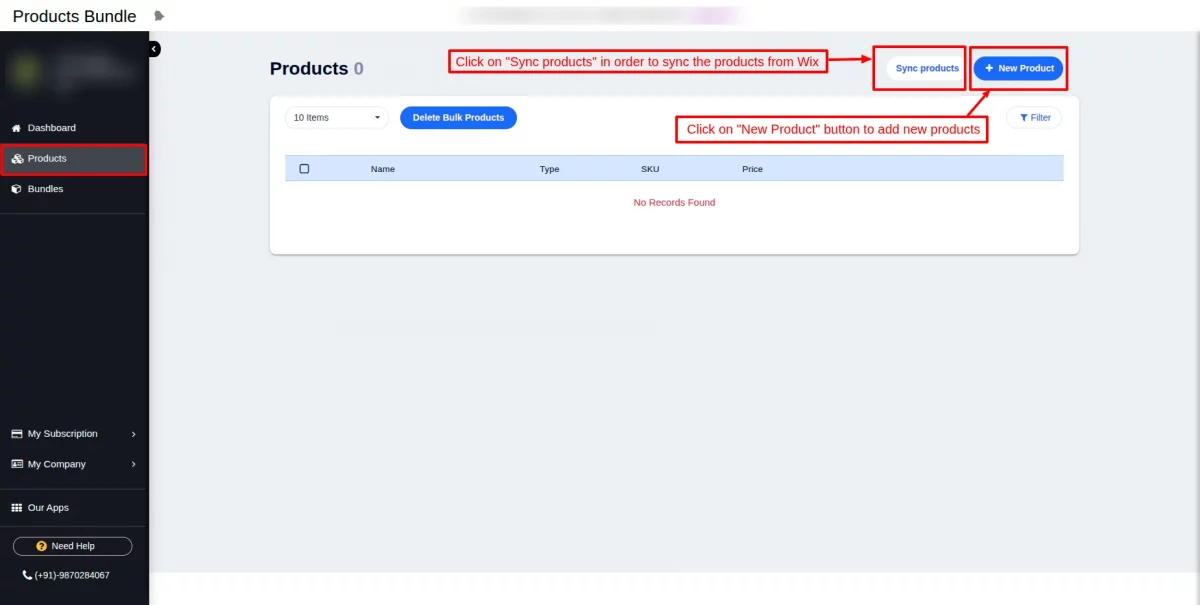
Products:
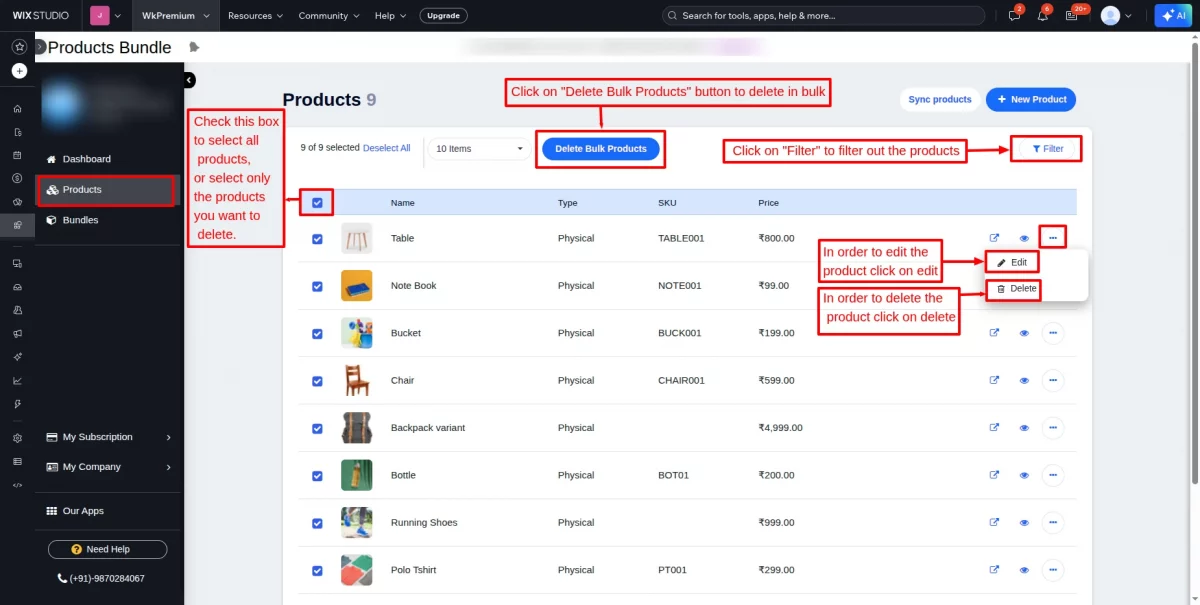
Click on the “New Product” button to add products.
Click on “Sync products” in order to sync the products from Wix to the Product Bundle app.
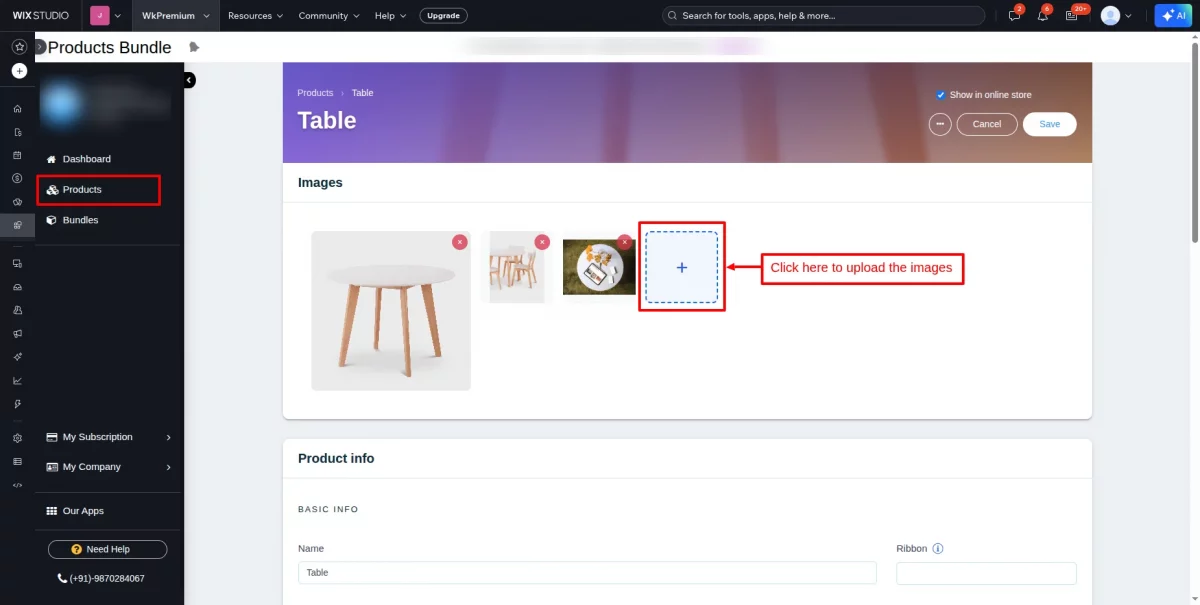
Upload one or more images of the product.
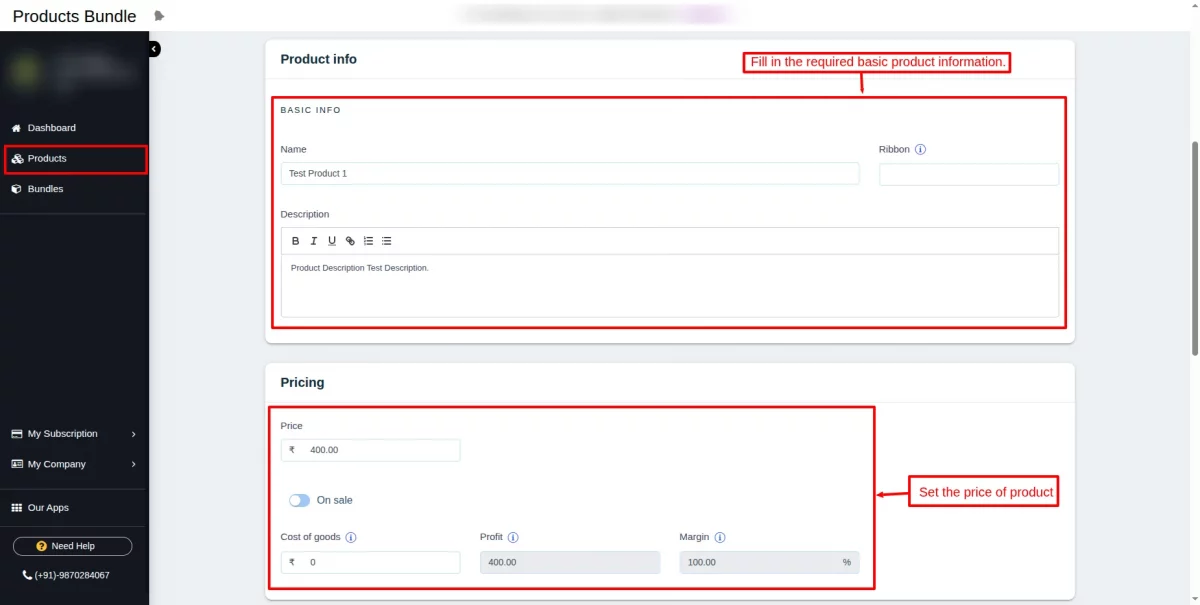
Fill in the required basic information of the product.
You can set the pricing of a product, and also live-calculate the profit and margin. Additionally, you can apply discounts on the sale price.
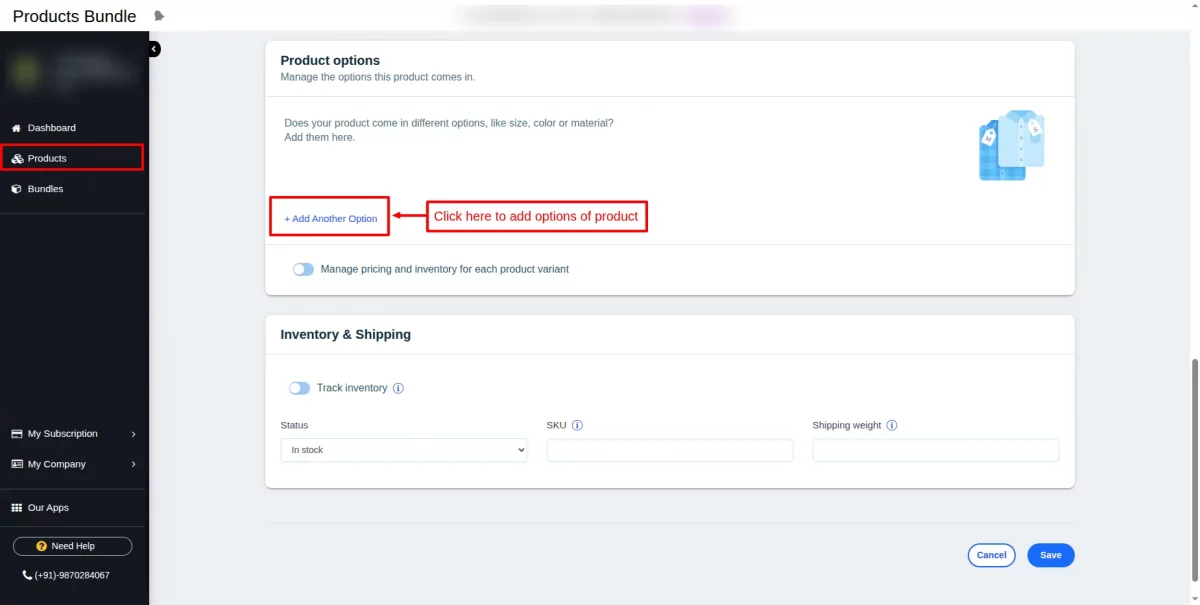
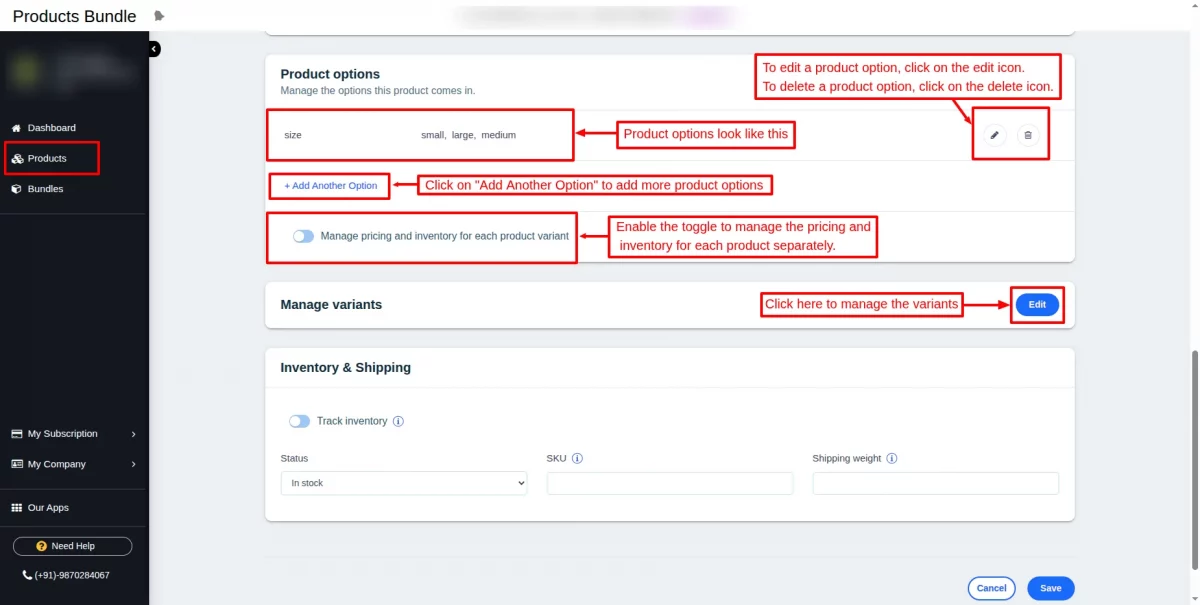
Click on the “Add Another Option” button to add an option of a product in order of size and colour, etc
In order to delete and edit the options, click on the edit and delete icons accordingly.
Enable the toggle to manage the pricing and inventory for each product separately.
Click on the edit button to edit the variants of the product.
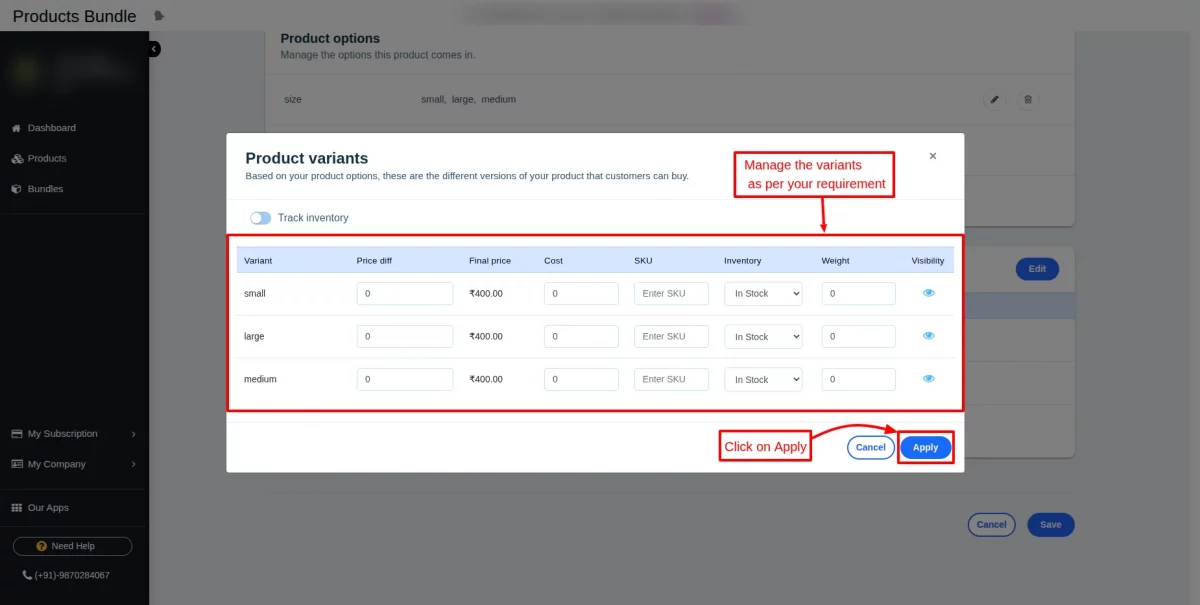
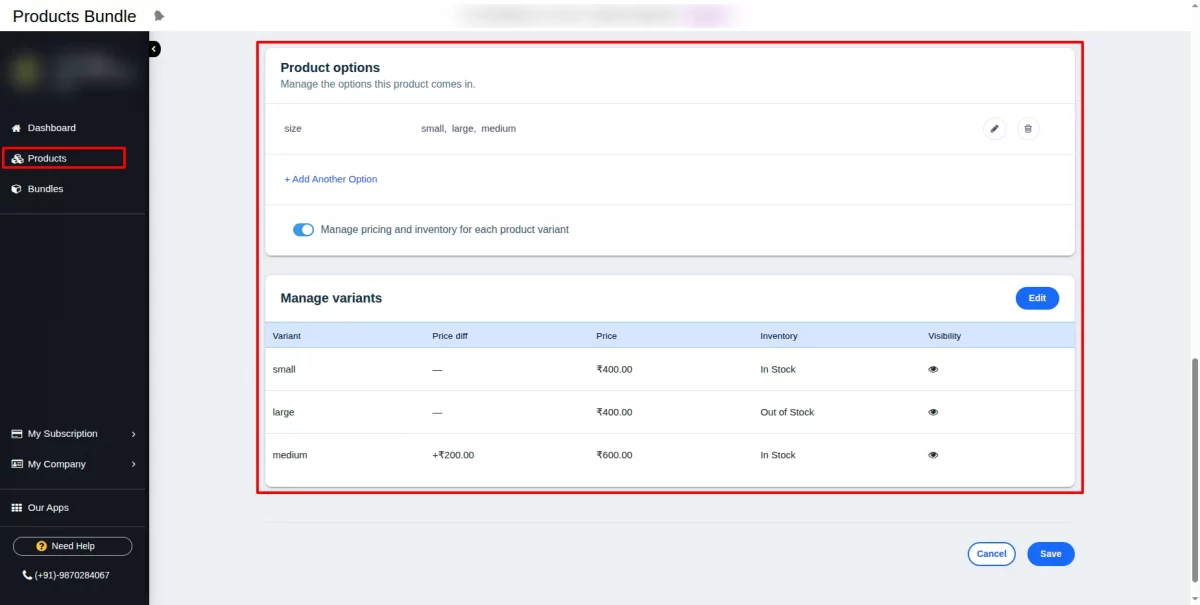
Manage the product variants according to your requirements.
You can set the price based on size and color, as well as configure the weight, cost, and visibility options.
Once all settings are in place, click Apply.
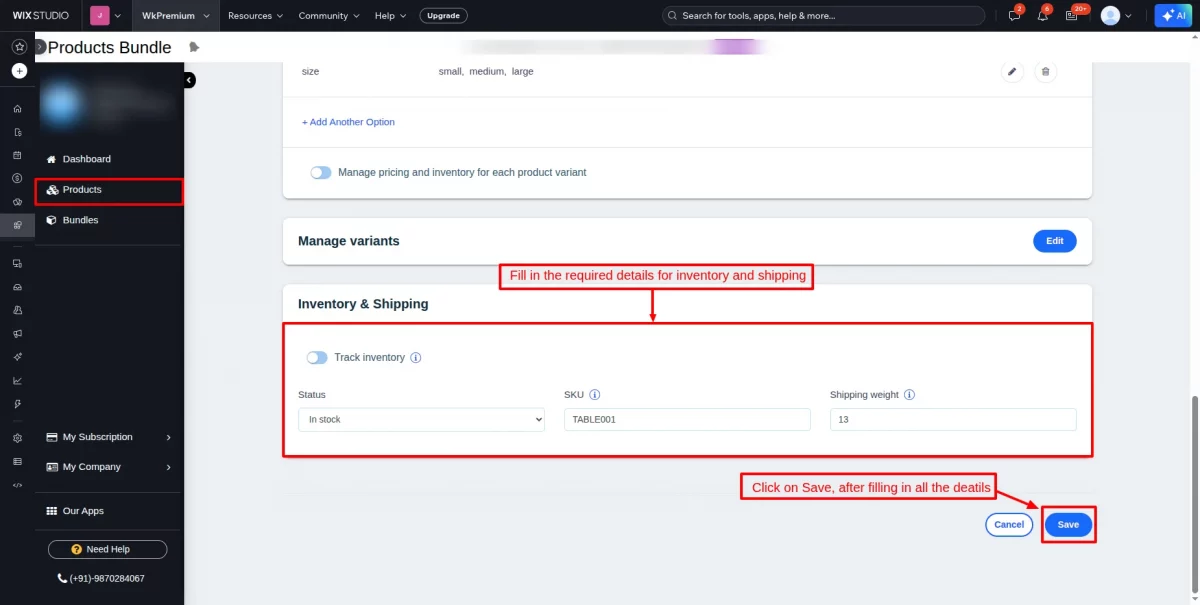
Fill in all the required information related to inventory and shipping, and then click on Save.
Delete and Filter:
Check the box to select the products and click the “Delete Bulk Products” button to delete products in bulk.
To delete a single product, click on the three dots and select Delete. To edit the product details, click Edit.
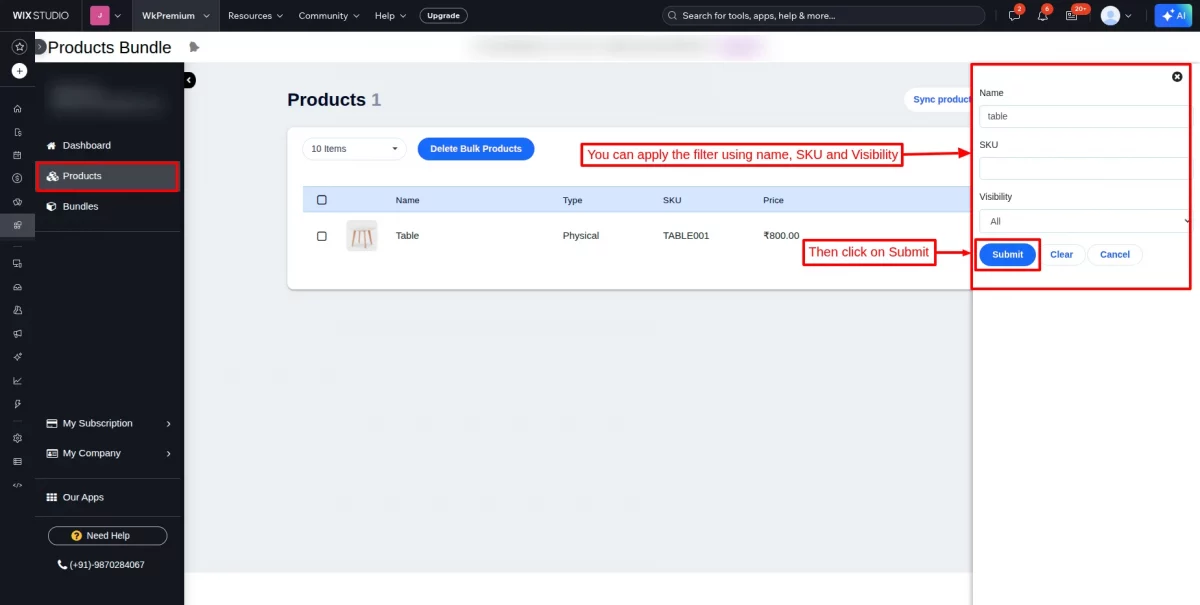
Click on “Filter” to filter out the products.
You can apply the filter using Name, SKU, and Visibility, or product.
Apply a filter using any option and click on Submit.
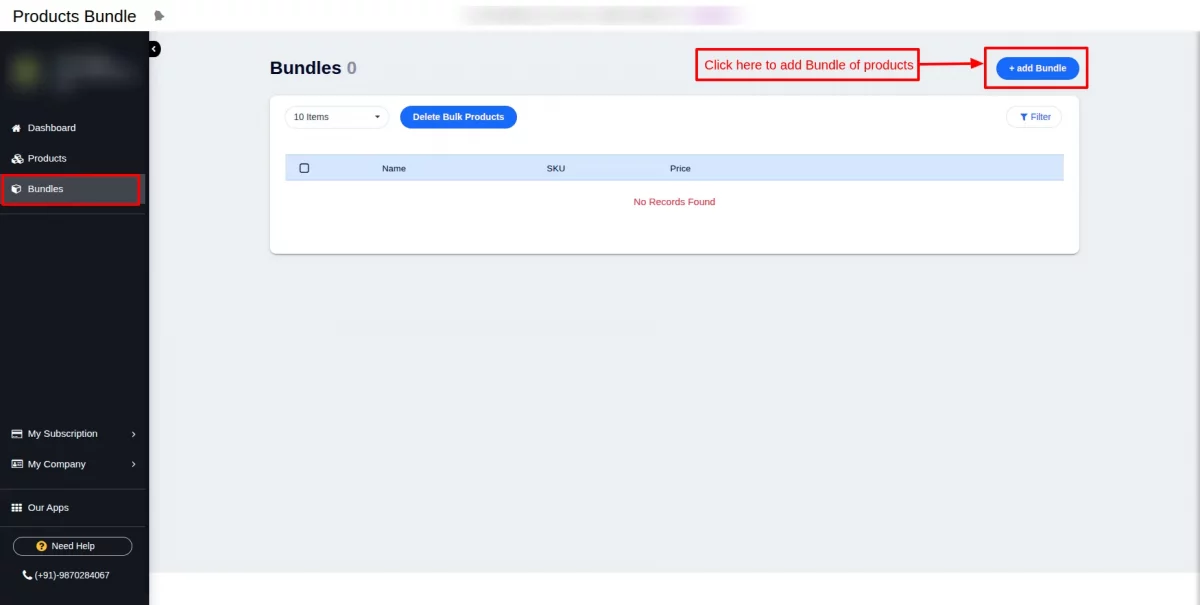
Bundle:
Click on the “Add Bundle” button to create bundles.
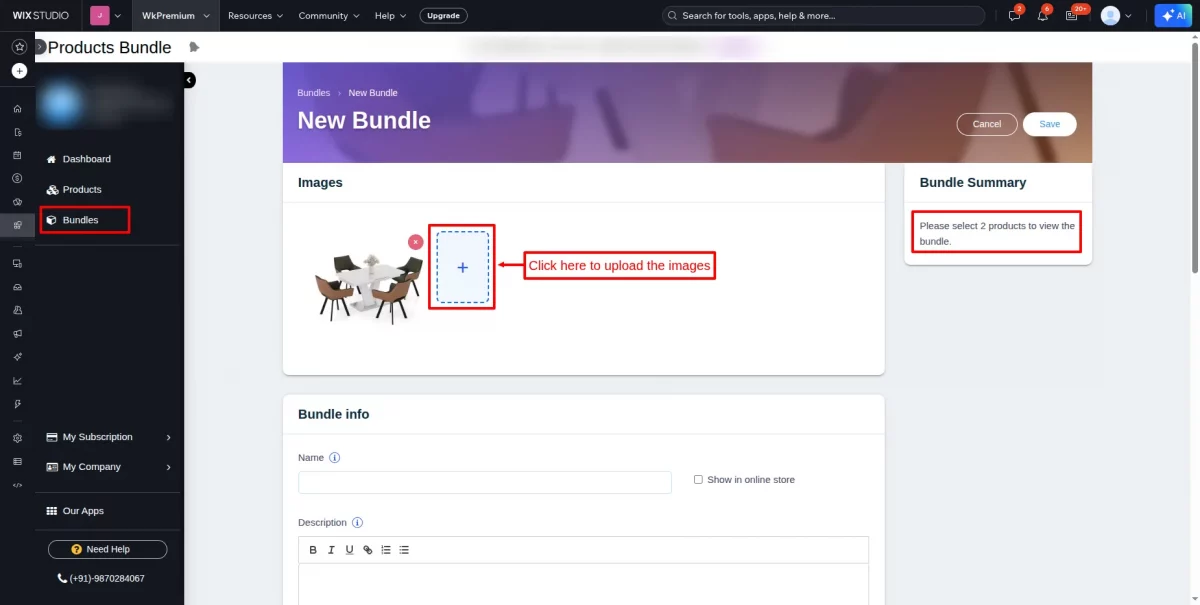
Upload one or more images for the bundle.
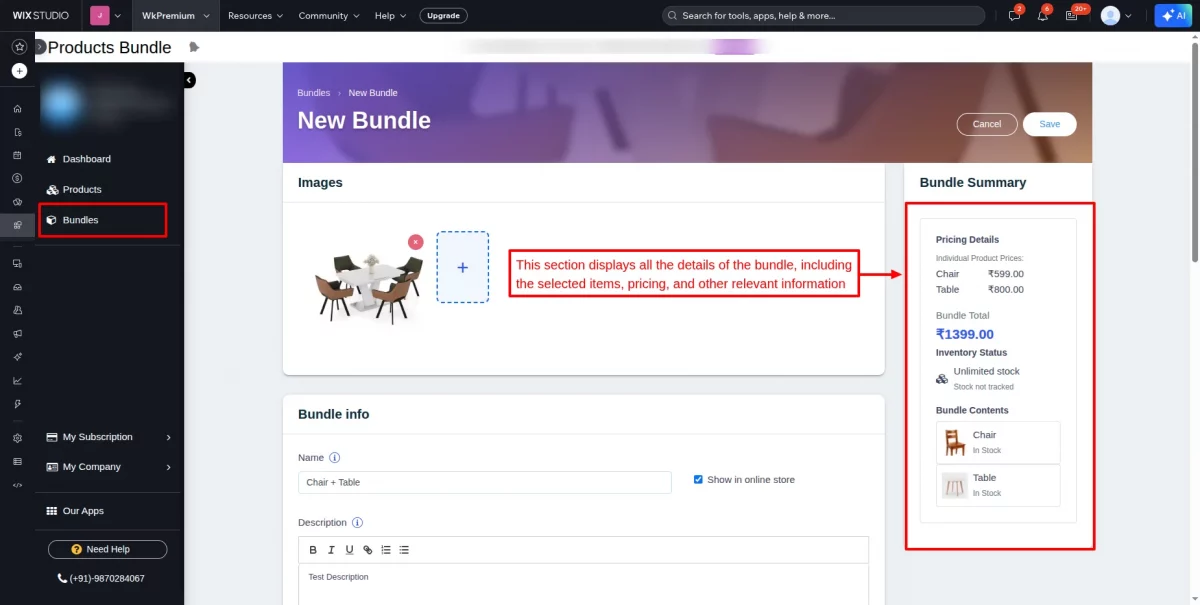
Bundle Summary: This section will display all the details of the bundle, including the items you’ve selected and added for the bundle. It makes it easy to identify and review everything at a glance.
Bundle Products:
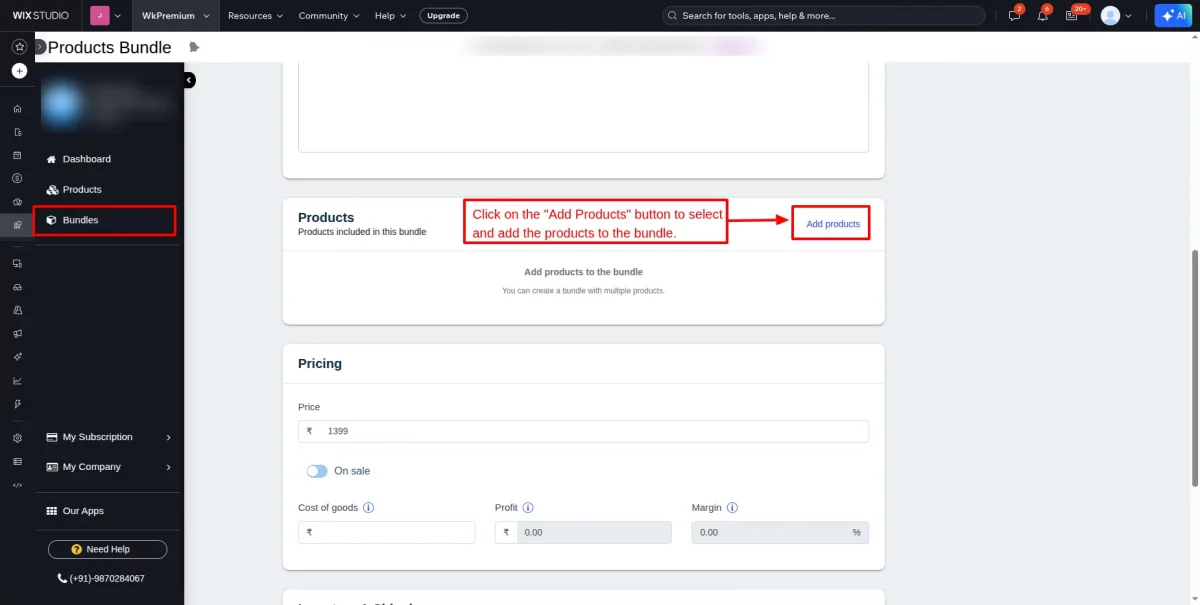
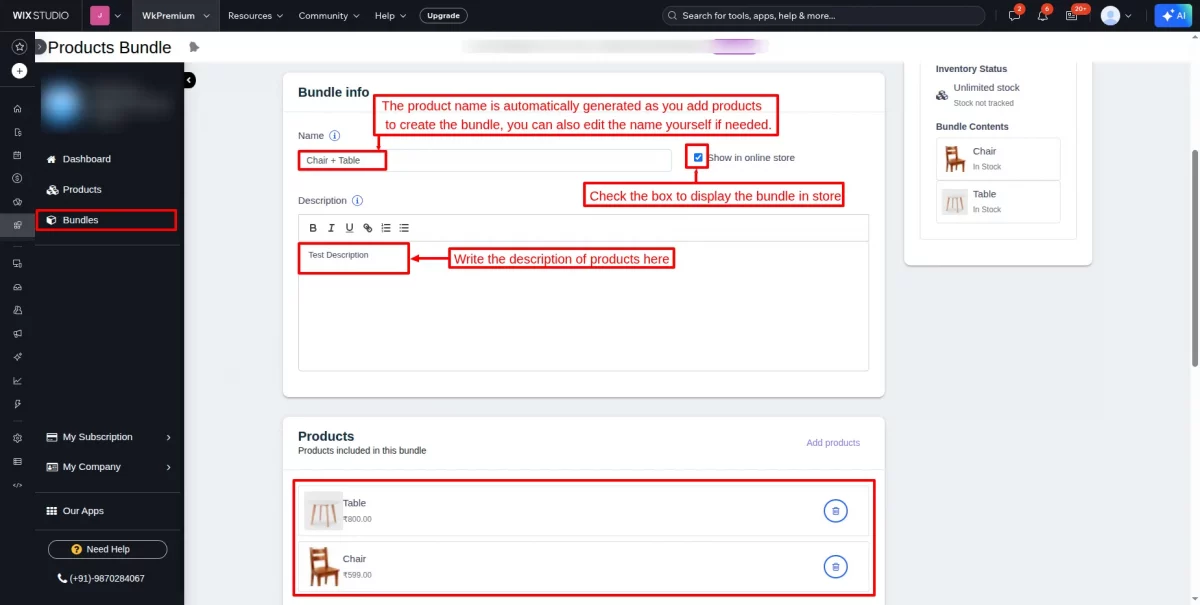
Click on the “Add Products” button to select and add the products to the bundle.
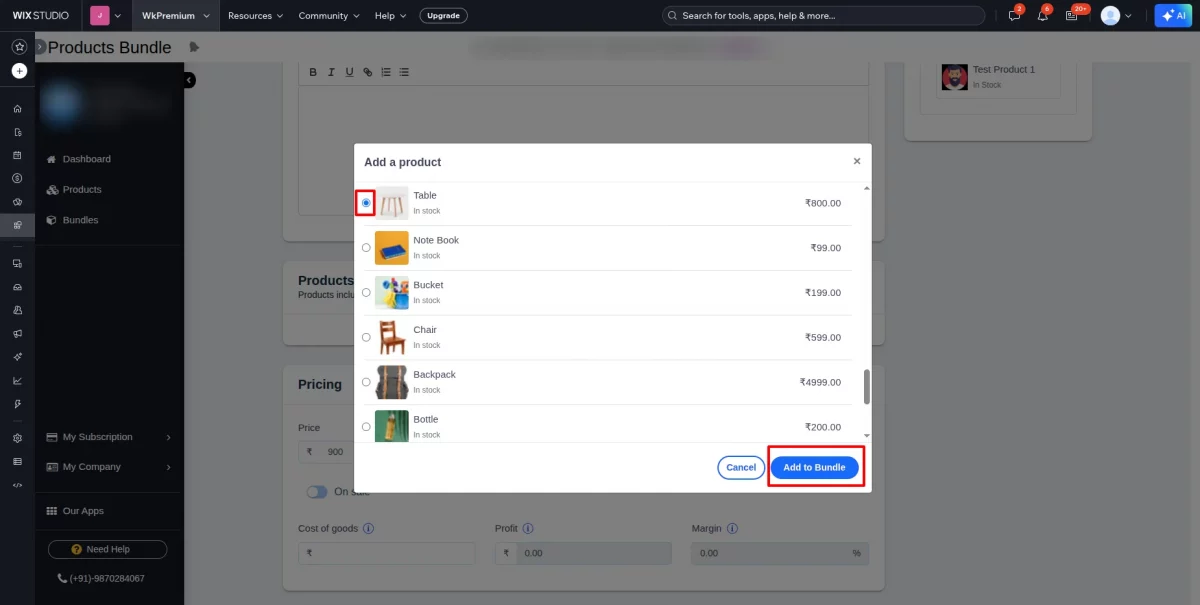
Select the product and click on the ” Add to Bundle” button.
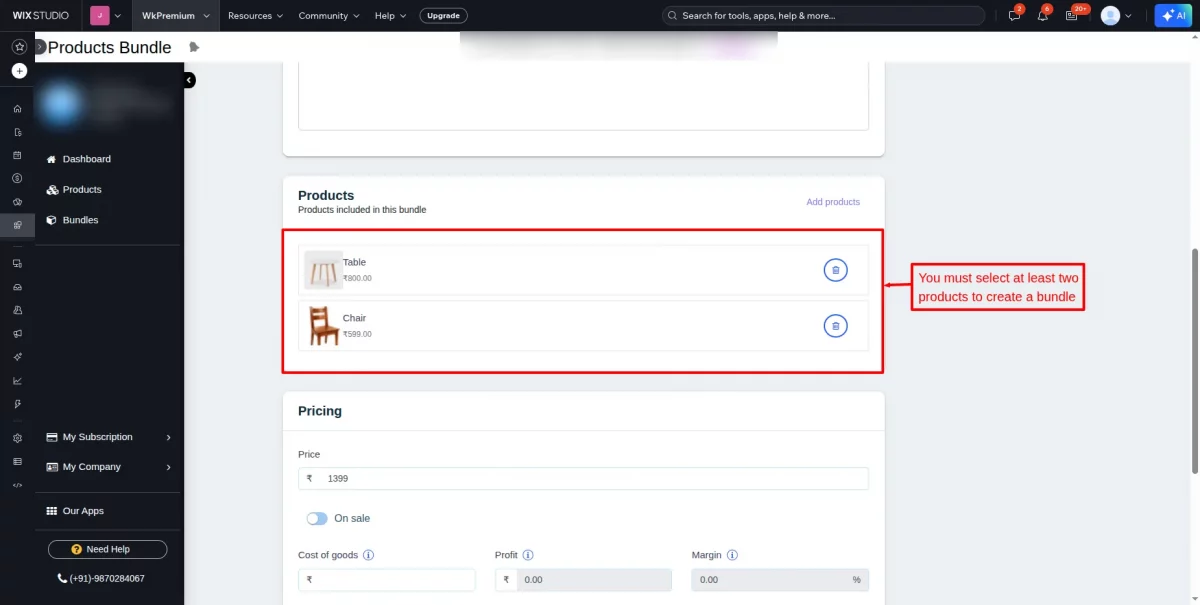
You must select at least two products to create a bundle.
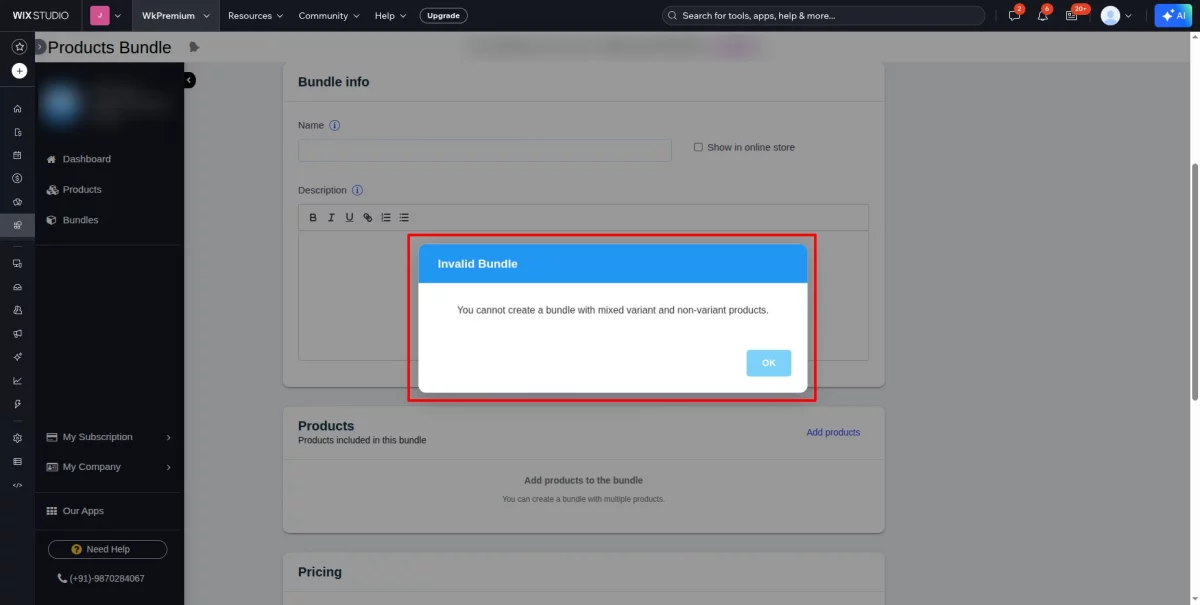
The admin can create bundles of variants with variants and non-variants with non-variants.
If you try to select one variant and one non-variant product while creating the bundle, it will display an error as shown in the screenshot below.
Note: Currently, only physical products are supported; digital products cannot be added.
Bundle info:
You can either write the name of the bundle yourself, or it will be automatically generated when the product combination is selected.
Check the box to display the bundle in your store.
Add a description for the bundle of products.
Bundles Pricing:
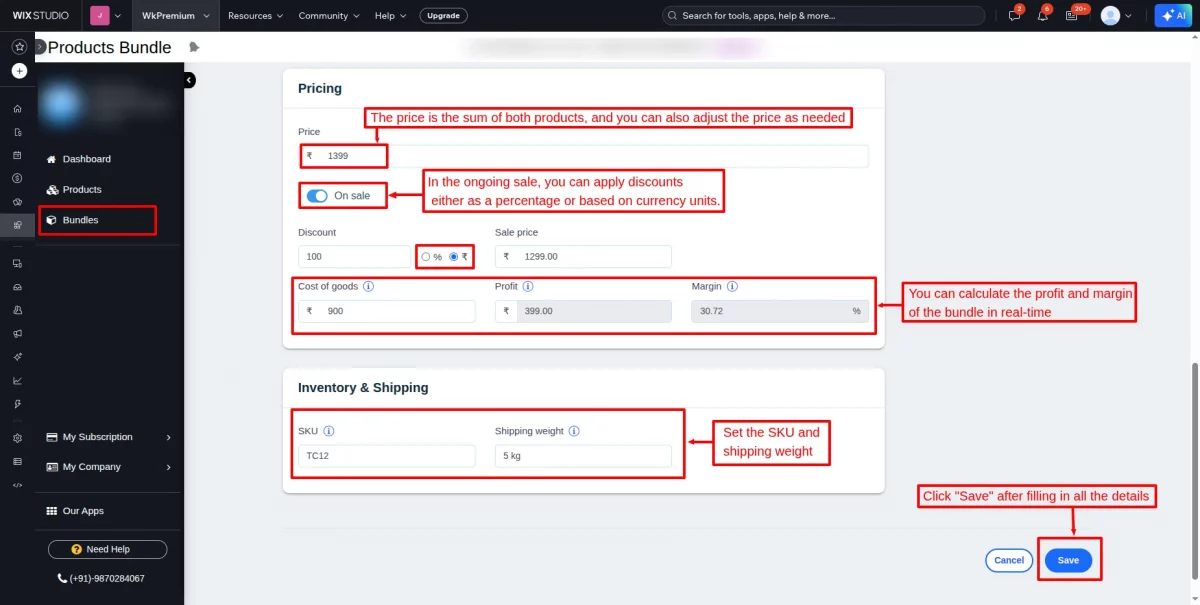
The price of the bundle is the sum of the selected products, and you can adjust it as needed.
Profit and margin are calculated in real-time, and discounts can be applied to the sale price.
You can apply the discount either as a percentage or based on currency units.
Set the SKU and shipping weight, then click “Save” to create the bundle.
Bundle Summary:
This section displays all the details of the bundle, including the selected items, pricing, and other relevant information.
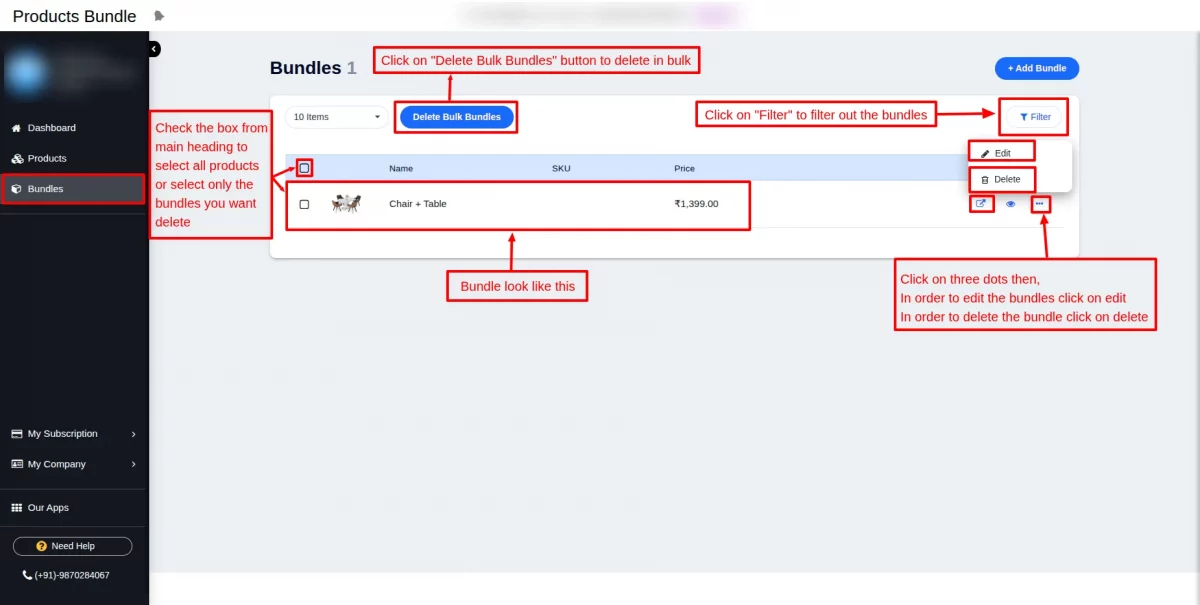
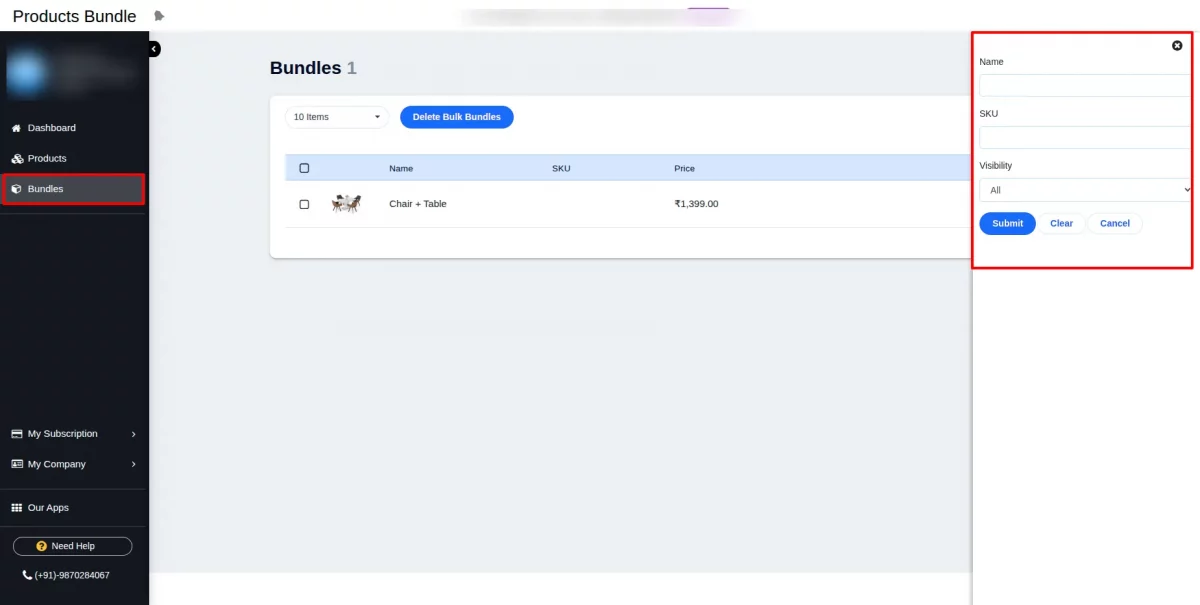
Check the box to select the bundles and click the “Delete Bulk Bundles” button to delete bundles in bulk.
To delete a single product, click on the three dots and select Delete. To edit the product details, click Edit.
Click on “Filter” to filter out the bundles.
You can apply a filter using the name, SKU, and visibility of bundles, and click on Submit.
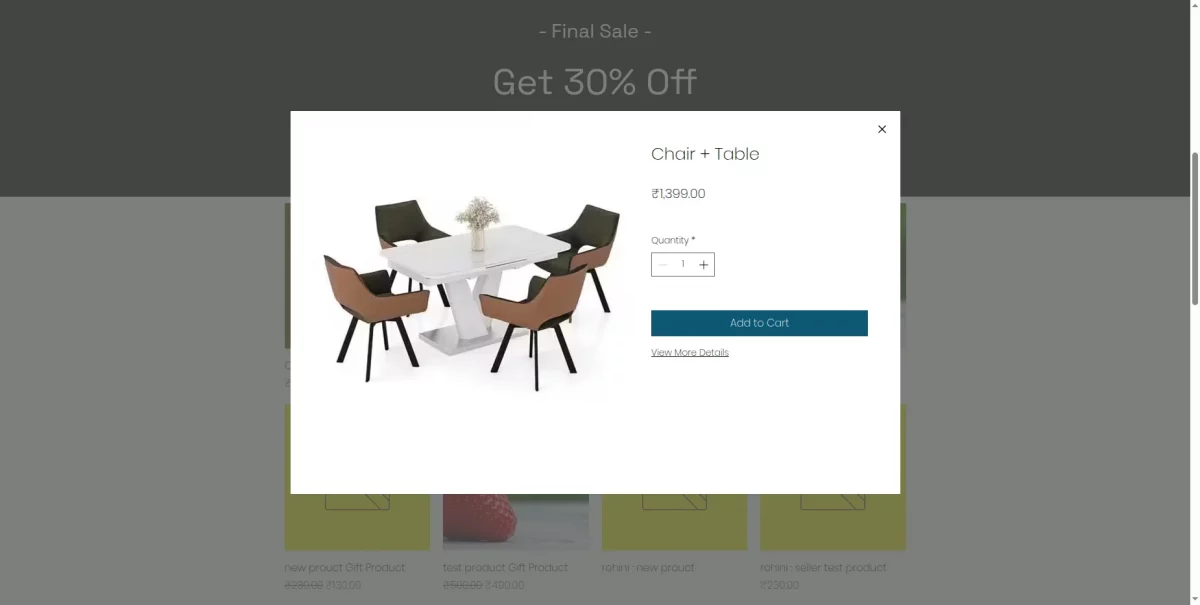
Bundles in Storefront:
Bundle will be displayed as shown in the screenshot below:
WEBKUL SUPPORT
I hope this blog will help you to understand the complete process involved in the Wix Product Bundle application.
In case you have any queries, please generate a ticket https://webkul.uvdesk.com
For More Development on Wix, contact us.


Be the first to comment.