PrestaShop Gift Card: Gift Cards are one of the best ways to acquire new customers while retaining existing loyal ones.It plays a key role in promoting the store and ultimately driving revenue.
And, by any chance, if you happen to be the person who is thinking to offer gift cards in the shop. Now you can easily do so with the help of the PrestaShop Gift Card module.
You can now create various gift cards & allow your customers to send them to their loved ones via email.
Note: Prestashop Gift Card module is compatible with Prestashop version 9.x.x and multi-store feature.
Features
- Admin can add multiple gift cards to promote their products on the store.
- Create gift cards with fixed amount and dynamic amount.
- Customers can buy gift cards for others or themselves.
- Allow customer to choose the delivery date of the gift card.
- Send gift voucher via email.
- View entered recipient details from the cart page.
- Option to send gift card voucher in a PDF on email.
- Send gift card product image in PDF.
- Associate recipient’s email address to the generated voucher.
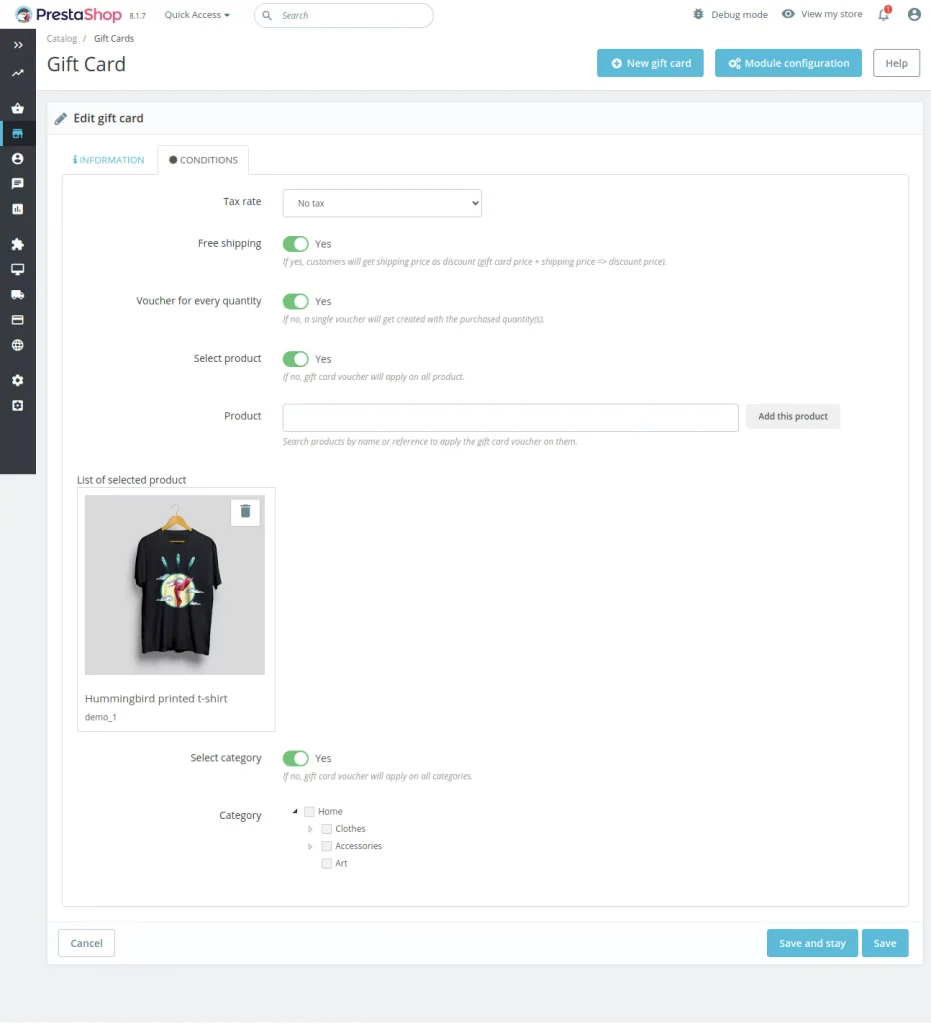
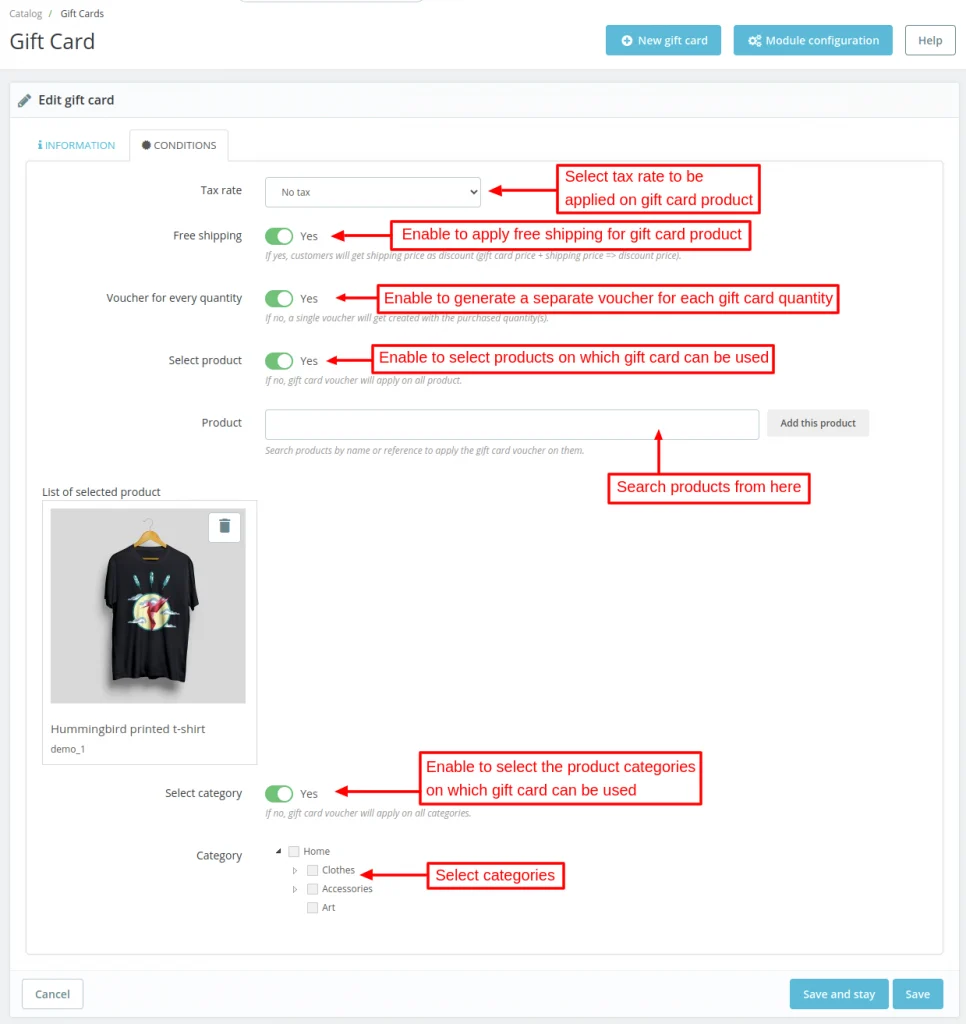
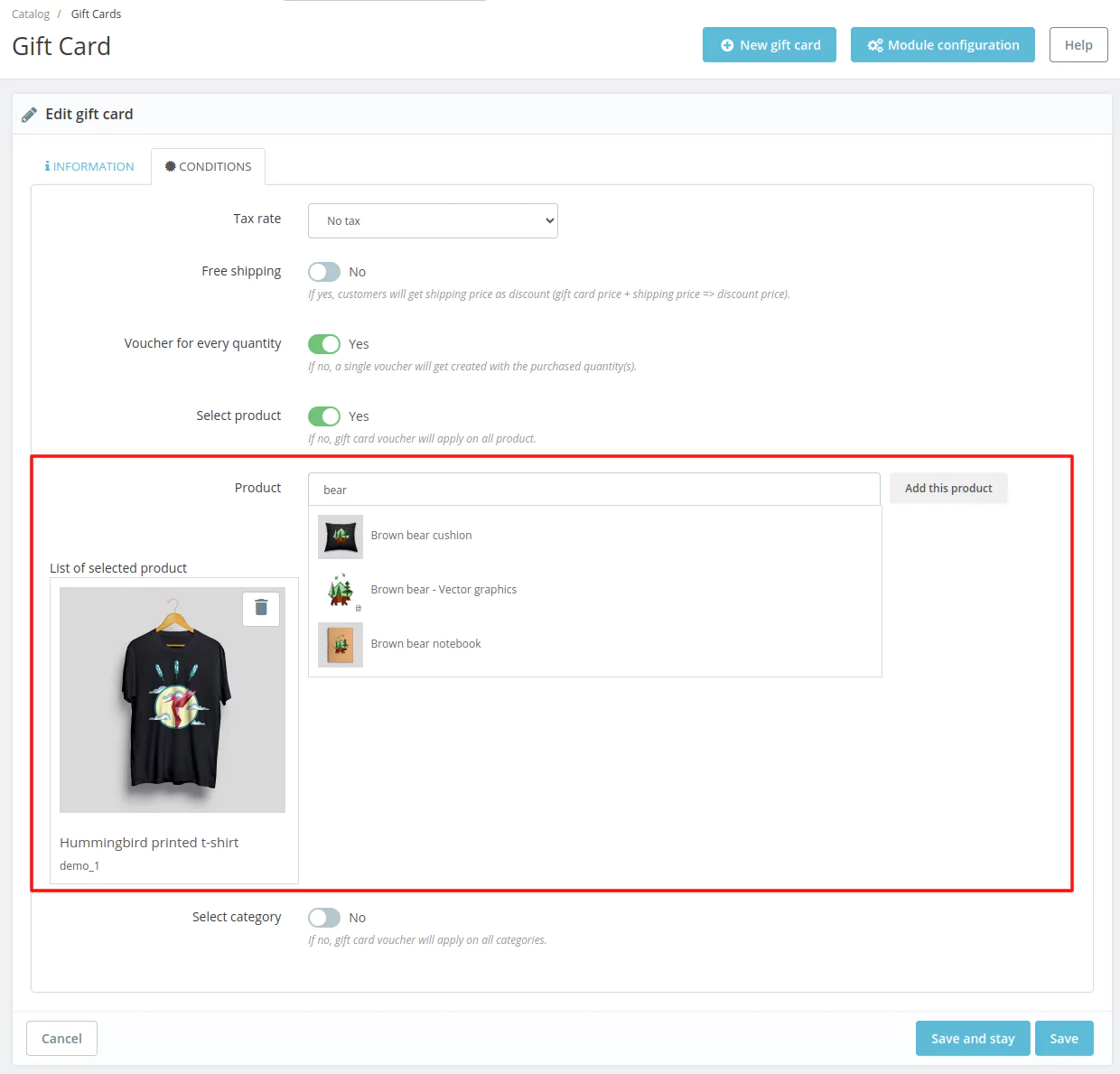
- Create Gift Card either for purchasing all the products or for specified products only.
- Set the validity of the gift card voucher.
- Customer can add recipient details to send gift card.
- Customer can send a message to receiver with the gift card voucher.
- Create a gift card voucher with free shipping.
- Set banner image for gift card product listing page.
- Set the order status to send the gift card automatically to the receiver.
- Admin can set the quantity and tax to be applied on the gift card.
- Assign the categories to the gift card product while creating.
- View all the gift card products under a separate tab.
- Resend email to customers with gift card details.
- Recipient customer can view voucher details in the account section if he/she has an account in the shop.
- Admin can choose whether to generate multiple vouchers as per the quantity of gift card in a cart or single voucher of full Gift Card amount.
- This module is multishop compatible.
Installation
- Go to Module Manager in Back office and click on ‘upload a module’.
- Now, Drag and drop the module file or select the file from the system.
- In this way, the module installation will be successful.


Module configuration
After successfully installing the module on PrestaShop’s back office the admin needs to configure the module as per their preferences.
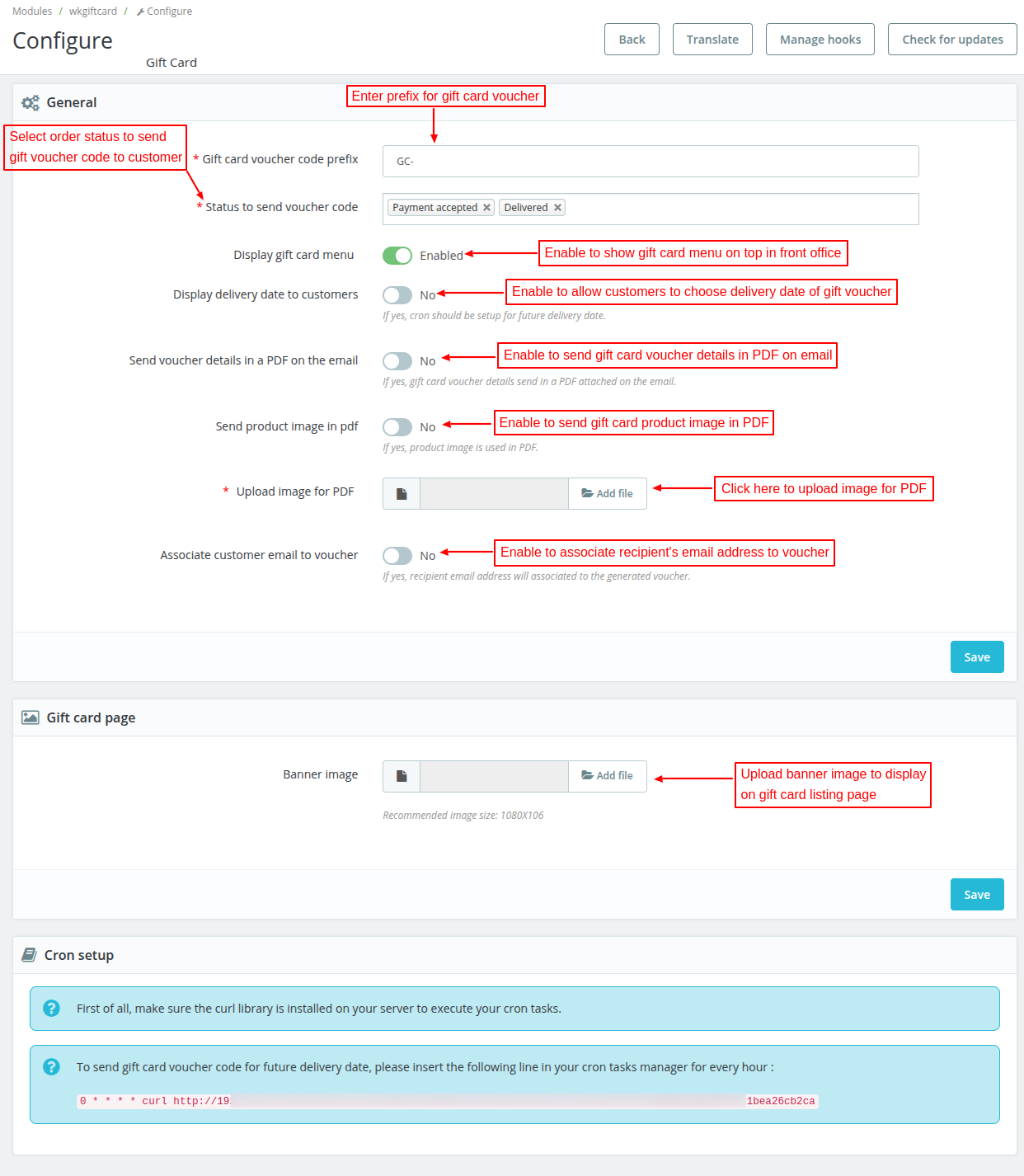
Under General Settings, the admin can:
- Set prefix for gift card voucher code.
- Select order statuses on which voucher code will be send to the customers.
- Enable or disable the gift card menu on front end.
- Allow customers to choose delivery date of voucher.
- Choose to send voucher details in PDF in an email.
- Choose to send product image in PDF.
- Associate recipient’s email address to the generated voucher.
Workflow
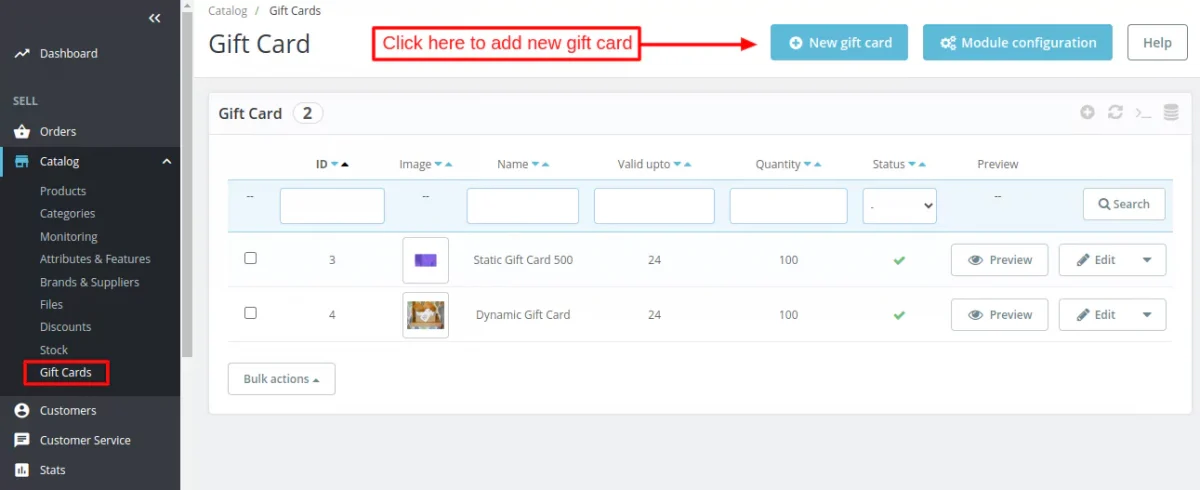
Once the admin configured the module the admin will able to see a new tab “Gift Cards” under the “Catalog” tab

After clicking on the “Gift Card” tab the admin will land on the gift card page from where he can create the new gift card products and view all gift card products created by the admin.
Add new gift card
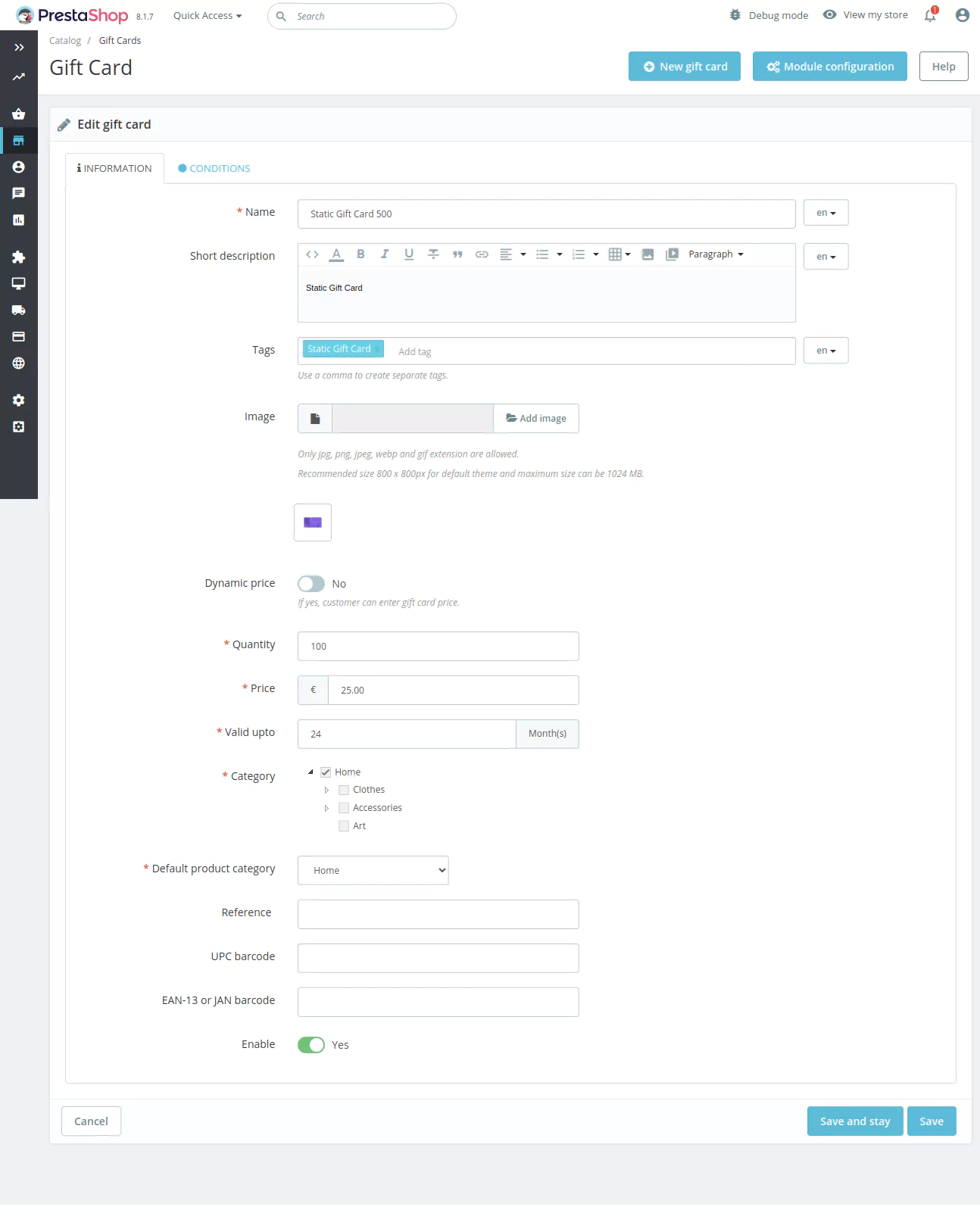
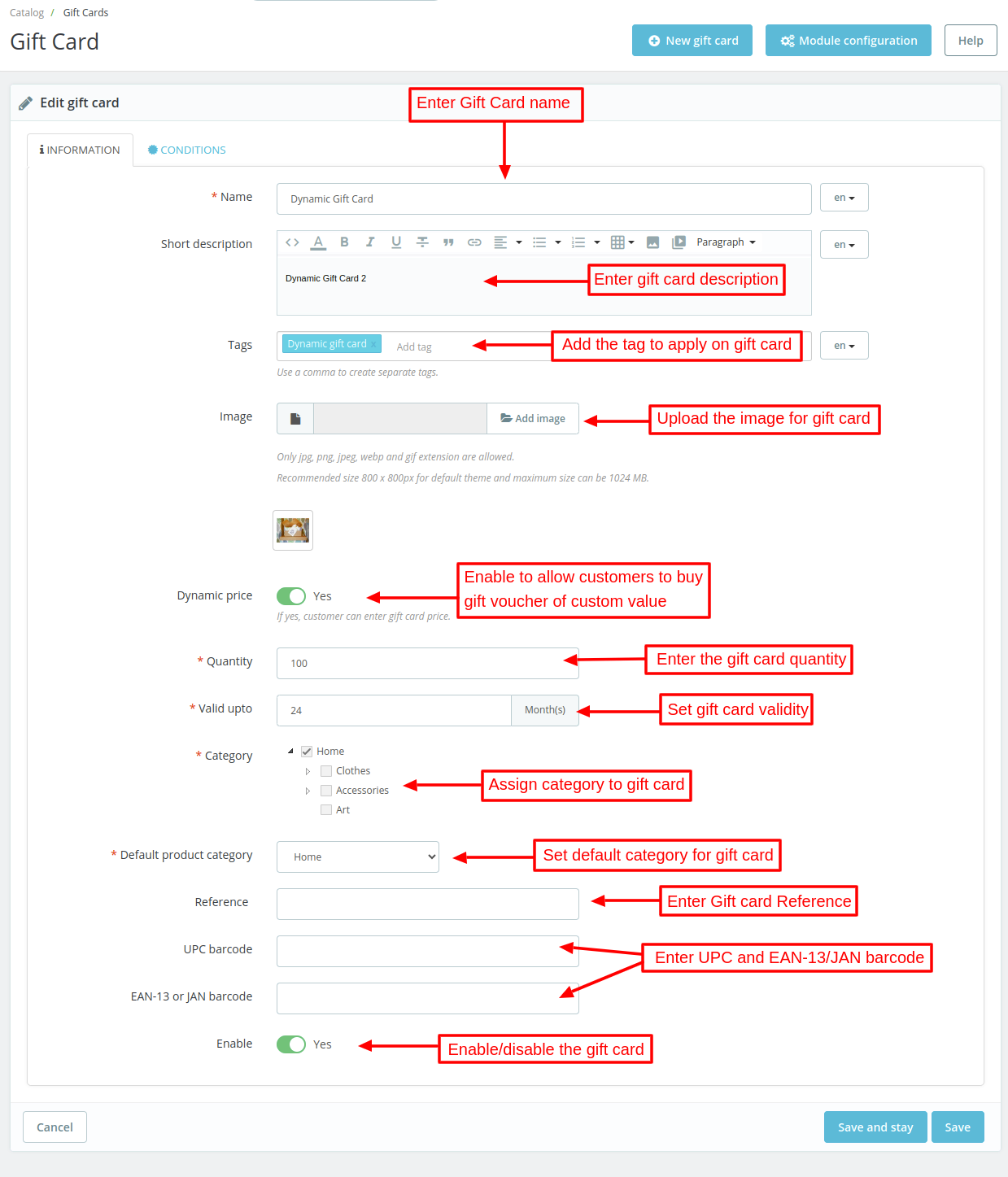
Information tab:
Conditions tab:
To add a new gift card the admin needs to click on the “New gift card” button. The admin can create two types of gift card products:
- Dynamic price: The customer can choose the value of the gift card which he wants to buy. Every customer can buy the gift voucher by setting the value of the gift card as per their own choice.
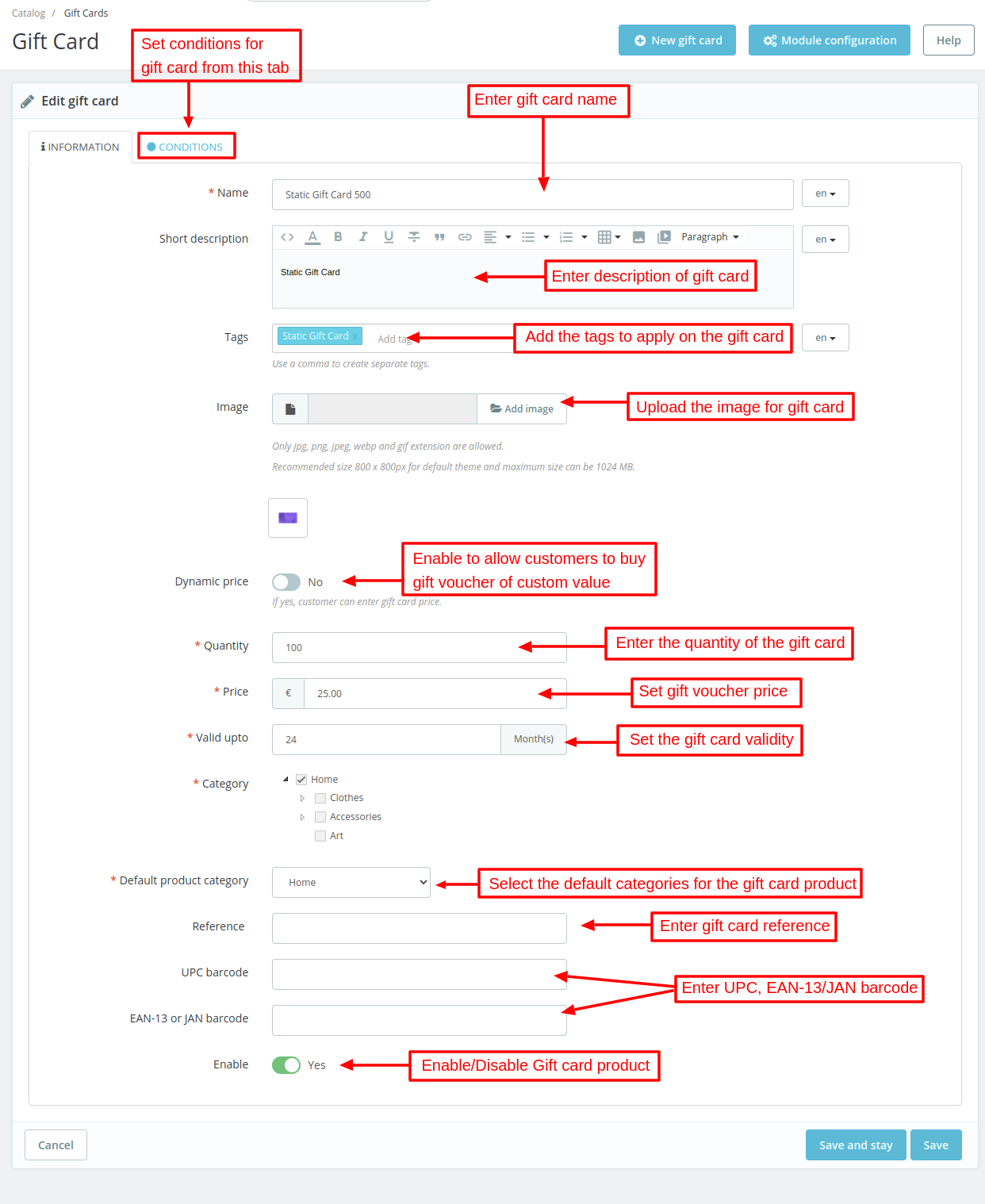
- Fixed price: The admin will set the price of the gift card. The customer can not change the value of the gift card for the purchase.
Dynamic Price gift card
The admin can create dynamic price gift cards by enabling the dynamic price option available in the form.
Fixed price gift card
Similarly, the admin can create gift cards of fixed price by disabling the dynamic price option available in the form.
Front End Workflow
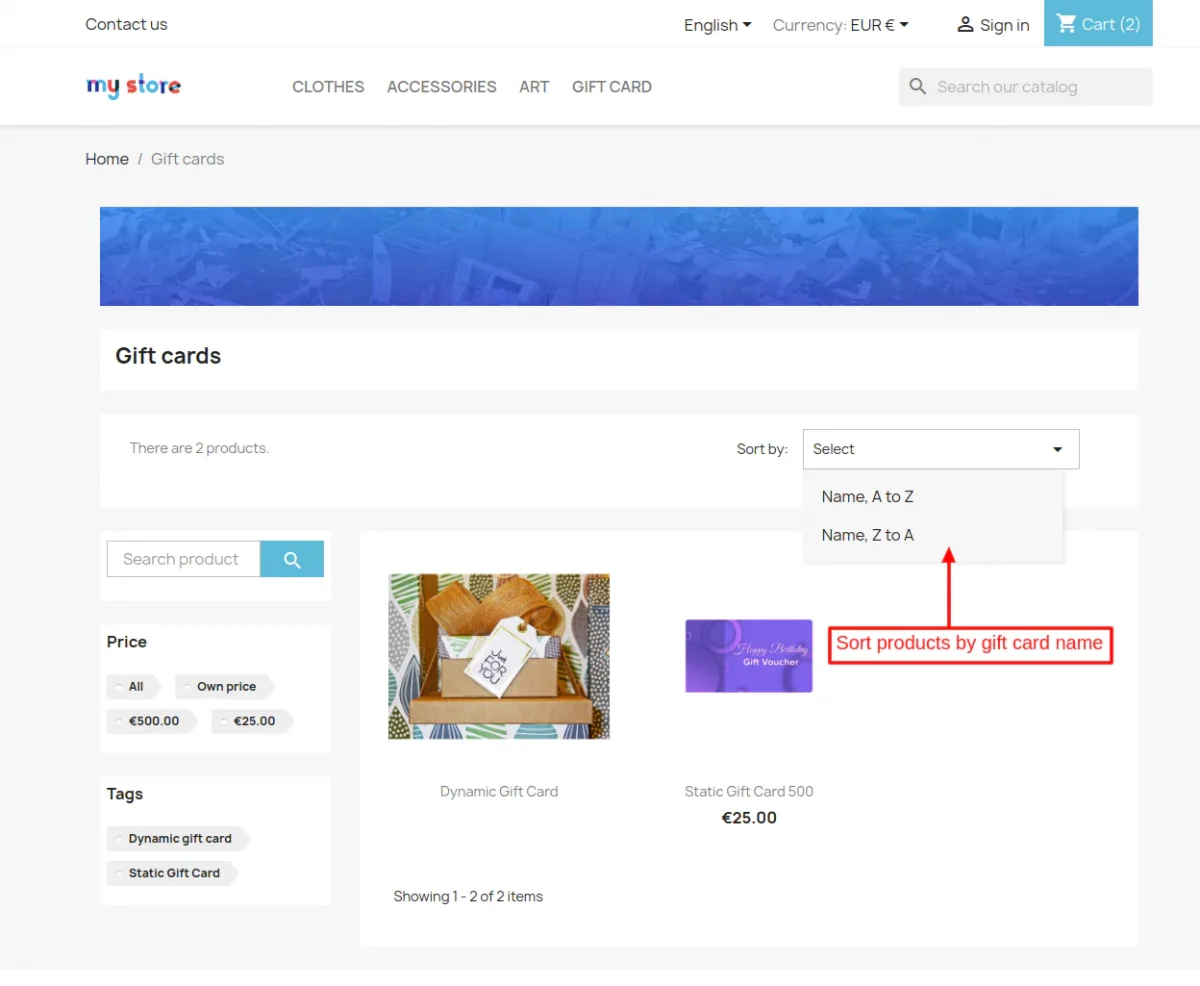
As enabled by the admin under general settings, gift card menu will display on the top in the front end.

On clicking the menu, customers can view all the gift card products available in the store.
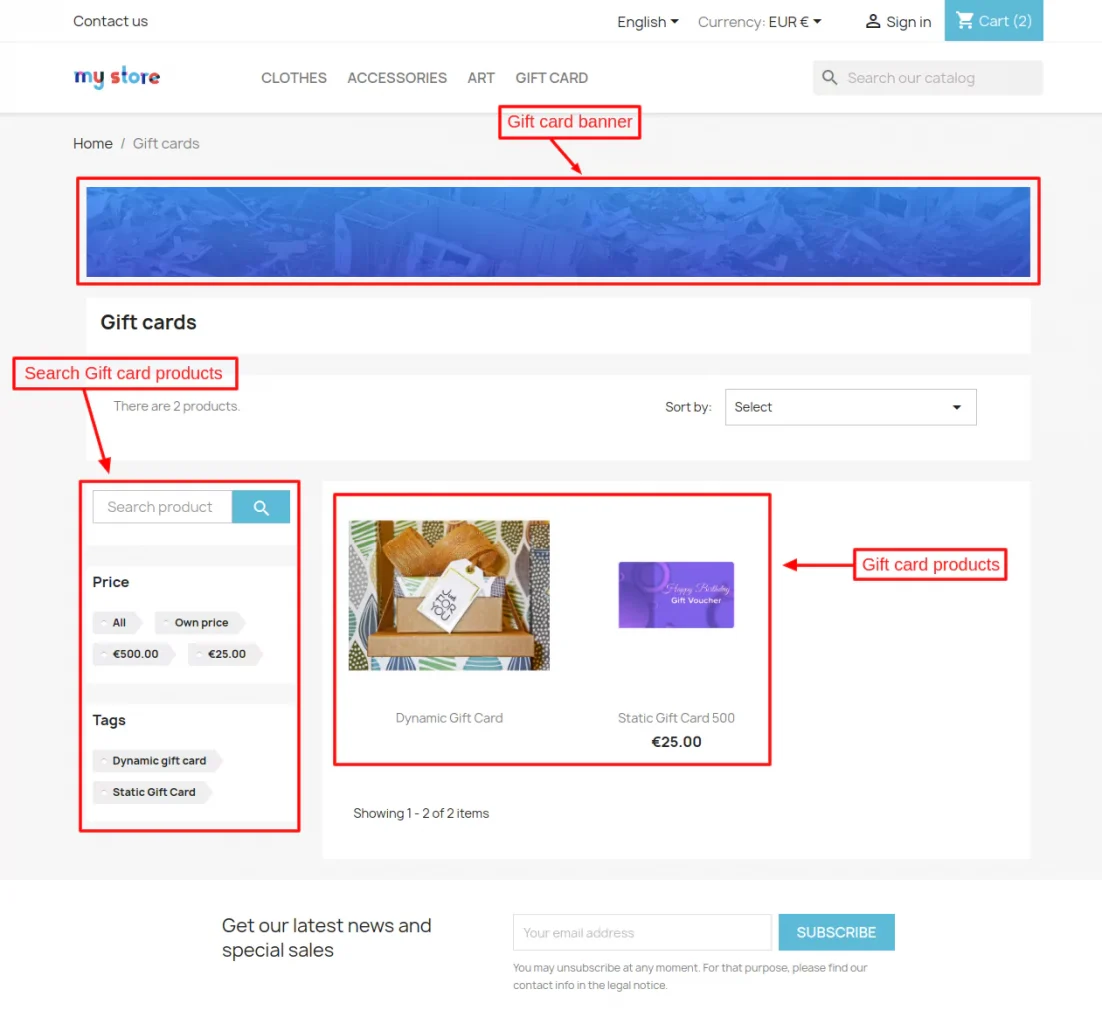
Multiple options are given on the gift card page to narrow down the product search.
Customers can simply search for the gift card by name from the search bar, tags, and price. Also, the customers can sort the products by name (ascending or descending first).
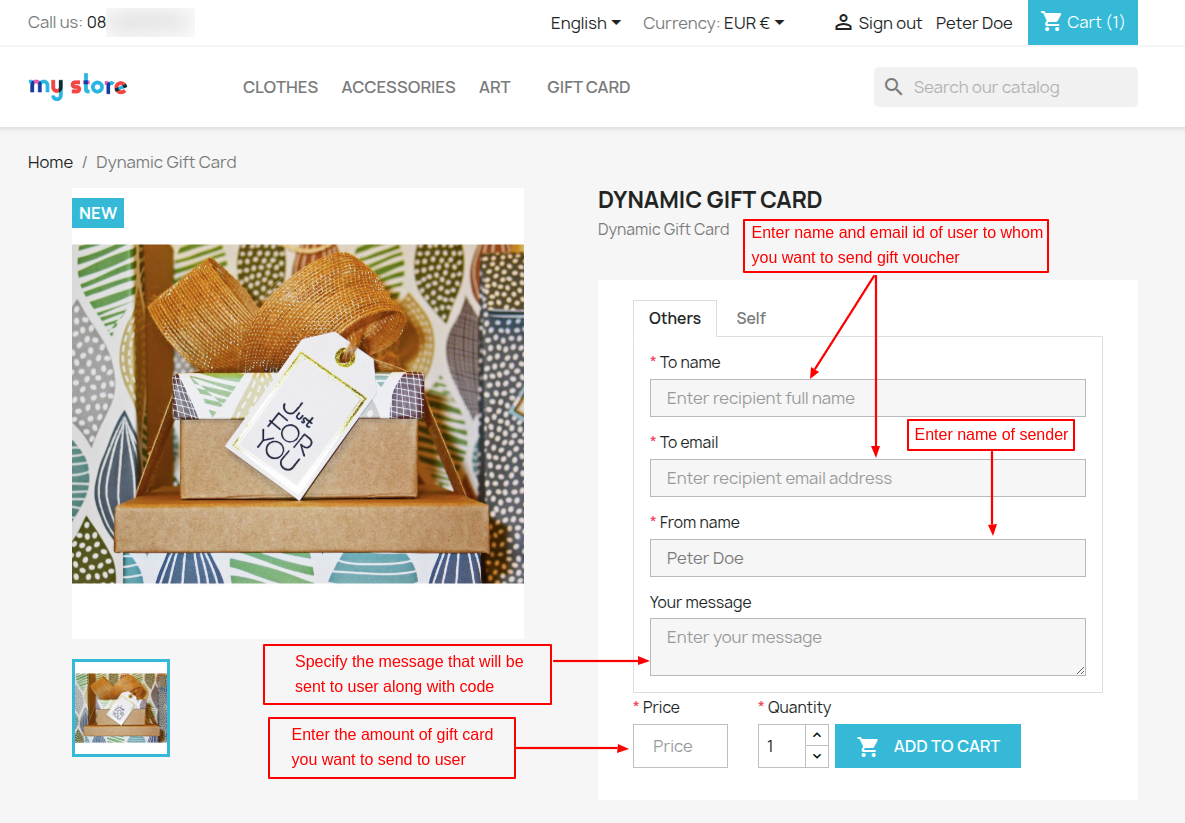
Dynamic price gift card
On the gift card product page, a customer needs to specify:
- Name and email address of user to whom he wants to send gift card voucher.
- Name of sender.
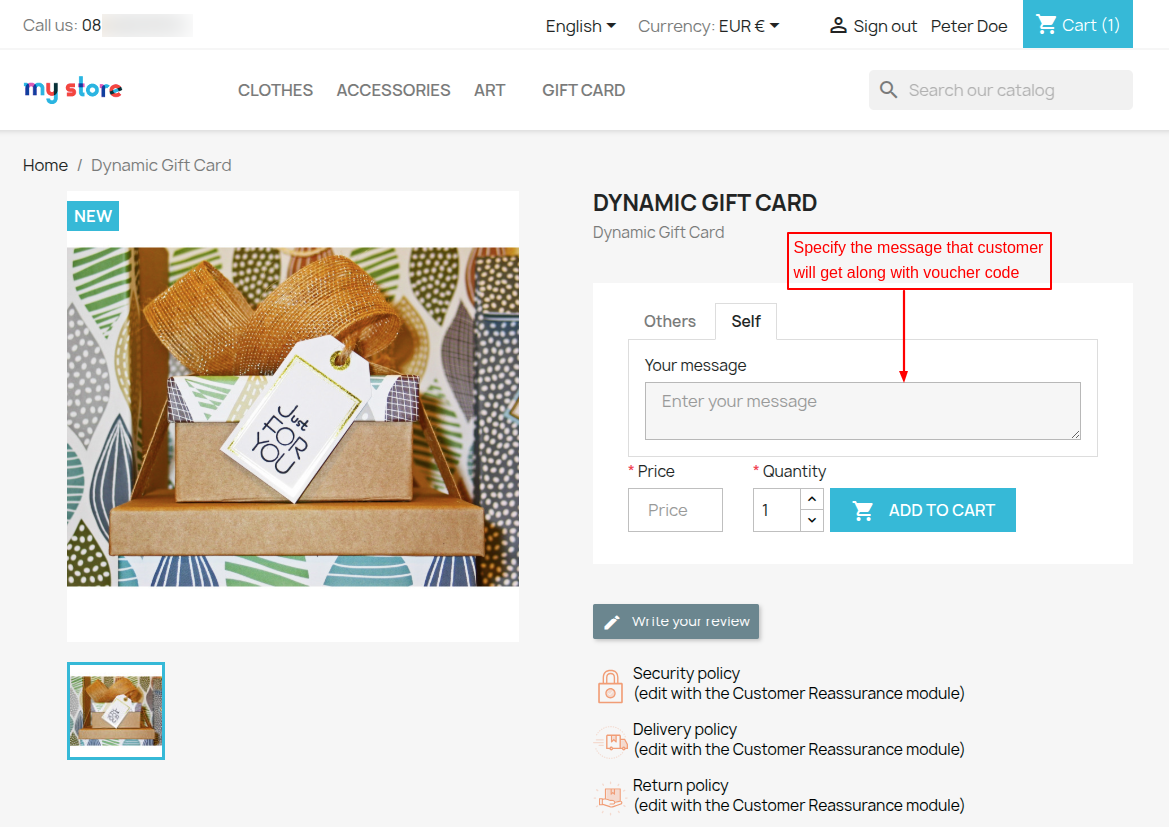
- Message that will be sent to user along with code.
- Gift card amount he wants to send to the user.
Also, the customer can choose to send gift card voucher to his own email address.
Fixed Price Gift Card
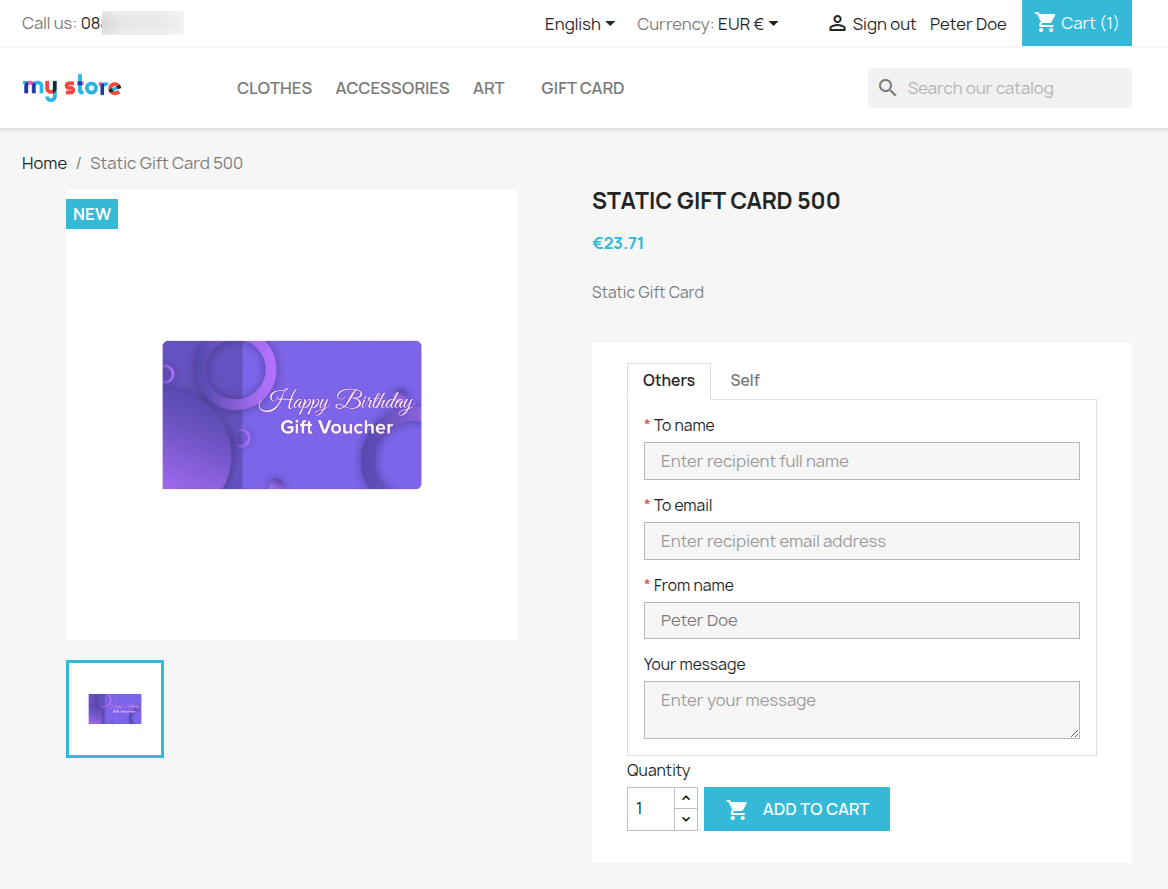
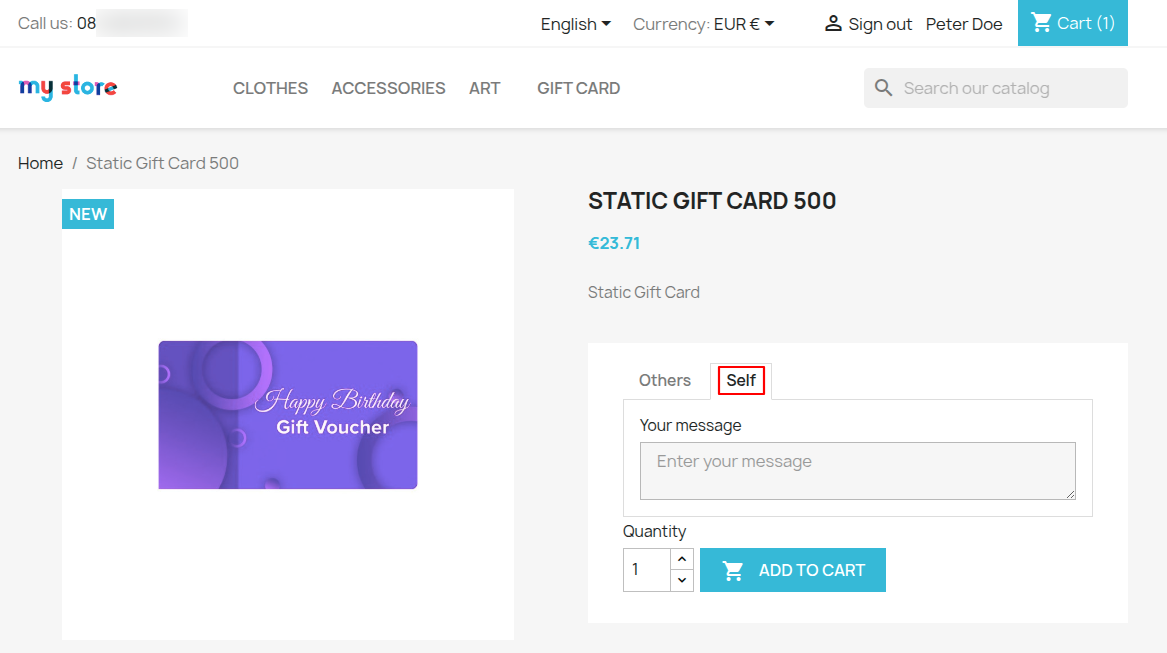
Here in the fixed-price gift card, the customer can only choose the quantity of the gift card that he wants to buy.
After the successful creation of a gift card, the buyer can purchase the gift card as a normal product.
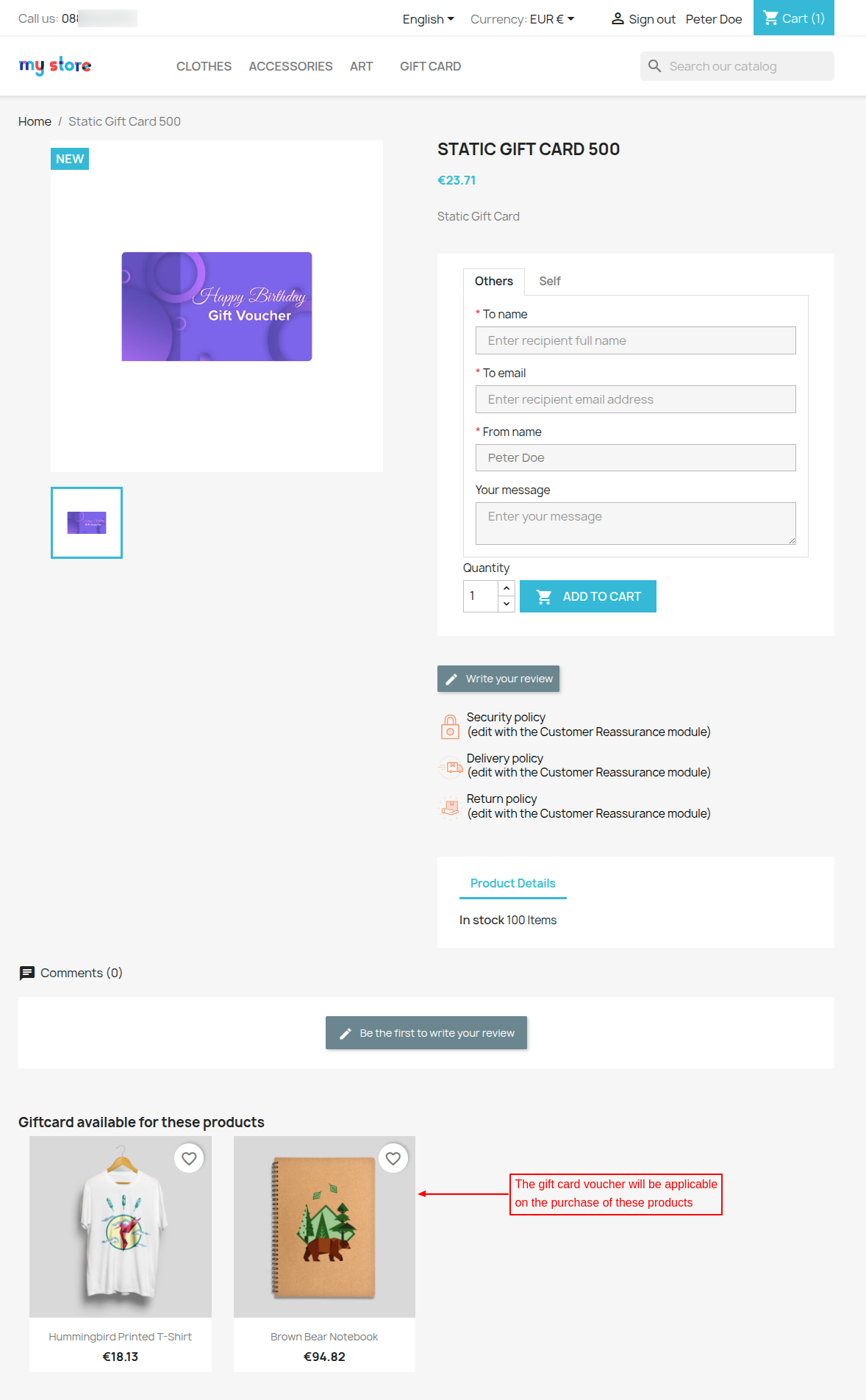
In case, if the gift card is applicable on some specific product then those products can be seen on the product page.
The customer will also be able to view the products on the gift card product page on which he can use the gift card.
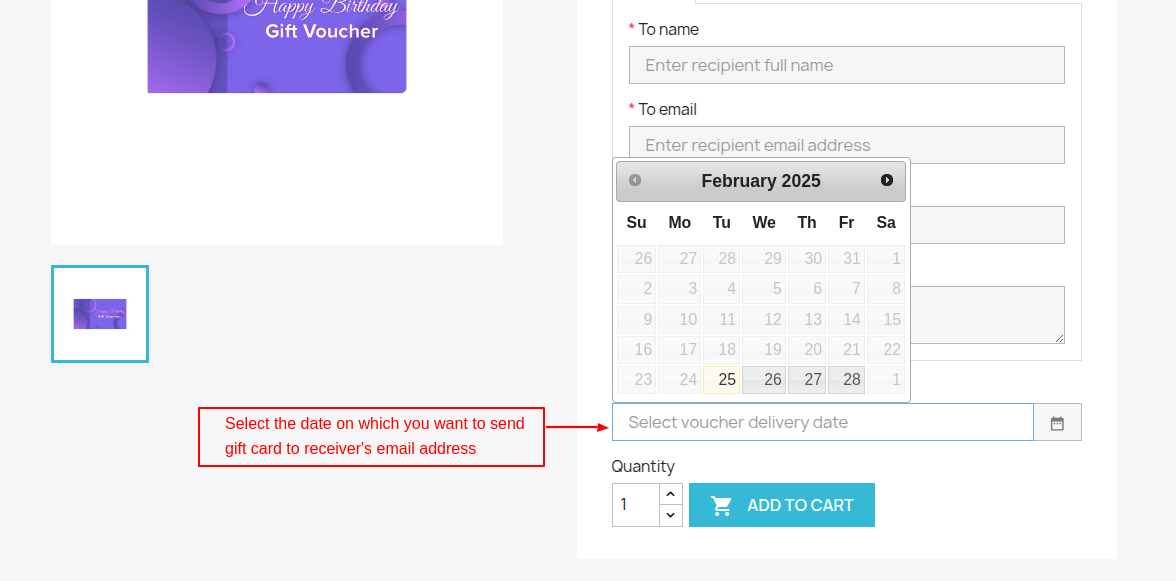
Select delivery date
If admin has enabled the option “Display delivery date to customers” while configuring the module then customer can select delivery date on which he wants to deliver gift card to receiver’s email.
Cart Page:
The user can view the details of recipients that they entered for the gift card from the cart page by clicking on the “Recipient details” button.
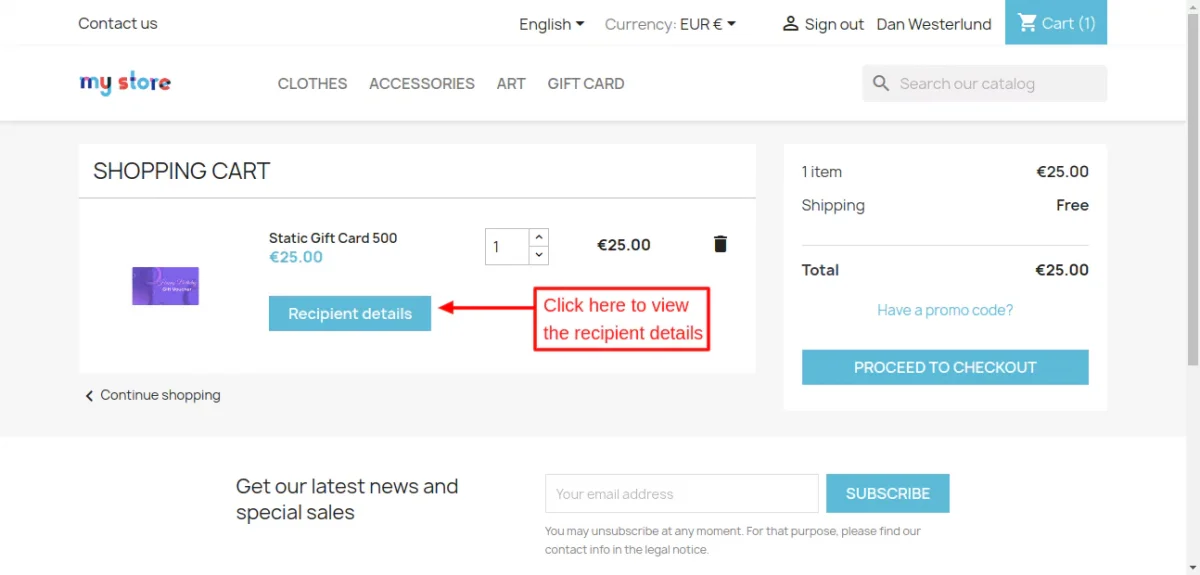
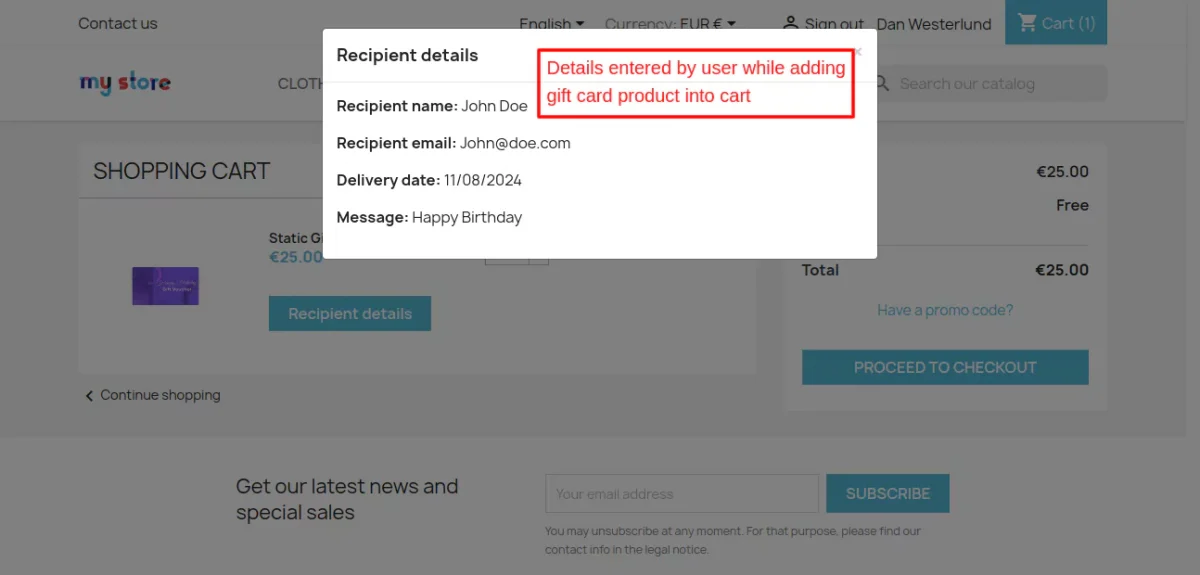
After clicking on the “Recipient details” page a popup will be displayed to the users where they can view the entered details.
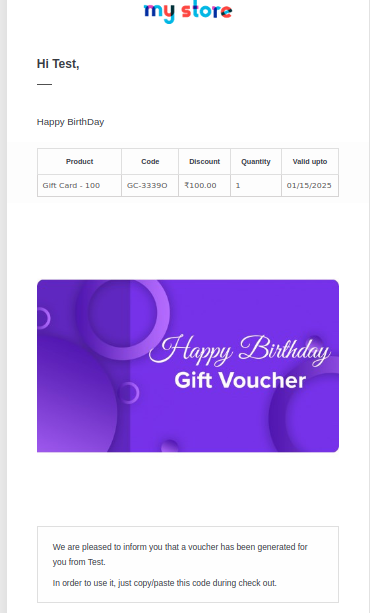
After the acceptance of payment for the gift card the voucher & its details will send via email to the receiver.
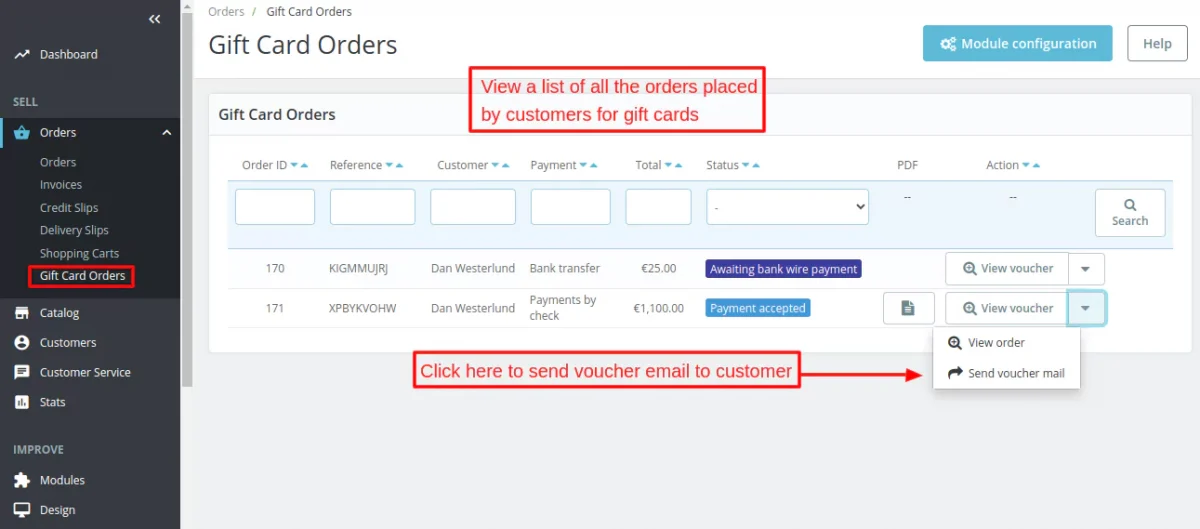
After successfully purchasing the gift card the admin can view the list of all the orders placed by customer for purchasing the gift cards. under a separate tab “Gift Card Orders”.
Also, new gift voucher will be generated for each order placed by the customer for purchasing the gift card and the admin can view them under the “Cart Rules” tab.

This was all about the PrestaShop Gift Card module. In this way, admin can increase the sales on their site and promote their products successfully.
Buyer can have gift cards vouchers to use them immediately or later as per the need.
Support
For any kind of technical assistance or query, please raise a ticket or send us a mail at [email protected]
Also, please explore our PrestaShop development services and vast range of quality PrestaShop addons.
Current Product Version - 5.3.0
Supported Framework Version - 9.x.x, 8.x.x, 1.7.x.x


I’m interested in your module, but I have some questions:
– How is used the giftcard in the web to buy a product, I can’t see that in this guide?
– How can I generate many gifcard code to sell in another store??