Prestashop Algolia Search is a powerful, production-ready PrestaShop module that seamlessly integrates Algolia’s lightning-fast search capabilities into your e-commerce store.
This module transforms the default PrestaShop search into a modern, intuitive search experience with instant results, autocomplete suggestions, and advanced faceted filtering.
Whether you run a small boutique store or a large catalog with thousands of products, Prestashop Algolia Search delivers sub-millisecond search responses that significantly improve user experience.
Why Choose Algolia for Your PrestaShop Store?
Traditional database searches become slow as your product catalog grows. Algolia provides a hosted search engine that delivers results in milliseconds and handles typo tolerance.
By integrating Algolia with PrestaShop, you get:
- Instant Search: Results appear as users type, typically within 50 milliseconds.
- Auto Complete: Autocomplete suggestions for products and search queries
- Faceted Filtering: Allow customers to filter by price, category, manufacturer, and more.
API credentials
To enter the credentials, the admin has to create an account or log in to their Algolia account using this link: https://dashboard.algolia.com/users/sign_in?redirect_to=%2Faccount
While signing up, the admin has to follow the following steps:
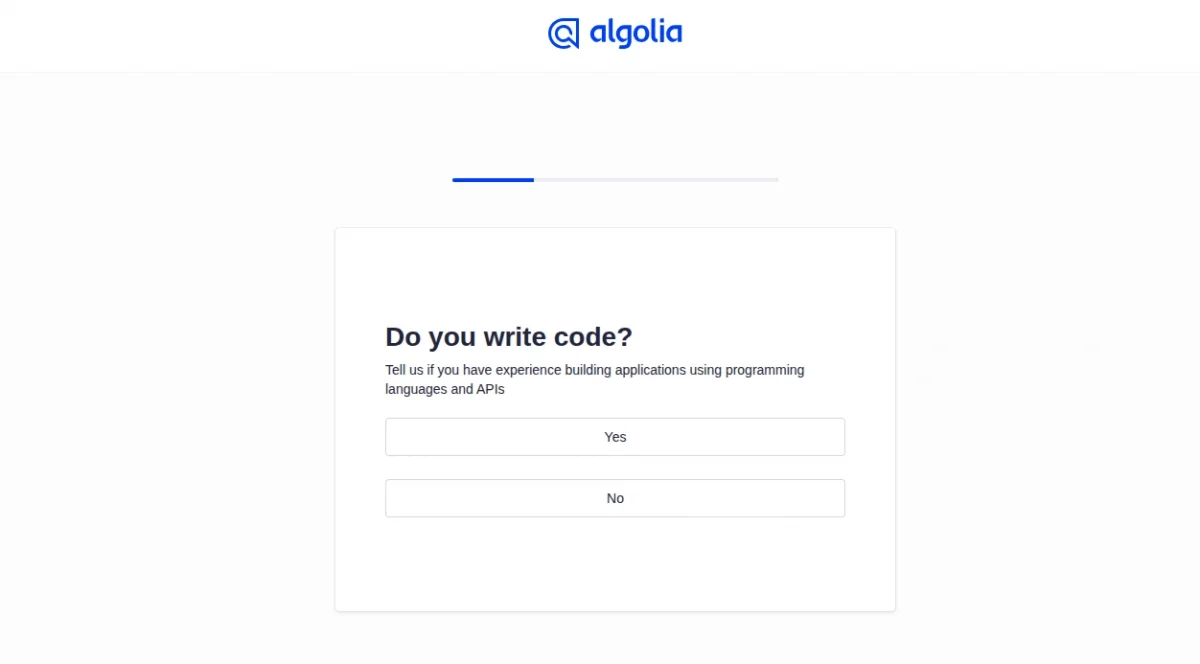
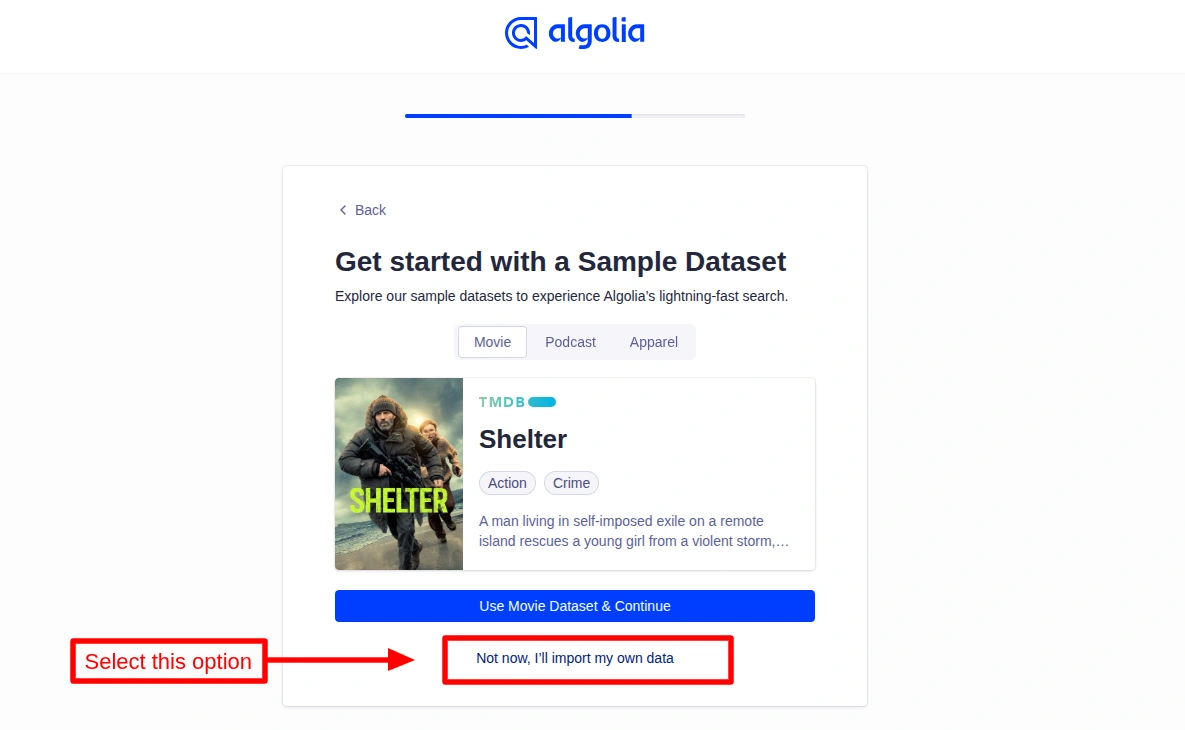
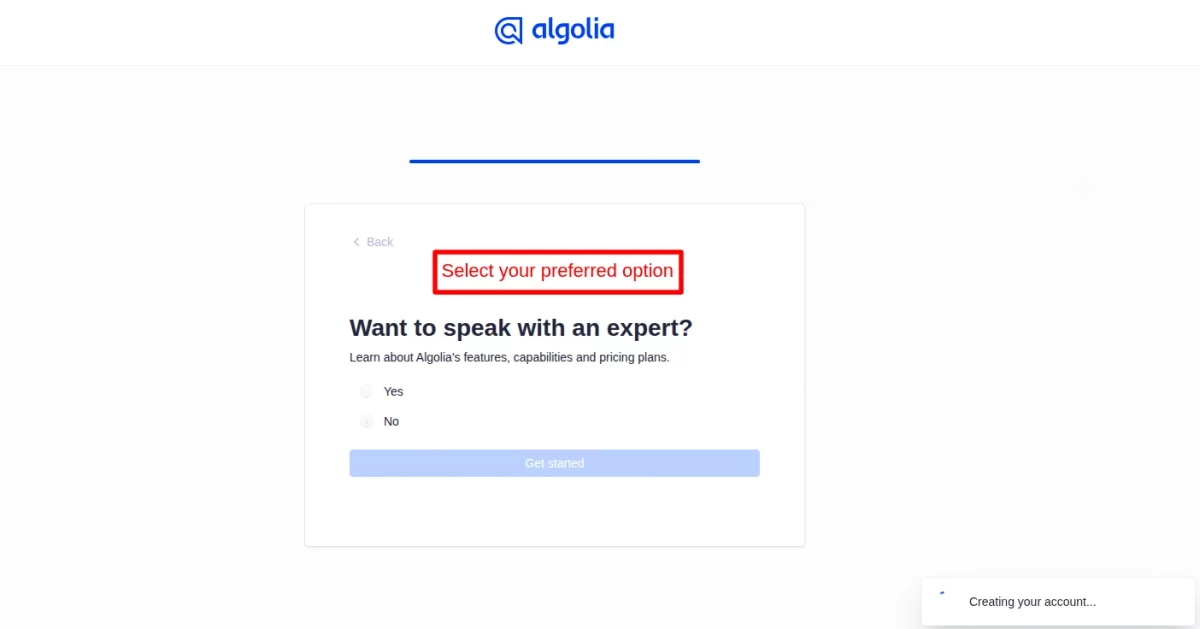
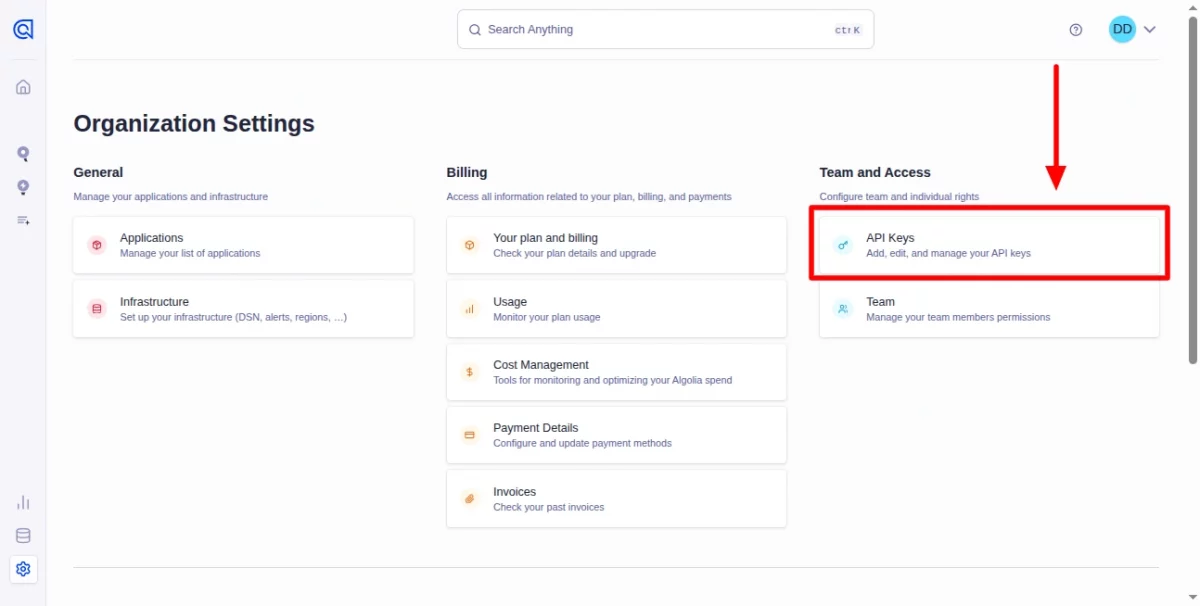
After successfully signing in to their account, the admin has to click on the “Settings” tab.
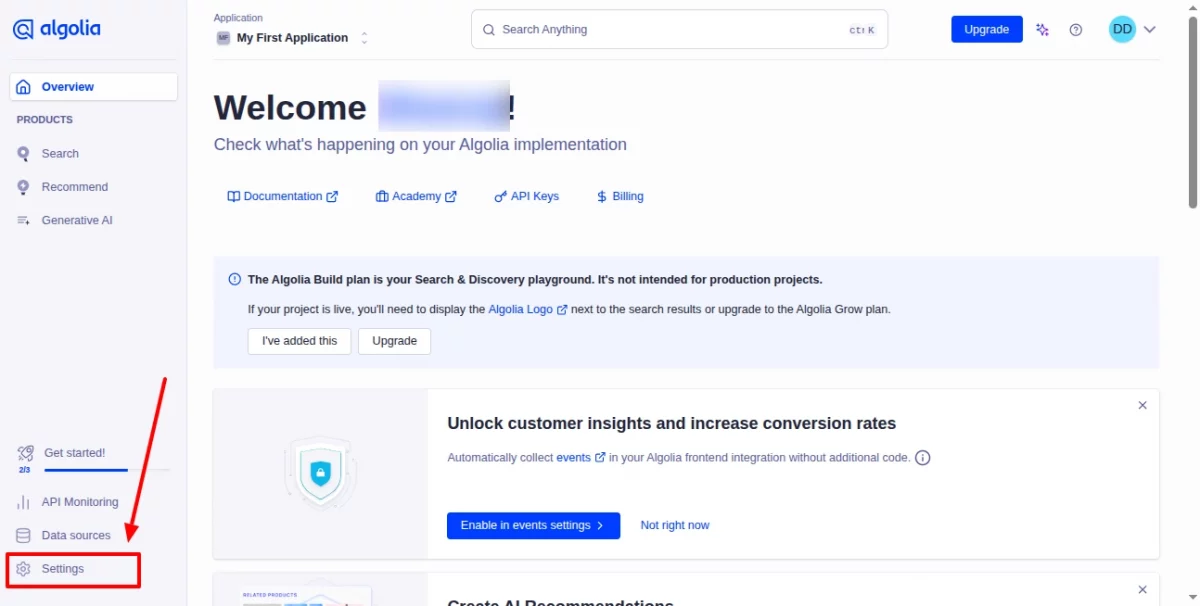
The admin will be redirected to a new page, and then they has to click on “API Keys” button.
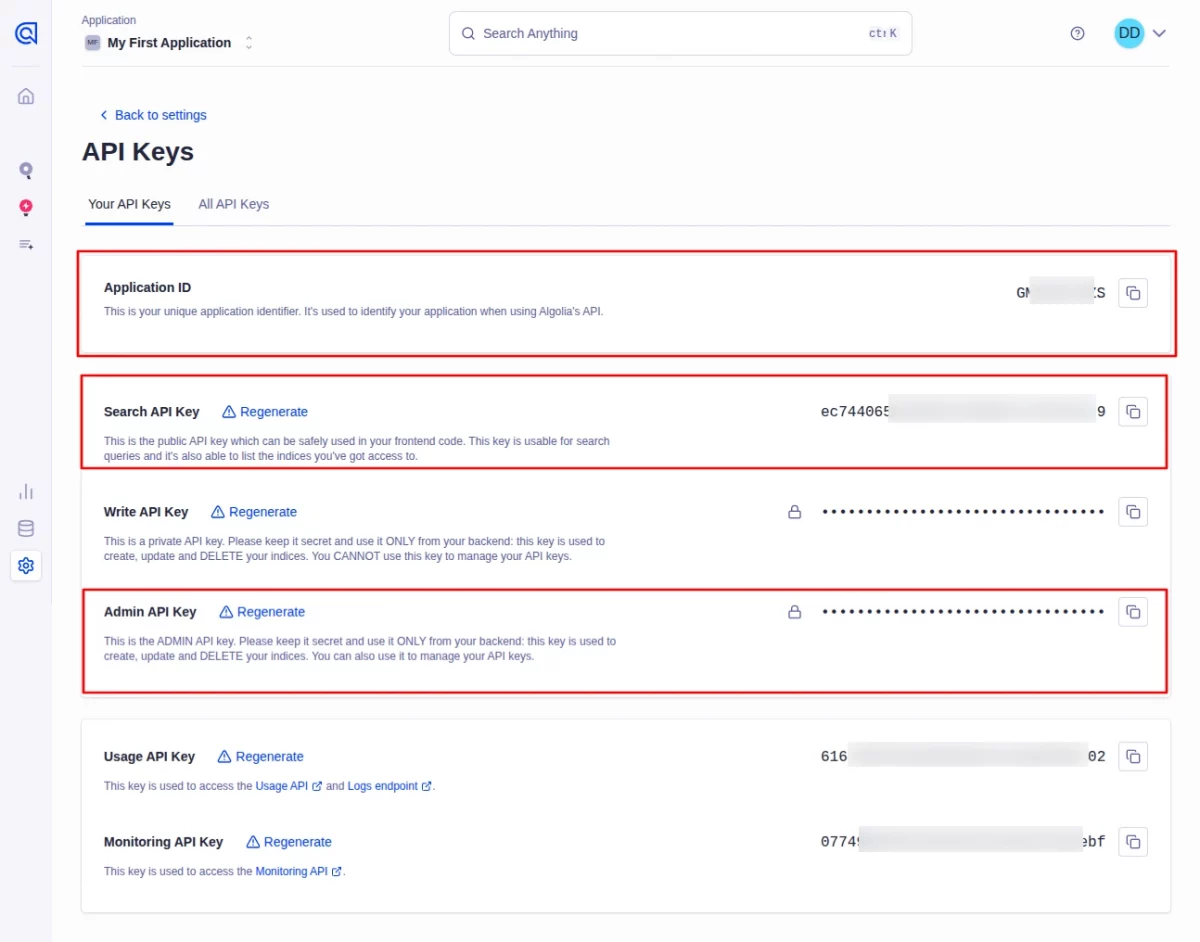
Then, the admin will be redirected to another page, where they can find all the required API credentials to configure the module.
Features Of PrestaShop Algolia Search Module
Front Office Features
- Instant search results displayed while typing
- Autocomplete suggestions for products, categories, and queries
- Advanced faceted filtering options
- Fully mobile-responsive search interface
- Multiple theme layouts (Default, Compact)
Back Office Features
- Flexible indexing configuration for products, categories, and CMS pages
- Custom attribute mapping for improved search relevance
- Visual customization options for search interface
How to install the module
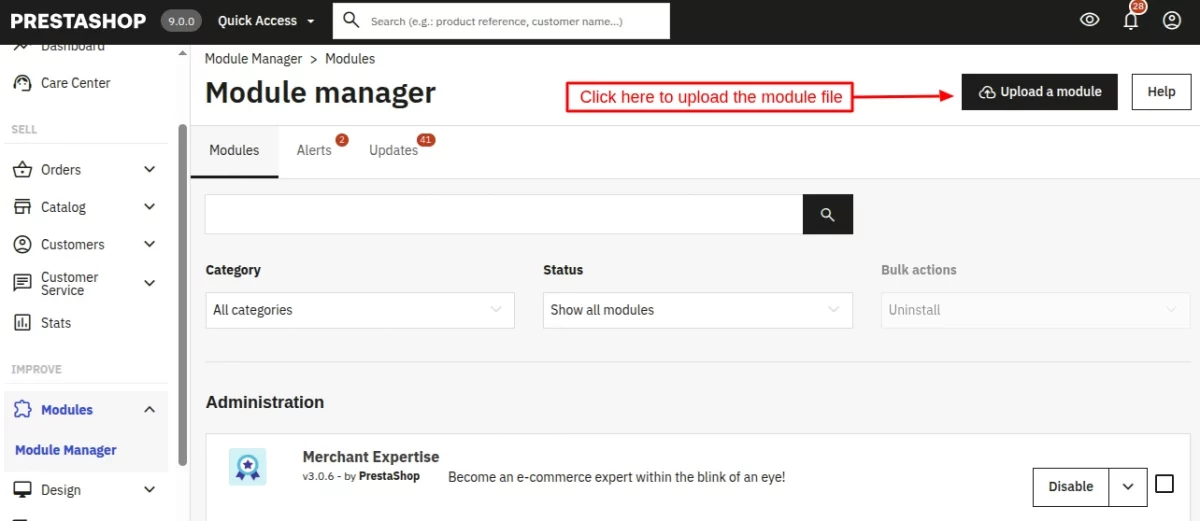
Firstly, go to the module manager in the back office and click on ‘upload a module’.
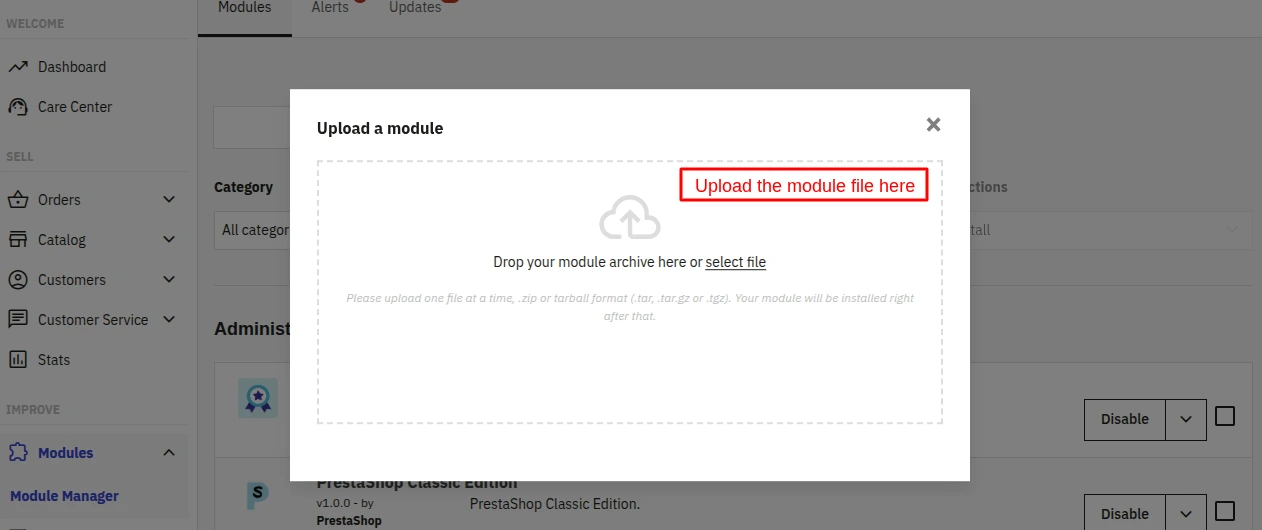
- After that, drag and drop the module file or select the file from the system.
- In this way, the module installation will be successful.
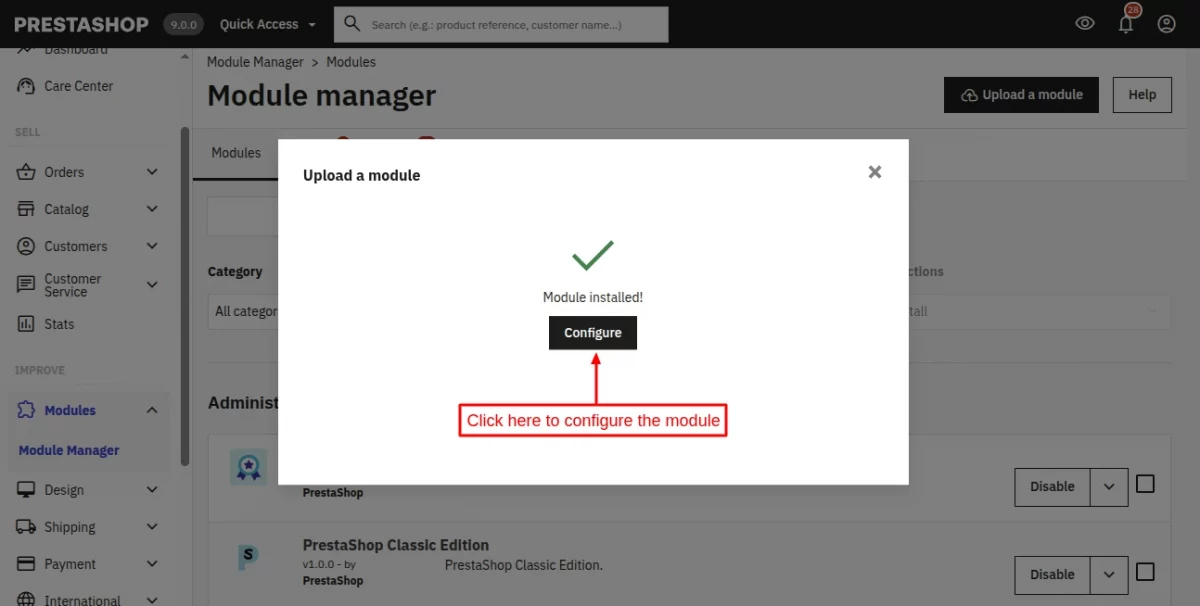
PrestaShop Algolia Search Module Configuration
In order to configure this module, you must have the following details:
- Application ID: Your unique Algolia application identifier
- Search API Key: Public key used for frontend search (safe to expose)
- Admin API Key: Private key for indexing operations (kept secure server-side)
- Index Prefix: Optional prefix to distinguish indices from other applications
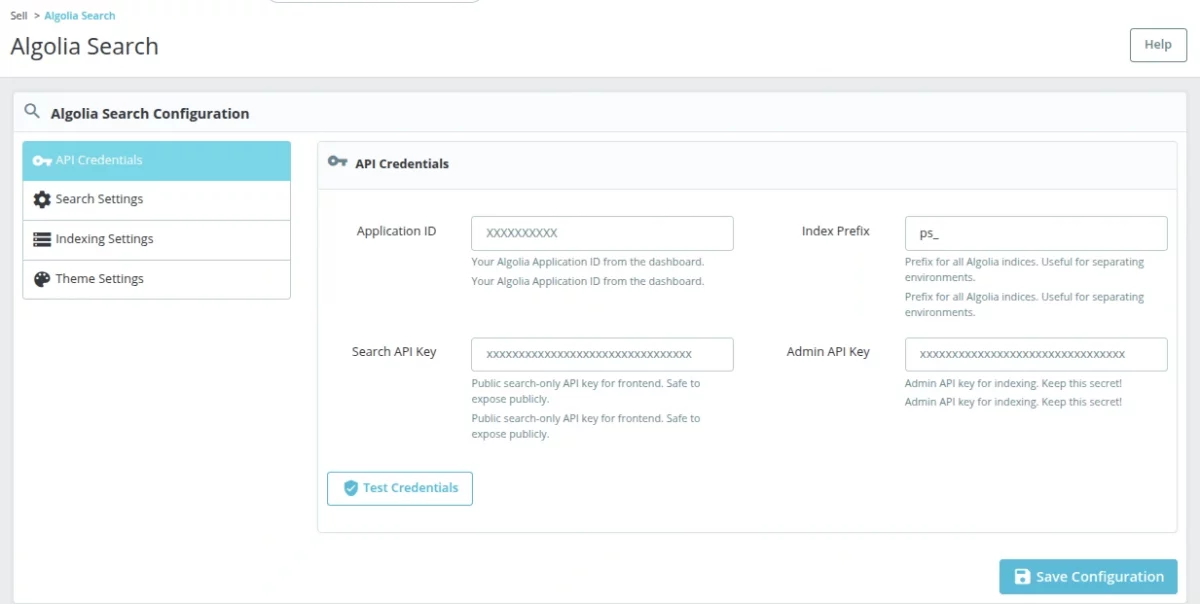
The module validates credentials on save to ensure proper connectivity with Algolia’s servers.
Search Settings
From this tab, the admin will be able to configure how search behaves on your store.
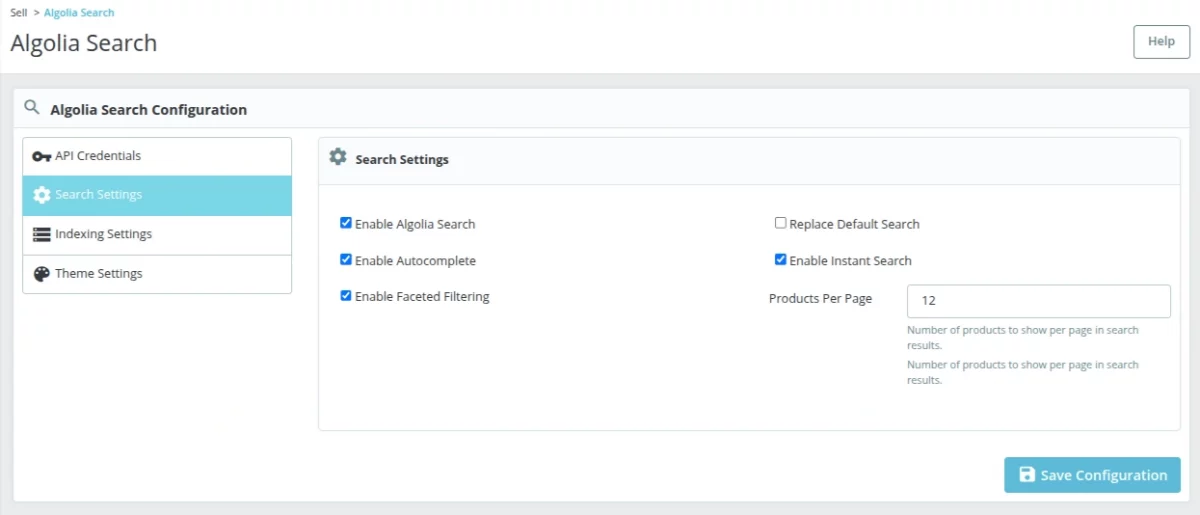
Configure the following options according to your needs:
- Enable Algolia Search: To activate the Algolia search bar.
- Replace Default Search: For replacing PrestaShop’s native search.
- Enable Autocomplete: For showing suggestions while typing.
- Enable Instant Search: To update results as the user types.
- Enable Facets: To show filter options in results.
- Products Per Page: Set the number of products to display per page.
Indexing Settings
The Indexing Settings section allows the admin to control which content is indexed in Algolia. The admin can enable indexing for products, categories, and CMS pages individually.
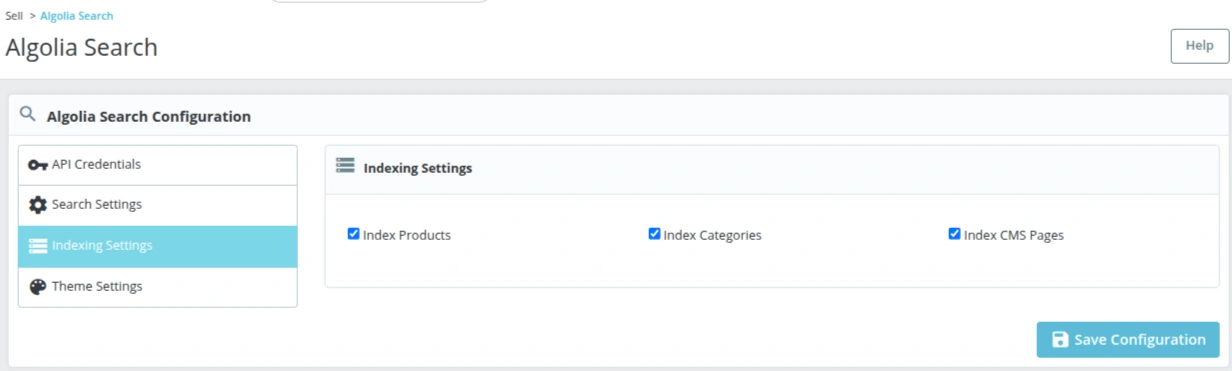
Choose which entities to index in Algolia:
- Index Products: Product names, descriptions, prices, images
- Index Categories: Category names and descriptions
- Index CMS Pages: Static content pages
Theme Settings
The Theme Settings section allows customization of the visual appearance of the search interface. The admin can choose from the following layout options, such as Default and Compact.
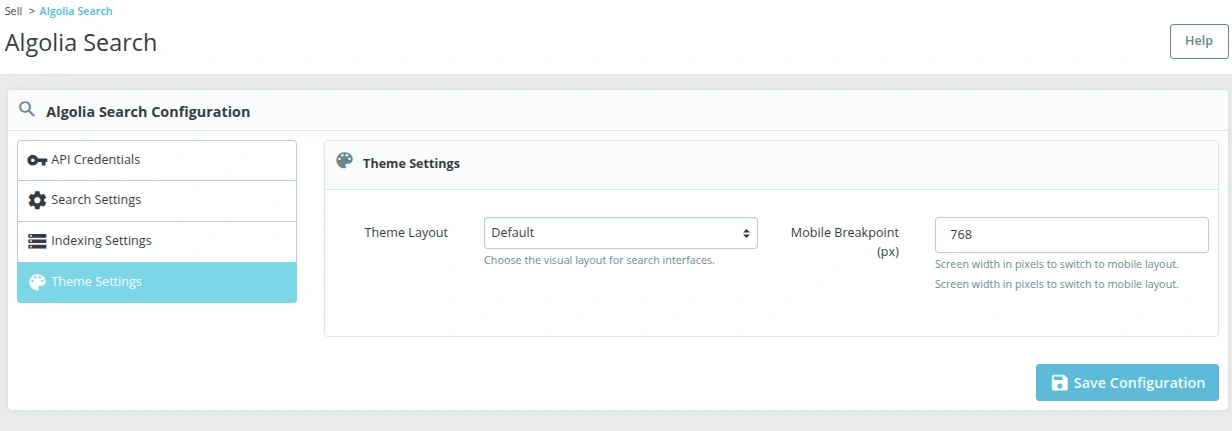
Select your preferred Theme Layout from the following options:
- Default: Standard sidebar layout
- Compact: Minimal space design
Along with the layout selection, the mobile breakpoint can be configured to define when the mobile view should be activated.
Initial Indexing
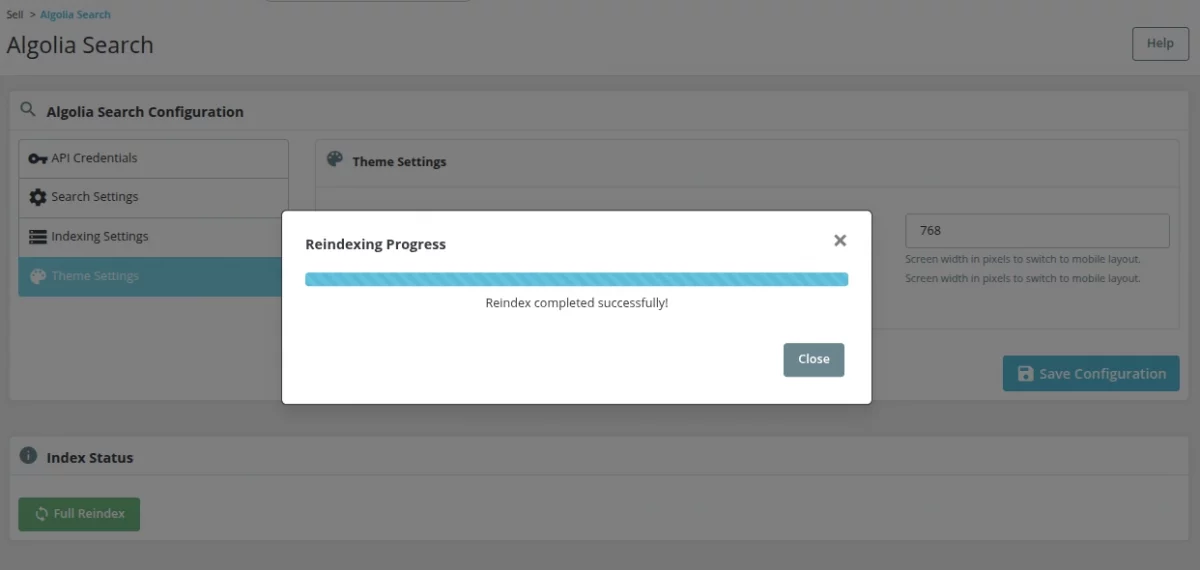
Once all configurations are completed, the admin needs to perform initial indexing to populate data into Algolia.
This can be done by clicking the Full Reindex button available on the configuration page.
The indexing process may take some time, depending on the size of the product catalog. The progress can be monitored from the indices section.
For large catalogs, it is recommended to use CLI commands to avoid timeout issues.
Indices Management
The Indices Management section allows the admin to view and manage all Algolia indices.
From this section, the admin can check the number of records in each index, view the last update time, and access individual index settings.
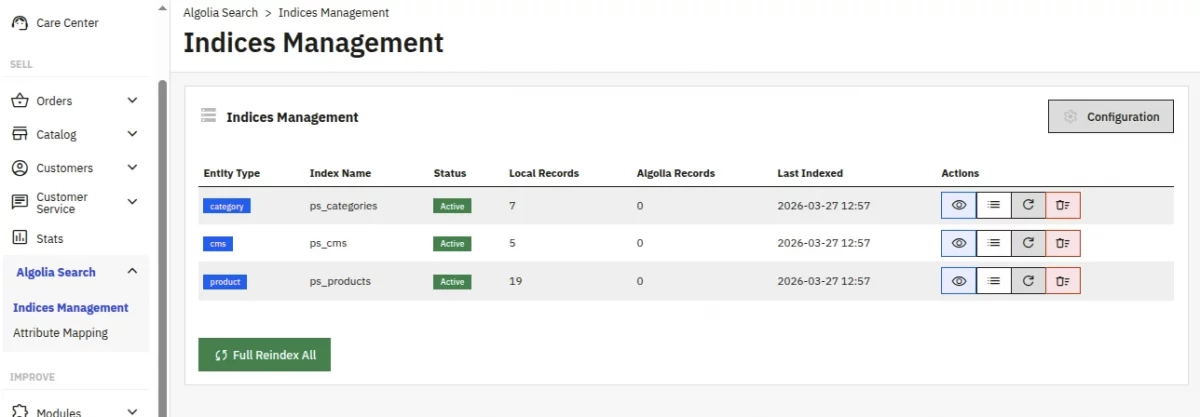
The admin can also perform actions such as deleting and rebuilding indices or reviewing index configurations.
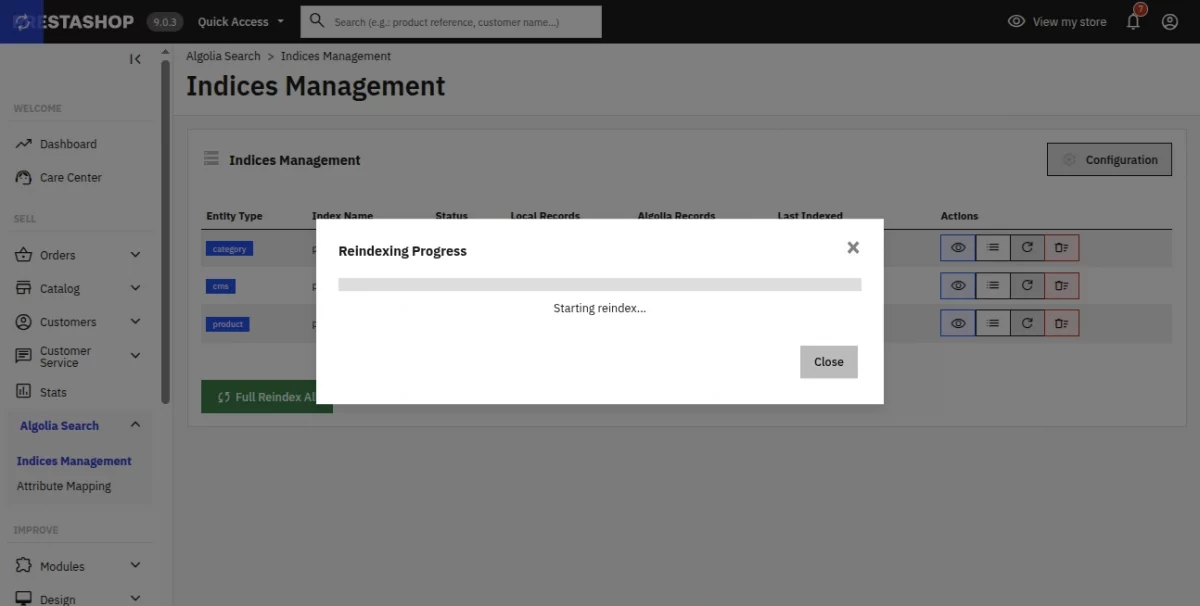
After completing the indexing, the entity details will be displayed on your Algolia account.
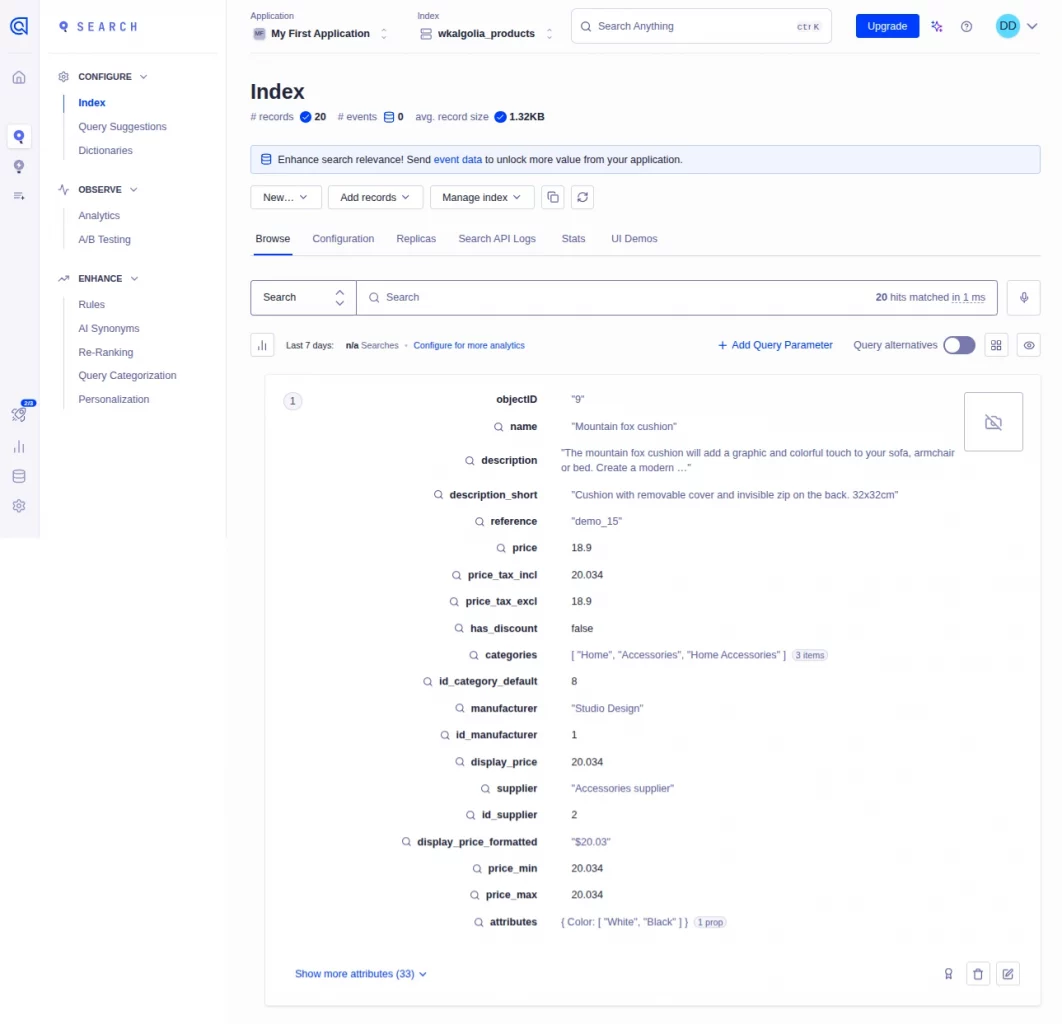
View index details
After clicking on the view icon, the admin will be able to view the details of the Index.
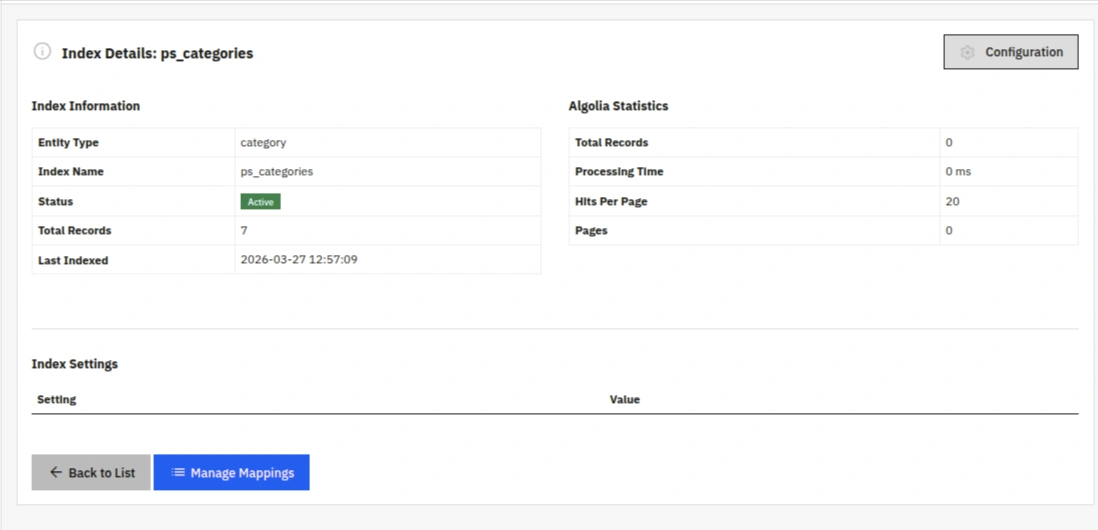
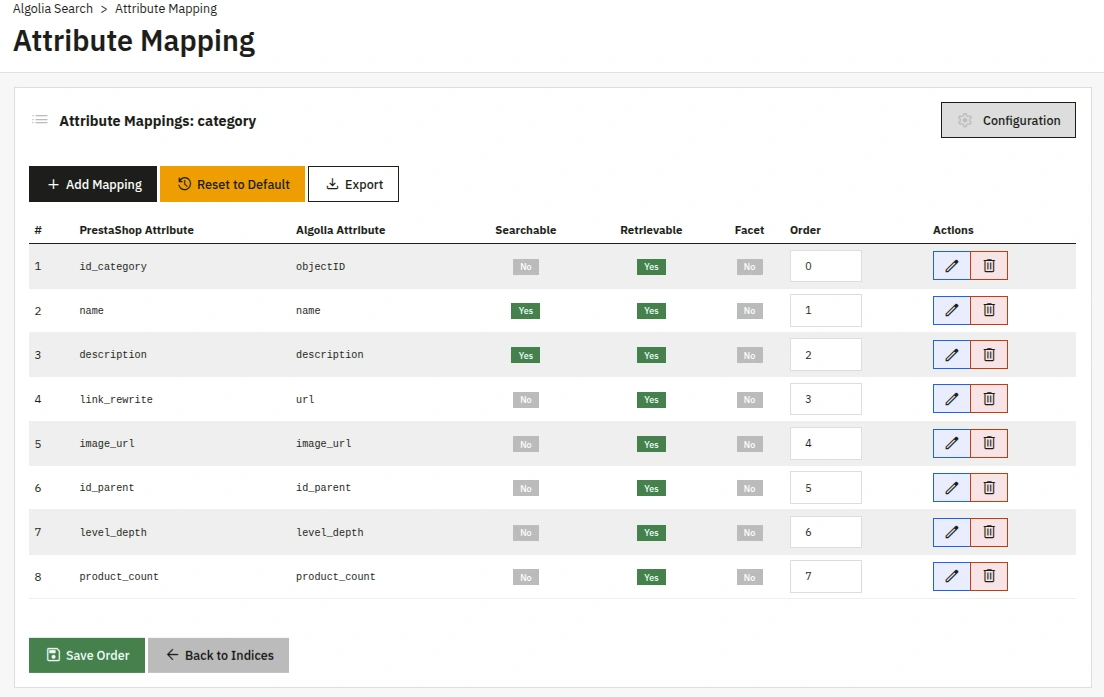
Attribute Mapping
The Attribute Mapping section allows the admin to map PrestaShop attributes with Algolia attributes.
This helps in defining which attributes are searchable, which should be displayed in results, and which can be used for filtering.
Admin can map Prestashop and Algolia attributes manually.
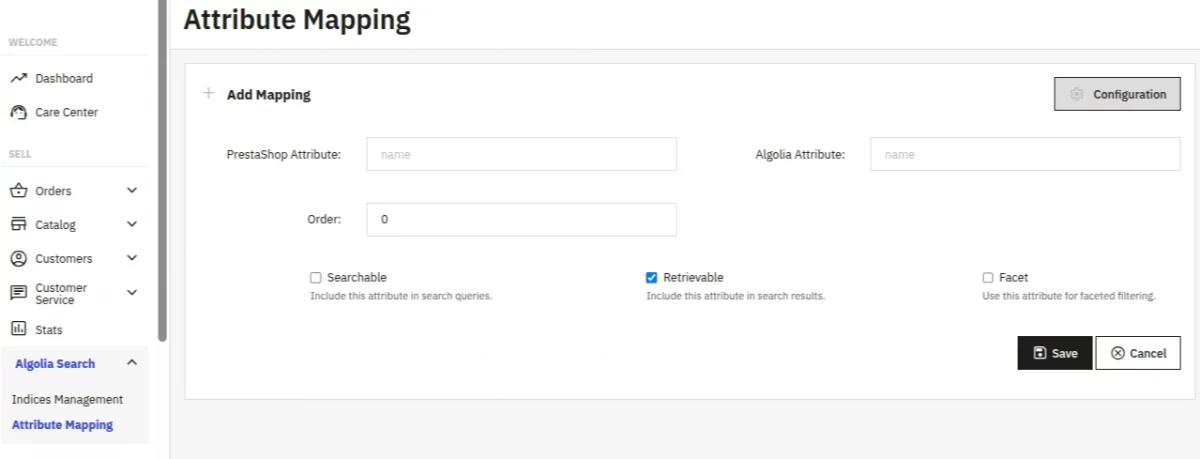
Frontend Workflow
Search Bar Experience
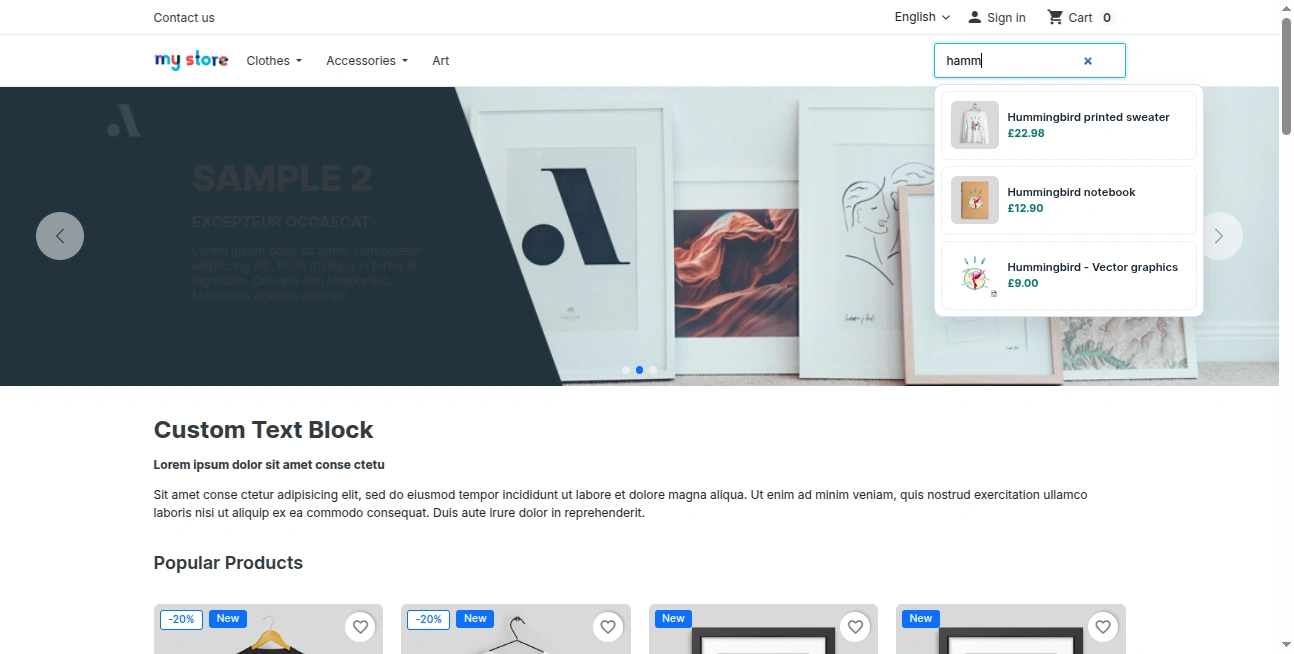
After configuring the module, the search bar of the store is enhanced with Algolia-powered functionality.
When a user starts typing in the search bar, the results begin to appear instantly without requiring the user to press the enter key or click on a search button.
The autocomplete feature provides suggestions in real time, including matching products, relevant categories, and commonly searched queries.
This helps users quickly find what they are looking for, even if they enter incomplete or incorrect search terms.
Search Results Grid
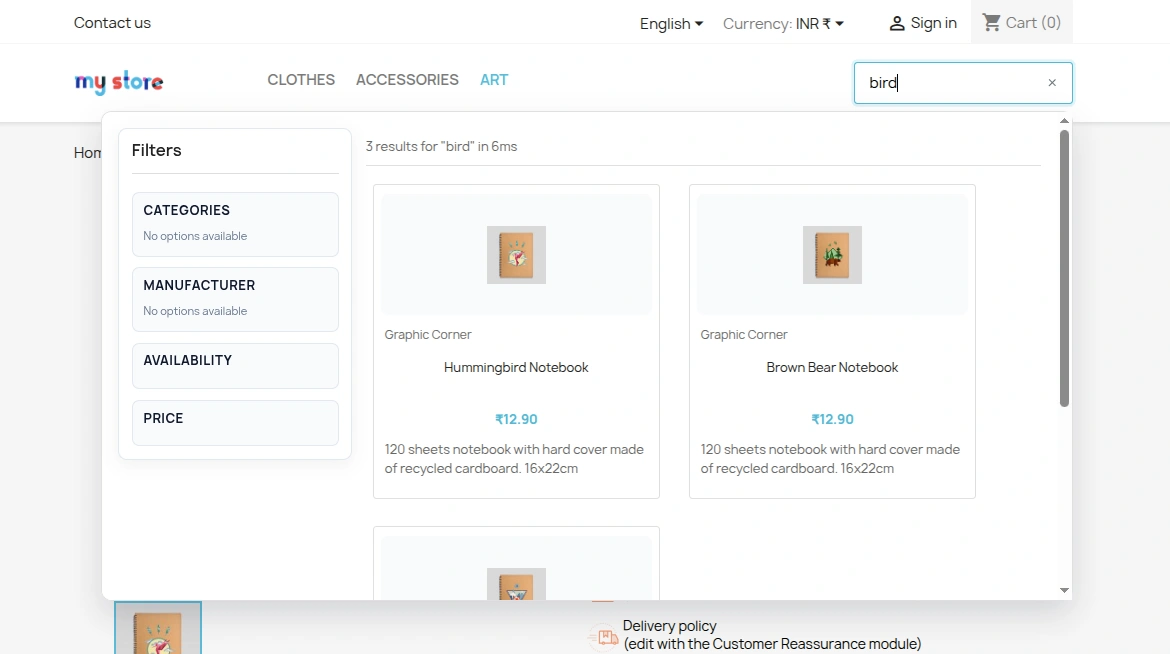
When a user performs a search, a detailed results grid is displayed. This section includes a product grid showing product images, names, prices, and other relevant details.
On the side of the results page, faceted filters are available, allowing users to refine their search based on categories, attributes, manufacturer, and availability.
The filtering process is instant and does not require page reloads, ensuring a smooth browsing experience.
Pagination or load more functionality is also available to help users navigate through multiple results efficiently.
Mobile Search Experience
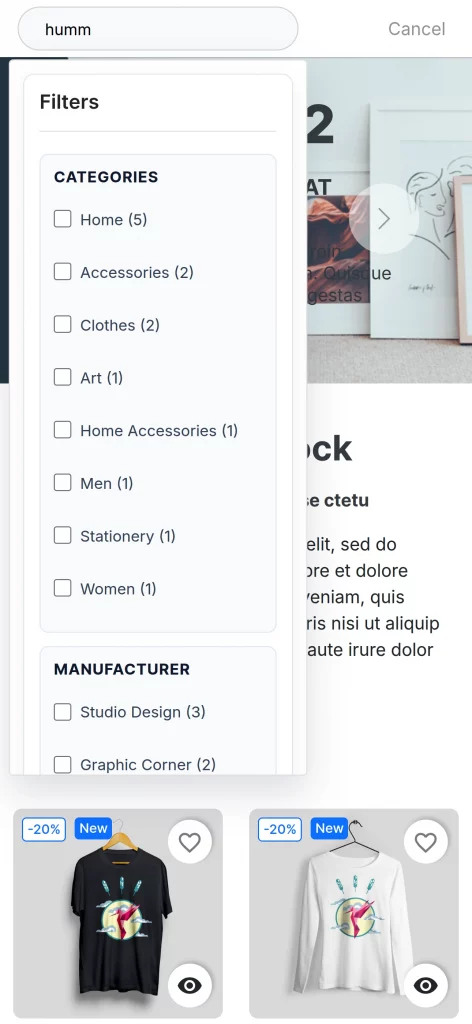
On mobile devices, the search experience is fully optimized to provide better usability.
The search interface adapts to a full-screen layout, making it easier for users to interact with the search functionality.
Filters are designed to be touch-friendly, and the product display adjusts to fit smaller screens. The overall experience ensures smooth navigation and performance on mobile devices.
Filtering Options
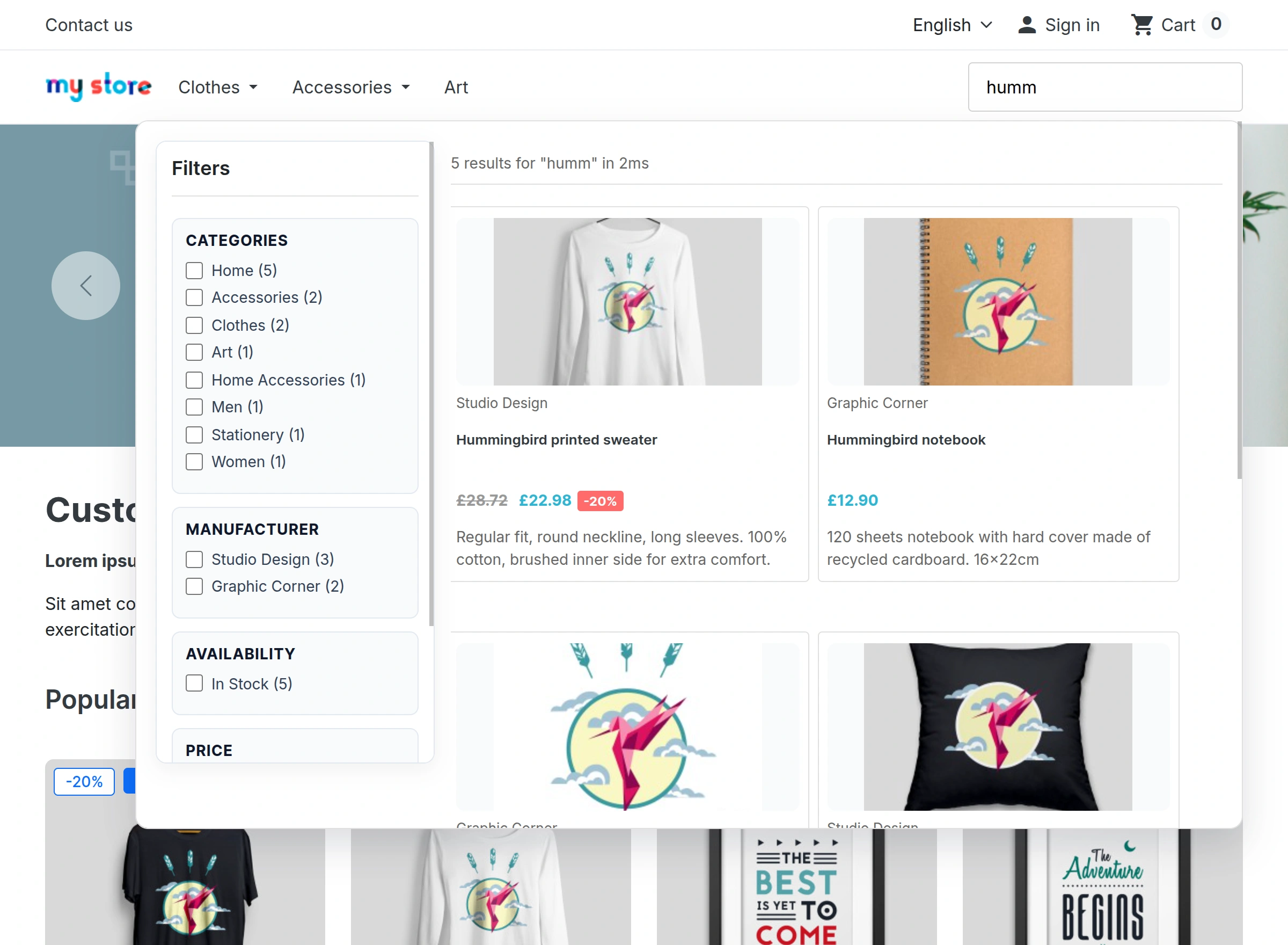
The module provides multiple filtering options that allow users to refine their search results. Users can filter products based on price range, categories, attributes, and availability.
These filters help users narrow down their search and quickly find the most relevant products according to their preferences.
Troubleshooting
Connection
- If there is an issue with API credentials, the admin should verify the Application ID, check the API keys, remove any extra spaces, and ensure that the Algolia account is active.
- In case of connection timeout issues, it is recommended to check firewall settings, ensure HTTPS access is allowed, verify SSL configuration, and contact the hosting provider if necessary.
Indexing
- If no records are indexed, the admin should ensure that indexing is enabled, verify product data, review logs, and try CLI-based indexing.
- If indexing is partial, it is important to check product status, shop association, and product pricing details.
Frontend
- If search results are not appearing, the admin should verify API keys, check the browser console for errors, and ensure indices contain data.
- If filters are not working, the admin should verify facet configuration, attribute mapping, and product data availability.
Performance
- If search performance is slow, optimizing attributes and reviewing Algolia configuration can help. Upgrading the Algolia plan may also improve performance.
Support
For any kind of technical assistance or query, please raise a ticket or send us a mail at [email protected]
Current Product Version - 1.0.0
Supported Framework Version - 1.7.x.x, 8.x.x, 9.x.x


Be the first to comment.