Intoduction
Portal Purchase Signature lets vendors accept and sign purchase orders online from the portal. It removes paperwork, saves time, and helps businesses confirm orders faster with a clear and secure signing process.
The module allows vendors to review, accept, sign, or reject purchase orders directly from the portal without manual follow-ups.
With a secure digital signing workflow, businesses get faster confirmations, clear records, and better control over vendor approvals.
Features
- Vendors can sign purchase orders directly from the portal.
- Vendors can easily accept and sign purchase orders online.
- Each signature is saved securely with date and vendor details.
- Purchase order status updates automatically after signing.
- Vendors can reject purchase orders with a reason.
- Vendors can add comments or feedback on purchase orders.
- Purchase orders update automatically after vendor confirmation.
Installtion
- Once you purchase the App from the Webkul store, you will receive a link to download the module’s zip file.
- Extract the file on your system after the download finishes. As a result, you will be able to see a folder named- ‘wk_portal_purchase_signature’.
- Copy and paste this folder inside your Odoo Add-Ons path.
- Now, open Odoo Apps and click on the Settings menu. Click Activate Developer Mode here.
- Then, open the Apps menu and click on ‘Update Modules List.’
- In the search bar, remove all the filters and search ‘wk_portal_purchase_signature’.
- You will be able to see the module in the search results. Click on ‘Activate’ to install it.
Workflows
- My Account: The vendor logs in to the portal and opens My Account to view purchase orders. Navigation: Website → My Account→ Requests for Quotation

- Create Purchase Request: The admin creates a purchase request from the Purchase module. Navigation: Purchase → Orders → Requests for Quotation → Create
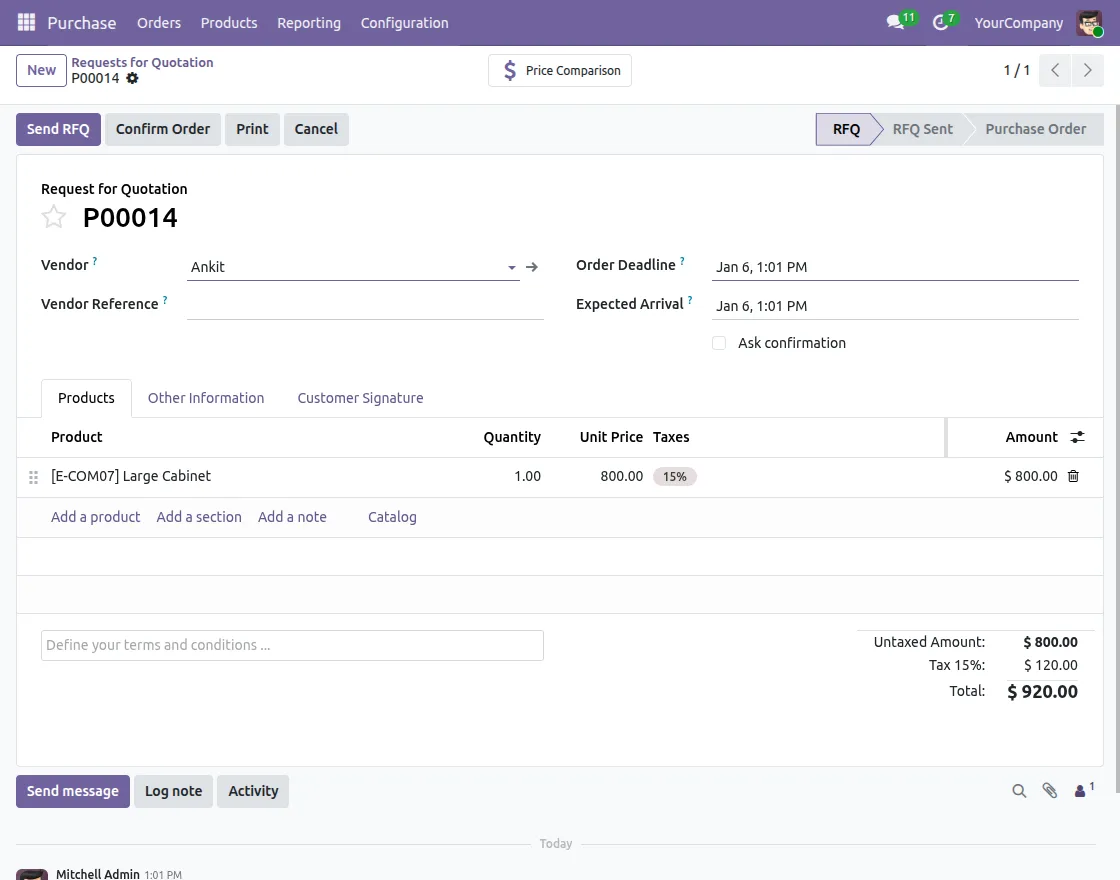
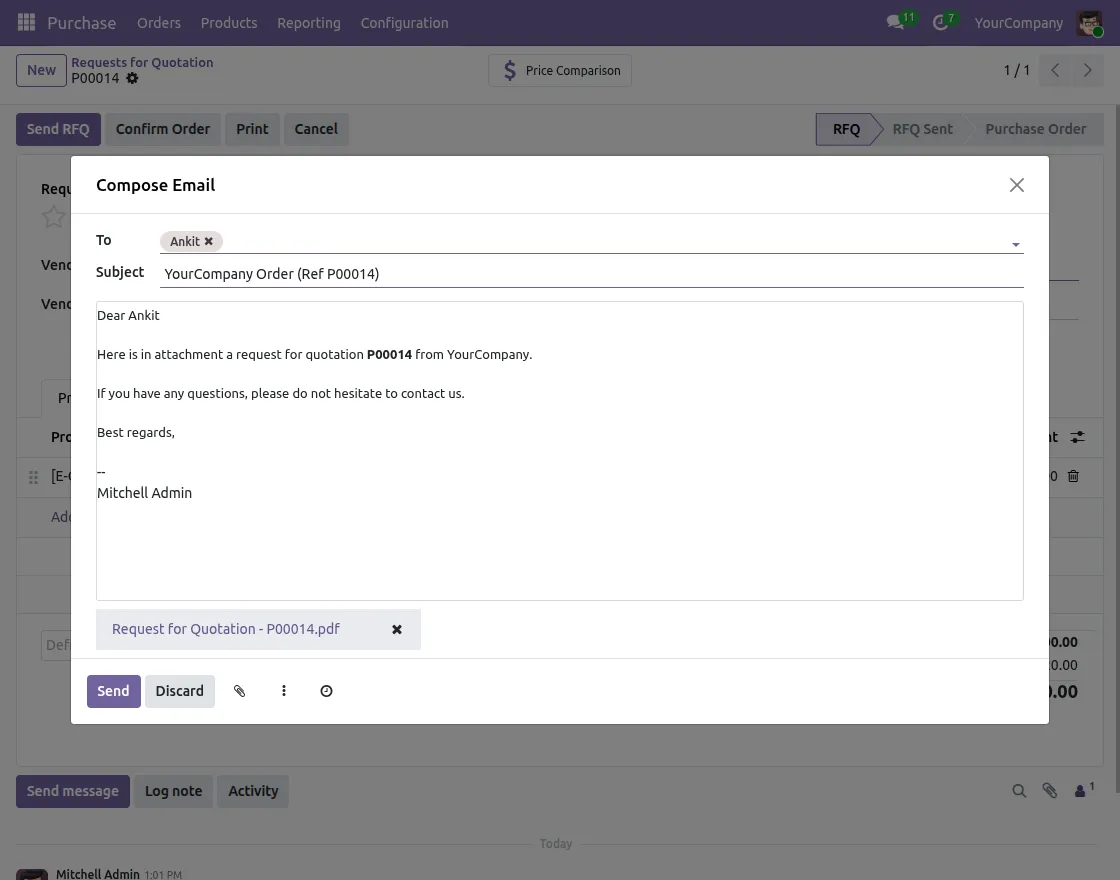
- Send Purchase Request: The purchase request is sent to the vendor for review and confirmation. Navigation: Purchase Request → Send
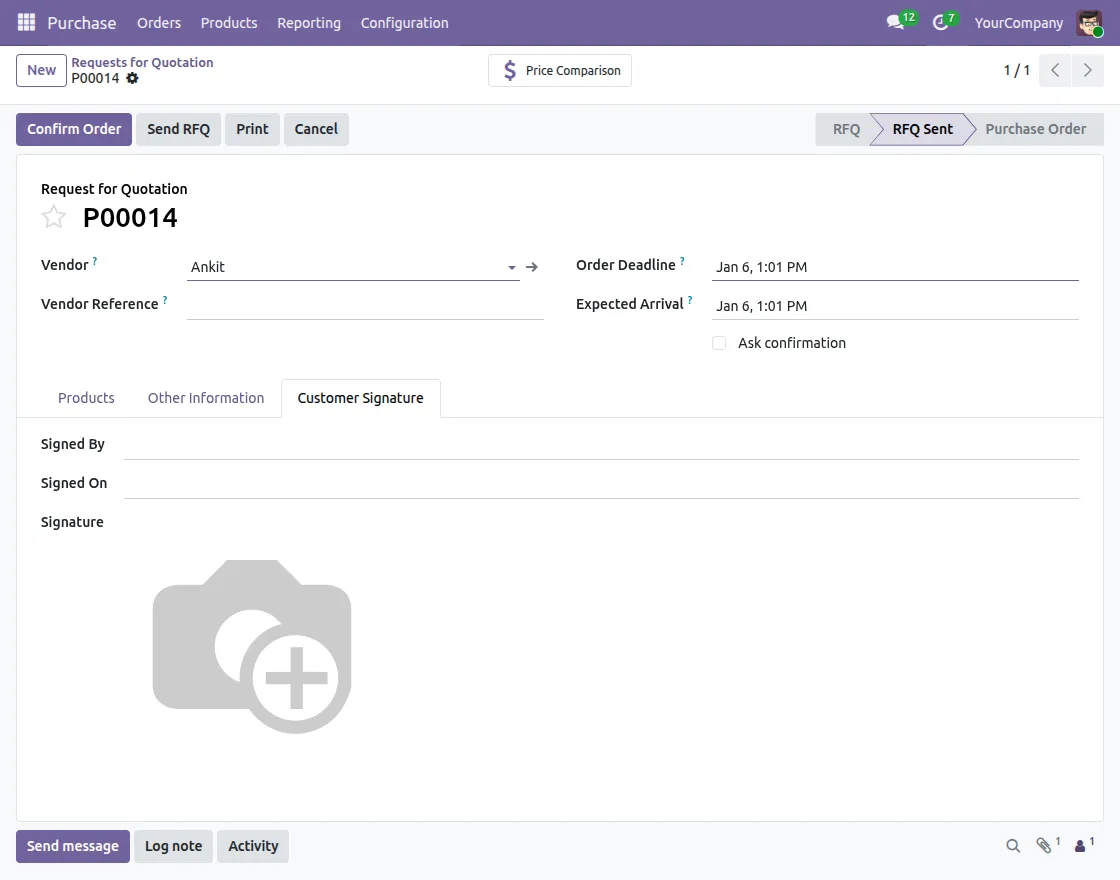
- No Customer Signature: If the order is not signed, No Customer Signature is displayed. Navigation: Purchase Request → Purchase Order
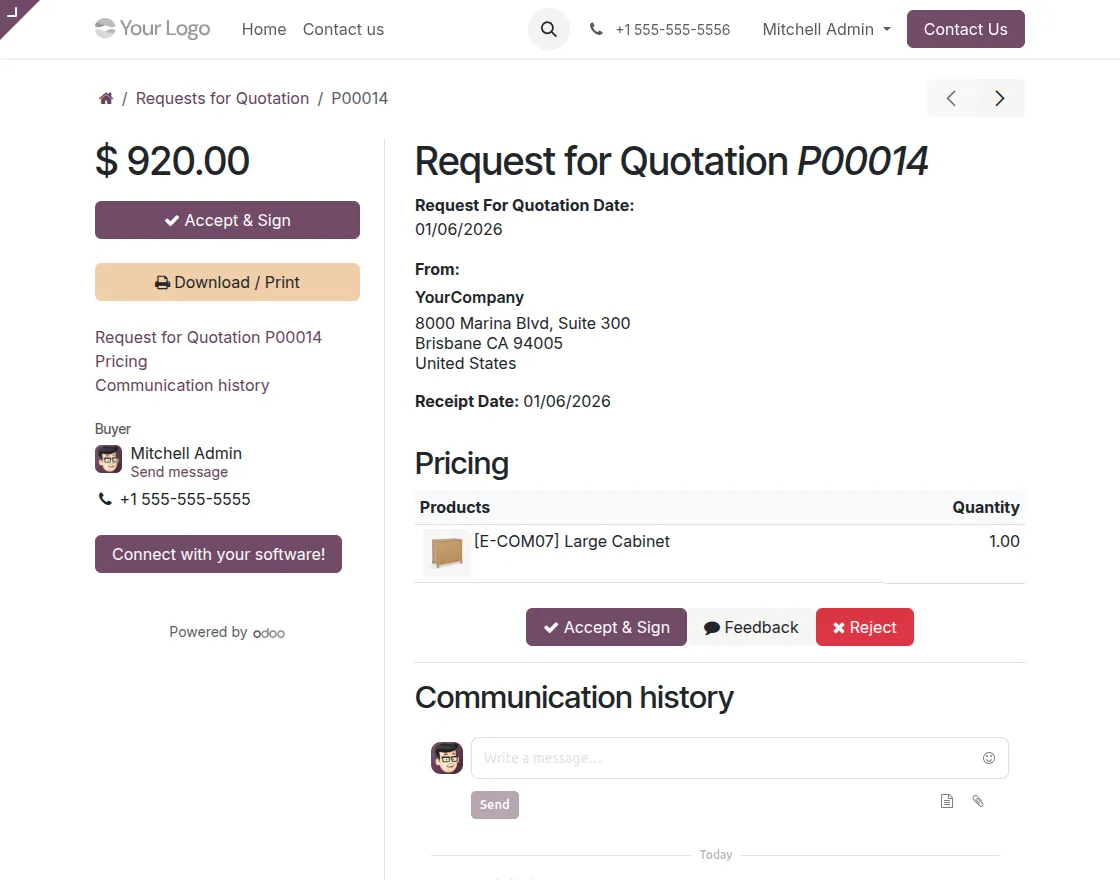
- Accept and Sign Option: The vendor views received quotations and sees the Accept and Sign option. Navigation: My Account → Requests for Quotation→ Order
- Accept and Sign: The vendor accepts the order and adds a digital signature using the signature box. Navigation: My Account → Requests for Quotation → Order →Accept and Sign
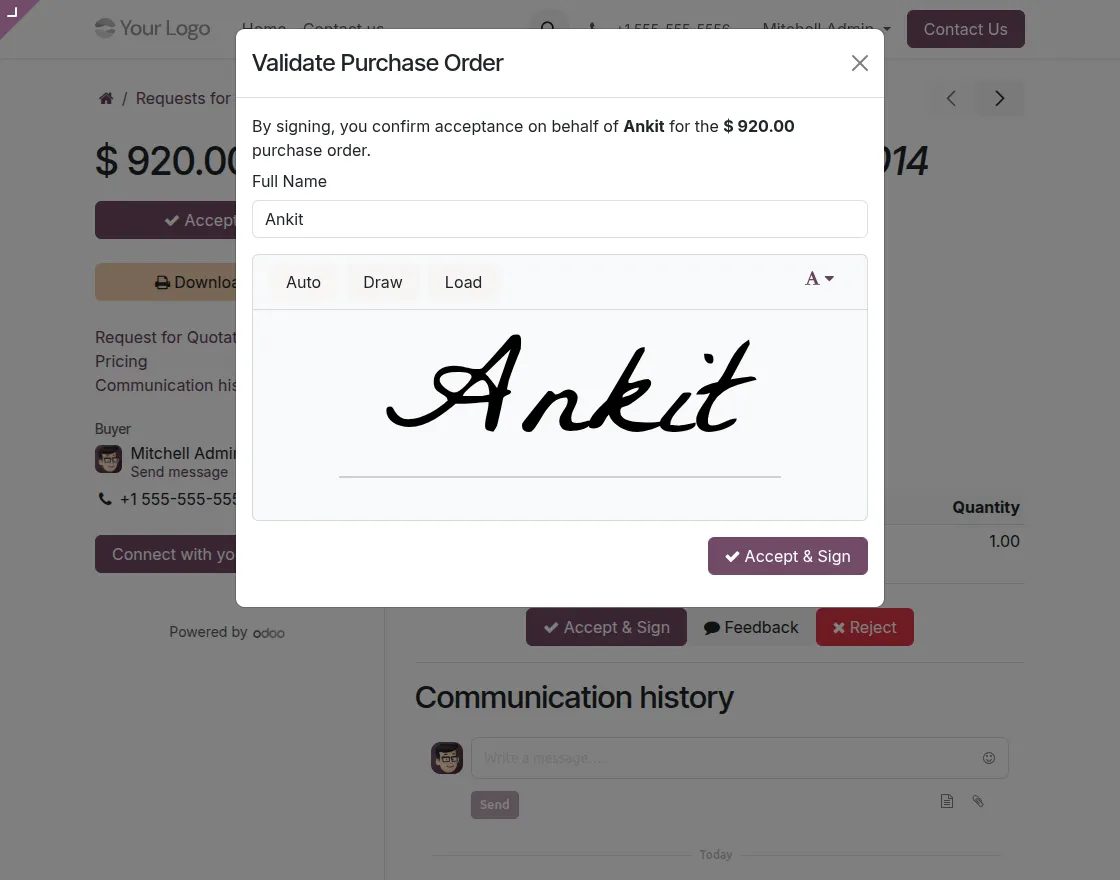
- Reject Quotation: The vendor can reject the purchase order by providing a mandatory reason. Navigation: My Account → Requests for Quotation → Order →Reject
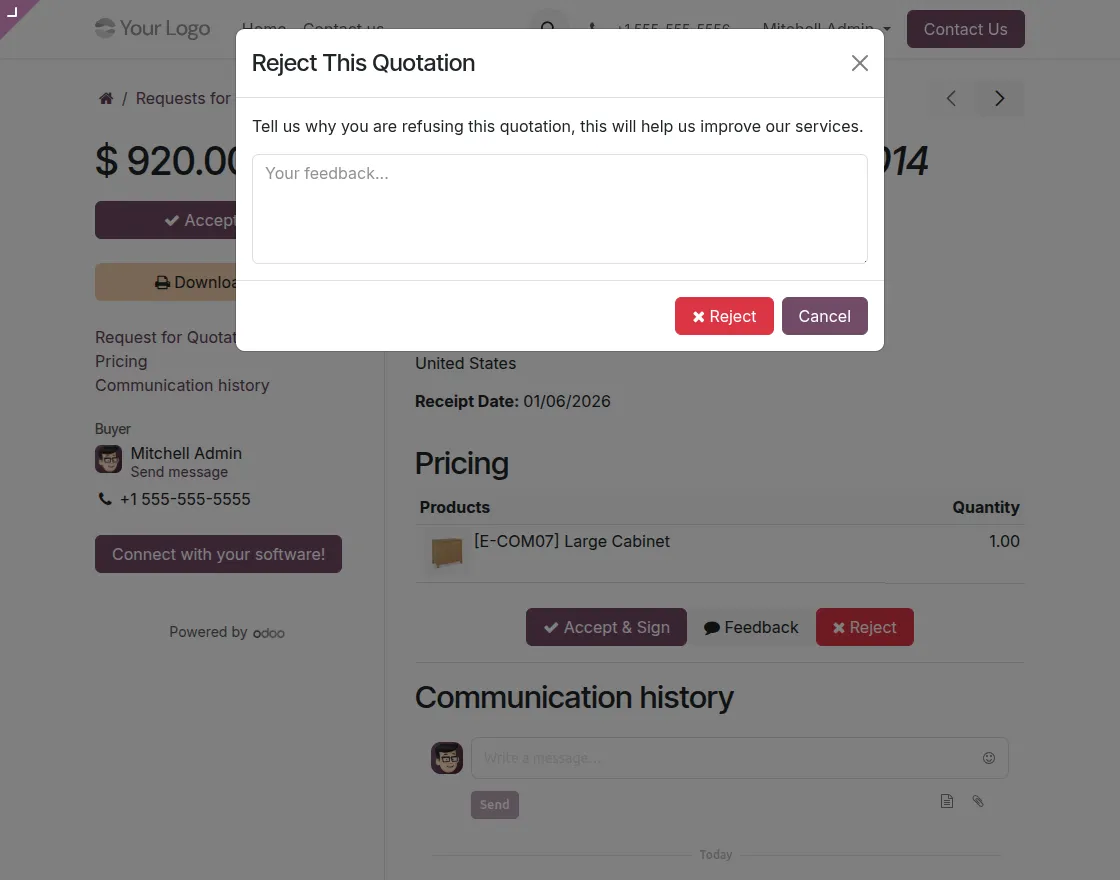
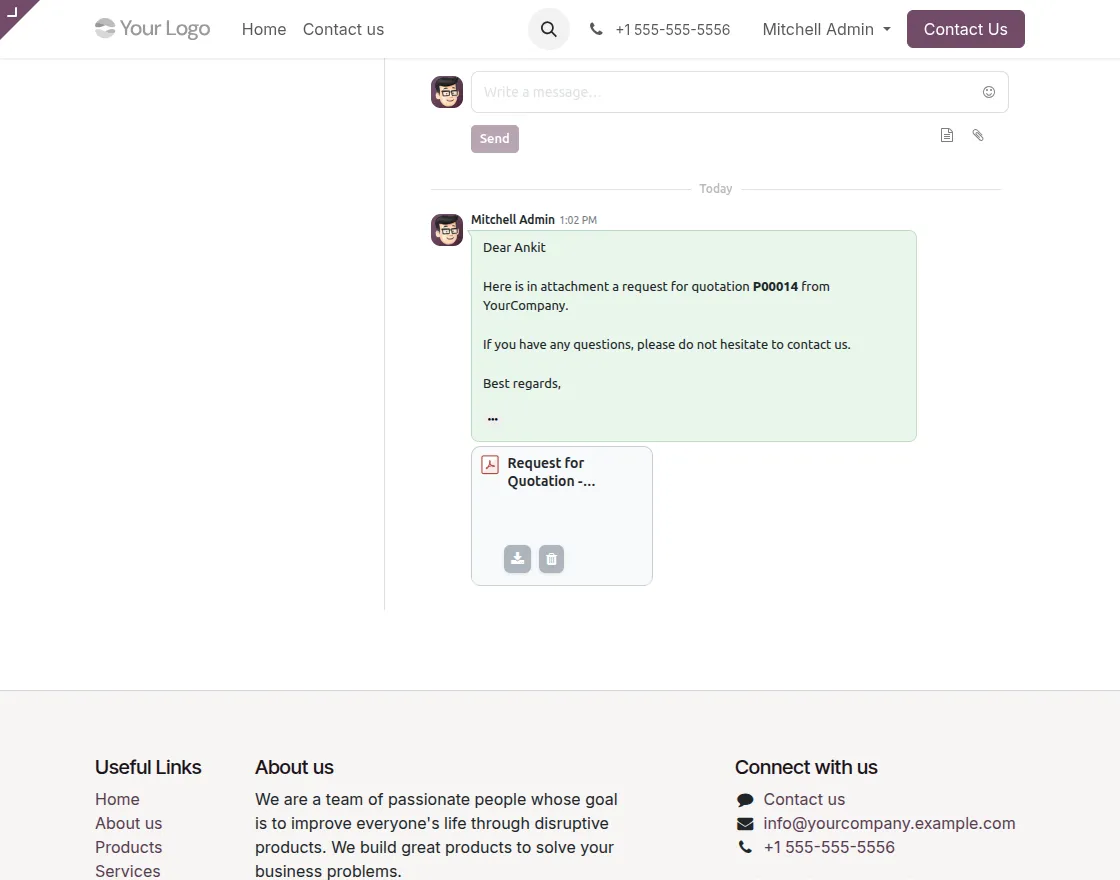
- Quotation Feedback: The vendor can submit comments or feedback without rejecting the order. Navigation: My Account → Requests for Quotation → Order → Feedback
- Accept and Sign Done: After signing, the purchase order status is updated automatically. Navigation: My Account → Requests for Quotation → Orders
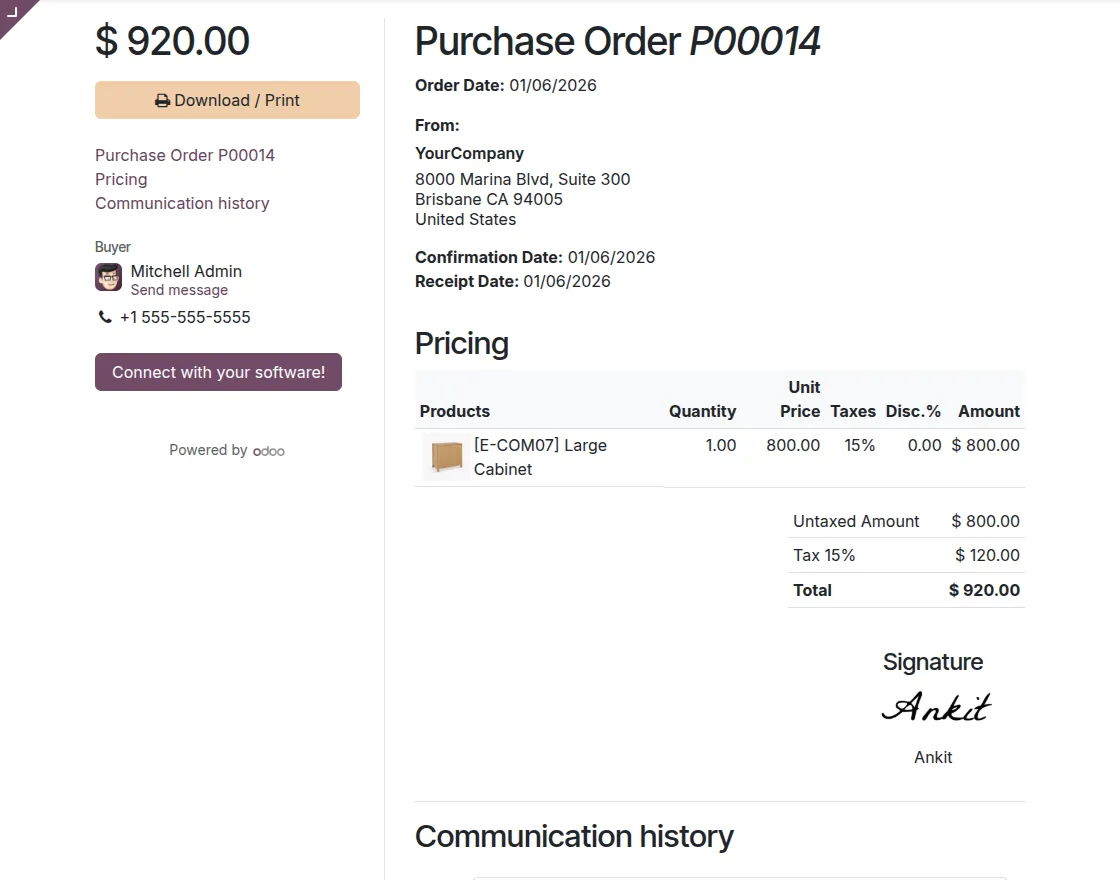
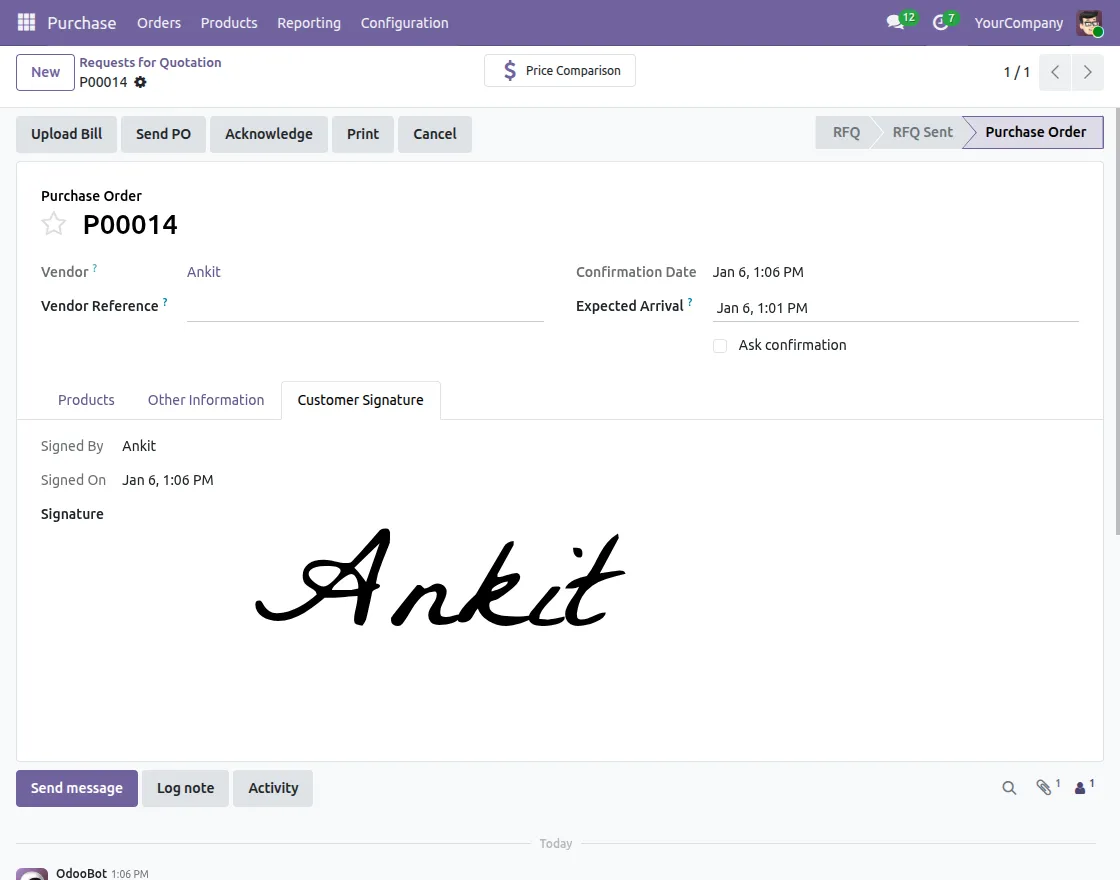
- Sign Display on Quotation in Customer Signature: The admin can view, download, and verify the signed purchase order from the backend. Navigation (Admin): Purchase → Orders → Purchase Orders → Purchase Order
Need Help?
Hope you find this guide helpful! Please share your feedback in the comments below.
If you have any issues or queries, create a ticket at the UV Desk.
For further assistance, contact us via our support email: [email protected]
Thanks for your attention!!
Current Product Version - 1.0.0
Supported Framework Version - Odoo v19, v17, v16


Be the first to comment.