Overview
With the help of the Pattern Swatches app for Wix, store owners can add visual interest and creative flair.
By integrating patterned backgrounds, image tiles, and textures that adapt to their brand’s look and feel.
Easily customize templates of the products in terms of colours, sizes, and tile patterns.
Go to Templates. Now, you have a page where many templates are located.
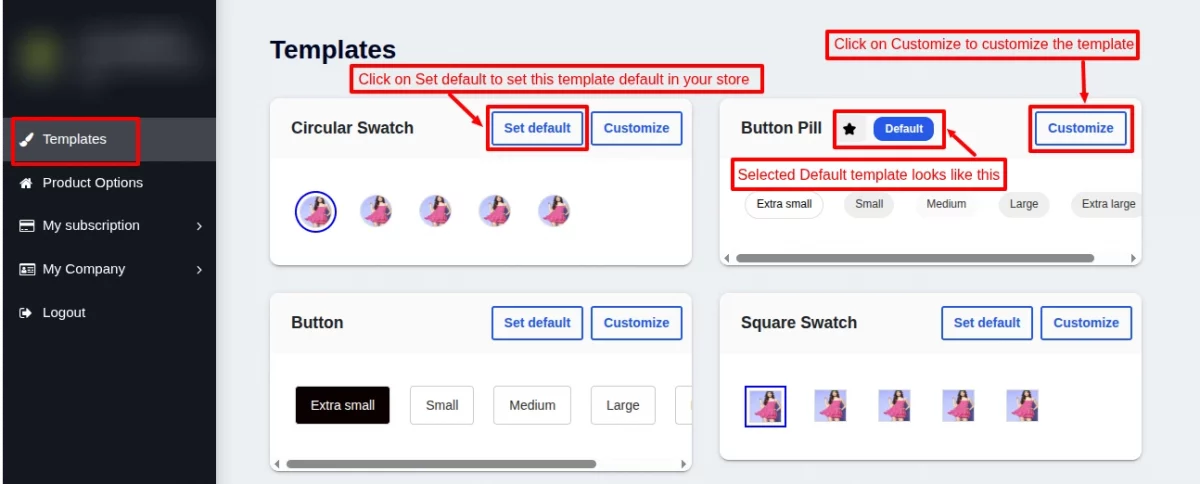


Choose a compatible template, set it as the default, as shown in the screenshot above:
Click on Customize to customize or edit the template and add features according to our requirements.
Customize the template and click on Create to save the changes in the template:

Product Options in Wix:
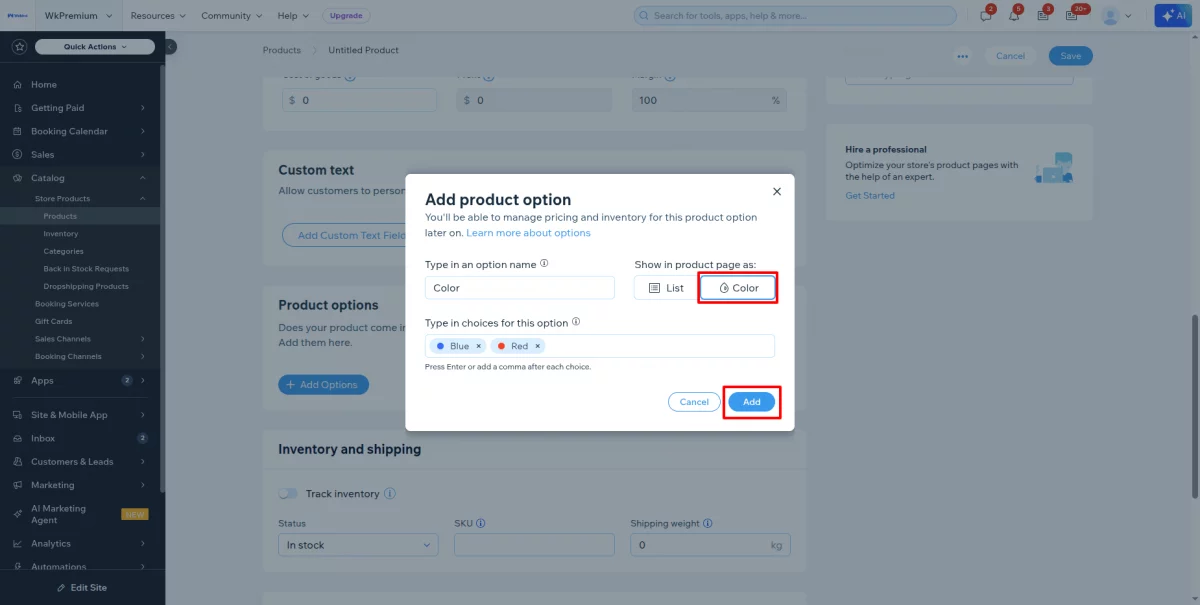
Go to Wix >> Catalog >> Product >> Add product option
Important Note: Kindly ensure that the colour option is selected when creating the Add Product Options.
If you choose any other option except colour, it’s not working; you must ensure that thing at the time of product creation.
Go to Product Options, and click on the More actions dropdown, where two options are located, just choose any one.
Click on Create Options to create the options for particular products. i.e., colors, size, etc
Click on Import Options to import a file from the browse or a folder.

Write the option name in the first input field, then choose a template from the dropdown.
Click on Save to create options for the product:

Got a pop-up of Option saved successfully.
The list of options is visible as shown in the screenshot below:

Choose a delimiter from the dropdown to auto-generate product combinations (like size + color).
Then drop your file from the browser.
Click on Import to import the selected files:

Got a message of Option Created successfully, and then click on the close.

File imported successfully and is visible on the list of product options as shown in the screenshot below:

Delete Options
Delete options in bulk so, check the checkboxes to select multiple options at a time, and click on option bulk delete.
Click on the delete icon to delete a single option.
Click on the edit option to edit product options:

Storefront of Pattern Swatches
The storefront of Pattern Swatches looks as shown in the screenshot below:

WEBKUL SUPPORT
I hope this blog will help you understand the complete process involved in the Pattern Swatches App for Wix. If you have any queries, please generate a ticket https://webkul.uvdesk.com
For More Development on Wix, contact us.


Be the first to comment.