Introduction
Odoo Xendit Recurring Payment helps businesses accept subscription payments automatically using Xendit. Customers pay once, and payments continue at fixed time gaps without manual effort.
The module works with website subscriptions to manage repeat payments smoothly. Admins can track payments, payment status, and invoices from the backend.
Prerequisites for using Odoo Xendit Recurring Payment
Odoo Xendit Recurring Payment works in conjunction with the following module:
Odoo Website Subscription Management
You must install the above-mentioned module to use Odoo Xendit Recurring Payment.
Features
- Automated recurring subscription payments charge customers automatically at fixed intervals after subscription signup.
- Website subscription payment support allows customers to complete subscription payments directly on the website.
- Webhook-based payment updates receive real-time payment status updates from Xendit.
- Backend subscription payment tracking lets admins view and manage subscription payments from the backend.
- Automatic invoice updates after payment keep invoice records updated after each successful payment.
- Secure subscription payment processing ensures customer payment data is handled safely and reliably.
Installation
- Once you purchase the App from the Webkul store, you will receive a link to download the module’s zip file.
- Extract the file on your system after the download finishes. As a result, you will be able to see a folder named- ‘payment_xendit_recurring’.
- Copy and paste this folder inside your Odoo Add-Ons path.
- Now, open Odoo App and click on the Settings menu. Here, click on Activate Developer Mode.
- Then, open Apps menu and click on ‘Update Modules List.’
- In the search bar, remove all the filters and search ‘payment_xendit_recurring’.
- You will be able to see the module in the search results. Click on ‘Activate’ to install it.
Workflow
Configuration of Odoo Xendit Recurring Payment
1. Go to Website → Configuration → Payment Providers in Odoo.
From the payment providers list, locate Xendit to begin configuring it for subscription payments.
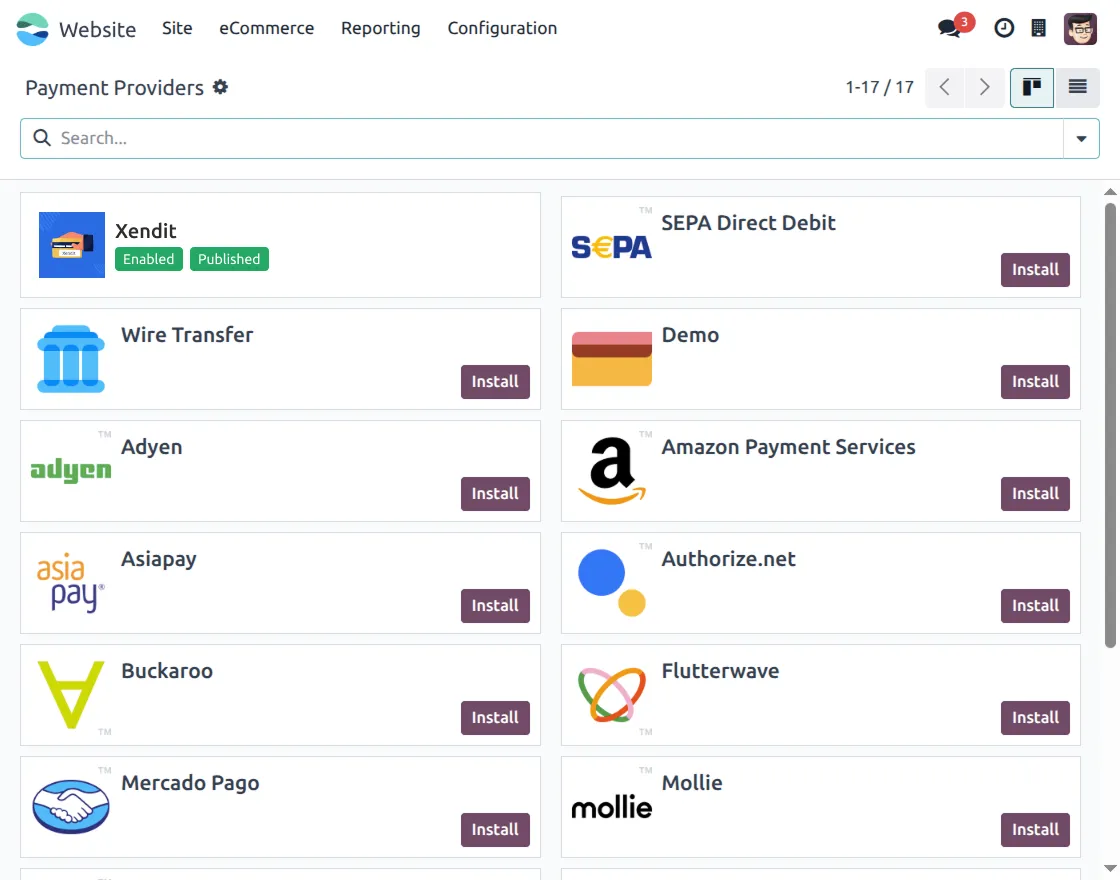
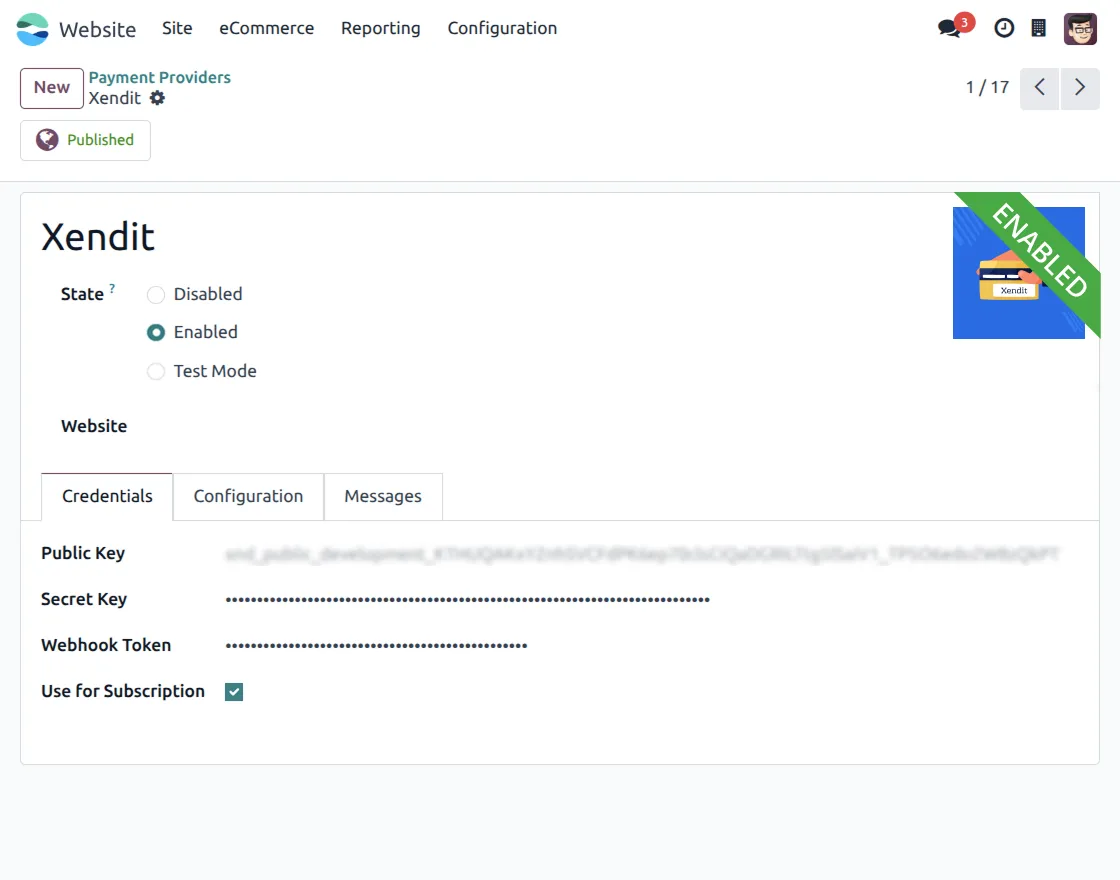
2. Open the Xendit payment provider and enable it for use.
Enter the Public Key, Secret Key, and Webhook Token, then enable Use for Subscription to allow subscription payments.
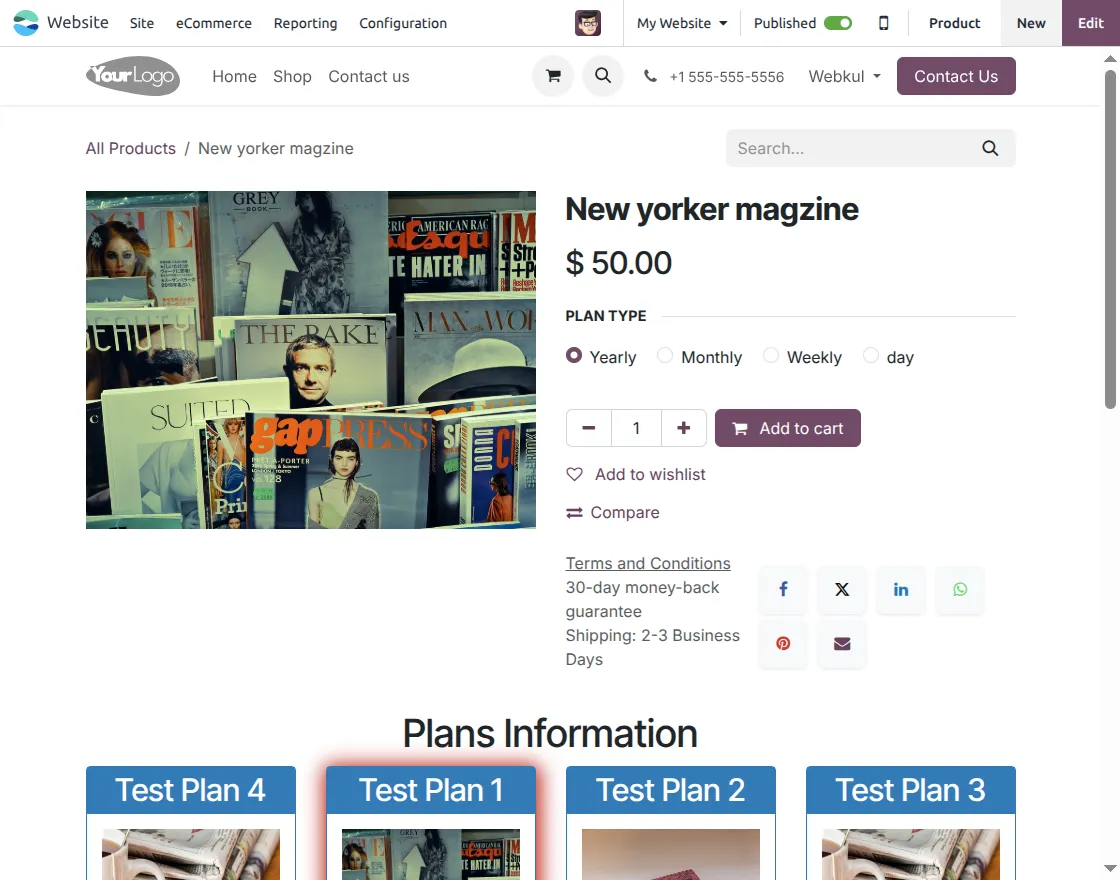
3. Create a product with subscription billing enabled. Define billing plans, such as yearly or monthly, and display them on the product page so customers can choose a plan before adding the product to the cart.
4. Proceed to checkout and review the order details.
Select Xendit Subscription as the payment method and click “Pay Now” to continue with secure subscription payment.
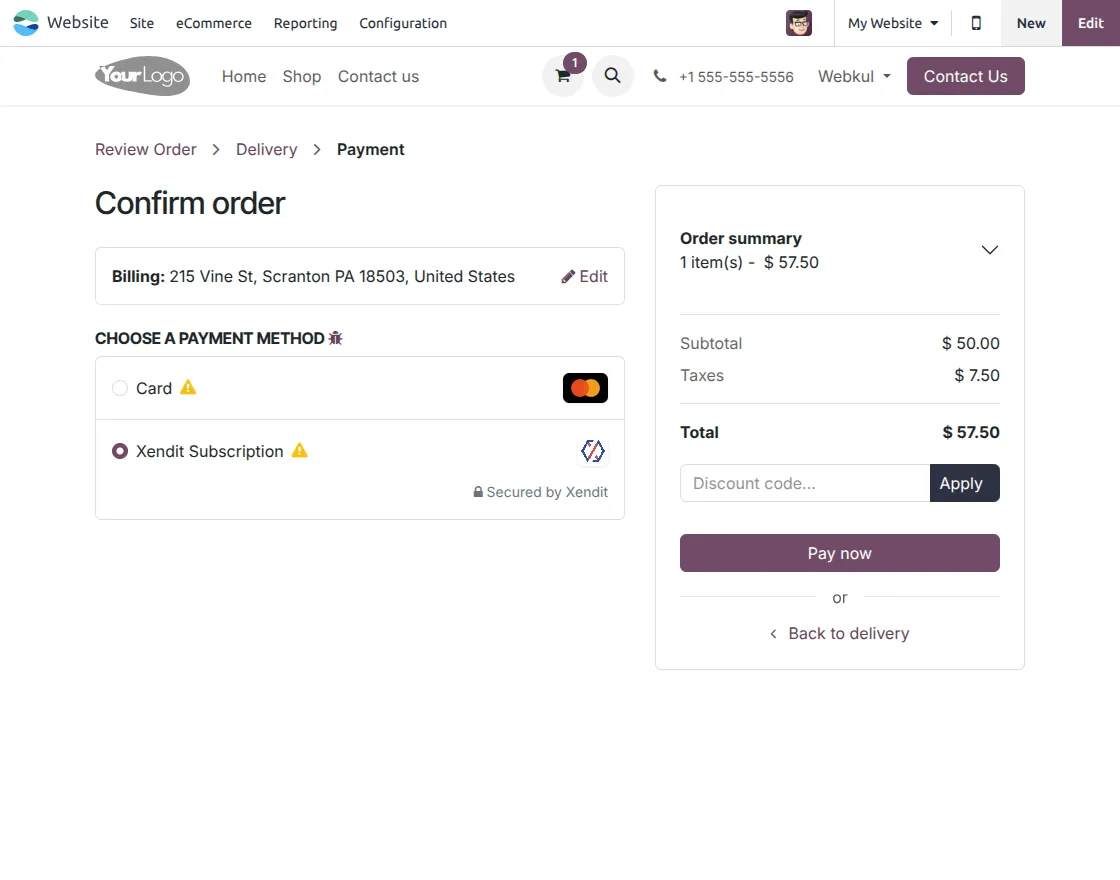
5. At checkout, customers review their order details and select Xendit Subscription as the payment method to proceed securely.
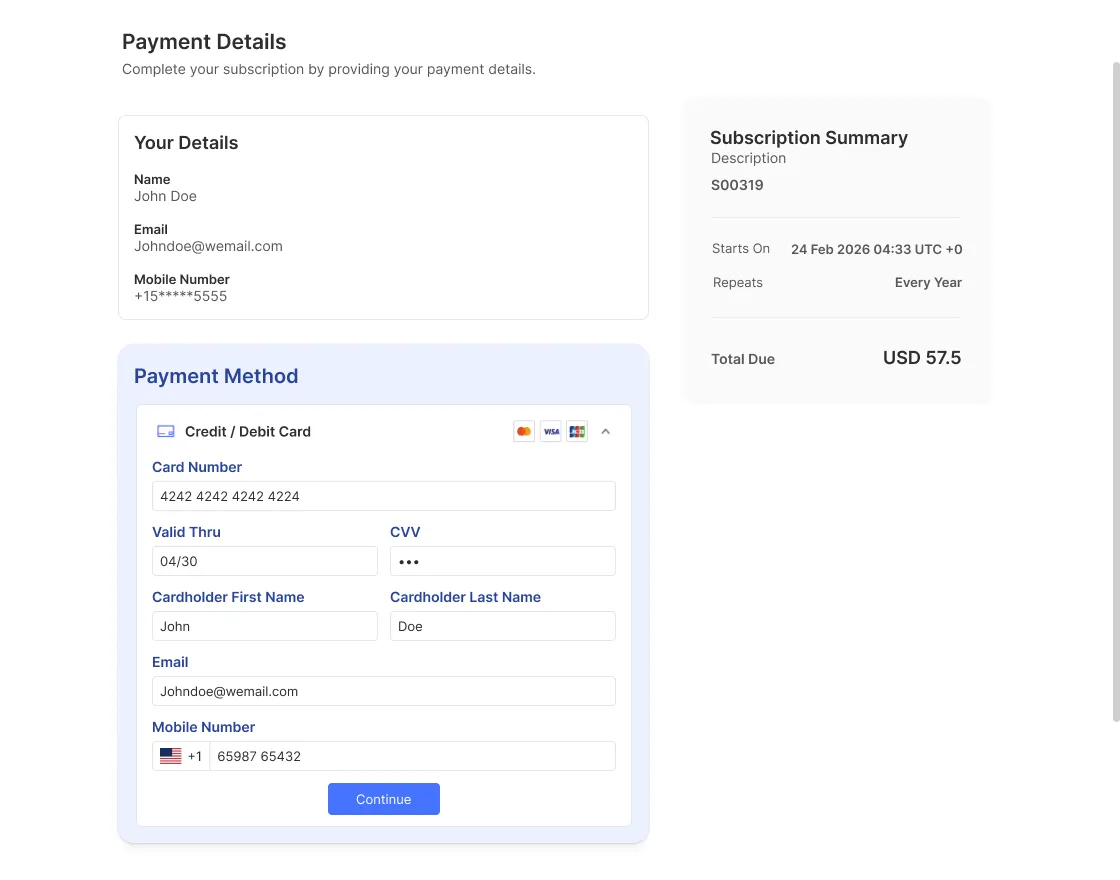
6. After successful payment, the customer sees the order confirmation page with payment details and order summary displayed.
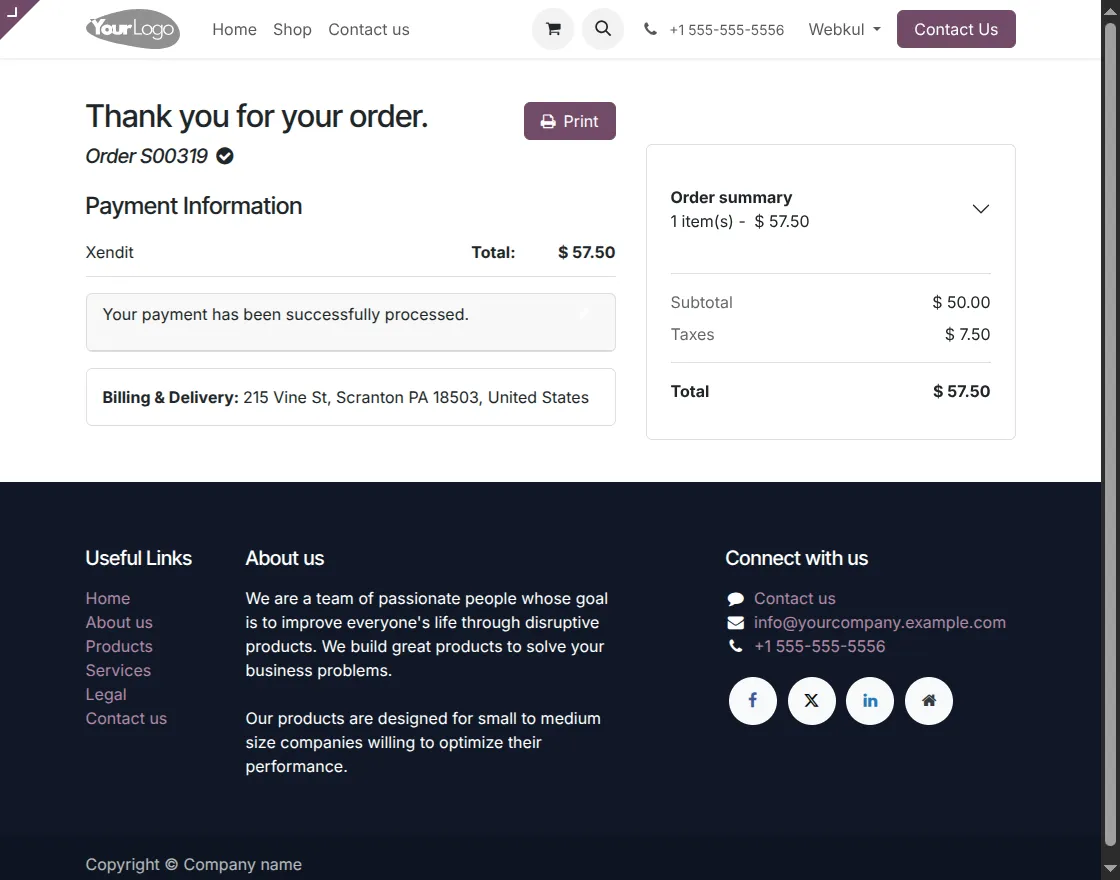
7. Admins can view all subscription payment transactions from the backend, including amounts, customers, and payment status.
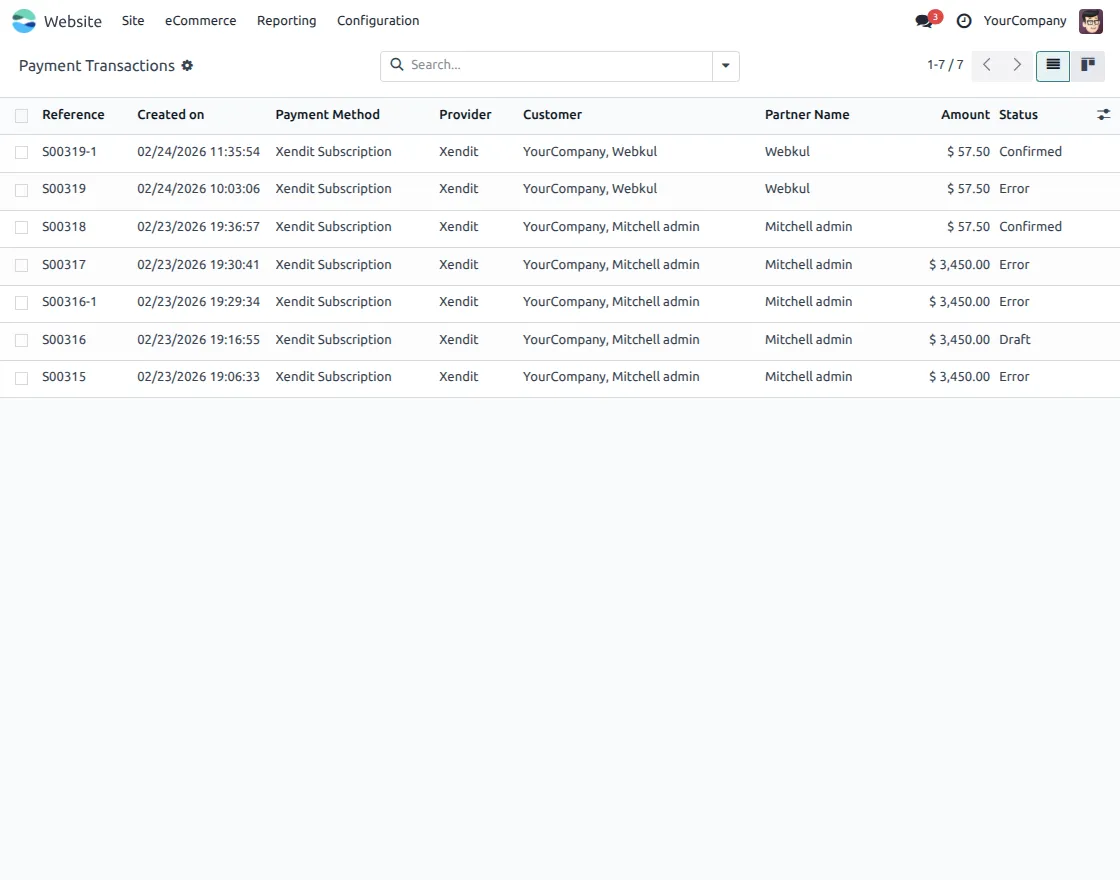
8. Admins can open a transaction to see full payment details, provider reference, customer information, and the final payment status.
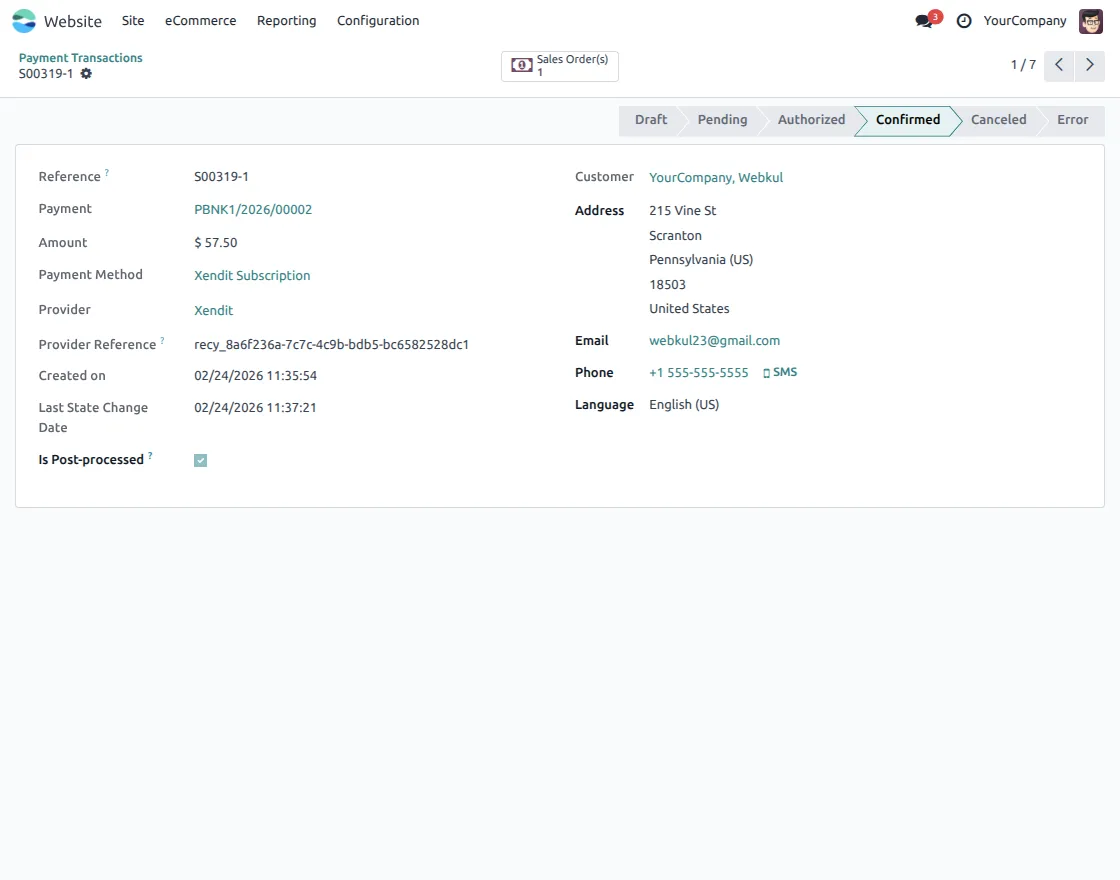
Need Help?
Hope you find guide helpful! Please feel free to share your feedback in the comments below.
If you still have any issues/queries, please create a ticket at the UV Desk.
I hope this helps. In case of any further queries, contact us at our support mail.
Thanks for paying attention!!
Current Product Version - 1.0.0
Supported Framework Version - ODOO 18


Be the first to comment.