Introduction
Odoo Worldpay (US) Payment Acquirer connects with Worldpay, enabling businesses to securely process payments from customers located in the USA and Canada.
Odoo Worldpay (US) Payment Acquirer module offers secure, user-friendly card payments, protecting against fraud. It boosts customer trust and provides seamless transactions for merchants.
Seamlessly integrated with the Odoo backend, the module allows easy tracking of payment histories. It supports payments in both USD and CAD, making it essential for regional businesses.
Features
- Ensures all transactions are encrypted and protected from unauthorized access.
- Odoo Worldpay (US) Payment Acquirer allows customers to easily pay using their credit or debit cards at checkout.
- Prevents fraudulent transactions through advanced security protocols.
- Connects seamlessly with both Odoo for efficient management.
- Accepts payments in US dollars and Canadian dollars.
- Enables merchants to easily manage transaction histories easily.
- Facilitates reliable payment processing in both the US and Canada.
- Sends alerts to merchants when payments are completed.
Installation
- Once you purchase the App from the Webkul store, you will receive the link to download the zip file of the module.
- Extract the file on your system after the download finishes. As a result, you will be able to see a folder named- ‘wk_payment_us_worldpay’
- Copy and paste this folder inside your Odoo Add-Ons path.
- Now, open the Odoo App and click on the Settings menu. Here, click on Activate the Developer Mode.
- Then, open the Apps menu and click on ‘Update Modules List.’
- In the search bar, remove all the filters and search ‘wk_payment_us_worldpay’
- You will be able to see the module in the search results. Click on ‘Install’ to install it.
Workflow
- First, go to Invoicing, then proceed to Configuration. Inside the configuration, you will find Payment Providers click on it and select WorldPay.
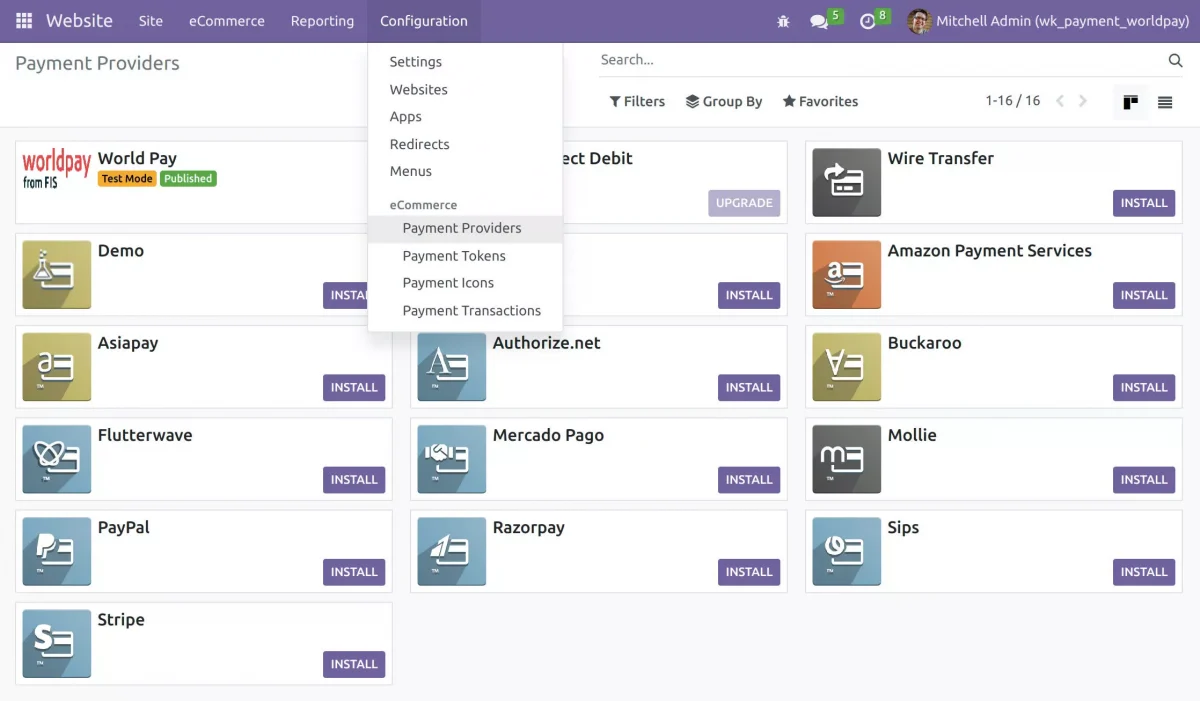
2. When you click on WorldPay, you can change your state here, and then you can publish it.

3. Select your order and add it to the cart.
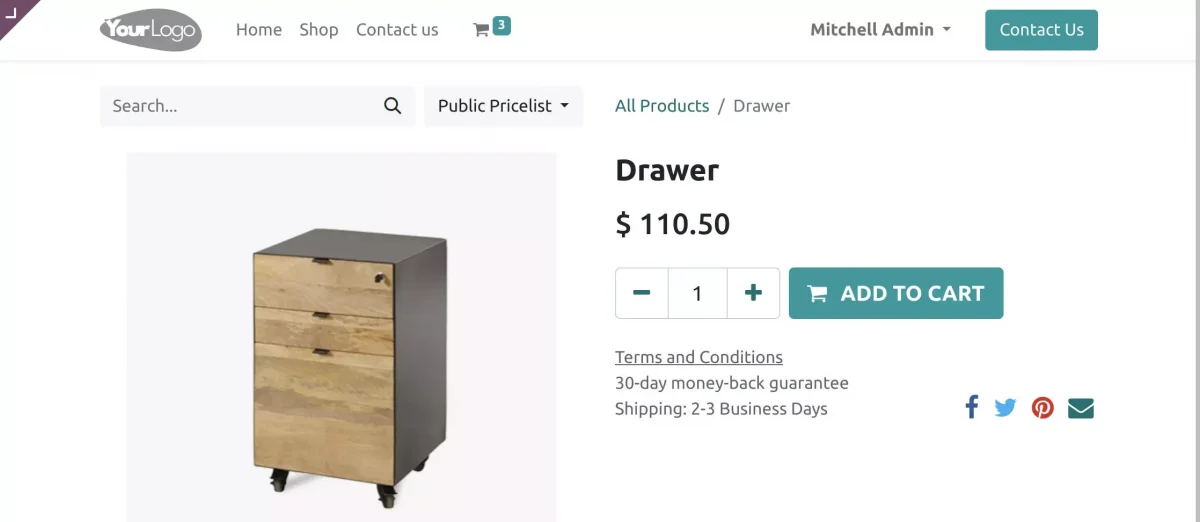
4. When you go to the cart, click on Process Checkout here for further processing.
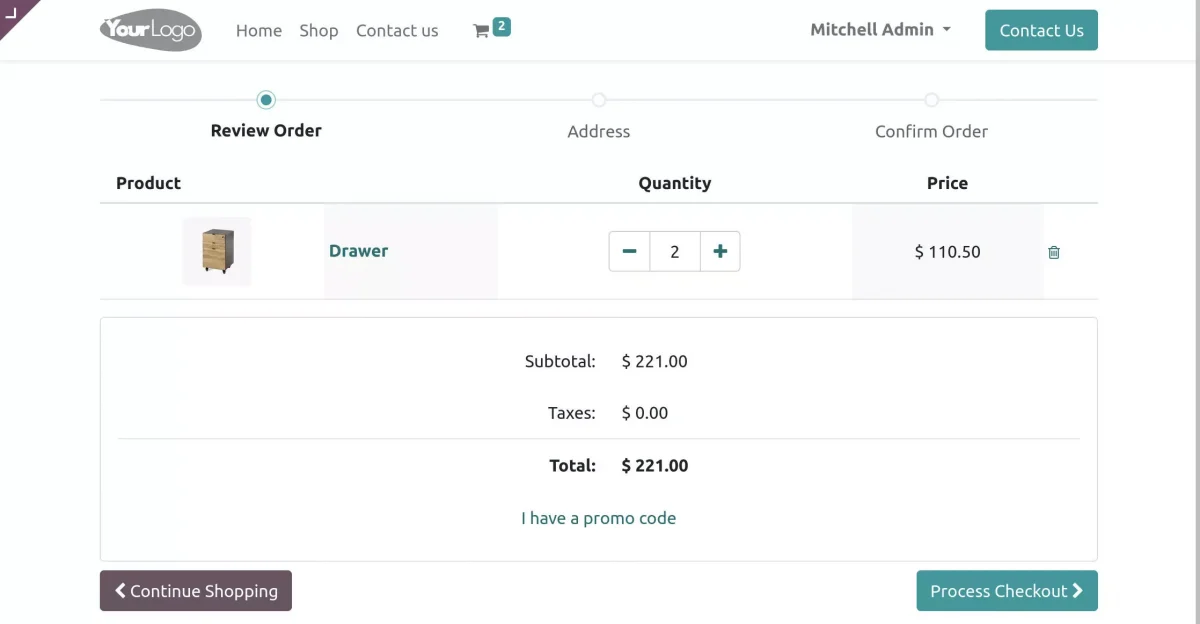
5. When you process the checkout, click on Pay Now here.
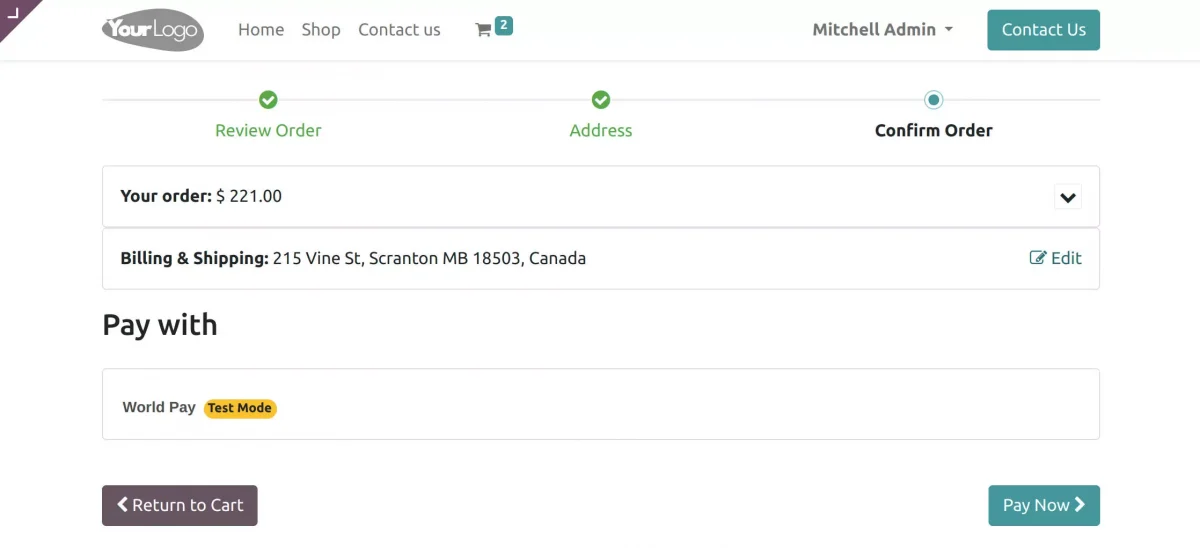
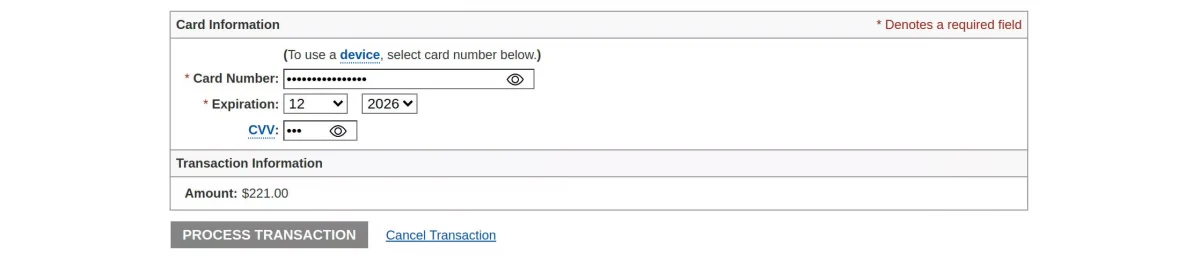
6. Once you click on Pay Now, enter your card details and then click on Process Transaction.
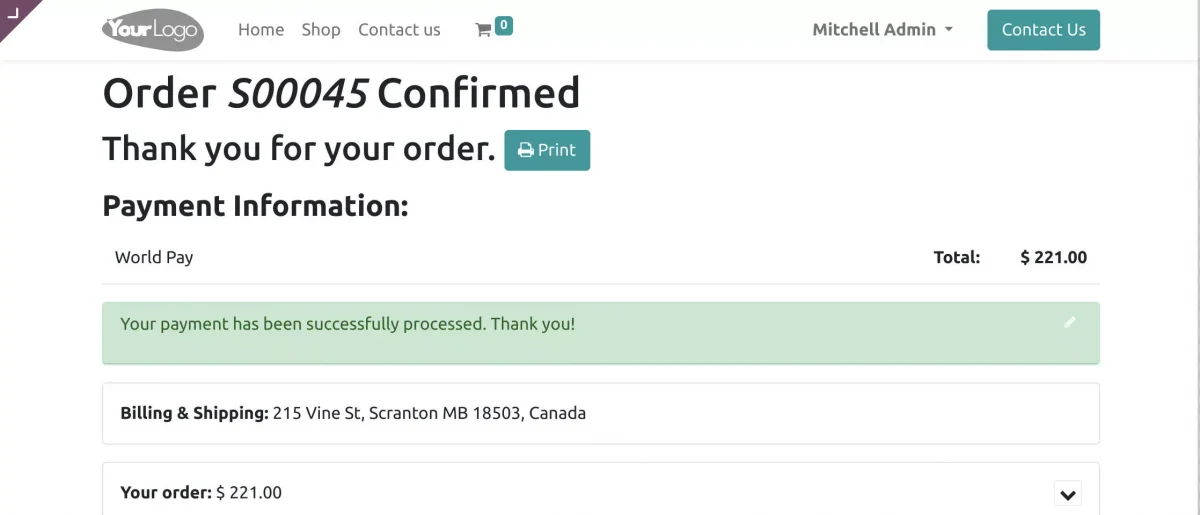
7. Once you click on Process Transaction, your payment will be successfully processed, and your order will be confirmed.
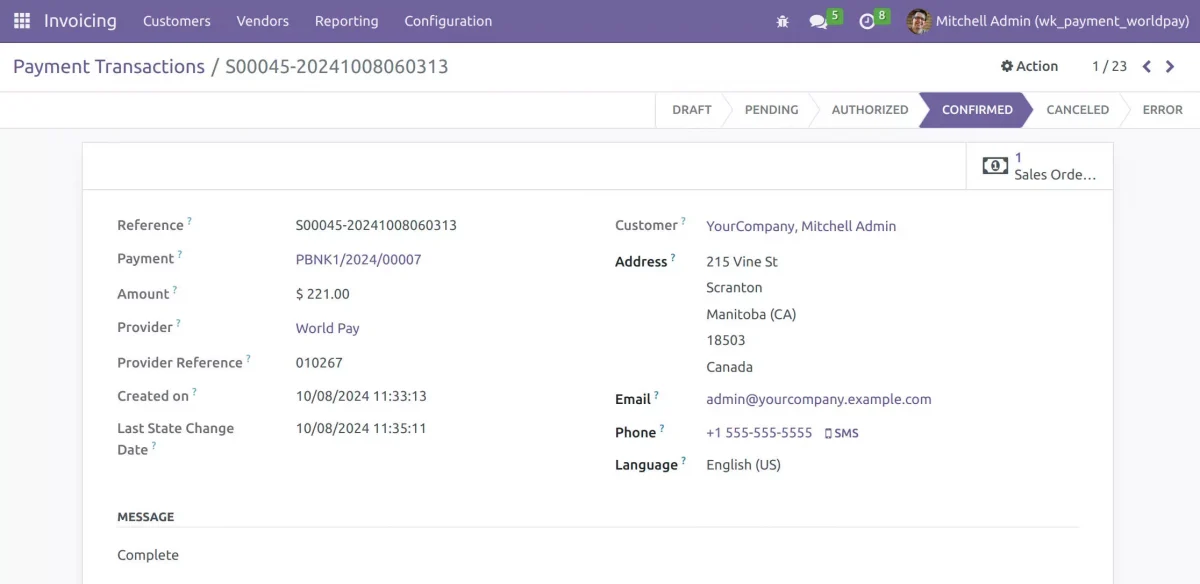
8. Finally, go back to Invoicing, then proceed to Configuration. Inside the configuration, click on Payment transactions, to view the payment details.
Need Help?
Hope you find the guide helpful! Please feel free to share your feedback in the comments below.
If you still have any issues/queries regarding the same, please raise a ticket at the UV Desk.
I hope this helps. In case of any further queries, contact us at our support mail.
Thanks for paying attention!!
Current Product Version - 1.0.0
Supported Framework Version - Odoo V19, V18, V17, V16


Be the first to comment.