Introduction:
Odoo Website Square Payment Acquirer provides a seamless payment checkout experience to the customers on the Odoo website making their payments secure.
Admins can easily configure this module from the backend. After enabling and publishing it to the Odoo website, it allows customers to process payments effortlessly.
Features:
- Easy integration of Odoo Website Square Payment Acquirer from the backend.
- Fast and Secure payment checkout on the odoo website for the customers.
- Customers can make transactions directly on the odoo website.
- Card details entered by customers on the payment portal are safe and secure.
- Odoo Admins can view all the payment transaction details on the backend.
Installation:
After purchasing the module, a link will be provided to download a zip file.
- Extract the file and a folder named ‘wk_payment_square’ will be visible.
- Copy the folder to the Odoo add-ons path.
- Open the Odoo app, and click on settings. Then, Click on Developer Mode.
- Now, open the Apps Menu and click ‘Update Module List’.
- At the search bar, remove all filters and search ‘wk_payment_square’.
- And Click on Install for Installation.
Workflow:
Configuration:
- After the successful installation of Odoo Website Square Payment Acquirer, The admin can easily configure the module by navigating to ‘Website>Configuration>Payment Providers’.
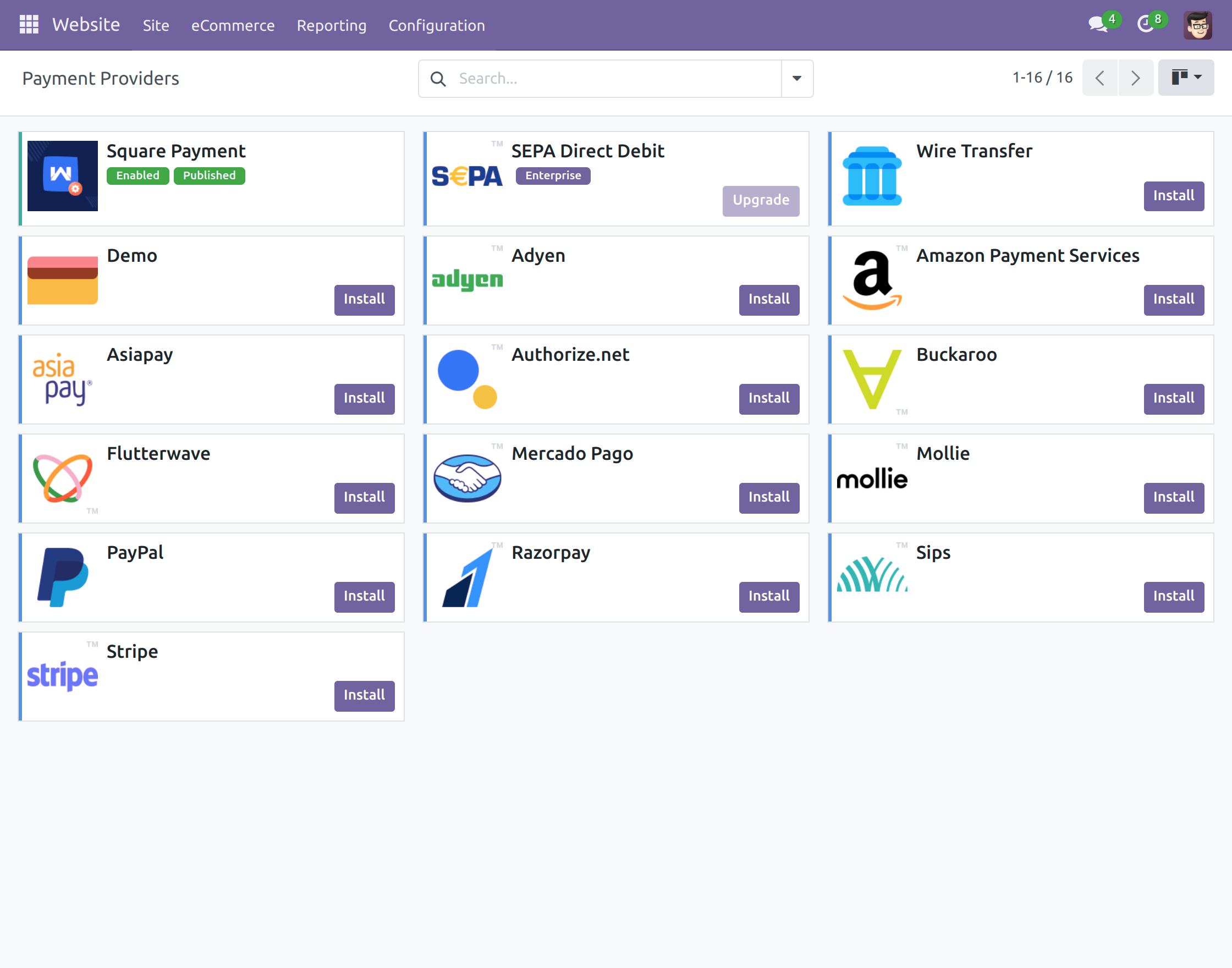
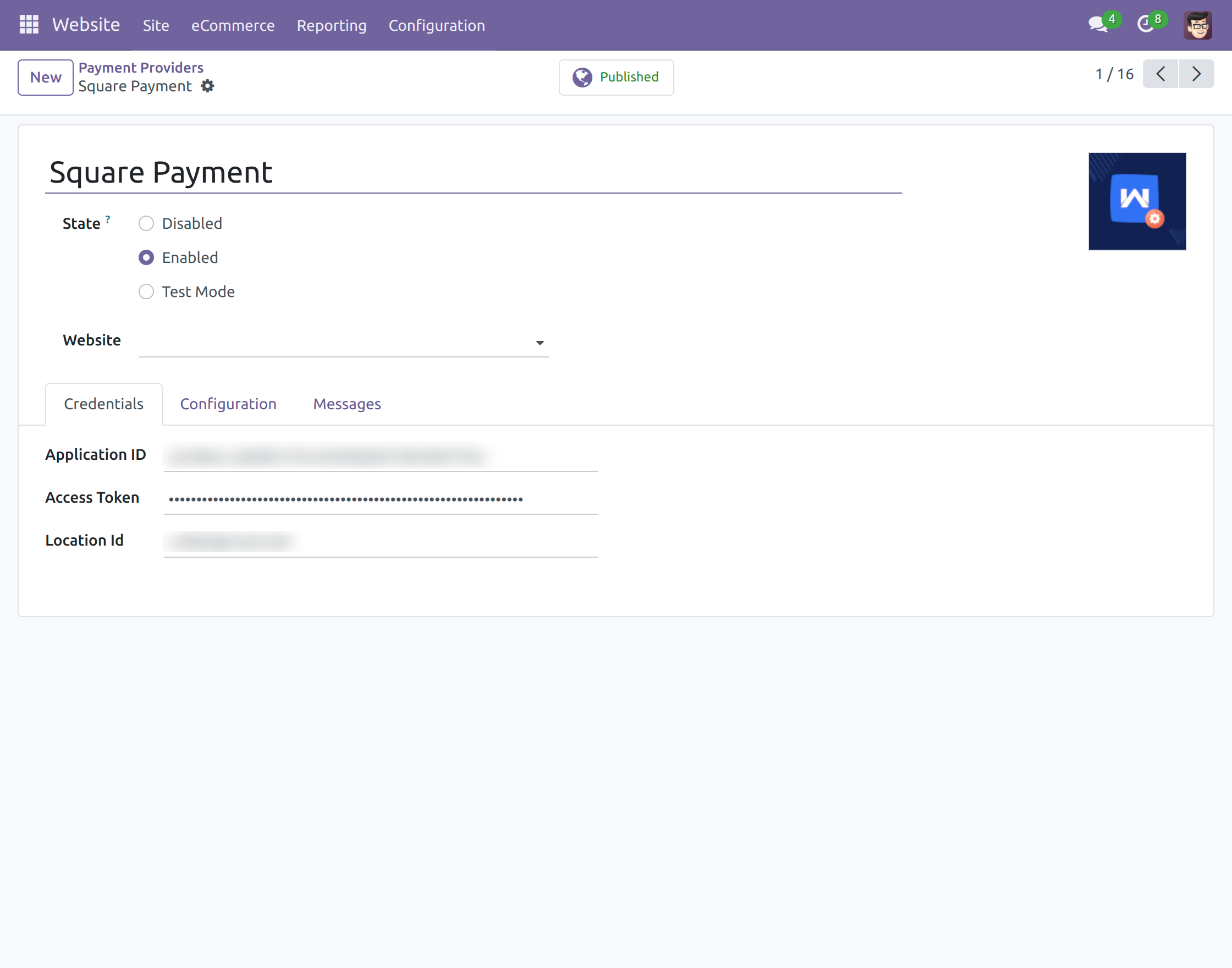
- After selecting the payment method, Enter the required credentials, Mark the state as ‘Enabled’, and click on ‘Publish’ to publish it on the odoo website.
- By activating the developer mode, Odoo Admins can view customers’ payment transaction details.

Website View:
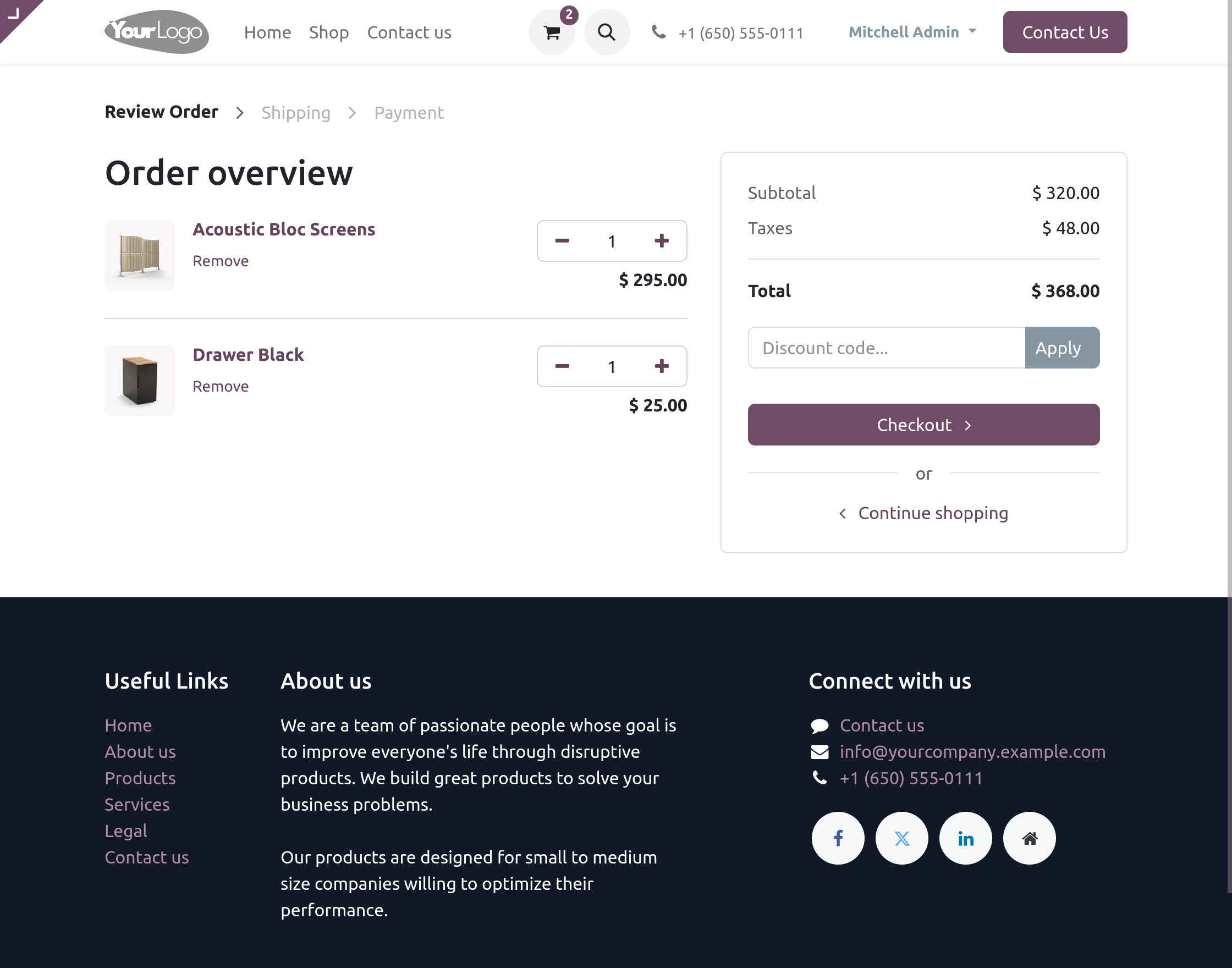
- Navigate to the Odoo website, Open the shop page, Select the required products and add them to the cart.
- After adding the required products to the cart, Proceed to checkout by clicking on the ‘Checkout’.
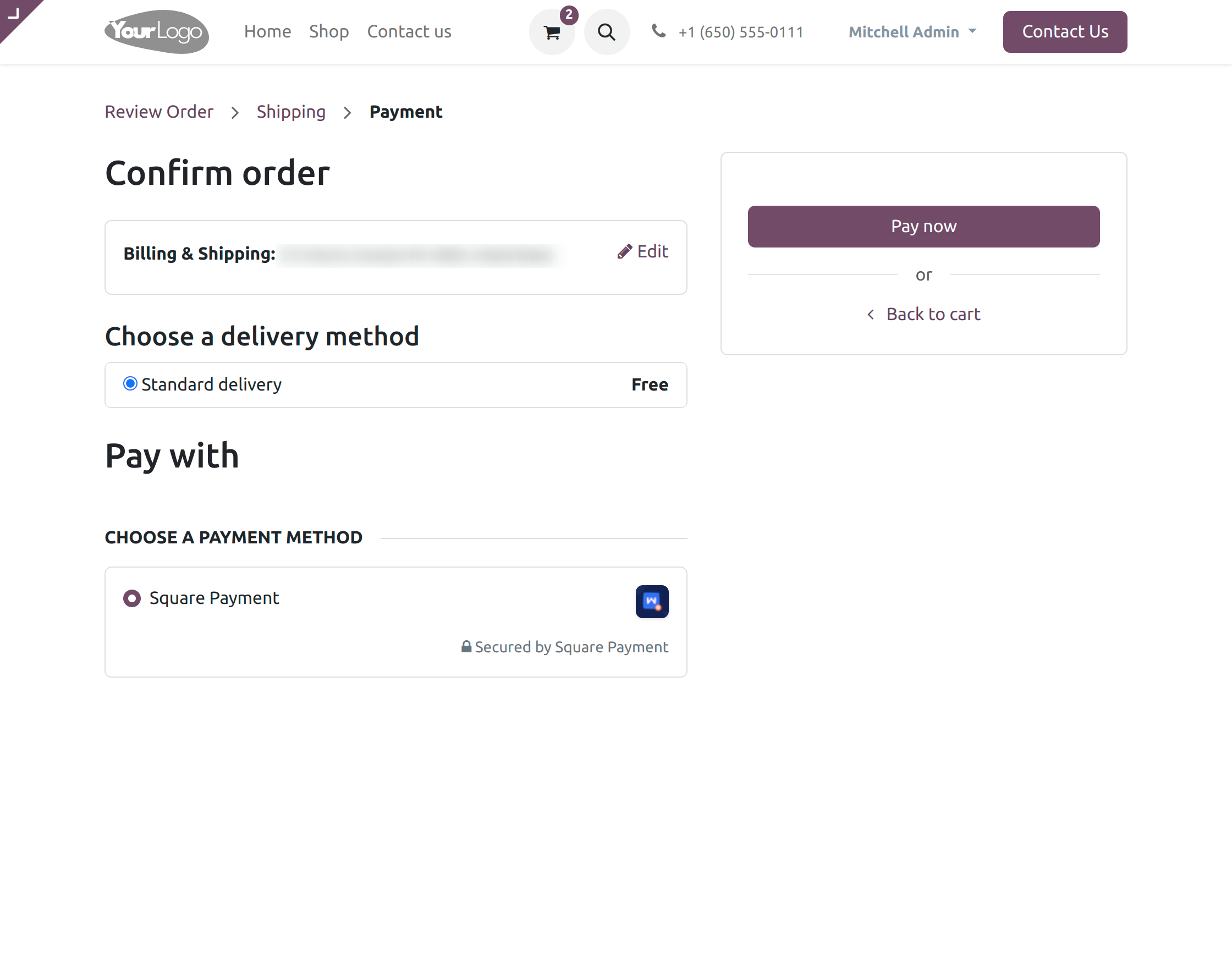
- Select the ‘Square Payment’ option and click on the ‘Pay now’ button to proceed with the payment.
- On the Odoo Website Square Payment Acquirer page, Enter the details of the card and click on the complete order button.

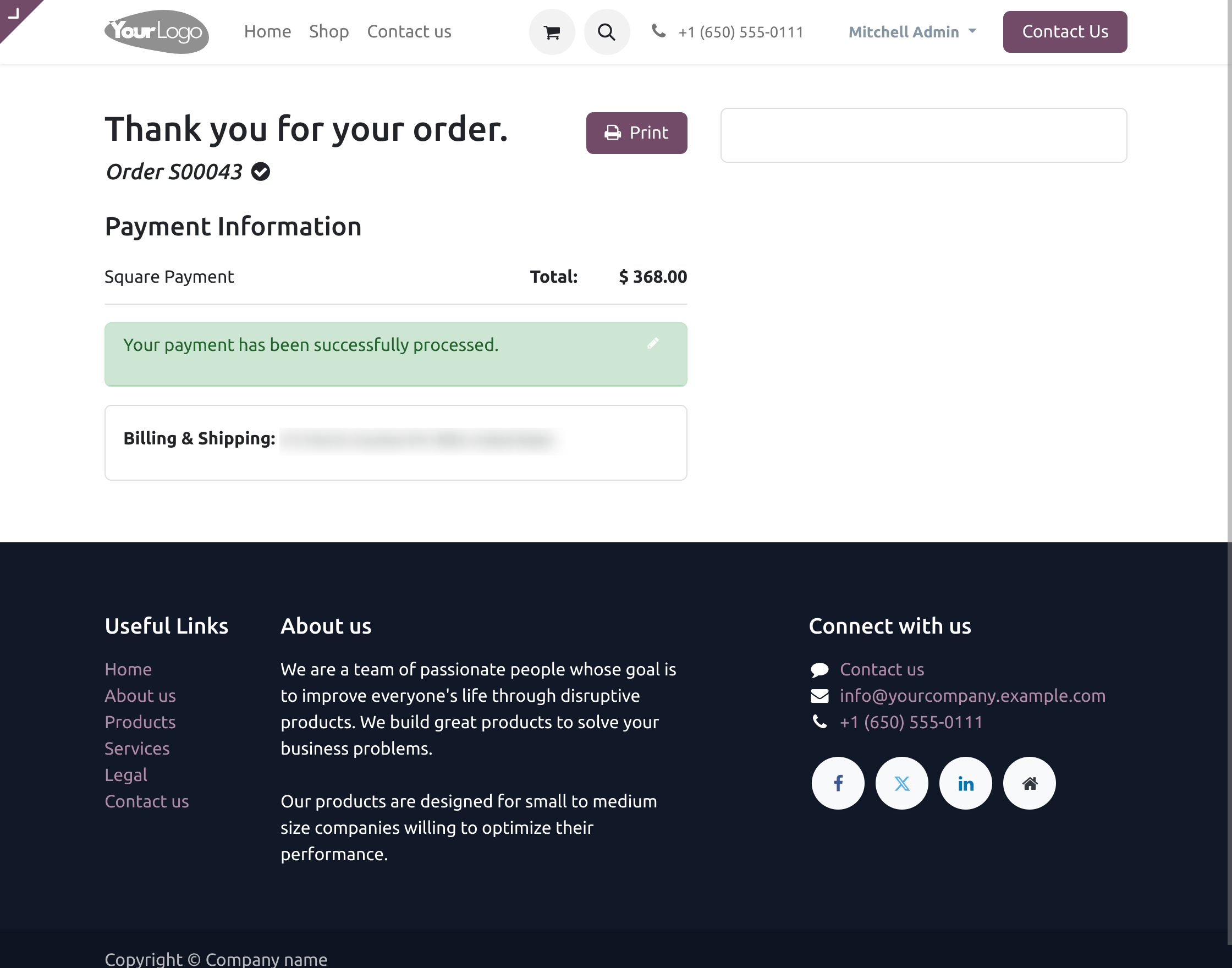
- After you successfully make the payment, the system will redirect you to a page that says, “Your payment has been successfully processed.”
NEED HELP?
Hope you find the guide helpful! Please feel free to share your feedback in the comments below.
If you still have any issues/queries regarding the same, please raise a ticket at the UV Desk.
I hope this helps. In case of any further queries, contact us at our support mail.
Thanks for paying attention!!
Current Product Version - 1.0.0
Supported Framework Version - Odoo V19, V18, V17


Be the first to comment.