INTRODUCTION
Odoo Website Payment Paypal Recurring for Enterprise Streamline Your Subscription Payments with PayPal!
Odoo Website Payment Paypal Recurring For Enterprise module integrates only with the Enterprise Odoo website, allowing for efficient and secure subscription payments through PayPal.
It ensures that your customers can make hassle-free payments and renewals, enhancing their overall experience.
This module can provide a reliable payment solution that supports both PayPal balance and credit/debit card payments.
FEATURES
- This Module provides Secure PayPal payment integration
- Fast and hassle-free payment processing
- It Supports PayPal balance and credit/debit cards
- The module supports Auto-debit for purchased subscriptions
- Trial period configuration
- Detailed transaction tracking in Odoo and PayPal
INSTALLATION
- Once you purchase the App from the Webkul store, you will receive the link to download the zip file of the module.
- Extract the file on your system after the download finishes. You will see a folder named ‘payment_paypal_recurring’.
- Copy and paste this folder inside your Odoo Add-Ons path.
- Open the Odoo App and click on the Settings menu. Here, click on ‘Activate the Developer Mode’.
- Then, open the Apps menu and click on ‘Update Modules List’.
- In the search bar, remove all filters and search ‘payment_paypal_recurring’.
- You will be able to see the module in the search results. Click on ‘Install’ to install it.
WORKFLOW
- Odoo Configuration with PayPal to manage subscription services efficiently.
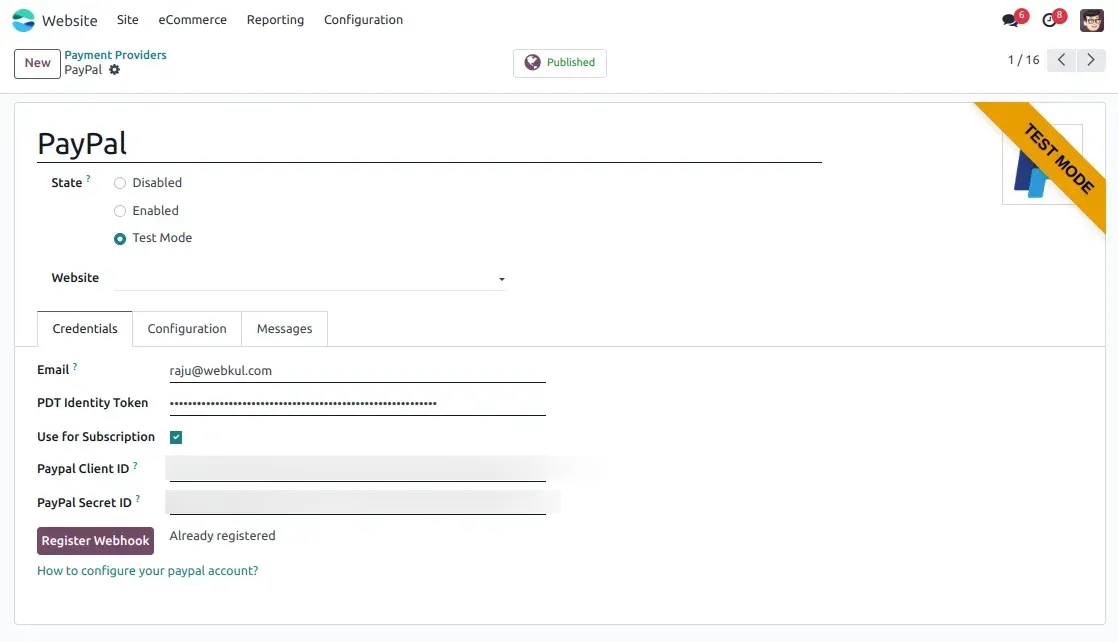
2. Odoo subscription-based plans for various products, providing flexible solutions.
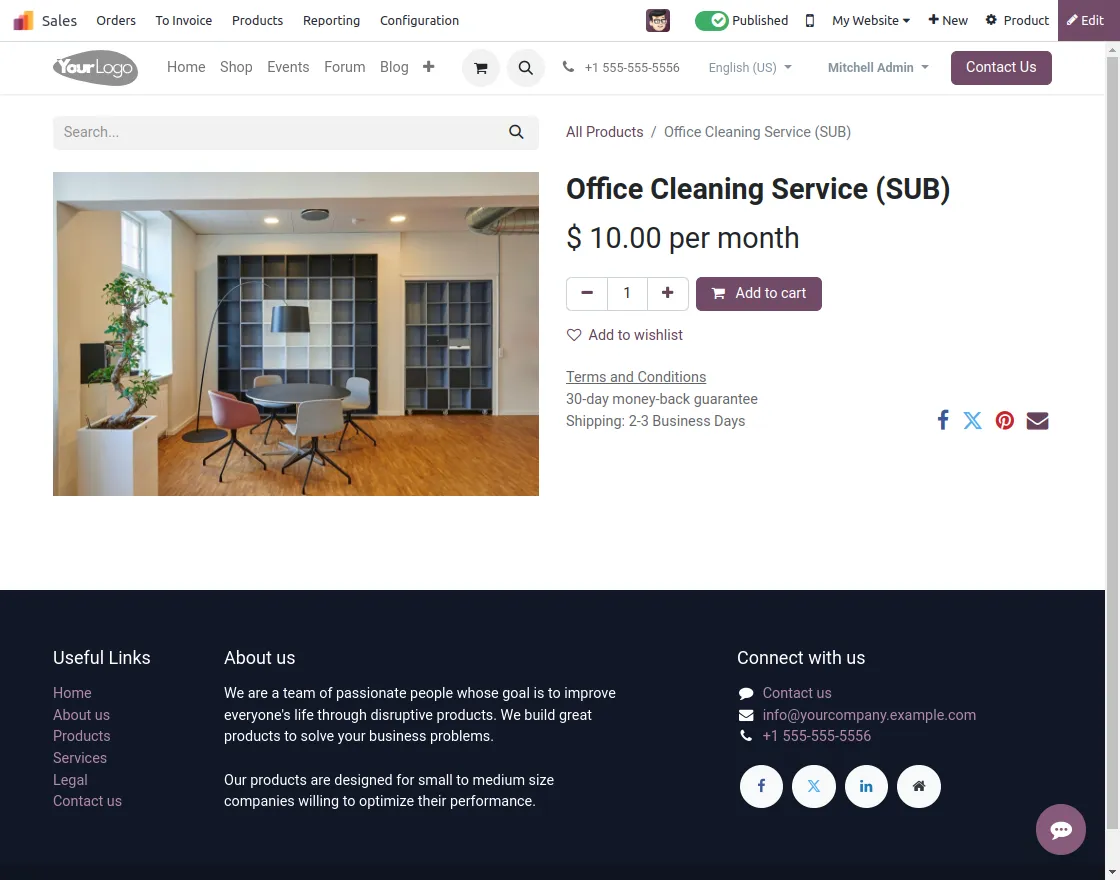
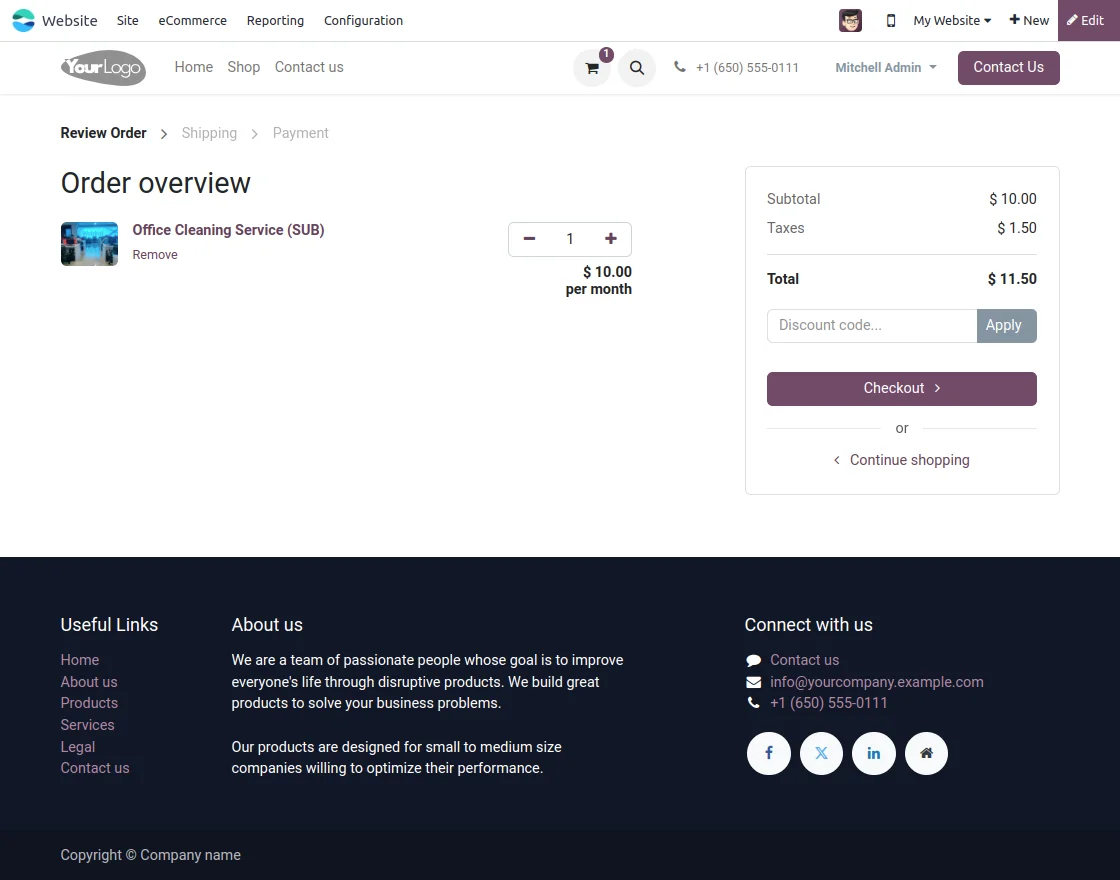
3. A cart page for a subscription-based product ensures a smooth checkout experience.
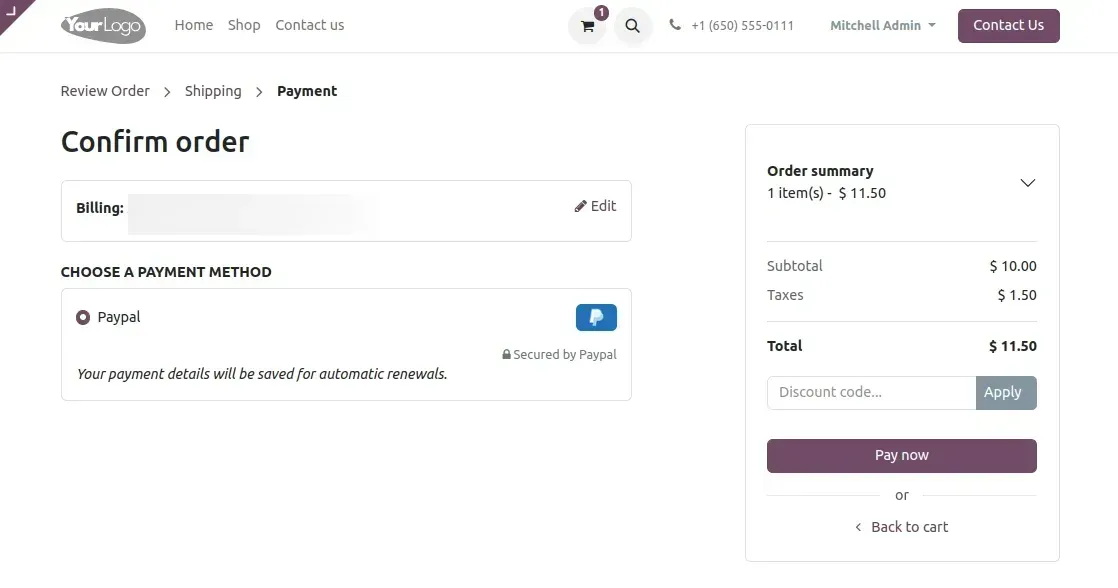
4. Payments can be processed using the PayPal recurring method through the Odoo module.
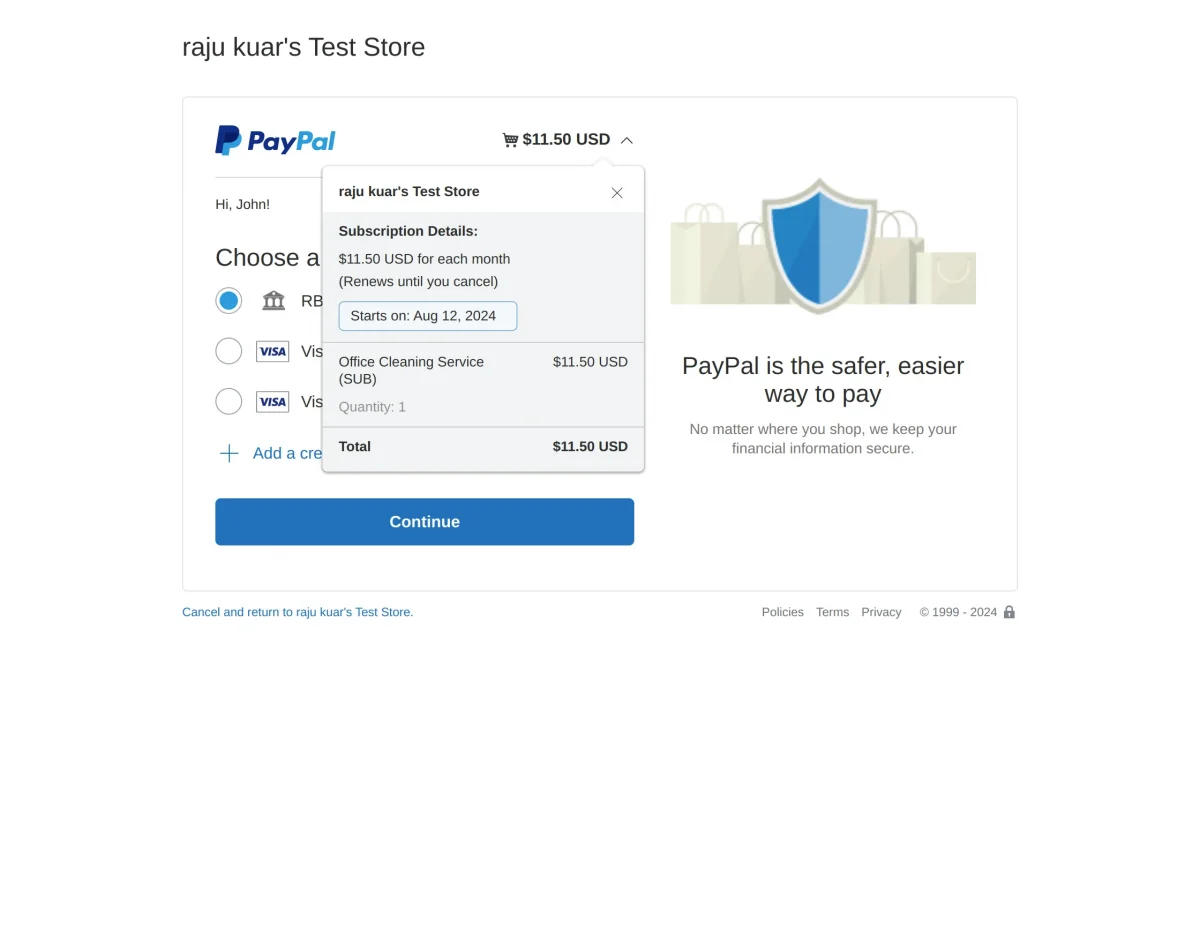
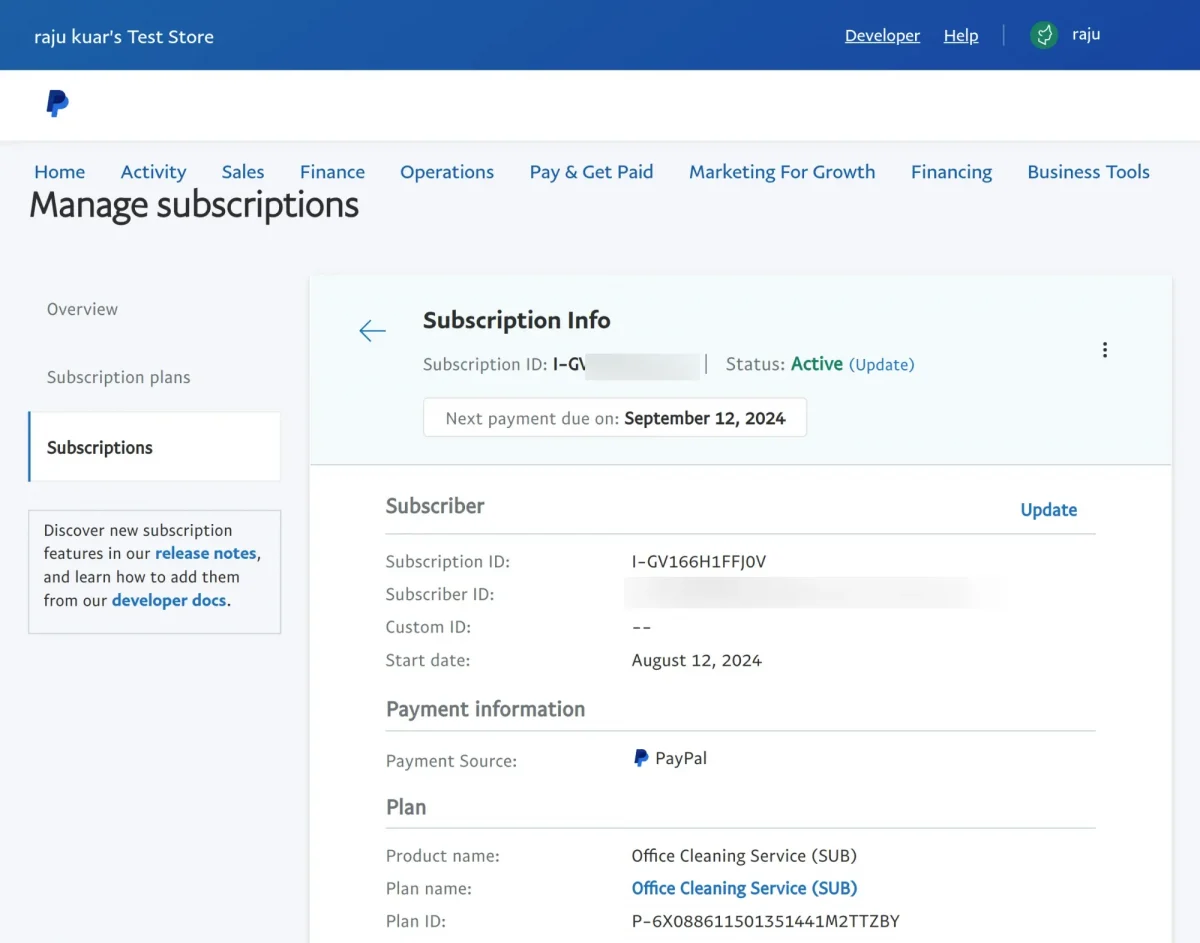
5. This section contains all the essential Subscription details of the Paypal payment.
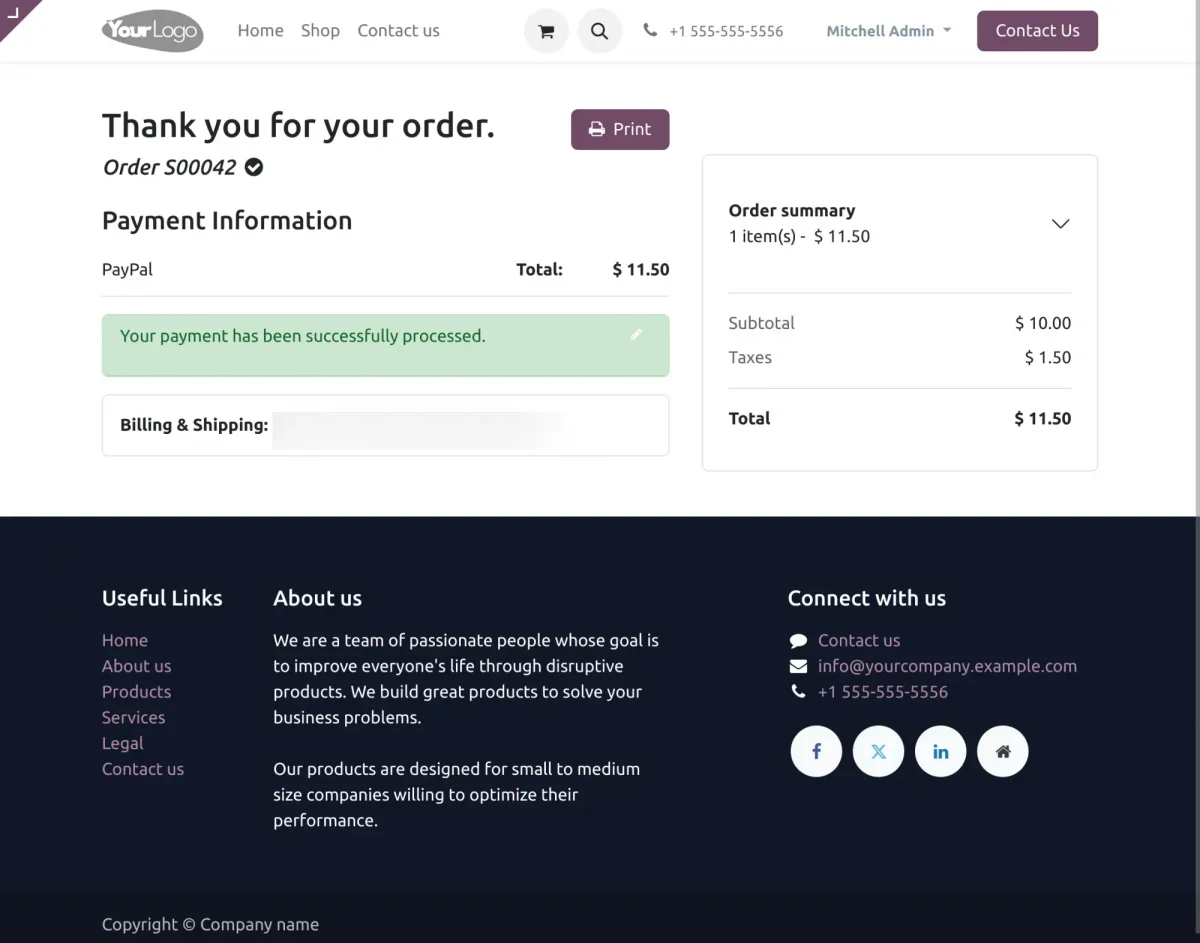
6. Thank you page of the Odoo module displays the payment has been successfully processed.
7. The Sale Order page in the Odoo Website Payment Paypal Recurring for Enterprise module.
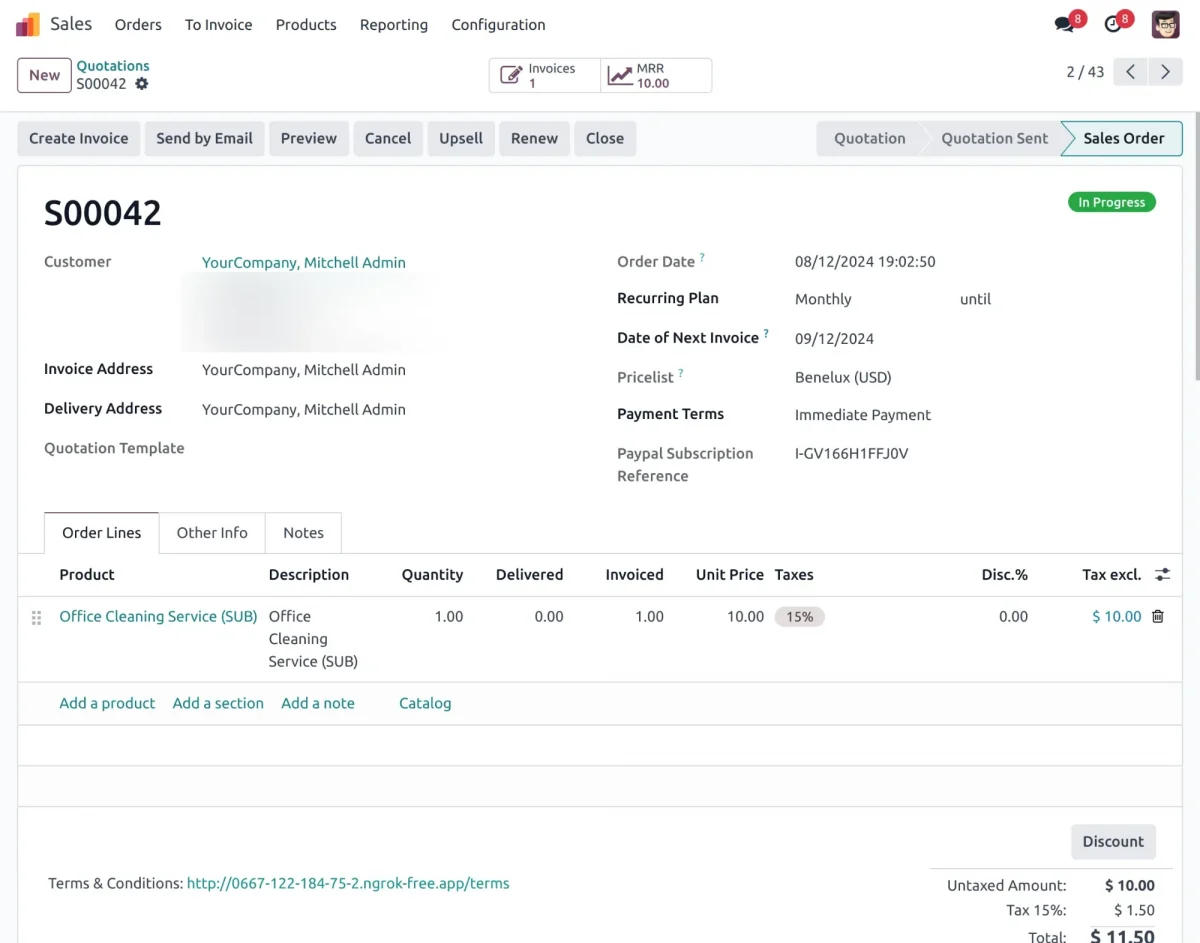
8. Subscription detail in the Odoo Website Payment Paypal Recurring for Enterprise
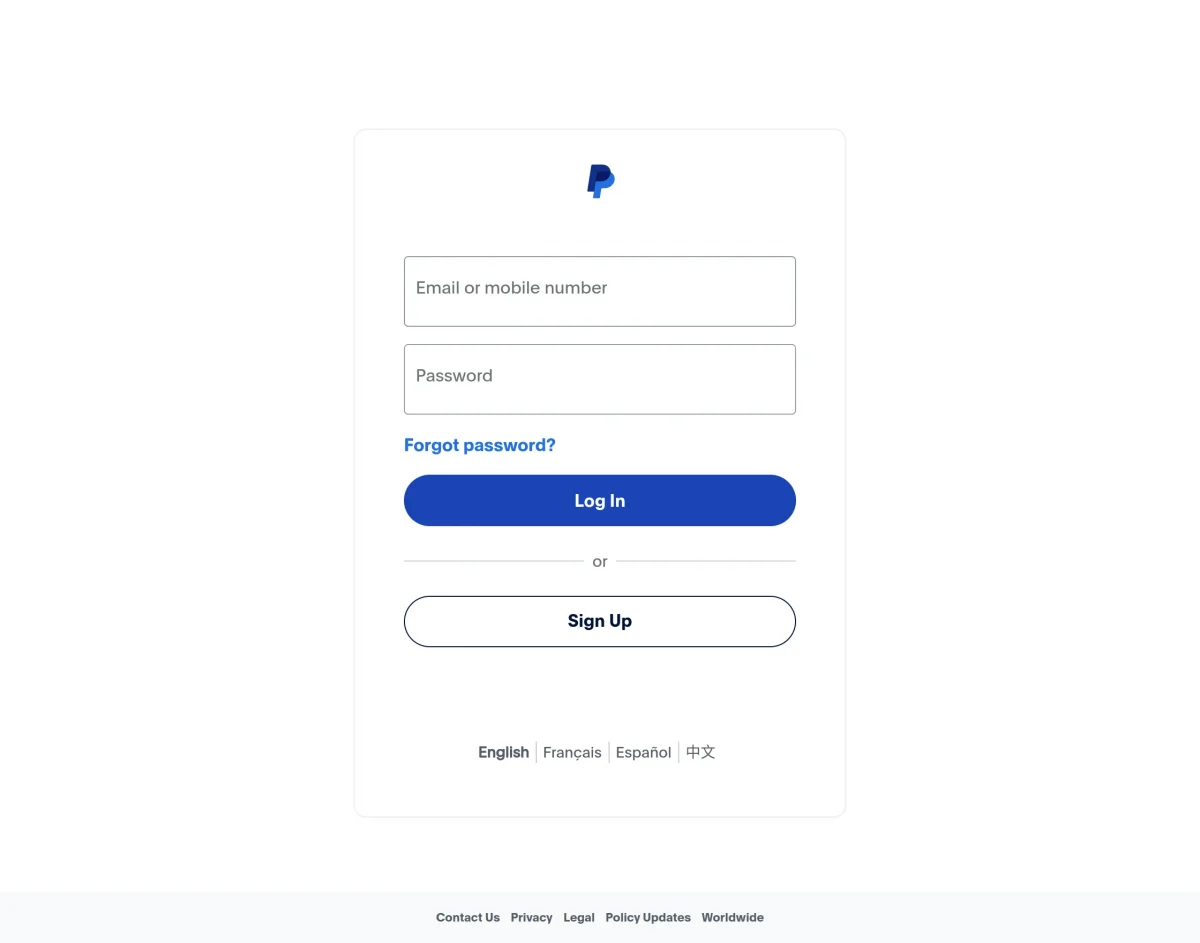
9. The login page in a PayPal Business account provides access to essential tools.
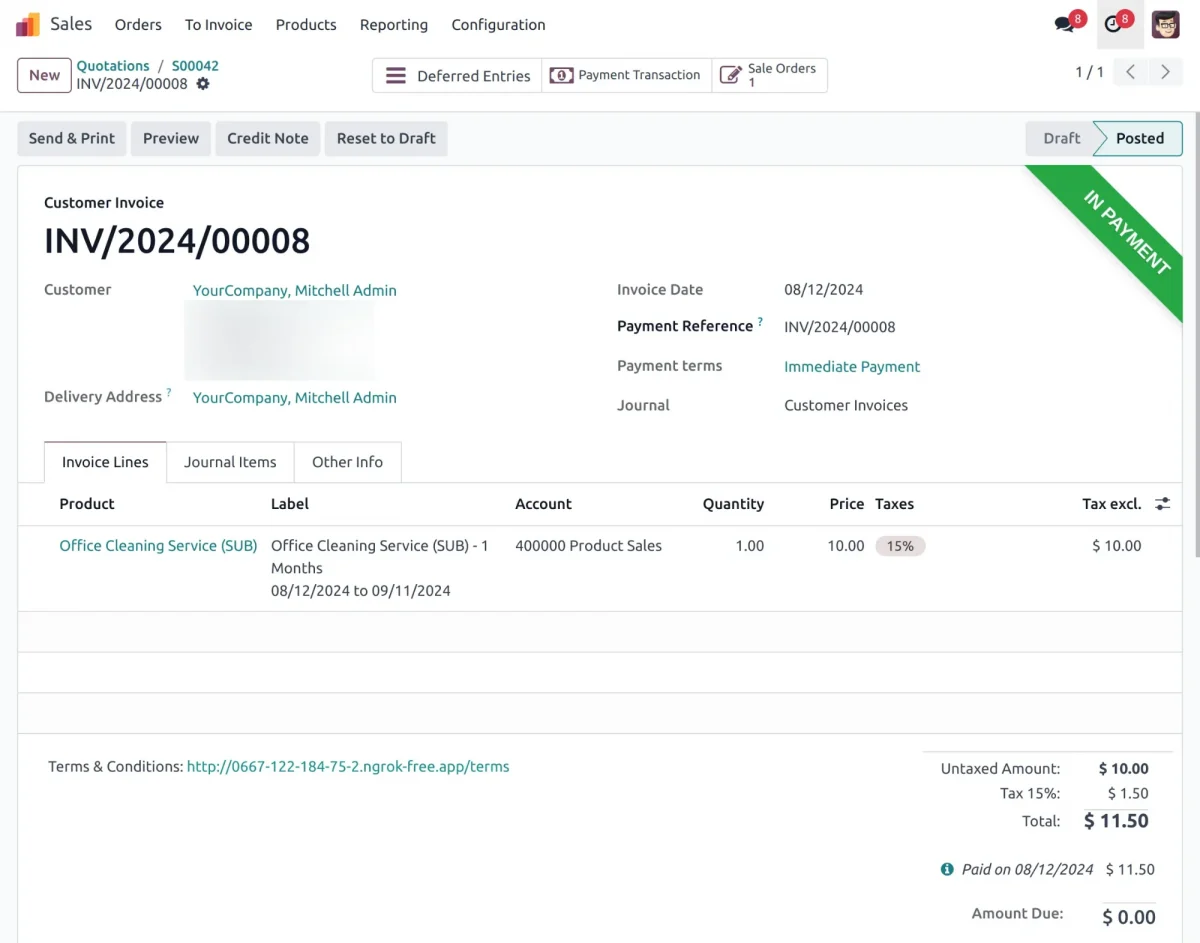
10. PayPal Payment Subscription Invoice Page users can view and manage invoices.
NEED HELP?
Hope you find the guide helpful! Please feel free to share your feedback in the comments below.
If you still have any issues/queries regarding the same, please raise a ticket at the UV Desk.
I hope this helps. In case of any further queries, contact us at our support mail. If you’re interested in exploring additional options, feel free to check out our other Odoo Apps.
Thanks for paying attention!!
Current Product Version - 1.0.0
Supported Framework Version - Odoo v17 , v16, v15, v14 , v13 , v12 , v11


Be the first to comment.