INTRODUCTION
Odoo Website also Brought Product: Suggestion make easier!!!
While purchasing, you need suggestions of what to buy along. It is Challenging to select perfect suggestions according to your needs.
Cross-selling accounts for 35% of Amazon’s sales and it can also provide more sales for your website. With the Odoo website, you can also list other things purchased with a specific product.
This module implements a ‘those who bought this item also bought’ strategy on the website.
Showcase what other customers bought with a specific product and give them an option. The customer can add the showcased product(s) to their cart from the displayed list of items.
FEATURES
- Odoo Website Also Bought Products displays the list of the products to the customers that bought any product.
- Add the products automatically as Also Bought Products while confirming an order.
- You can view the also-bought products at the Odoo front end.
- Customers can select these products and buy them according to their needs.
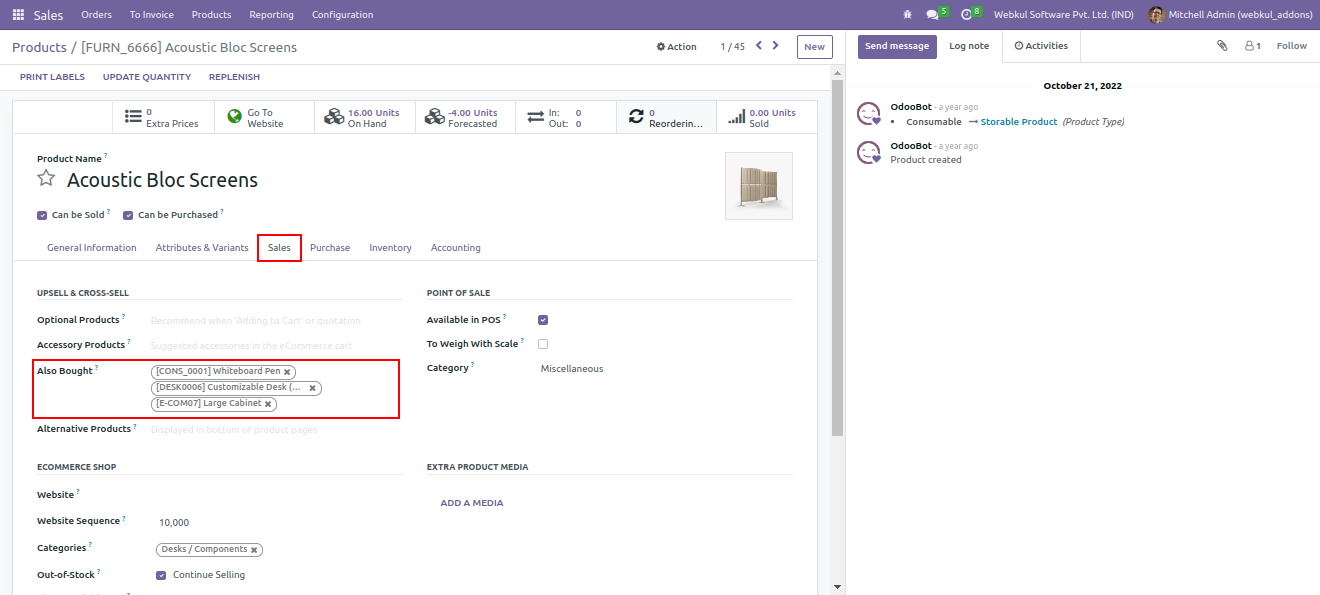
- You can set the products bought with the product itself from the Odoo backend.
- You can set any number of the products as per your wish.
- There is no need to search while loading the products on the website resulting in a fast process.
- Display the Also Bought Products in a slider.
- You can add the product to the cart from Also Bought Products.
Explore and check out our Odoo development services and a plethora of quality Odoo Apps.
INSTALLATION
- Once you purchase the App from the Webkul store, you will receive the link to download the zip file of the module.
- Extract the file on your system after the download finishes. You will be able to see a folder named- ‘website_also_bought_products.’
- Copy and paste this folder inside your Odoo Add-Ons path.
- Now, open the Odoo App and click on the Settings menu. Here, click on Activate the Developer Mode.
- Then, open the Apps menu and click ‘Update Modules List.’
- In the search bar, remove all the filters and search website_also_bought_products.’
- You will be able to see the module in the search results. Click on ‘Install’ to install it.
WORKFLOW
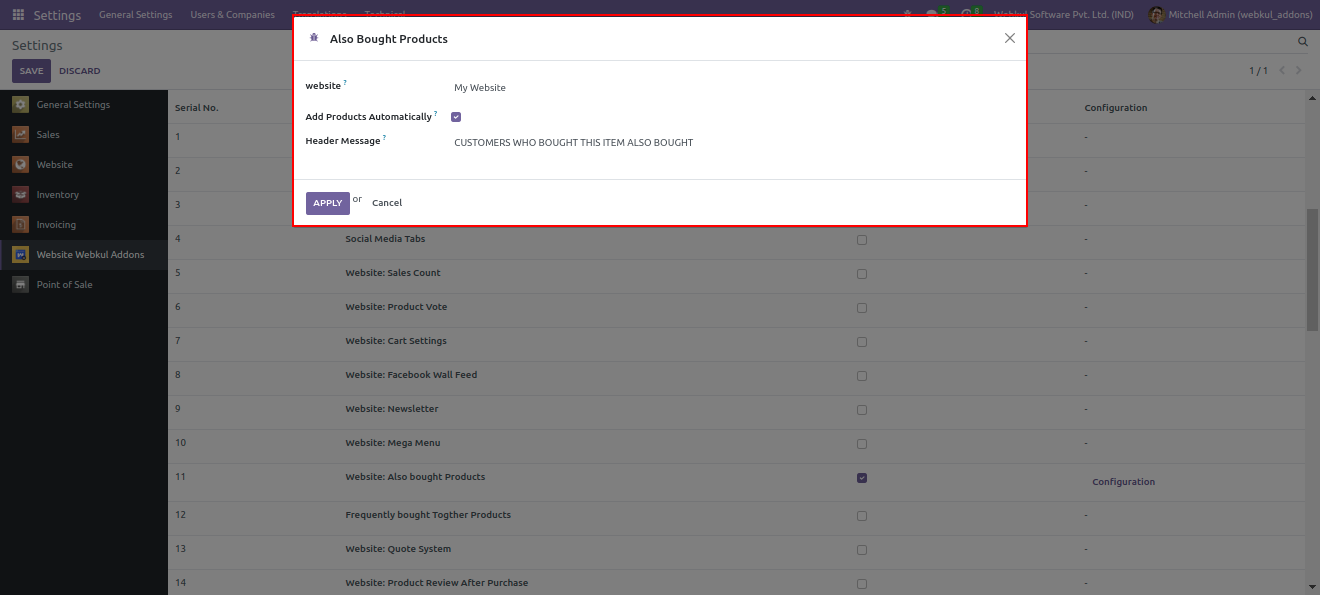
- After installation, open the Webkul website address, enable it, and click ‘Configuration.’

- The ‘Also bought product’ window will pop up. Configure it and click Apply.
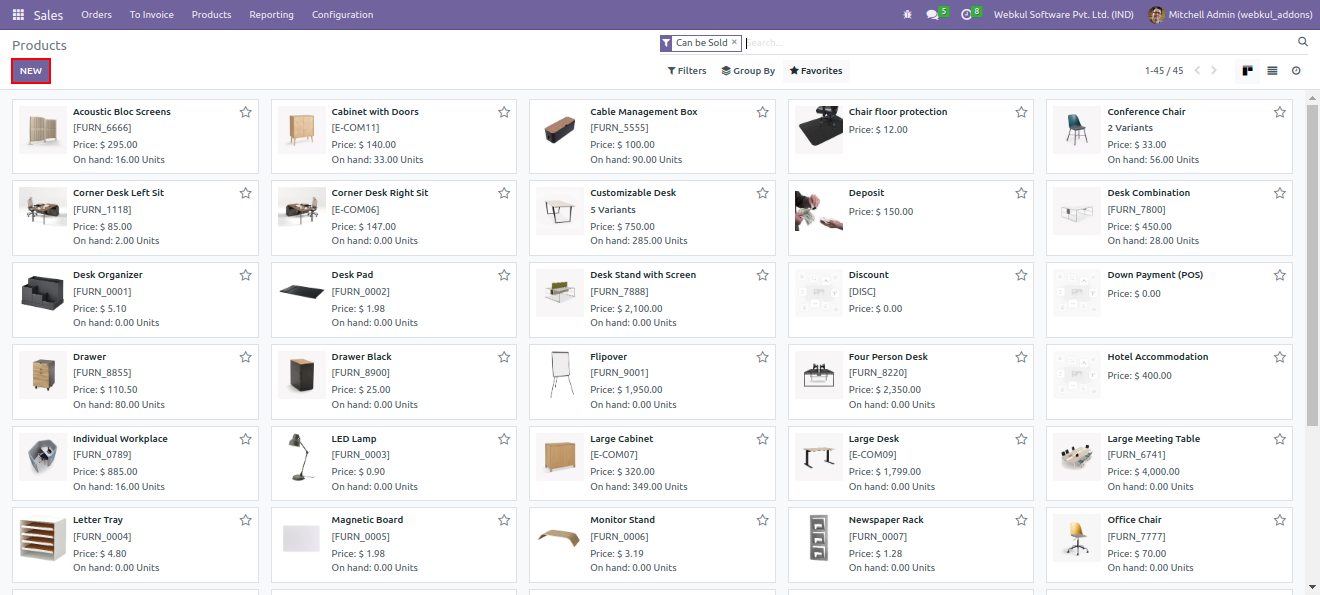
- Now navigate through ‘Sales >> Product >> Product.’ Either create a new one or open an existing one.
- Under the sales section, configure the ‘Also bought’ item.
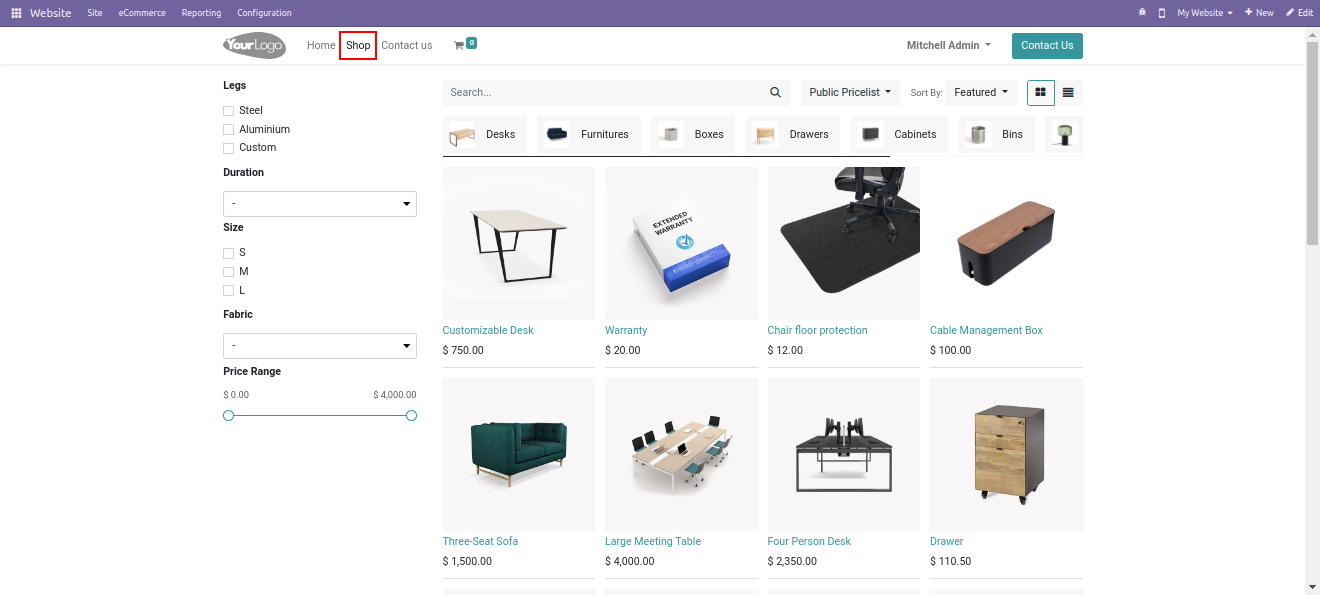
- On the website, open the shop page and select any product.
- You will notice the ‘also bought item’ under the selected one.

NEED HELP?
We hope you find the guide helpful! Please feel free to share your feedback in the comments below.
If you still have any issues/queries regarding the same, please raise a ticket at UV Desk.
Also, please explore our Odoo development services & an extensive range of quality Odoo Apps.
For any doubt, contact us at [email protected].
Thanks for paying attention!!
Current Product Version - 1.0.0
Supported Framework Version - Odoo 17, 16, 15


Be the first to comment.