Introduction
Odoo Warehouse on Order Line allows you to select a warehouse for each product directly on the sale order line.
As a result, businesses can manage orders coming from multiple warehouses in a simple way.
Moreover, Odoo Warehouse on Order Line automatically creates separate delivery orders based on the selected warehouses. This helps reduce manual work and avoids delivery mistakes.
Additionally, the module works smoothly with the standard Odoo sales flow. It ensures products are delivered from the correct warehouse while keeping the order process clear and organized.
Features
- Choose a warehouse for each product directly from the sale order line.
- Automatically create separate delivery orders for each selected warehouse.
- Show only warehouses that belong to the same company.
- Handle sales orders fulfilled from multiple warehouses with ease.
- Reduce manual splitting of orders and delivery errors.
- Keep the sales and delivery workflow simple and well organized.
Installation
- Once you purchase the App from Webkul store, you will receive a link to download module’s zip file.
- Extract the file on your system after download finishes. As a result, you will be able to see a folder named- order_line_warehouse
- Copy and paste this folder inside your Odoo Add-Ons path.
- Now, open Odoo App and click on the Settings menu. Here, click on Activate Developer Mode.
- Then, open Apps menu and click on ‘Update Modules List.’
- In the search bar, remove all the filters and search ‘order_line_warehouse’
- You will be able to see module in the search results. Click on ‘Activate’ to install it.
Workflow
1. After installing Odoo Warehouse on Order Line, go to Configuration → Warehouses to create and manage multiple warehouses in your system.

2. In the Warehouses section, you will see a list of all existing warehouses available in your company.
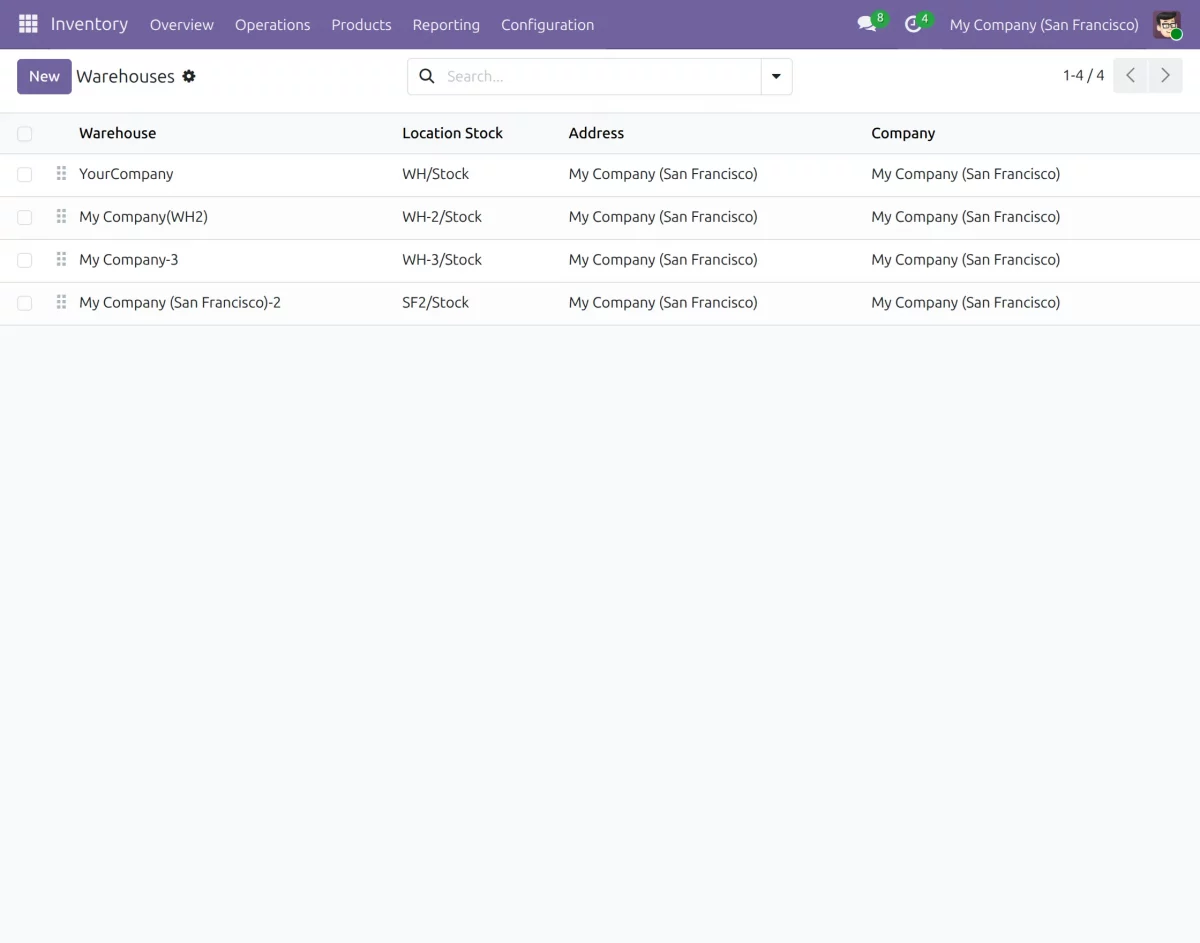
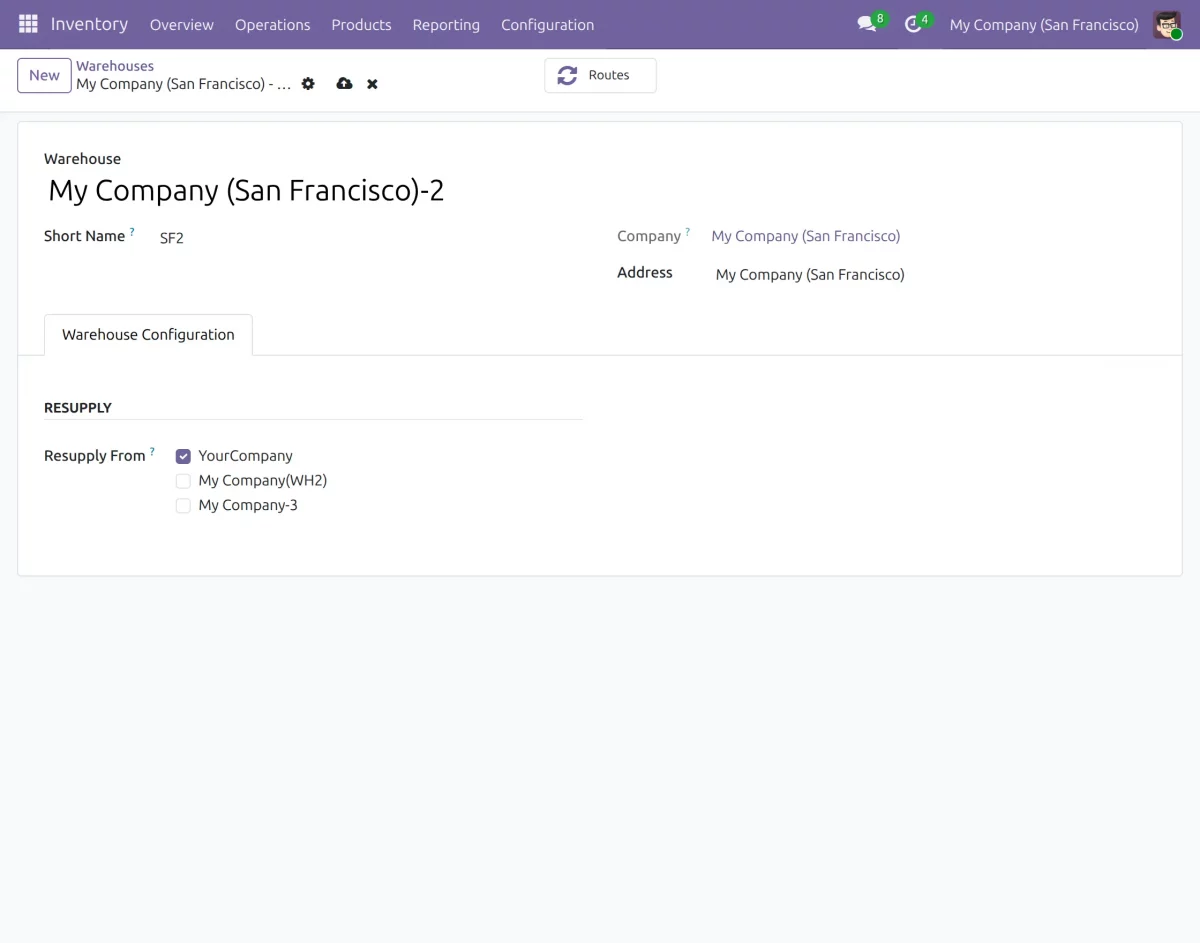
3. Now, click on New to create a new warehouse by filling in the required details and saving the record.
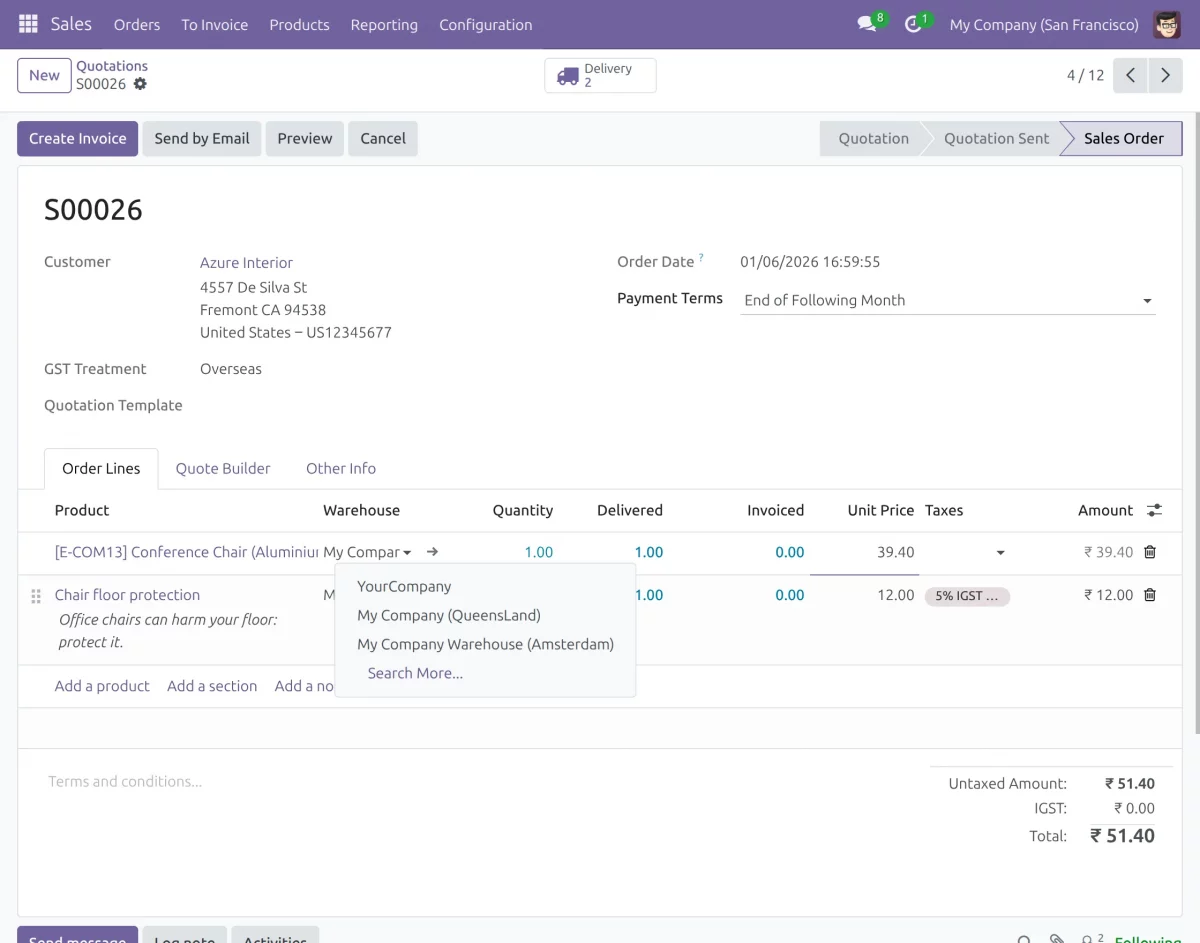
4. Next, go to Invoicing → Customers → Invoices and create a new sale order. Add multiple products and select the preferred warehouse for each product using the Warehouse option on the order line.
5. After confirming the sale order, you will see the delivery orders created automatically at the top of the sale order form.
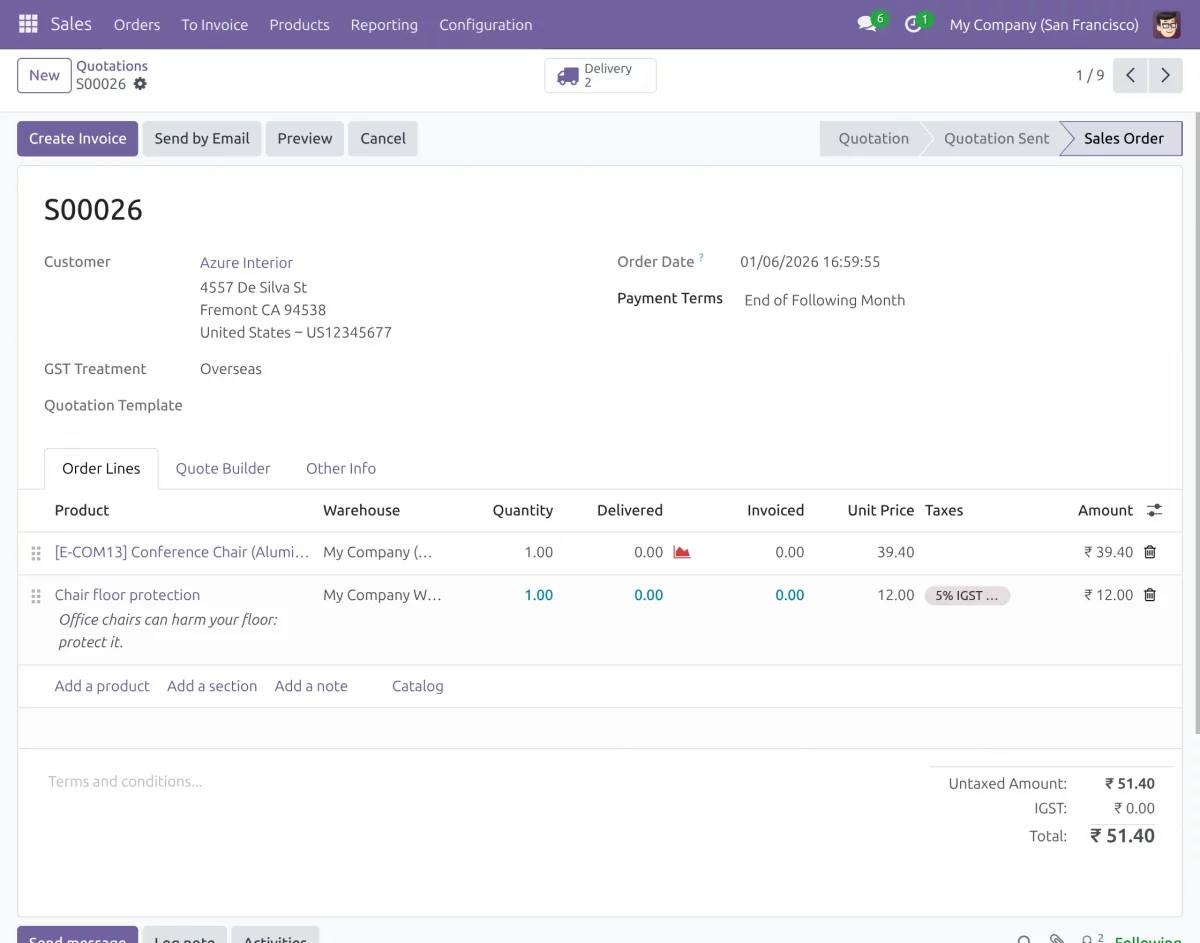
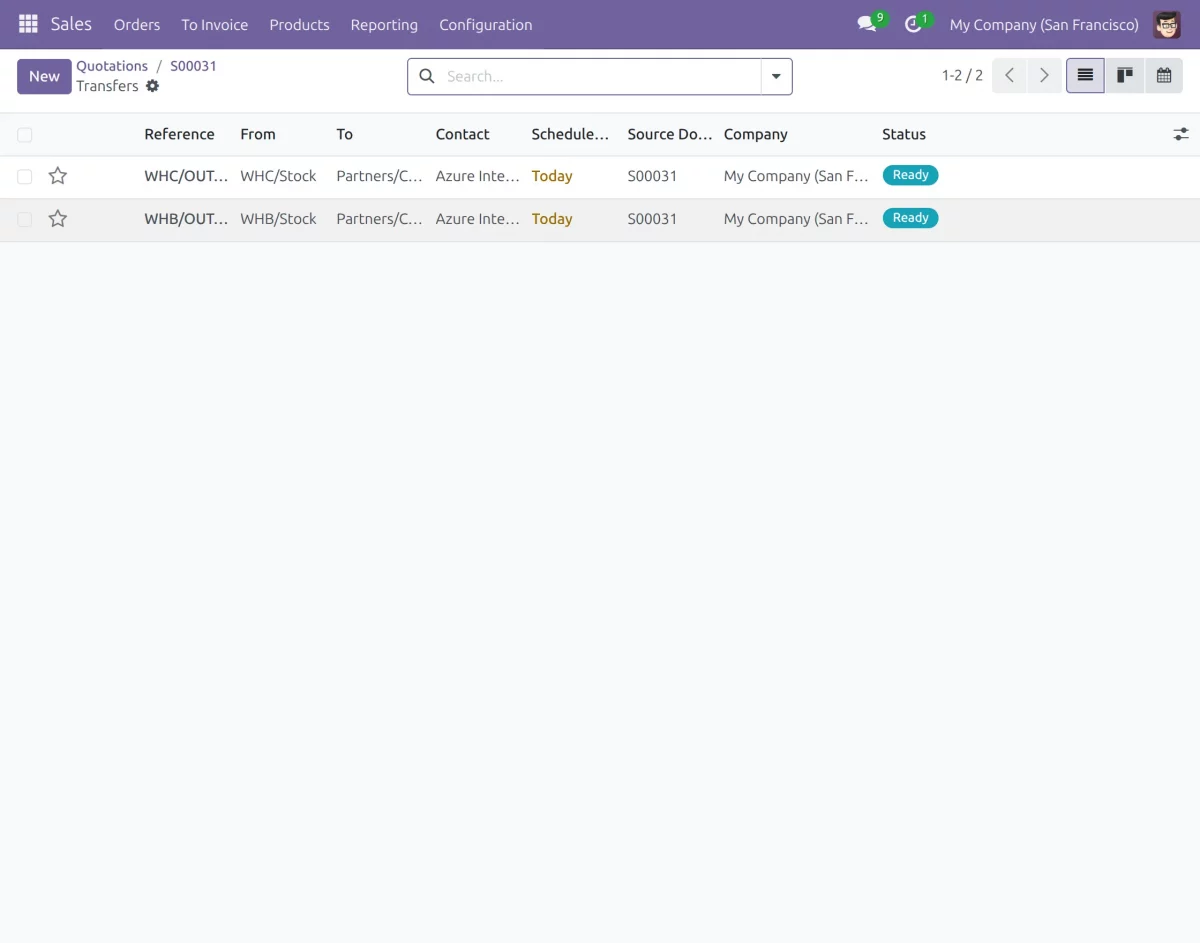
6. Click on Delivery to view the delivery records.
Here, you will notice that separate delivery orders are created for each selected warehouse picking for the same sale order using Odoo Warehouse on Order Line.
Need help?
Hope you find guide helpful! Please feel free to share your feedback in the comments below.
If you still have any issues/queries, please create a ticket at the UV Desk
I hope this helps. In case of any further queries, contact us at [email protected]
Thanks for paying attention!!
Current Product Version - 1.0.0
Supported Framework Version - Odoo V19, V18, V17


Be the first to comment.