Introduction
Odoo Website Stripe Recurring Payment Acquirer helps Odoo websites accept secure subscription payments using Stripe. It offers a smooth checkout and renewals.
In addition, this module supports global card payments and easy payment tracking inside Odoo.
Prerequisites For Using Odoo Website Stripe Recurring Payment Acquirer
Odoo Website Stripe Recurring Payment Acquirer works in conjunction with the following module:
Website Subscription Management
Odoo Website Stripe Payment Acquirer
You need to install the modules mentioned above to use Odoo Website Stripe Recurring Payment Acquirer.
Features
- Secure Stripe payments for Odoo subscriptions.
- Similarly, it has subscription renewals without manual effort.
- Supports worldwide debit and credit cards.
- Smooth checkout with fewer customer steps.
- Enables free trial periods for subscription plans.
- Tracks all payment transactions inside Odoo.
- Reduces payment failures and missed renewals.
Installation
- Once you purchase the App from Webkul store, you will receive a link to download module’s zip file.
- Extract the file on your system after download finishes. As a result, you will be able to see a folder named- wk_payment_stripe_recurring’(you can get the technical name from odoo app of the respective module)’
- Copy and paste this folder inside your Odoo Add-Ons path.
- Now, open Odoo App and click on the Settings menu. Here, click on Activate Developer Mode.
- Then, open Apps menu and click on ‘Update Modules List.’
- In the search bar, remove all the filters and search ‘wk_payment_stripe_recurring’
- You will be able to see module in the search results. Click on ‘Install’ to install it.
Workflow
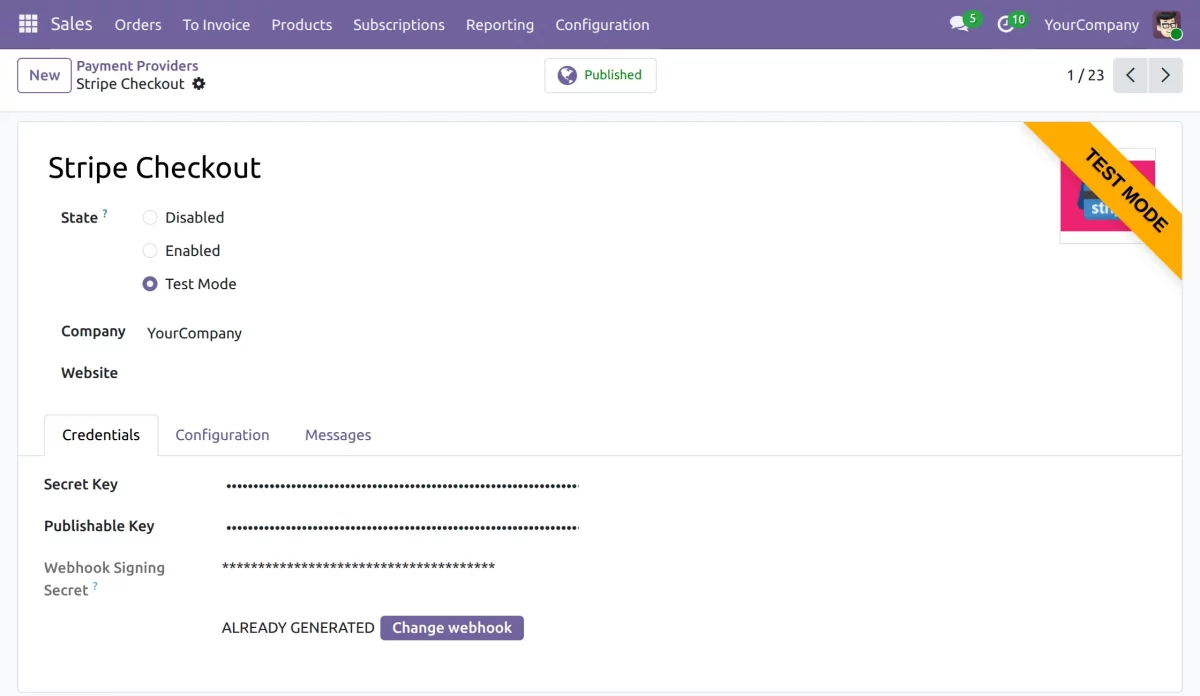
1. Log in to your Odoo portal once the installation is completed, and navigate to payment providers. Afterward, open Stripe checkout and enter the required details.
Once done, publish the module.
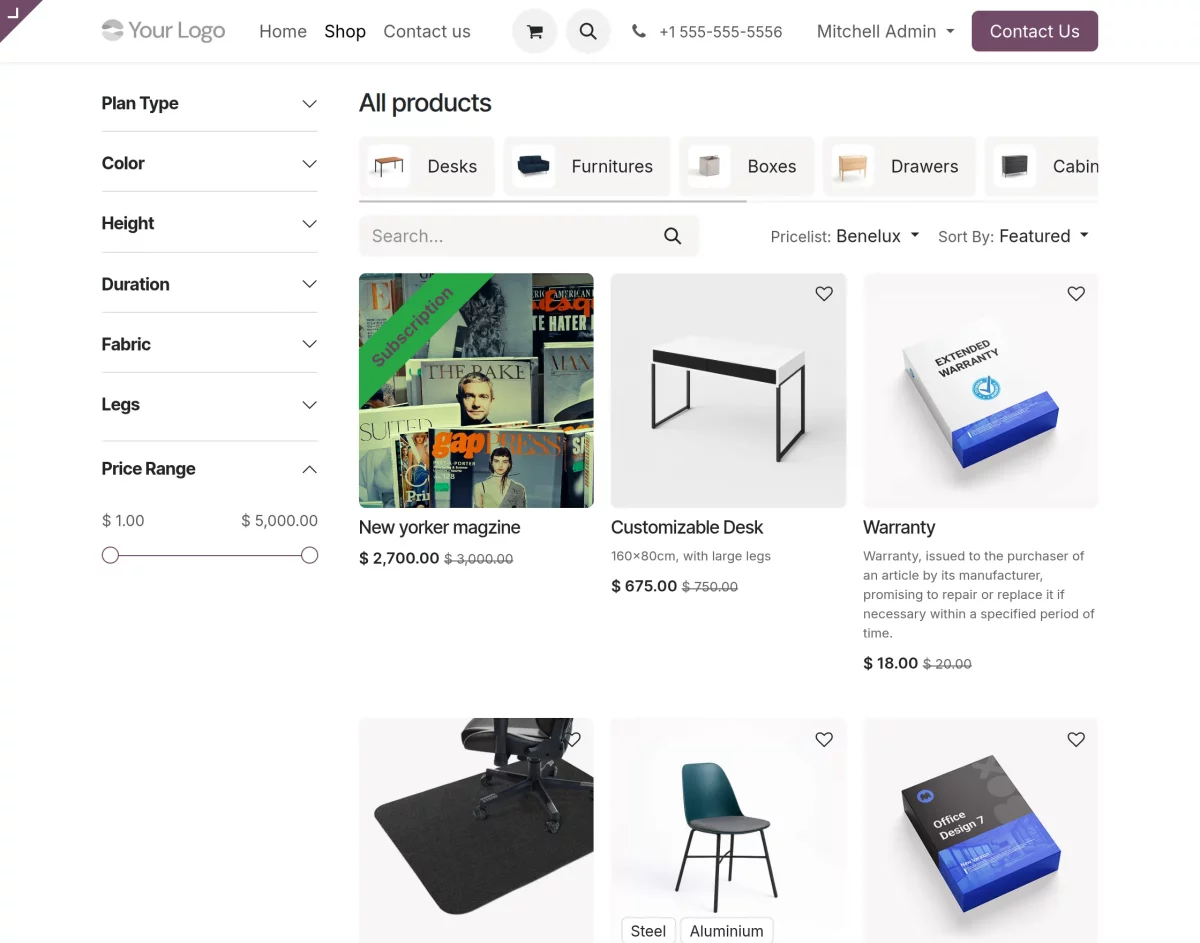
2. Moreover, open the shop from the website and select a product that you wish to purchase.
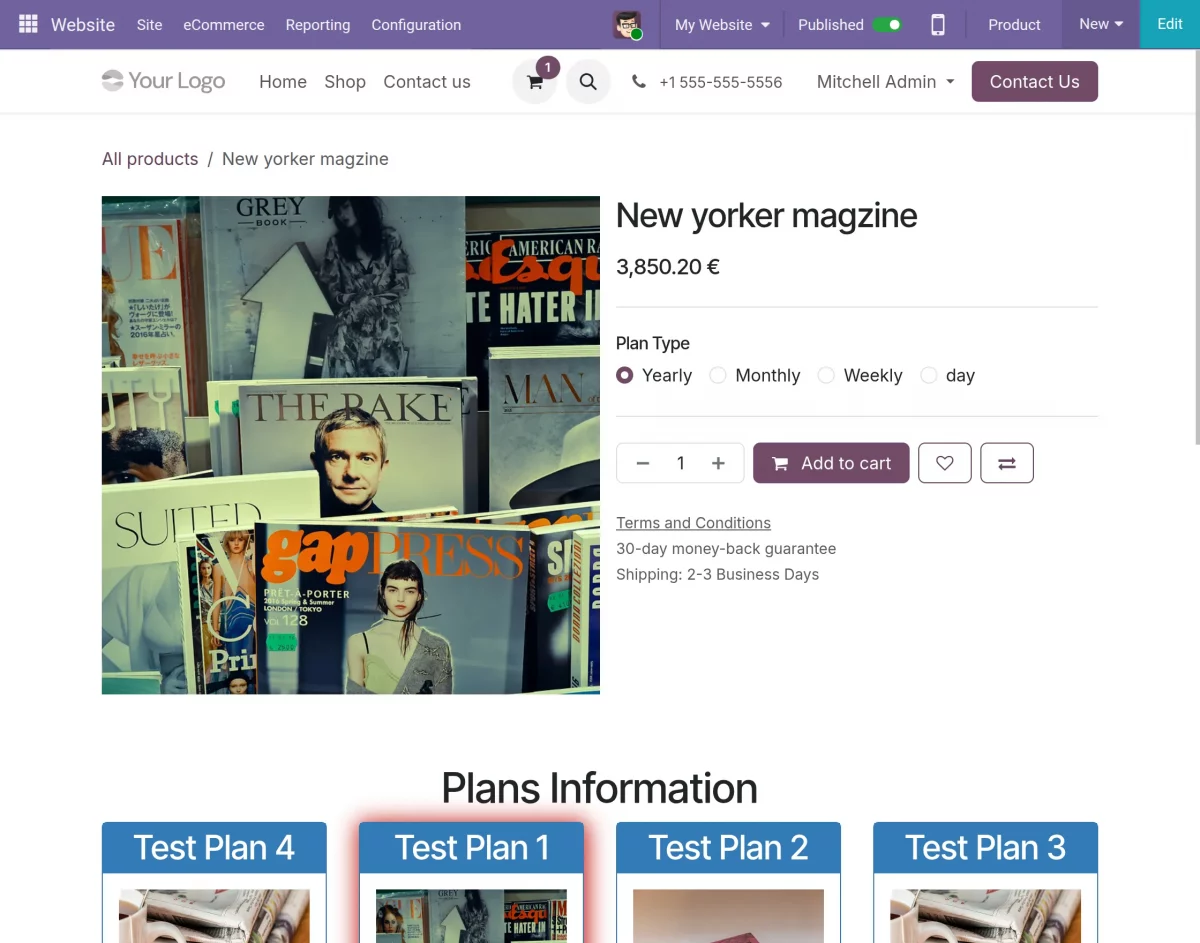
3. Similarly, once the product is selected, choose the period of subscription: monthly, yearly, quarterly, and click on add to cart.
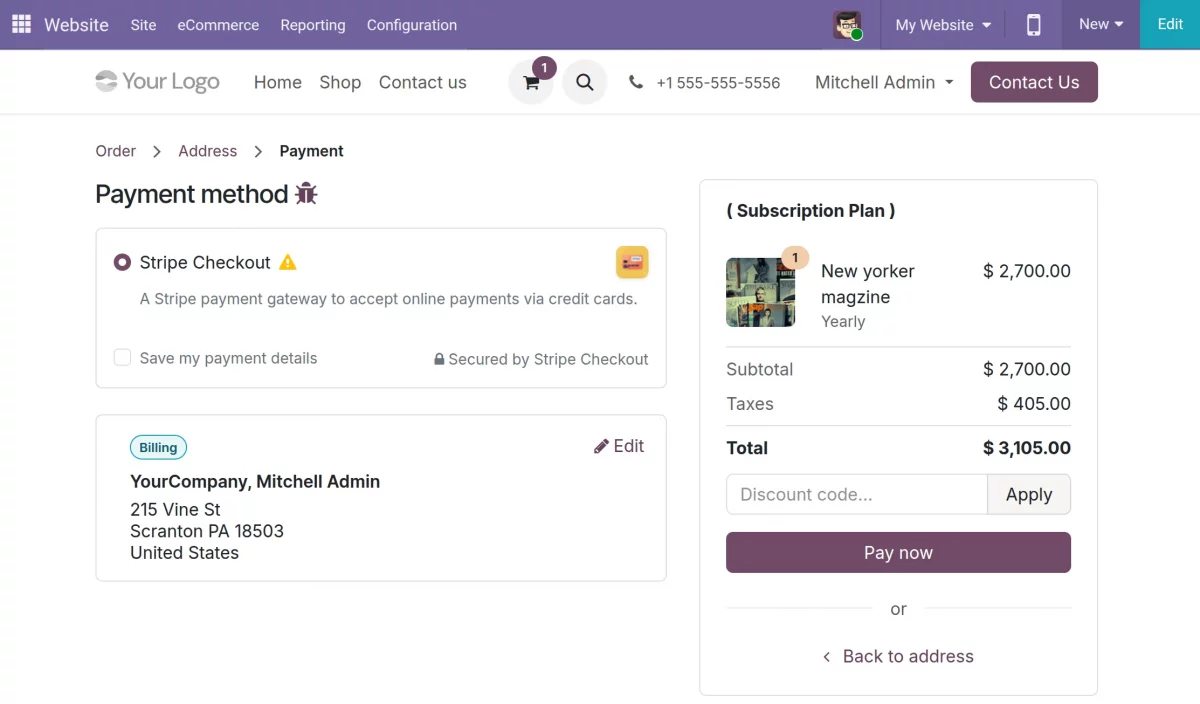
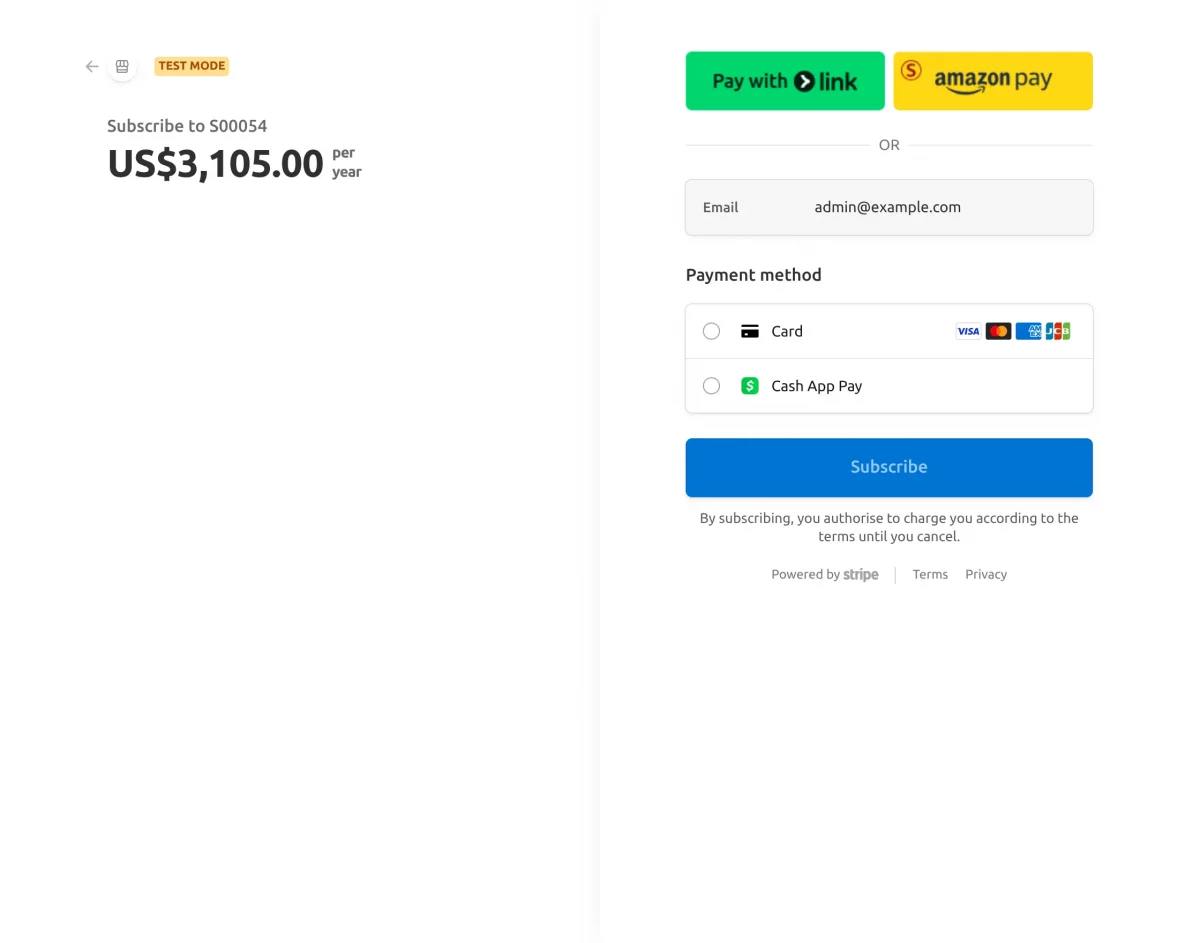
4. Moreover, once you are on the checkout page, choose the payment method as Stripe and proceed to pay.
5. Similarly, choose the payment method as card or Cash App Pay, and proceed to enter all the required details.
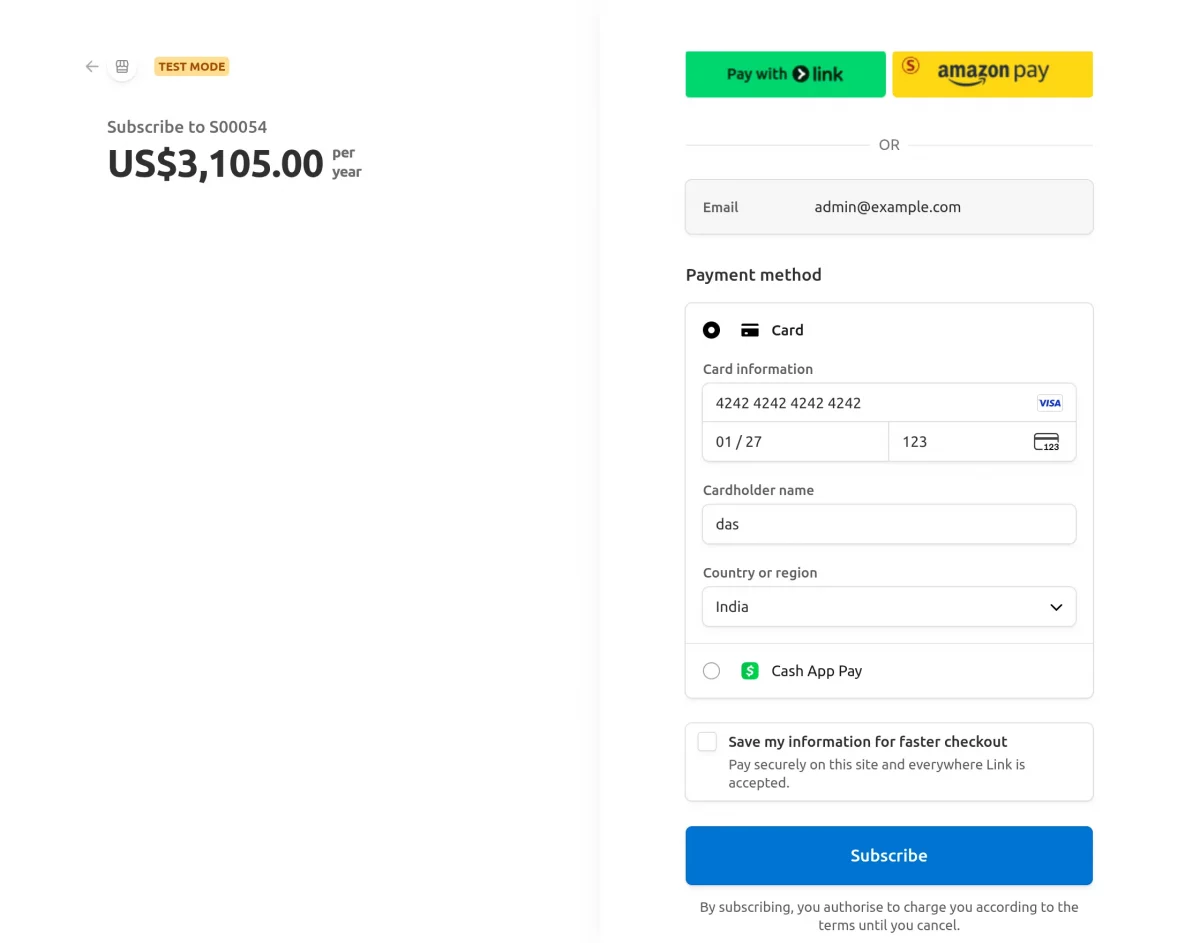
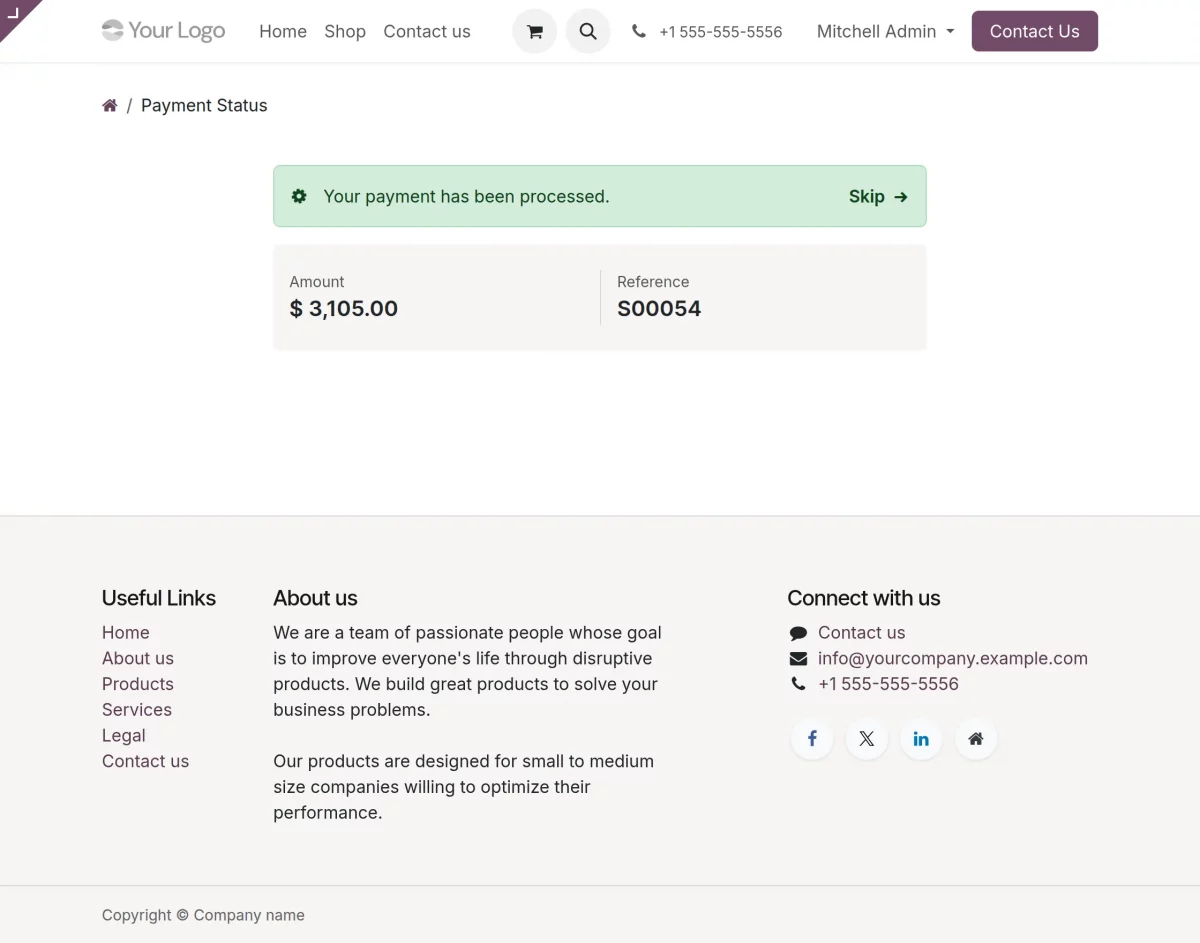
6. As a result, once the payment is completed, you will be redirected to the payment confirmation page.
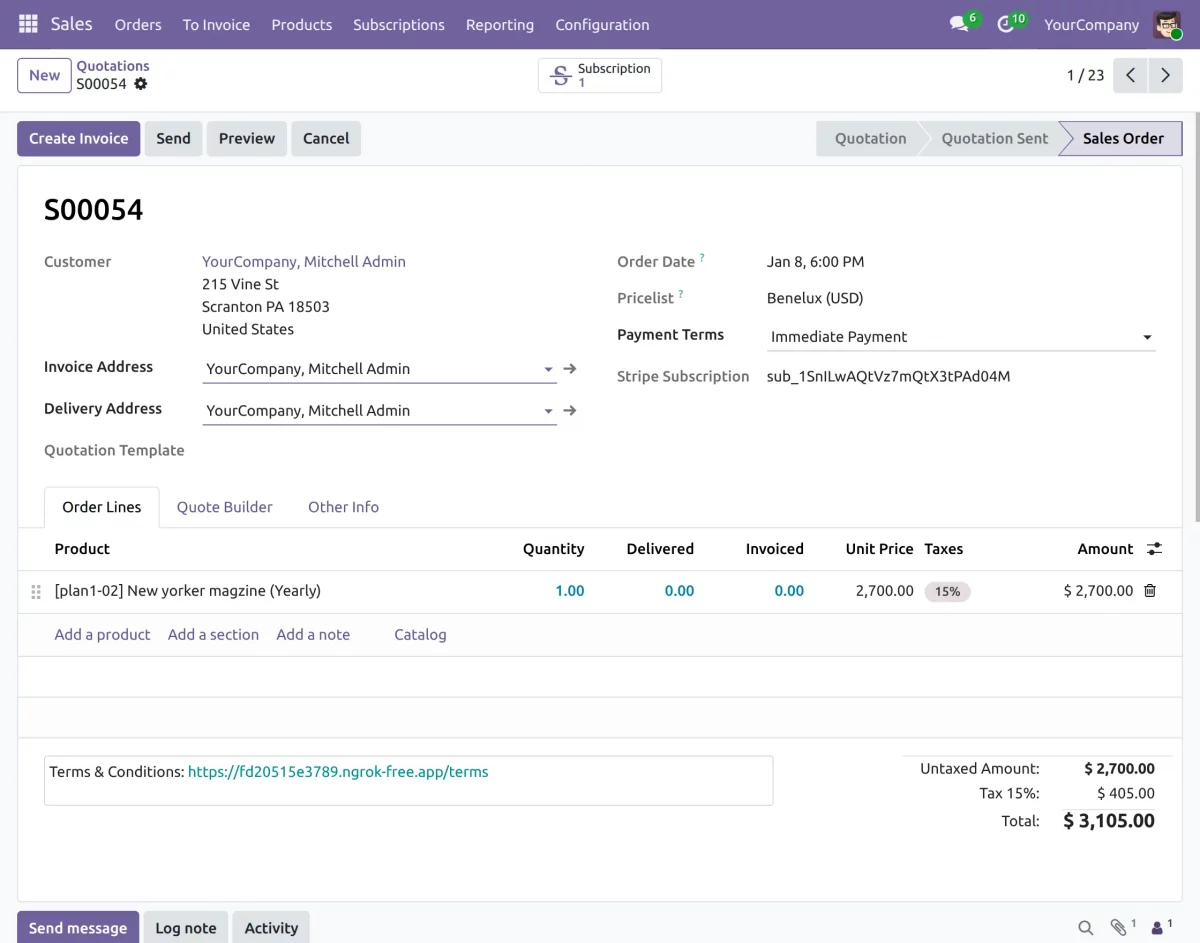
7. The admin can also check the orders directly from the backend.
Need Help?
Hope you find guide helpful! Please feel free to share your feedback in the comments below.
If you still have any issues/queries, please create a ticket at the UV Desk.
I hope this helps. In case of any further queries, contact us at support mail.
Thanks for paying attention!!
Current Product Version - 1.0.0
Supported Framework Version - ODOO 17, 18, 19


Be the first to comment.