Introduction
Odoo Skydropx Shipping Integration allows users to manage shipping directly inside Odoo. It connects Odoo with Skydropx, allowing the shipping process to be handled in one place.
With this module, users can fetch shipping rates, select from multiple carriers, create shipments, and print shipping labels from delivery orders. All steps follow the normal Odoo workflow.
Odoo Skydropx Shipping Integration also allows users to cancel shipments before pickup and view tracking numbers from delivery orders. This makes the shipping process easier and more organised for daily work.
Features
- Fetch live shipping rates on sales orders and delivery orders.
- Compare multiple carrier options before confirming the order.
- Select the preferred carrier based on price and service.
- Create shipments directly from delivery orders.
- Automatically generate shipping labels after shipment creation.
- Automatically assign tracking numbers to delivery orders.
- Available shipping services are displayed based on the delivery location and order details.
- Odoo Skydropx Shipping Integration allow you to cancel shipments before the carrier pickup.
- Complete the entire shipping process without leaving Odoo.
Installation
- Once you purchase the App from the Webkul store, you will receive a link to download the module’s zip file.
- Extract the file to your system after the download is complete. As a result, you will be able to see a folder named- ‘skydropx_shipping_integration(you can get the technical name from odoo app of the respective module)’
- Copy and paste this folder inside your Odoo Add-Ons path.
- Now, open Odoo App and click on the Settings menu. Here, click on Activate Developer Mode.
- Then, open Apps menu and click on ‘Update Modules List.’
- In the search bar, remove all the filters and search ‘skydropx_shipping_integration’
- You will be able to see the module in the search results. Click on ‘Activate’ to install it.
Workflow
- Configure Odoo Skydropx Shipping Integration Delivery Method from Inventory Settings.
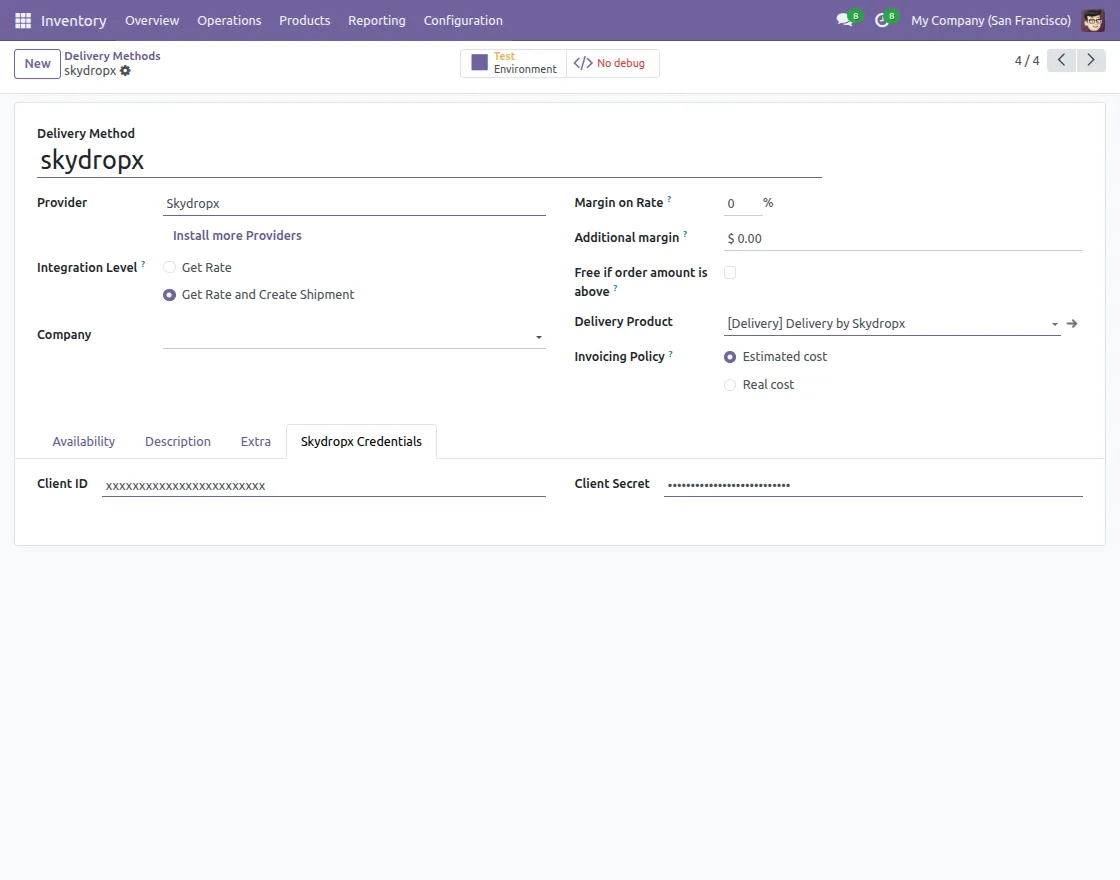
- Configure extra delivery settings according to your needs.
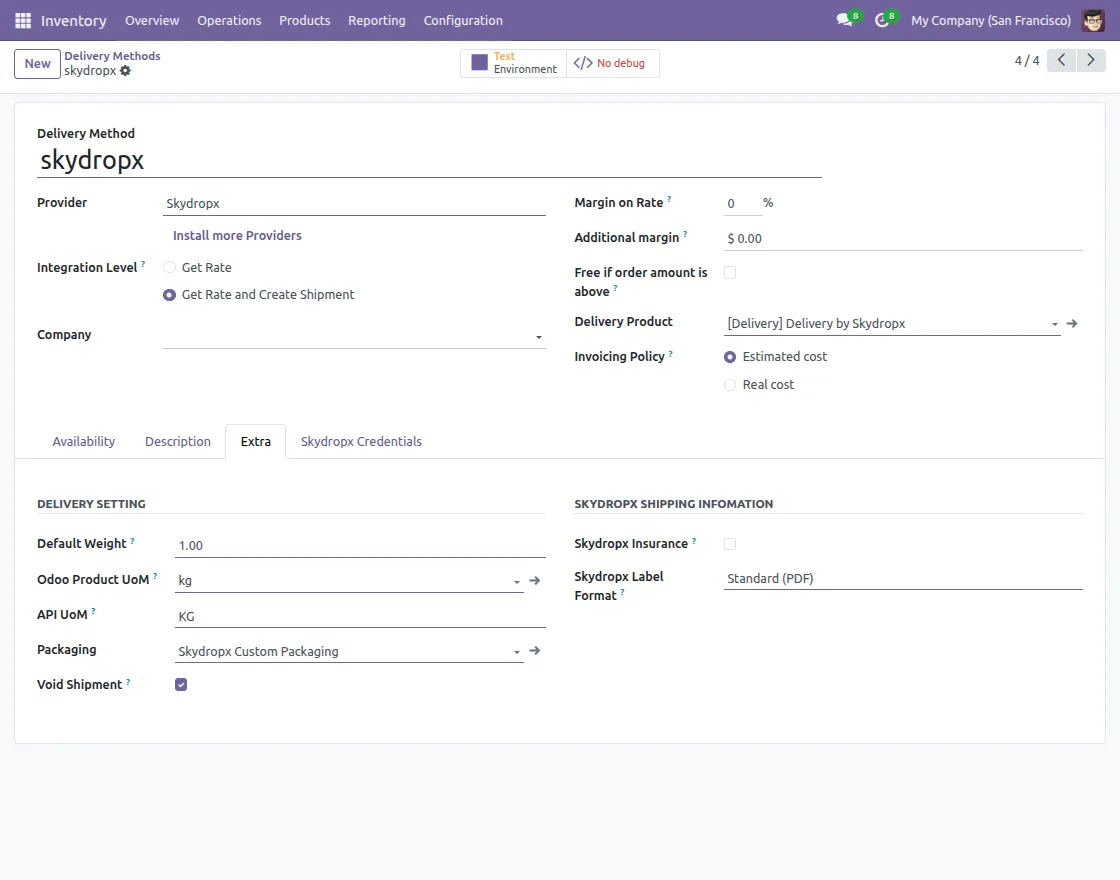
- Create a New Quotation or Sales Order.
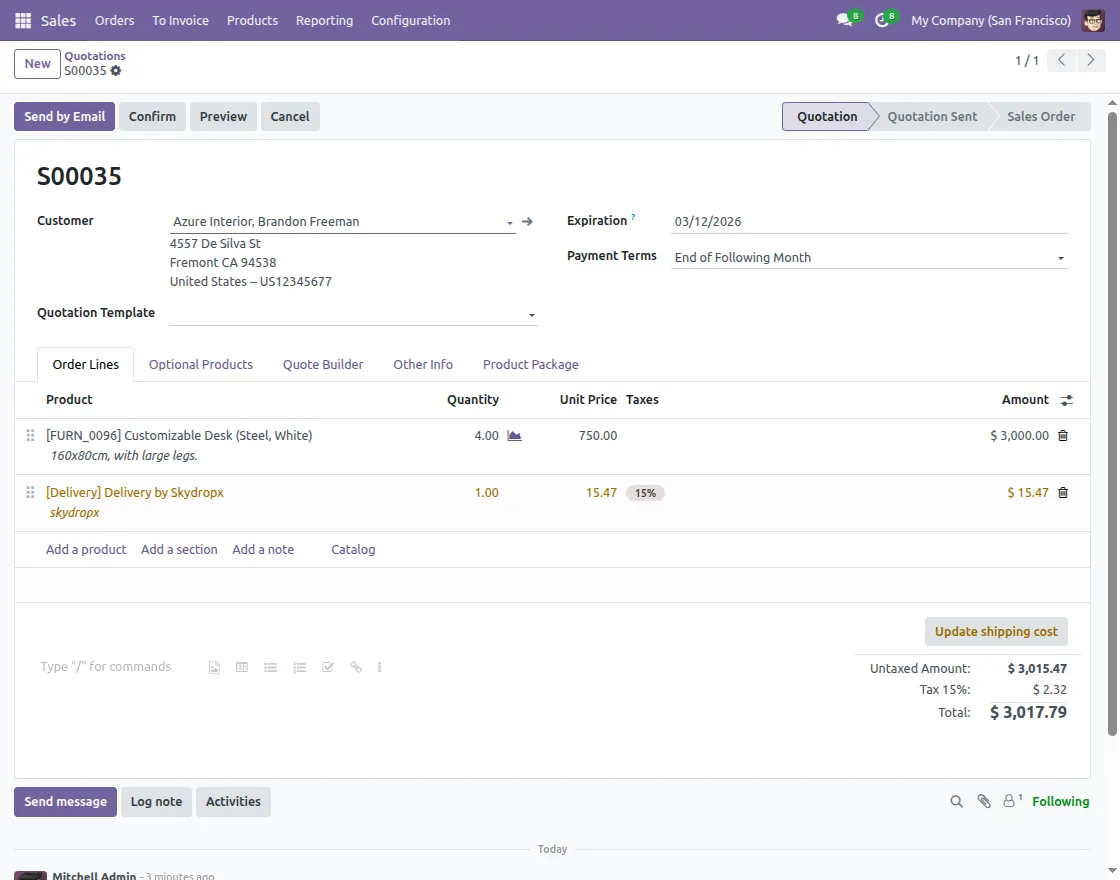
- Fetch Available Shipping Rates And Select Preferred Carrier Based on Shipping Options.
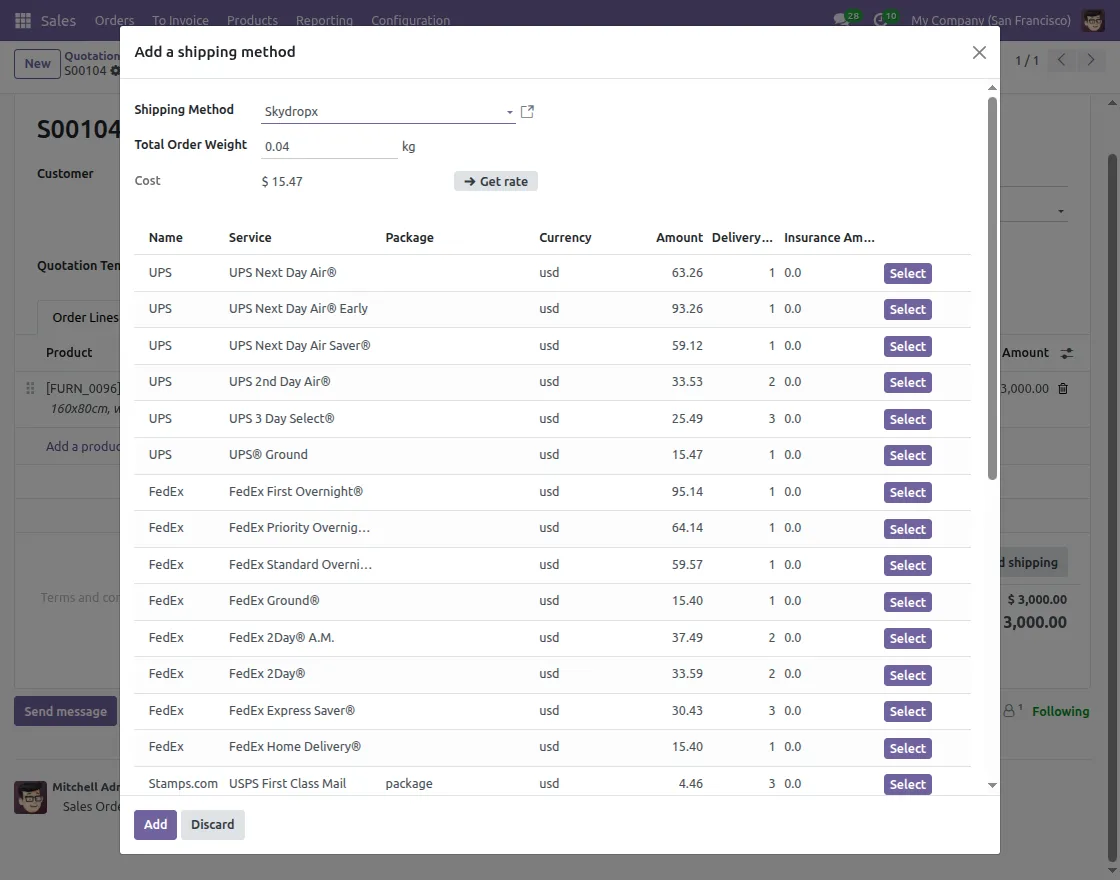
- Service details of skydropx.
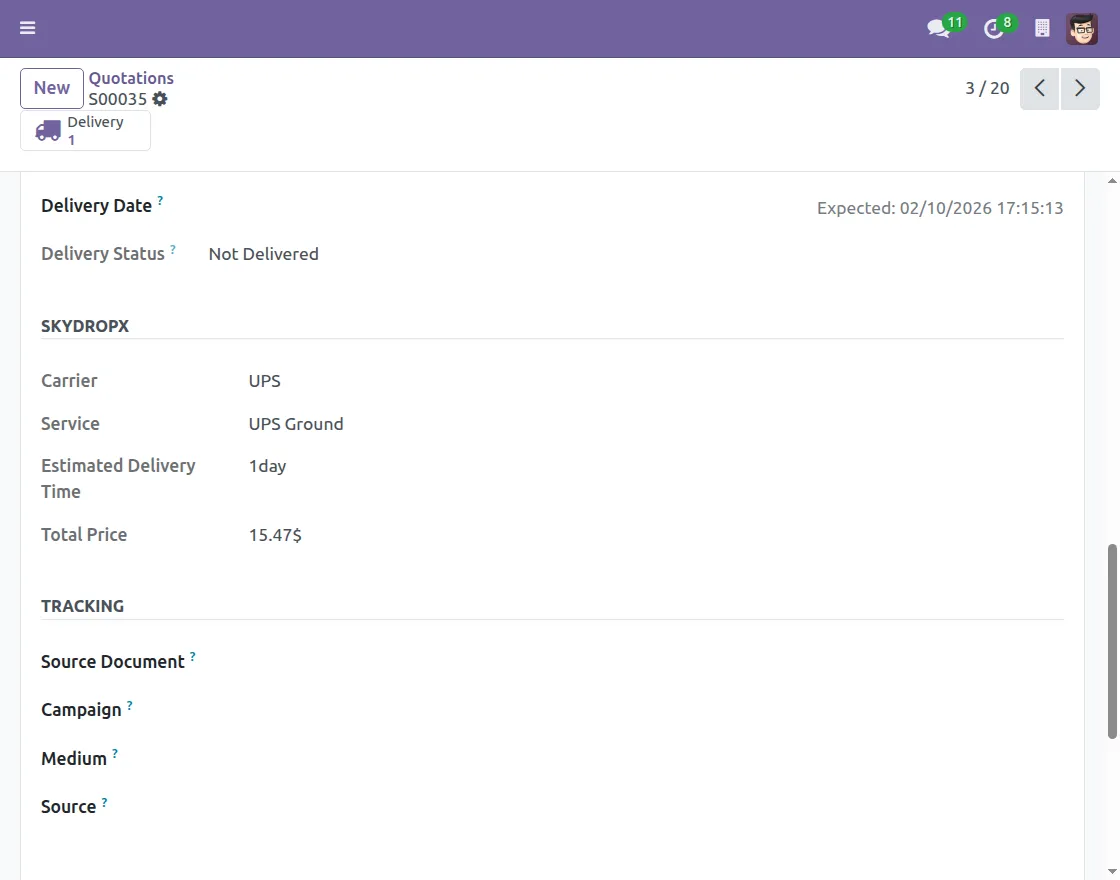
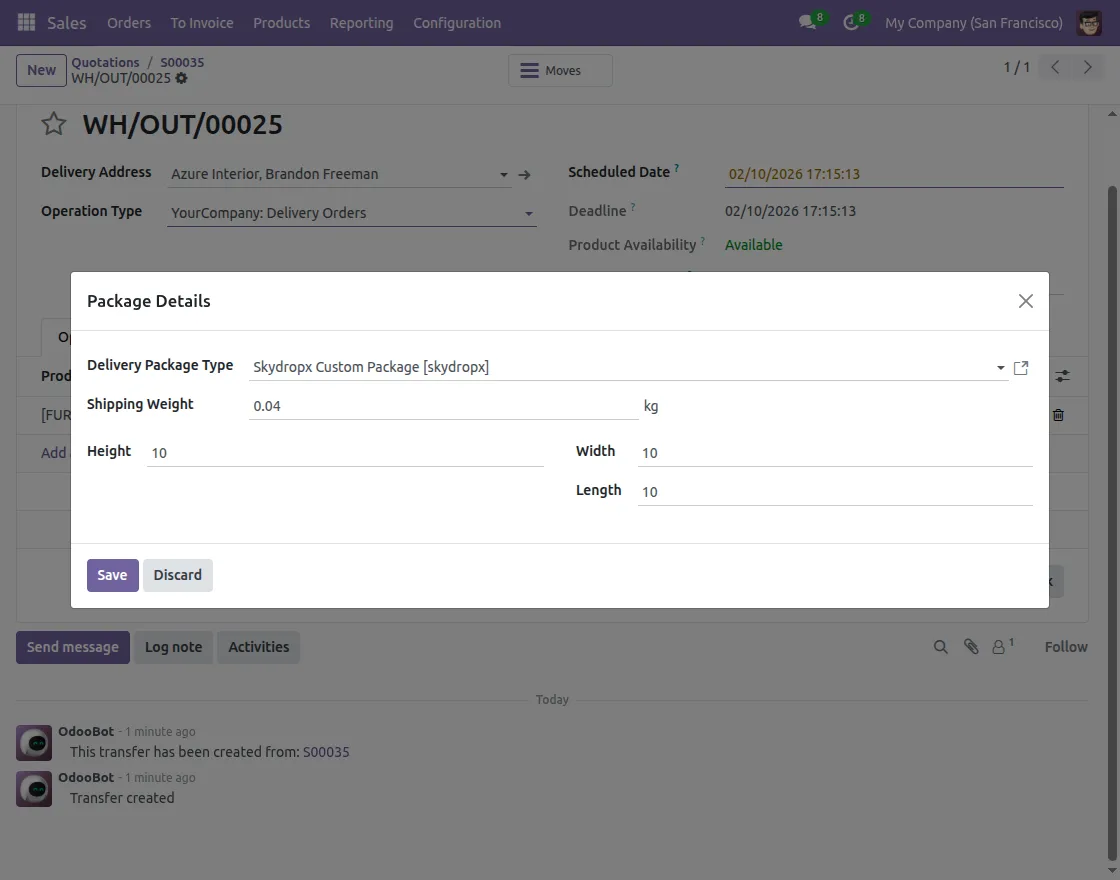
- Review the package details after validating the sales order.
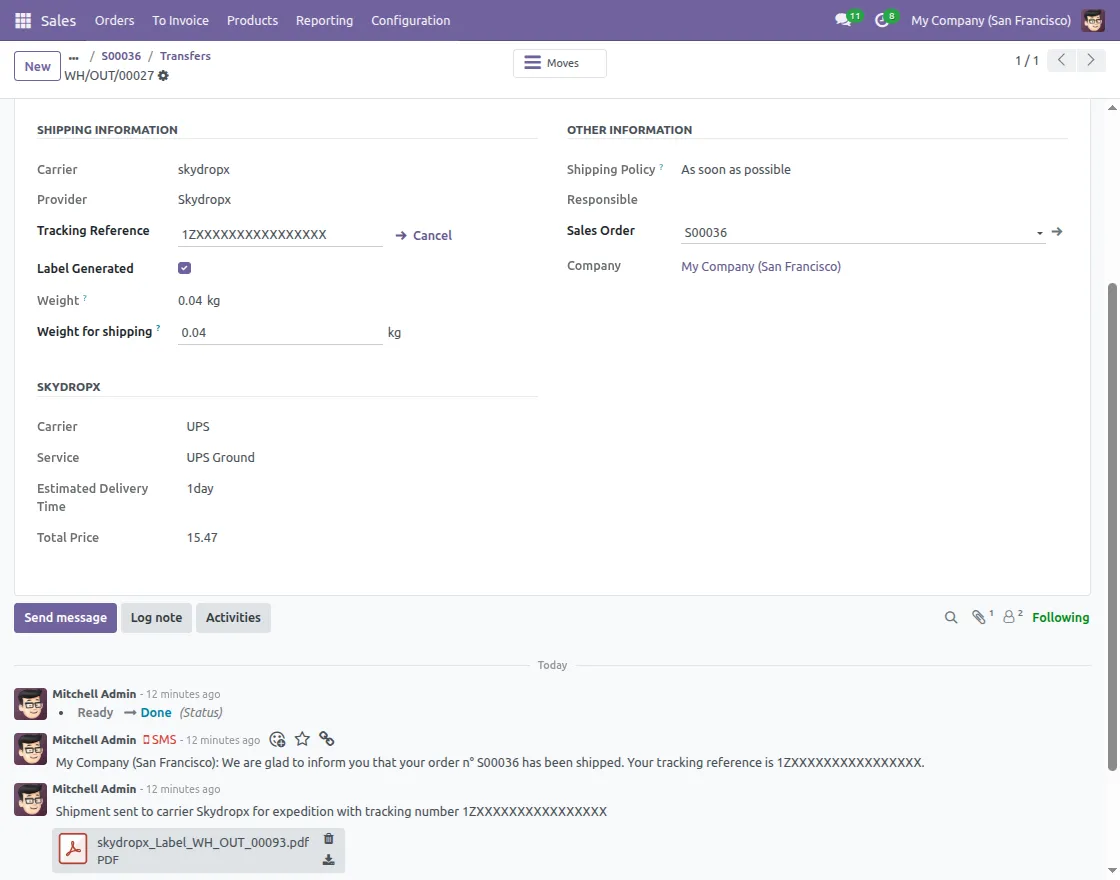
- Shipping Labels and Tracking Numbers are generated automatically after Shipment Creation.
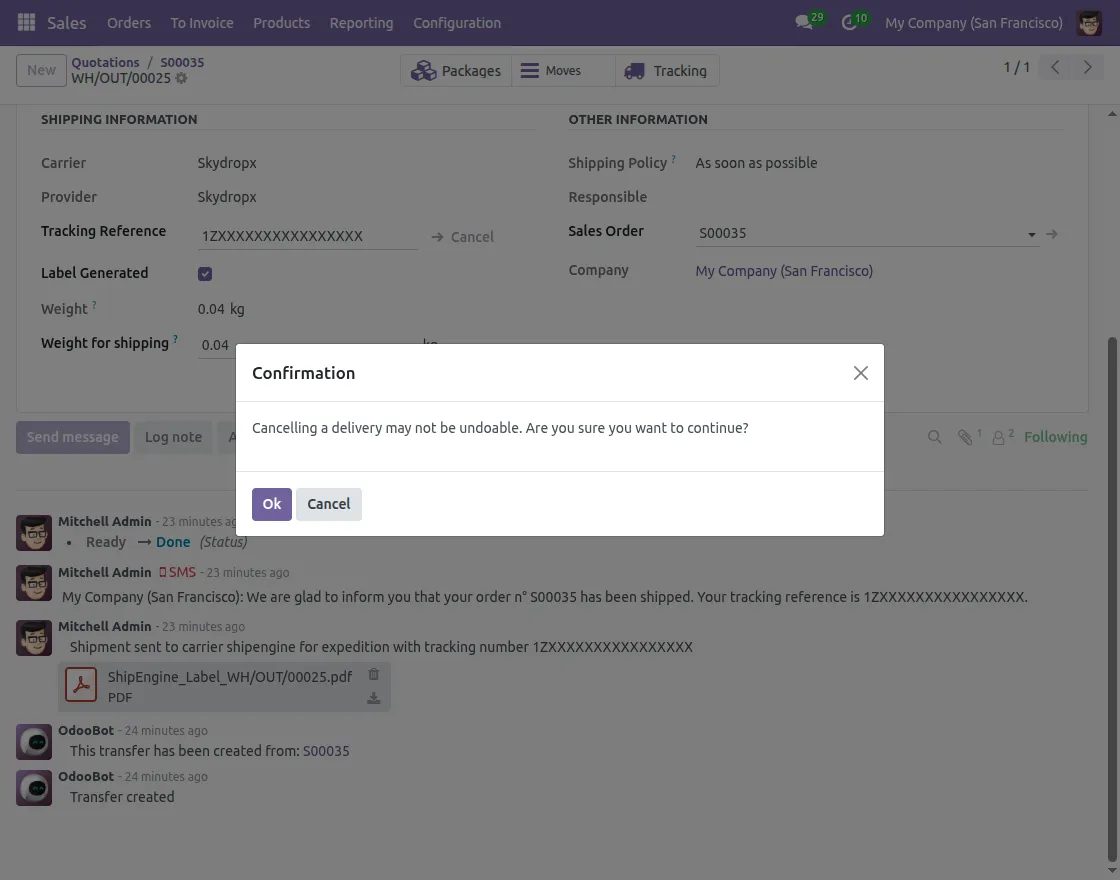
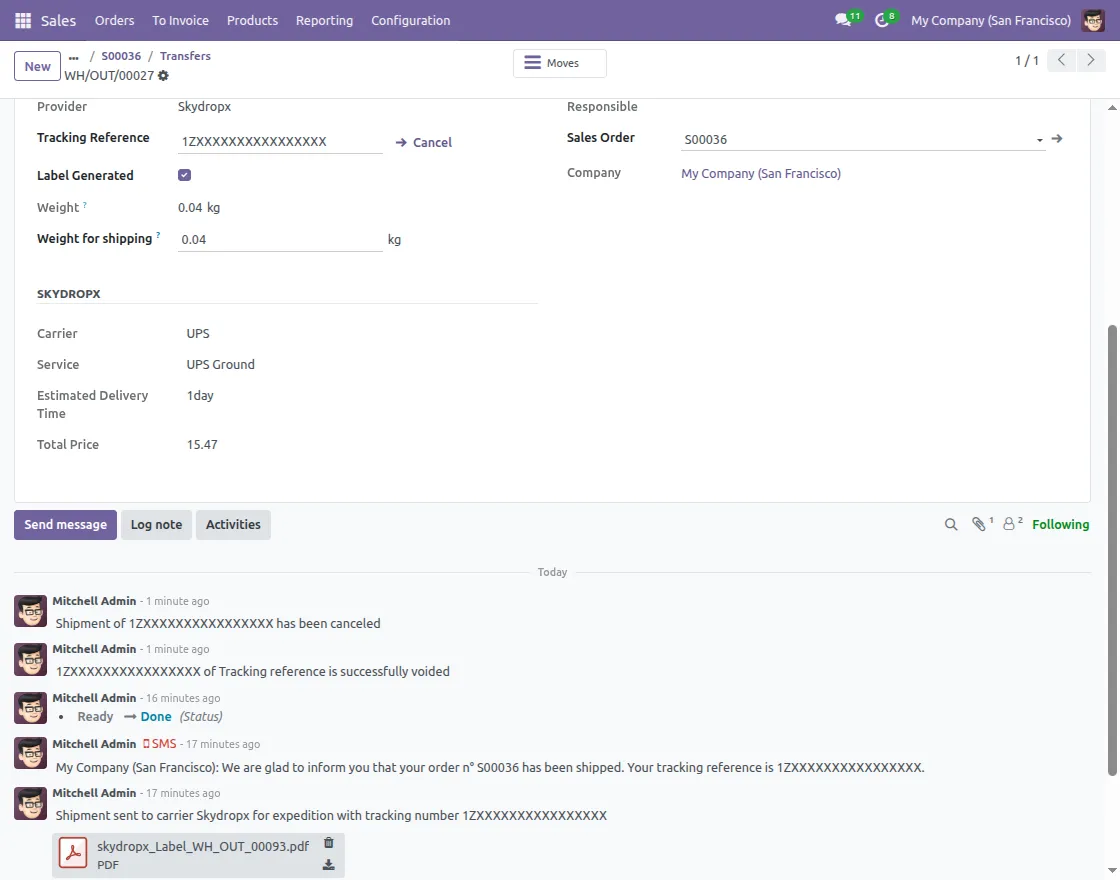
- You can cancel a shipment before the carrier picks up your package.
- Odoo Skydropx Shipping Integration allow you to track your activities in the shipment activity logs.
Need Help?
Hope you find guide helpful! Please feel free to share your feedback in the comments below.
If you still have any issues/queries, please create a ticket at the UV Desk.
I hope this helps. In case of any further queries, contact us at our support mail.
Thanks for paying attention!!
Current Product Version - 1.0.0
Supported Framework Version - Odoo V19, V18, V17


Be the first to comment.