Introduction
Odoo Remember Resized List Column module saves your custom column widths in tree views. Your preferred layout stays intact across every session.
Without this module, Odoo resets all column sizes to default every time you exit. Users are forced to manually resize columns from scratch on each visit.
This manual covers how to install, enable, and use Remember Resize Tree Column effectively. Follow the steps below to get started.
Features
- Saves column widths automatically across all tree views
- Enable or disable directly from Odoo General Settings
- Restores your column layout on every next visit
- Works silently in the background without technical configuration
- Each user’s column preferences are stored completely independently
- Resize columns by simply dragging the column edge
- No restart or additional setup is required after enabling
- Works across all Odoo modules that use list views
- Disabling the option clears all saved column widths instantly
Installation
- Once you purchase the App from Webkul store, you will receive a link to download module’s zip file.
- Extract the file on your system after download finishes. As a result, you will be able to see a folder named- ‘wk_remember_resized_tree_columns.’
- Copy and paste this folder inside your Odoo Add-Ons path.
- Now, open Odoo App and click on the Settings menu. Here, click on Activate Developer Mode.
- Then, open Apps menu and click on ‘Update Modules List.’
- In the search bar, remove all the filters and search ‘wk_remember_resized_tree_columns.’
- You will be able to see module in the search results. Click on ‘Activate’ to install it.
Workflow
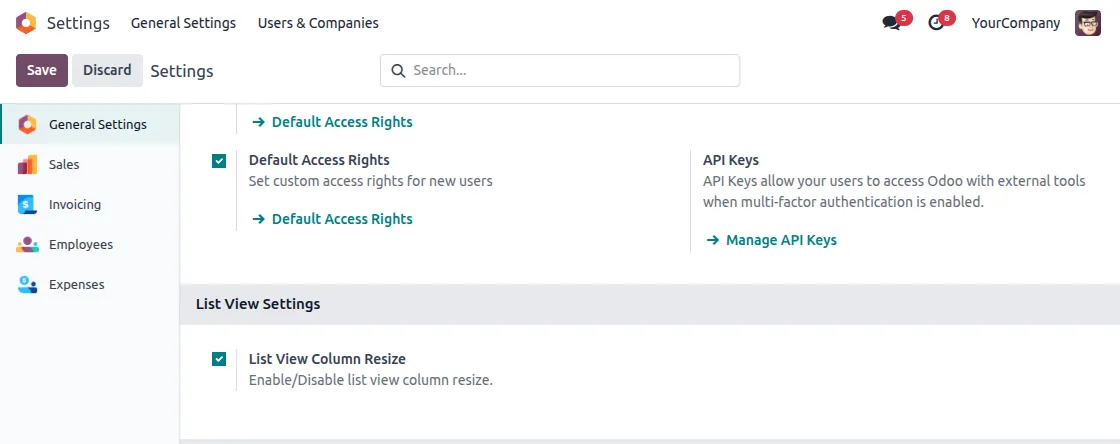
- Enable List View Column Resize from Settings
After installing Odoo Remember Resized List Column, navigate to Odoo Settings → General Settings. Scroll down to the List View Settings section and enable the List View Column Resize checkbox. Click Save.
2. Resize a Column
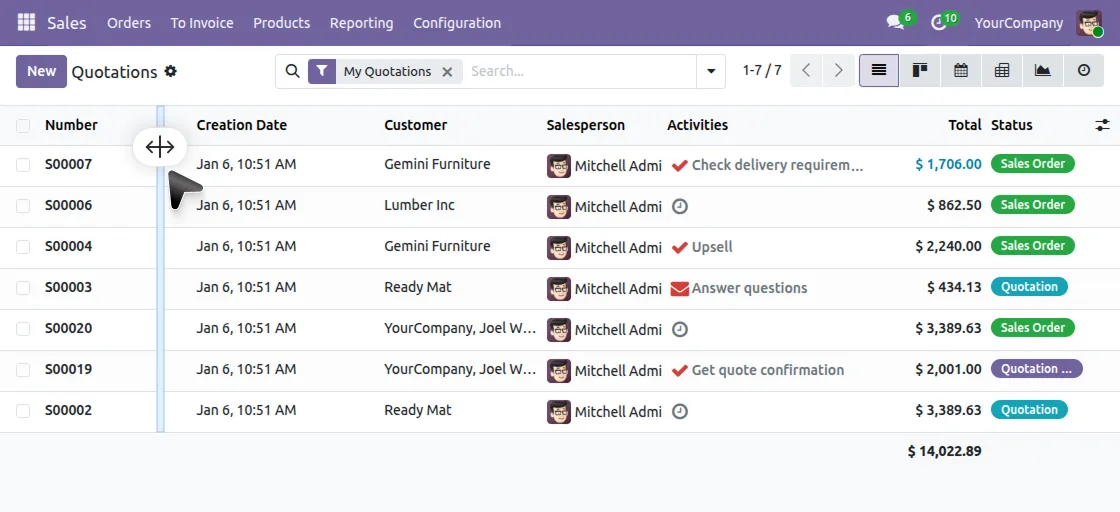
Open any tree or list view in Odoo, for example, Sales → Quotations or Invoicing → Invoices. Hover over the edge of any column header until the resize cursor appears. Click and drag to set your preferred column width.
3. Exit and Return
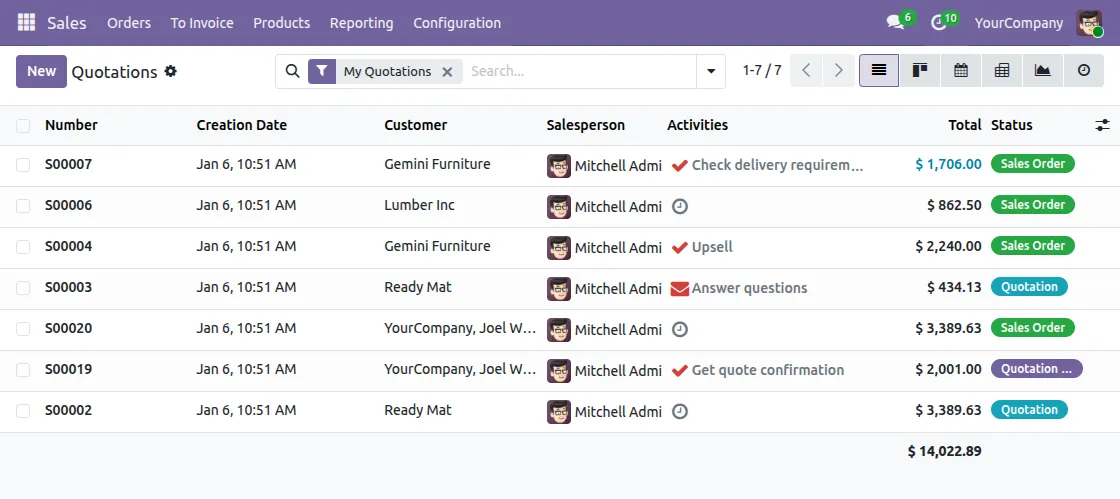
Close the page or navigate away. When you return to the same list view, all columns will appear exactly at the width you last set. No manual adjustment is needed.
4. Per-User Layout
Each user can set their own preferred column widths independently. One user’s layout does not affect another user’s view.
5. Disable List View Column Resize (Optional)
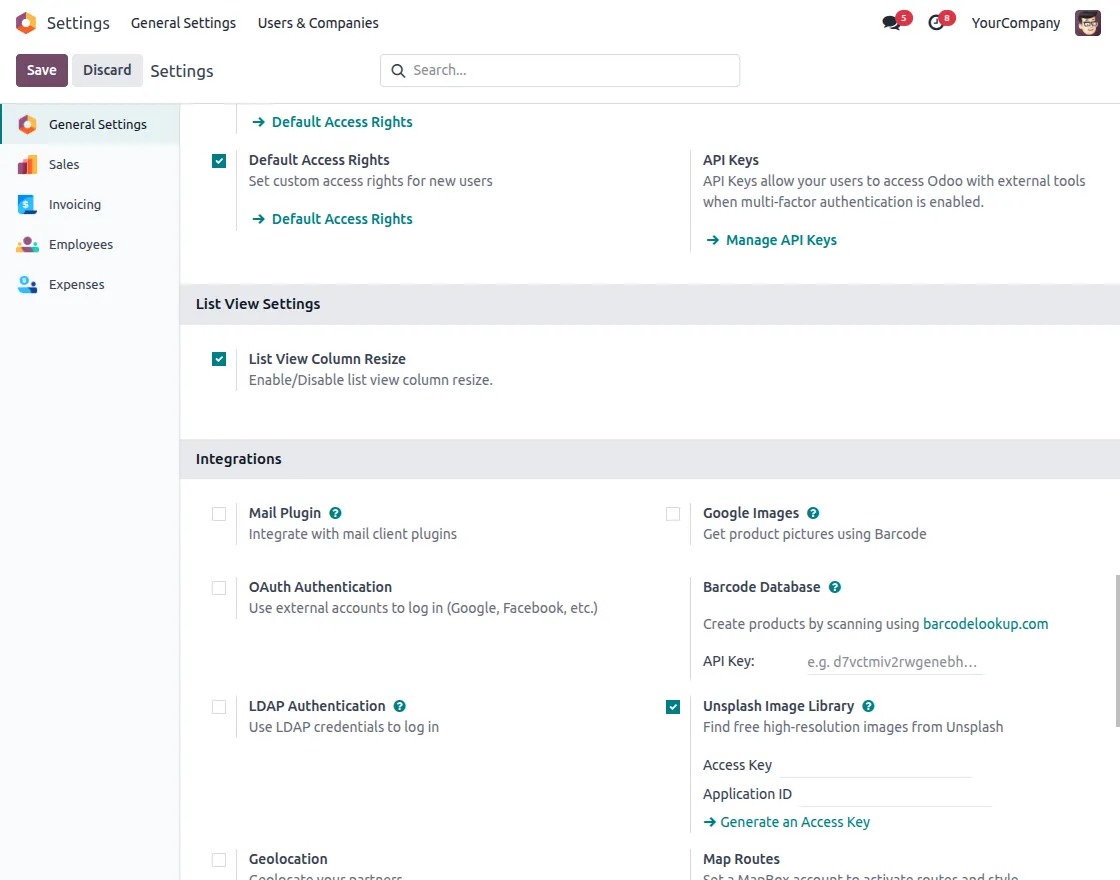
To stop saving column widths, go back to Settings → General Settings → List View Settings and uncheck the List View Column Resize option. All saved widths will be cleared and columns will return to Odoo’s default sizes.
Need Help?
Hope you find guide helpful! Please feel free to share your feedback in the comments below.
If you still have any issues/queries, please create a ticket at the UV Desk.
I hope this helps. In case of any further queries, contact us at our support mail.
Thanks for paying attention!!
Current Product Version - 1.0.0
Supported Framework Version - Odoo V17, V18, V19


Be the first to comment.