Introduction
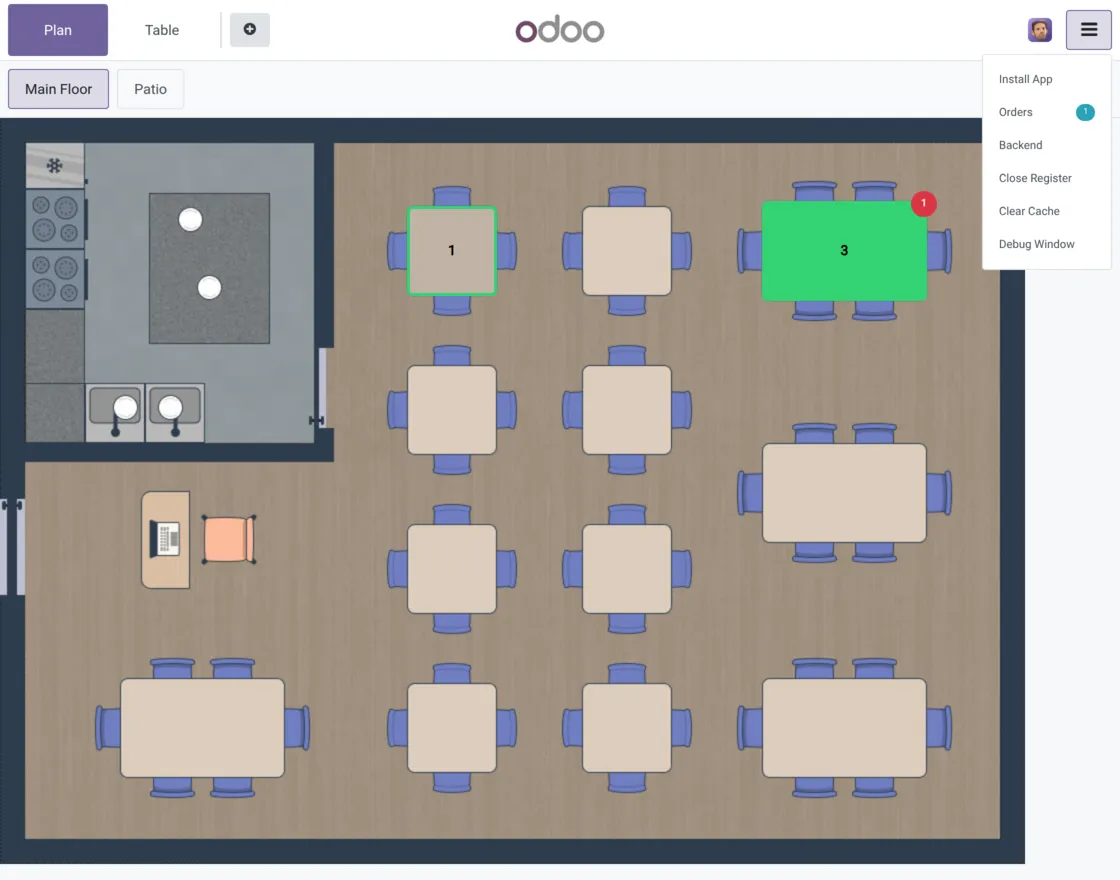
Odoo POS Table Reservation for Waiters helps restaurants manage table assignments and reservations directly from the POS. Tables are reserved automatically when items are added to the cart, and their status updates in real time based on POS activity.
In Odoo POS Table Reservation for Waiters module, waiters can access only their assigned tables, which helps reduce service confusion and improve accountability during busy hours.
At the same time, admins can monitor real-time table status, control table visibility, and reassign tables instantly from a centralized dashboard, ensuring better coordination between staff and smoother daily restaurant operations.
Features
- Automatically updates table status between Free, Reserved, and Occupied in real time.
- Allows waiters to view and manage only the tables assigned to them.
- Reserves tables instantly when products are added to the POS cart.
- Enables admins to reassign tables to other waiters without restarting POS sessions.
- Odoo POS Table Reservation for Waiters supports flexible table visibility based on restaurant workflow needs.
- Provides a centralized dashboard for admins to monitor table occupancy and assignments.
- Eliminates manual table reservation steps, speeding up service operations.
Installation
- Once you purchase the App from Webkul store, you will receive a link to download module’s zip file.
- Extract the file on your system after download finishes. As a result, you will be able to see a folder named- ‘pos_waiter_table_reservation’.
- Copy and paste this folder inside your Odoo Add-Ons path.
- Now, open Odoo App and click on the Settings menu. Here, click on Activate Developer Mode.
- Then, open Apps menu and click on ‘Update Modules List.’
- In the search bar, remove all the filters and search ‘pos_waiter_table_reservation’.
- You will be able to see module in the search results. Click on ‘Activate’ to install it.
Workflow
1: After installing, Odoo POS Table Reservation for Waiters module, you can enable Table Access Restriction checkbox to restrict waiters from accessing tables not assigned to them.

2: In floor plans, you can assign a specific waiter to a table and enable access restrictions accordingly.
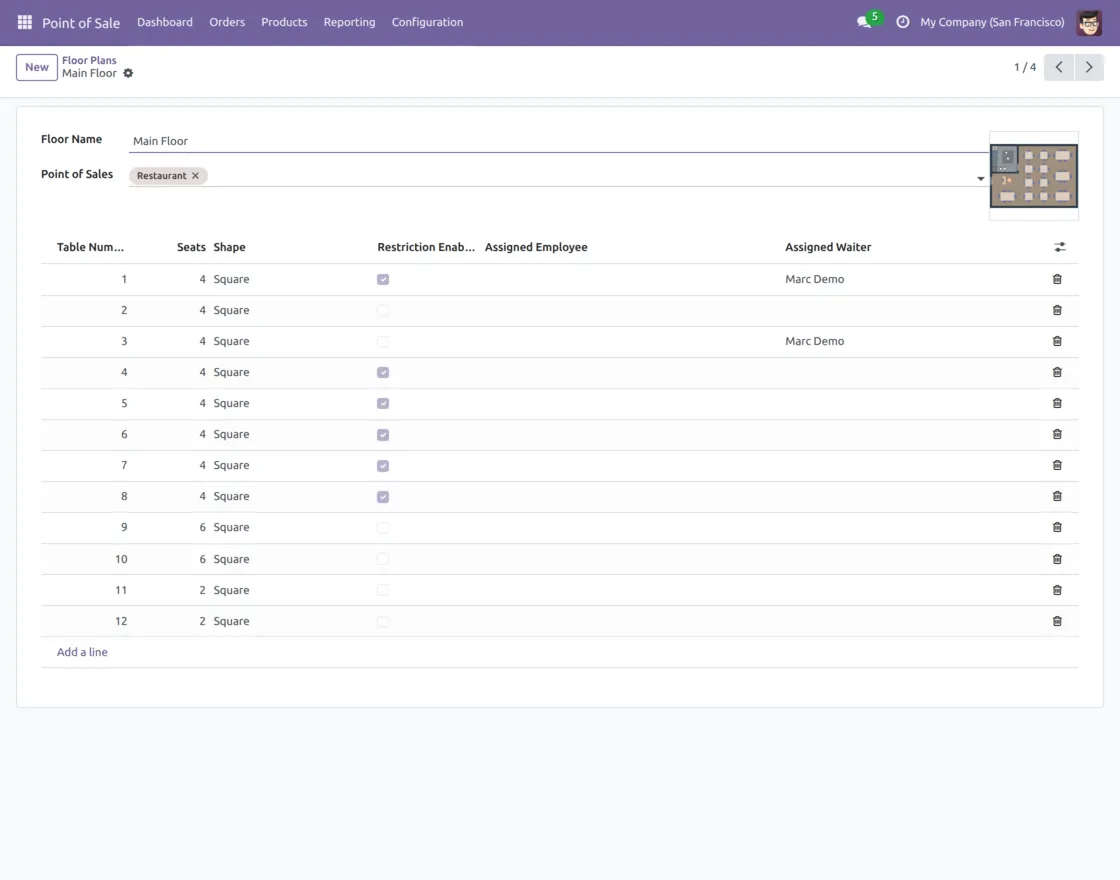
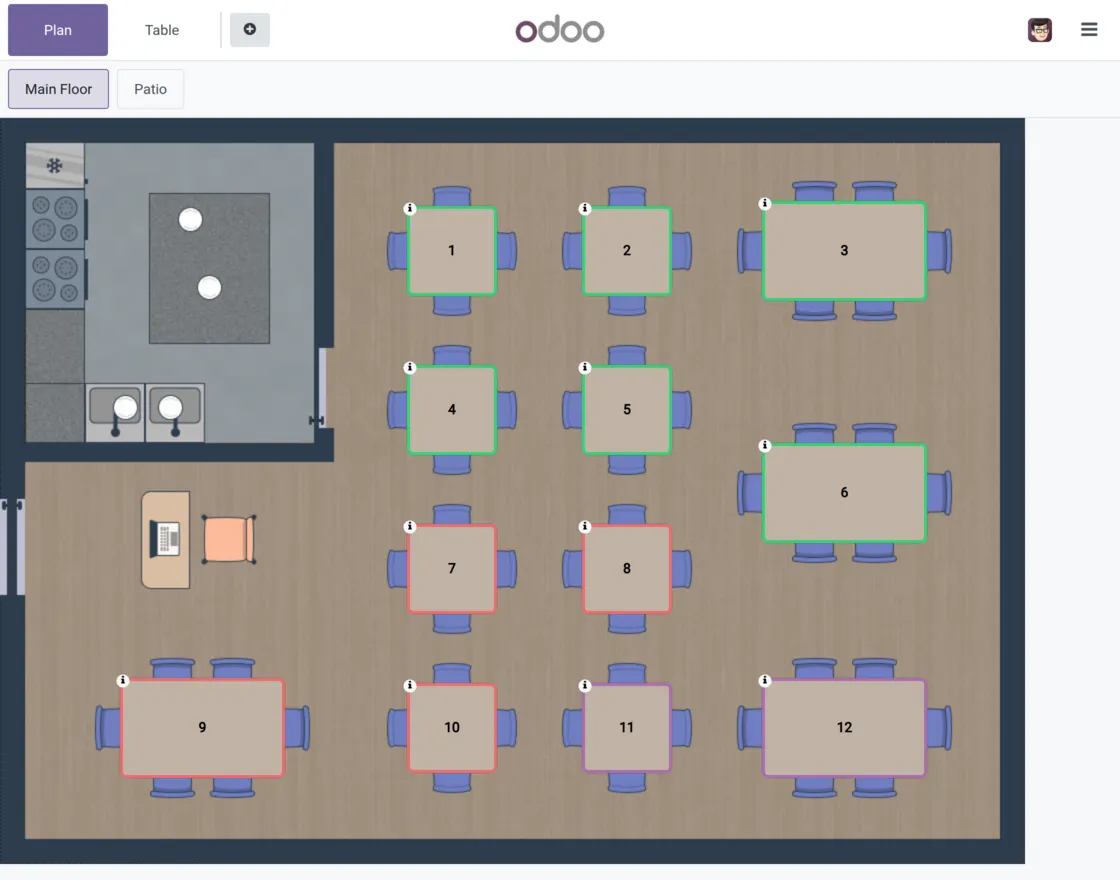
3: Admins can view details of all tables, while waiters can check details only for the specific tables assigned to them.
4: From the Admin Dashboard, admins can update table details such as the assigned waiter and serving waiter.
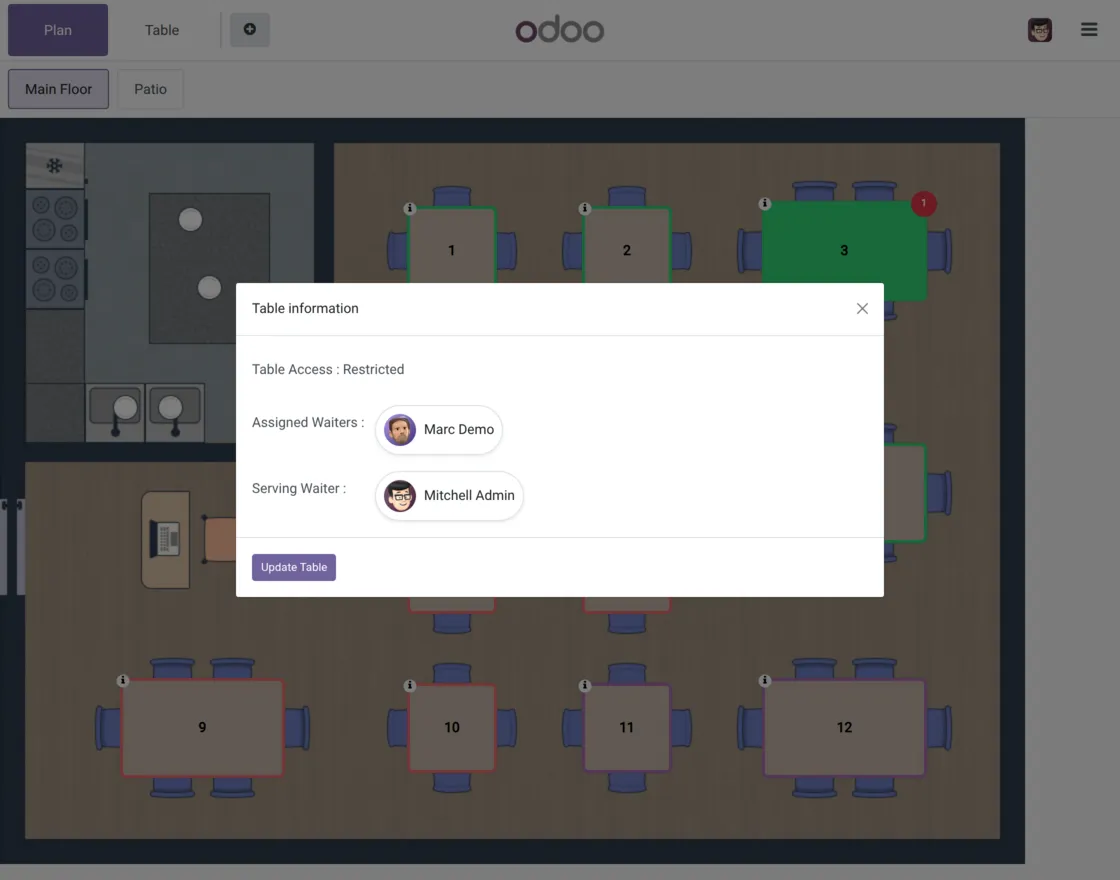
5: In this edit window admin can change the details and then save it instantly, and an email is sent to the affected waiter.
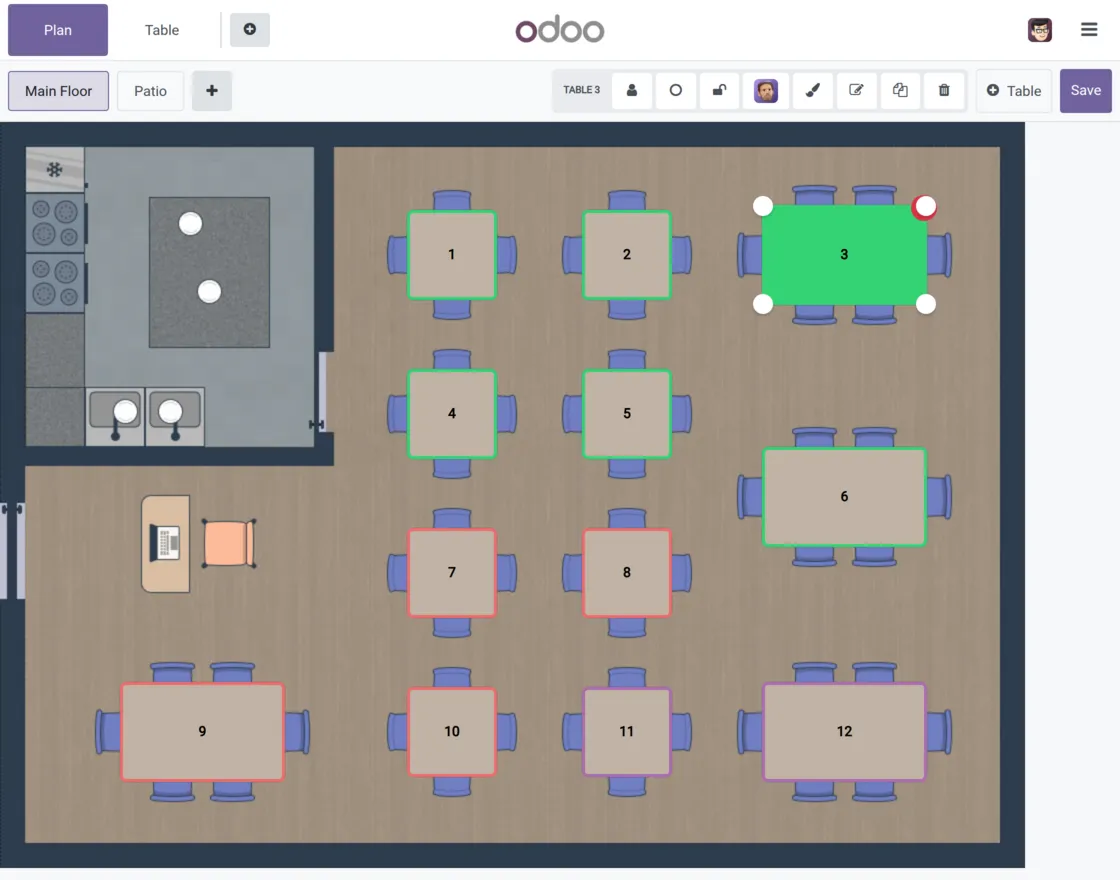
6: The table gets reserved as soon as a product is added. No separate reservation product required.
Need Help?
Hope you find guide helpful! Please feel free to share your feedback in the comments below.
If you still have any issues/queries, please create a ticket at the UV Desk.
I hope this helps. In case of any further queries, contact us at our support mail.
Thanks for paying attention!!
Current Product Version - 1.0.0
Supported Framework Version - Odoo V19, V18, V17, V16


Be the first to comment.