Introduction
Odoo POS Linkly Payment Acquirer enables secure and fast Linkly payments directly within the POS. The module adds a QR-based payment flow that customers can complete using their mobile device.
It simplifies checkout by showing the Linkly payment option on the POS screen and capturing the payment instantly.
Customers scan a QR, enter card details on a secure Linkly page, and the POS updates the order automatically. This makes the entire flow clean & simple for both staff and customers.
Prerequisites for using Odoo POS Linkly Payment Acquirer
Odoo POS Linkly Payment Acquirer works in conjunction with the following module:
You must install the above-mentioned module to use the Odoo POS Linkly Payment Acquirer.
Features
- Secure QR-based Linkly payment flow integrated directly inside POS.
- Secure card authorization through hosted Linkly payment entry page.
- Real-time POS confirmation with automatic backend transaction syncing.
- Simple credential setup enabling seamless Linkly payment processing.
- Prevents duplicate scans by detecting already completed payments.
- Works smoothly across active POS sessions without configuration conflicts.
- Displays clear payment details, improving checkout accuracy and reliability.
Installation
- Once you purchase the App from Webkul store, you will receive a link to download module’s zip file.
- Extract the file on your system after download finishes. As a result, you will be able to see a folder named ‘pos_linkly_payment_acquirer’
- Copy and paste this folder inside your Odoo Add-Ons path.
- Now, open Odoo App and click on the Settings menu. Here, click on Activate Developer Mode.
- Then, open Apps menu and click on ‘Update Modules List.’
- In the search bar, remove all the filters and search ‘pos_linkly_payment_acquirer’
- You will be able to see module in the search results. Click on ‘Activate’ to install it.
Workflow
1: Add Linkly Credentials
Navigate to Payment Acquirer Configurations and enter the Linkly API Username, Password, and Membership ID to enable Linkly processing in POS.

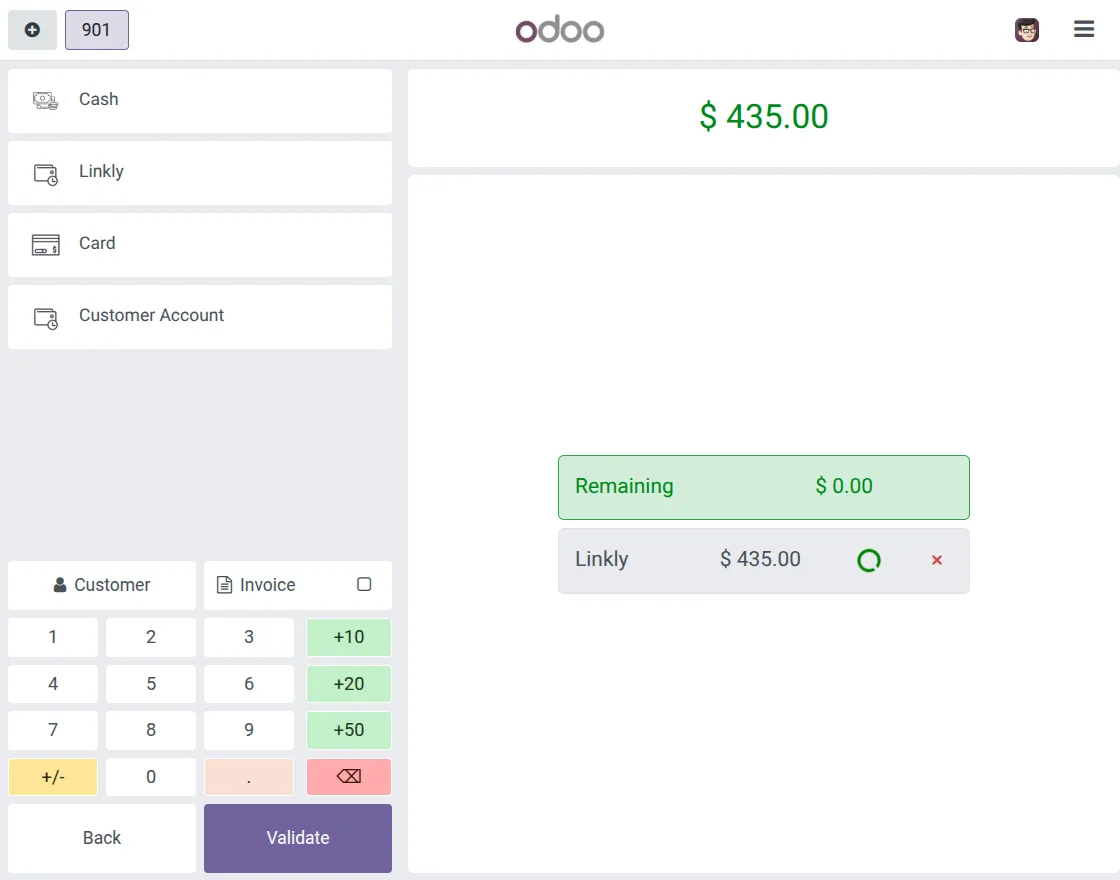
2: Choose Linkly as Payment Method
Open a POS session and go to the payment screen. Linkly now appears as an available payment option alongside Cash and Card.
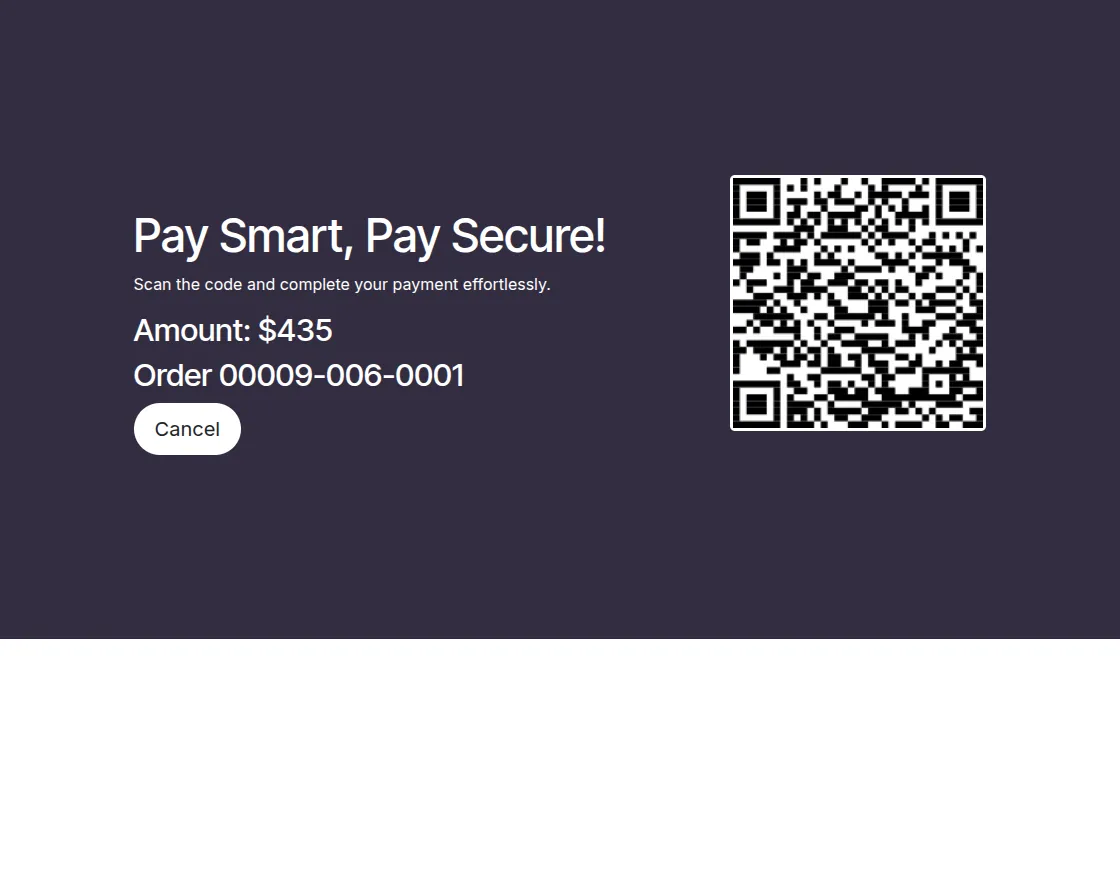
3: QR Displayed for Customer
Upon selecting Linkly, POS generates a unique QR code containing order details. The customer scans this QR to proceed with the secure payment.
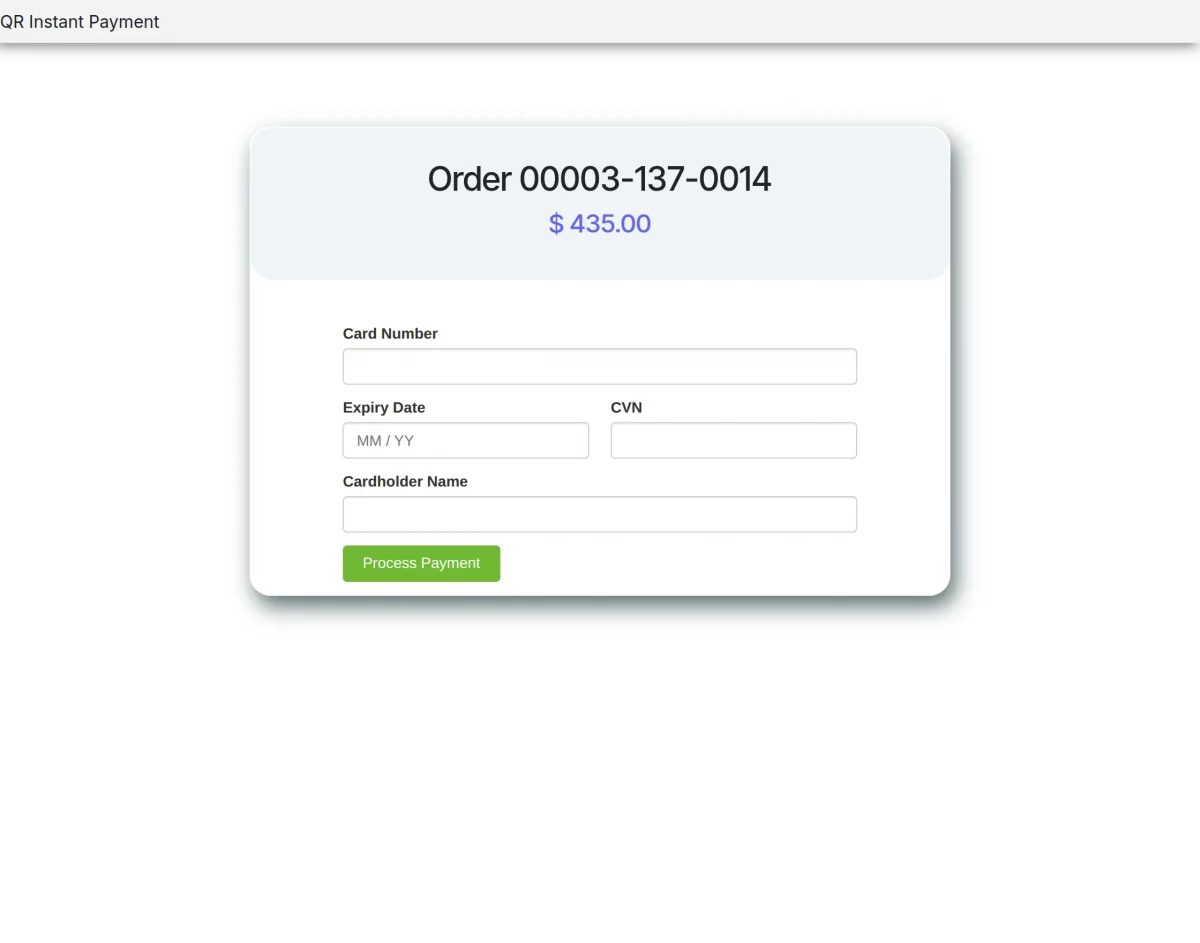
4: Customer Completes Payment Online
After scanning, the customer is redirected to a secure Linkly card-entry form to submit card number, expiry date, CVN, and cardholder name.
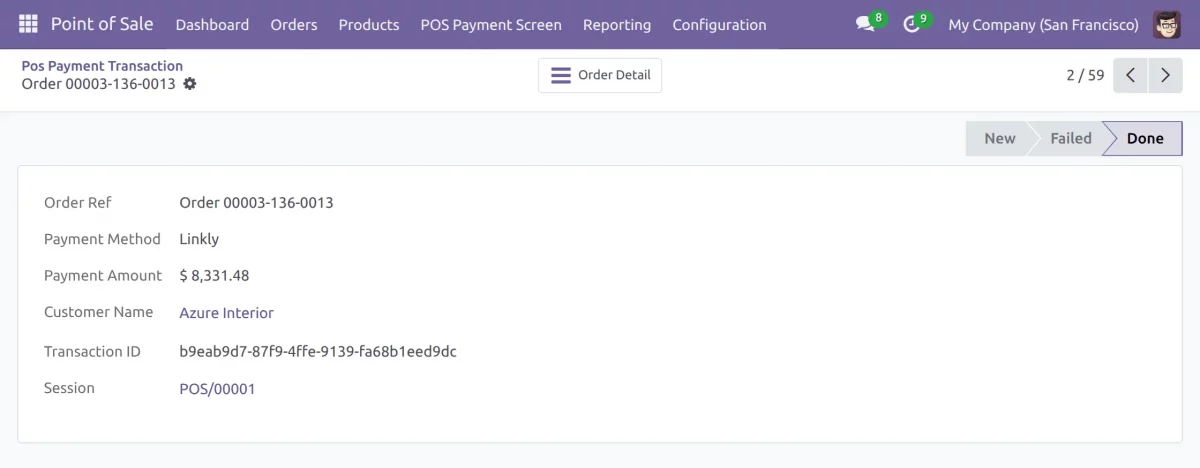
5: Payment Captured in Backend
Once the payment is successful, POS shows a confirmation popup. The backend logs the transaction with details such as payment amount, method, customer, and session.
Need Help?
Hope you find guide helpful! Please feel free to share your feedback in the comments below.
If you still have any issues/queries, please create a ticket at the UV Desk.
I hope this helps. In case of any further queries, contact us at [email protected].
Thanks for paying attention!!
Current Product Version - 1.0.0
Supported Framework Version - Odoo 19, 18


Be the first to comment.