Introduction
Odoo POS Interface View All Orders is an Odoo POS enhancement that allows users to view paid orders from all POS sessions within a single POS interface.
This module removes the limitation of viewing only current POS orders and helps staff access completed orders from other POS counters without switching sessions.
Odoo POS Interface View All Orders is especially useful for multi-counter stores where customers may request refunds or order details at a different POS location.
Features
- View all paid orders from every POS session directly within a single POS interface
- Get centralized visibility of paid POS orders across all counters without switching sessions
- Refund paid orders created from another POS directly from the current POS screen
- Receive a confirmation pop-up before processing returns from a different POS session
- Displays only completed and fully paid POS orders for accurate and safe order management
- Process cross-POS refunds without closing or changing the active POS session
- Enable or disable the feature easily using a simple configuration option in POS settings
- Odoo POS Interface View All Orders ensures refund handling with confirmation-based cross-POS returns
Installation
- Once you purchase the App from Webkul store, you will receive a link to download module’s zip file.
- Extract the file on your system after download finishes. As a result, you will be able to see a folder named- ‘pos_interface_view_all_orders’
- Copy and paste this folder inside your Odoo Add-Ons path.
- Now, open Odoo App and click on the Settings menu. Here, click on Activate Developer Mode.
- Then, open Apps menu and click on ‘Update Modules List.’
- In the search bar, remove all the filters and search ‘pos_interface_view_all_orders’
- You will be able to see module in the search results. Click on ‘Activate’ to install it.
Workflow
1. After activating Odoo POS Interface View All Orders, go to Point of Sale → Configuration → Settings and enable the option Show Other POS Orders.

2. Open the POS interface. The order list will now display paid orders from all POS sessions instead of only the current POS.
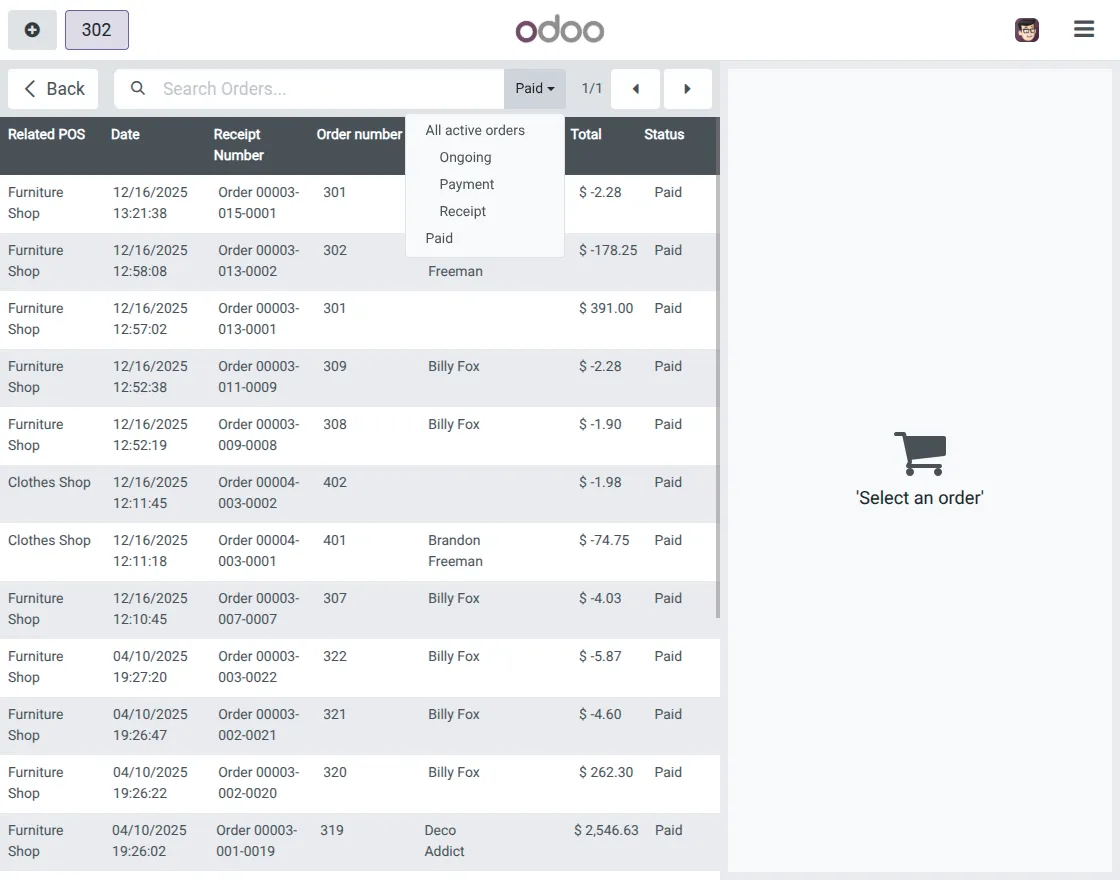
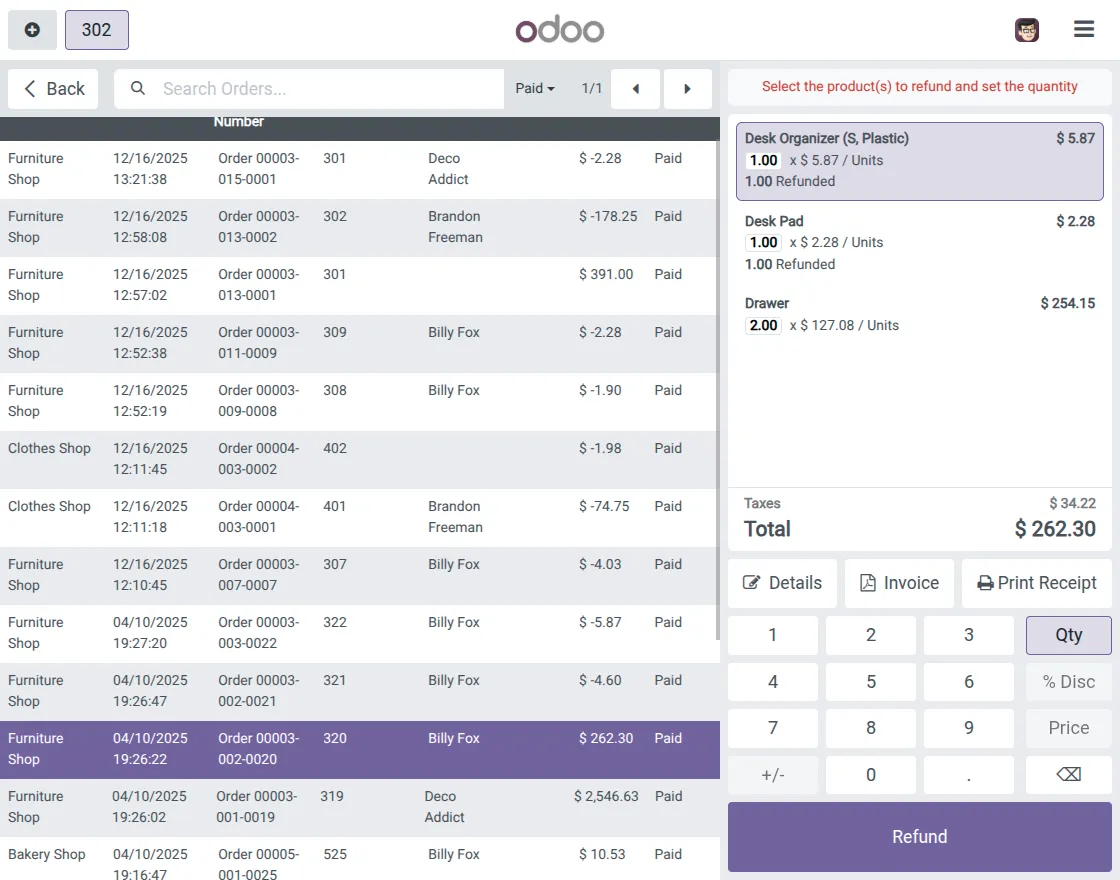
3. Select any paid order that belongs to another POS session and click on the refund option.
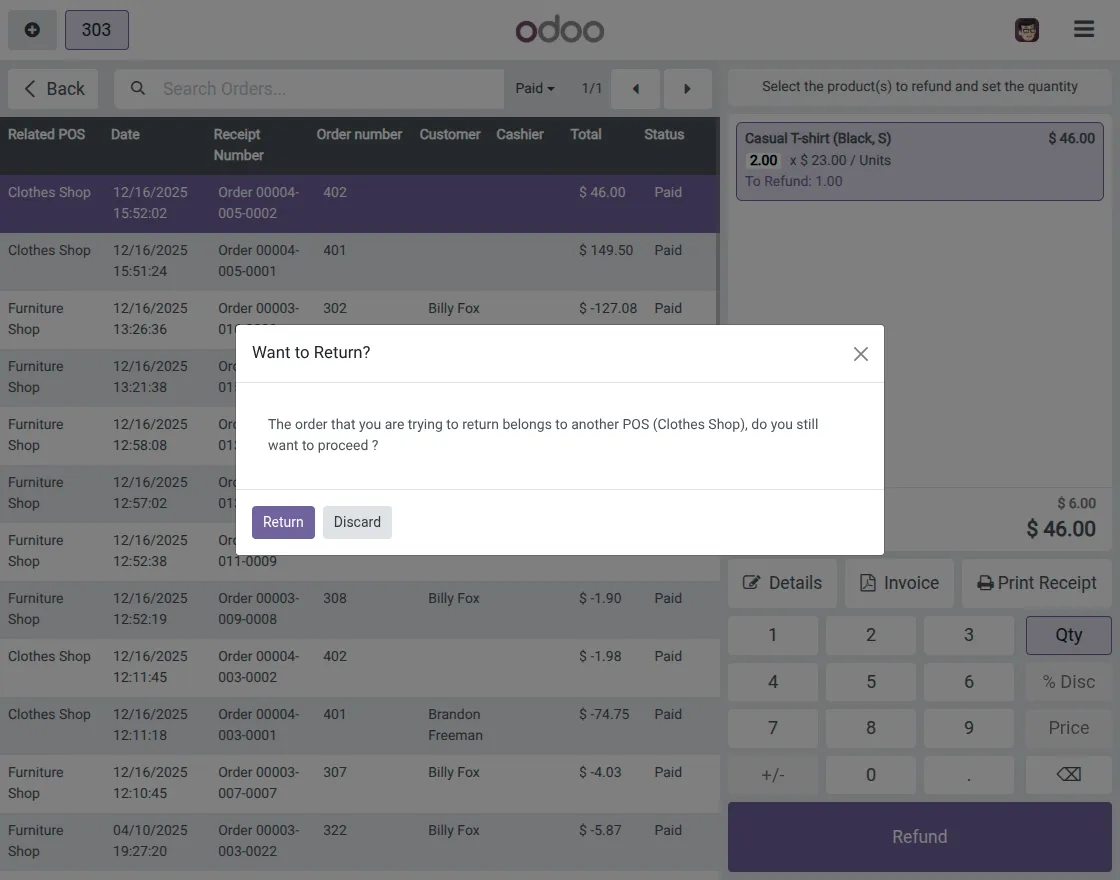
4. A confirmation pop-up appears when returning an order from another POS. Confirm to proceed or discard the action.
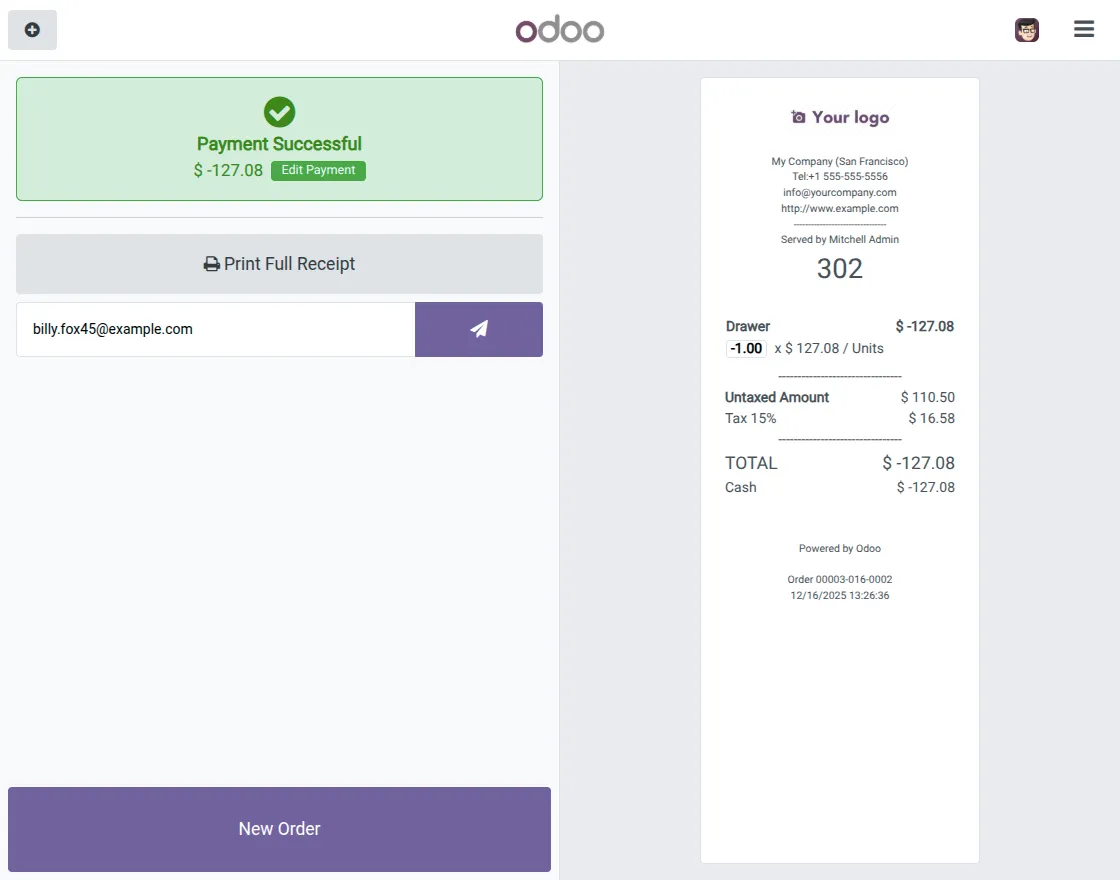
5. After confirmation, the refund is processed, and the refund order summary and receipt are displayed.
Need Help?
Hope you find guide helpful! Please feel free to share your feedback in the comments below.
If you still have any issues/queries, please create a ticket at the UV Desk.
I hope this helps. In case of any further queries, contact us at our support mail.
Thanks for paying attention!!
Current Product Version - 1.0.0
Supported Framework Version - Odoo 18, 17, 16


Be the first to comment.