INTRODUCTION
Odoo POS Additional Charges helps businesses manage extra costs like delivery, packaging, or service fees directly in Odoo POS. It keeps transactions quick and ensures clear pricing for customers.
Merchants can set charges as fixed amounts or percentages, which the system calculates automatically. This makes handling things like takeaway orders or eco-friendly packaging simple and accurate.
With Odoo POS Additional Charges, stores maintain precise billing and stay flexible across single or multiple locations. It’s an ideal tool for building trust through transparent pricing.
FEATURES
- Add delivery charges per transaction for better cost management.
- Apply flexible packaging fees for products as per business needs.
- Create various service charges as needed for extra services.
- Configure charges for specific products for precise control.
- Set charges as fixed or percentage amounts easily.
- Apply charges for individual POS customers seamlessly.
- Print receipts showing detailed charge breakdowns clearly.
- Manage charges across multiple POS shops efficiently.
- Set thresholds to avoid small charges on low-value orders
INSTALLATION
- Once you purchase the App from the Webkul store, you will receive a link to download the module’s zip file.
- Extract the file on your system after the download finishes. As a result, you will be able to see a folder named- ‘pos_additional_charges’.
- Copy and paste this folder inside your Odoo Add-Ons path.
- Now, open Odoo App and click on the Settings menu. Here, click on Activate the Developer Mode.
- Then, open the Apps menu and click on ‘Update Modules List.’
- In the search bar, remove all the filters and search ‘pos_additional_charges’.
- You will be able to see the module in search results. Click on ‘Activate’ button to install it.
WORKFLOW
- After installing Odoo POS Additional Charges,
Go to Point of Sale → Configuration → Settings → Accounting to configure delivery, service, and packaging charges as needed.
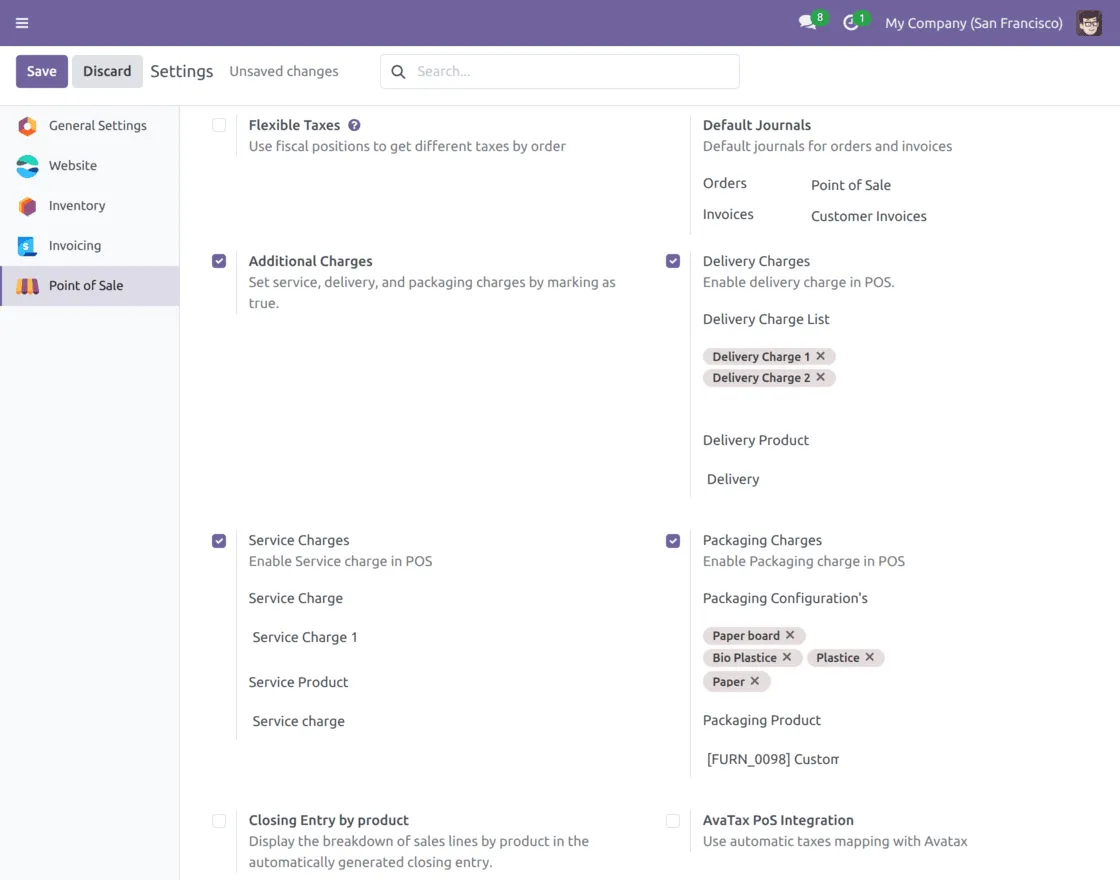
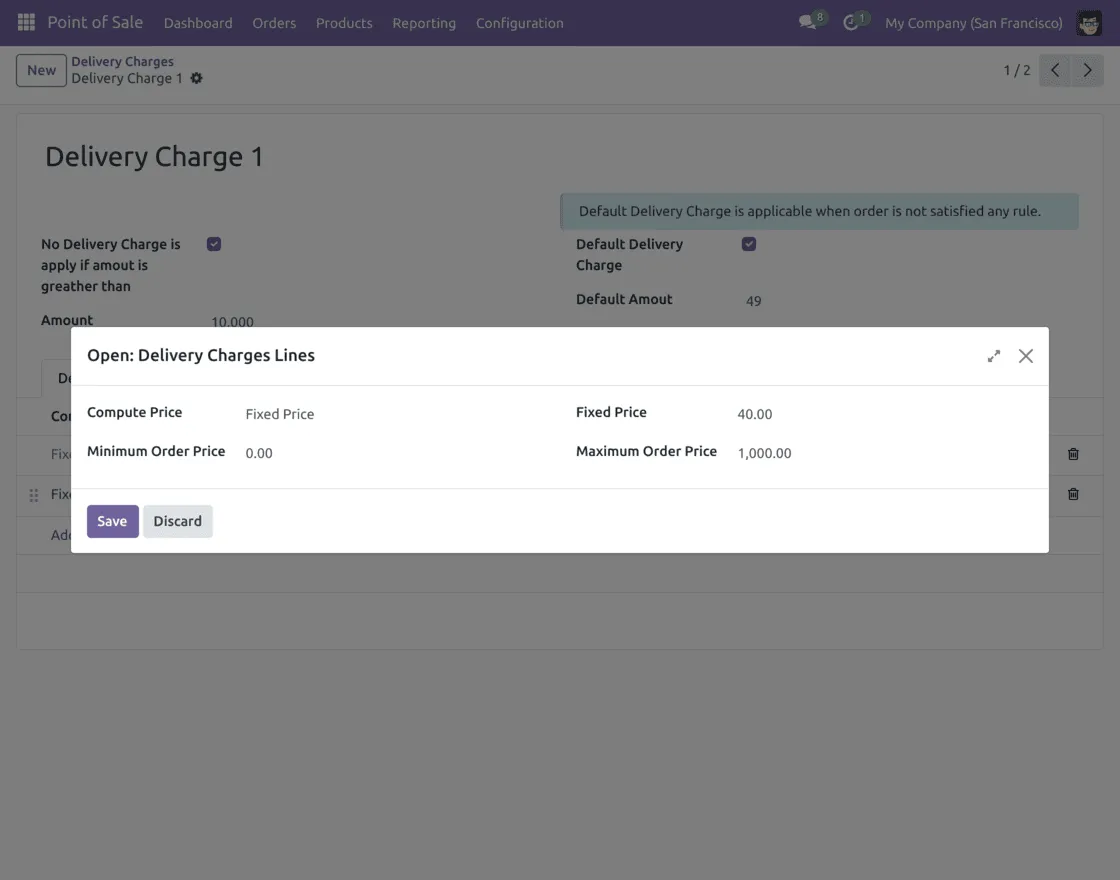
2. To set up delivery charges, go to Configuration → Delivery Charges,
Click New, and fill in details like charge name, fixed or percentage price, and the order amount limits where charges should apply. Save your changes once done.
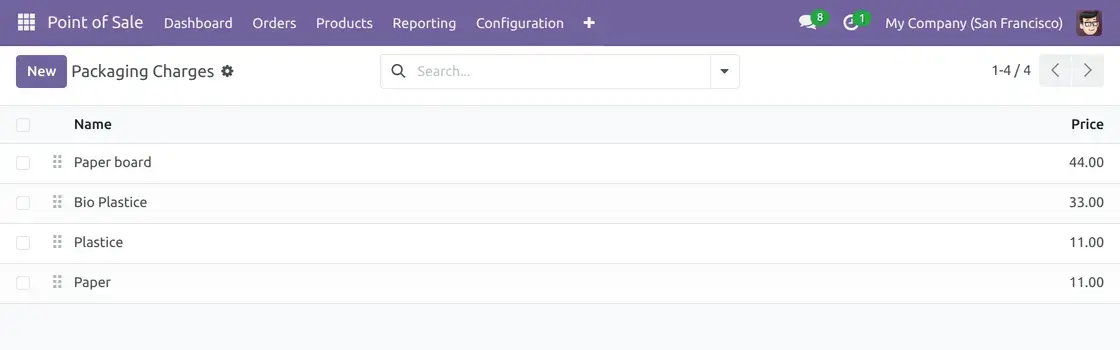
3. Next, navigate to Configuration → Packaging Charges, click New, and enter the name of packaging material and its cost. Save the configuration to add packaging charge option for POS transactions.
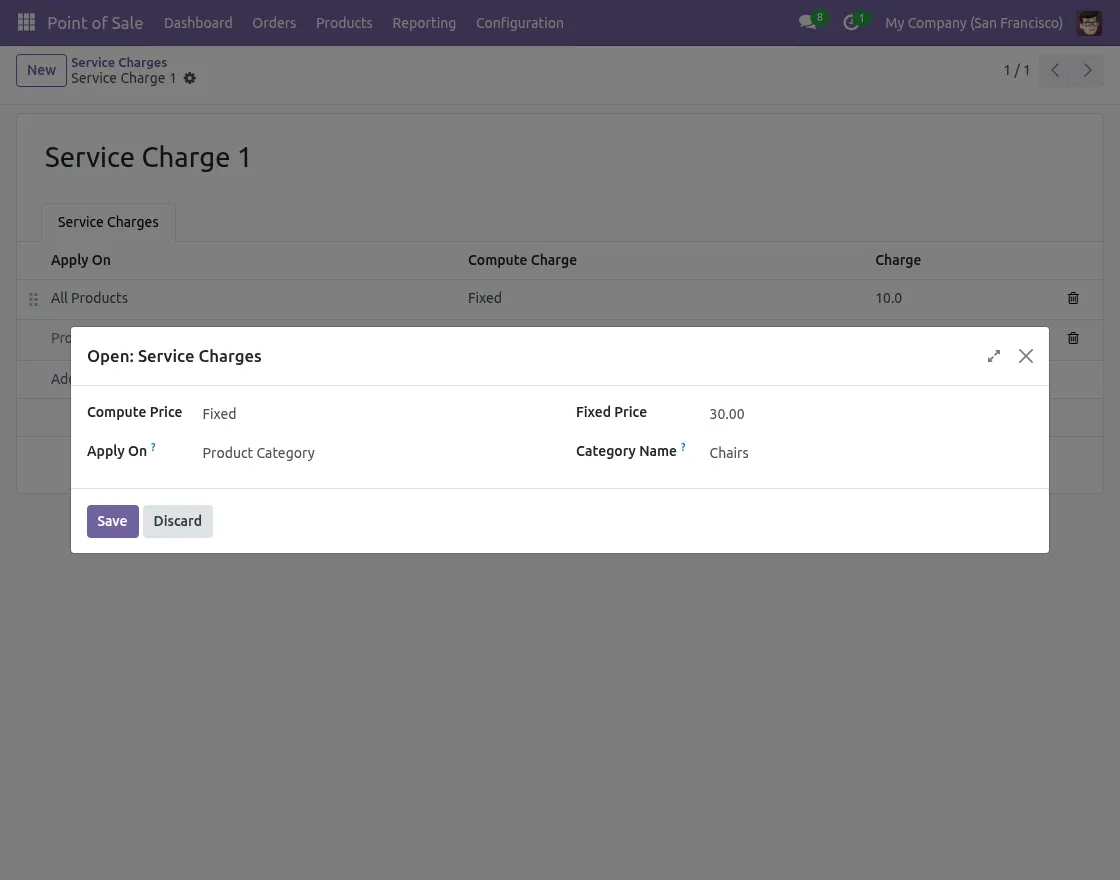
4. Finally, to configure service charges, go to Configuration → Service Charges,
Click New, and set up details like whether the charge is fixed or percentage-based, price, and product or category it applies to. Save your settings to activate the service charge.
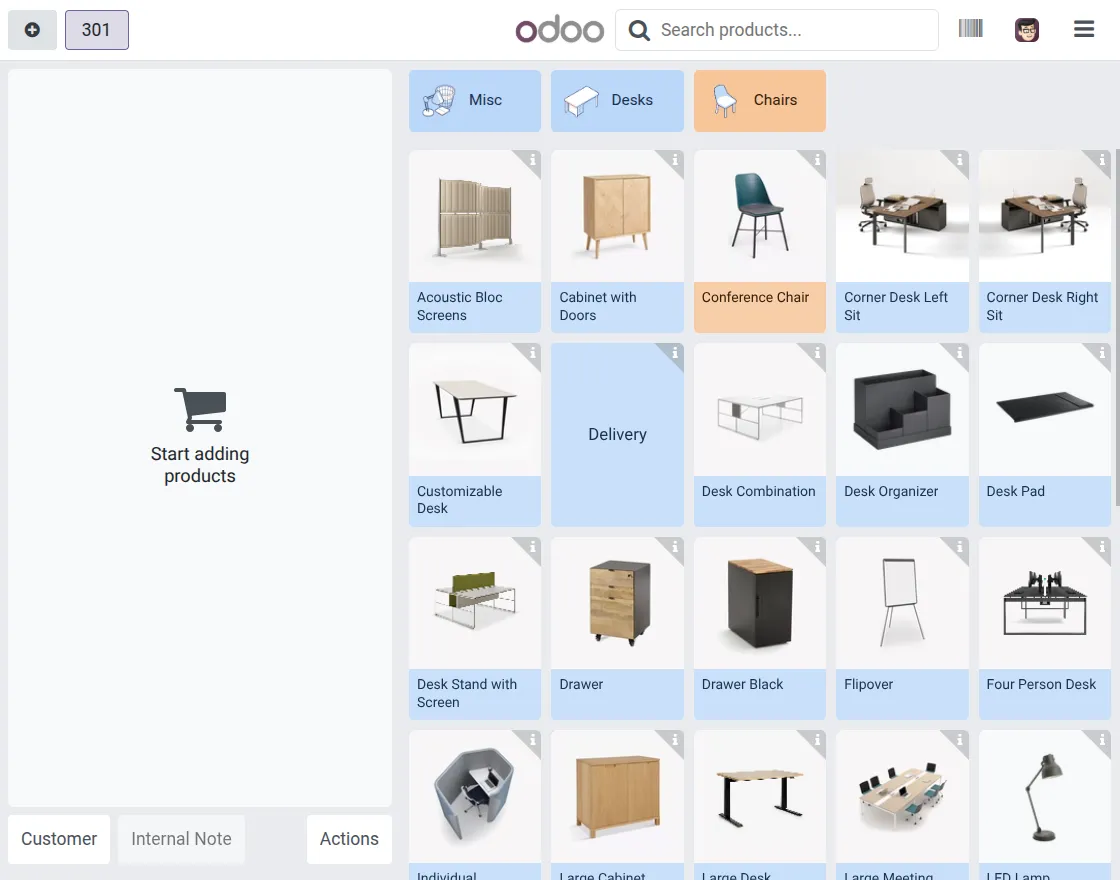
5. From Odoo dashboard, select the shop to open POS screen. On this screen, start adding products to the cart and proceed by choosing customer for the order.
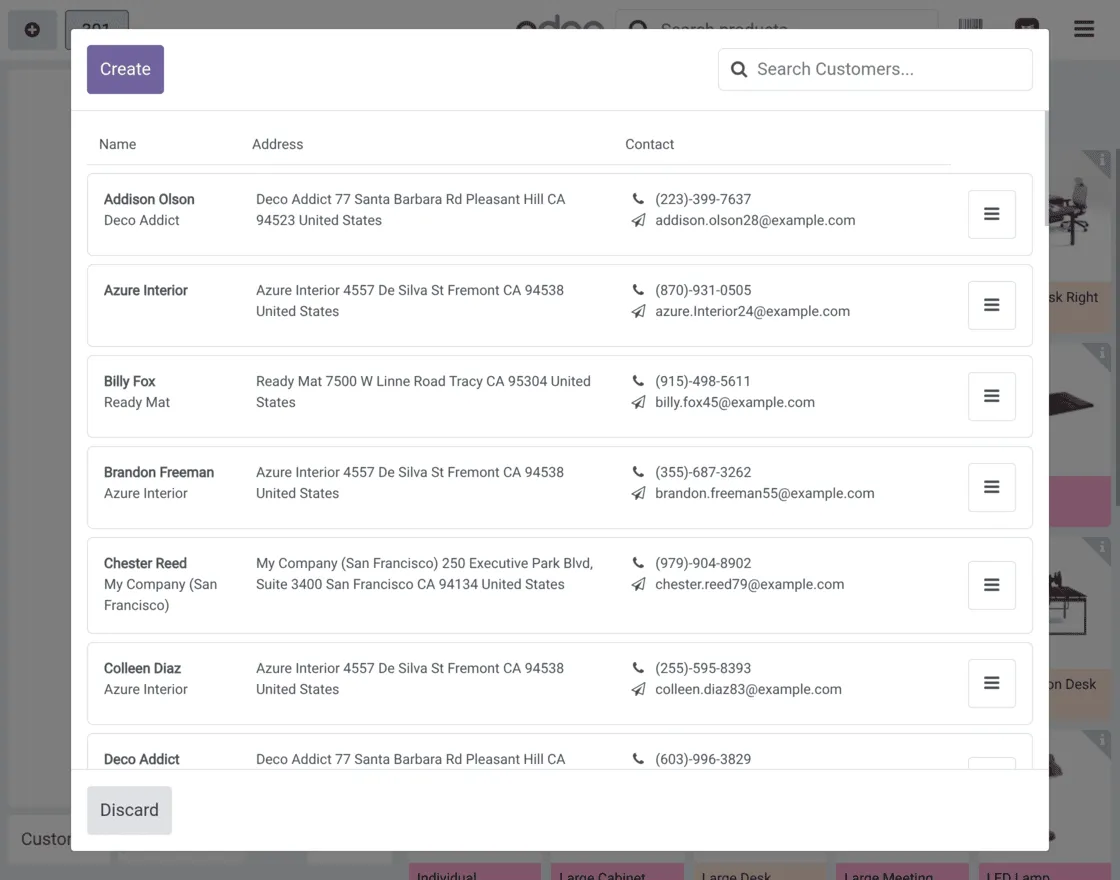
6. Click Customer button to open the list of available customers. Here, you can either choose an existing customer or create a new one by clicking Create.
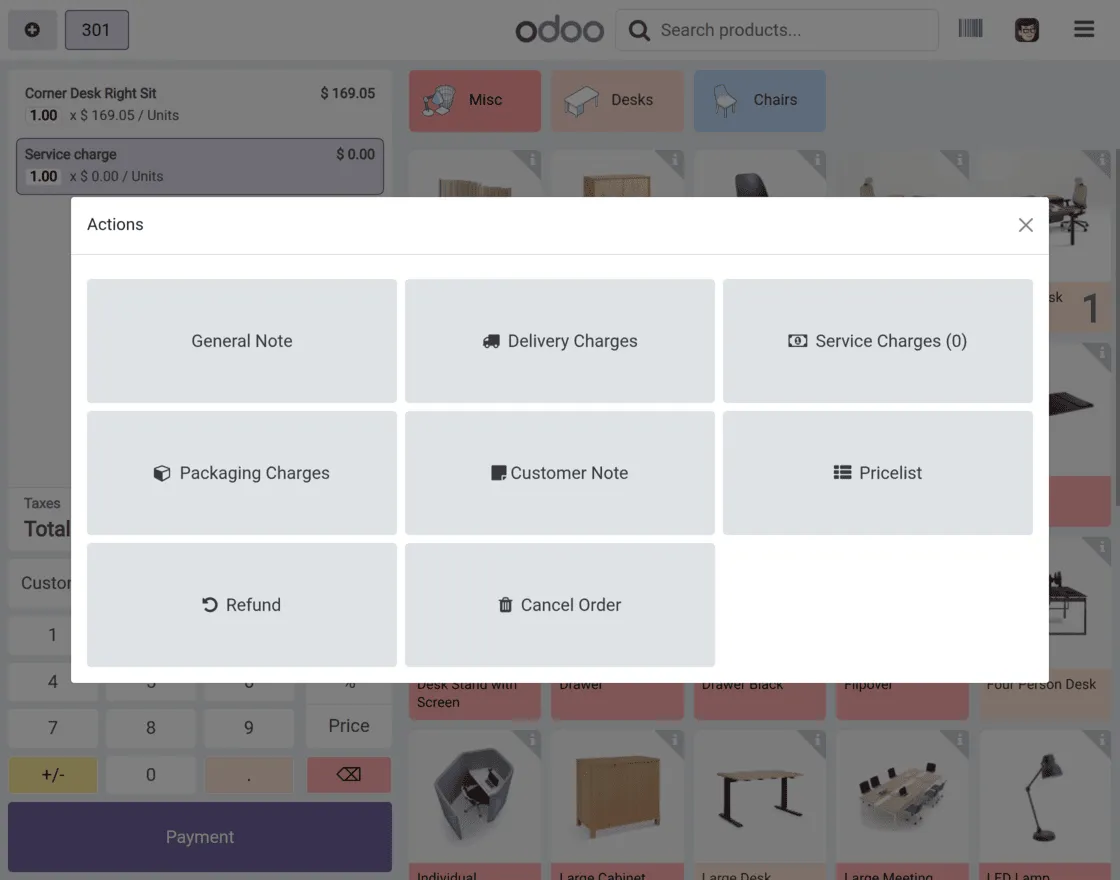
7. Click Actions button on the POS screen to open the options for applying additional charges.
This lets you add delivery, packaging, or service charges for the chosen customer based on your configured settings.
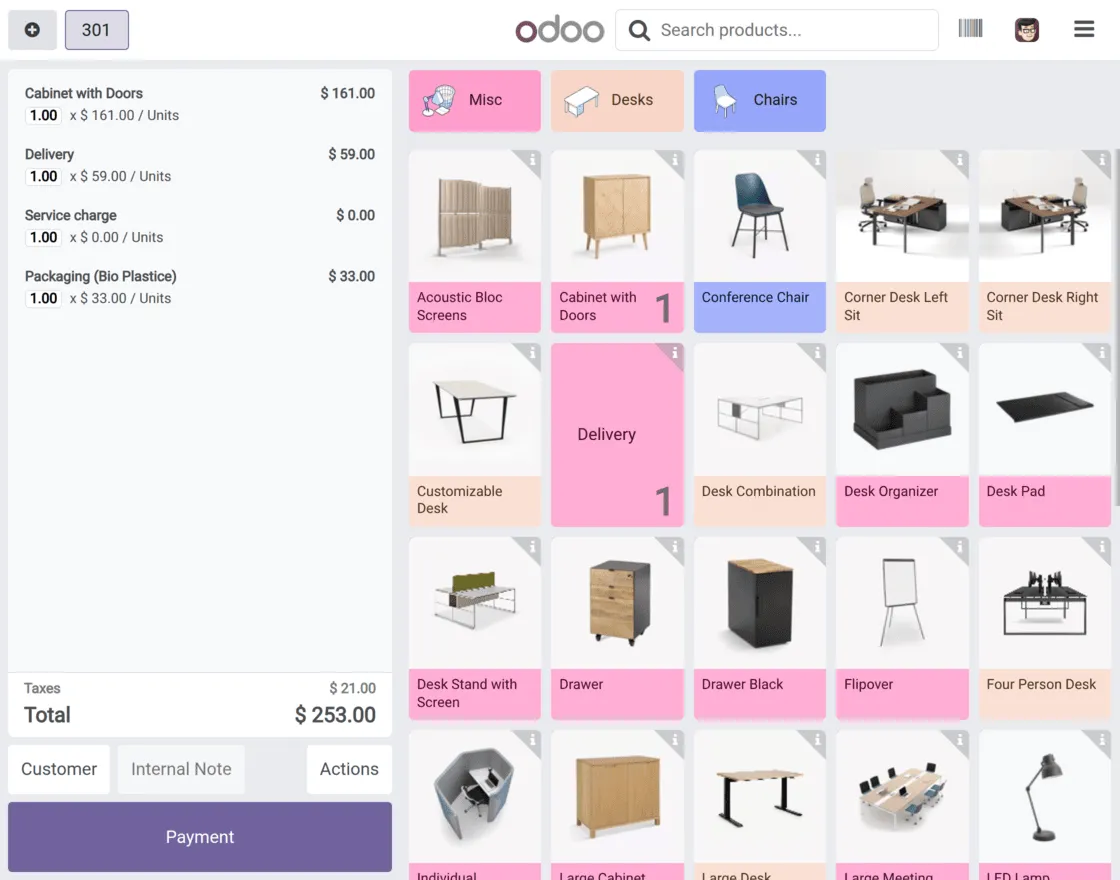
8. After applying all the charges, you can view added charges on the POS screen and proceed to complete the transaction.
NEED HELP?
Hope you find guide helpful! Please feel free to share your feedback in the comments below.
If you still have any issues/queries, please create a ticket at the UV Desk.
I hope this helps. In case of any further queries, contact us at our support mail.
Thanks for paying attention!!
Current Product Version - 1.0.0
Supported Framework Version - odoo 14, 15, 16, 17, 18


Be the first to comment.