Introduction
Odoo Portal Document Downloader allows portal users to download Sales Orders, Purchase Orders, and Invoices directly in PDF or Excel formats, making data management more efficient.
This module gives admins control over what data gets exported. Customizing header labels or defining user permissions offers flexibility and security, ensuring only authorized users can access.
With its intuitive design and bulk download features, Odoo Portal Document Downloader accelerates document retrieval, saving time and reducing administrative effort.
Features
- Users can download documents like sales orders, purchase orders, and invoices.
- Odoo Portal Document Downloader allows downloading in both PDF and Excel formats.
- Admins can control which portal users are allowed to download documents.
- A bulk download option allows users to select and download multiple documents at once.
- Admins can customize Excel exports by editing header labels.
- The order of data fields in the exported files can be rearranged as needed.
- Only one configuration can be active at a time for each document model.
Installation
- Once you purchase Odoo Portal Document Downloader from Webkul store, you will receive a link to download module’s zip file.
- Extract the file on your system after download finishes. As a result, you will be able to see a folder named- ‘all_in_one_export_portal_documents
- Copy and paste this folder inside your Odoo Add-Ons path.
- Now, open Odoo App and click on the Settings menu. Here, click on Activate Developer Mode.
- Then, open Apps menu and click on ‘Update Modules List.’
- In the search bar, remove all the filters and search ‘all_in_one_export_portal_documents’
- You will be able to see module in the search results. Click on ‘Install’ to install it.
Workflow
- After installing Odoo Portal Document Downloader, you can control which portal users are allowed to download documents by navigating to Settings >> Users & Companies >> Users >> Other.
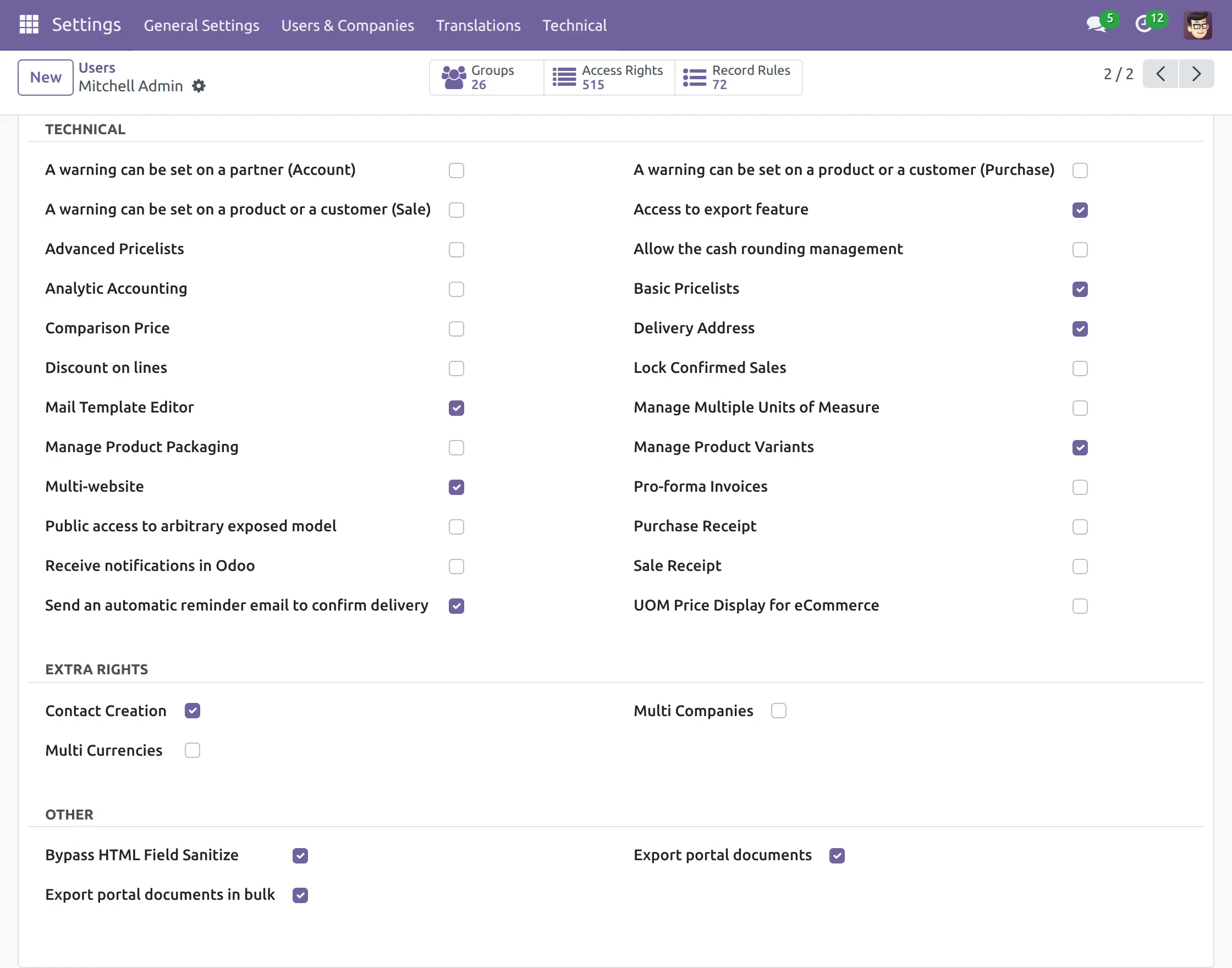
2. You can define or create a new Export Excel Fields by navigating to Configuration >> Export Excel Fields >> New

3. You can customize header labels or rearrange them by clicking on the particular Excel field.

4. Users will see the single file export option in Sales Orders, Purchase Orders, and Invoices, if permitted.

5. They will also see the bulk download option when selecting multiple files.

Need Help?
Hope you find guide helpful! Please feel free to share your feedback in the comments below.
If you still have any issues/queries, please create a ticket at the UV Desk.
In case of any further queries, contact us at our support mail.
Thanks for paying attention!!
Current Product Version - 1.0.0
Supported Framework Version - 19, 18, 17


Be the first to comment.