Introduction
Odoo Portal Address Autocomplete module makes address entry fast and simple for portal users. It connects to the Google Places API and shows real-time address suggestions as users type in the street field.
Once a user selects a suggestion, all related address fields like city, state, ZIP, and country are filled in automatically based on the Google Places API response. This removes the need for manual entry and keeps your address data clean and accurate.
The module requires a one-time Google API key setup in General Settings. After that, it works silently in the background for every portal user without any extra configuration.
Features
- Connects to Google Places API for real-time address suggestions
- Shows matching address suggestions instantly as the user types in the street field
- Fills in all related address fields automatically upon selecting a suggestion
- Supports international addresses from all regions and countries worldwide
- Requires only a one-time Google Places API key configuration in General Settings
- API key is stored securely at the backend level away from portal users
- Works smoothly on both desktop and mobile portal browsers
- No extra steps or instructions needed for portal users to get started
Installation
- Once you purchase the App from Webkul store, you will receive a link to download module’s zip file.
- Extract the file on your system after download finishes. As a result, you will be able to see a folder named- ‘wk_portal_address_autocomplete.’
- Copy and paste this folder inside your Odoo Add-Ons path.
- Now, open Odoo App and click on the Settings menu. Here, click on Activate Developer Mode.
- Then, open Apps menu and click on ‘Update Modules List.’
- In the search bar, remove all the filters and search ‘wk_portal_address_autocomplete.’
- You will be able to see module in the search results. Click on ‘Activate’ to install it.
Workflow
1. Configure the Google API Key
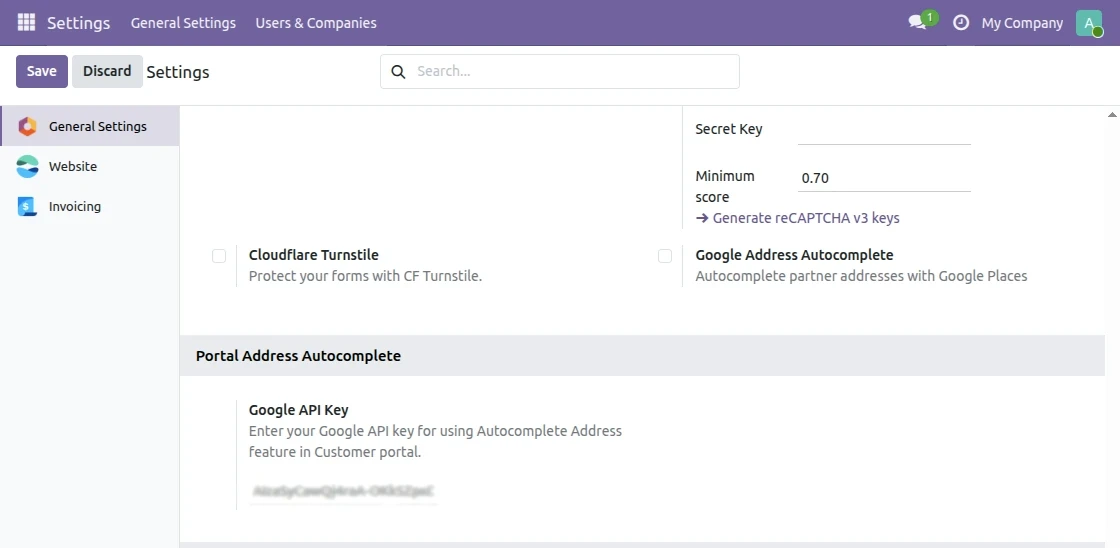
After installing the Odoo Portal Address Autocomplete module, go to Settings >> General Settings >> Portal Address Autocomplete.
Here, add your Google Places API key in the Google API Key field and click Save to activate the autocomplete feature for all portal users.
2. Type a Place Name in the Street Field
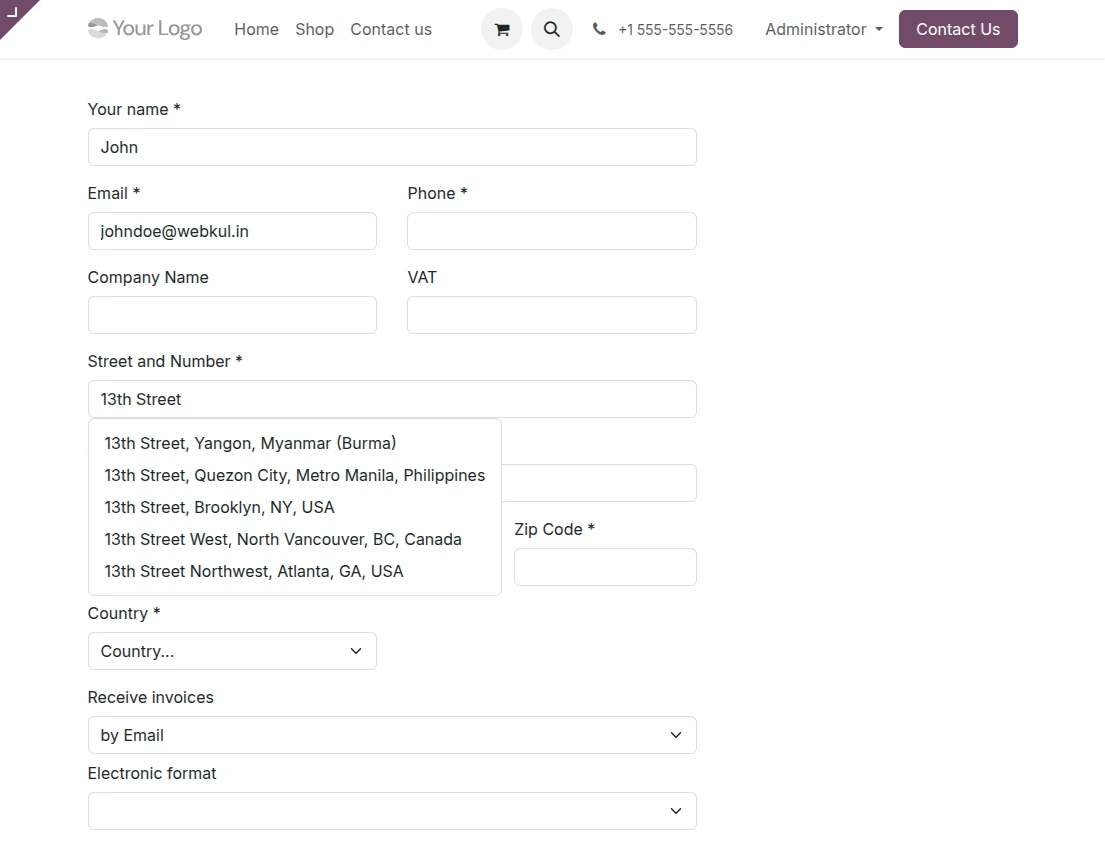
After the API key is saved, portal users can open any address form on the portal. They simply click on the Street and Number field and start typing a place name.
As the user types, the module fetches matching results from Google Places and shows a dropdown list of real-time address suggestions instantly.
3. Select a Suggestion to Fill All Address Fields
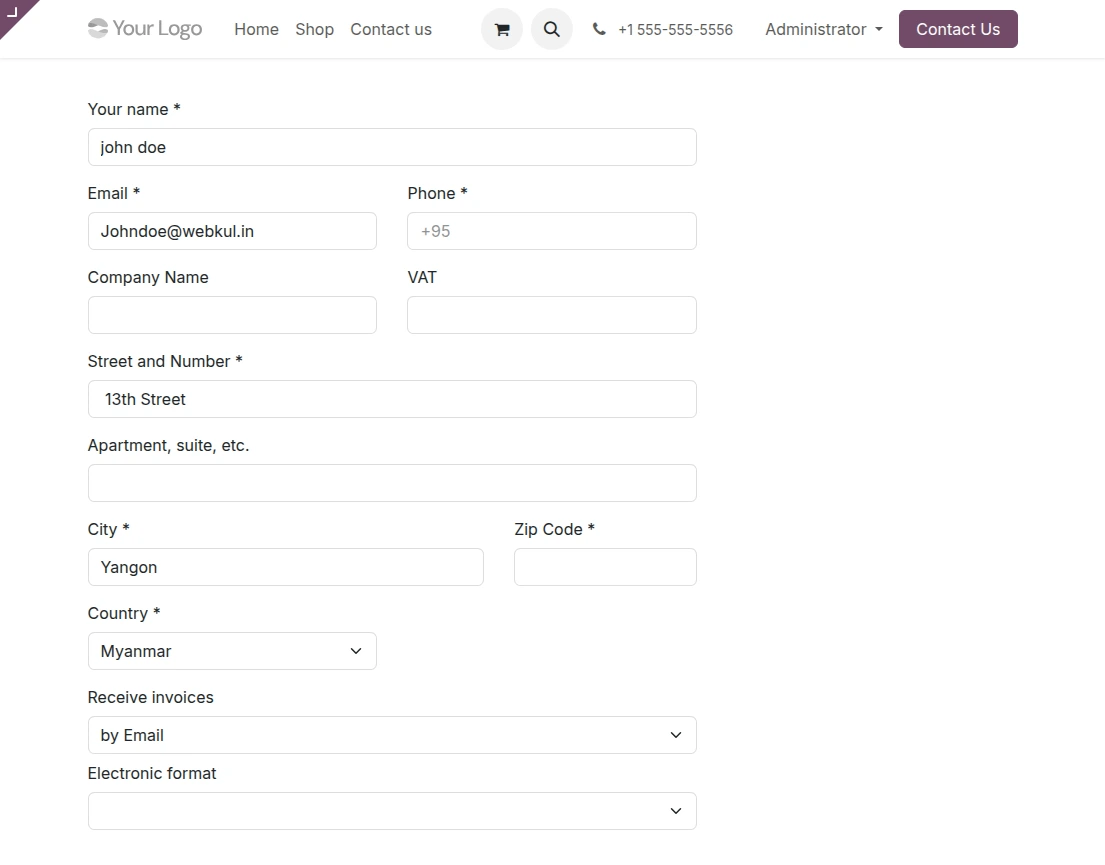
The user clicks on the correct address from the dropdown list. Odoo Portal Address Autocomplete module then maps all address components to the correct fields.
The city, state, ZIP code, and country fields are all filled in automatically based on the Google Places API response. The user does not need to type anything else in the address section.
Need Help?
Hope you find guide helpful! Please feel free to share your feedback in the comments below.
If you still have any issues/queries, please create a ticket at the UV Desk.
I hope this helps. In case of any further queries, contact us at our support mail.
Thanks for paying attention!!
Current Product Version - 1.0.0
Supported Framework Version - Odoo V17, V18, V19


Be the first to comment.