INTRODUCTION
Odoo marketplace web to print offers product customizations to your customers on Your Odoo Marketplace!!
Imagine you’re shopping online for a special gift, like a mug or a T-shirt. With Odoo Marketplace Web to Print, sellers let you customize these products.
User can customize their order with their text, images, and style choices. Add a personal message or select a design that suits your interests. Easily buy personalized items from the Odoo Marketplace.
Odoo Marketplace Web to Print lets sellers offer customizable products, allowing customers to add text and images and adjust font, color, and style to their liking.
Odoo Marketplace Product 360° allows customers to preview products before buying. It lets sellers add sequential product images.
Prerequisites For Using Odoo module name
This module works in conjunction with the following modules:
You must install these modules first for the Odoo Marketplace web to print to work.
FEATURES
- In the Odoo Marketplace, you can customize products to suit your preferences.
- Customers can add their own text and upload images to make their purchases unique.
- You can choose the font size, color, and other details of the text you add.
- Sellers can easily manage how products can be customized.
- Products that can be customized are marked with a special icon.
- Before you buy, you can see a preview of how your customizations will look on the product.
- Sellers can set and handle the rules for customization, so you know exactly what to expect.
Looking to implement ERP in your system? Check out Odoo Implementation! It’s your go-to solution for seamless integration and enhanced efficiency.
INSTALLATION
- Once you purchase the App from the Webkul store, you will receive the link to download the zip file of the module.
- Extract the file on your system after the download finishes. As a result, you will be able to see a folder named- ‘marketplace_web_to_print
- Copy and paste this folder inside your Odoo Add-Ons path.
- Now, open the Odoo App and click on the Settings menu. Here, click on Activate the Developer Mode.
- Then, open the Apps menu and click on ‘Update Apps List.’
- In the search bar, remove all the filters and search ‘marketplace_web_to_print’.
- You will be able to see the module in the search results. Click on ‘Install’ to install it.
Before moving further, explore our Odoo development services & an extensive range of quality Odoo Apps.
Workflow
Admin view
- Admin can set the product by clicking on the web to print the checkbox.

- Go to Web to print the order and Web to print the product menu options that are available to the admin.

- View the list of products having the option of web to print.

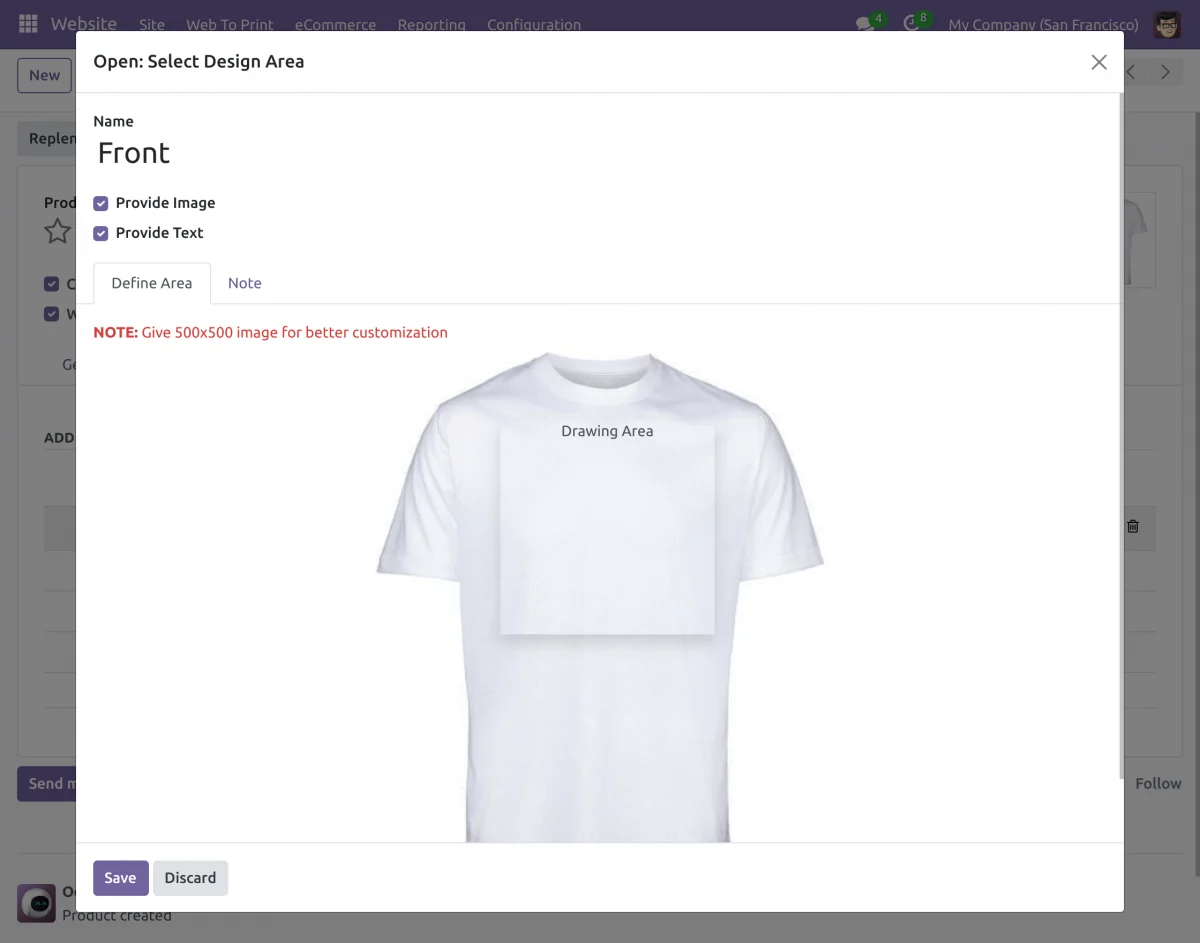
- Configure the product’s customizable portion. Set the portion for uploading the image and adding the text for the customizable product.

Customer view
- Icons on the product’s image on the shop page differentiate the customizable products and the simple products.

- The option for customizing the product is available on the product page for the customers. Customer can click on the customize button to customize the product as per their preferences.

7. Customers can customize the product from the website. The option for customizing the product is available on the product page.
Customer can set the text or upload the image as per their preference. Customers also have the option to style the text by adding the font, style, color, bold, italic, etc.

- Customers also have the option to preview and reset their customization and customize again. Customers can even delete the uploaded image.

- Customer can preview their customization and check the look and feel of the customized products.

- Customers can also preview the customized product on the checkout page to verify the product they are ordering.

- Customers can view the preview of the customized product in the sale order also.

Seller view
- Sellers can add the customizable product from the backend. To make the product customizable, sellers need to enable the checkbox of “ web to print”

- Sellers can set the customizable portion of the product. For setting the area, upload the product image, and set the square box within the area of customization.

- Sellers can download the customized product preview from the sale order from the backend.

NEED HELP?
Hope you find the guide helpful! Please feel free to share your feedback in the comments below.
If you still have any issues/queries regarding the same, please raise a ticket at the UV Desk.
I hope this helps. In case of any further queries, contact us at our support mail.
Thanks for paying attention!!
____________________________________________________________________________
Current Product Version - 1.0.0
Supported Framework Version - V17, V16, V15


Be the first to comment.