Introduction
Odoo Many2one Hierarchy Widget enhances usability of many2one fields by displaying data in a clear parent-child hierarchy. This visual structure makes it easier to select related records.
Users can quickly understand relationships between records, reducing chances of selecting incorrect entries. The hierarchy view streamlines data navigation and makes nested structures more intuitive.
Whether you’re organizing product types or managing organizational departments, Odoo Many2one Hierarchy Widget ensures more structured, organized, and accurate data selection.
Features
- Odoo Many2one Hierarchy Widget displays a clear hierarchy within many2one fields.
- Users can limit the number of records shown in the dropdown.
- It allows you to define the depth of the hierarchy, so that users see the relevant levels of data.
- The dropdown records can be sorted based on any existing field.
- The widget presents data in a structured parent tree view within the many2one dropdown.
- This improves data selection accuracy by helping users understand the context.
Installation
- Once you purchase Odoo Many2one Hierarchy Widget from Webkul store, you will receive a link to download module’s zip file.
- Extract file on your system after download finishes. As a result, you will be able to see a folder named- ‘wk_m2o_hierarchy_widget’
- Copy and paste this folder inside your Odoo Add-Ons path.
- Now, open Odoo App and click on Settings menu. Here, click on Activate Developer Mode.
- Then, open Apps menu and click on ‘Update Modules List.’
- In search bar, remove all filters and search ‘wk_m2o_hierarchy_widget’
- You will be able to see a module in search results. Click on ‘Install’ to install it.
Workflow
- After installing Odoo Many2one Hierarchy Widget, you can display epartments in a hierarchical parent tree view by configuring the department field with the hierarchy widget in the employee form view.
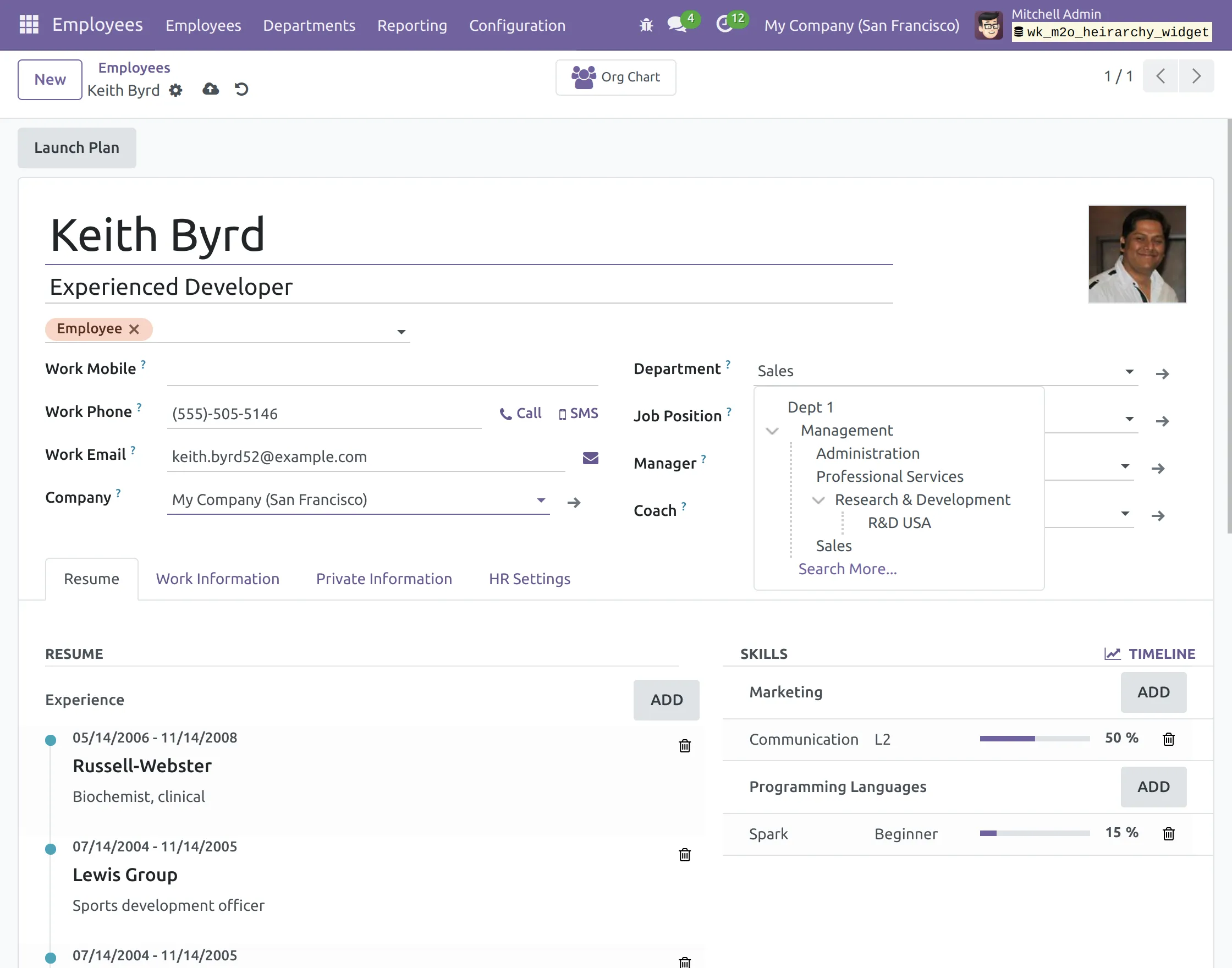
2. In the same way, you can also display inventory stock locations in a hierarchical parent tree view by applying the hierarchy widget to the location field in the stock location form view.
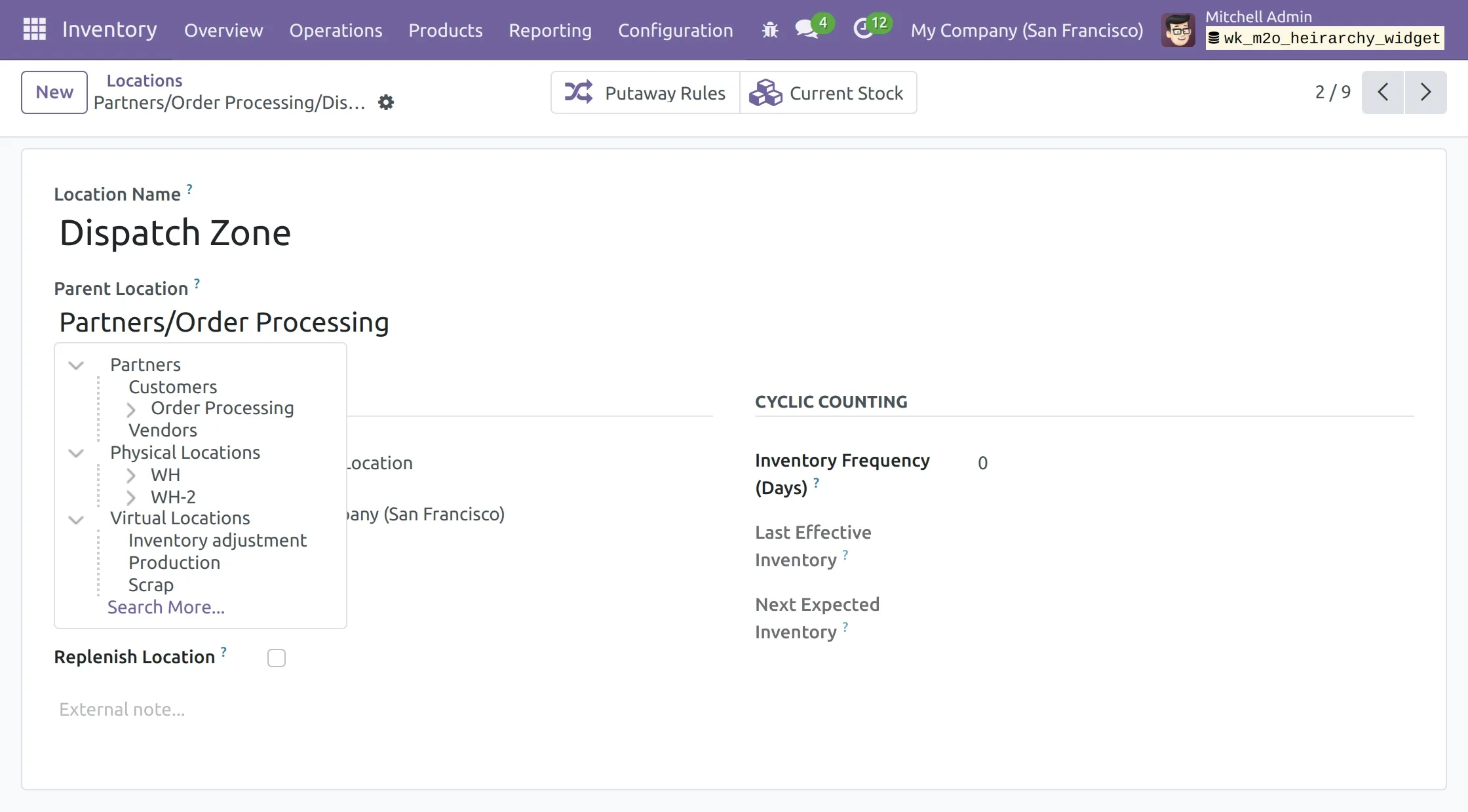
3. Similarly, product categories can be displayed in a hierarchy chart by applying the hierarchy widget to the category field in the product category form view.

4. To set up the hierarchy widget, simply add it to the desired many2one field in the form view by using this syntax:
<field name=”your_field” widget=”wk_m2o_hierarchy_widget” options=”{‘parentId’: ‘parent_id_field_of_model’, ‘orderBy’: ‘any_existing_field’, ‘limit’: 10, ‘level’: 10}”/>

Need Help?
Hope you find guide helpful! Please feel free to share your feedback in the comments below.
If you still have any issues/queries, please create a ticket at the UV Desk.
In case of any further queries, contact us at our support mail.
Thanks for paying attention!!
Current Product Version - 1.0.0
Supported Framework Version - V19, V18, V17, V16


Be the first to comment.