Introduction
Odoo Lock Attachment module allows locking attachments and records. You can enable or disable the lock attachment feature with just a click.
Users can access and lock any attachments or records they want. Locked records can not be edited or deleted.
And in case a user tries to delete an attachment or records, they will get a validation error.
Features
- Enable or disable the lock feature easily with a single click.
- Lock attachments and records to protect them from changes or deletion.
- Unlock attachments or records quickly whenever necessary.
- Prevent unauthorized users from deleting locked files or records.
- Keep sensitive attachments private and secure.
- Add an extra layer of security for important business data.
- Manage user access and control who can lock or unlock records.
Installation
- Once you purchase the App from Webkul store, you will receive a link to download module’s zip file.
- Extract the file on your system after download finishes. As a result, you will be able to see a folder named- ‘wk_lock_attachment.
- Copy and paste this folder inside your Odoo Add-Ons path.
- Now, open Odoo App and click on the Settings menu. Here, click on Activate Developer Mode.
- Then, open Apps menu and click on ‘Update Modules List.’
- In the search bar, remove all the filters and search ‘wk_lock_attachment’
- You will be able to see module in the search results. Click on ‘Install’ to install it.
Workflow
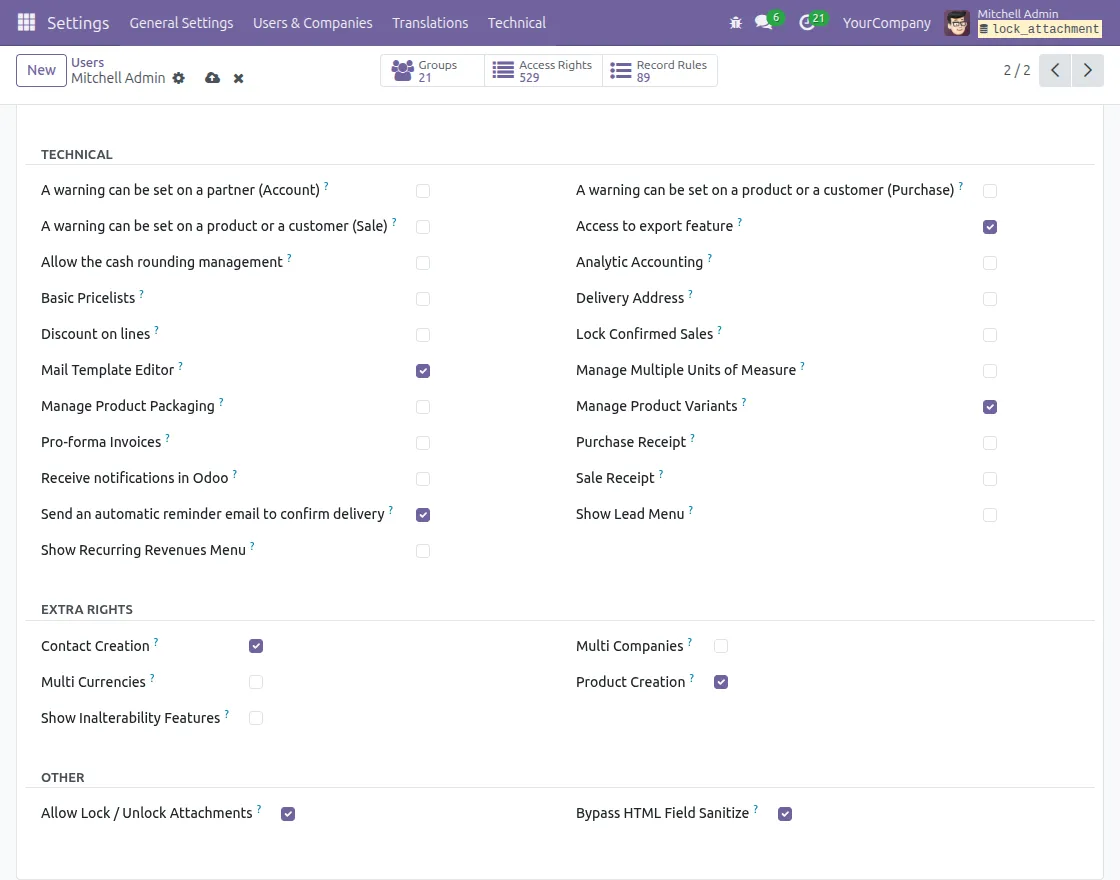
1. Enable Lock Attachment Feature from User Configuration.
After installing the Odoo Lock Attachment module, go to Settings → Users & Companies → Users.
Select the desired user (for example, Admin).

2. Under Access Rights → Other, check the Allow Lock / Unlock Attachments option.
This enables the user to lock or unlock attachments and records.
3. Lock or Unlock Records Easily.
Users can lock or unlock records by clicking the Lock Icon at the top of the record form.

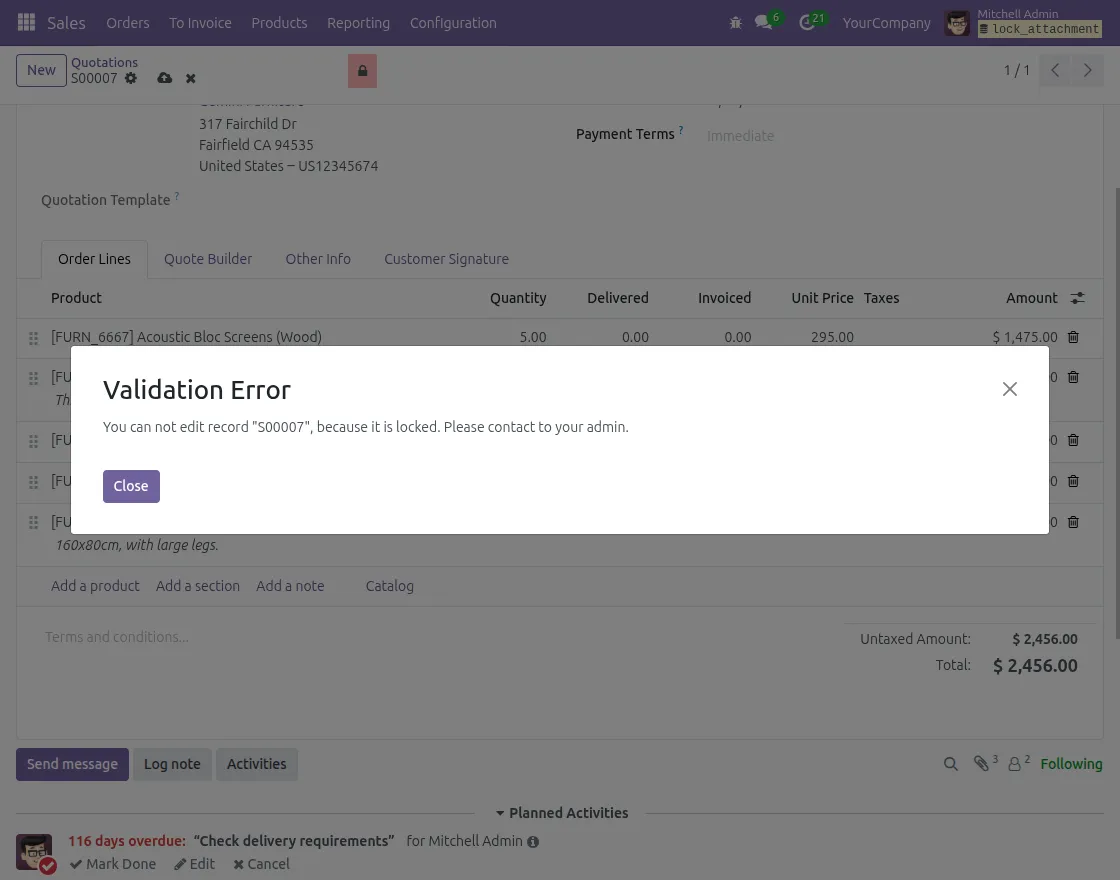
4. Validation Message When Trying to Edit a Locked Record.
When a record is locked, users cannot edit it. If an attempt is made,
Odoo displays a validation error message, indicating that editing is restricted.
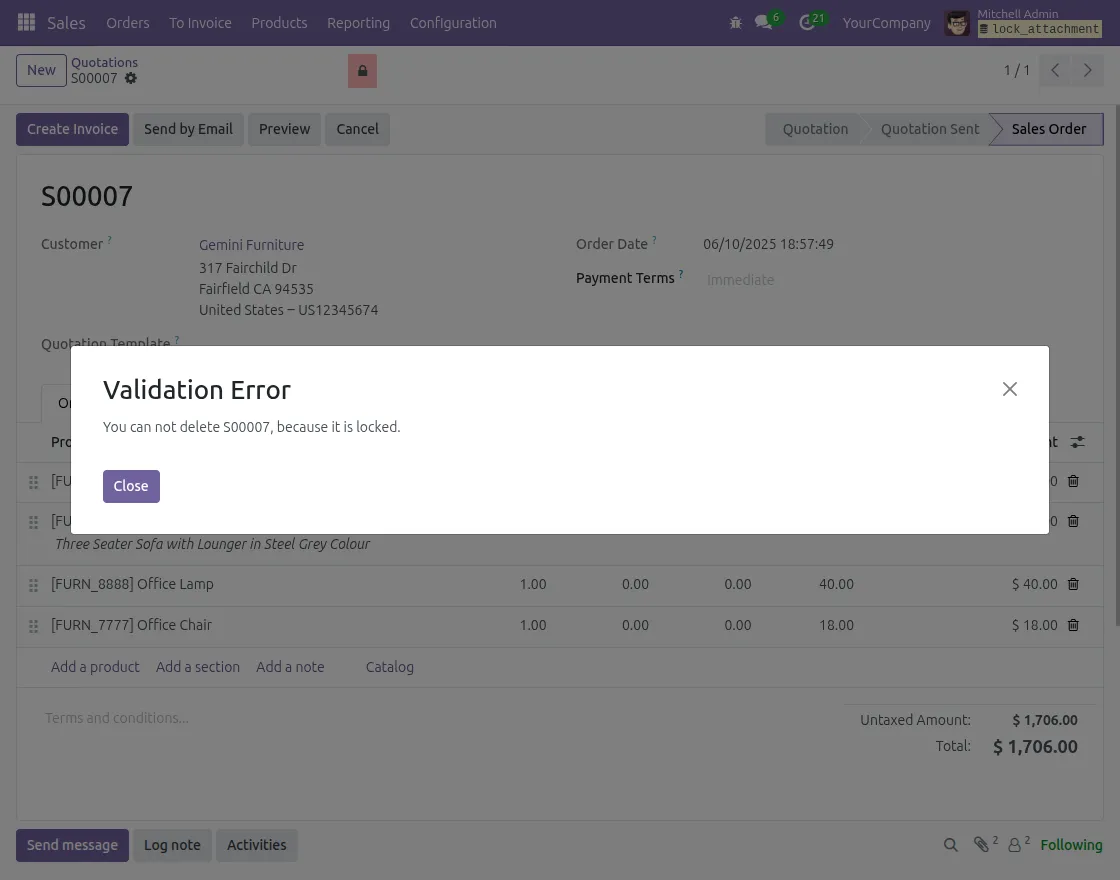
5. Validation Message When Trying to Delete a Locked Record.
If a user tries to delete a locked record, Odoo shows a validation error message preventing the deletion.
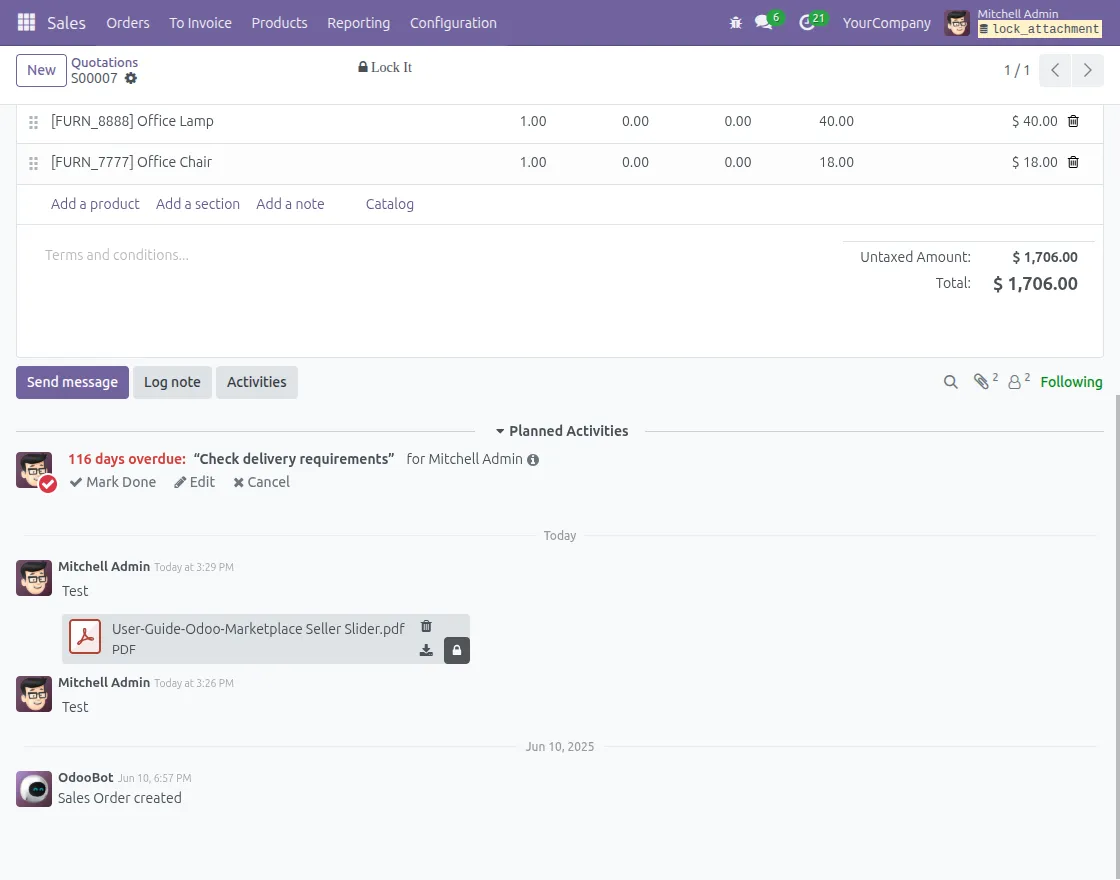
6. Lock or Unlock Attachments Easily
Attachments can be locked or unlocked by clicking the Lock Icon on the right side of each attachment. Locked attachments cannot be deleted.
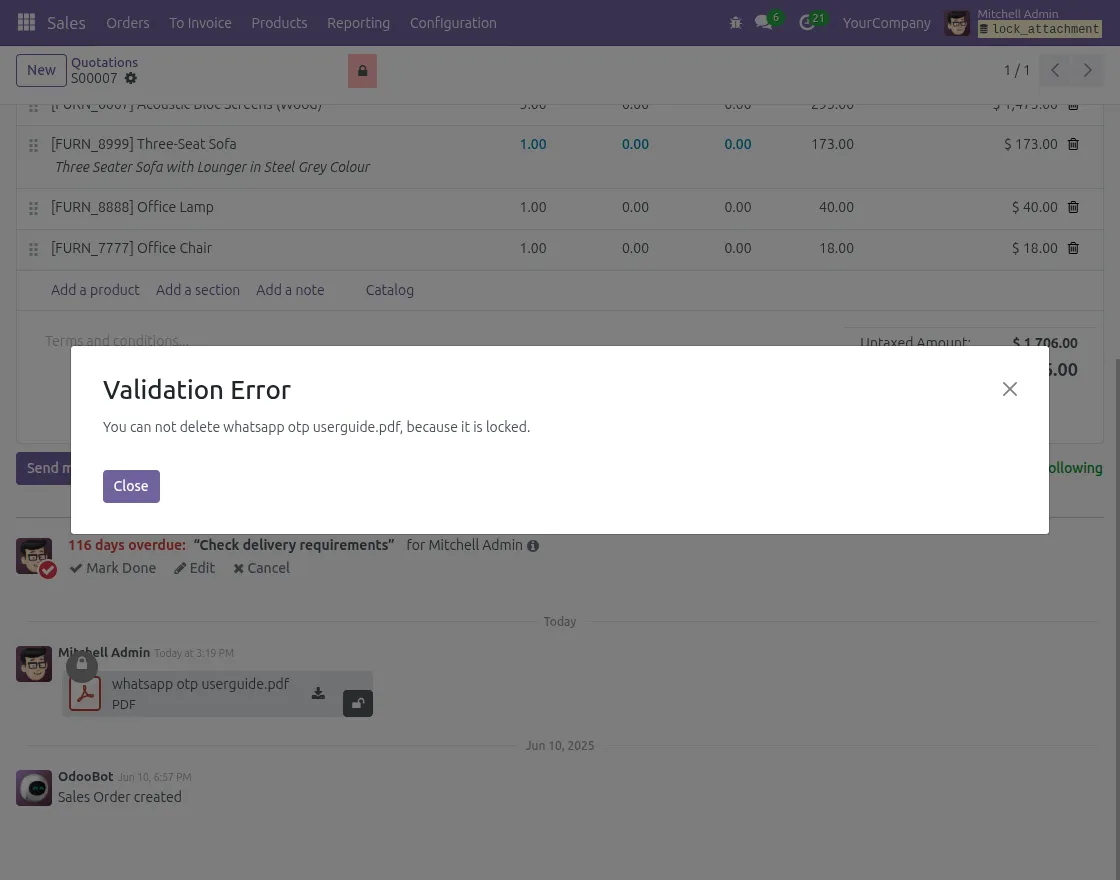
7. Validation Message When Trying to Delete a Locked Attachment.
If a user tries to delete a locked attachment, Odoo displays a validation error message to restrict the action.
8. Unlock Attachments or Records When Needed
Admins or authorized users can unlock attachments or records anytime by clicking the Unlock Icon.
Once unlocked, the files or records can be edited or deleted according to user access rights.

Need help?
Hope you find the guide helpful! Please feel free to share your feedback in the comments below.
If you still have any issues/queries, please create a ticket at the UV Desk.
I hope this helps. In case of any further queries, contact us at our support mail.
Thanks for paying attention!!
Current Product Version - 1.0.0
Supported Framework Version - Odoo V19,V18 ,V17, V16


Be the first to comment.