Introduction
Odoo Islamic Calendar (Hijri Calendar) lets users choose whether they want to see dates in the normal Gregorian calendar or in the Islamic Hijri calendar.
The module makes date selection simple by showing a clear Islamic Date Picker.
When a user changes their calendar choice in settings, all date fields in odoo update right away. This helps everyone work in the date format they understand best without confusion.
The module works automatically after installation and does not need extra setup. It keeps date fields clean, easy to read and consistent on every screen.
Features
- Odoo Islamic Calendar (Hijri Calendar) shows an Islamic Date Picker for easy Hijri date selection
- Lets users choose between Gregorian and Islamic calendars
- Updates all date and datetime fields instantly based on user choice
- User can select specific field to show preferred date style(Gregorian/Islamic)
- Works smoothly with standard and custom odoo forms
- Requires no extra setup after installation
- Keeps date display clean and consistent across the system
- Automatically adapts to each user’s calendar preference
Installation
- Once you purchase the App from Webkul store, you will receive a link to download module’s zip file.
- Extract the file on your system after download finishes. As a result, you will be able to see a folder named- ‘odoo_islamic_calendar
- Copy and paste this folder inside your Odoo Add-Ons path.
- Now, open Odoo App and click on the Settings menu. Here, click on Activate Developer Mode.
- Then, open Apps menu and click on ‘Update Modules List.’
- In the search bar, remove all the filters and search ‘odoo_islamic_calendar’
- You will be able to see module in the search results. Click on ‘Activate’ to install it.
Workflow
1.After the installing Odoo Islamic Calendar (Hijri Calendar) , Click on the Admin icon and go to Preference to select the preferred calendar and Language.

2. Select the preferred calendar Islamic/Gregorian , and Language (RTL also supported) , then Save.
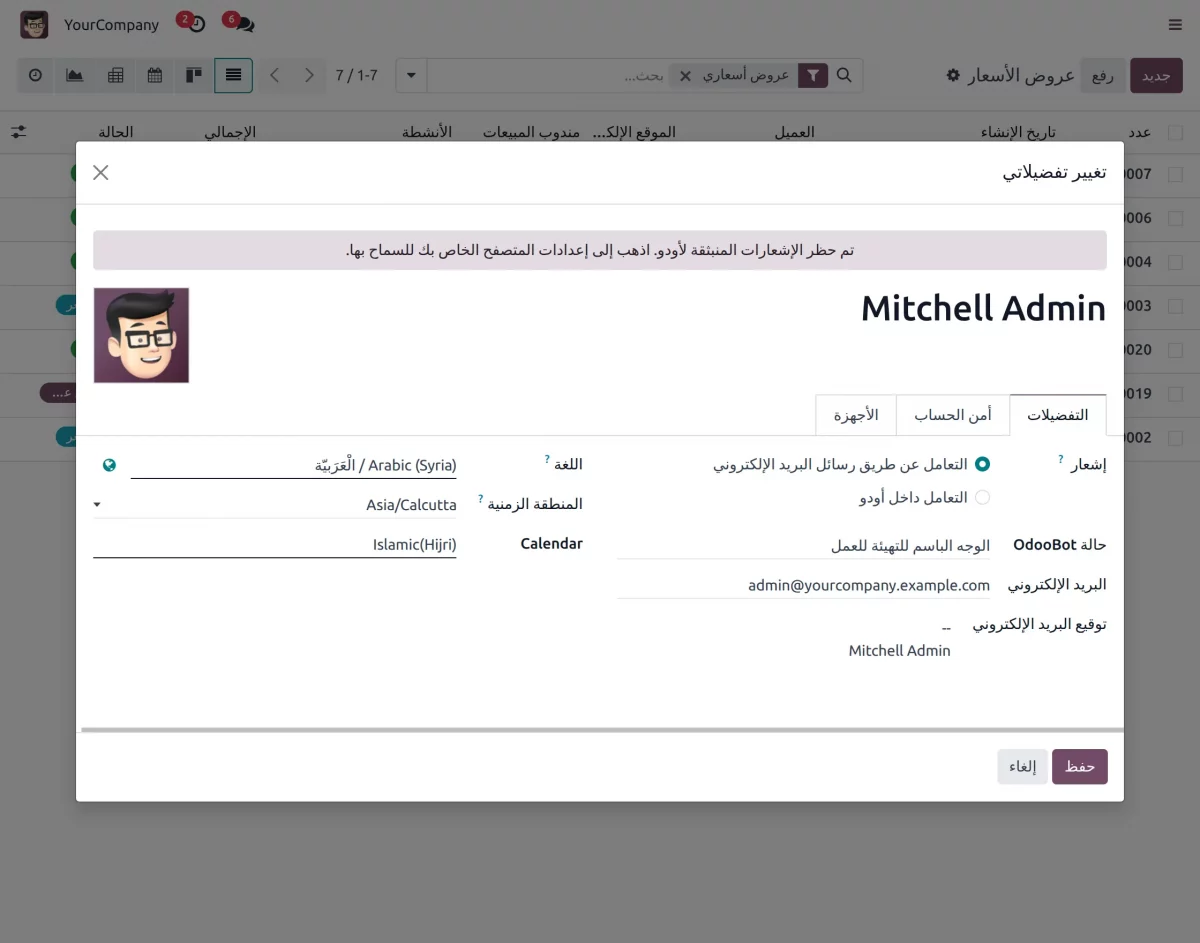
3. Once selected, all date fields will be displayed according to the chosen calendar based on the user’s preference.
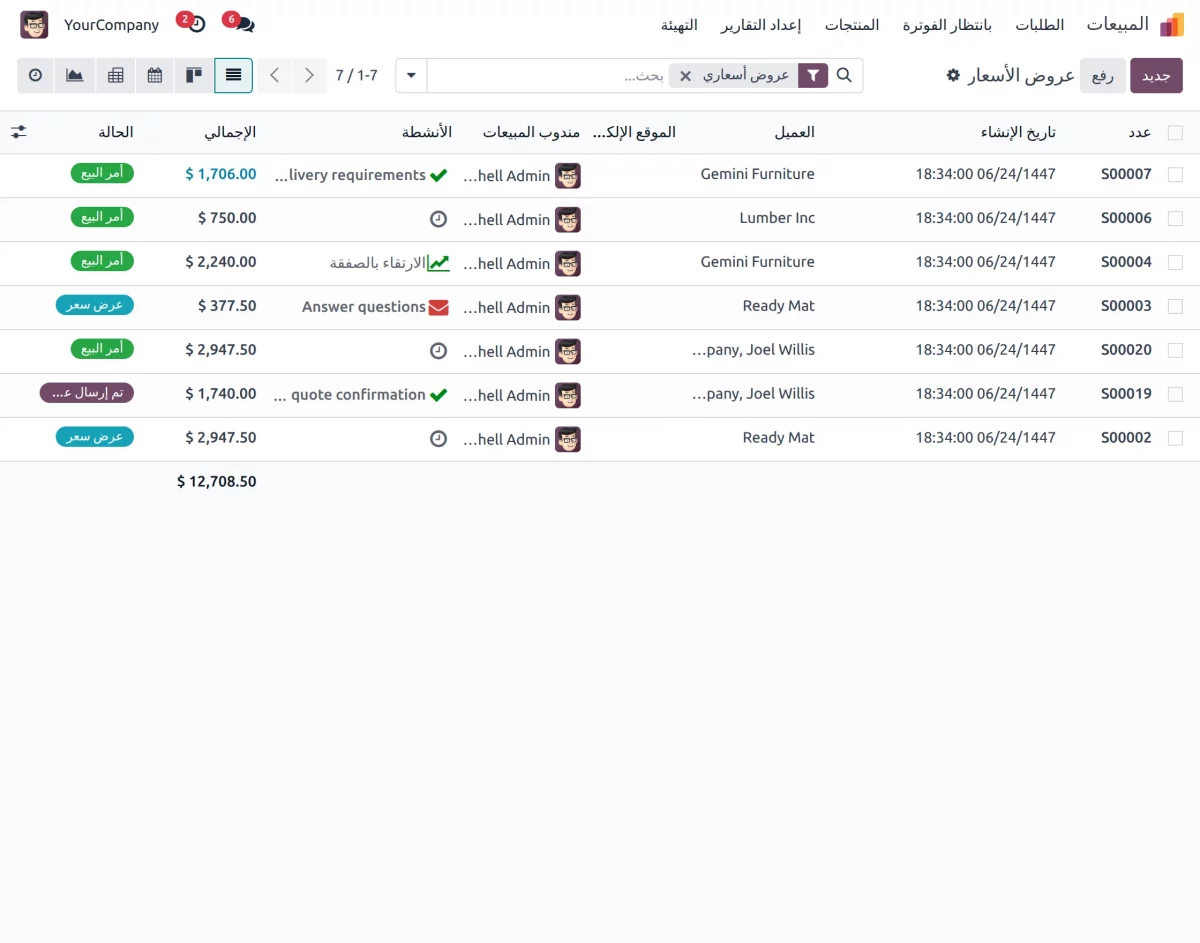
4. The calendar changes are applied across Odoo, allowing you to easily select and view dates using the integrated calendar interface.
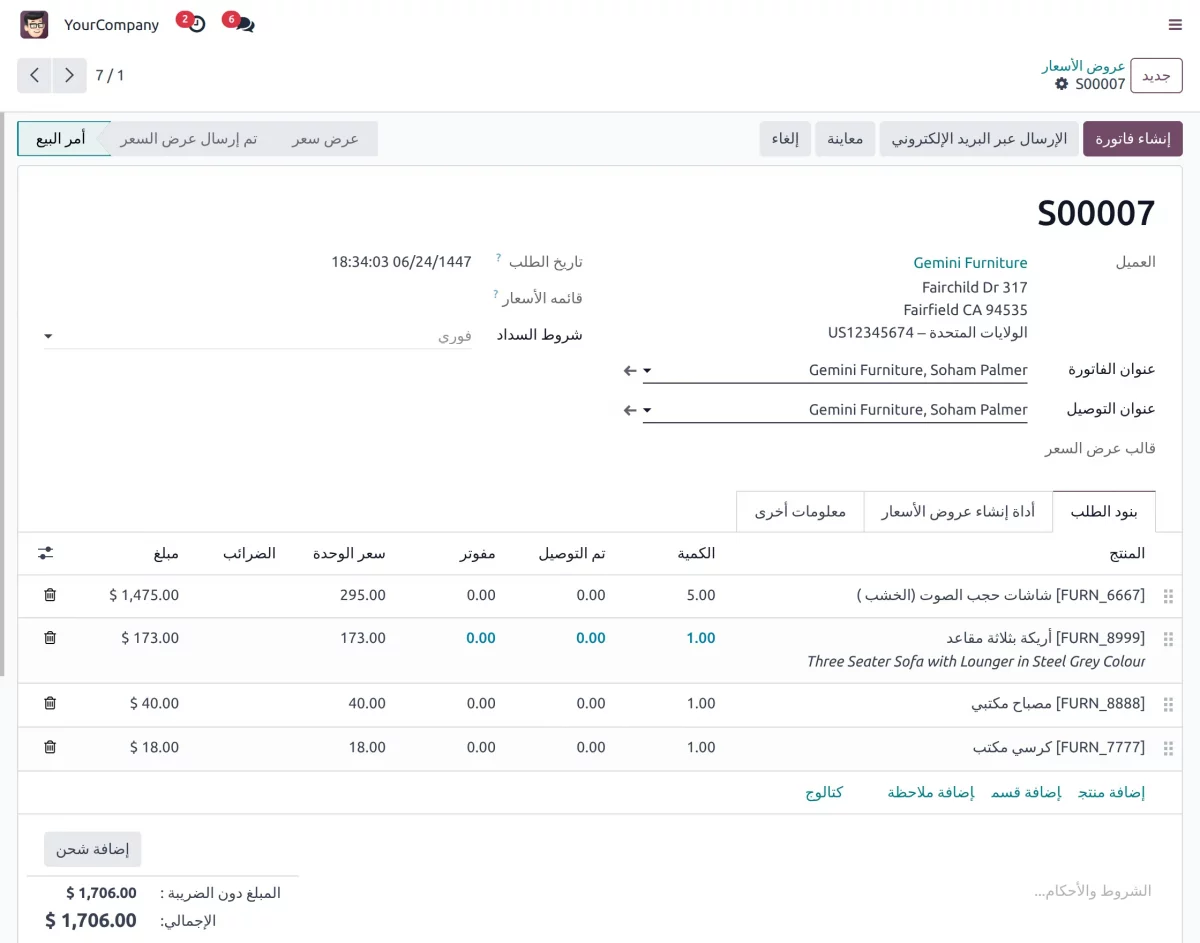
5. You can also configure specific date fields to display the selected calendar, giving you control over which fields follow the preferred calendar format.
Need Help?
Hope you find guide helpful! Please feel free to share your feedback in the comments below.
If you still have any issues/queries, please create a ticket at the UV Desk.
I hope this helps. In case of any further queries, contact us at our support mail.
Thanks for paying attention!!
Current Product Version - 1.0.0
Supported Framework Version - Odoo V18, V17, V16


Be the first to comment.