Introduction
Odoo Global Cancel and Delete Orders helps users safely cancel, reset, or delete sales and purchase orders in Odoo using a secure wizard.
The module ensures accounting, inventory, and audit records stay accurate after order cancellation.
With this module, invoices, bills, deliveries, receipts, and return operations are handled automatically. Only authorized users can perform cancellation actions, and every action is logged for traceability.
Features
- Allows only authorized users to cancel or delete orders
- Provides separate cancellation controls for sales and purchases
- Cancels orders using a secure guided wizard
- Stores mandatory cancellation reasons for audit tracking
- Reverses invoices and vendor bills automatically
- Creates return deliveries for canceled sales orders
- Generates return receipts for canceled purchase orders
- Sends optional email notifications to customers
- Keeps inventory and accounting data accurate
Installation
- Once you purchase the App from Webkul store, you will receive a link to download module’s zip file.
- Extract the file on your system after download finishes. After this, you will see a folder named ‘wk_global_cancel_delete‘.
- Copy and paste this folder inside your Odoo Add-Ons path.
- Now, open Odoo App and click on the Settings menu. Here, click on Activate Developer Mode.
- Next, open the Apps menu and select Update Modules List.
- In the search bar, remove all the filters and search ‘wk_global_cancel_delete’
- You will be able to see module in the search results. Click on ‘Activate’ to install it.
Workflow
1. After installing the Odoo Global Cancel and Delete Orders module, enable the feature for the required users from
Settings > Users > Select User > Enable Global Cancel & Delete Orders (Separately for Sale Order and Purchase Order)

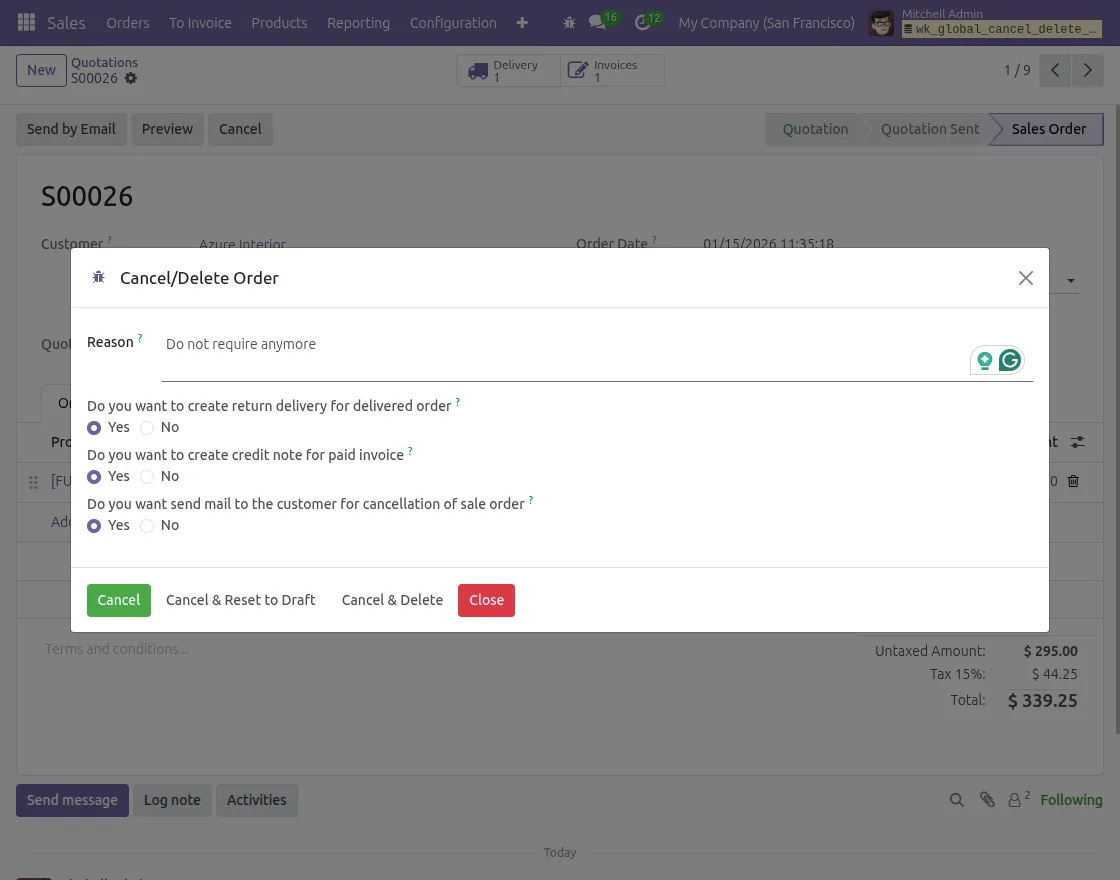
2. Open a sales order and click the Cancel/Delete option. A wizard appears, asking for the cancellation reason.
The wizard can create return deliveries, credit notes, and send emails.
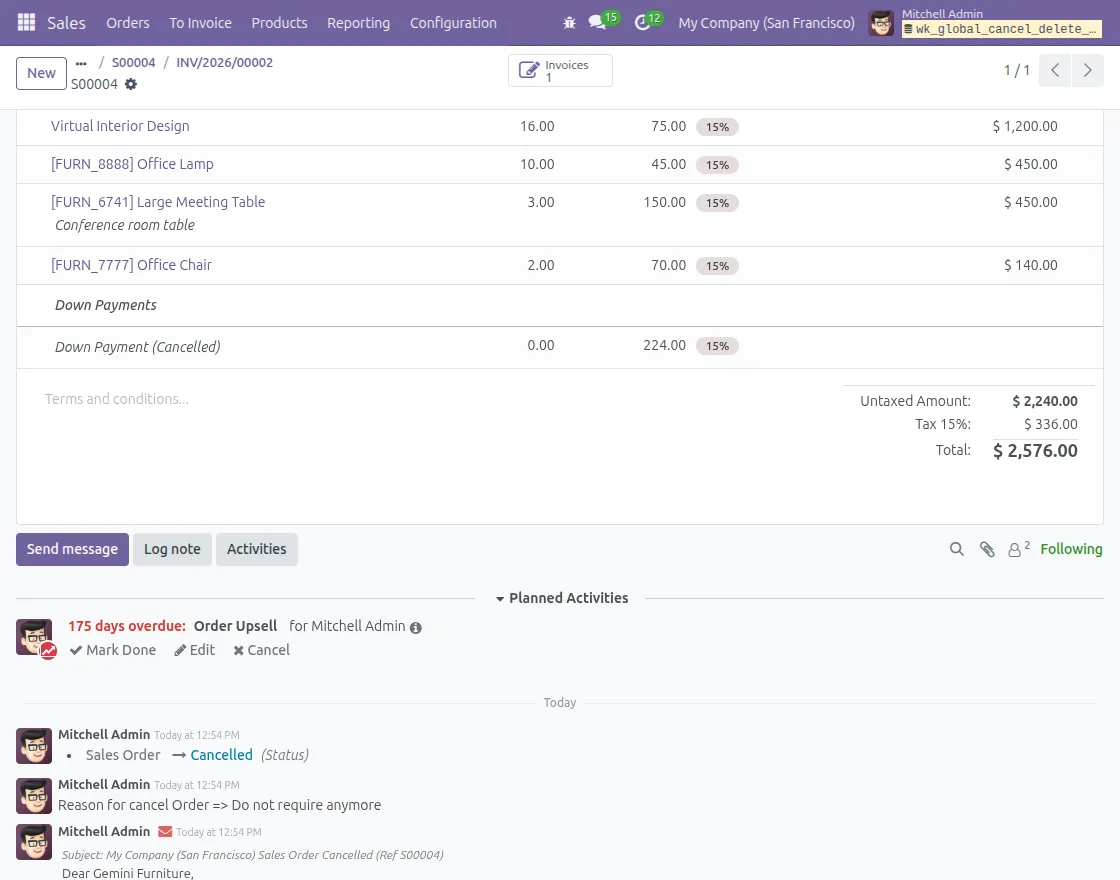
3. After cancellation, the order status is automatically updated to Cancelled and shows the reason for cancellation.
Users can easily identify canceled sales and purchase orders in the order view.
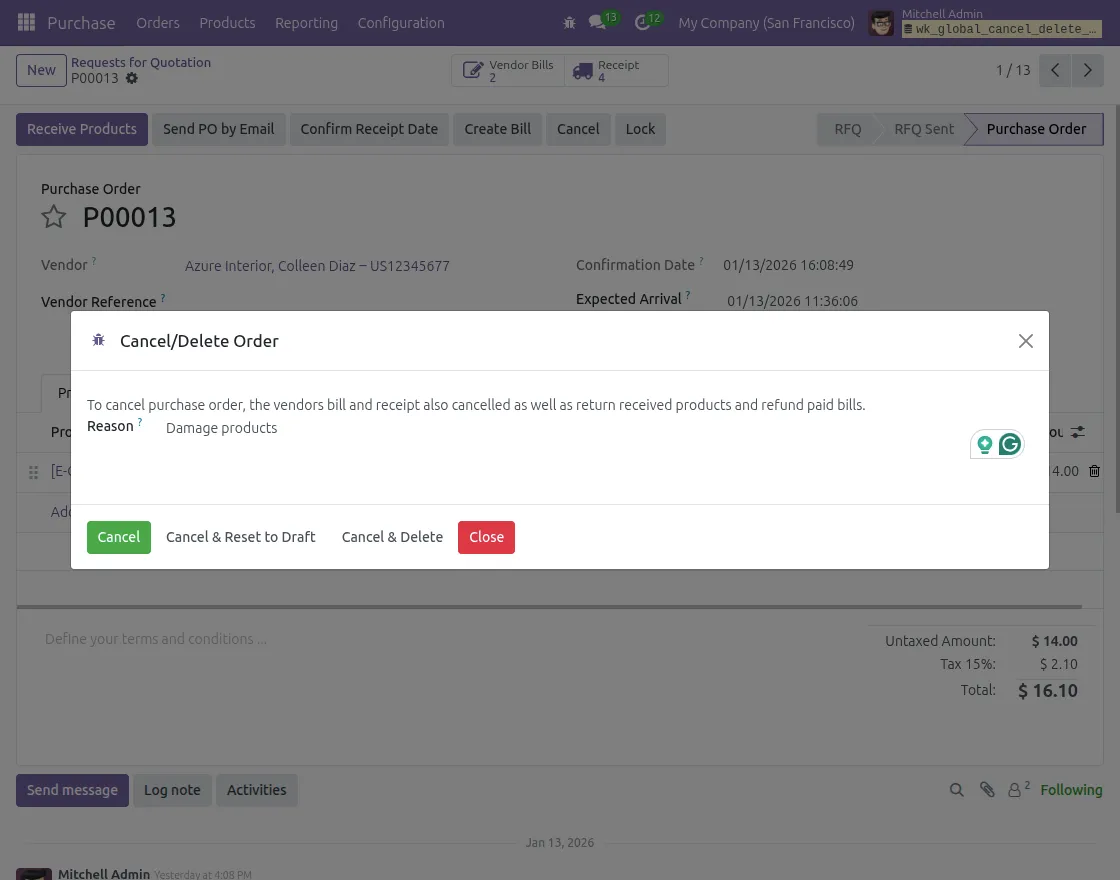
4. Open a purchase order and launch the cancellation wizard. Vendor bills, receipts, and refunds are handled automatically.
Users can cancel, reset to draft, or delete the purchase order.
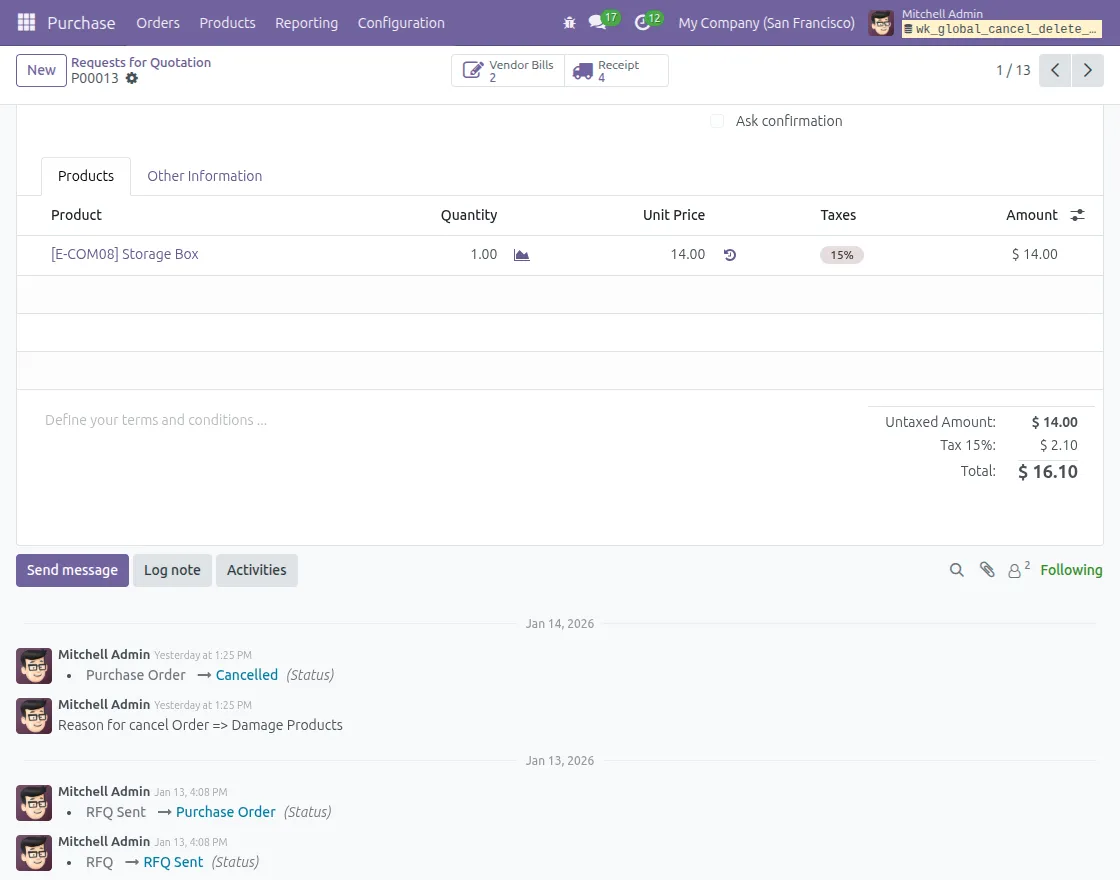
5. After cancellation, the purchase order status is updated to Cancelled automatically and shows the reason for cancellation.
This helps users quickly identify canceled purchase orders in Odoo.
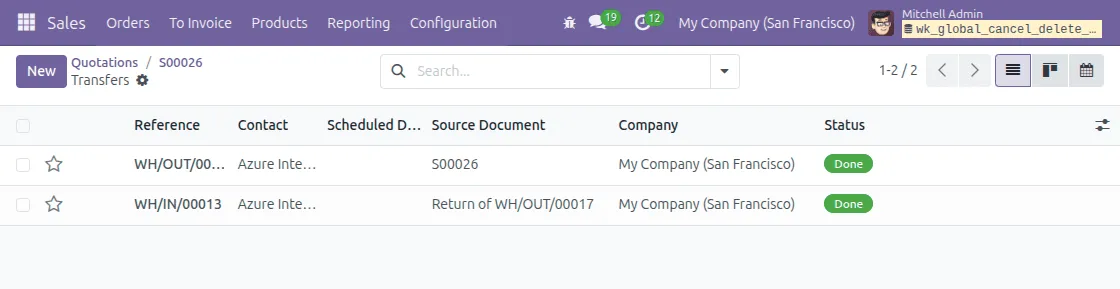
6. Upon canceling an order after delivery or receipt, the system creates the required return deliveries or receipts.
This ensures inventory levels and accounting records remain accurate.
Need Help?
Hope you find guide helpful! Please feel free to share your feedback in the comments below.
For additional support or questions, kindly raise a ticket via UV Desk.
I hope this helps. For any additional queries, feel free to contact us via our support mail.
Thanks for paying attention!!
Current Product Version - 1.0.0
Supported Framework Version - odoo v15, 16, 17, 18, and 19


Be the first to comment.