Introduction
Odoo Direct Refund from SaferPay makes handling refunds in Odoo simple and efficient. It removes extra steps, links refunds with the original payment, and lets you create credit notes seamlessly.
Refunds are processed faster, recorded with clear reasons, and tracked for accurate reports, ensuring reliability, productivity, and customer trust.
Prerequisites For Using Odoo Direct Refund from Saferpay
Odoo Direct Refund from Saferpay works in conjunction with the following module:
Odoo Website Saferpay Payment Gateway
You must install the above-mentioned module to use Odoo Direct Refund from Saferpay.
Features
- Odoo Direct Refund from SaferPay enables quick refunds without extra steps.
- Generate credit notes directly tied to original invoices.
- Refund entries link seamlessly to their parent transactions.
- Monitor every stage of payment and refund activity.
- Receive validation messages when credit notes are missing.
- Keep financial data accurate through streamlined refund workflows.
- Record refund reasons for reporting, clarity, and accountability.
- Build stronger customer trust with transparent refund management.
Installation
- Once you purchase the App from Webkul store, you will receive a link to download module’s zip file.
- Extract the file on your system after download finishes. As a result, you will be able to see a folder named- ‘payment_saferpay_refund’(you can get the technical name from odoo app of the respective module)’
- Copy and paste this folder inside your Odoo Add-Ons path.
- Now, open Odoo App and click on the Settings menu. Here, click on Activate Developer Mode.
- Then, open Apps menu and click on ‘Update Modules List.’
- In the search bar, remove all the filters and search ‘payment_saferpay_refund’
- You will be able to see module in the search results. Click on ‘Install’ to install it.
Workflow
- After installing Odoo Direct Refund from Saferpay, you need to open the customer invoice in orders. There, you will see a button for Credit Note.
Click on that if your payment is completed, then you will see a tag of paid on the credit note.
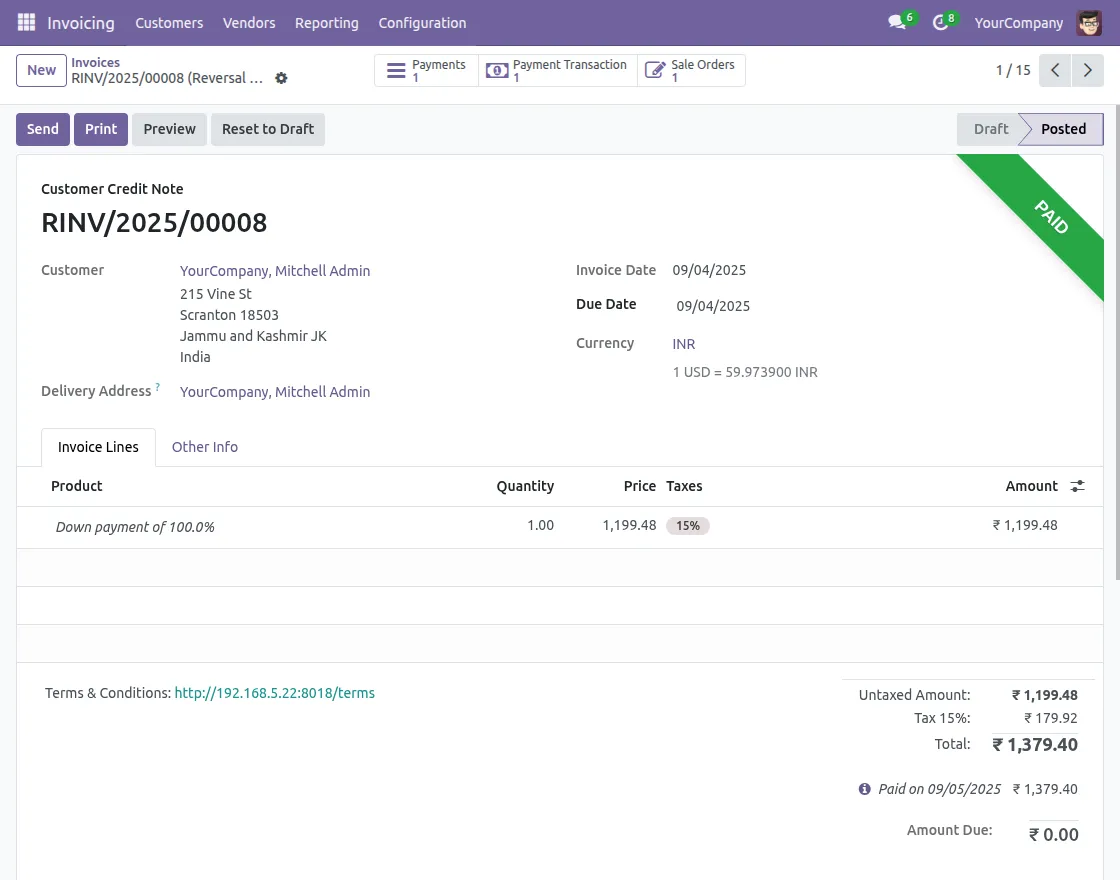
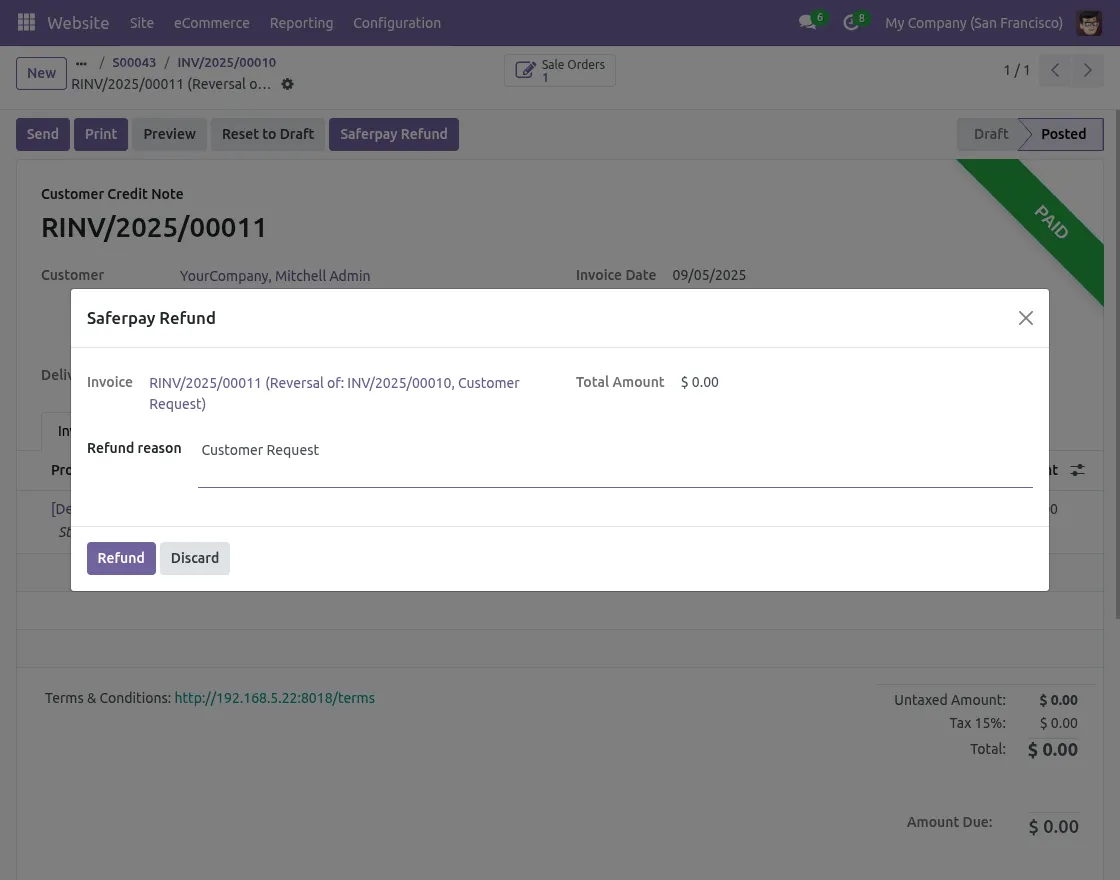
2. After generating the credit note, go back to the customer invoice and click on Saferpay Refund button.
It will ask you for a Refund Reason to maintain records; without giving a reason, you can not proceed further.
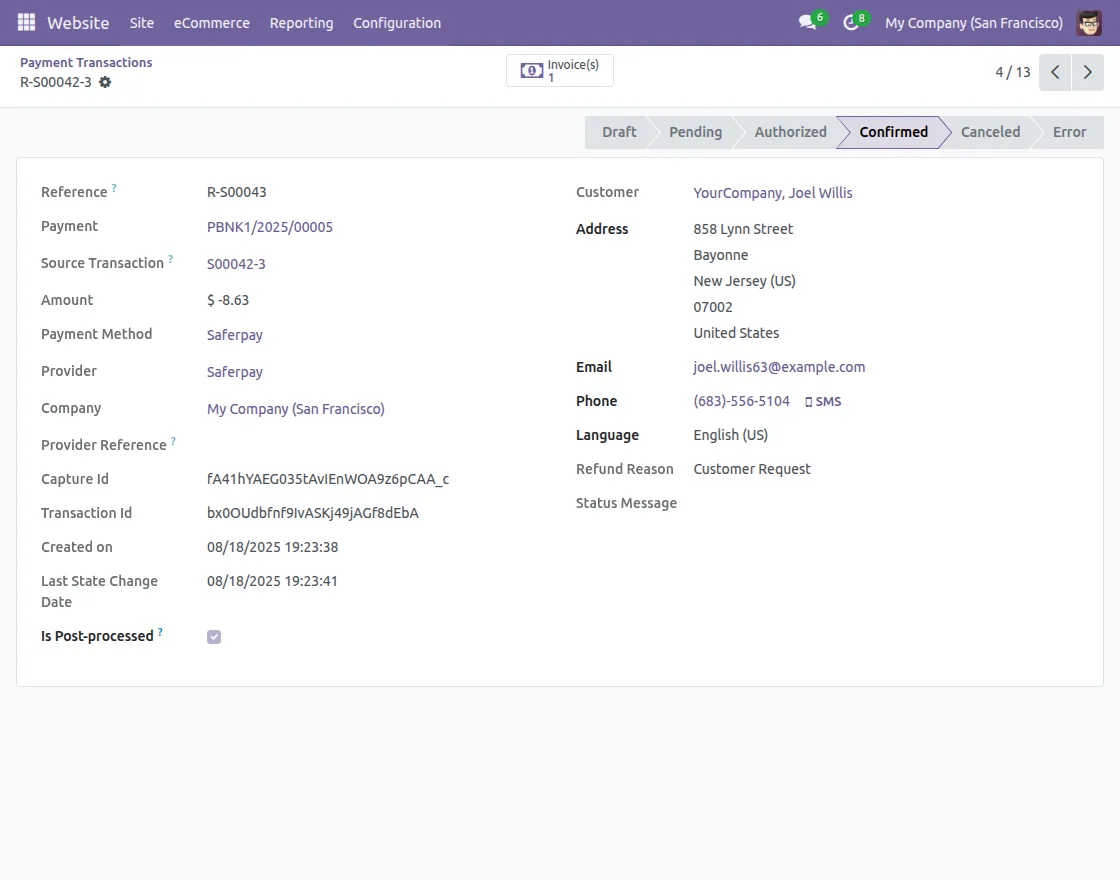
3. When the refund payment is done. You can check the refund payment in the transaction. The state of the payment will be confirmed.
Here, the refund reason you had entered is also visible.
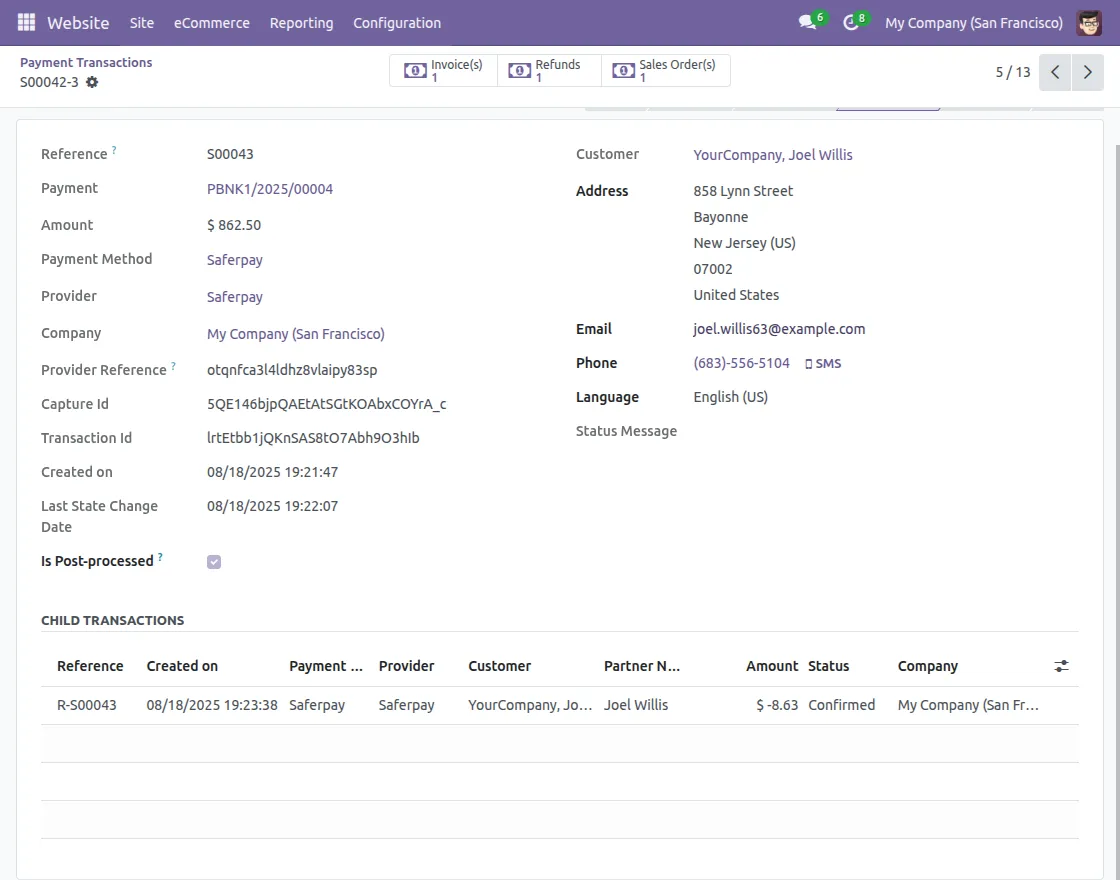
4. All your refund payments will be linked to the original payment, as it’s a Child Transaction.
Need Help?
Hope you find guide helpful! Please feel free to share your feedback in the comments below.
If you still have any issues/queries, please create a ticket at the UV Desk.
I hope this helps. In case of any further queries, contact us at [email protected].
Thanks for paying attention!!
Current Product Version - 1.0.0
Supported Framework Version - ODOO V19, ODOO V18, ODOO V17.


Be the first to comment.