Introduction
Odoo Backend Debranding module helps you white label your Odoo ERP by removing most of the default platform branding.
The backend setting helps you with the functionality of your business to debrand your website. You can change logos, tagline, websites from the backend.
With this module, you can white label backend visuals, and can customize items like the business name, favicon, page design, etc. and give it a fresh look and feel.
Odoo Backend Debranding module ensures a consistent white label experience across the backend and helps you adjust the look and feel of Odoo.
Debranding plays a significant role in the establishment of a positive partnership between the consumer and the company.
Features
- White label the Odoo backend by removing the default platform (Odoo) branding
- Replace backend favicon and identity visuals for white label experience
- Remove platform name from backend login screen.
- White label company name in outgoing system emails with Odoo Backend Debranding.
- Rename system text like “OdooBot” to a neutral system name
- Change browser tab brand name to your company name.
- Remove platform name from dialogs, planners, and pop-up messages
- Remove “My Odoo.com Account” option from backend
Installation
- Once you purchase the App from the Webkul store, you will receive a link to download the module’s zip file.
- Extract the file on your system after the download finishes. As a result, you will be able to see a folder named- ‘wk_debrand_odoo.’
- Copy and paste this folder inside your Odoo Add-Ons path.
- Now, open Odoo App and click on the Settings menu. Here, click on Activate Developer Mode.
- Then, open the Apps menu and click on ‘Update Modules List.’
- In the search bar, remove all the filters and search ‘wk_debrand_odoo.’
- You will be able to see the module in the search results. Click on ‘Install’ to install it.
Workflow
1. Go to the configuration of “Odoo Backend Debranding “ menu, where you can access all backend debranding and white label options.
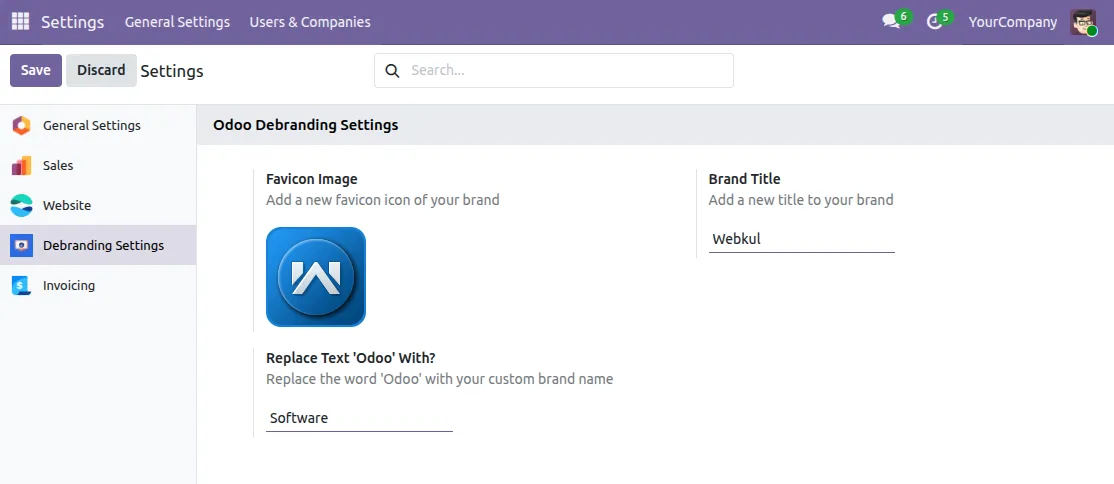
2. Update the backend favicon from the configuration settings. This replaces the default platform icon with your company favicon.
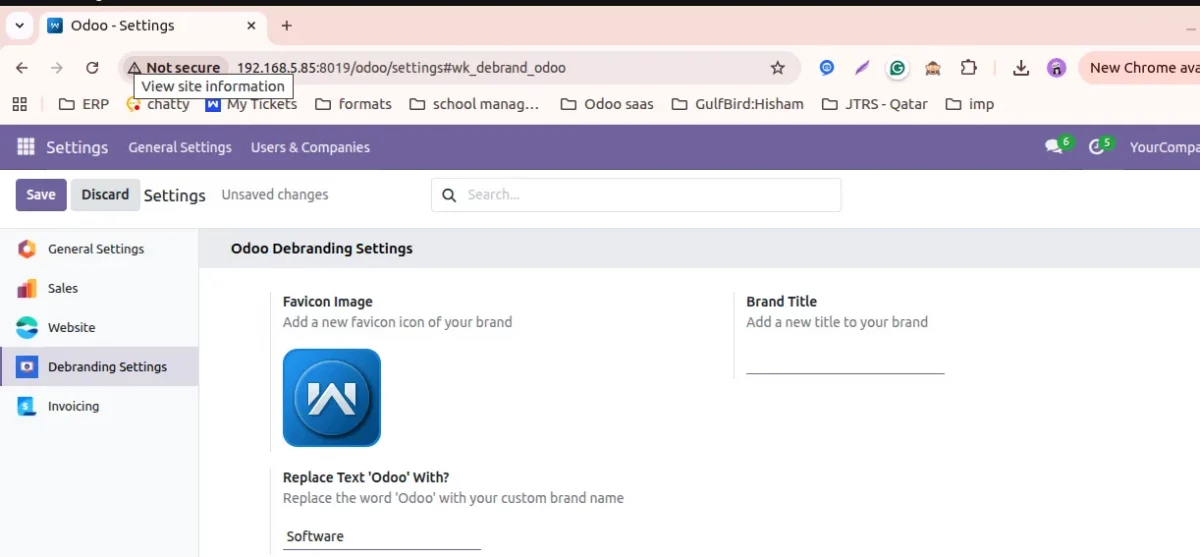
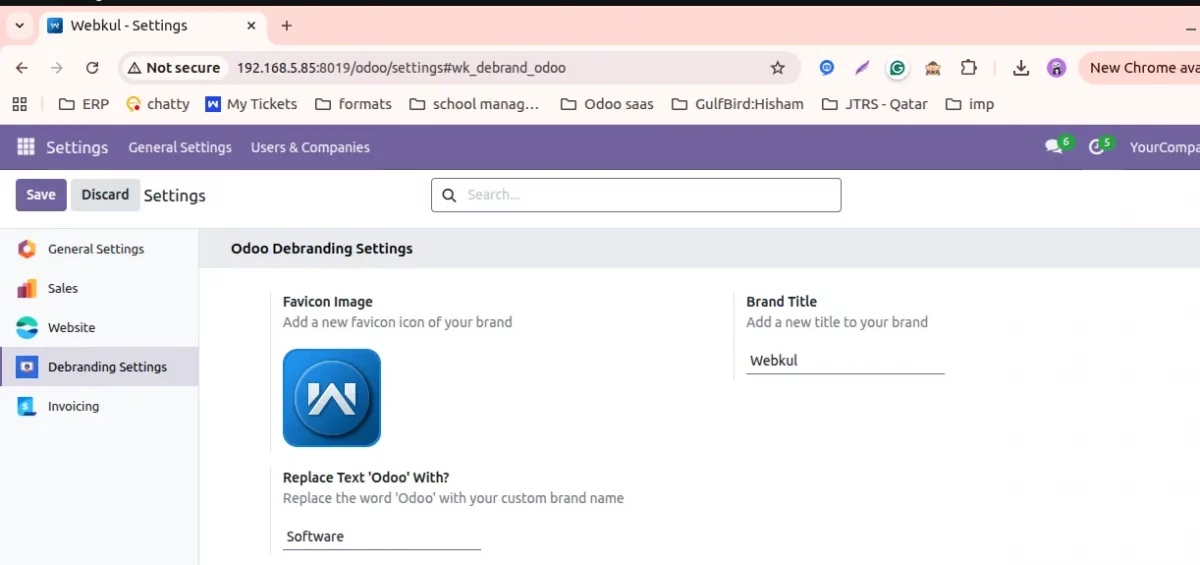
3.Change the brand name shown in the browser tab to your company name. This helps maintain a complete white label backend identity.
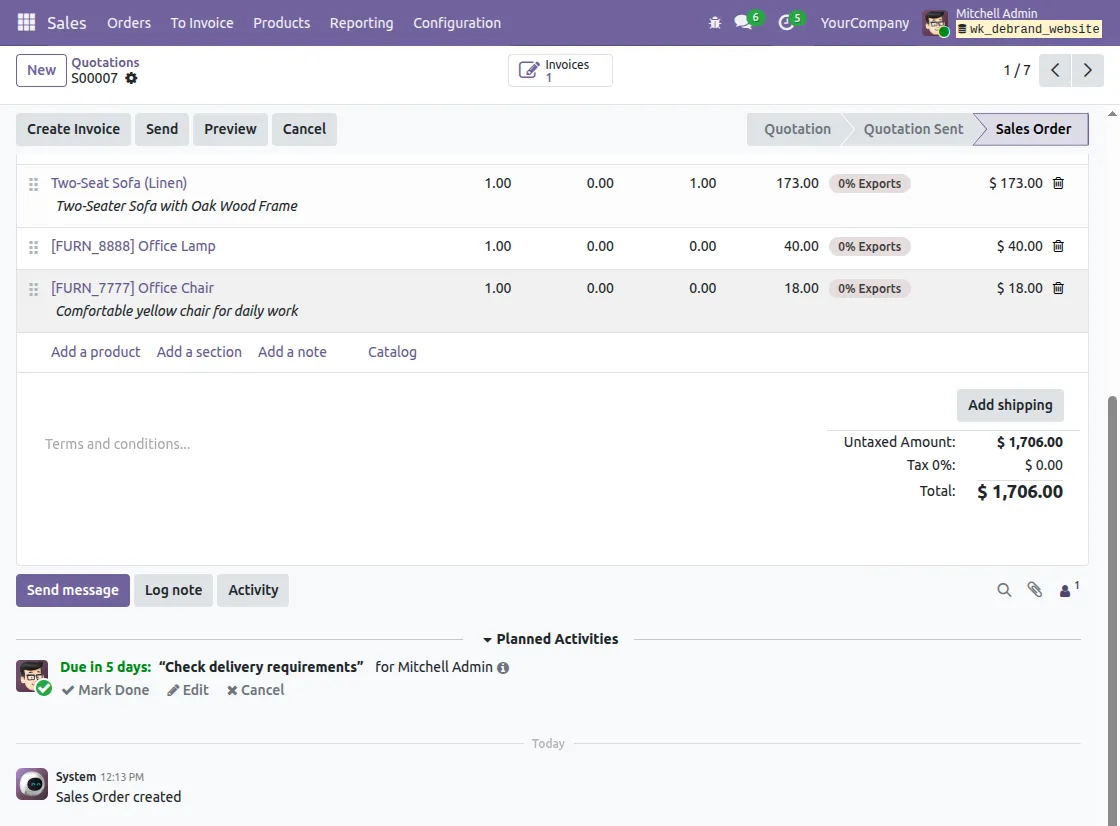
4.After installing the module, you will notice that OdooBot is renamed to “System”.
5.Use your company name in emails sent from the system instead of the platform name.
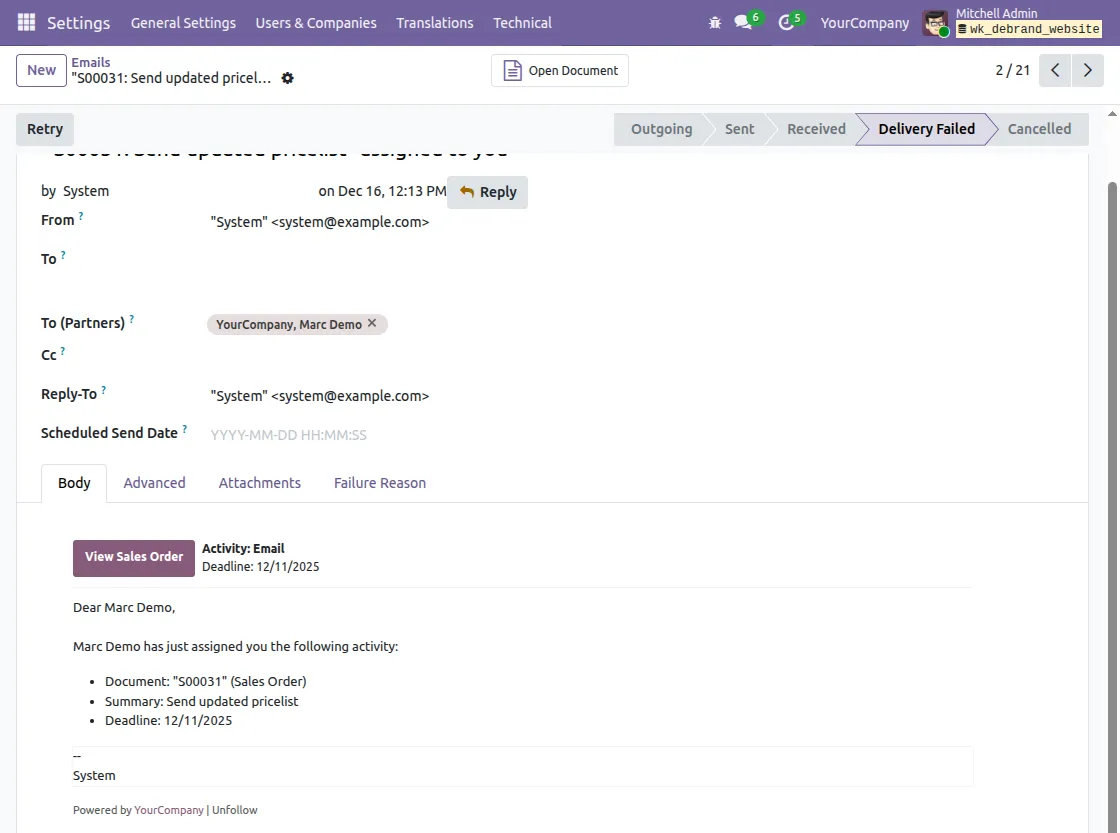
6. Remove platform-specific options like “My Odoo.com Account” from the backend.
This keeps the ERP fully company-branded and distraction-free.

Need Help?
Hope you find guide helpful! Please feel free to share your feedback in the comments below.
If you still have any issues/queries, please create a ticket at the UV Desk.
I hope this helps. In case of any further queries, contact us at our support mail.
Thanks for paying attention!!
Current Product Version - 1.0.0
Supported Framework Version - Odoo V19, V18,V17



Werkt de Odoo debranding ook voor de Oodoo community versie 19?