Introduction
Odoo Advance Inventory Dashboard helps businesses analyze inventory using clear charts and simple reports.
It provides insights like overstock, stock rotation, turnover, and inventory ageing in one place. This helps managers understand stock data quickly.
The dashboard uses data and interactive charts to present inventory analytics. It improves decision-making and stock planning efficiency.
Features
- View all inventory analytics using one centralized dashboard
- Use interactive charts and multiple views for visualization
- Export inventory reports easily in Excel and PDF formats
- Configure thresholds and control access with role permissions
- Track ageing, overstock, rotation, and inventory turnover
- Use interactive charts with modern Chart.js graphs
Installation
- Once you purchase the App from the Webkul store, you will receive a link to download module’s zip file.
- Extract the file on your system after the download finishes. As a result, you will be able to see a folder named ‘wk_advance_inventory_dashboard’
- Copy and paste this folder inside your Odoo Add-Ons path.
- Now, open Odoo App and click on the Settings menu. Here, click on Activate Developer Mode.
- Then, open the Apps menu and click on ‘Update Modules List’.
- In the search bar, remove all the filters and search ‘wk_advance_inventory_dashboard’
- You will be able to see the module in the search results. Click on ‘Activate’ to install it.
Workflow
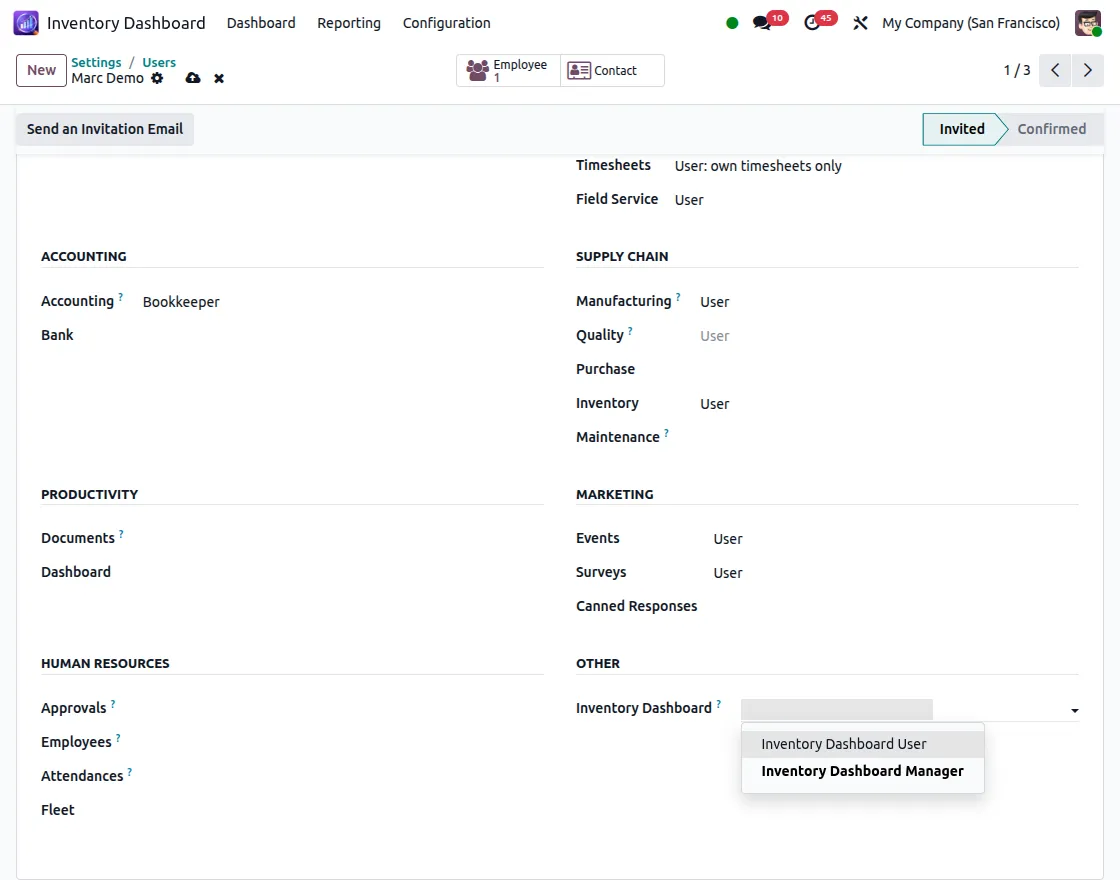
1. After installing the Odoo Advance Inventory Dashboard module, go to settings > users and assign Inventory Dashboard access based on roles.
Dashboard User can view analytics and export reports, while Dashboard Manager can configure all settings.
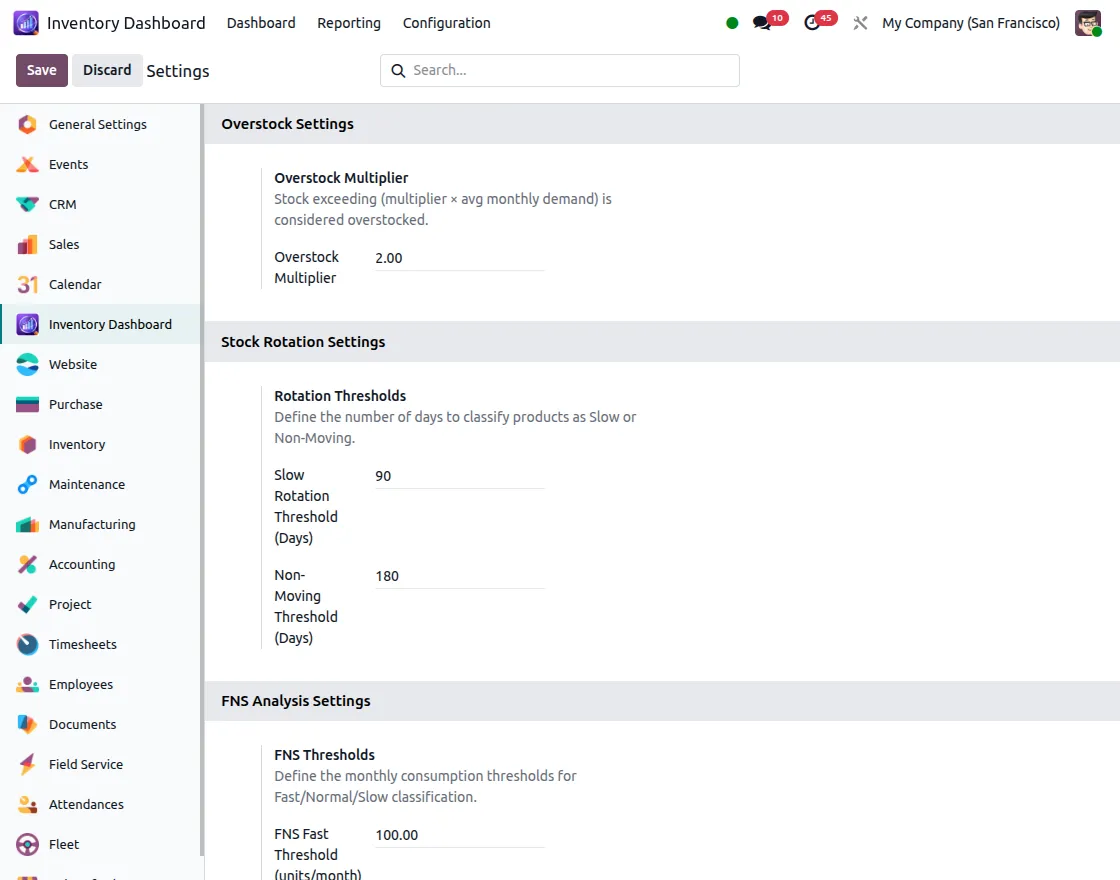
2. Navigate to Inventory Dashboard > Configuration > Settings to manage dashboard settings.
You can adjust thresholds and analysis parameters as per your business requirements.
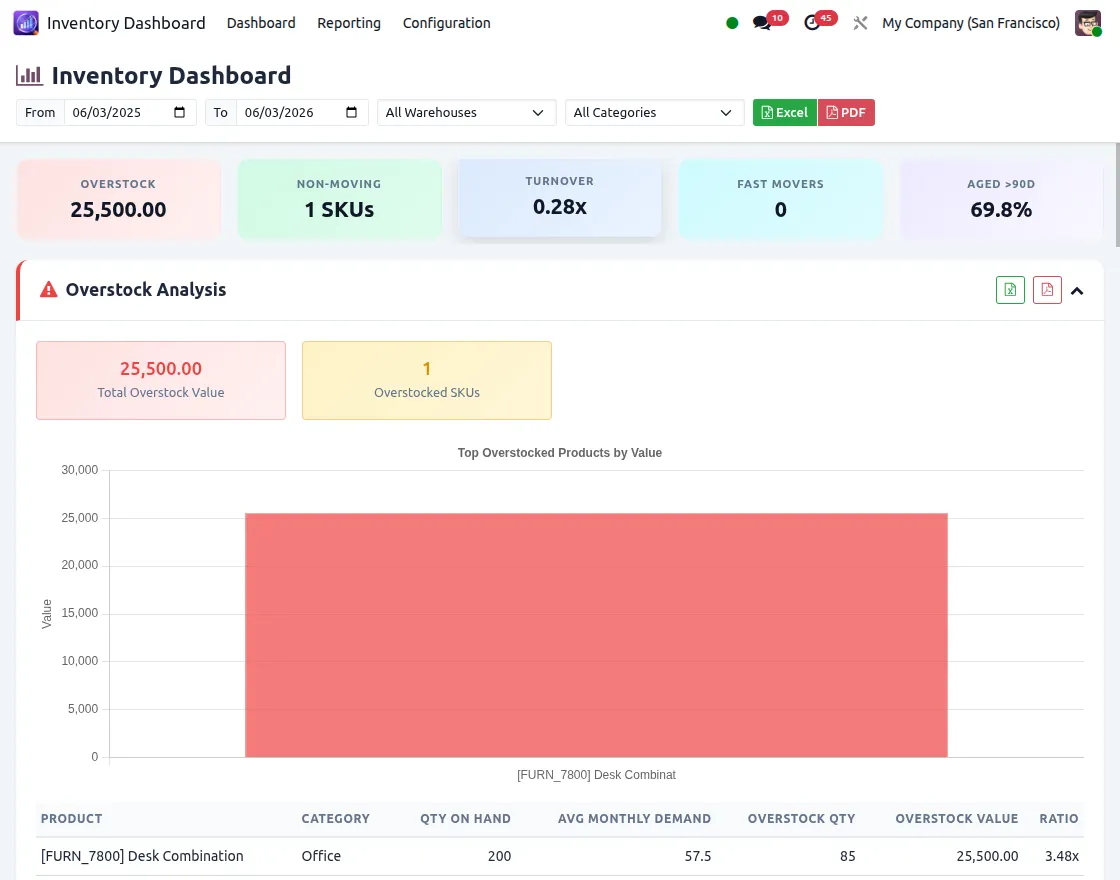
3. Open the Inventory Dashboard to view all analytics in one unified interface.
It displays overstock, stock rotation, turnover Analysis, FNS Analysis, and Inventory ageing data with charts and filters.
Use filters like date range, warehouse, and category to refine the analysis. All charts and reports update dynamically based on the selected filters.
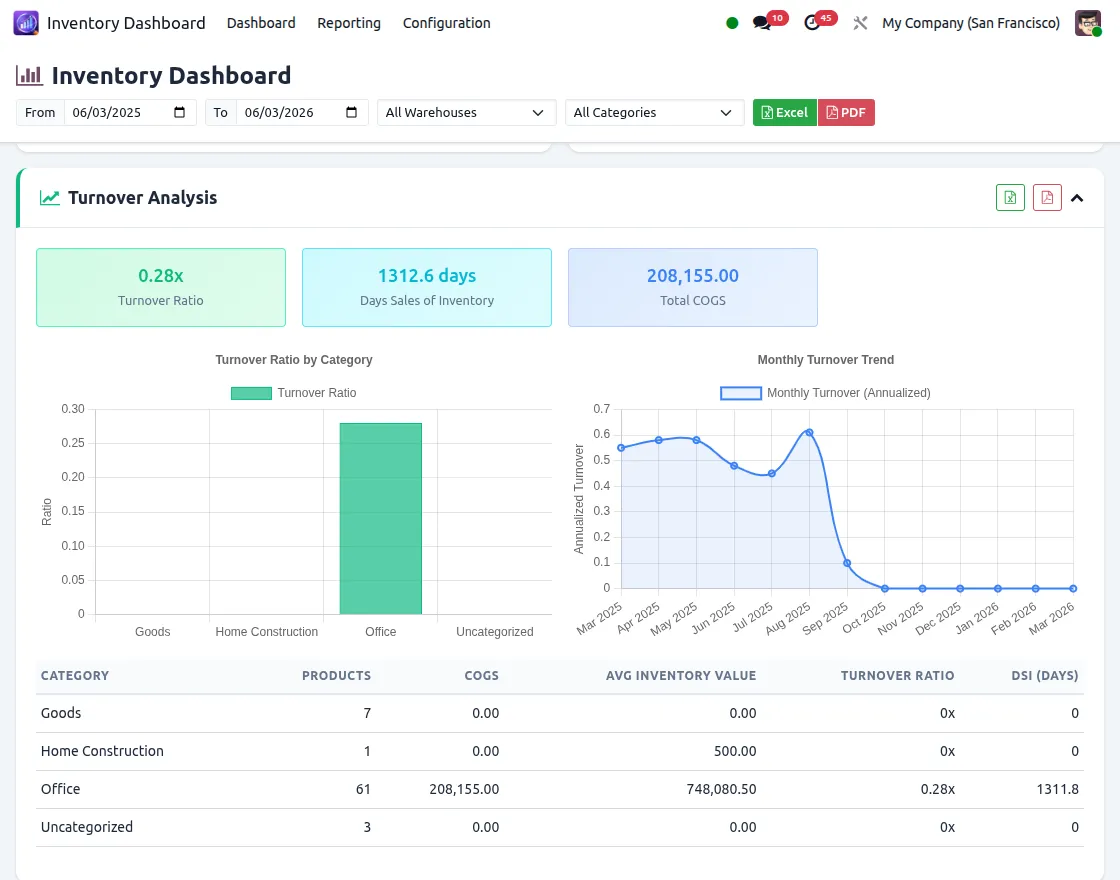
4. Click on the Export options to download reports in Excel or PDF format. You can export individual analyses or the complete dashboard in a single file.
Per-section Export: Export individual analysis (Overstock, Rotation, Turnover, FNS, or Ageing)
Full Dashboard Export: Export all 5 analyses in a single file.
Need Help?
Hope you find this guide helpful! Please feel free to share your feedback in the comments below.
If you still have any issues or queries, please create a ticket at UV Desk.
For further assistance, contact us at our support mail.
Thanks for paying attention!
Current Product Version - 1.0.0
Supported Framework Version - Odoo V18, 19


Be the first to comment.