Introduction
Odoo Advance Discount Tracking module helps businesses manage, track, and analyze advance discounts efficiently, ensuring accurate records, better control, and improved financial transparency.
Features
- Track discounts directly on individual sales order lines.
- Track a global percentage discount on the entire sales order.
- Track a fixed amount discount across all sales order lines.
- Track the updated discounts anytime using the same wizard.
- View a clear discount summary above the internal notes.
- Automatically copy the discount summary from order to invoice.
- Recalculates the discount summary every time a discount is added
Installation
- Once you purchase the App from Webkul store, you will receive a link to download module’s zip file.
- Extract the file on your system after download finishes. As a result, you will be able to see a folder named- ‘wk_advance_discount_tracking’(you can get the technical name from odoo app of the respective module)’
- Copy and paste this folder inside your Odoo Add-Ons path.
- Now, open Odoo App and click on the Settings menu. Here, click on Activate Developer Mode.
- Then, open Apps menu and click on ‘Update Modules List.’
- In the search bar, remove all the filters and search ‘wk_advance_discount_tracking’
- You will be able to see module in the search results. Click on ‘Install’ to install it.
Workflow
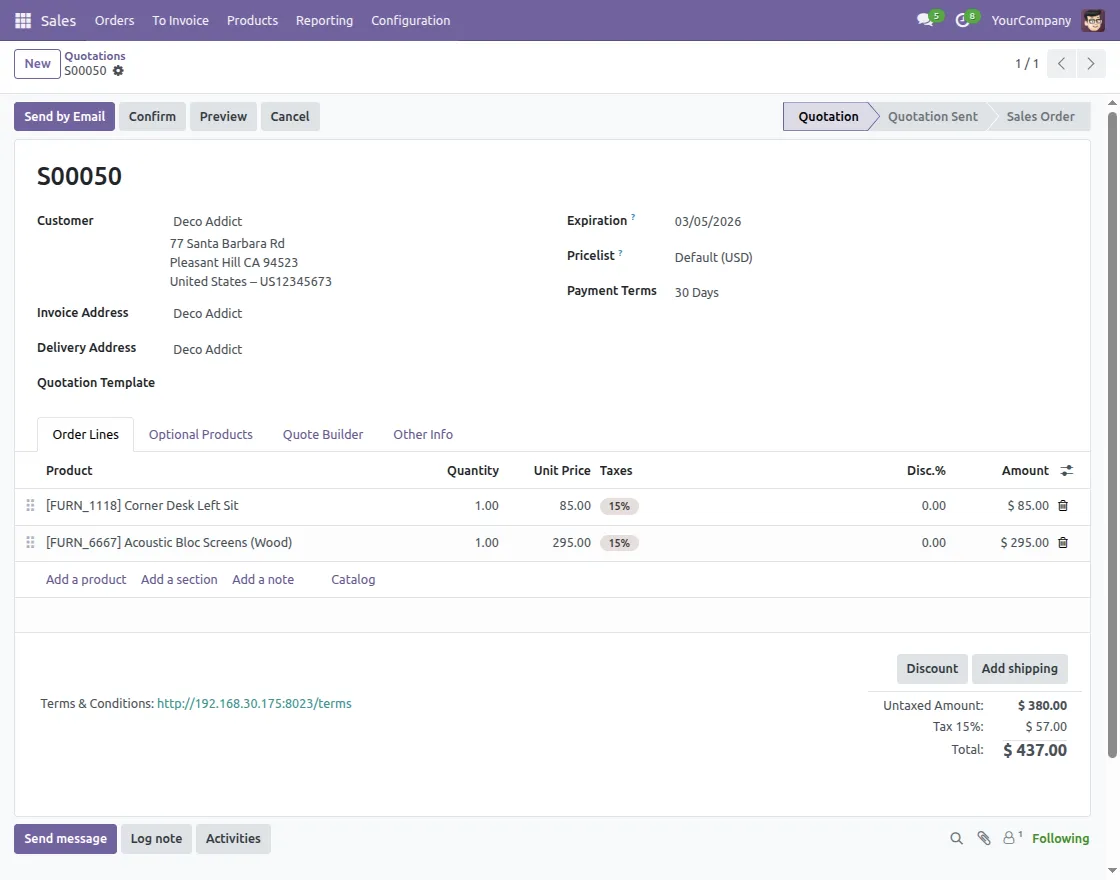
1. Start by creating a new Sales Order from the Sales module. Additionally, the customer selects the required products. Enter quantities and prices as usual.
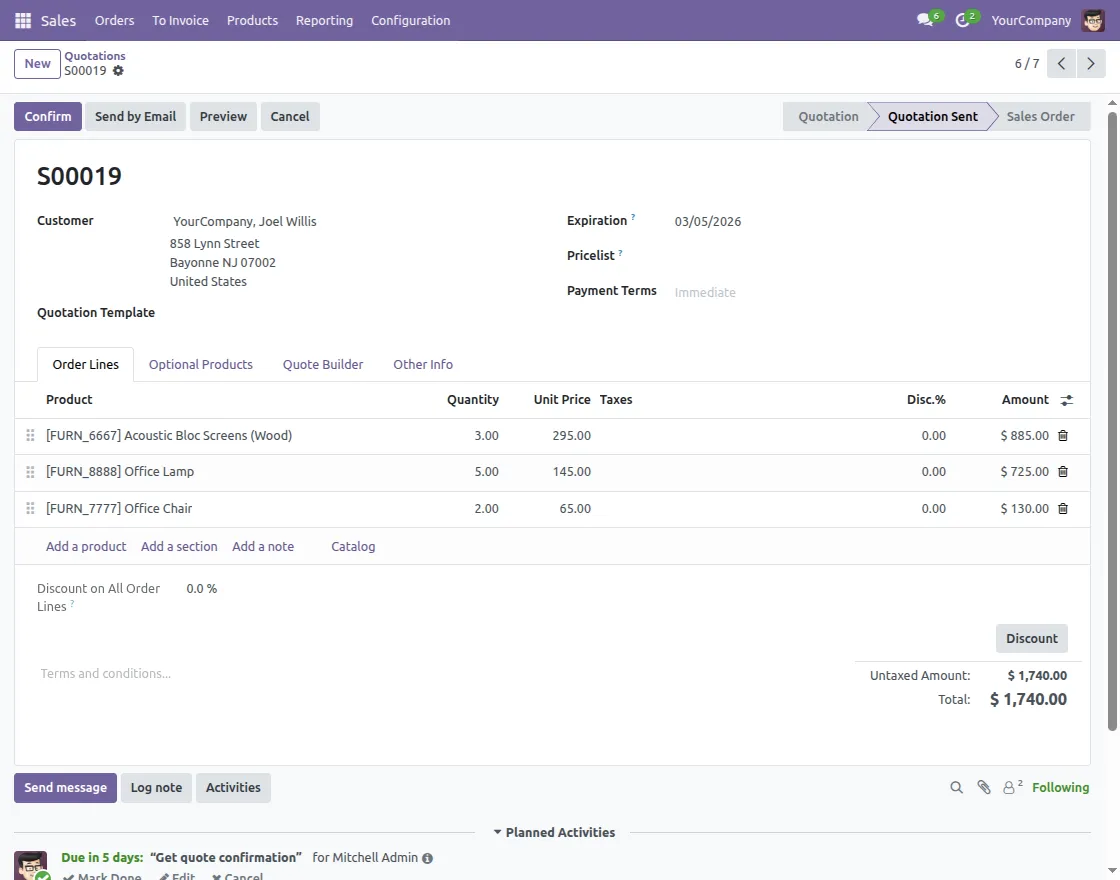
2. Furthermore, open the Discount Wizard on the sales order. Additionally, this wizard is used to apply all types of discounts supported by the module.
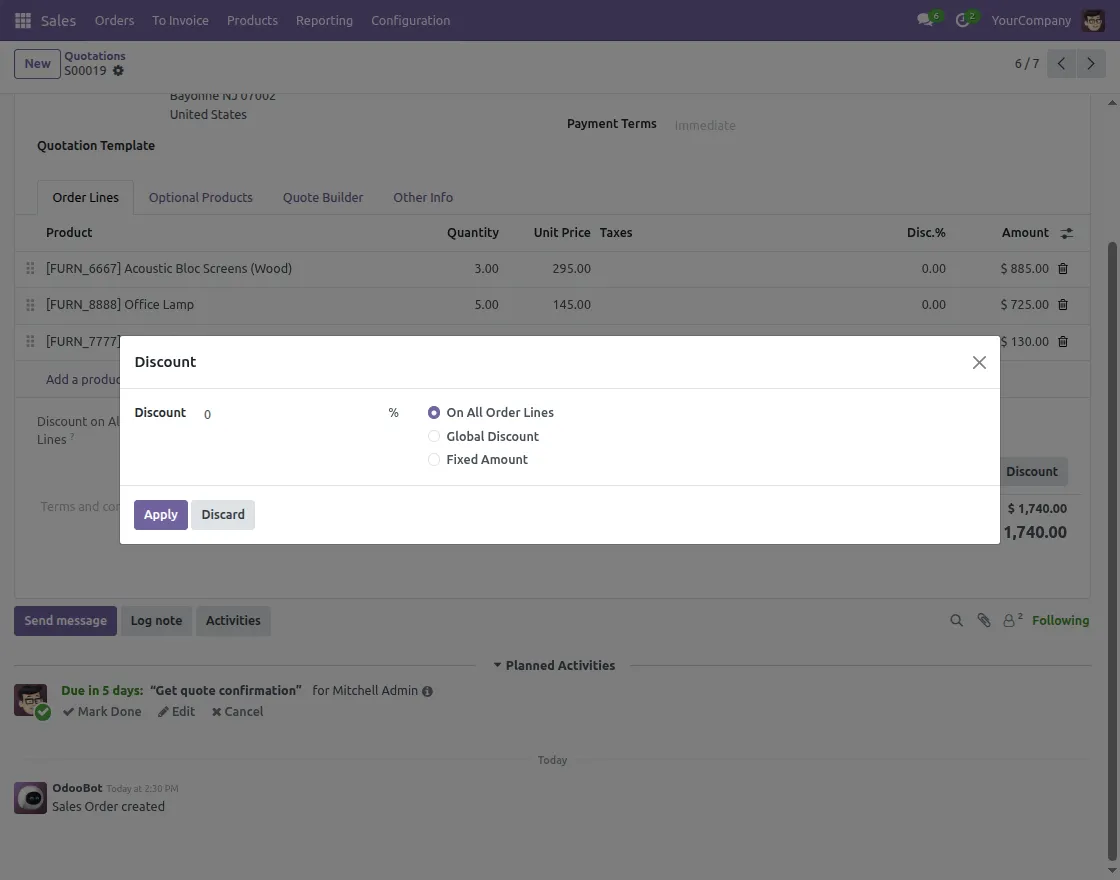
3. Additionally, from the wizard, select the type of discount you wish to apply:
- Order Line Discount – applies discounts directly to individual order lines
- Global Percentage Discount – applies a percentage discount on the entire order
- Fixed Amount Discount – applies a fixed discount amount across all order lines
Enter the discount value and click to Apply.
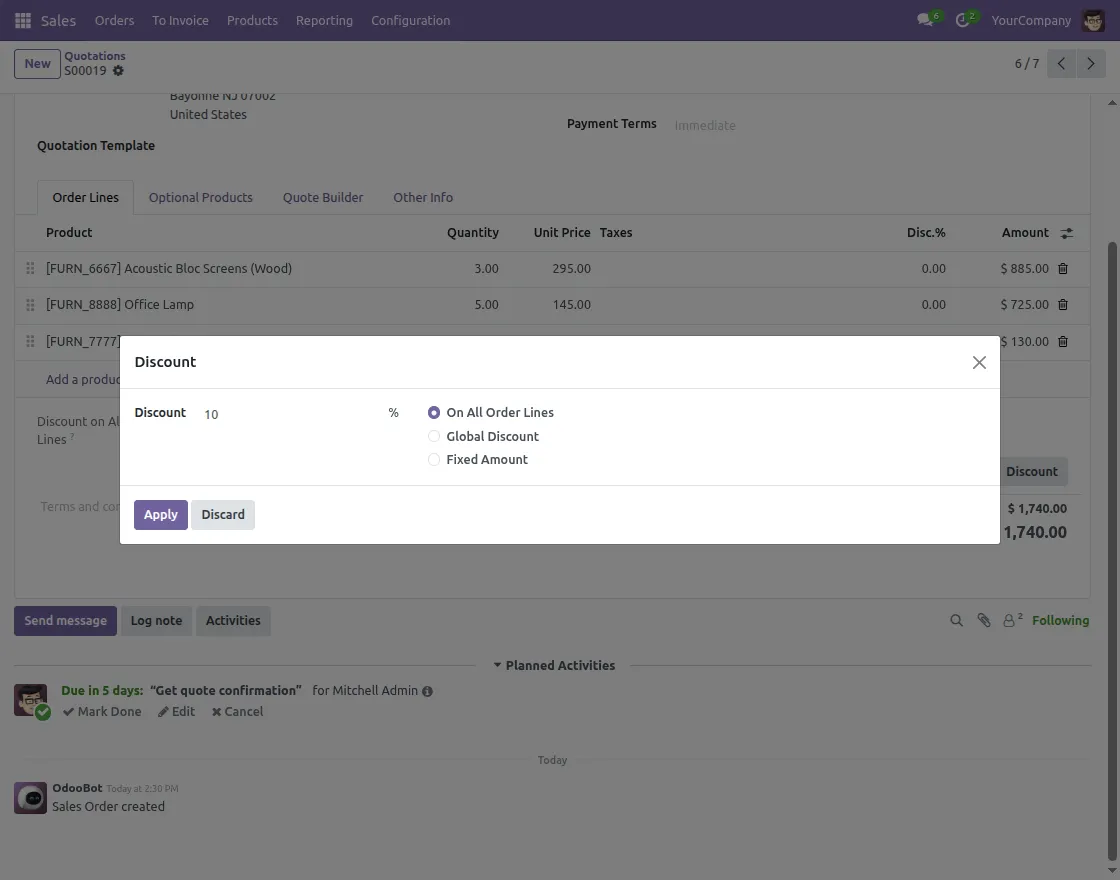
4. Once the order is applied, the order totals are recalculated instantly, and the discounts appear on the relevant sales order lines.
The discount summary section is updated automatically, and the line for global and fixed discounts is displayed separately.
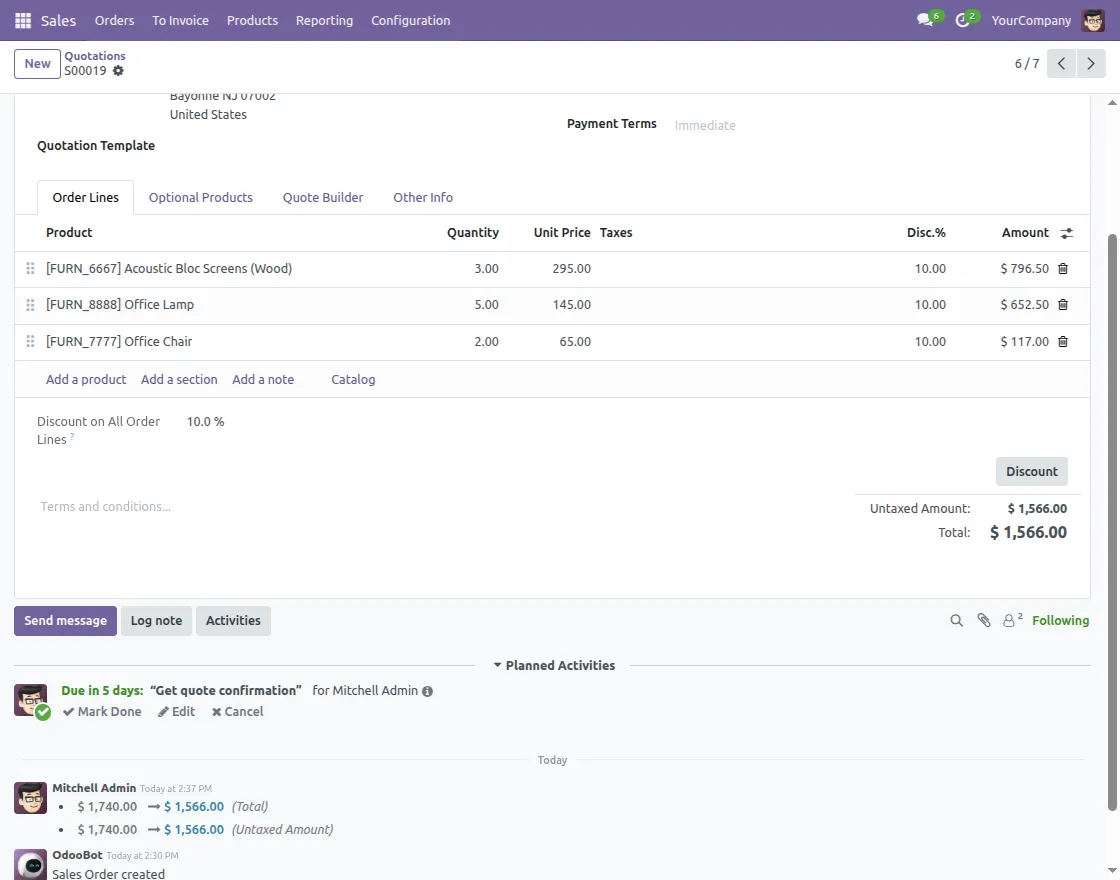
The discount summary is shown above the internal notes for quick review.
5. The Advance Discount Tracking module allows you to update discounts at any stage before confirming the sales order.
All updates are managed through the Discount Wizard, and the discount summary is recalculated automatically after every change.
5.1 Open the Sales Order that needs the update and click the Discount button.
Select Sales Order Line Discount, enter the updated discount value, and confirm. Thus, the system automatically updates the discount on the applicable sales order lines.
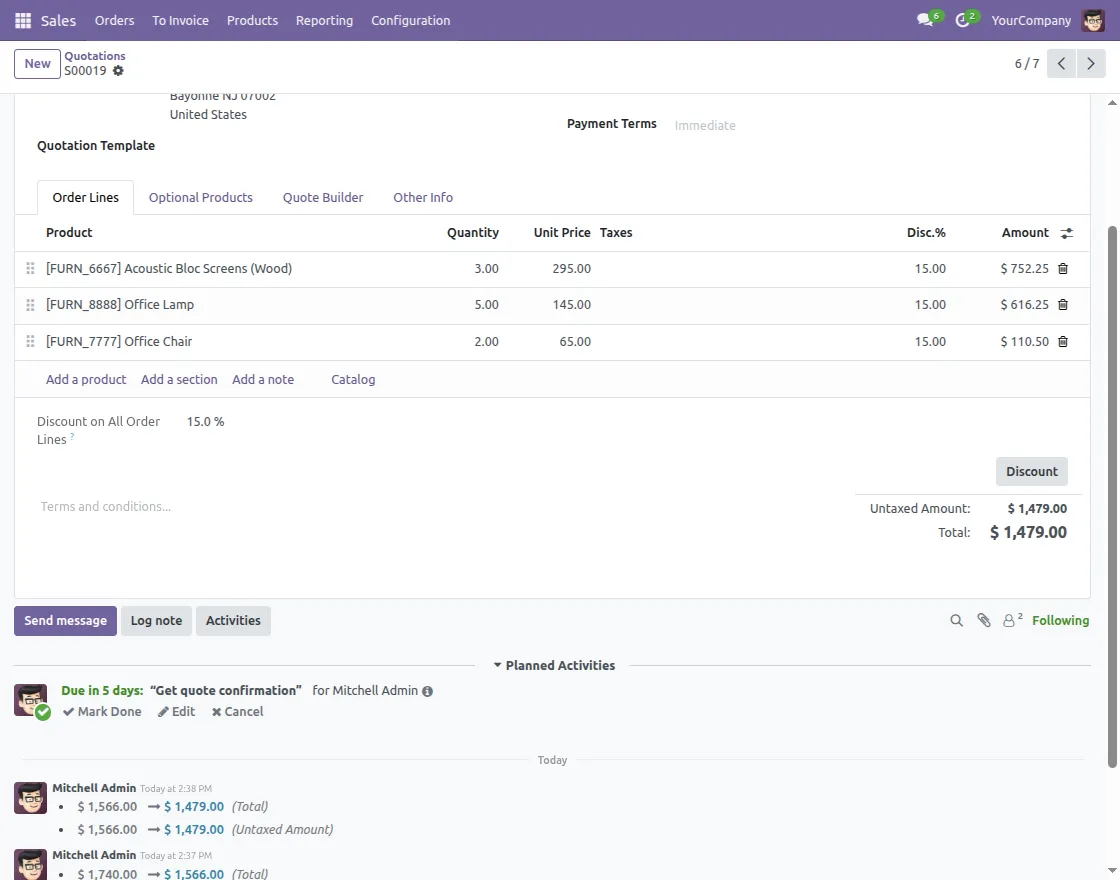
The system automatically applies the updated discount to all relevant sales order lines and instantly recalculates the line-level discount values.
The discount summary section updates in real time to reflect the changes.
5.2 In contrast, Odoo Core automatically creates a separate sales order line to represent the global discount when you apply a global discount.
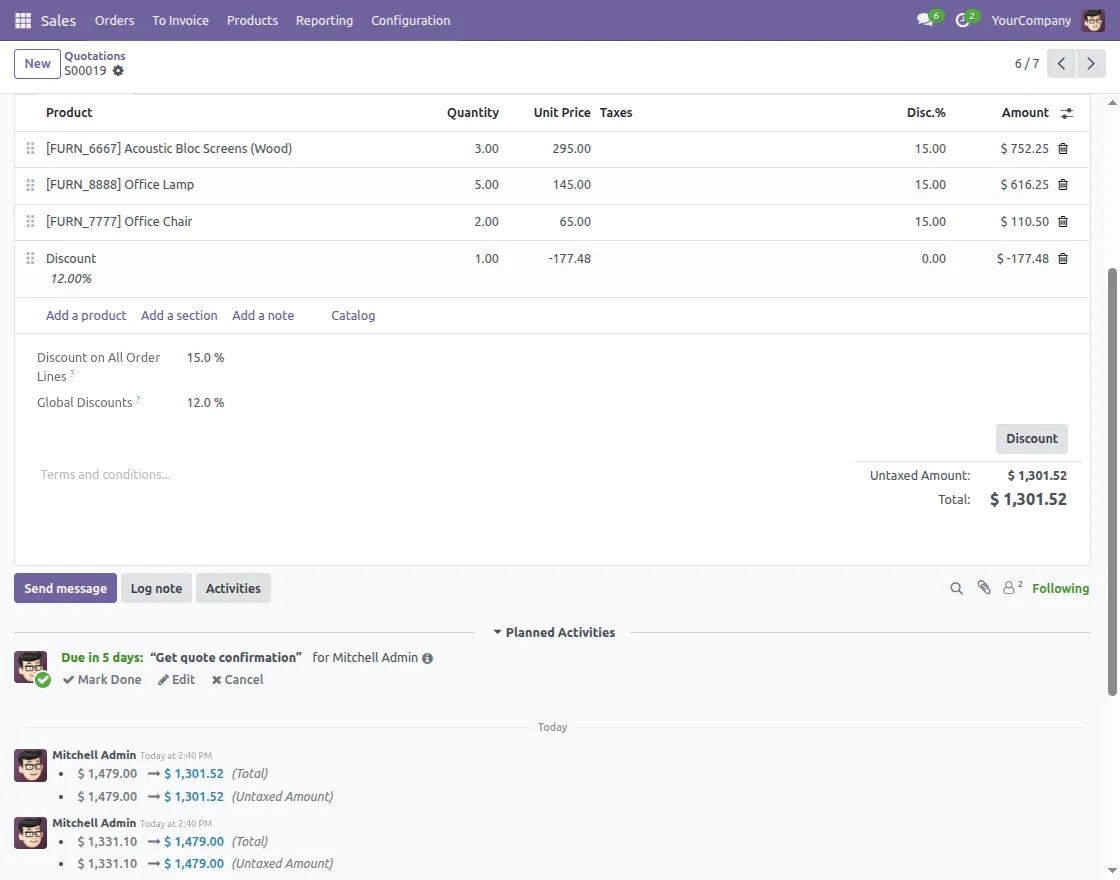
Note: The system automatically creates a separate discount sales order line when you apply a global discount, representing the applied amount.
If you want to change or update the Global Discount Percentage, then first delete the already created global discount order line and then apply the discount percentage correctly.
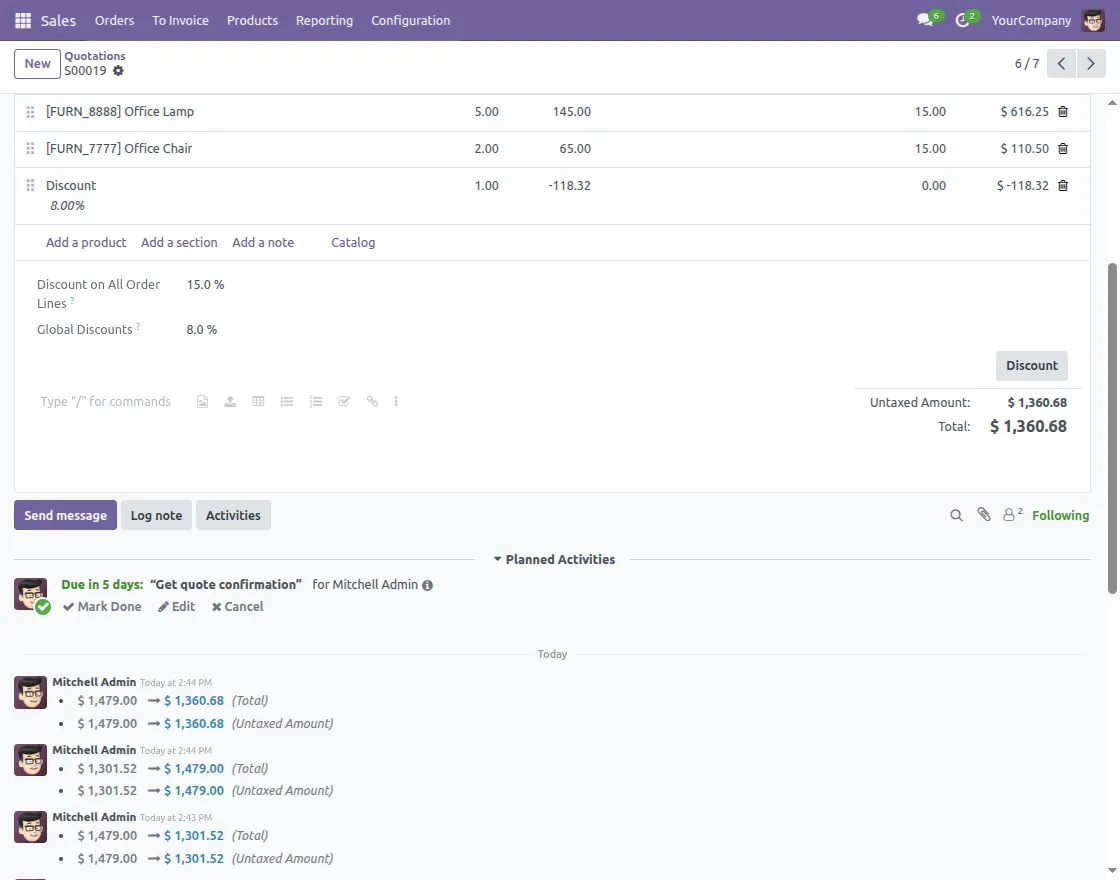
5.3 However, to apply a fixed amount discount, open the Discount Wizard, select Fixed Amount Discount, enter the required amount, and confirm.
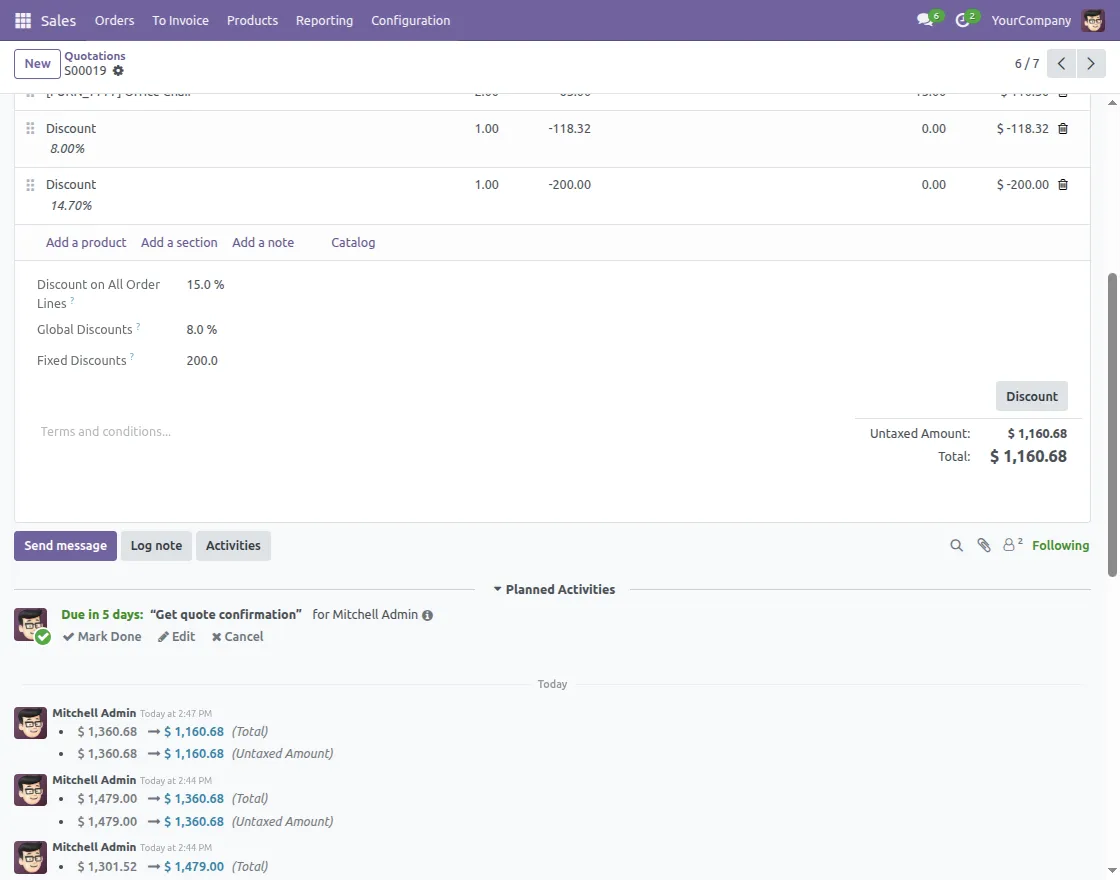
The discount is applied to the total sales order value, reflected as a discount line (sales order line), while the summary shows the exact fixed amount.
Note
- The system automatically creates a separate discount sales order line to represent the applied fixed discount when you apply a fixed discount, similar to a global discount line.
- On sales order lines for Fixed discount, the discount may appear as a calculated percentage. The system clearly displays the exact fixed amount you enter in the discount summary section.
However, if you want to update a fixed amount discount, you can add another fixed amount discount using the Discount Wizard.
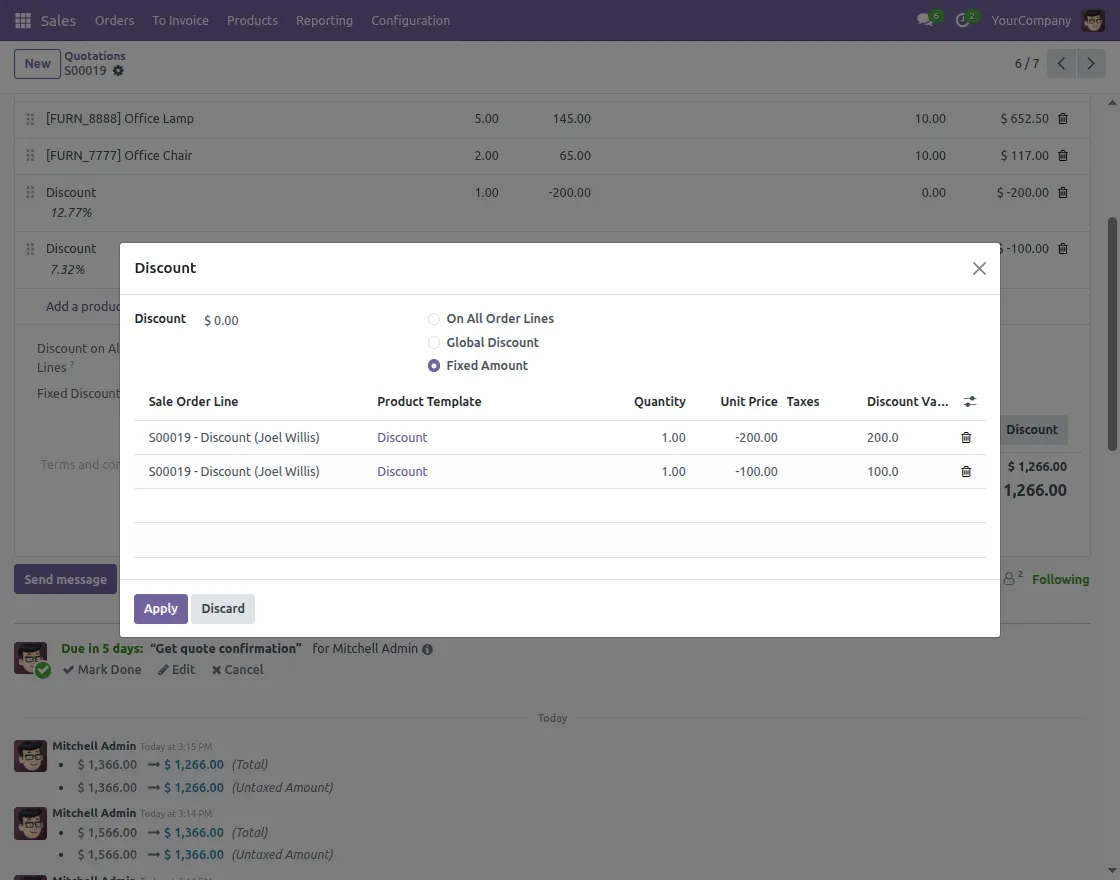
However, the system automatically creates a new, separate fixed-discount sales order line for the updated value and calculates and displays the total fixed discount amount in the summary.
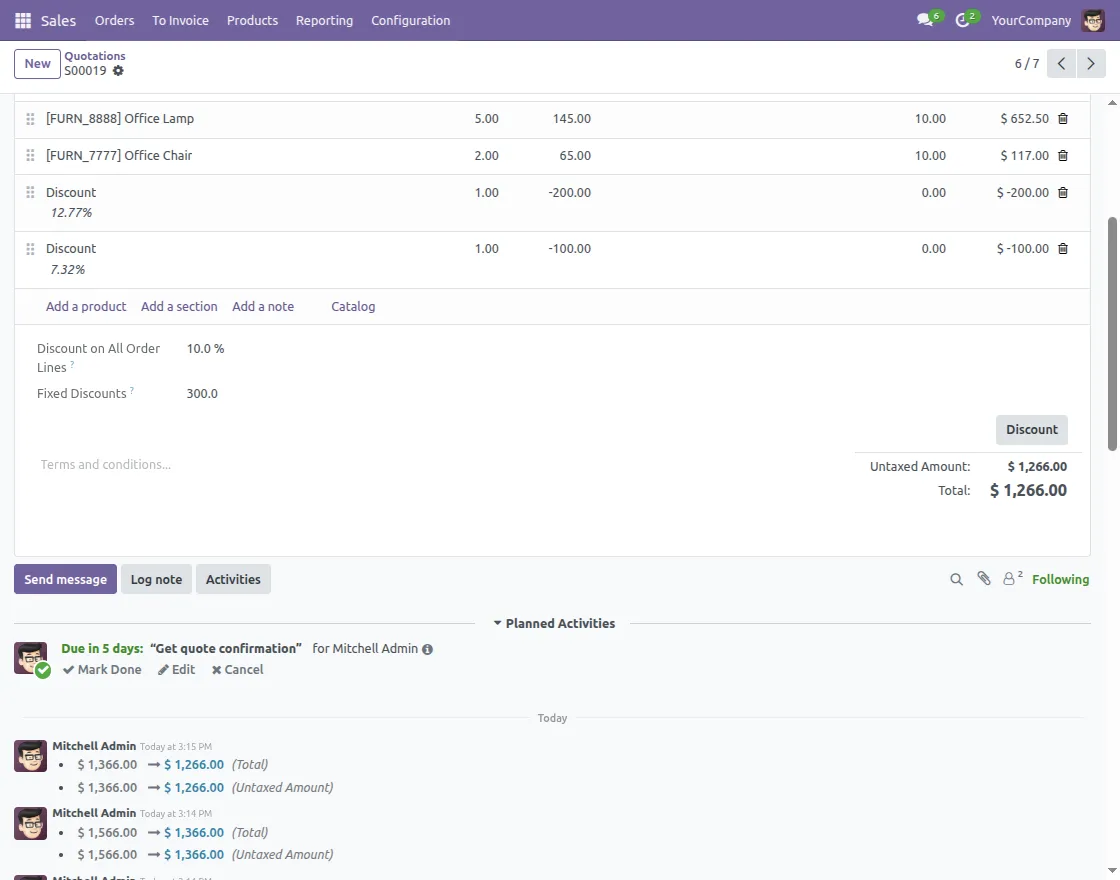
Yet to avoid any confusion, we recommend first deleting the existing discount sales order line and then applying a new fixed amount discount using the discount wizard.
6. After verifying all discounts and totals, confirm the sales order. Similarly, the applied discount structure remains preserved.
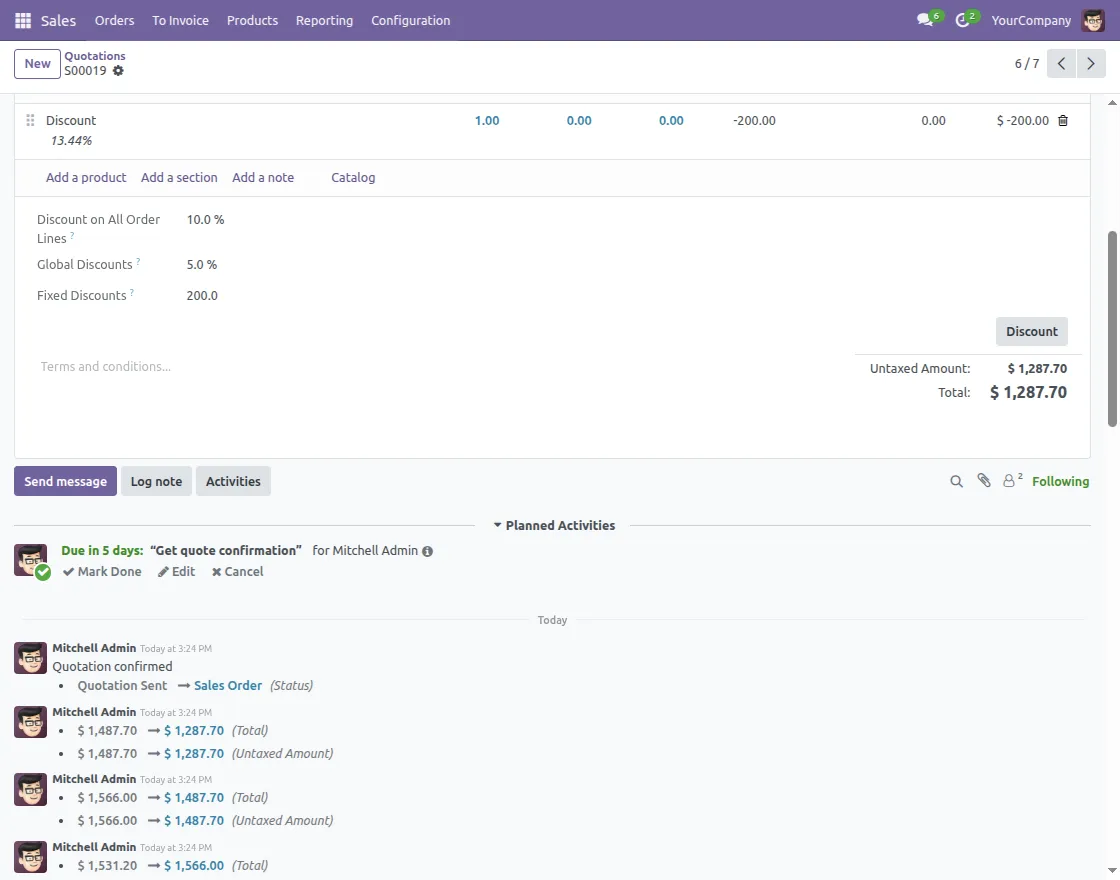
7. Additionally, generate an invoice from the confirmed sales order. The system automatically copies the discount summary to the invoice.
Thus, any invoice-level changes do not affect the original sales order.
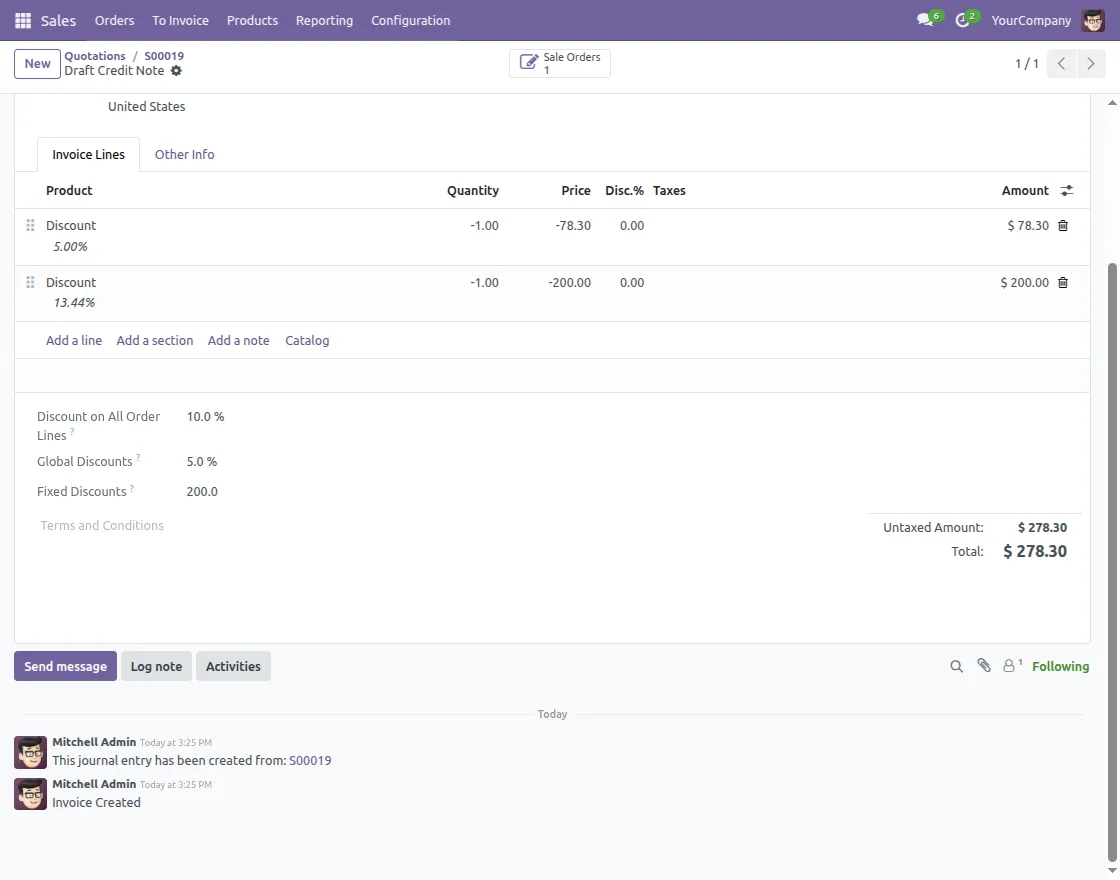
8. Moreover, on the invoice form, you can check the following:
- Share accurate discount details with the customer
- View the same structured discount summary
- Clearly see line discounts, global discounts, and fixed discounts
Conclusion:
In conclusion, with Advance Discount Tracking, users get:
- A clear visibility of all discount types to manage the discounts and invoices.
- Accurate accounting records so that no data is mismatched.
- Consistent discount tracking across sales orders and invoices.
Need Help?
Hope you find guide helpful! Please feel free to share your feedback in the comments below.
If you still have any issues/queries, please create a ticket at the UV Desk.
I hope this helps. In case of any further queries, contact us at our email support mail.
Thanks for paying attention!!
Current Product Version - 1.0.0
Supported Framework Version - Odoo V19, V18, V17


Be the first to comment.