Magento 2 Unit of Measurement (UOM) module allows store owners to sell products using different measurement units. These units include kilograms, grams, liters, meters, and more.
This feature is helpful for stores that sell products based on measurement instead of fixed pieces.
For example, grocery stores, hardware stores, and wholesale businesses often sell products by weight, length, or volume.
Moreover, the UOM Extension calculates prices automatically based on the selected unit.
It also tracks inventory using base units. As a result, store owners can manage stock more accurately.
Features of Magento 2 Unit of Measurement (UOM) Module
- Sell products in multiple units (grams, kg, liters, meters, etc.)
- Dynamic price calculation based on selected unit
- Automatic inventory tracking in base units
- REST and GraphQL API support
- Easy UOM selector dropdown on product pages
- Stock log for inventory auditing
- Cart and checkout show selected units
Installation
Firstly, customers get a zip folder. Then they have to extract the contents of this zip folder on their system.
The extracted folder has a src folder, inside the src folder, you have the app folder.
The extracted folder is having an src folder, inside the src folder you have the app folder.
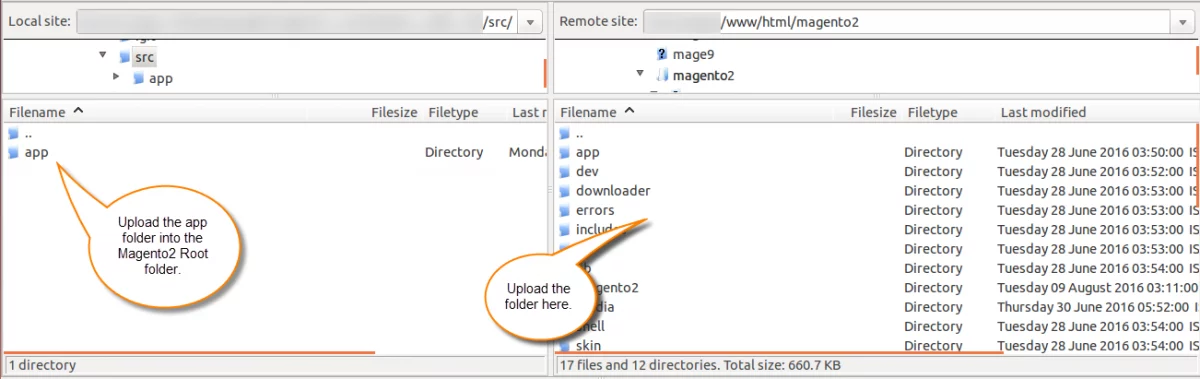
After that, you have to run these commands in the Magento2 root directory.
php bin/magento setup:upgrade
php bin/magento setup:di:compile
php bin/magento setup:static-content:deploy
php bin/magento indexer:reindex
php bin/magento cache:flush
Multi-Lingual Configuration of Adobe Commerce
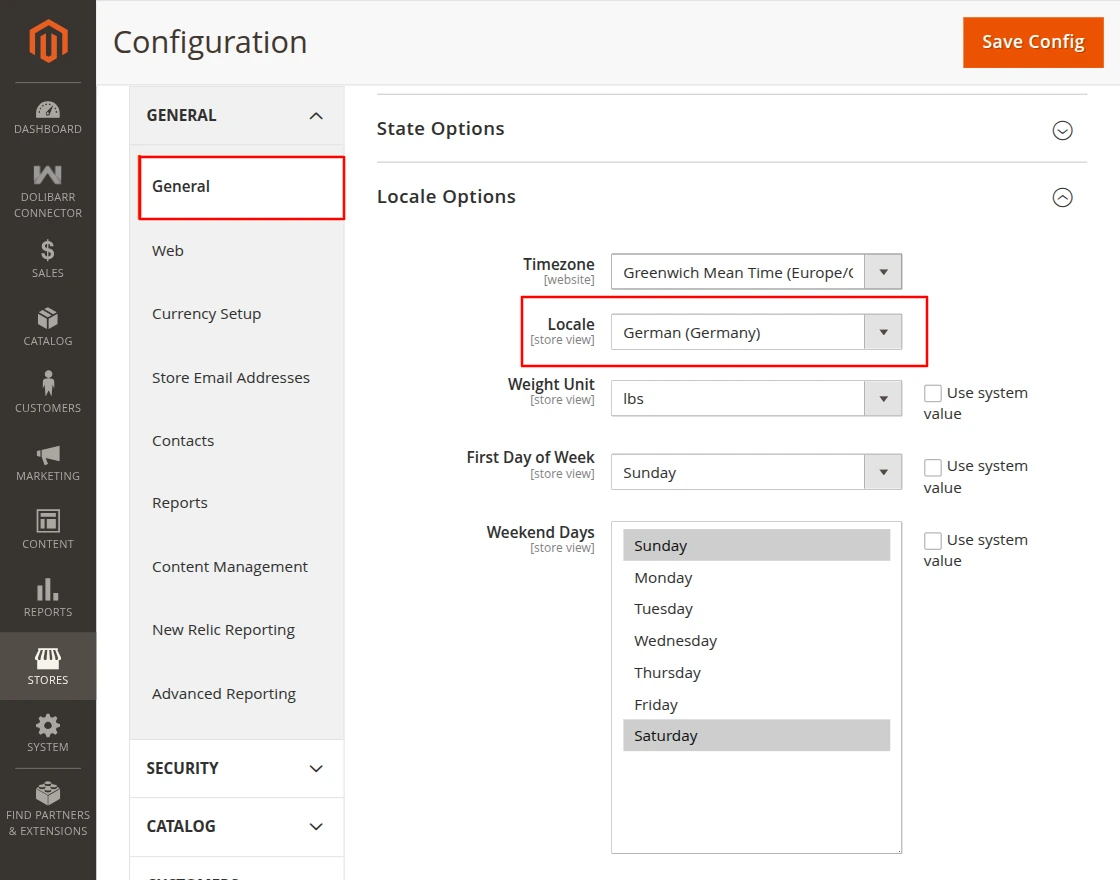
For Multilingual support, please navigate to Store>Configuration>General >Locale Options. And select your desired language from the Locale option.
Language Translation
For translating the module language, navigate through the app/code/Webkul/Uom/i18n and edit the en_US.csv file.
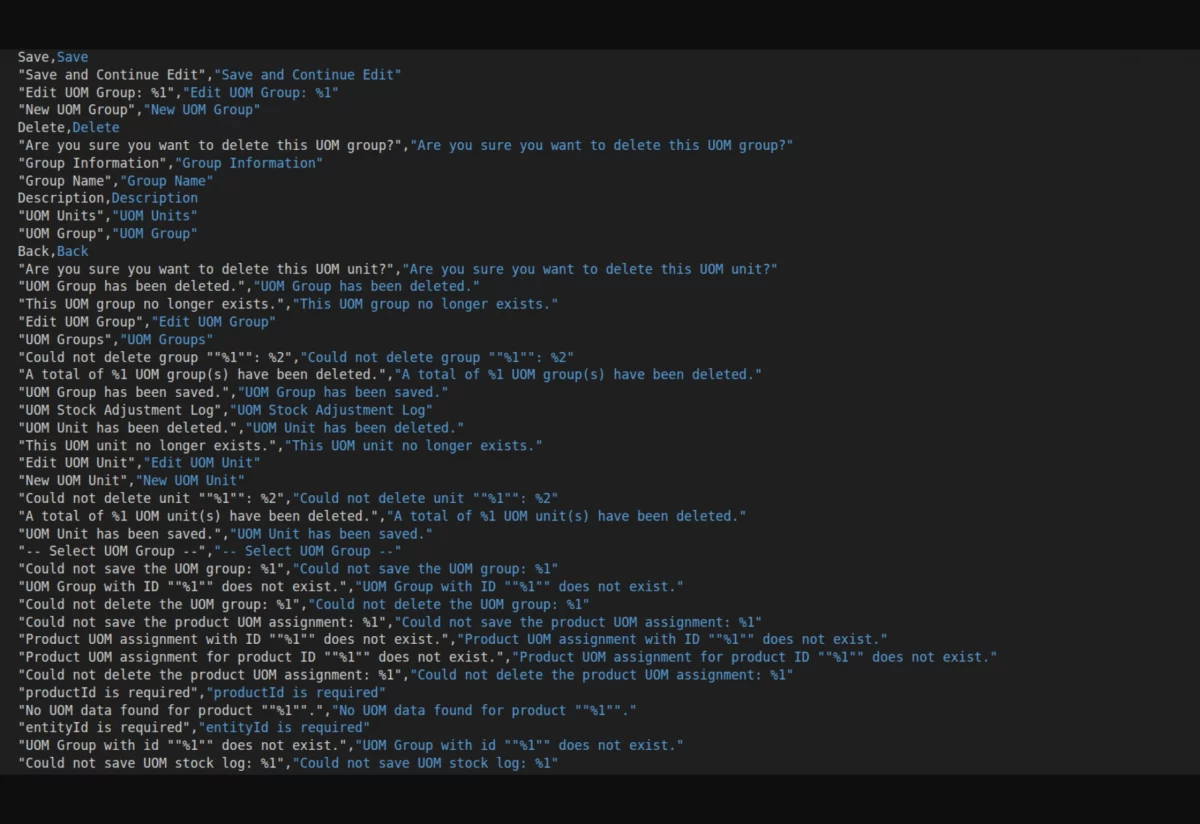
Thereafter, rename the CSV as “en_SA.csv” and translate all right side content after the comma in the Arabic language. After editing the CSV, save it.
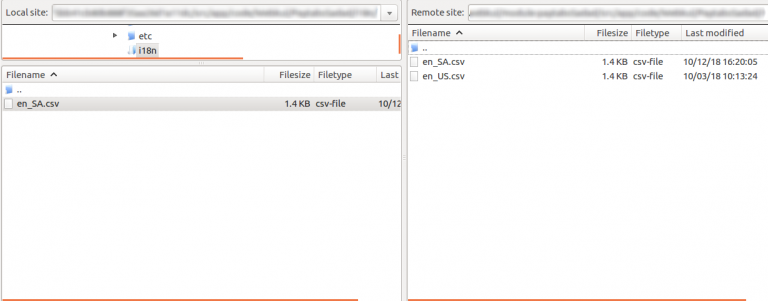
Now, upload it to the path app/code/Uom/i18n, where the installation of Magento 2 is on the server.
Magento 2 Unit Conversion Extension will be translated into the Arabic Language. It supports both RTL and LTR languages.
The user can edit the CSV like the image below.
Engage and hire Magento developers to solely concentrate on your personalized e-commerce projects for a unique experience.
Admin Configuration of Magento 2 Unit of Measurement (UOM) Module
To manage measurement units Go to Admin Panel -> UOM Management -> UOM Groups
On this page, you will see a grid listing all existing UOM groups created in the system.
The following information is displayed in the grid:
- Group ID – Unique identifier of the UOM group.
- Group Name – Name of the measurement group.
- Status – Shows whether the group is enabled or disabled.
- Created Date – Date when the group was created.
- Actions – Options to edit or manage the group.
This page helps administrators manage different measurement categories such as weight, length, or volume.
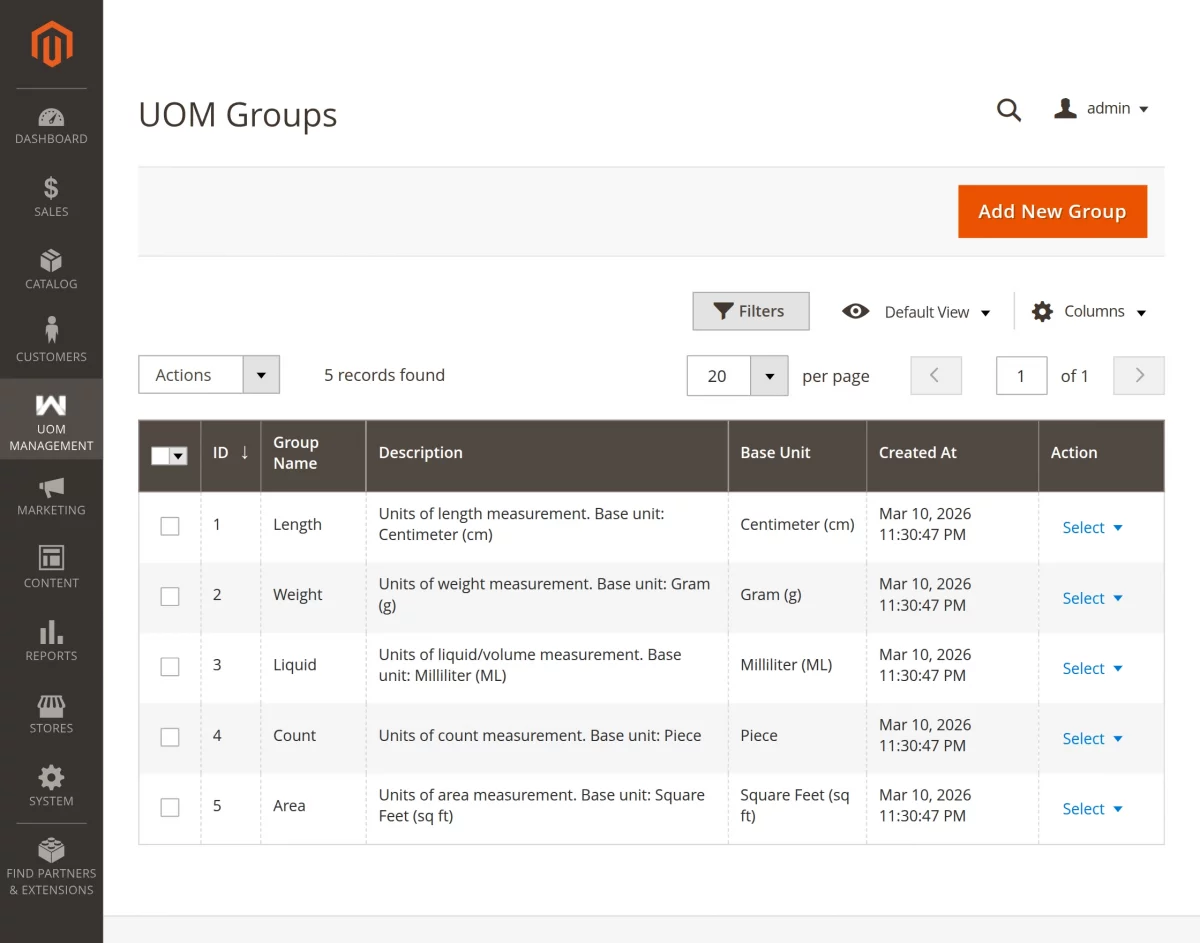
To create a new measurement group, Click the Add New Group button.
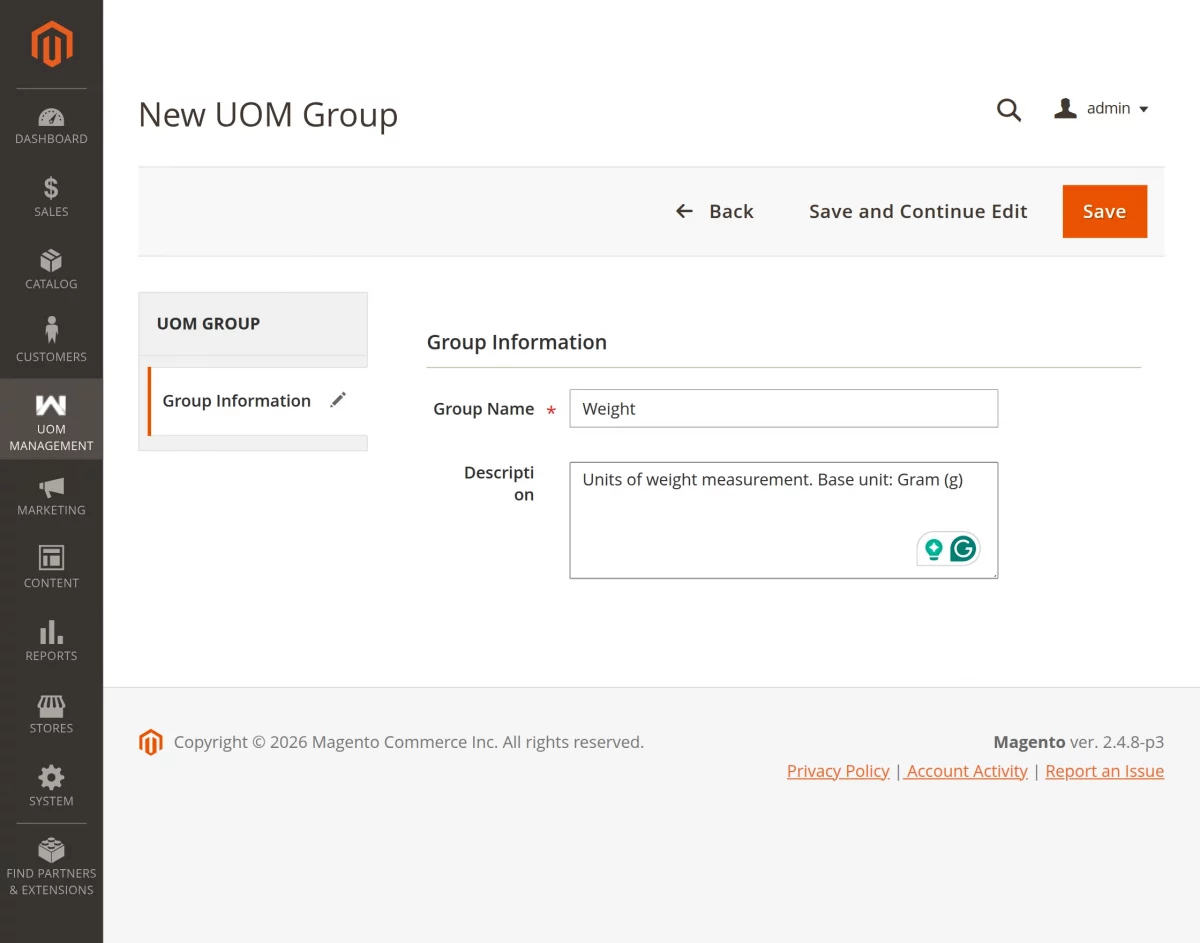
Required Data for Creating a Group.
Group Name: Enter the name of the measurement group (e.g., Weight, Length, Volume).
Description: Add a short description for better understanding.
Click Save to create the group.
To edit an existing group:
- Go to UOM Management → UOM Groups.
- Select the group you want to edit.
- Click Edit.
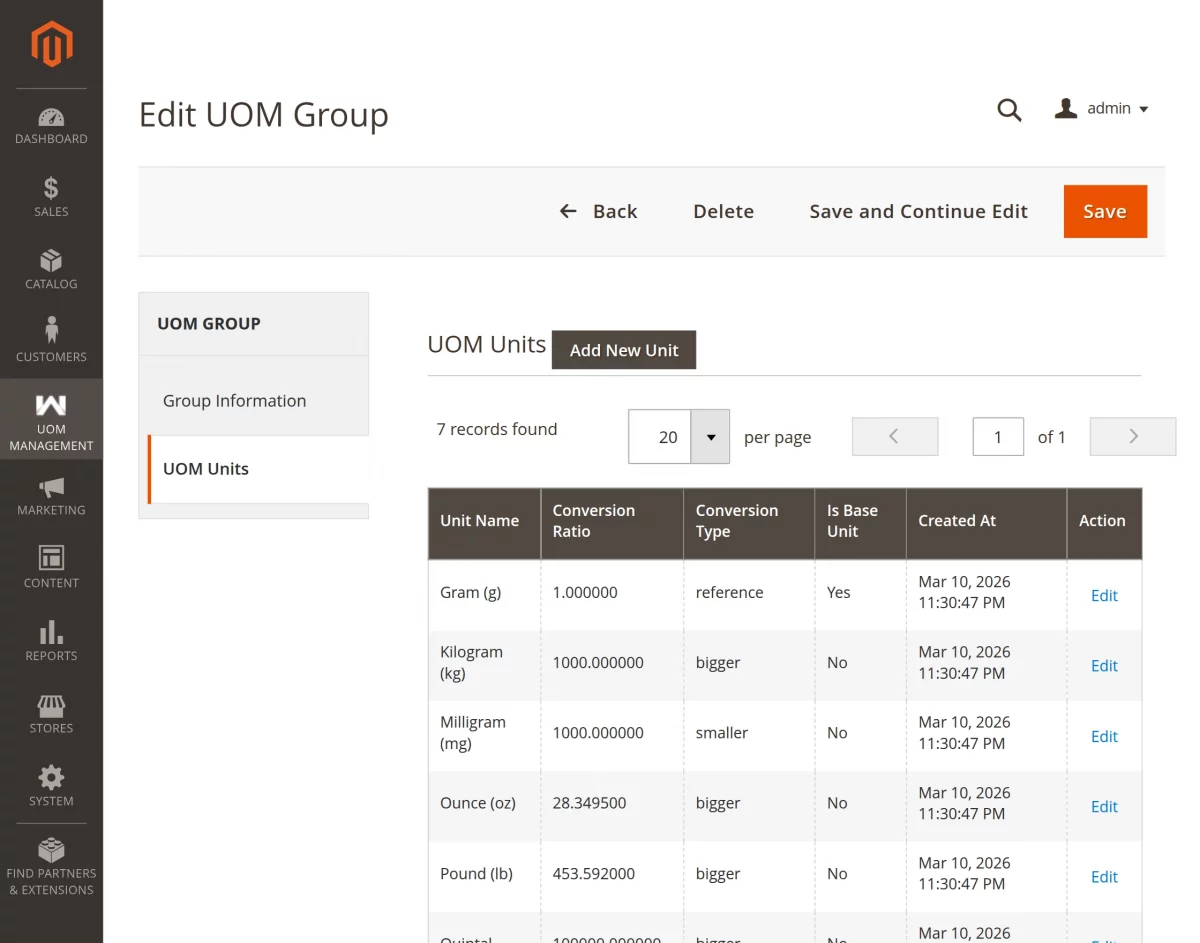
After creating a group, the next step is to add measurement units.
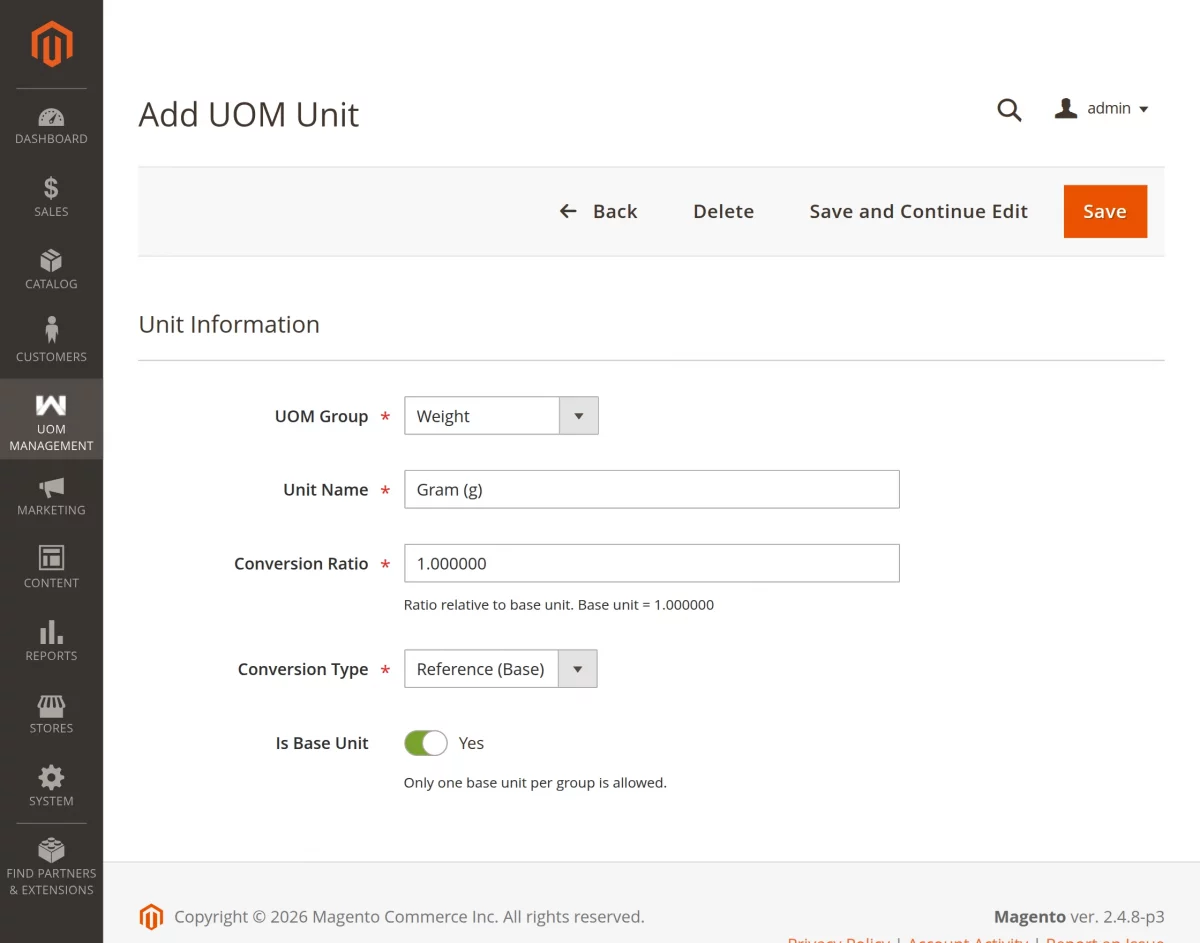
Go to Admin Panel -> UOM Management -> UOM Units
This page displays all available measurement units.
To create a new unit, click the Add New Unit button.
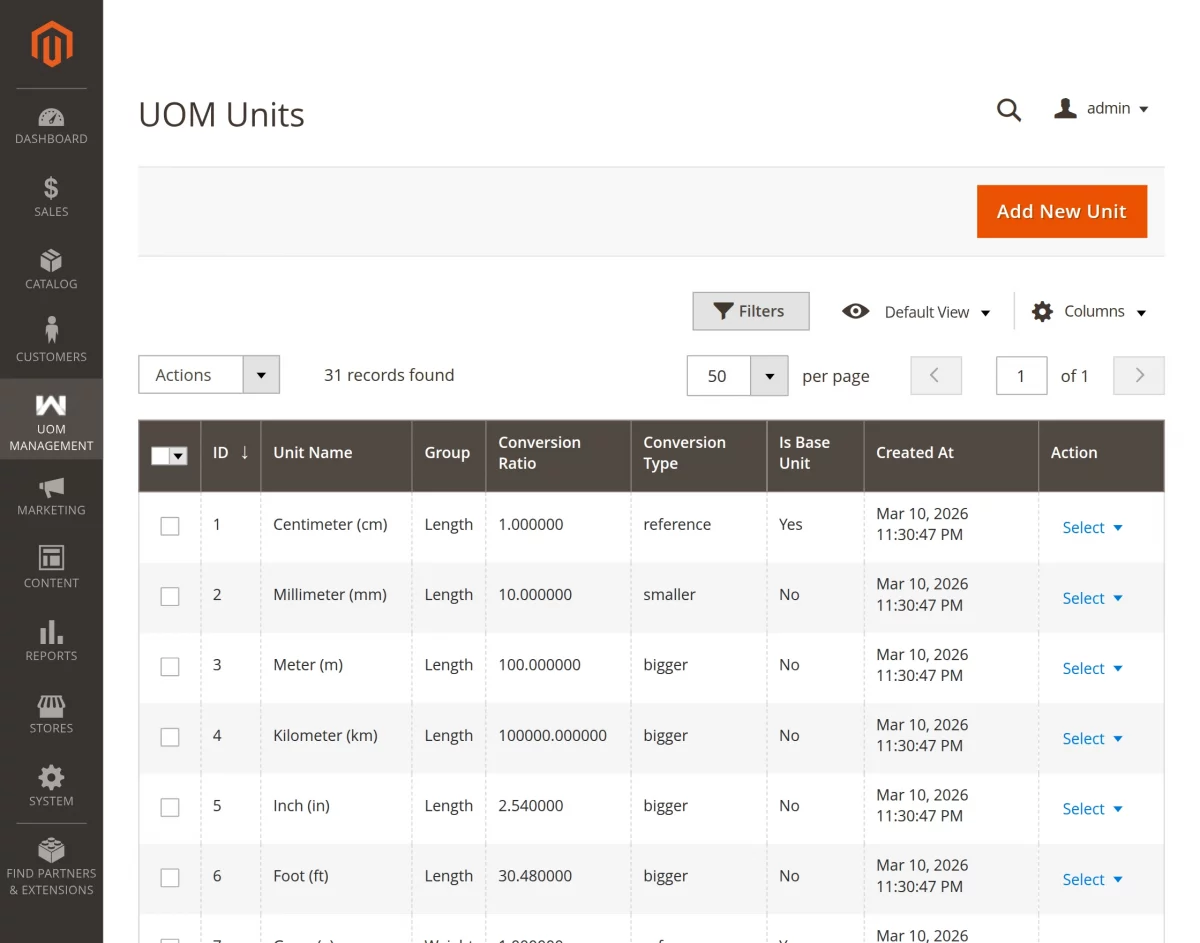
Enter the required information.
- UOM Group -> Select which measurement category (Weight/Volume/Length) this new unit belongs to.
- Unit Name -> Enter the name of the unit you want to add (e.g., “Kilogram”, “Liter”).
- Conversion Ratio -> Specifies how many base units equal one of this unit (e.g., 1000g = 1kg).
- Conversion Type -> Determines the calculation method: multiply or divide base price by the conversion ratio.
- Is Base Unit -> Marks the primary reference unit in a group; all inventory tracks in base units.
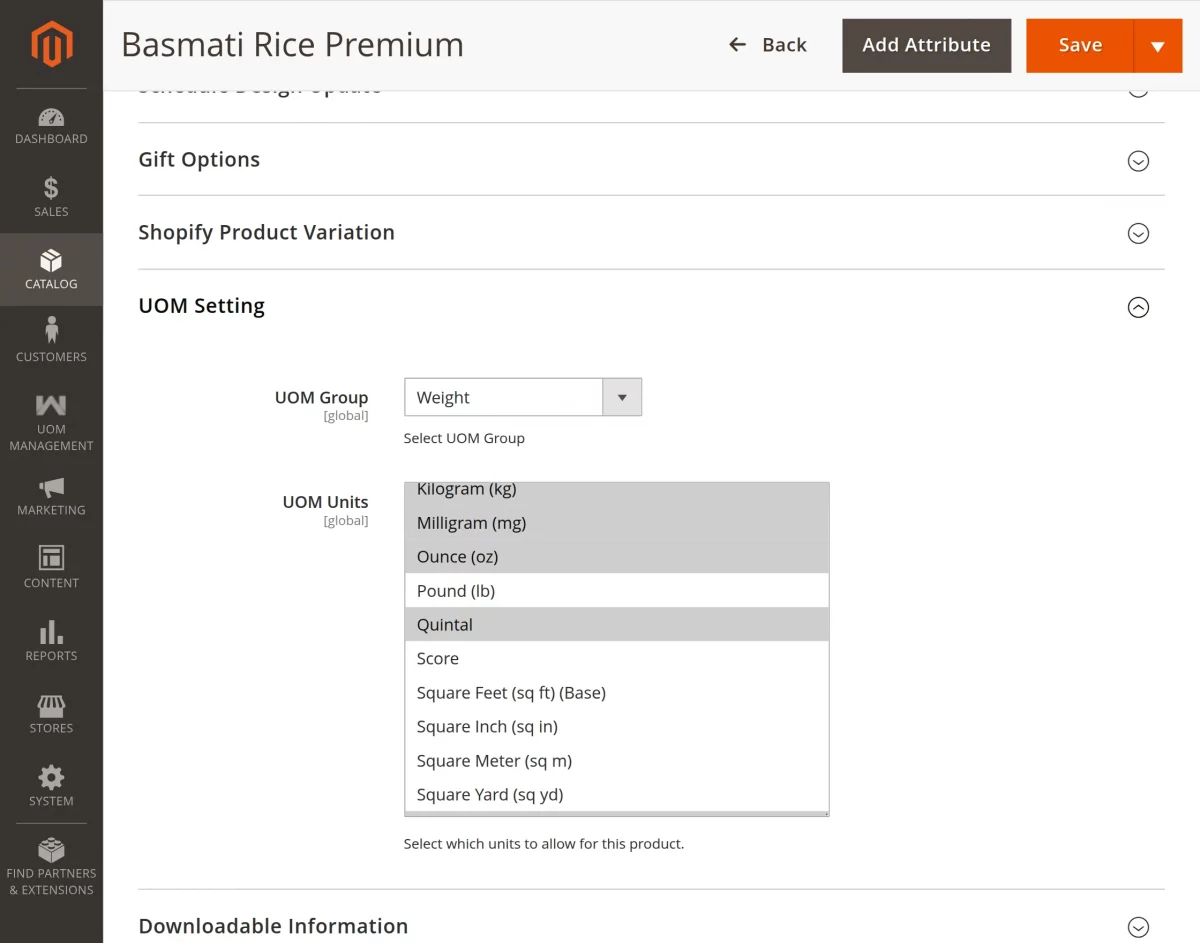
To assign measurement units to a product, go to Catalog → Products.
Edit an existing product or create a new one, Scroll to the UOM Settings section.
You will find the following fields:
- UOM Group -> Select the measurement group.
- UOM Units -> Select the units that customers can use when purchasing the product.
Save the product. Now the product will support quantity selection based on measurement units.
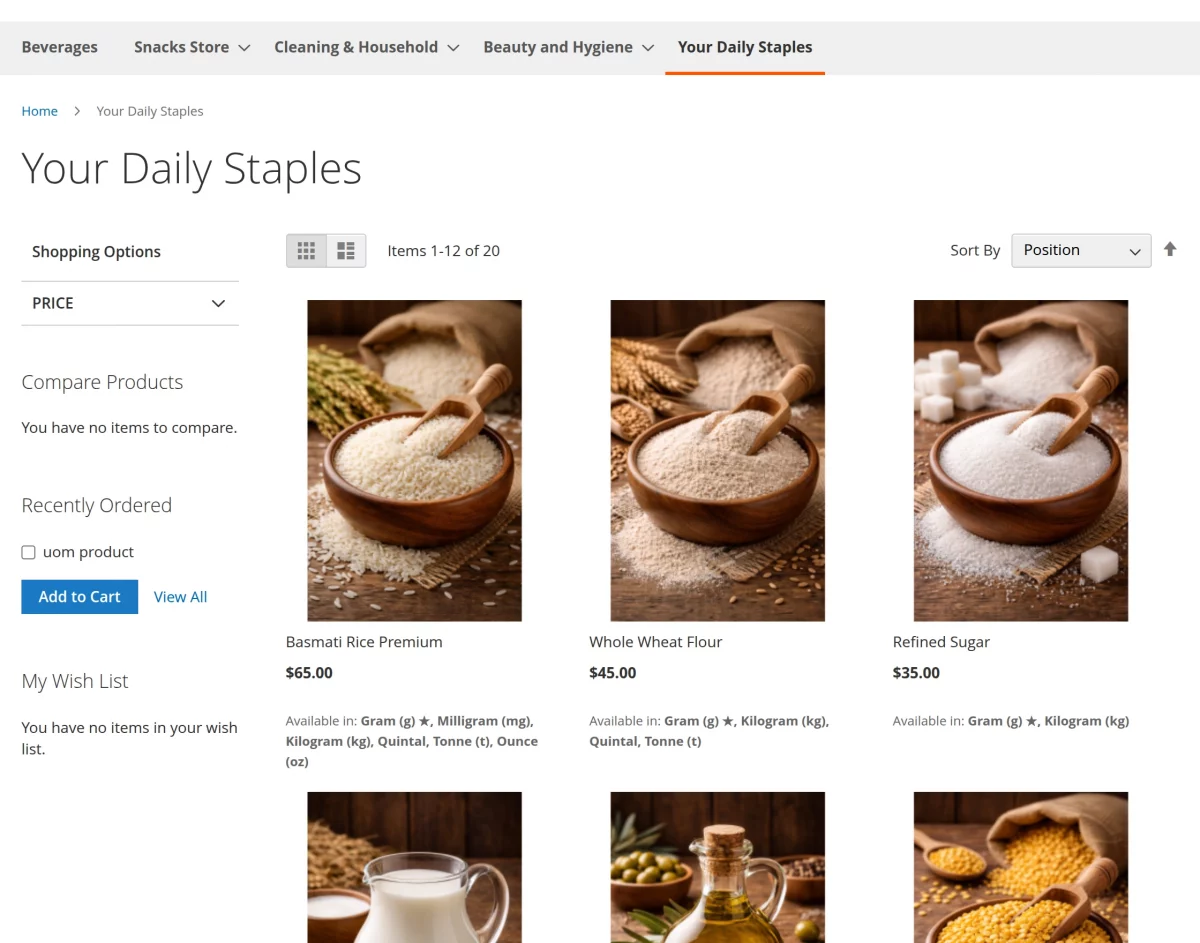
Frontend Catalog Page – UOM Display
On the catalog or category page, customers can see:
- Product image and price
- Measurement unit information
- Quantity options based on available units
This allows customers to understand the product measurement before opening the product page.
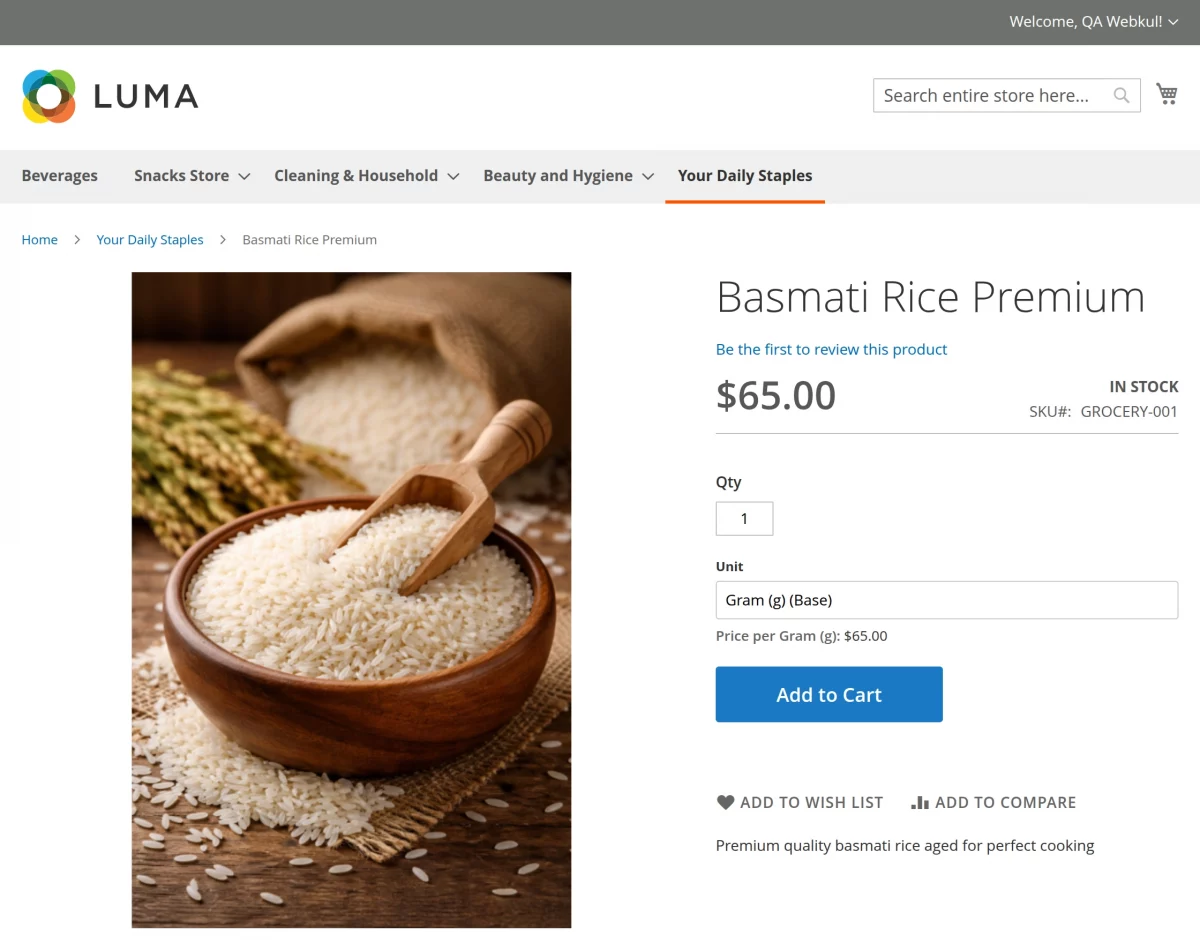
On the product detail page, the following UOM data appears:
- Selected measurement unit
- Unit options (example: kg, g)
- Quantity input based on measurement
- Price based on selected unit
Customers can choose the unit and quantity before adding the product to the cart.
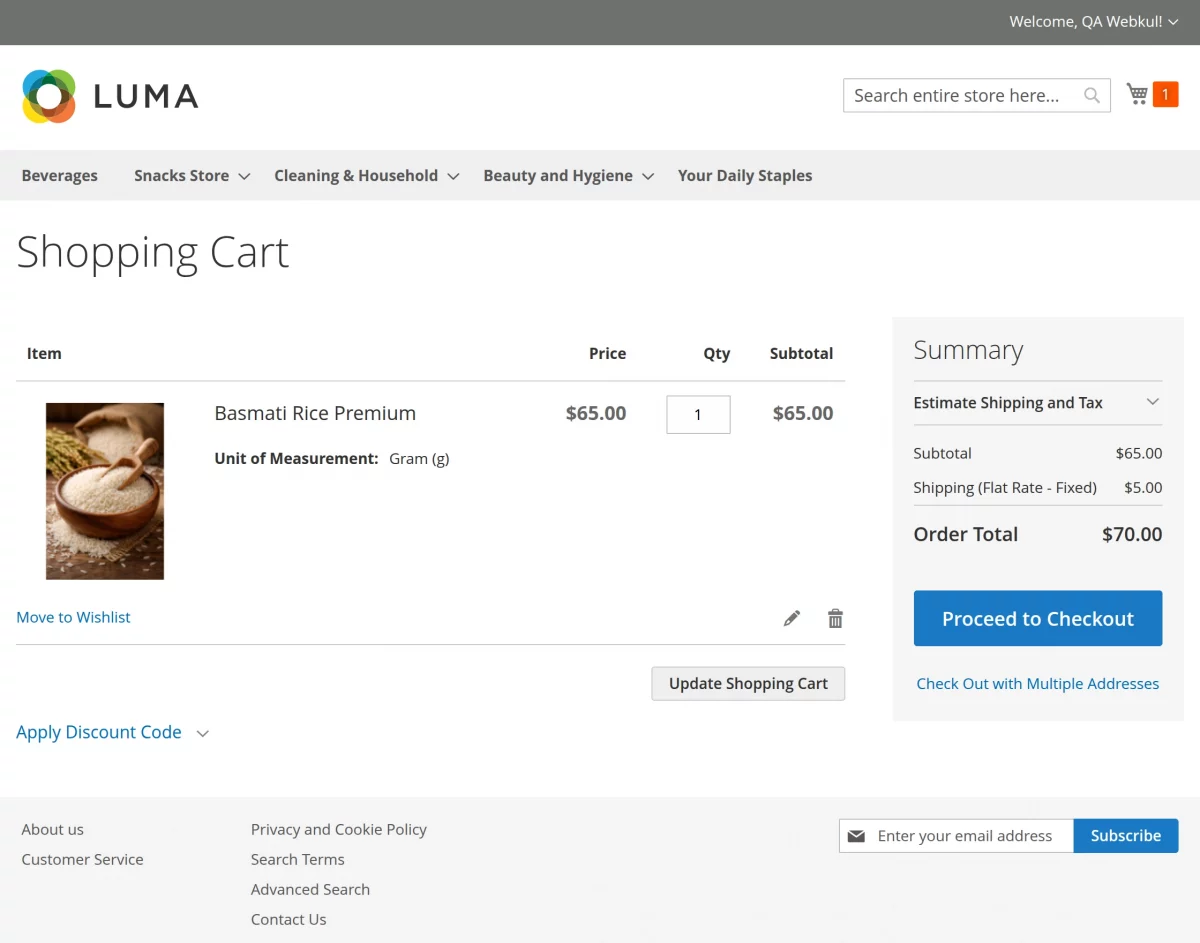
When the product is added to the cart, the following UOM information is displayed:
- Product name
- Selected measurement unit
- Quantity in the chosen unit
- Total price based on the measurement
This ensures customers clearly see the measurement they selected.
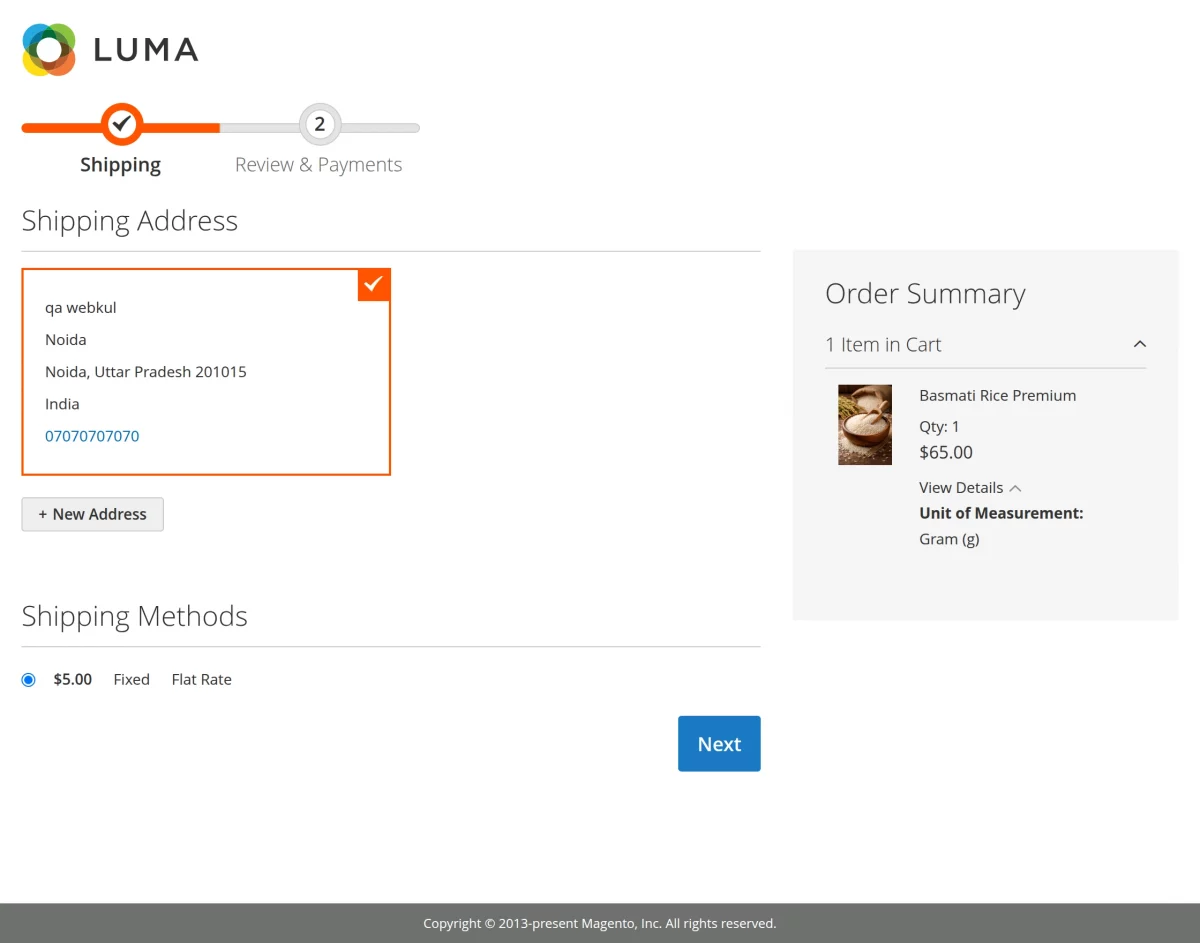
During checkout on the shipping page, the order summary includes:
- Product name
- Measurement unit
- Quantity selected
- Subtotal
This helps customers confirm the correct measurement before placing the order.
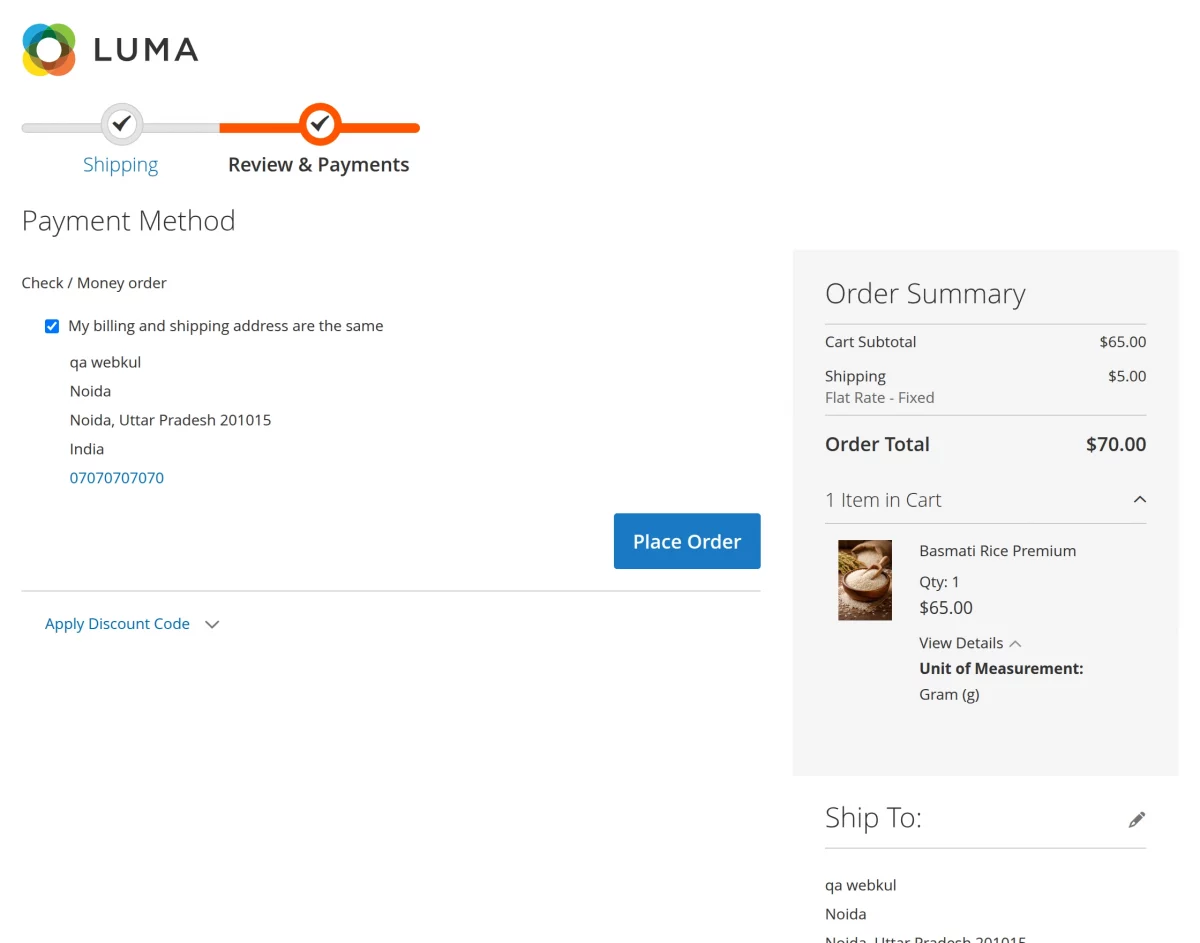
On the payment page, the order summary continues to display:
- Product measurement unit
- Selected quantity
- Final order amount
This ensures transparency during checkout.
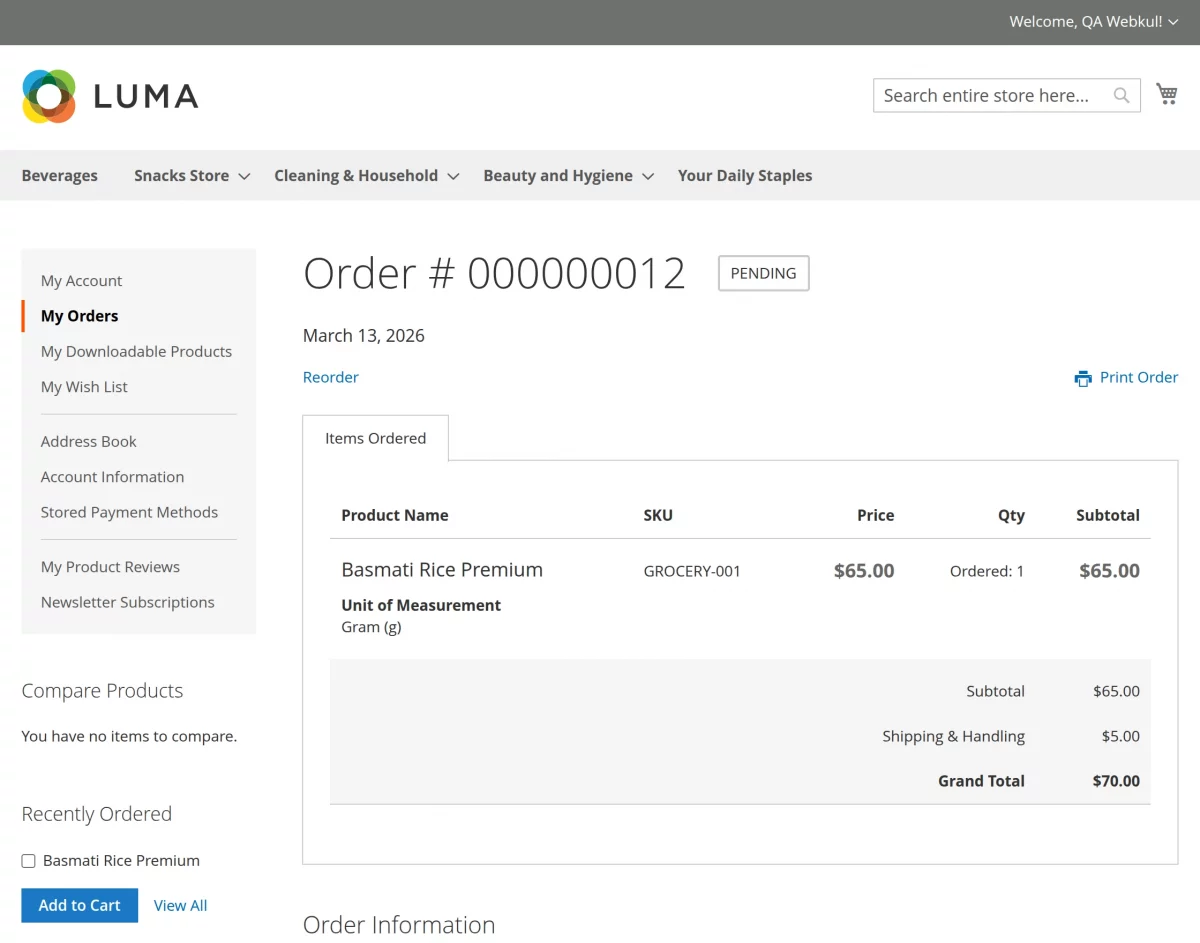
After the order is placed, the order success page displays:
- Product name
- Measurement unit
- Quantity purchased
- Total order amount
This confirms the order details to the customer.
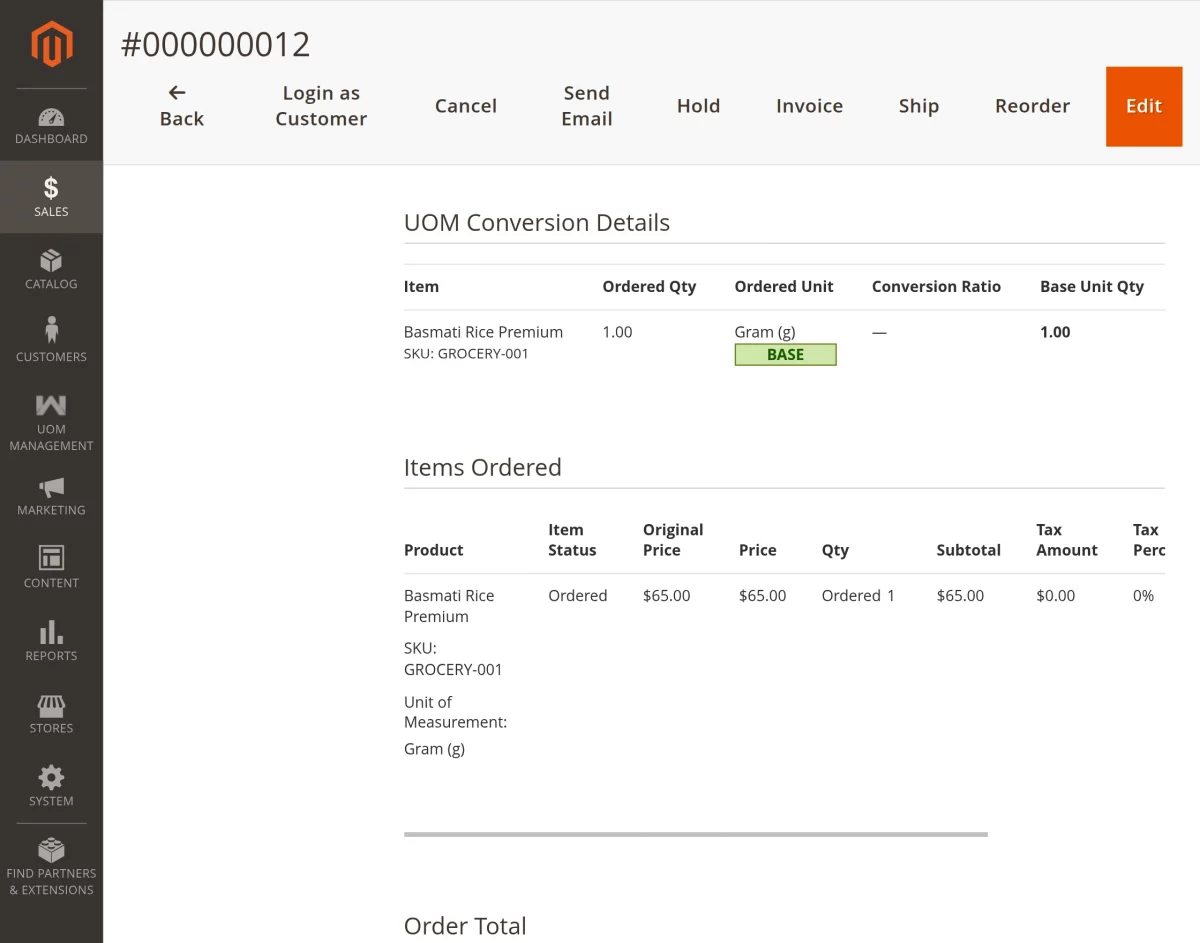
Store administrators can view UOM information in the order details.
Navigate to: Admin → Sales → Orders → Order ID
The order page displays:
- Product name
- Selected measurement unit
- Quantity in measurement
- Order totals
This helps administrators track measurement-based orders.
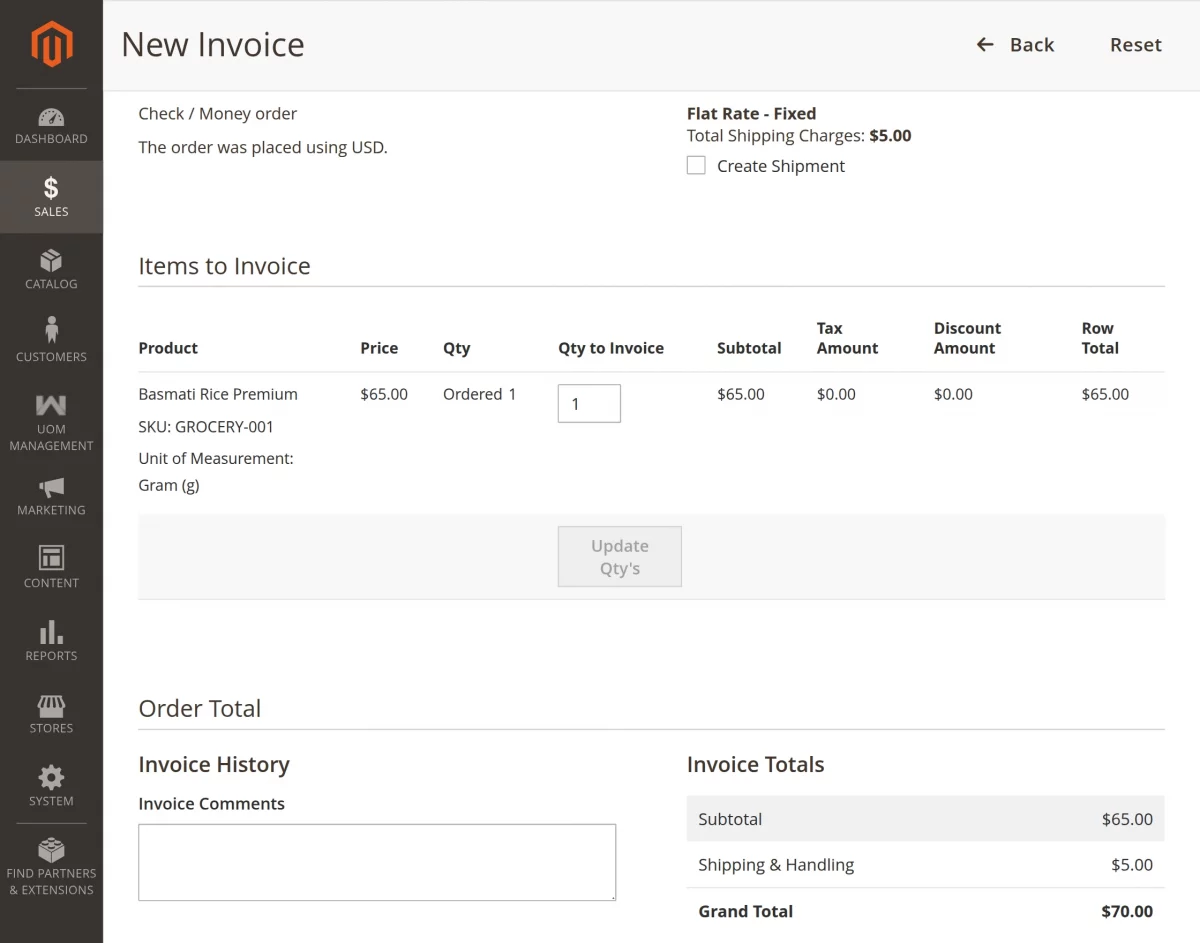
When generating an invoice, the following UOM data is visible:
- Product name
- Measurement unit
- Quantity ordered
- Price calculation based on the unit
This ensures invoices reflect accurate measurement information.
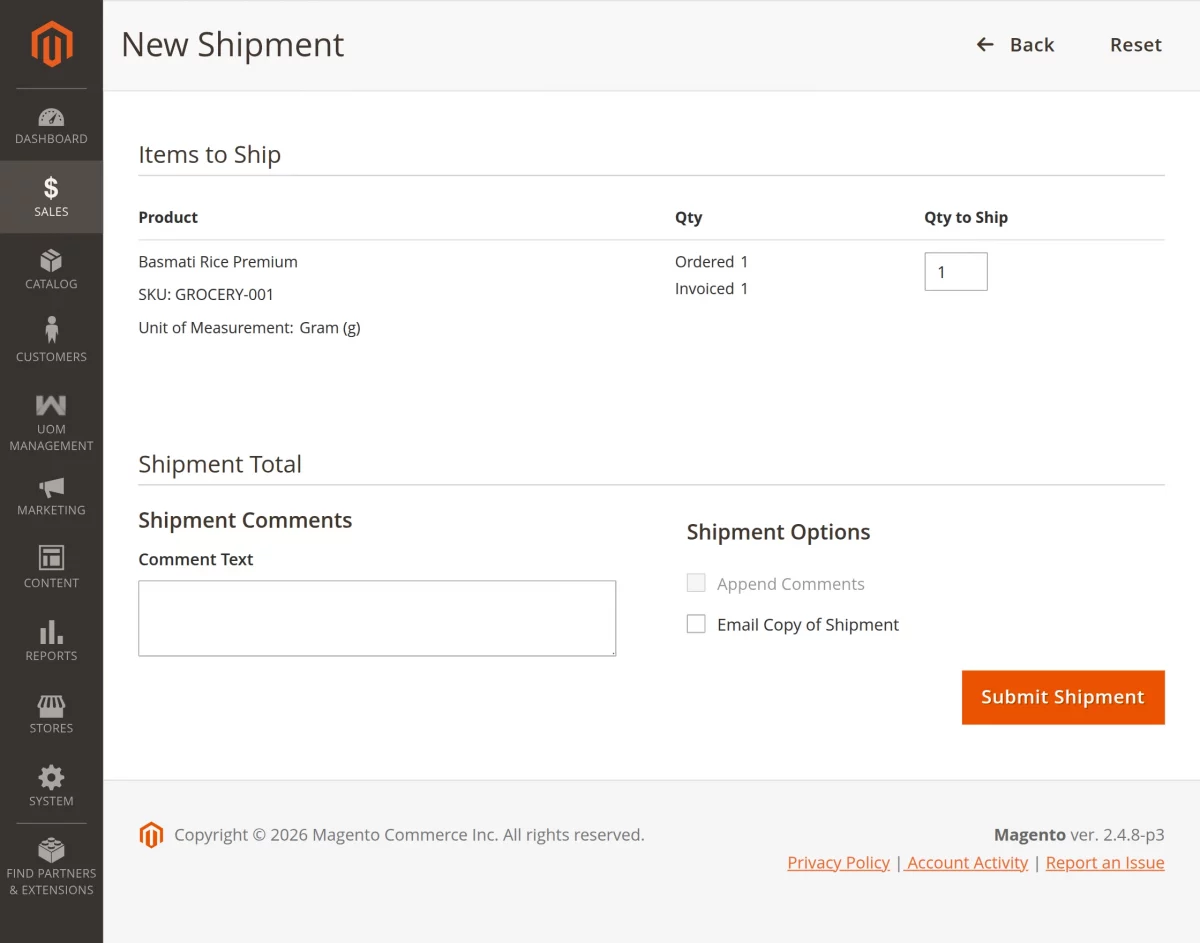
In the shipment section, administrators can see:
- Product name
- Measurement unit
- Shipped quantity
This helps track shipments for measurement-based products.
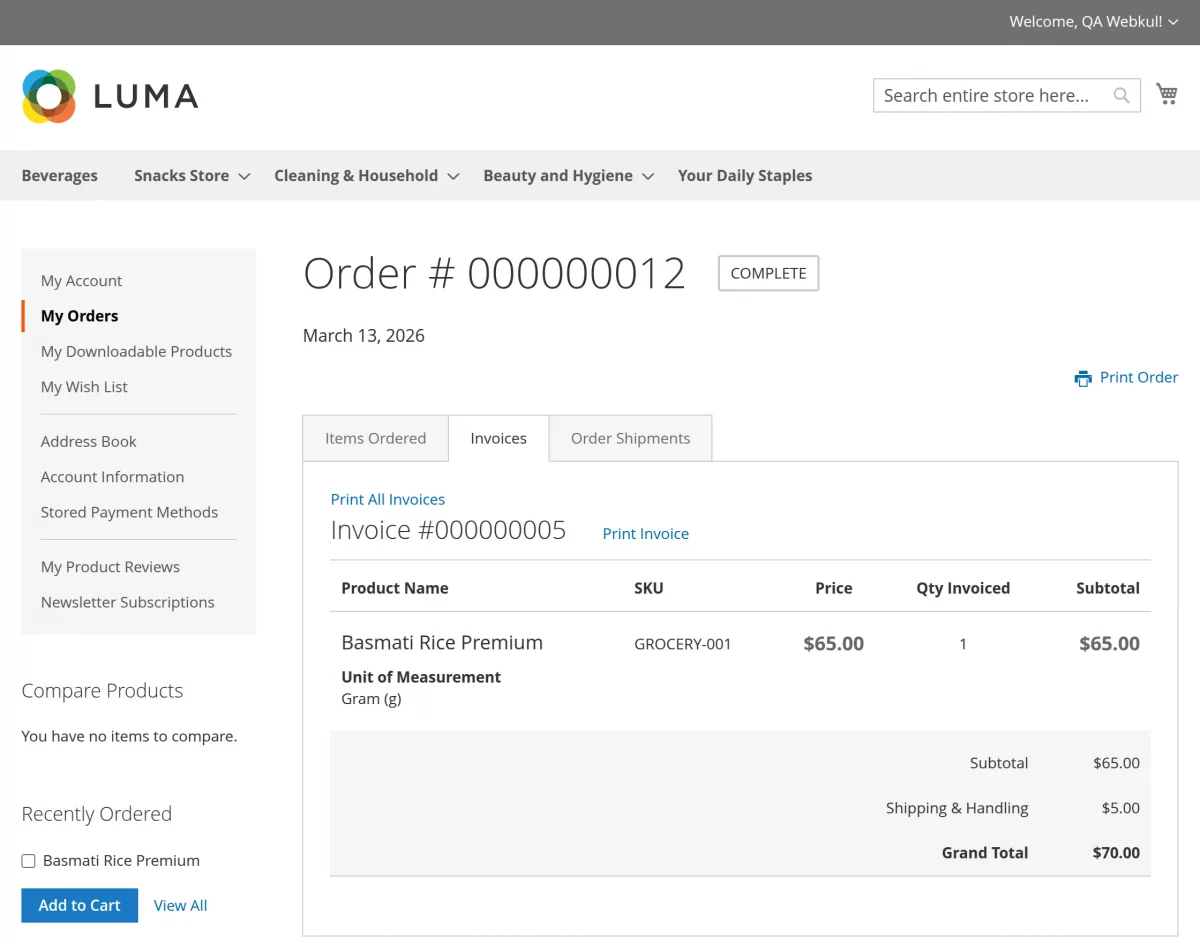
Customer Account – Invoice
Customers can log in and view their invoices.
The invoice includes:
- Product name
- Measurement unit
- Ordered quantity
- Total price
This provides clarity for the customer’s purchase history.
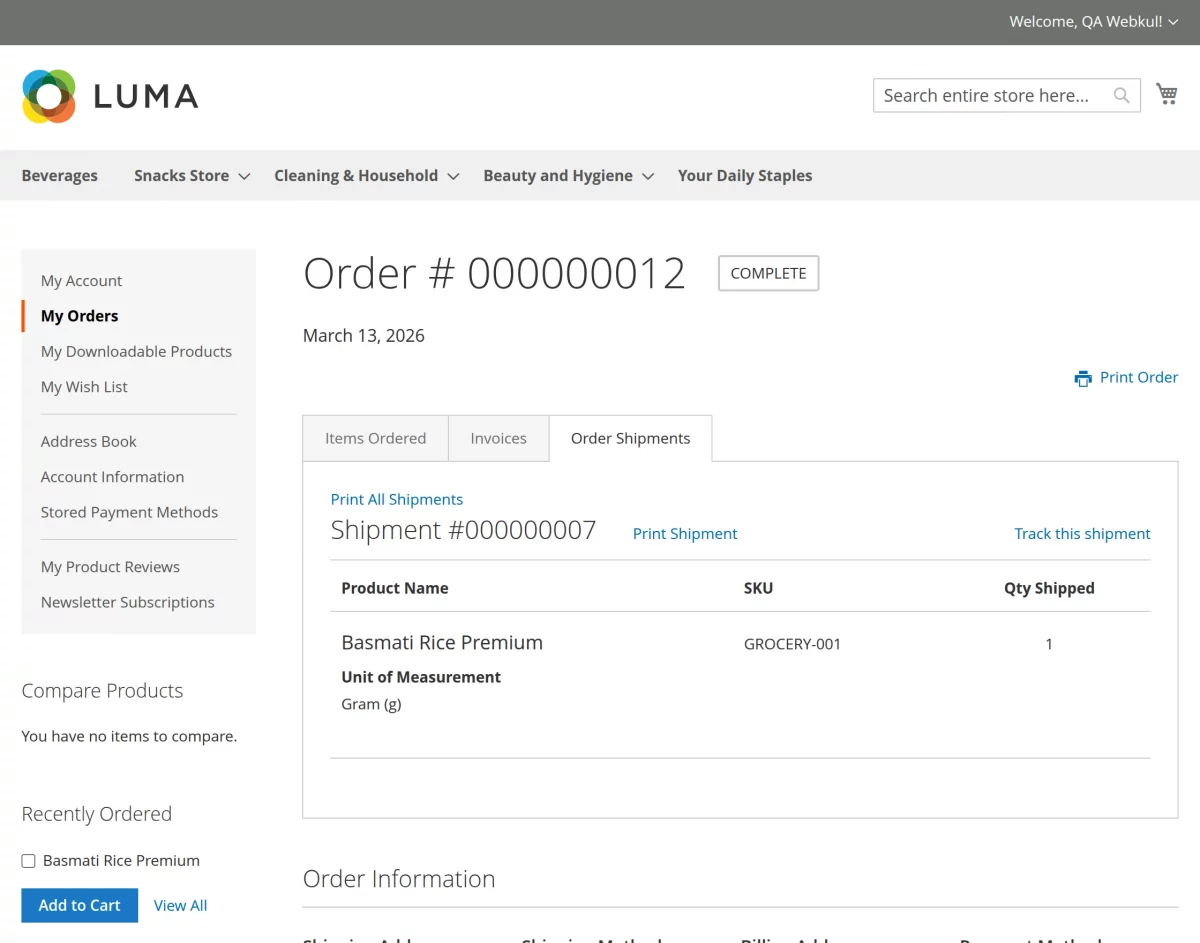
The customer can also check the UOM details on the shipment page.
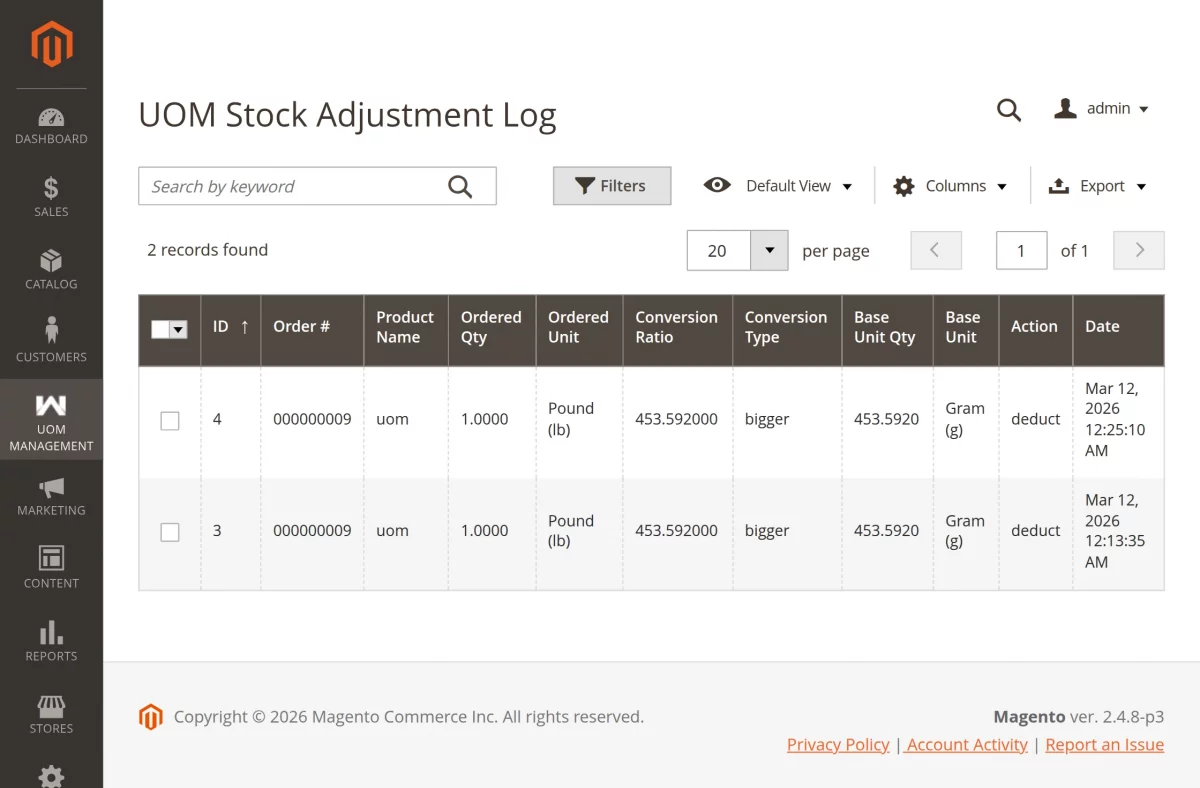
UOM Management → UOM Stock Adjustment Log
The UOM Stock Adjustment Log page tracks all stock changes related to measurement units.
Navigate to: Admin → UOM Management → UOM Stock Adjustment Log
Data Visible on This Page
The grid typically includes:
- Order ID
- Product Name
- Ordered Quantity
- Ordered Unit
- Conversion Ratio
- Conversion Type
- Base Unit Quantity
- Base Unit
- Action
- Date
This log helps administrators track inventory changes and maintain accurate stock levels.
How Price Calculation Works
For Bigger Units (Conversion Type: Bigger)
Used when the unit is larger than the base unit (e.g., kg when base is gram).
Formula: Base = Selected × Ratio
Example: Base unit is Gram. Customer orders 2 kg with ratio 1000.
Calculation: 2 kg × 1000 = 2000 grams (deducted from inventory)
For Smaller Units (Conversion Type: Smaller)
Used when the unit is smaller than the base unit (e.g., ml when base is liter).
Formula: Base = Selected ÷ Ratio
Example: Base unit is Liter. Customer orders 500 ml with ratio 1000.
Calculation: 500 ml ÷ 1000 = 0.5 liters (converted for inventory).
In conclusion, that’s all for the Magento 2 Unit of Measurement (UOM) Module (Adobe Commerce). If you face any issues, feel free to raise a support ticket.
We’d also love to hear your feedback to improve the Magento 2 UOM Extension at webkul.uvdesk.com.
Furthermore, there is no need to search elsewhere; seize the chance to initiate your projects with the accredited Magento 2 development company.
For a personalized touch, engage and hire Magento developers who are focused on delivering exceptional results for your custom e-commerce projects.
Current Product Version - 4.0.0
Supported Framework Version - Magento 2.0.x, 2.1.x, 2.2.x,2.3.x, 2.4.x


Be the first to comment.