Magento 2 Smart Device Promotions module lets the Admin create discounts and coupons based on whether a customer is using a mobile or desktop device.
It supports banners, location based offers, and provides clear reports.
It detects if a customer is browsing on a mobile or desktop browser. The Admin can set device-specific discount rules, create coupons, and show messages only to mobile users.
Cart price rules can apply special discounts to mobile or desktop users. These discounts can be automatic, without needing a coupon code.
Admin can track sales by device, run promotions across different store views, and offer location-based discounts to mobile users.
Apart from this, You can also explore Special Promotions for Magento 2, which enables admins to set up various types of promotional rules.
Features
- Detects whether a customer is browsing from a desktop or mobile browser.
- Admin can set discount rules specific to desktop or mobile users.
- Store admin can display banners or popups to highlight available discounts.
- Coupons can be created for use only on desktop or mobile devices.
- Cart price rules allow device-based special pricing or discounts.
- Admin can track sales by device and analyze promotion performance.
- Promotions can be activated across multiple store views and languages.
- Device-specific discounts can be applied automatically, without coupons.
- Admin dashboard provided to manage all device-based campaigns.
- Admin can offer location-based discounts by setting up geo-targeted promotions.
- Admin can add a banner for device type view within the same store.
Installation
The installation is quite simple just like the standard Magento 2 extensions.
#Download Module
Firstly, you need to log in to the Webkul Store, go to My Account>My Purchased Products section, verify, and then download and extract the contents of this zip folder on the system.
#Upload Folder
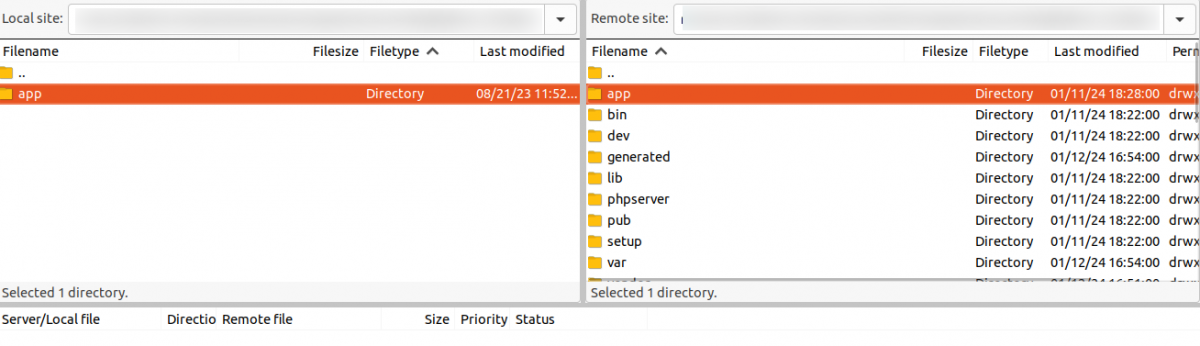
Once the module zip extracts, follow path src>app and then copy the app folder into the Magento 2 root directory on the server as shown below:
#Run Commands
Next, You need to run the following commands,
php bin/magento setup:upgrade
php bin/magento setup:di:compile
php bin/magento setup:static-content:deploy
php bin/magento indexer:reindex
php bin/magento cache:flush
Language Translation
For translating the module language, navigate through the app/code/Webkul/SmartDeviceBasePromotions/i18n and edit the en_US.csv file.
Thereafter, rename the CSV as “en_SA.csv” and translate all right side content after the comma in the Arabic language. After editing the CSV, save it.

Now, upload it to the path app/code/Webkul/SmartDeviceBasePromotions/i18n where the installation of Magento 2 is on the server.
The Magento 2 Product Filter by Geolocation extension will be translated into the Arabic Language. It supports both RTL and LTR languages.
The user can edit the CSV like the image below.

Engage and hire Magento developers to solely concentrate on your personalized e-commerce projects for a unique experience.
Admin Configuration – Magento 2 Smart Device Promotions
After successfully installing the Magento 2 Smart Device Promotions, admin proceeds to configure the module.
For this, they navigate to Stores>Configuration>Smart Device Based Promotion Settings. Here, they get the following options,

Enable Module – Enable or Disable the extension.
Enable Location Specific Promotions – If selected Yes, then promotion banner will shown according to the configured countries in promotion form.
Next, admin can proceed to Save the configuration. Admin can also navigate to the Configuration settings from the admin sidepanel as per the below image,

Manage Promotions
After configuring the extension, admin proceeds to manage the promotions. They navigate to Smart Device Based Promotions > Manage Promotions. It is visible as below,

Here, admin can view their ongoing promotions and also add new promotion rules. To add a new promotion, they tap on Add New Promotion button.

Promotion Details
- Promotion Name – Enter the name of promotion to be run.
- Device Type – Select Device type as Desktop or Mobile.
- Description – Create a Banner for promotion with the help of inbuilt page builder.

Choose Geo Location Type – Admin can either display the promotion in all Locations or choose Specific countries.
Store View – Multiple Store Views can be selected as per the requirment.
Start Date – Set the start date of the promotion to be run.
End Date – Set the end date as to when the promotion will end.
Once the above fields are filled and set as per requirement, proceed to tap on the Save button.
Promotion Dashboard
Admin can view statistics of the promotions and sales generated through them. They can navigate here by tapping on Smart Device Based Promotions > Promotions Dashboard as per image below,

They can view the Sales via Mobile, Sales Via Desktop and from Unknown sources as well. Further, they get the below filters,
Select Month – Select the month to view its statistics
Device Type – Select device type as Mobile, Desktop or All
Cart Price Rules
In this extension, admin also gets the feature to enable cart price rules based on the device type and provide discounts or coupons to the customers accordingly.
For this, they navigate to Marketing > Promotions > Cart Price Rules as per below,

Here, admin views the already added Cart price rules and can tap on Add New Rule to create a new rule.

Device Specific Discount Condition
Admin can set Cart price rule condition for providing discounts to customers on the basis of specific device type. They can set the condition as per below,

Under the Conditions section, admin can set the condition for discount in cart and add another condition as Device Type which they can select as either Mobile or Desktop.
Using it, discount can be applied to specifically Mobile device, Desktop or both as well.
Device Specific Coupon Application
Similarly, the Admin can create a Cart Price Rule based on a Coupon code and specific device type. Using it the coupon codes can be applied to either mobile or desktop or both as per set condition.
They initially need to enable the Specific Coupon option from Cart price rule and create a coupon code or get it Auto generated as per below image,

Once the Coupon configuration is set, Admin proceeds to set the condition as per device specific type in the Conditions section.

Storefront – Customer End
The promotional banners, discount offers and coupon code will work on the storefront as well as per the configuration done by admin. Let’s check them below,
Promotional Banner on Storefront – Desktop
If the admin has created a promotional banner for customers browsing the storefront from the desktop browser, then it will appear as below,

Promotional Banner on Storefront – Mobile
If the promotion has been set for only Mobile device type then it will appear to customers browsing the storefront on mobile browsers only.
Promotional Banner
Promotional banner displayed on mobile browser

Automatic Discount on Cart Price – Desktop
For the automatic discount on cart price, if the admin sets the condition, it will be applied automatically upon fulfilment and will not require any coupon code.

Automatic Discount on Cart Price – Mobile
If the condition has been set for discount to be applied on Mobile devices only, then it’ll be applied applied accordingly.
Automatic Discount
Discount applied automatically on Mobile Browser

Coupon Code Application – Desktop
Just like in previous cases, if the Admin generates a coupon code and sets it to apply only on desktop browsers, customers won’t be able to use it on mobile browsers.

Coupon Code Application – Mobile
If the Admin sets the coupon to apply only on mobile devices, customers will be able to use it exclusively through a mobile browser.
Coupon Code Applied
Customer will be able to apply coupon code only when accessing storefront from mobile browser

Support
So that is much about the Magento 2 Smart Device Promotions extension.
If you have any more queries or require further assistance, please don’t hesitate to reach out to us through [email protected] or create a ticket.
Current Product Version - 4.0.1
Supported Framework Version - Magento 2.0.x, 2.1.x, 2.2.x,2.3.x, 2.4.x


Be the first to comment.