Magento 2 Multi Vendor Wallet System is a module that allows the customers to make the purchase of seller/admin products from their Wallet System.
Customers can choose the Wallet System payment method during checkout.
Sellers and customers can easily add credit, transfer money, and view transaction details.
The admin can set the minimum and maximum limits for adding money to the wallet. The admin can also do the refund to its customer using the wallet money.
Note:
- When adding balance to the wallet system, users cannot add any other products at the same time.
- This module is an add-on to Magento 2 Marketplace Module. To use this module you must have installed Webkul Magento 2 Marketplace Module first.
Watch the video to understand the extension workflow:-
Features
- The seller receives split payments in their wallet when the customer pays using the wallet.
- The customer can add a payee to his account to transfer the amount to his wallet.
- Admin will receive notification to approve payee and to approve the amount transfer to the account.
- Admin can restrict the approval required for payees.
- Admin can restrict for the customer to use discount codes when adding the amount in his wallet.
- The customer can request a bank account transfer from their wallet.
- Admin can export wallet system details in CSV and XML format.
- Separate email template for all emails.
- The refund of an order manages the cashback amount.
- The customer can transfer the amount to other customers.
- Customer will get a monthly statement mail for the wallet amount.
- Admin can create cash back rules for the customer.
- Cashback rules are based on product or on the cart.
- Admin can deduct wallet amount from the customer’s wallet.
- The customer can use Wallet Cash during the checkout.
- The customer can easily add credit to their wallet system.
- Admin can set the credit limit for the Marketplace Wallet System.
- Admin can also do the online refund and credit the amount to the customer’s Wallet.
- Admin can view the customer details who are using Marketplace Wallet System for making the online payment.
- The system sends an email notification to the customer for each transaction.
- Admin can configure the Marketplace Wallet System to set the limit (maximum and minimum) for Wallet amount.
- Admin and Customer/User can view credit and debit details.
- Admin can add custom wallet amount to the customer’s wallet.
Note:
- For configurable products, cashback is applied based on the child product’s wallet amount; if unavailable, the parent product’s cashback applies, and both must follow the same wallet credit method.
- For bundle products, only the wallet credit amount assigned to the parent product will be considered. Cashback from individual child products within the bundle will not be applied.
Installation
For installing the Magento 2 Multi Vendor Wallet System, the customers will get a zip folder and they have to extract the contents of this zip folder on their system.
The extracted folder has an src folder, inside the src folder you have the app folder.
You need to transfer this app folder into the Magento 2 root directory on the server as shown below.

After the successful installation of Magento 2 Multi Vendor Wallet System, you have to run these commands in the Magento 2 root directory.
php bin/magento setup:upgrade
php bin/magento setup:di:compile
php bin/magento setup:static-content:deploy
php bin/magento indexer:reindex
php bin/magento cache:flush
CONFIGURATION FOR MULTILINGUAL SUPPORT
For the multilingual support of Magento 2 Multi Vendor Wallet System.
The admin will navigate through Store->Configuration->General ->Locale Options and select the locale as German (the language into which admin want to translate his store content).
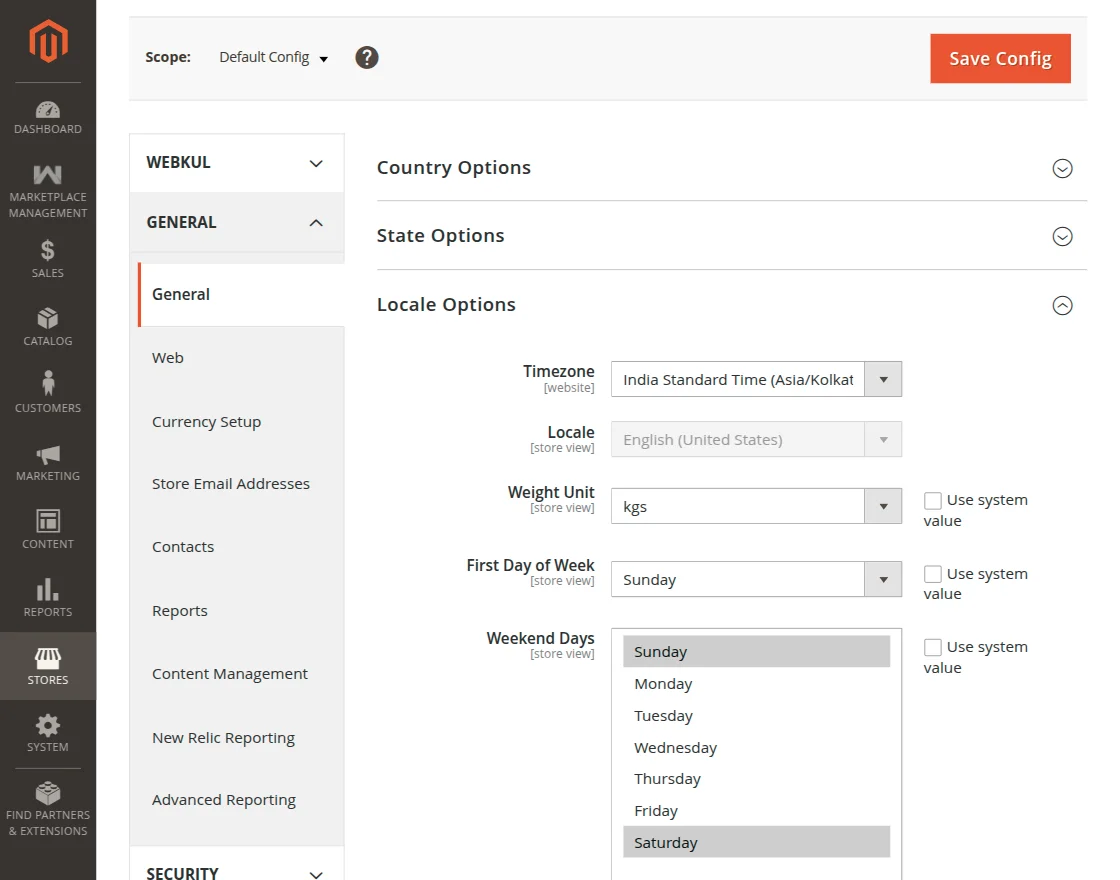
Module Translation
To translate the Magento 2 Marketplace Wallet module from English to German, follow the path: app/code/Webkul/MpWalletSystem/i18n in the unzipped folder.
There, you’ll find a CSV file named “en_US.csv” for translation.
Now they will rename that CSV as “de_DE.csv” and translate all right side content after the comma in the German language.
After editing the CSV, save it and then upload it to the path app/code/Webkul/MpWalletSystem/i18n where they have installed Magento 2 on the server.
The module will get translated into the German Language. It supports both RTL and LTR languages.


The user can edit the CSV like the image below.

Module Configuration
After the successful installation of the Magento 2 Multi Vendor Wallet System, admin can configure the module by navigating to the admin backend panel.
Firstly, the admin needs to configure the Payment Method.
Payment Method Configuration
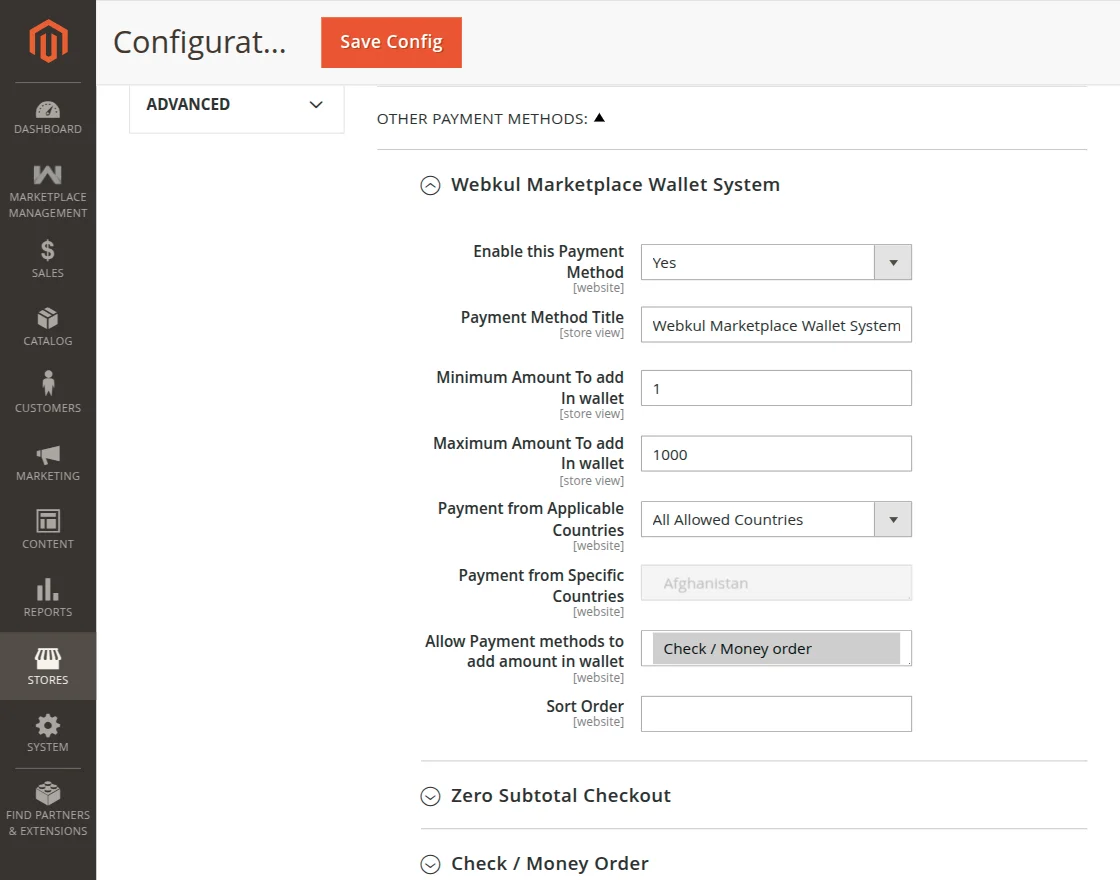
The admin needs to navigate to Stores > Configuration > Sales > Payment Methods > Webkul Marketplace Wallet System.
Enable this Payment Method – Select Yes option to use the Wallet System module, else select No.
Payment Method Title – Enter the title of the Marketplace Wallet system which will appear on the checkout page.
Minimum Amount to Add in Wallet – Set the minimum value of the amount that can be added to the wallet.
Maximum Amount to Add in Wallet – Set the maximum value of the amount that can be added to the wallet.
Payment from Applicable Countries – Select the applicable countries from the list for wallet system.
Allow Payment Methods to Add amount in Wallet – Admin will also select various payment methods which can be used by the customer to make payment while adding Wallet Cash into their Wallet System.
Sort Order – Set the sorting order of wallet system payment method.
Wallet System Configuration
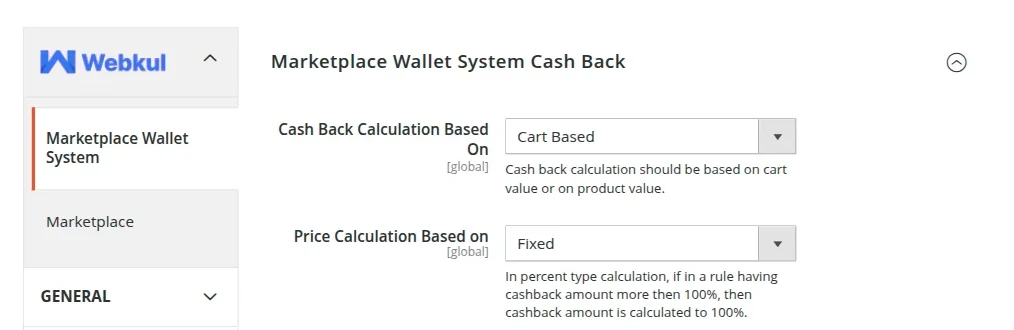
For Magento 2 Multi Vendor Wallet System Configuration, the admin can follow the path Stores > Configuration >Marketplace Wallet System. Here, we have two options –
- Cash Back Calculation Based On – Cart Based or Product Based.
- Price Calculation Based On – Either select Fixed or Percent.
Display Custom Message On Transfer to Account Request Submission
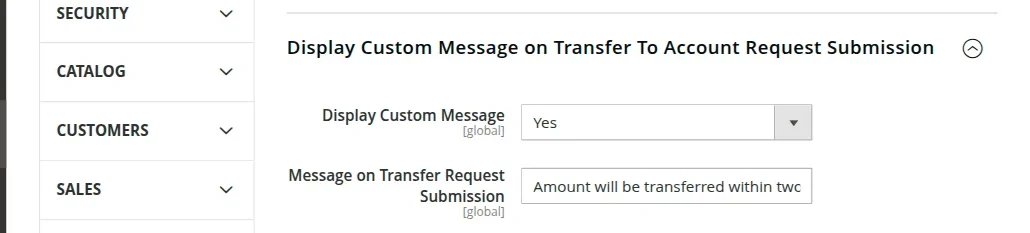
Here, under this configuration setting the admin will –
- Display Custom Message
The admin will select the option as Yes to display the custom message else select No. - Message on Transfer Request Submission
The admin will enter the message text that will be displayed to the customer after transferring the wallet amount to the bank.
After setting up the text message and enabling it gets displayed as shown below in the snapshot.
Adding Amount In Wallet
Here, the admin will configure –
- Allow to use Discount while adding amount in wallet –
Select Yes to allow the customers to apply the discount when the customer is adding wallet amount in his wallet else select No to not allow the customers to apply discount while adding wallet amount to his wallet.
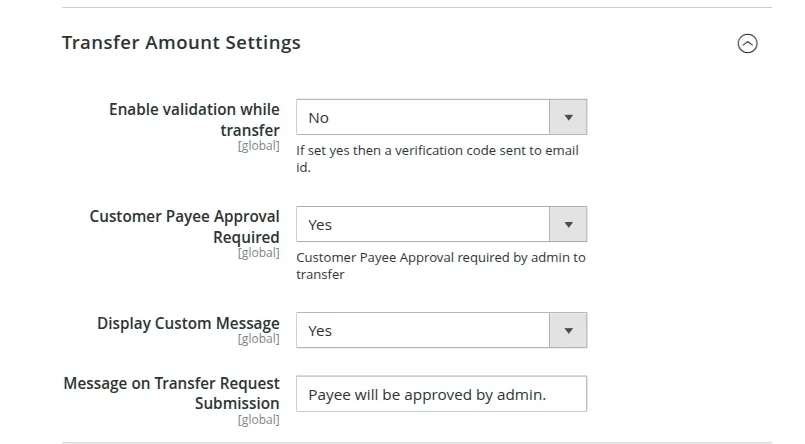
Transfer Amount Settings
Here, the admin will configure –
- Enable Validation while Transfer – If Yes is selected, then a verification code will be sent to the Email ID.
- Duration of code usage – Enter duration in seconds of the validation code. Example: (30).
- Customer Payee Approval Required – If Yes is selected then the customer payee must be approved by the admin in the first place else select No to auto-approve the customer’s payee.
For Customer Payee Approval Required if the admin select the option as Yes, then the admin will –
- Enable the custom message
- Enter the message text that will be visible after transfer request submission.
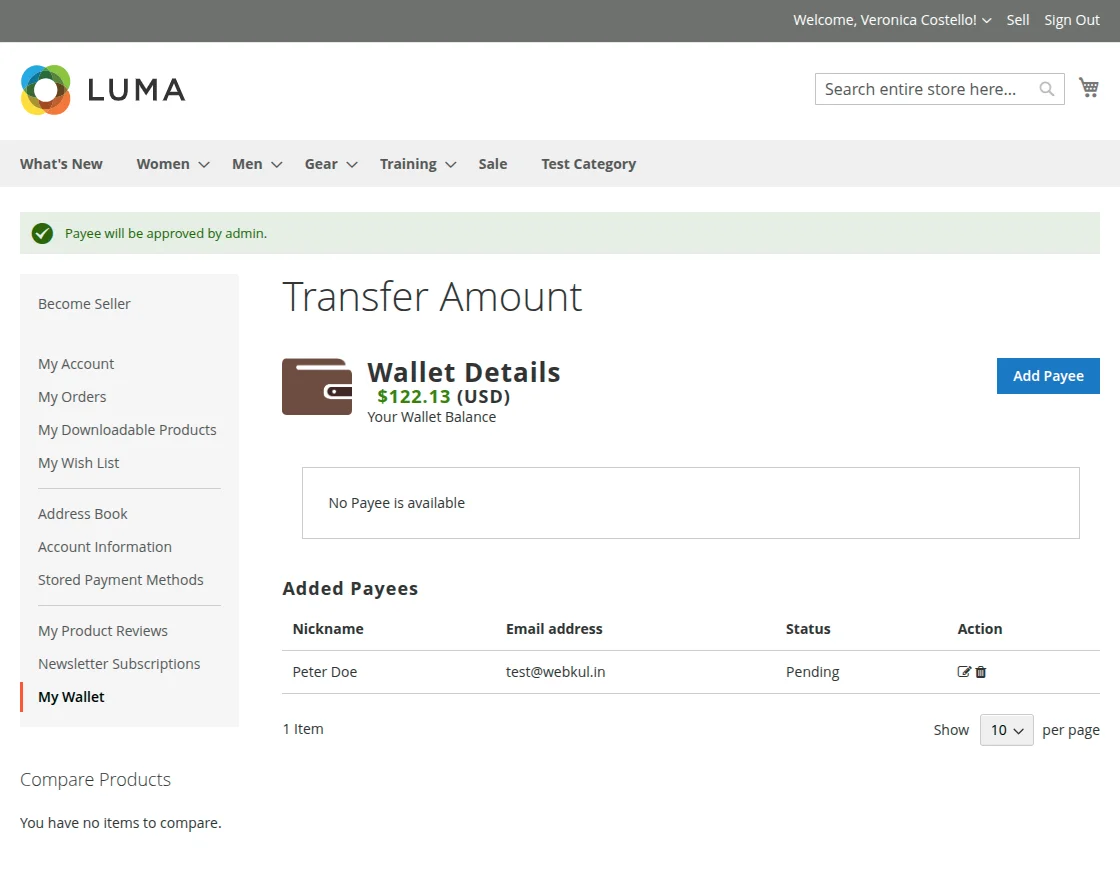
Now, if the customer adds the payee then he/she will see the message text as shown below.
Prefix for Transactions –
The admin needs to add the prefix for the following transactions of the Wallet –
- Prefix for the credited amount by admin.
- Prefix for the debited amount by admin.
- Prefix for the amount transferred by the customer.
- Prefix for the amount transferred to the customer.
- Prefix for wallet recharge.
- Prefix for used wallet amount.
- Prefix for cashback amount.
- Prefix for the refund of an order.
- Prefix for the refund of wallet recharge order.
Prefix for bank transfer amount.
Cron Job Settings
Enable Cron Job for Monthly Statement – Select Yes, to send monthly statements to customers about their wallet transactions. This statement will be sent to the customer’s Email ID.
Marketplace Wallet System Transaction Emails
Here, the admin has to select the marketplace wallet system transaction emails that will be sent whenever a particular event occurs.

My Wallet Section
After the installation of the Magento 2 Marketplace Wallet System, the customer/seller can see “My Wallet” with two sub-menu options –
- Manage Wallet Amount
- Transfer Wallet Amount
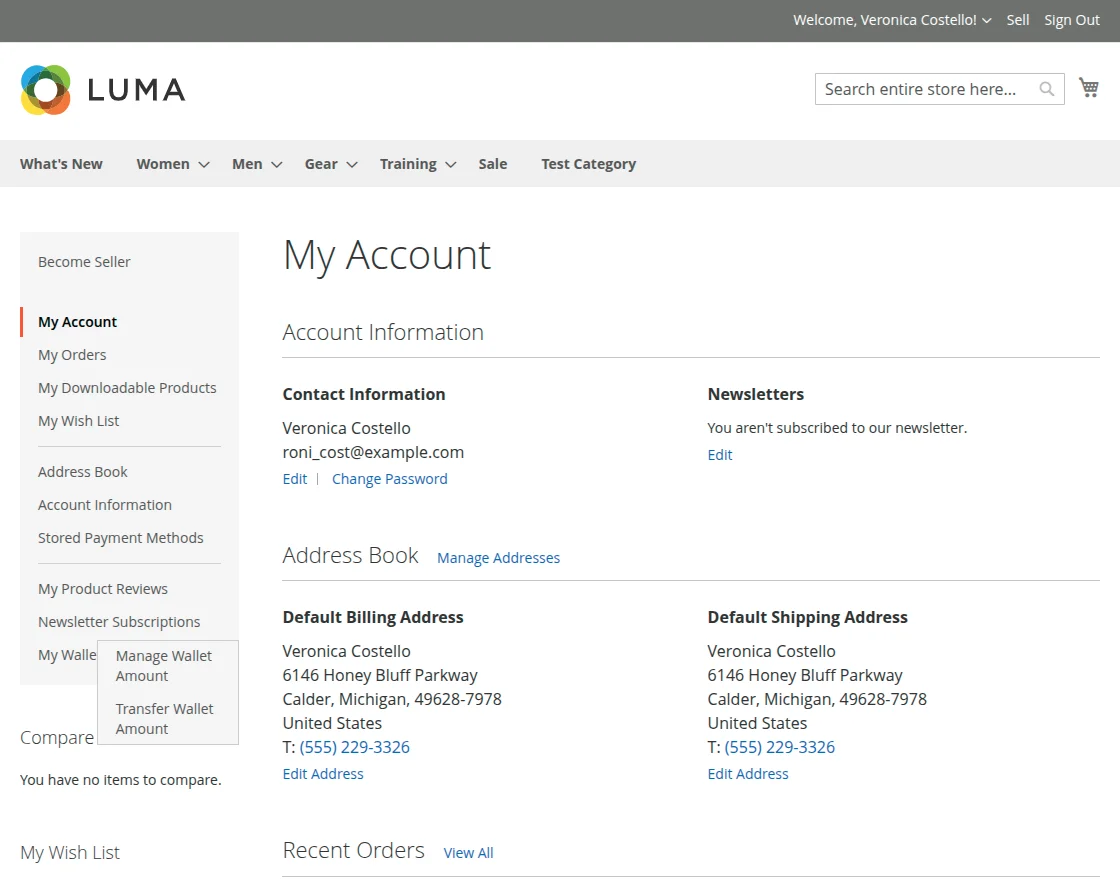
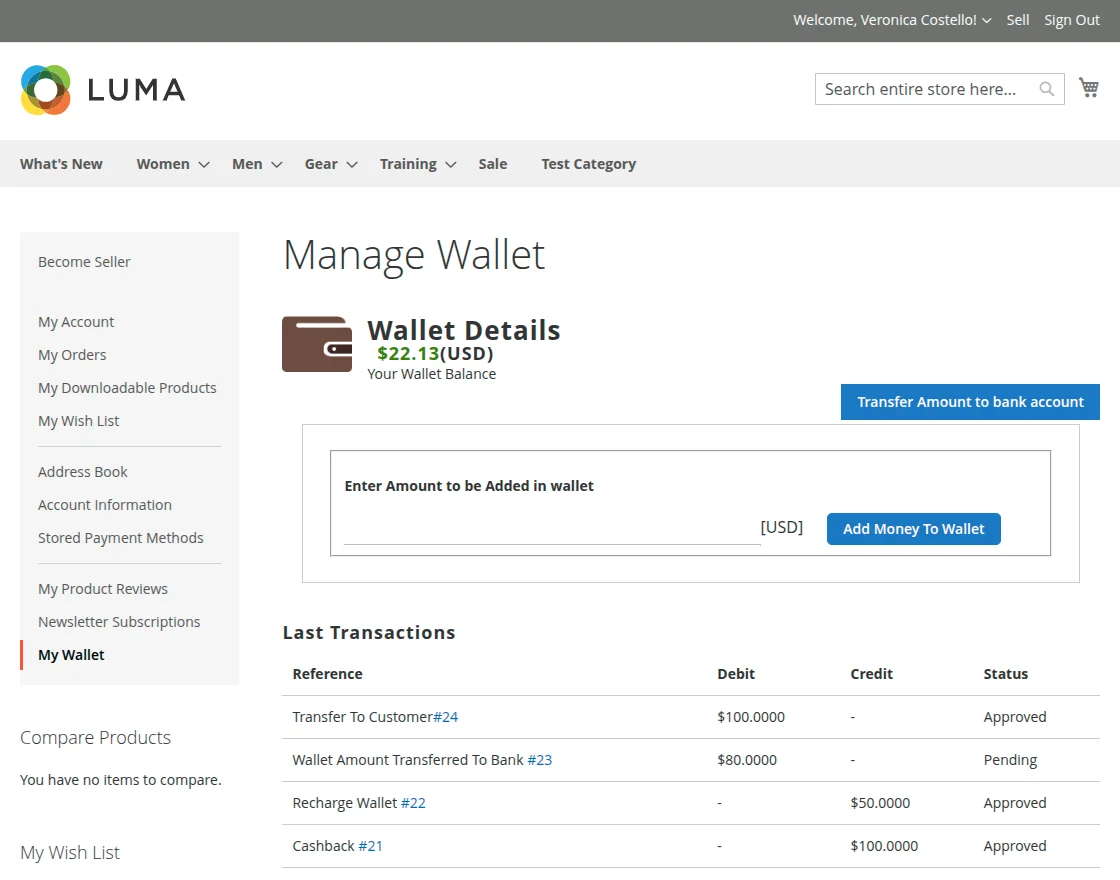
Clicking the Manage Wallet Amount sub-menu option brings up a section to manage the wallet amount.
Here, the seller/customer will be able to see their total wallet balance, wallet transaction details(credit & debit), can transfer amount to the bank account.
The customer can also add credit amount into their wallet system by entering the amount into the provided input box and clicking the add money to wallet button.
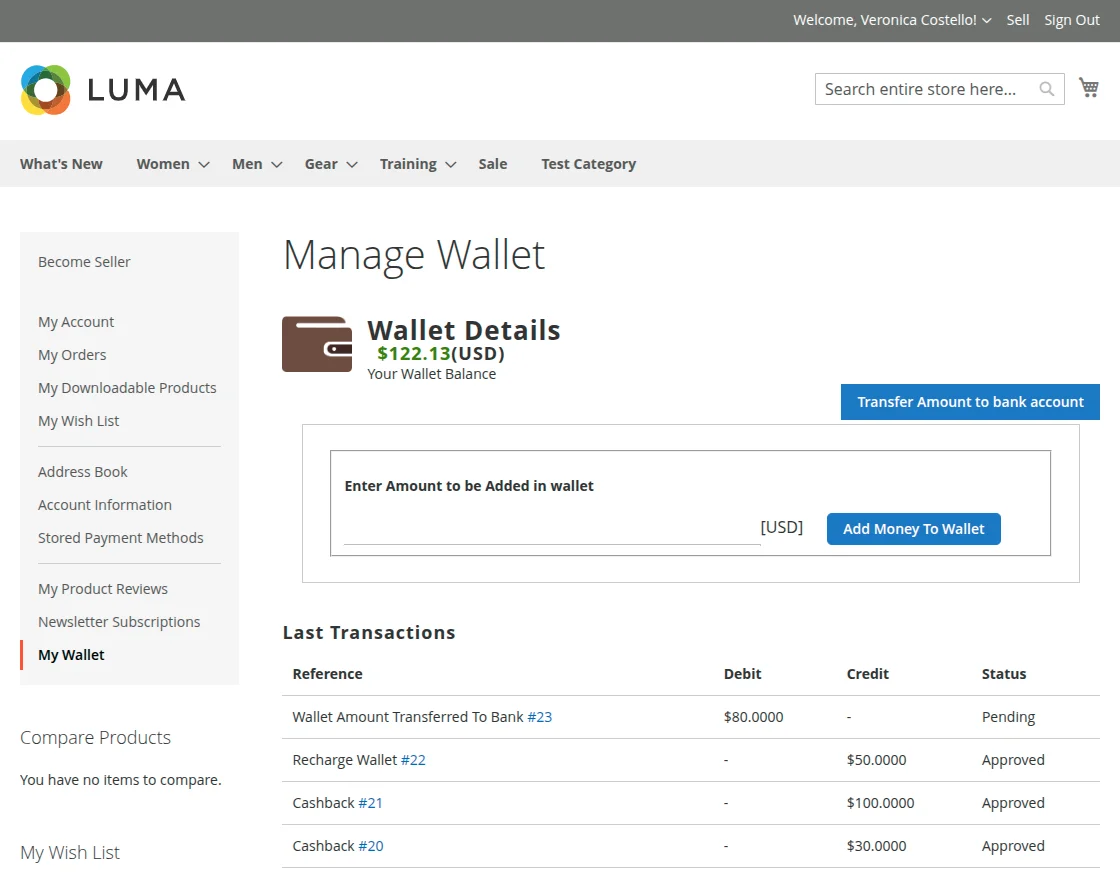
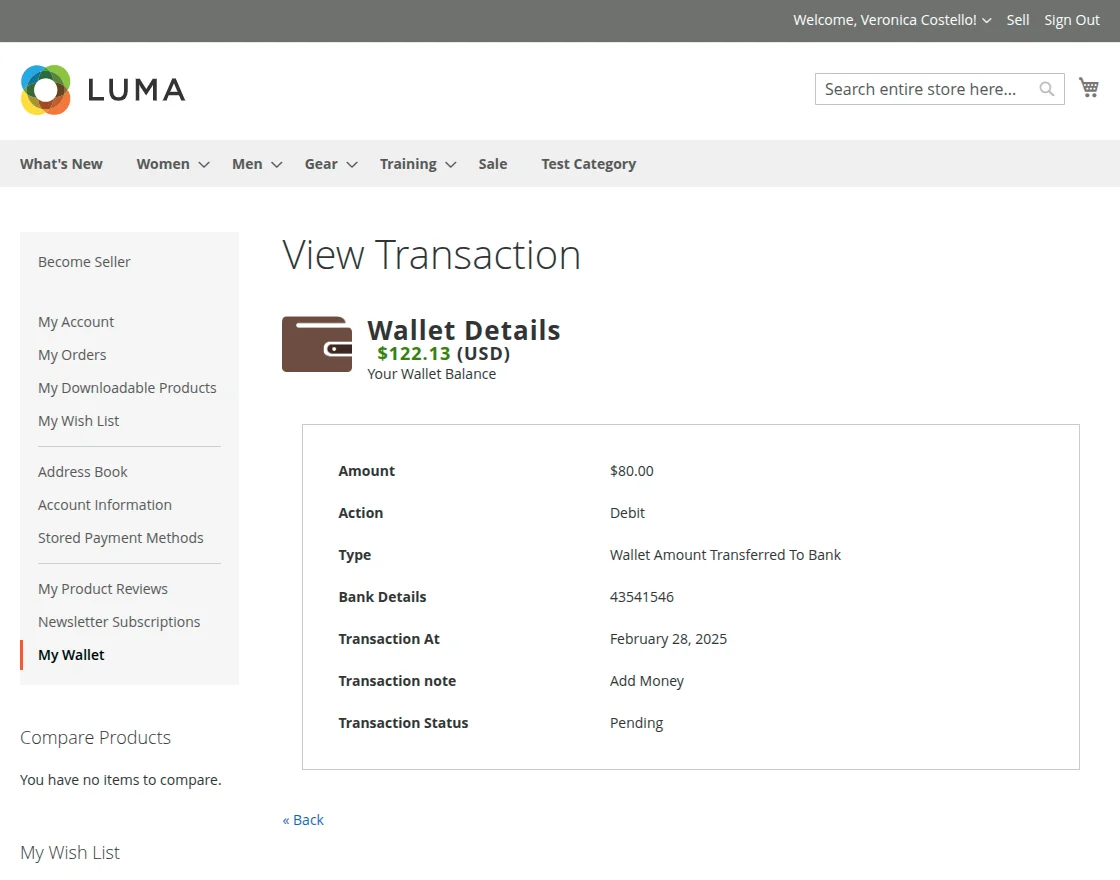
Transaction Details
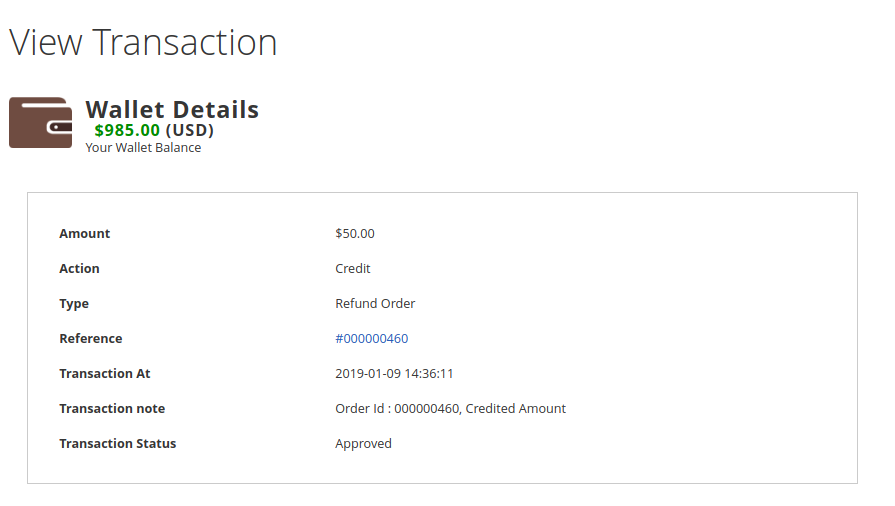
The customers can click the Reference Number # to view the additional details for the respective wallet transaction.
 Add Money To Wallet:
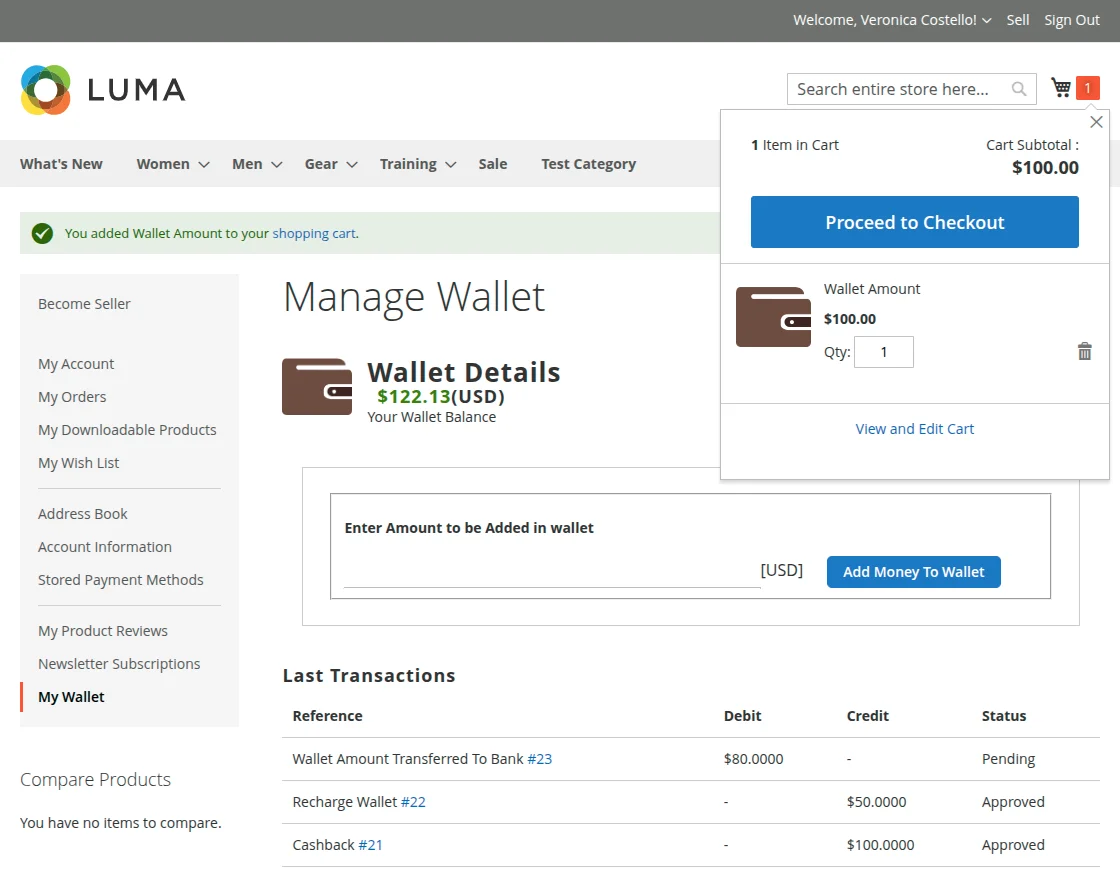
After entering the amount to be added to the wallet, the seller/customer will click on Add Money To Wallet button.
This will add the wallet amount to the shopping cart. After that, click on the Proceed to Checkout button as shown below in the snapshot.
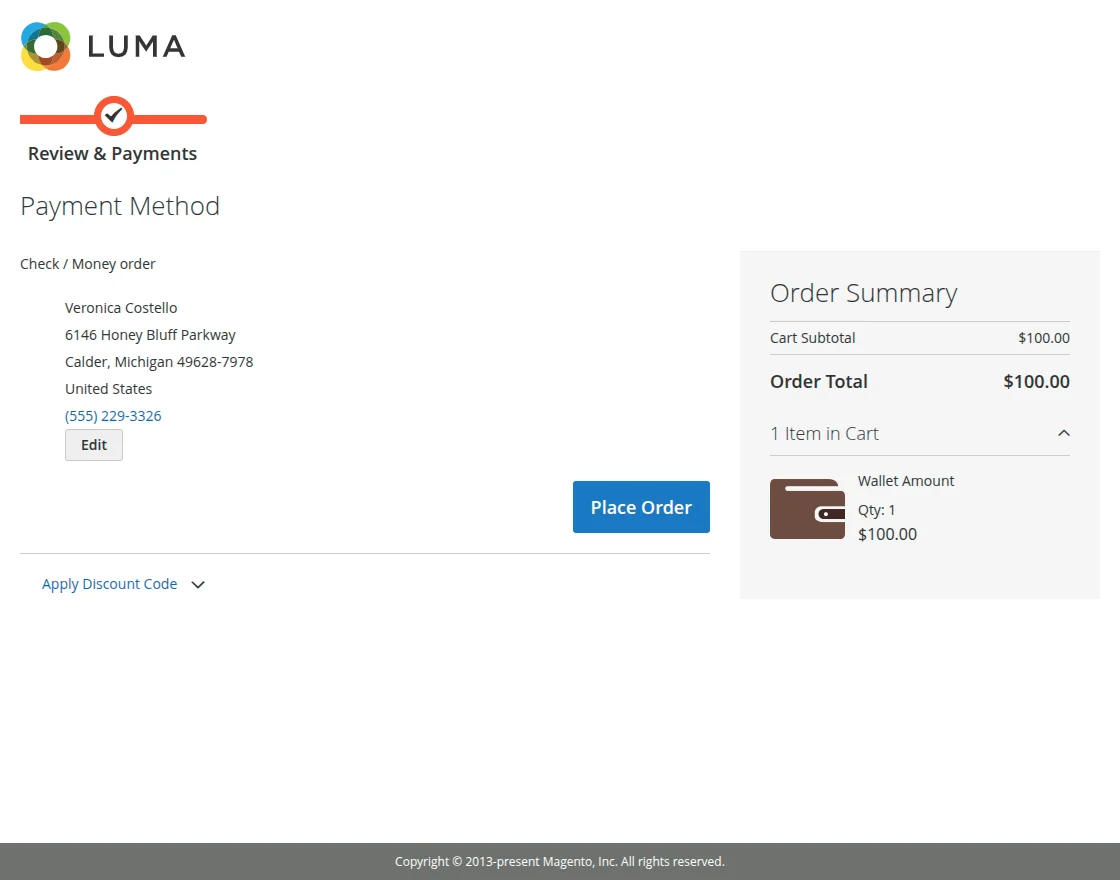
On the checkout page, the seller/customers can see the Order Summary for the wallet recharge.
Here, the seller/customer has to select the payment method and will click the Place Order button to complete the wallet amount purchase.
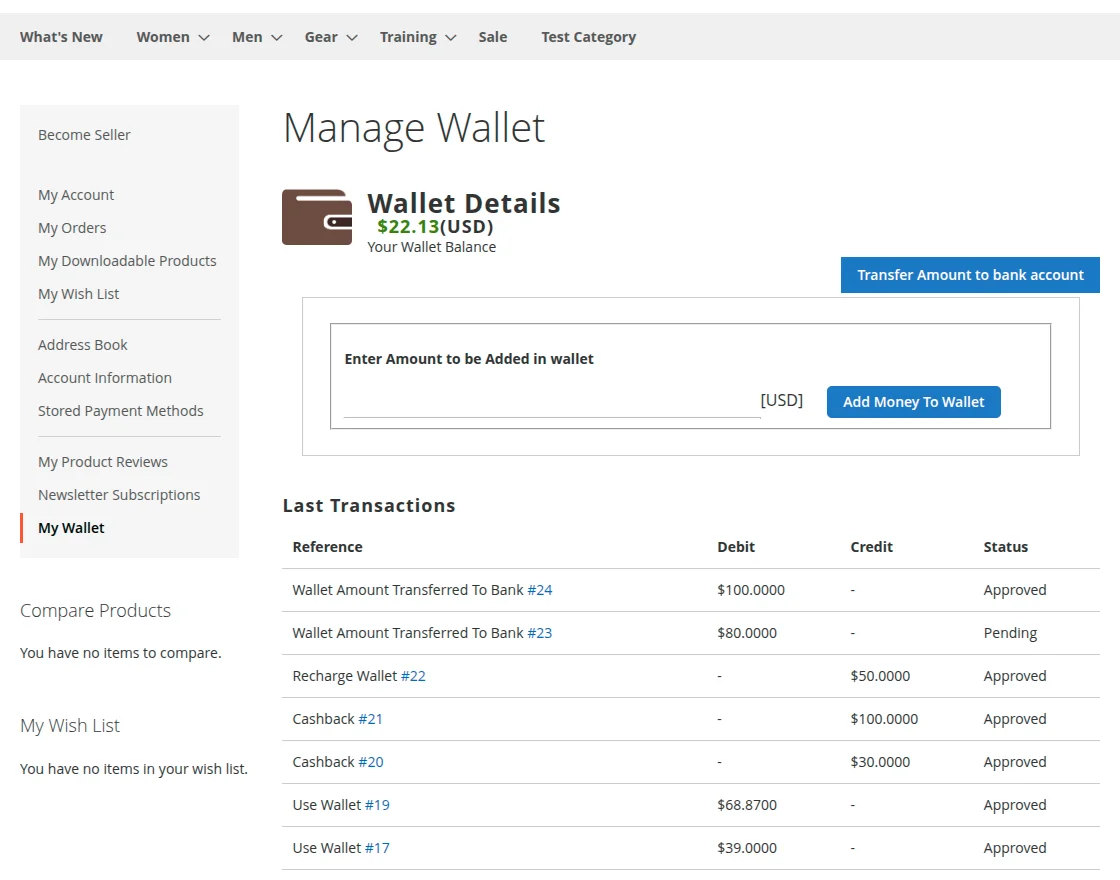
If the Payment method is selected as Check/Money Order than the amount will be added after the admin Confirm Wallet Order.
After the confirmation, the wallet amount is added to the wallet as shown in the screenshot below.
Note: If the payment method selected is Paypal Credit/Express Checkout, then the amount will be added to the wallet directly.
Transfer Amount To Bank:
The customer can send the transfer request to admin to transfer the wallet amount to other banks also.
To do so, click on the Transfer Amount to bank account button. This brings up a pop-up to enter the transfer details as per the below image.
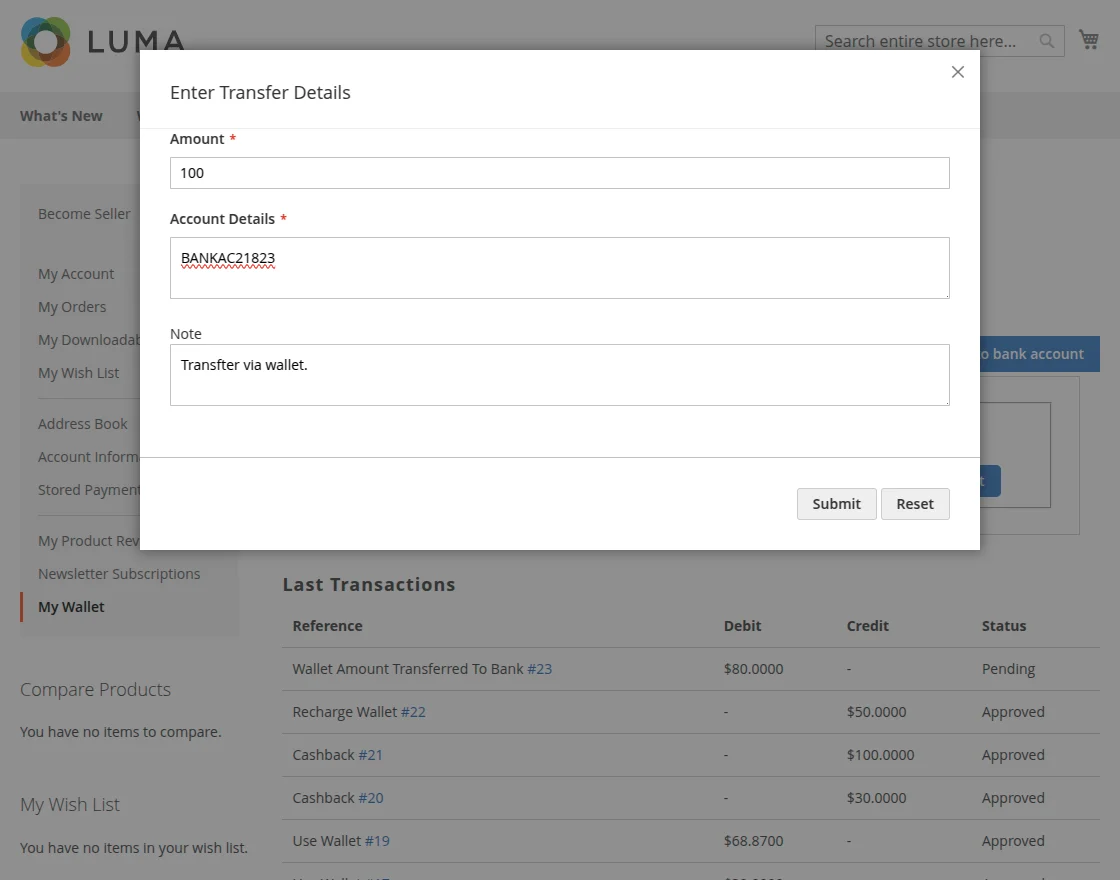
Here, the admin will enter – the amount to transfer, account details, mention a note and lastly, click the Submit button to submit the wallet amount transfer request.
Note: As soon as the customer submits wallet amount transfer request, the amount to be transferred will get deducted from the customer’s wallet.
Now, the admin gets the wallet amount transfer request.
The admin approves this payment request from the admin back-end by clicking the Approve button and the status of the transfer will get changed to – Approved.
Else, can Cancel the payment request by clicking the Cancel button.
If the admin disapproves the transfer request, this will credit the amount back to the customer’s wallet which was got deducted while submitting the transfer request.
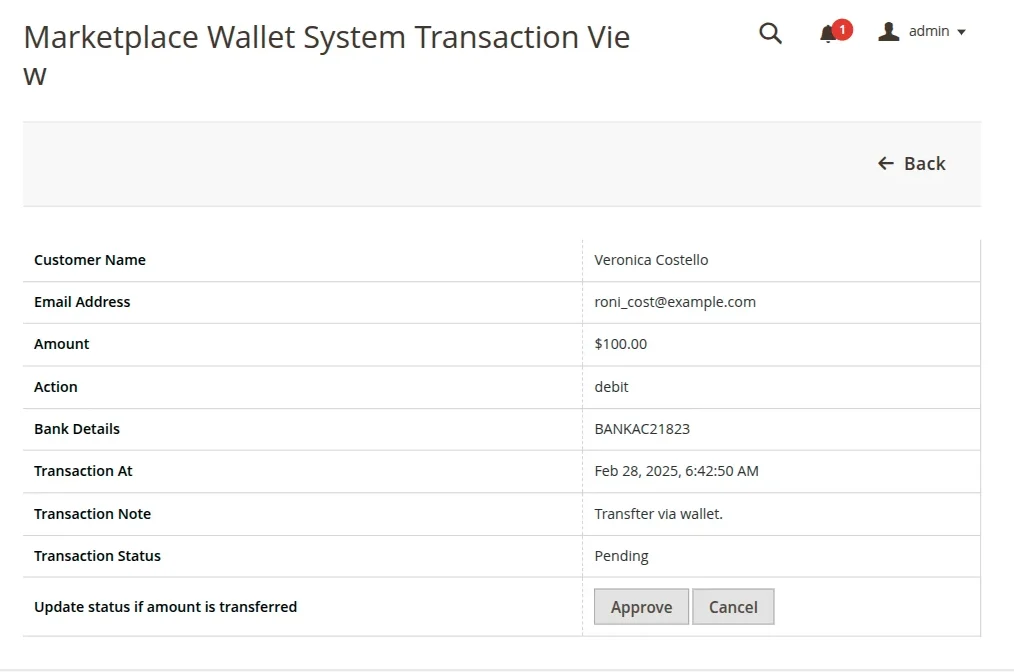
Note: After approving the wallet amount transfer request, the admin will manually and out of the system transfer the amount to the bank using the details shared in the transfer request.
The customer will also be able to check the status of the transfer under their account panel.
Transfer Wallet Amount
The customer can transfer his wallet money to another customer’s wallet. To do so, the customer will navigate to My Wallet>Transfer Wallet Amount.
Here, the customer will see a list of added payees and can transfer the wallet amount to them easily.
To add a New Payee click the Add Payee button as shown below in the snapshot.
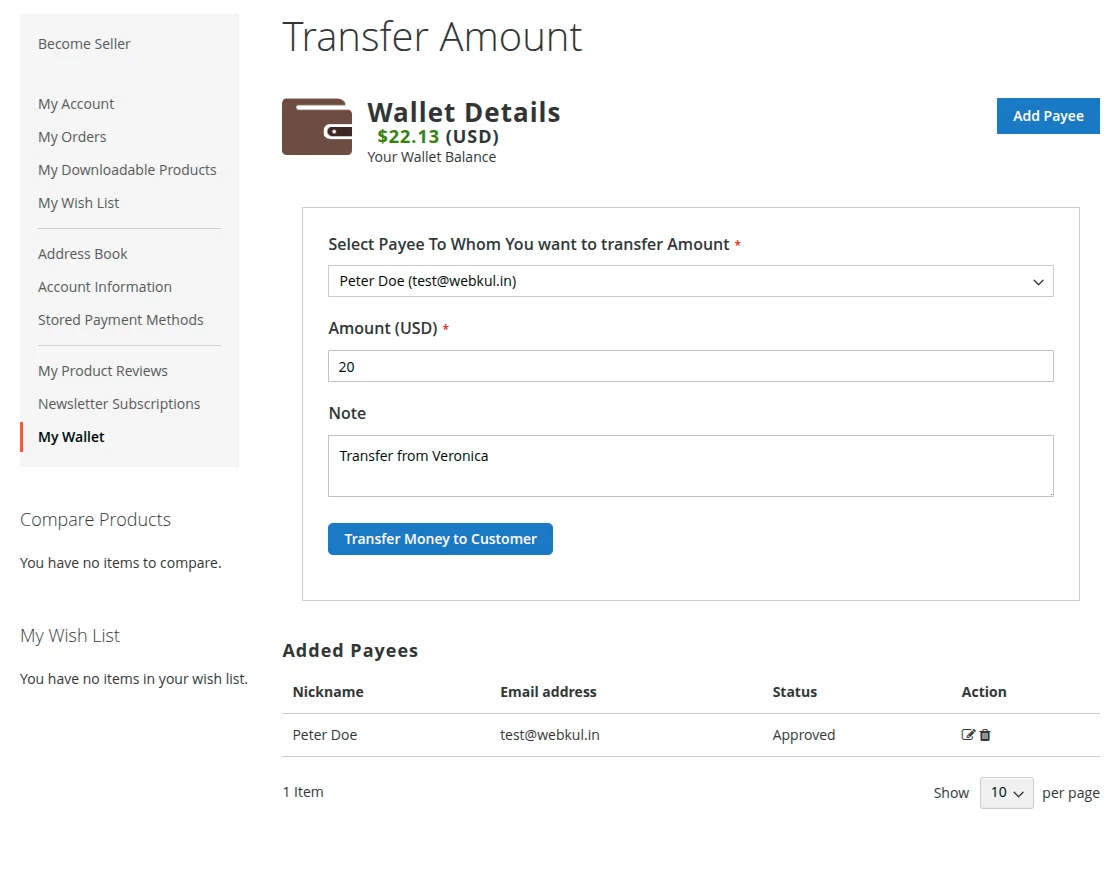
This brings up a pop-up to add the payee details, enter the details and click the Submit button.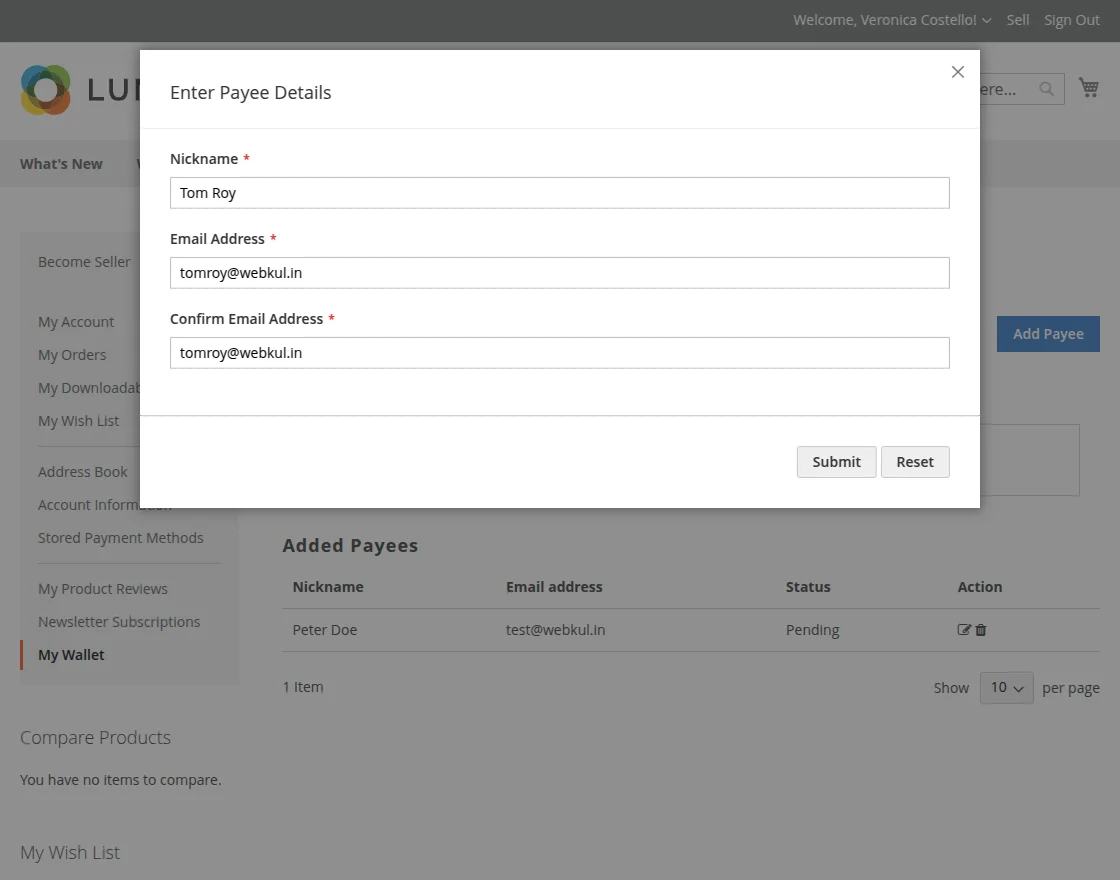
Now, select a customer from the drop-down menu option who will receive the wallet money and then enter the transfer amount.
Customer can even add a small note with this transaction for any reference.
Click Transfer Money to Customer button, a verification step will appear next (if enabled).
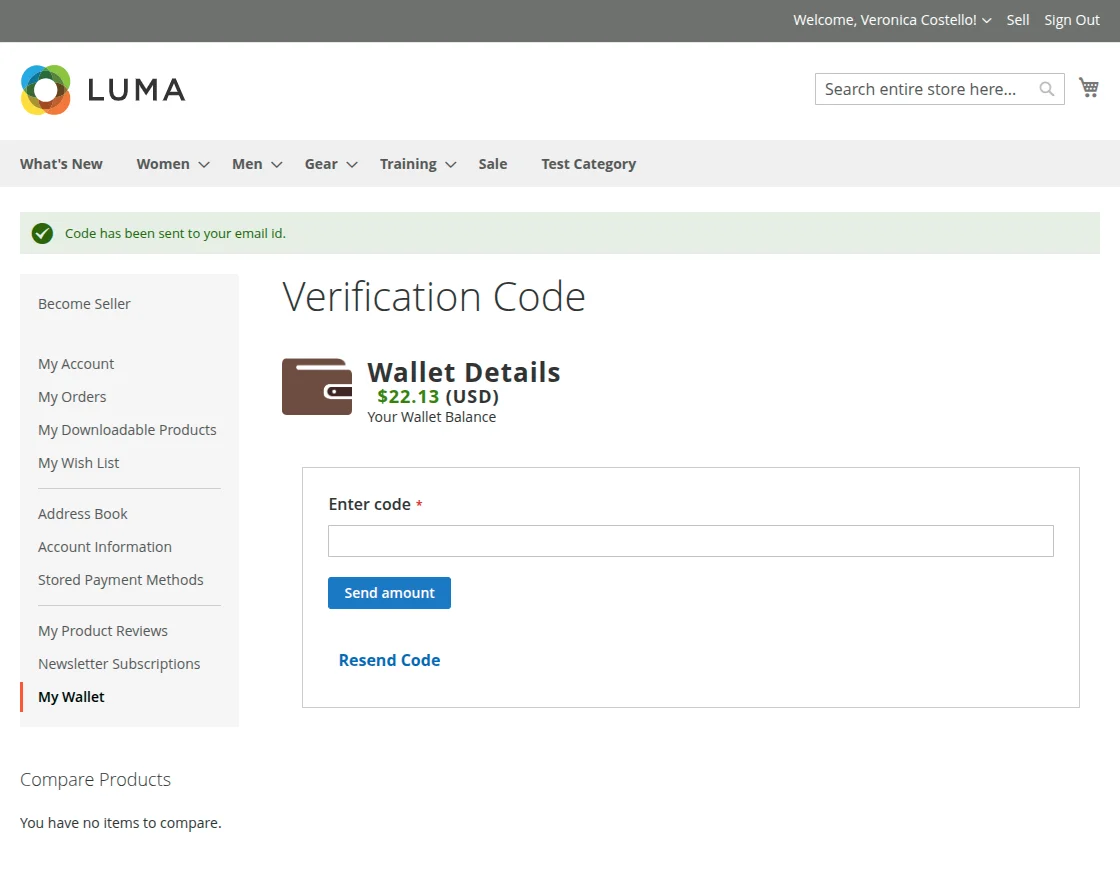
Verification Code
Here the customers will need to enter the verification code for validation purpose, the code will be sent to the customer’s email ID.
After entering the Verification Code, click Send Amount button and the wallet money will be transferred. If the verification code is not received in the inbox, check the spam folder for the same.
 After, transferring the amount the customer will navigate to My Wallet>Manage Wallet Amount to check the transaction detail as shown below in the snapshot.
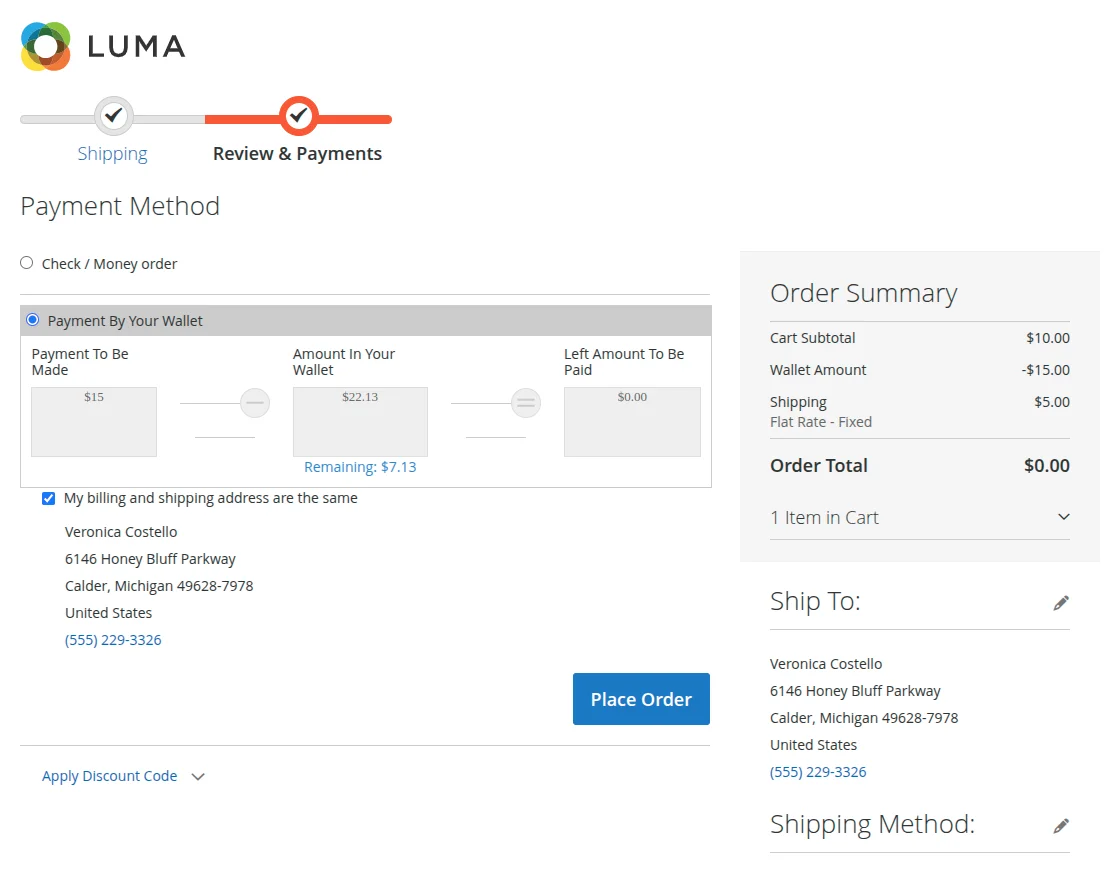
Payment Using Marketplace Wallet System
The customer can make payment for any seller using the Magento 2 Marketplace Wallet System.
On the checkout page, while making payment the customer can select the Wallet system to make the purchase of the seller’s products.
The total payable amount will be deducted from the Wallet Amount and customer can also see remaining Wallet amount after making the payment.
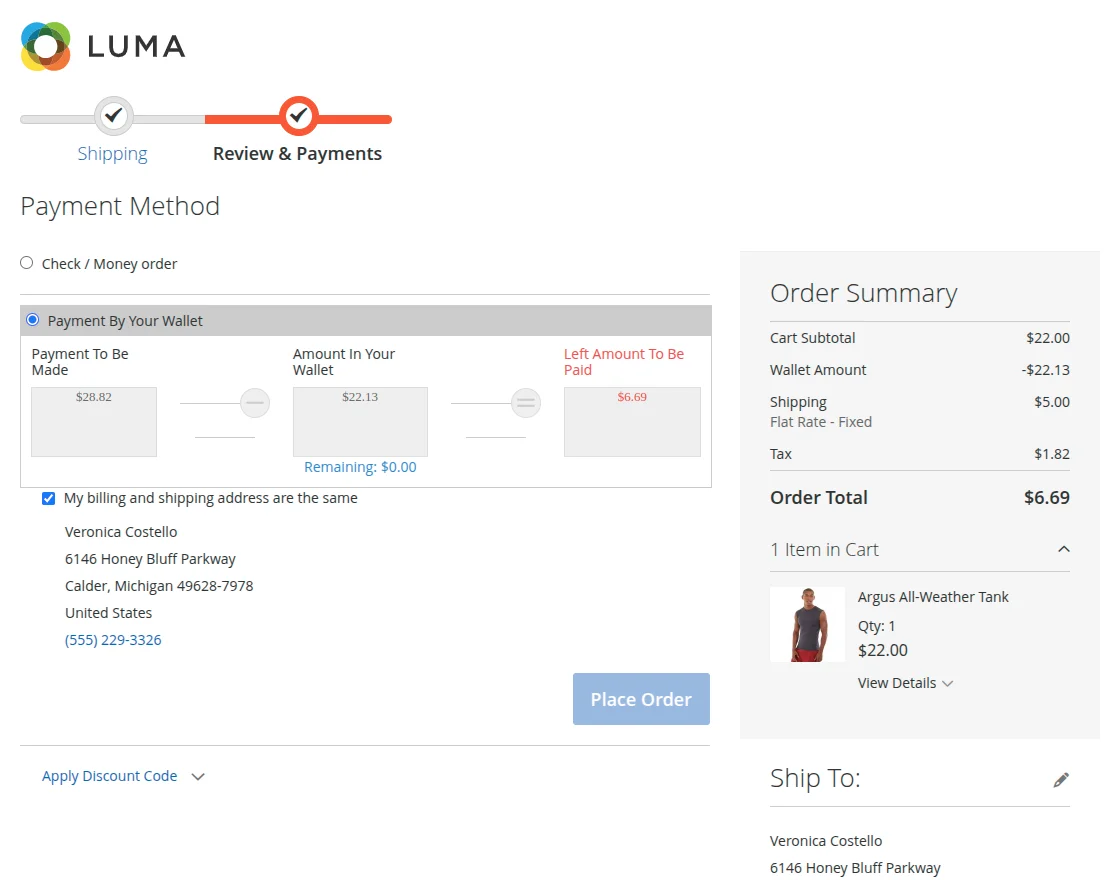
If the total payable amount exceeds the available Wallet balance, the customer can pay the remaining amount using the payment method(s) available for that store.
Admin Panel
Under the Marketplace Wallet System, the admin will see subsections which are shown in the image given below.
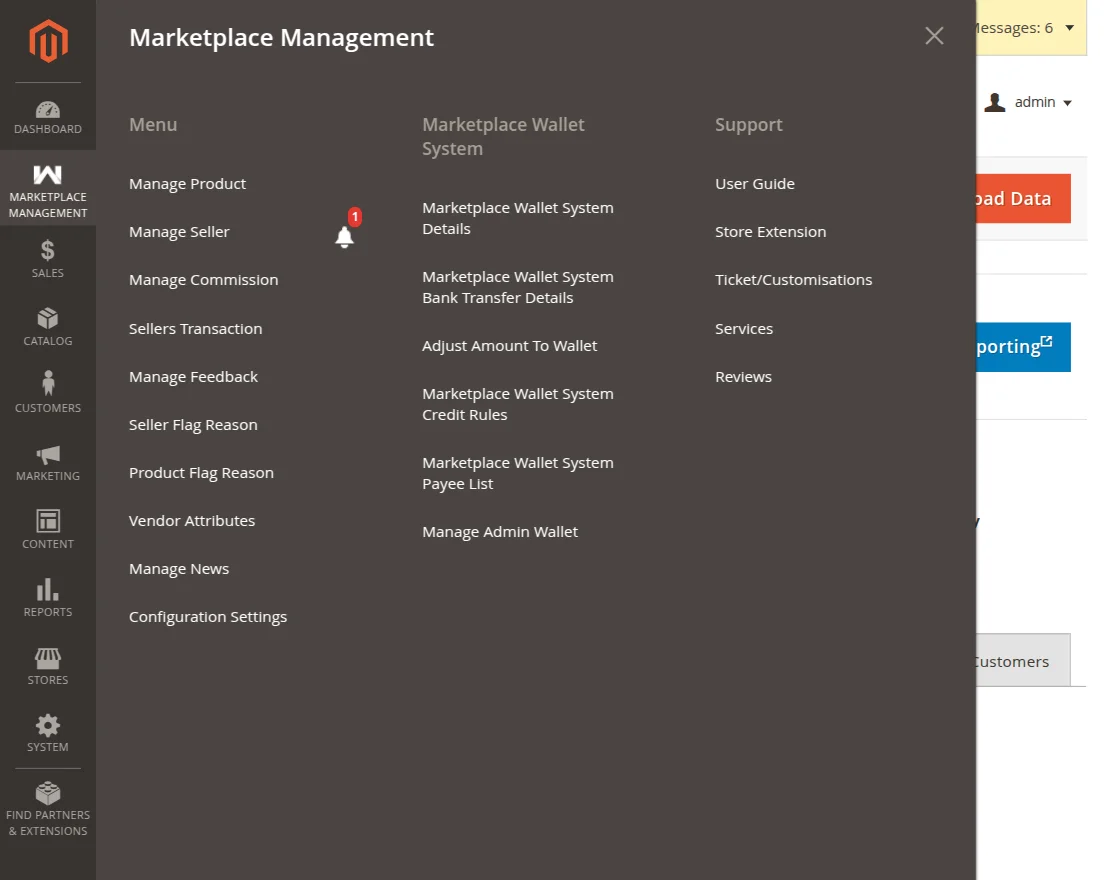
Let’s go through each of the sub-menu options one by one –
Marketplace Wallet System Details
When admin will click on “Marketplace Wallet System Details”, then the admin can see the wallet history(credit & debit) for all of the sellers/customers.
Here, the admin can see the details like – ID, Modified At, Customer Name, Total Amount, Remaining Amount, Unused Amount, Action(to check the individual details).
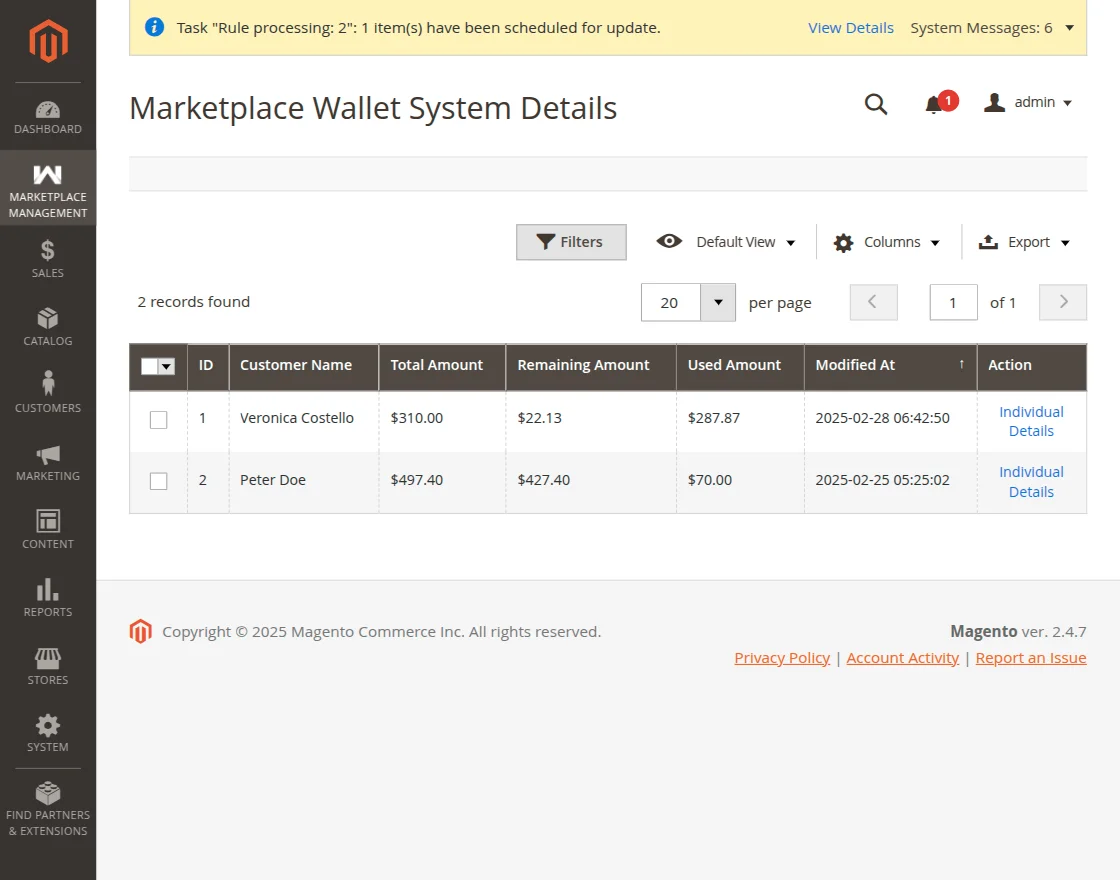
Here, clicking on the Individual Details link for a particular customer brings up the details of all the transactions that have been made.
To check a particular transactions click the View Transaction Link as shown below in the snapshot.
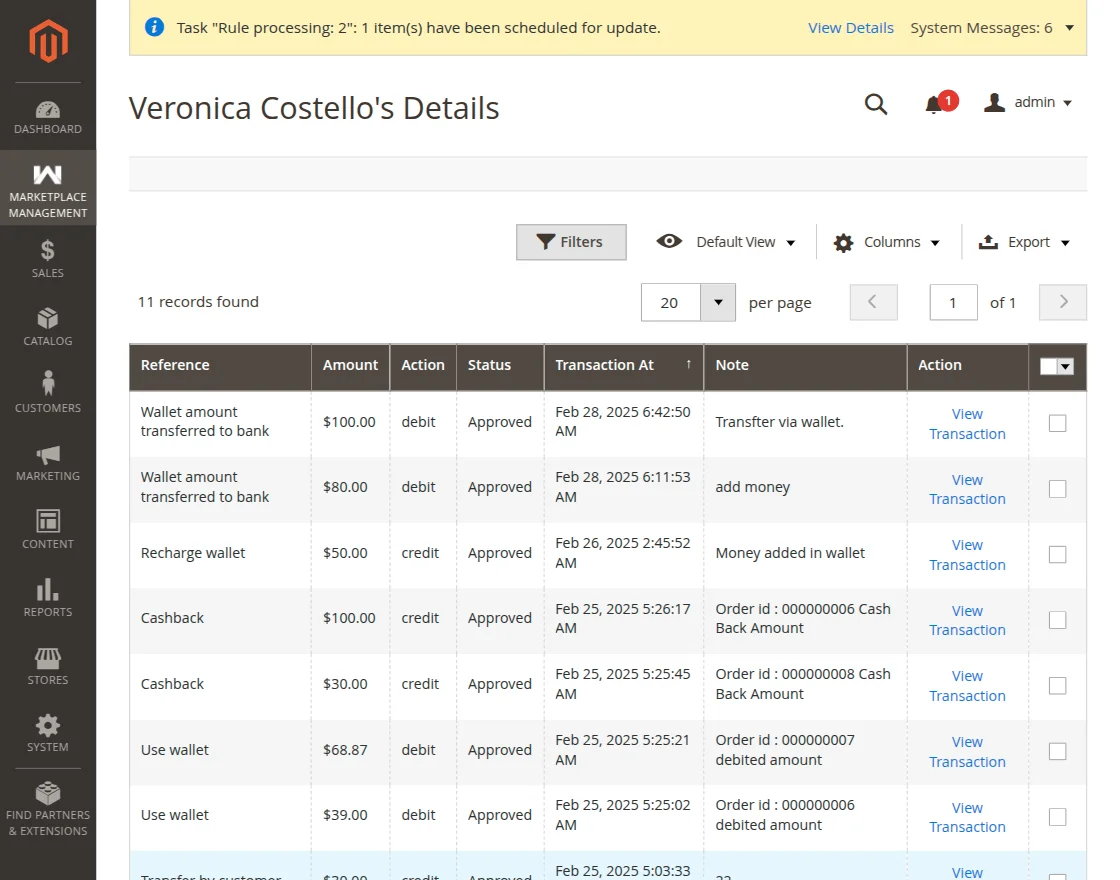
Clicking the View Transaction link brings up the section with complete transaction details of the customer’s individual transaction.

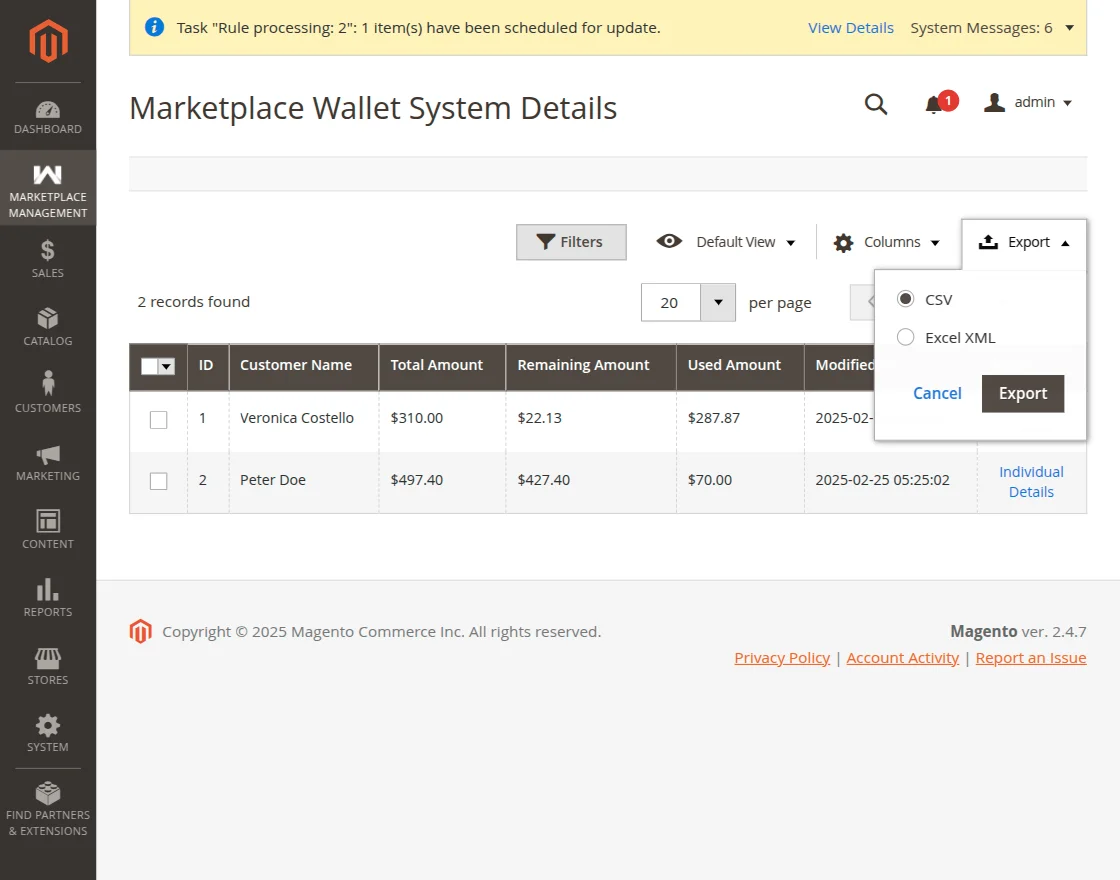
The admin can even export the details in CSV or XML format as required.
Marketplace Wallet System Bank Transfer Details
Under this section, the admin will be able to find all the details regarding the bank transfer details like – Reference, Amount, Action, Status, Transaction At, Note, and Action column.
Whenever a customer goes for withdrawal from his wallet to his bank account, all of those transactions will be visible under here. Initially, the status would be visible as pending.
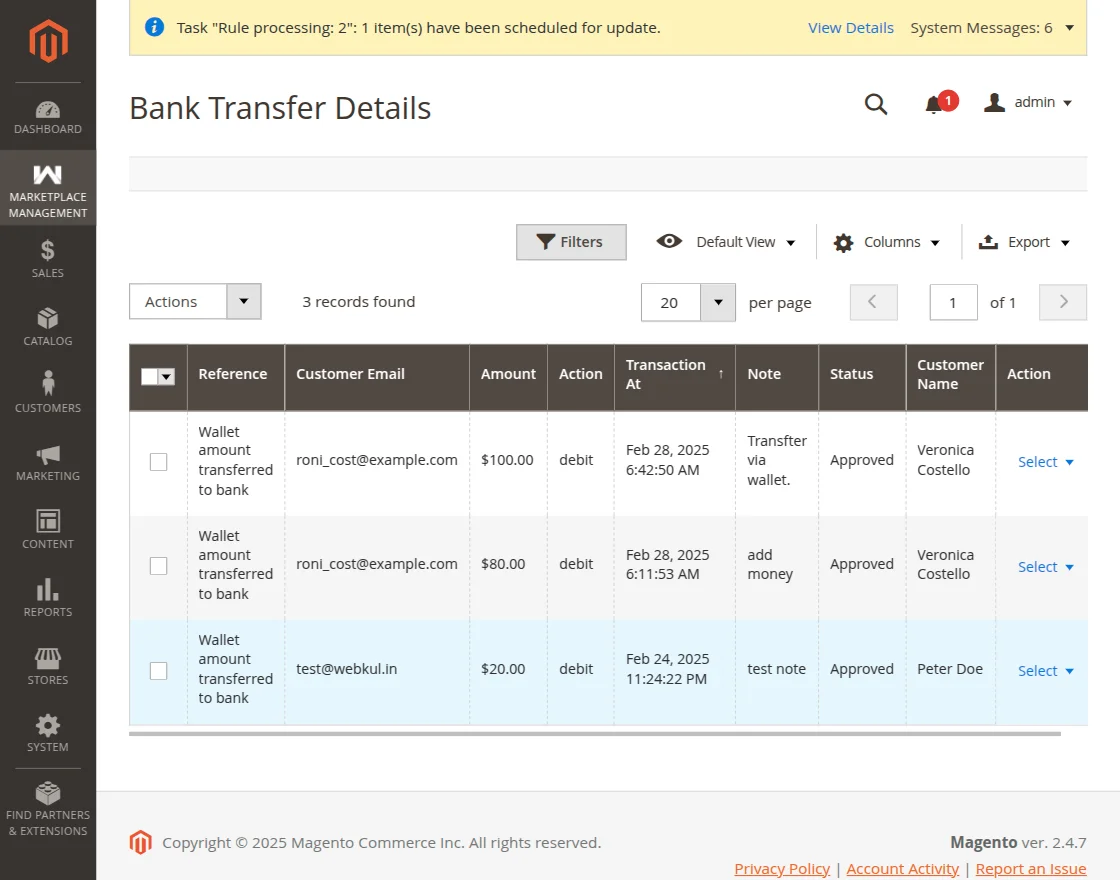
The admin will be able to update the bank transfer transaction status as shown below in the snapshot.
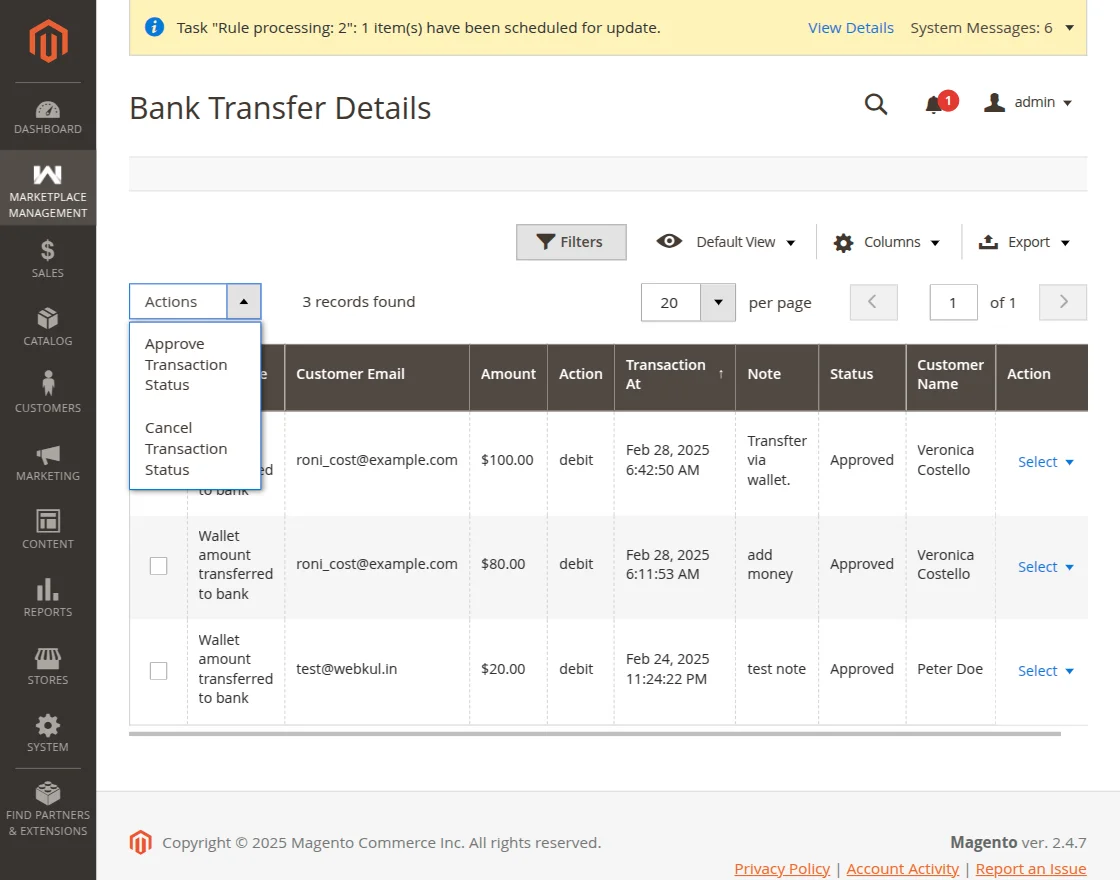
Here, the admin will select the transactions from the list which the admin wants to update the transaction status.
And then, select either of the status option mentioned below –
- Cancel Transaction – This will disapprove or cancel the transaction.
- Approve Transaction – This will approve or the transaction.
The admin can also view the complete details of the transaction.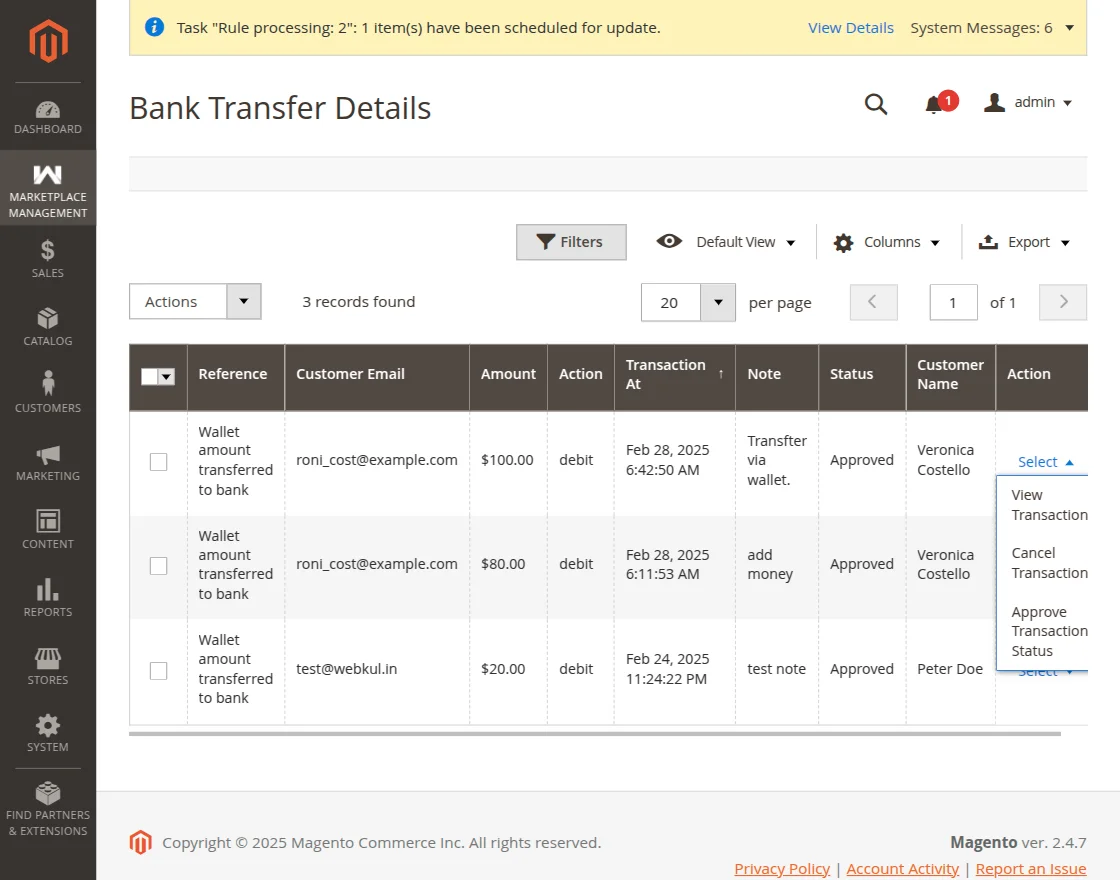 To view the details, simply click the Select link and select the option View Transaction option which displays the transaction details.

From here also, the admin can update the transaction status as per the above image
Adjust Amount To Wallet
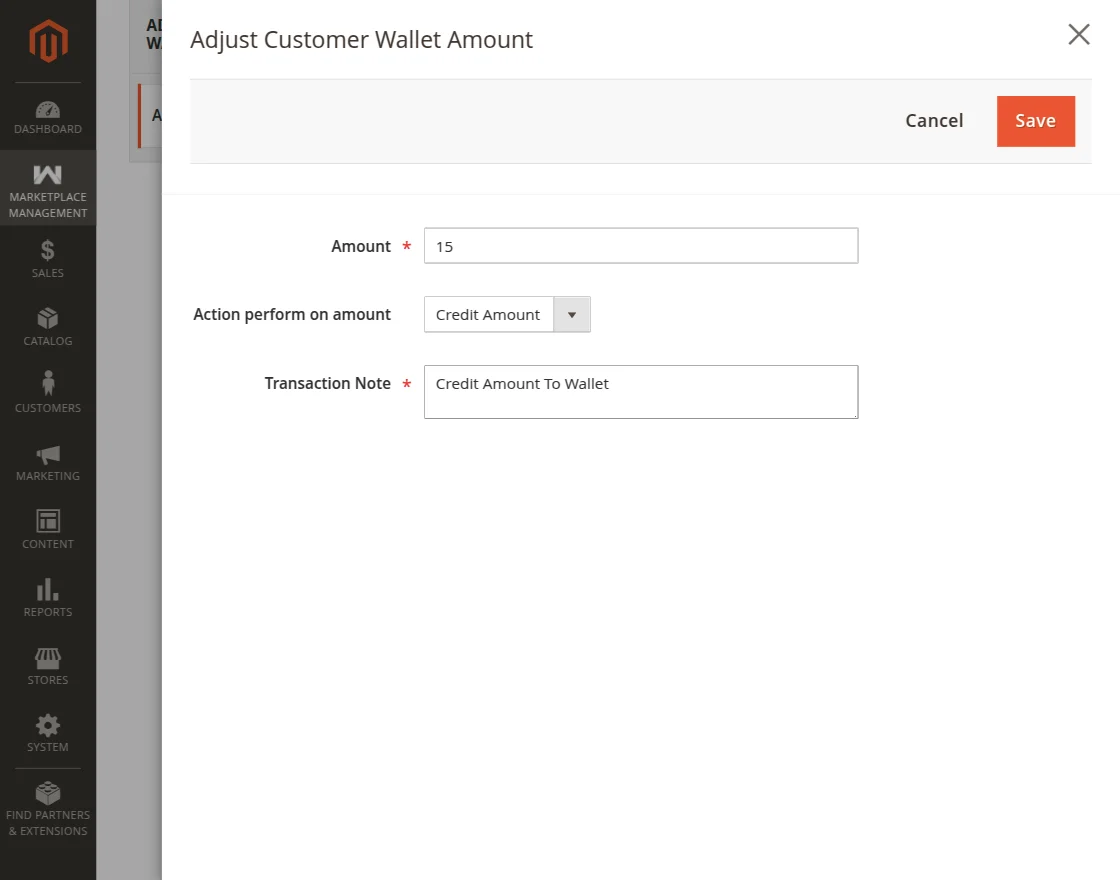
Here, the admin can Enter Amount, select what action they want to perform( Creditor Debit) from “Action want to perform on the amount” and add a Note for the transaction.
The admin can select the customer for whom they want to credit or debit the amount from the list of customers.
With the Customer ID, Name, Email address, Remaining Wallet Amount, Total Wallet Amount, and Adjust Amount.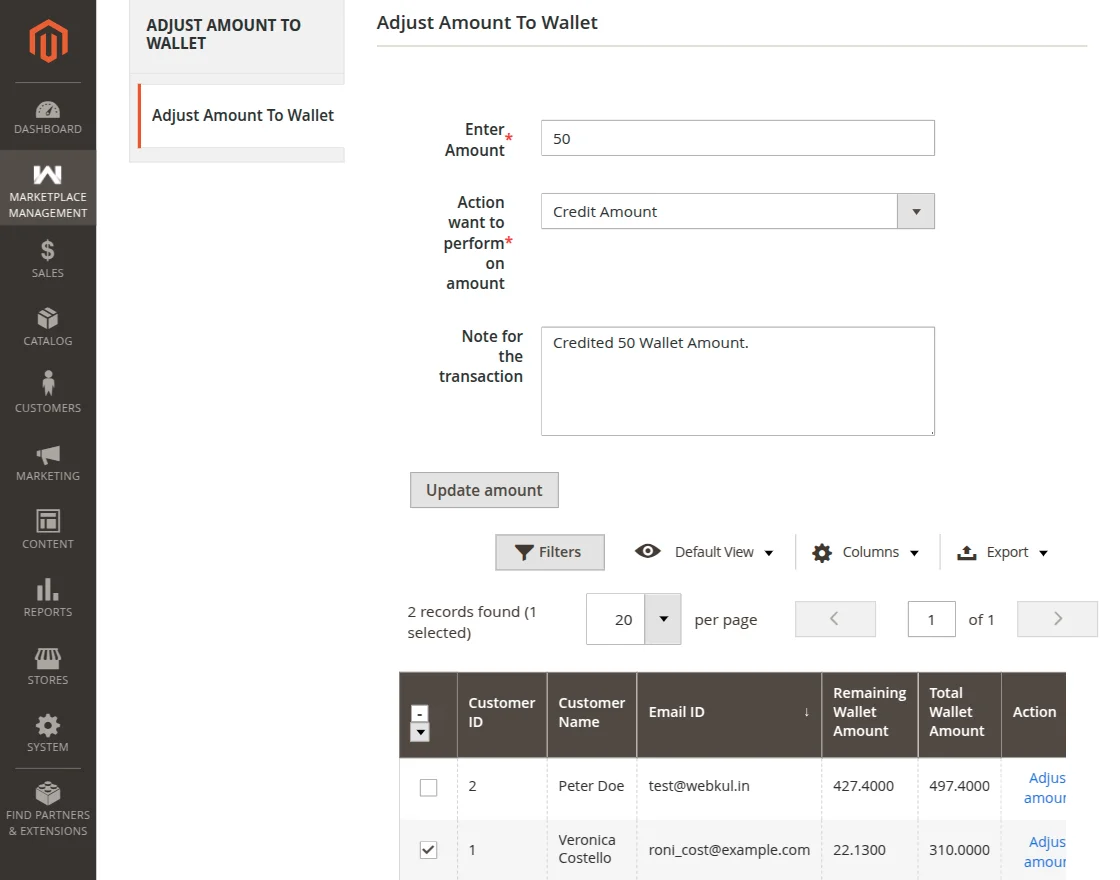
There is a button called “Adjust Amount” for each customer in the list of customers.
By the help of this button, the admin can add or deduct wallet amount from any particular customer.
When the admin clicks there, a pop-up appears to enter the amount, select an action (Credit or Debit), and add a transaction note.
Finally, clicking Submit will process the credit or debit transaction.
The admin can see a success message after the transfer as shown below in the snapshot.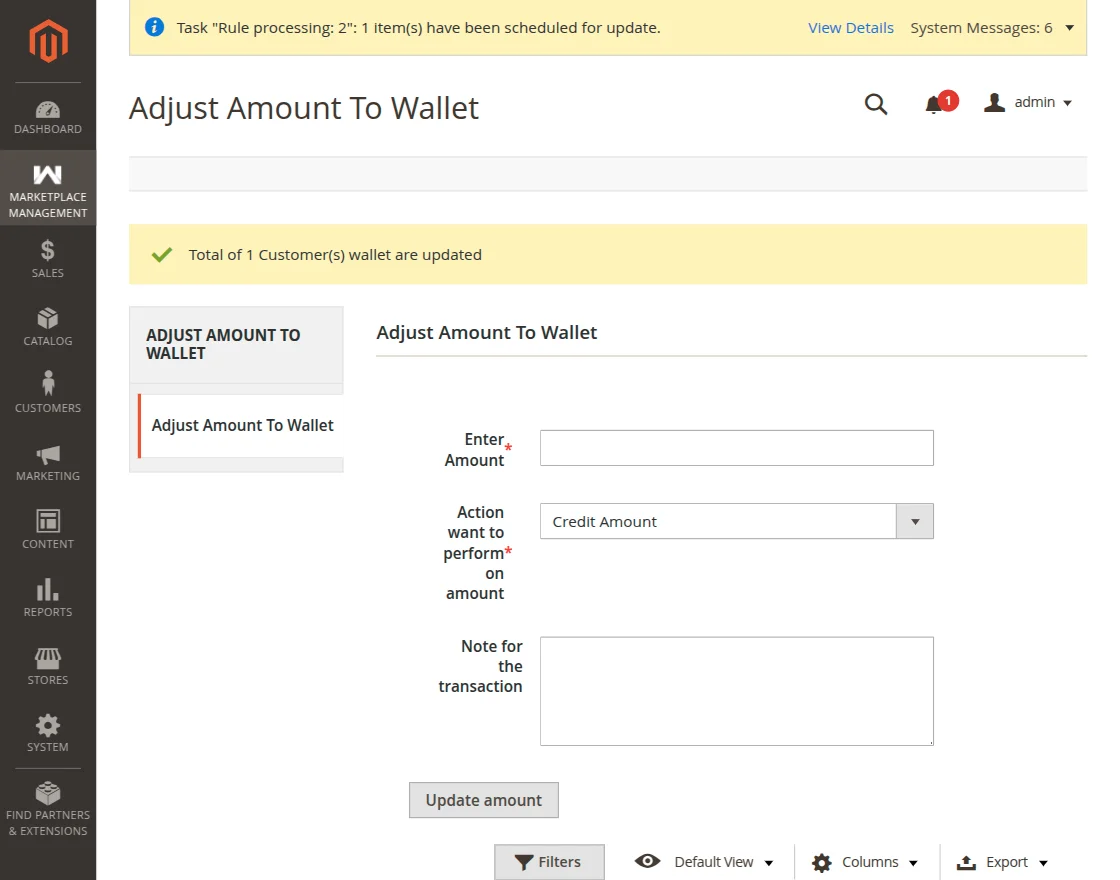
Marketplace Wallet System Credit Rules
Marketplace Wallet Credit Rules is for the efficient management of Credit Amount process into the Wallet system.
From here, the admin can easily create multiple rules for the Wallet Credit and apply them as per the condition. Mainly, there are two types of Credit Rules–
- On Cart.
- On Product.
The admin can see all the details for Wallet system Credit Rules in a grid.
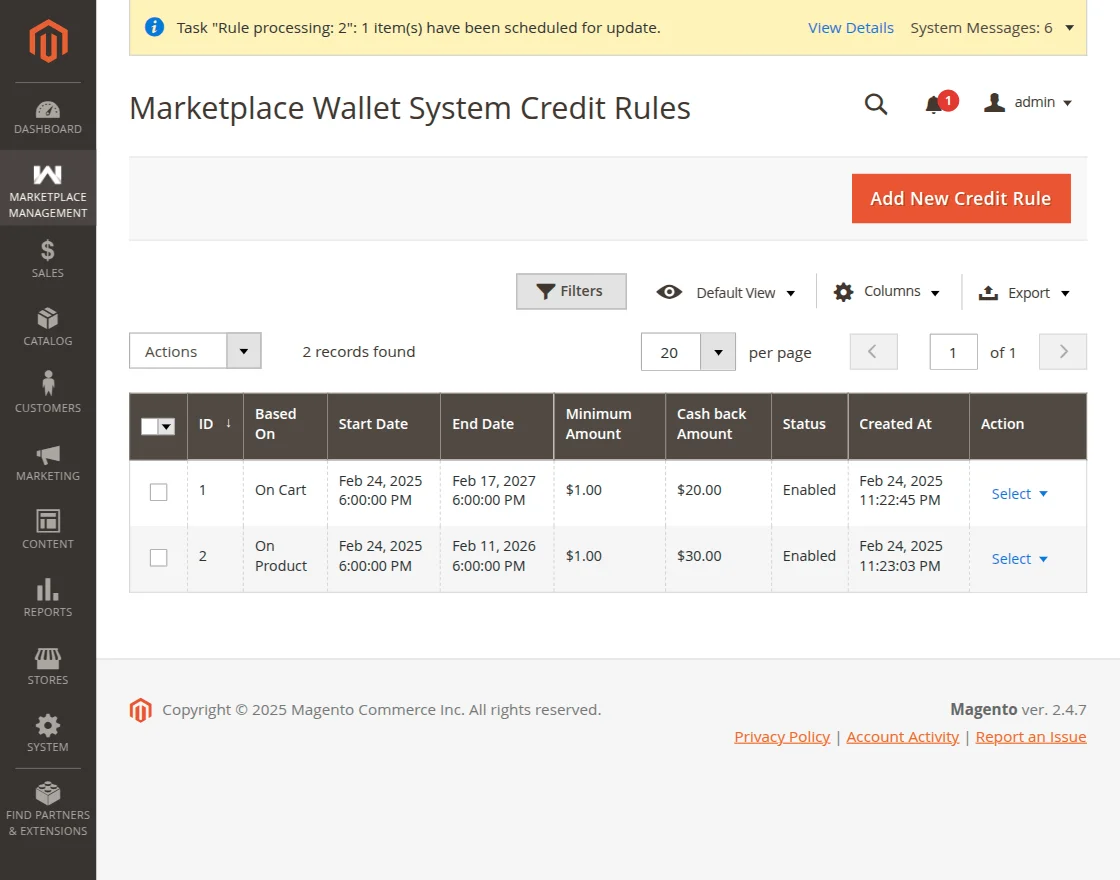
When Credit Rule is based on “On Cart”
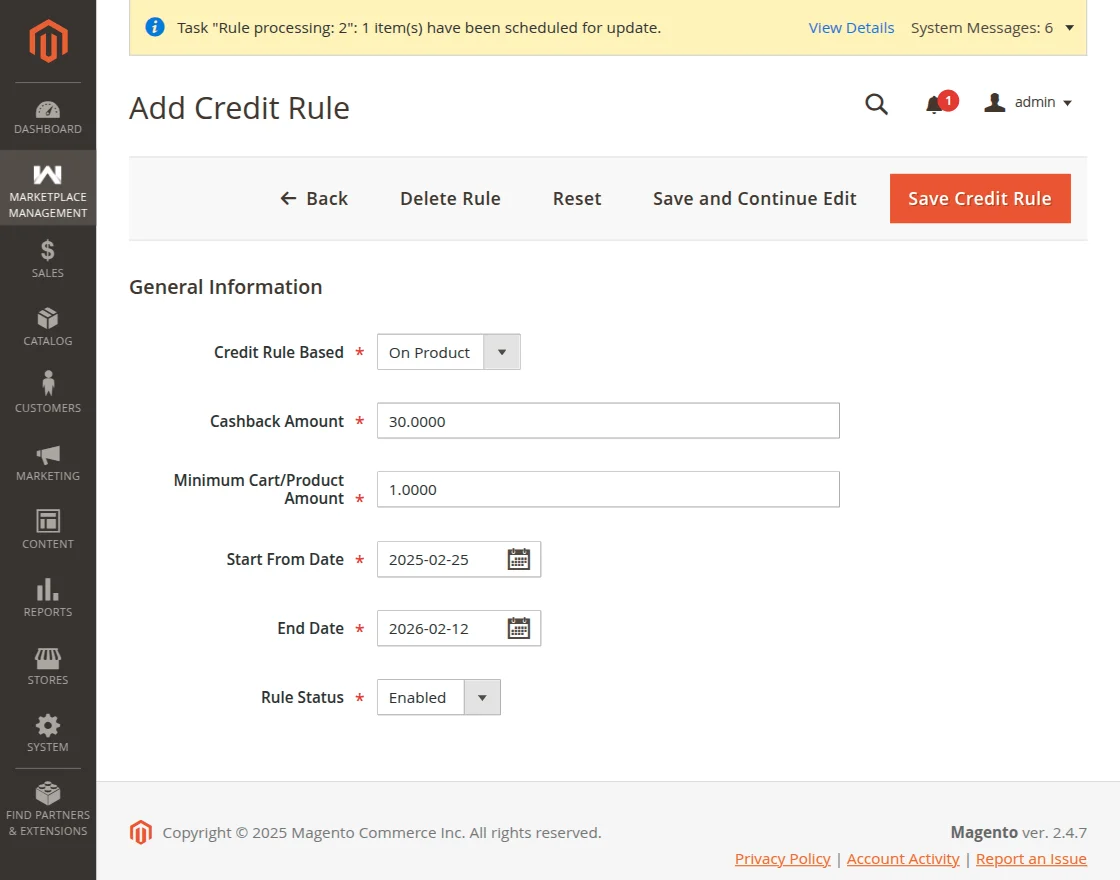
The admin can click on Add New Credit Rule button to add new Credit Rules. Admin can select either “On Cart” or “On Product” for Credit Rule.
The admin can enter Cashback Amount, Minimum Cart/Product Amount, select the Start From Date, select the End Date, and set Rule Status as Enabled or Disabled.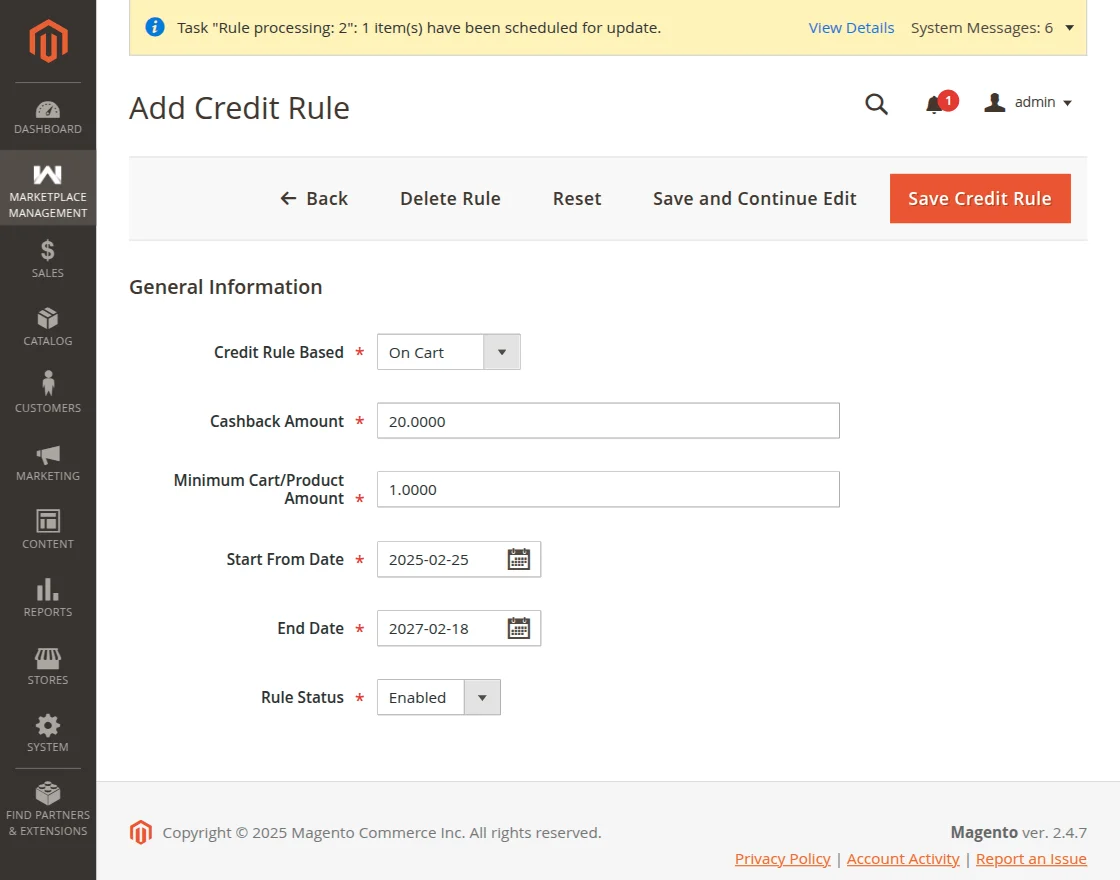
If the admin selects “On Cart,” credit will be applied to the customer when the order value exceeds the set Minimum Amount for the Cart.
This applies only if the order is placed within the date range specified by the admin for that particular Cart Rule.
When Credit Rule is based on “On Product”
Here, the admin will go to Product > Catalog and can edit any product.
They will see two fields – “Wallet Cash Back” in which the admin will enter the amount which will be credited back to the customer when they buy this particular product.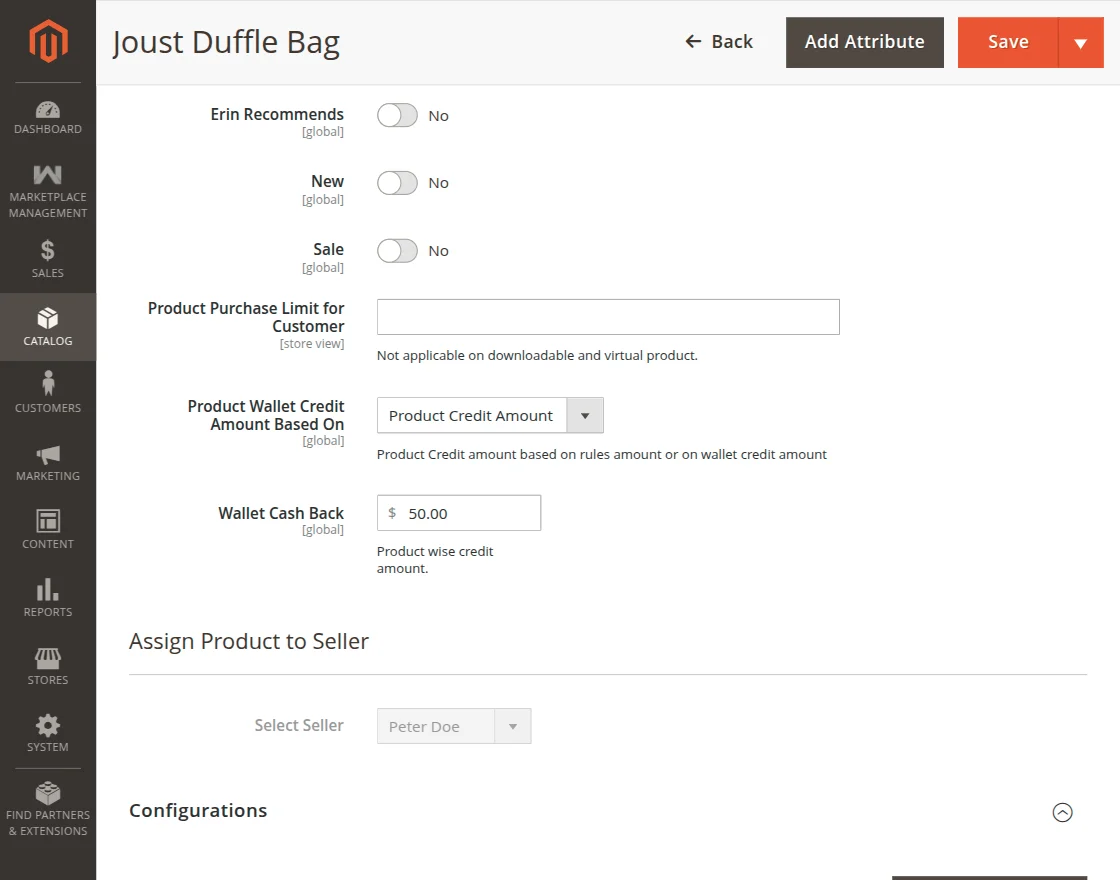
Product Wallet Credit Amount Based On
There is another field called “Product Wallet Credit Amount Based On” in which the admin can either select “Product Credit Amount” or “Cart Rules“.
If the admin select “Product Credit Amount“, the amount entered for “Wallet Cash Back” will be credited back to the customer after the product purchase.
On the cart page, the customer receives a message of the amount getting credited in the Wallet. The credited amount will depend on the Wallet System Cash Back Configuration.
If you set ‘Priority for Cashback’ to ‘Cart Base,’ the system will apply Cart-Based Credit rules.
If you set it to ‘Product Based,’ the system will apply either Product-Based Credit rules or the per-product ‘Product Credit Amount.
The system credits the amount to the customer’s wallet after the order is completed.
The message is displayed in the image below.

Marketplace Wallet System Payee Details
Under this section, the admin will be able to see a list of all the marketplace wallet system payees details along with their status.
The admin can delete or update the payee status as enabled or disabled as required.
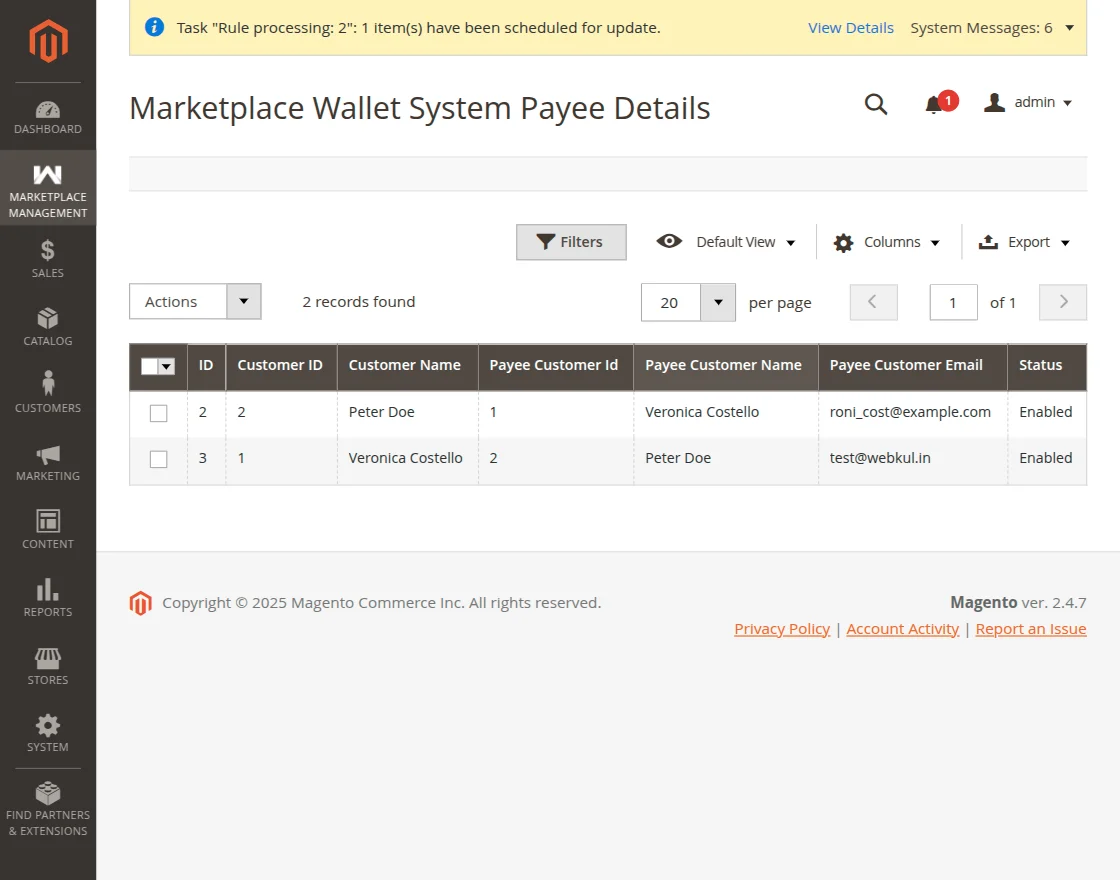
To delete a payee, select the payee and then tap on the Actions drops down option and select delete option.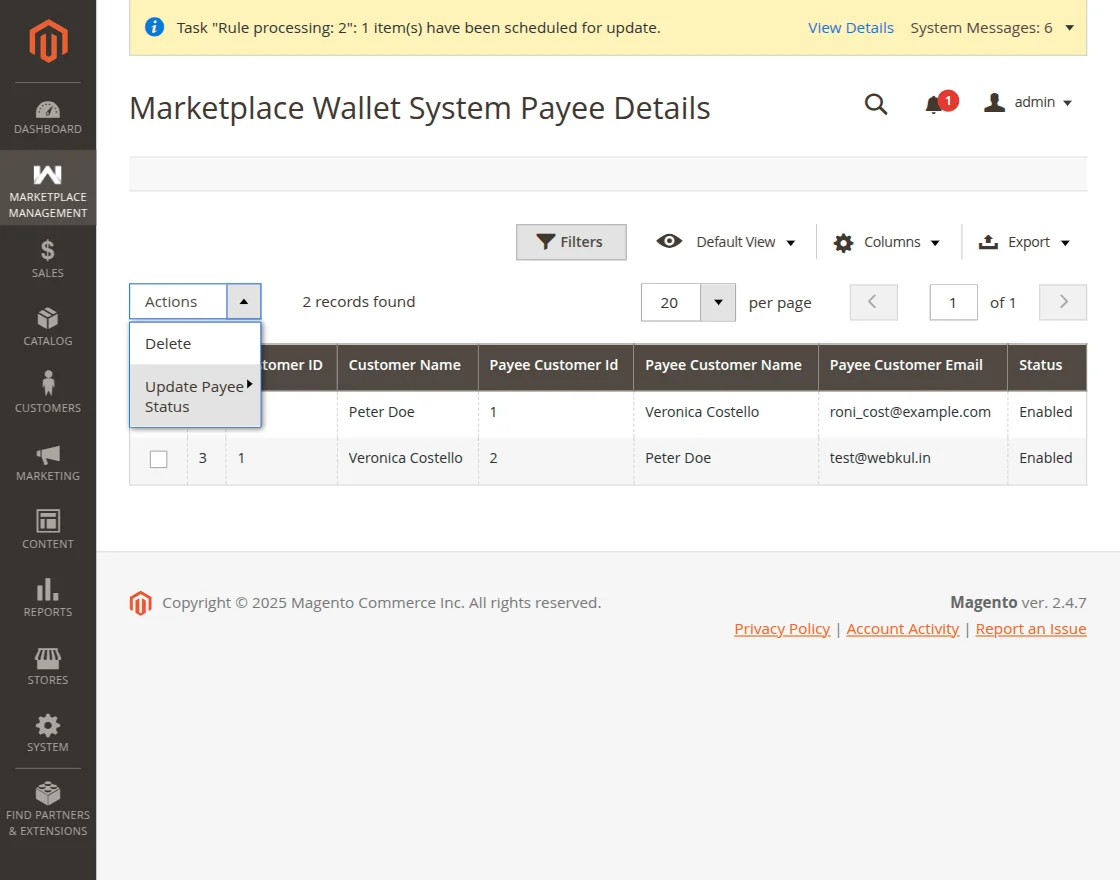
To update the payee status select the payee and click on the actions drop down option and click on Update Payee Status option. After that click enable or disable as required.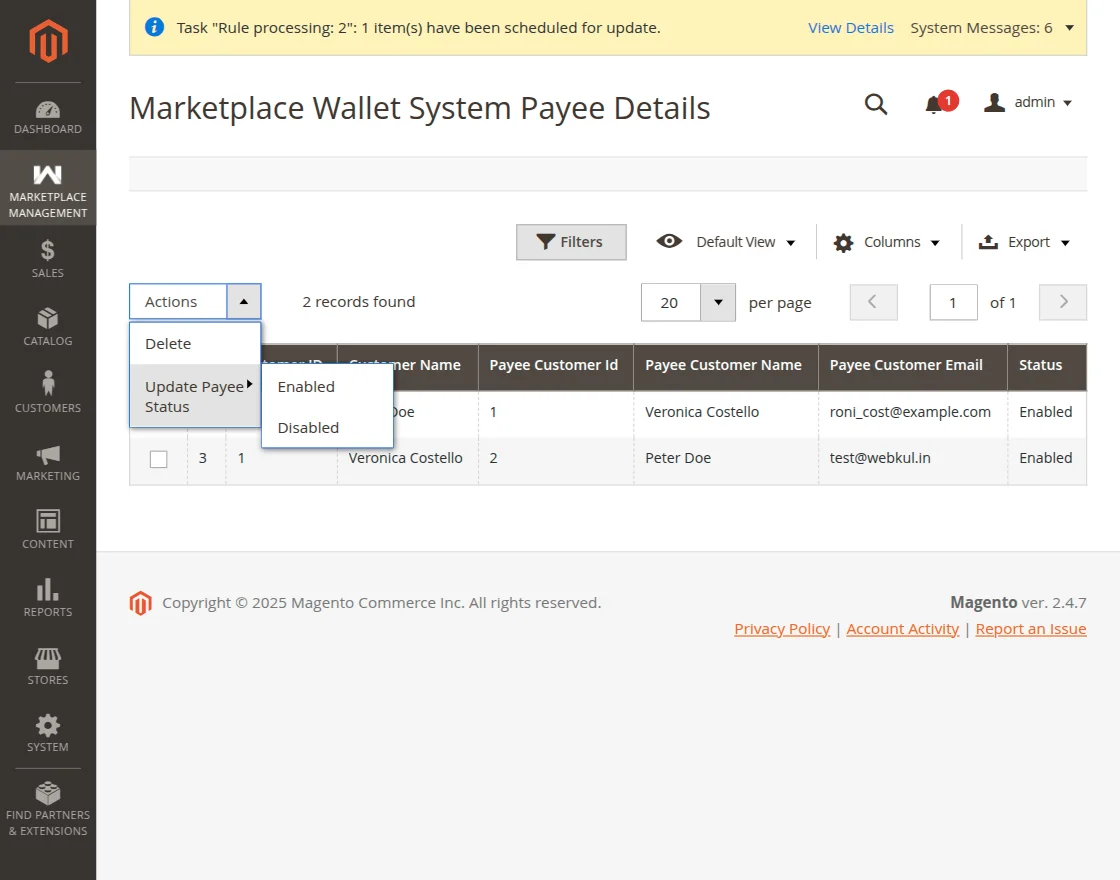
The admin can also export the wallet system payee details. To export, click on the Export link and then select the exported file format as CSV or Excel XML and click Export after that.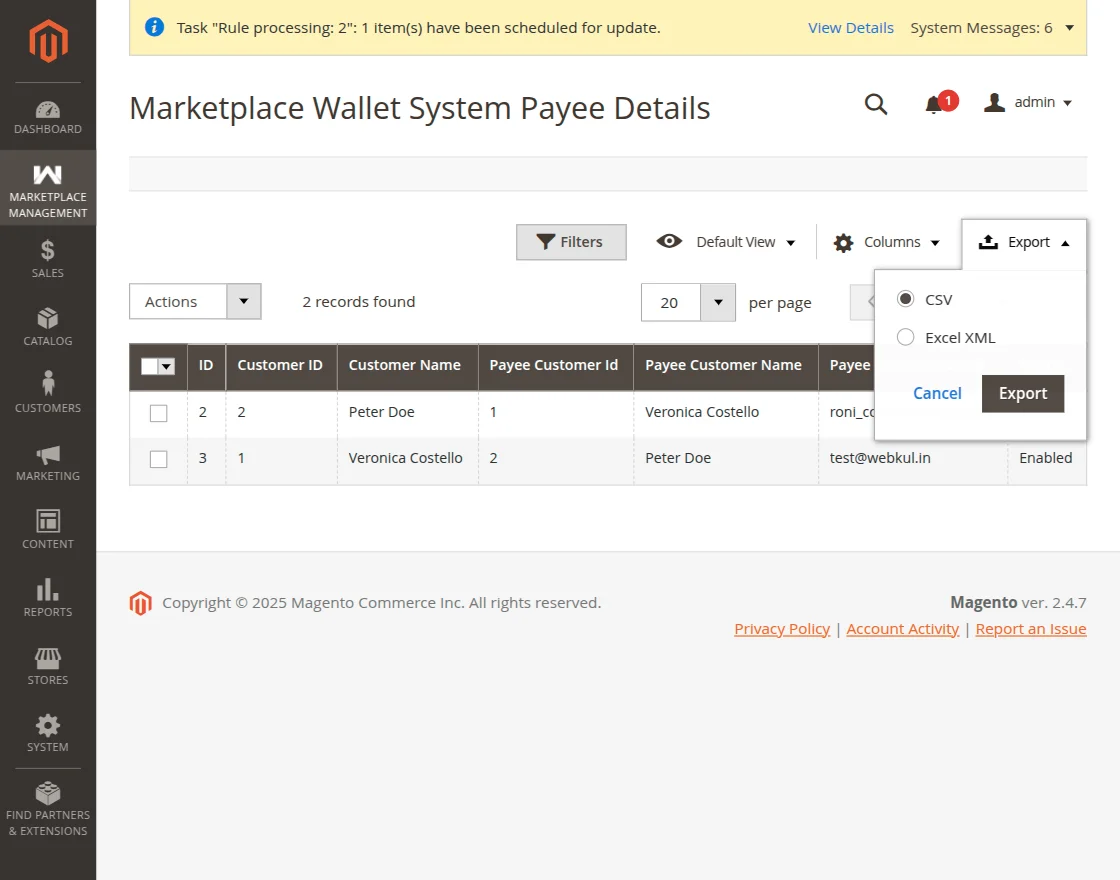
The admin also gets the notification for approving the payee as shown below in the snapshot.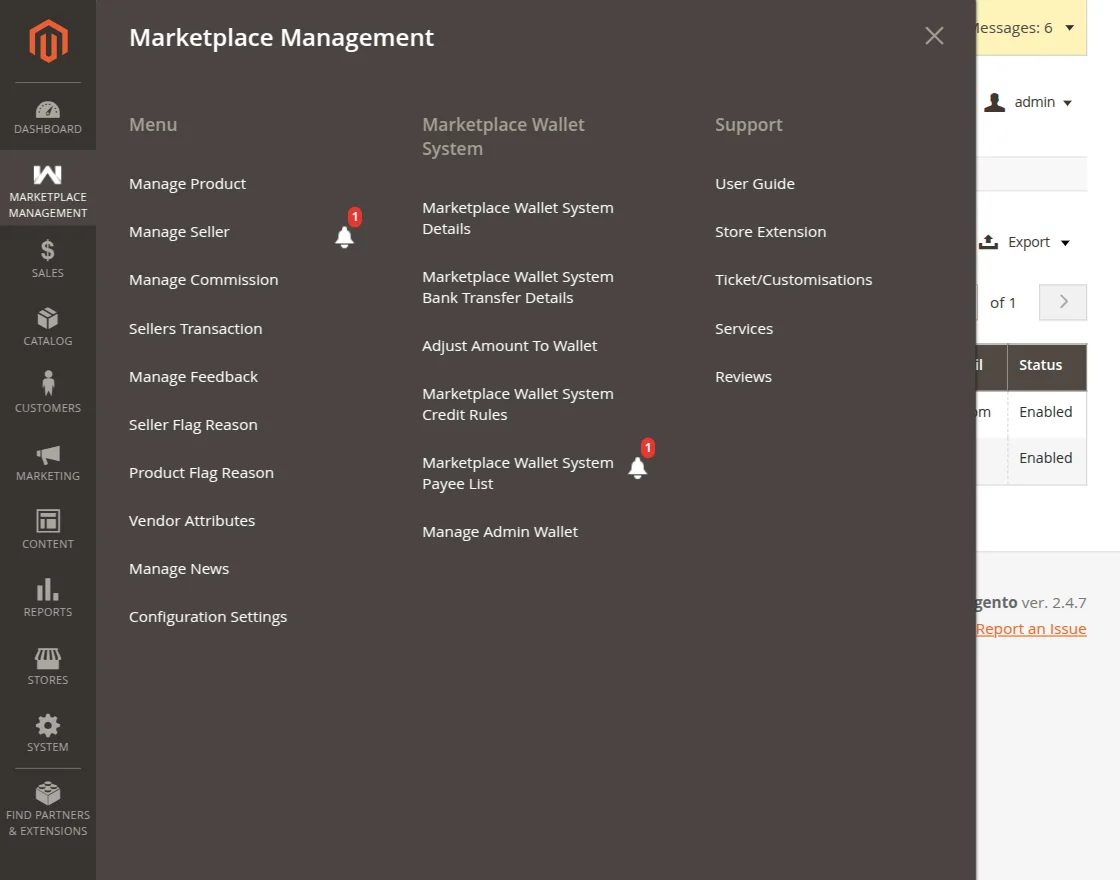
Manage Admin Wallet
Under the following Manage Admin Wallet section,
the admin can view all customer and seller orders that were paid or refunded through the Wallet, as shown in the image below.
Note: In the case of a seller’s product transaction, only the admin’s commission amount will be added to the admin wallet.
The following details like Order id, amount, currency code and type.
Refund
The admin/seller can transact the refund to the customer on his wallet for the order entities.
The seller can generate the credit memo of their products by selecting the credit memo as shown below. After the credit memo is generated,
the seller can select the refund option in order to refund the money to the customer as shown in the image below.
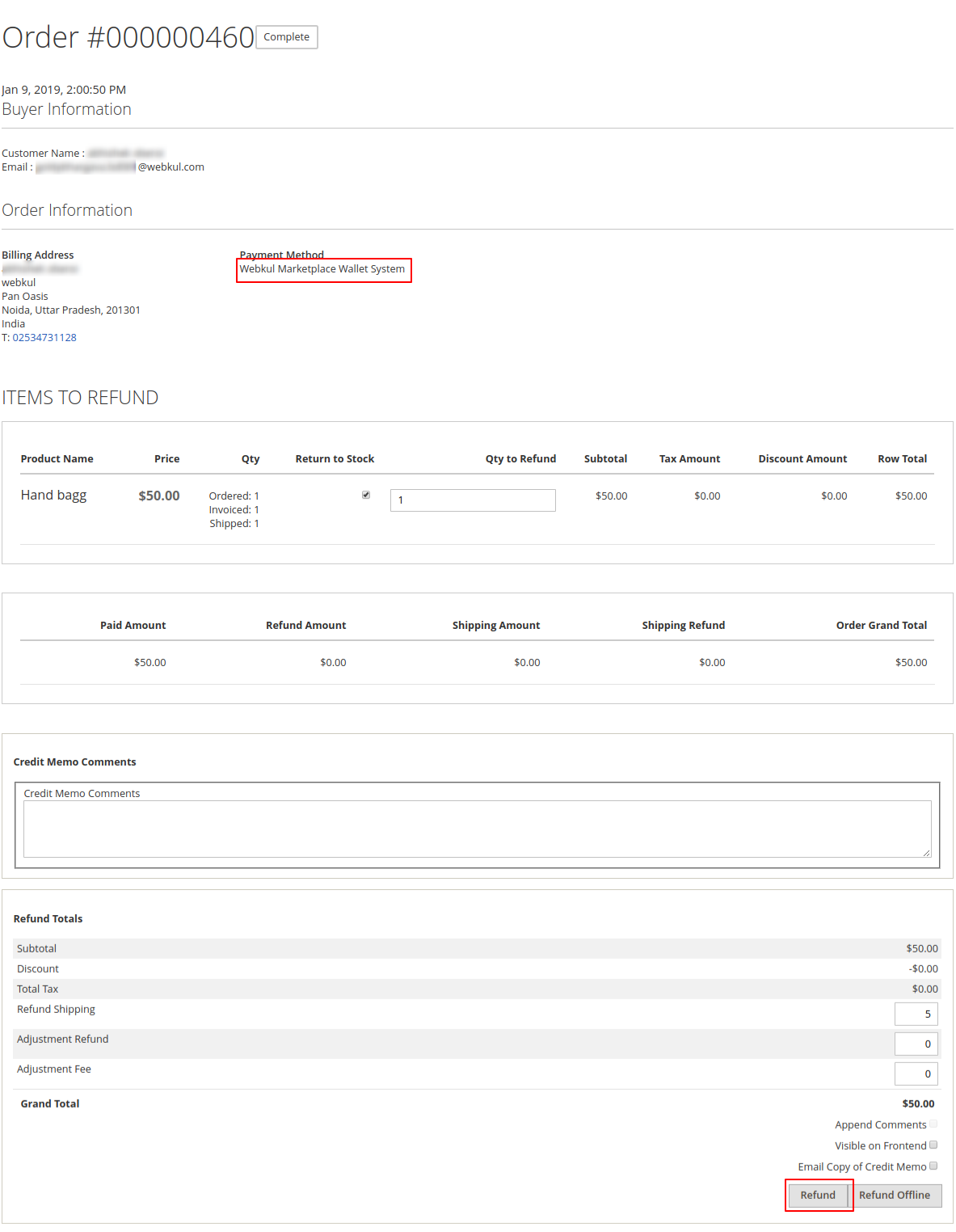
After we process the refund, the customer can check the details by selecting the view button, as shown in the image below.

The system reflects the amount in the customer’s wallet, and the customer can see it by navigating to My Wallet > Manage Wallet Amount, as shown in the image below.
That’s all for the Magento 2 Multi Vendor Wallet System extension.
Still, have any issue feel free to add a ticket and let us know your views to make the module better at HelpDesk Support.
Current Product Version - 5.1.1
Supported Framework Version - Magento 2.0.x, 2.1.x, 2.2.x,2.3.x, 2.4.x


Be the first to comment.