Introduction
Magento 2 Iyzico Payment Gateway (Adobe Commerce) allows the admin to enable Iyzico payment methods for his products.
Also, it will enable the customer to use Iyzico payment to purchase the product at their end.
Furthermore, it is a helpful add-on for the Turkish market. It allows a customer to make online payments using a credit card or debit card.
The Iyzico Payment Gateway module is compatible with Adobe Commerce Cloud Edition.
Moreover, the add-on allows a boost in the sale of a site as it provides a complete payment method success rate with transparency.
Additionally, if you’re looking to add the PhonePe payment gateway to your Adobe Commerce store, then you can check Magento 2 PhonePe Payment Gateway.
Features
- The functionality of 3D secure payment is available.
- Built with iyzico checkout.
- Even, fully PCI Compliant.
- Also, no card details submitted to the client-server.
- Installments payment option for making the purchases.
- Also, admin can refund the invoiced amount.
- Admin can refund invoiced amount partially.
- Enable/disable payment method from admin panel.
- The customer needs to add Identity Number to use Iyzico payment method.
- Moreover, fully open-source code
- Even, smooth reconciliation to handle risk management system.
- This extension is compatible with multiaddress checkout.
Note- The currencies supported are- TL, Turkish Lira; EUR, Euro; USD, US Dollar; GBP, British Pound; IRR, Iranian Rial; NOK, Norwegian Krone; RUB, Russian Ruble; CHF Swiss Franc
Installation
Customers will receive a zip folder and must extract it on their system. The extracted folder contains an src folder, and inside src, there’s an app folder.
Moreover, you need to transfer this app folder into the Magento2 root directory on the server, as shown below:

So, after the successful installation, you have to run these commands in the Magento2 root directory.
composer require iyzico/iyzipay-php:2.0.*
php bin/magento setup:upgrade
php bin/magento setup:di:compile
php bin/magento setup:static-content:deploy
php bin/magento indexer:reindex
php bin/magento cache:flush
Then, after running the commands, you have to flush the cache from the Adobe Commerce admin panel by navigating through ->System->Cache management, as shown below in the snapshot.

Admin Configuration
So, after the successful installation of the module admin can configure the module from the admin panel, by following the navigation as – Stores->Configuration->Sales->Payment Methods->Iyzico Payment.

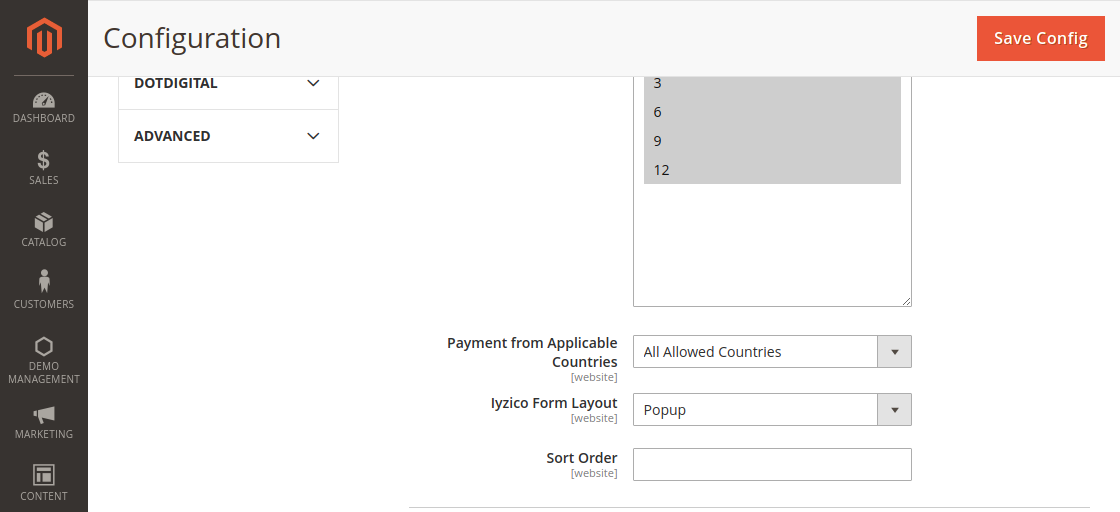
Iyzico Payment Gateway Configuration Points:
- Enable/Disable Module– The admin can enable or disable the module from here.
- Title– Now, in this field, the admin has to enter the title for the Iyzico Payment Method, which will get displayed on the Front-end during checkout.
- Environment- This is to select if the credentials entered are of the Sandbox environment or the Live environment.
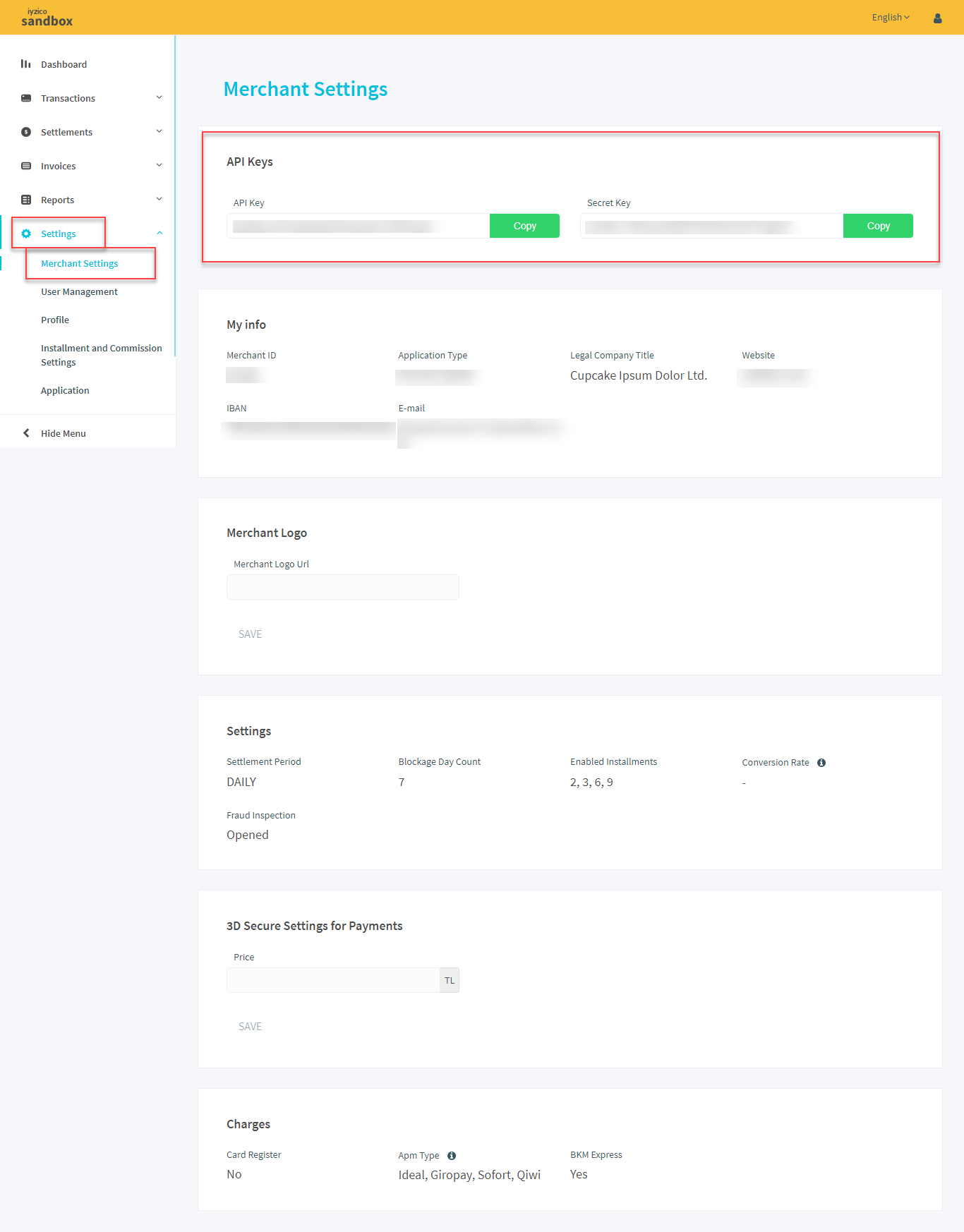
- API Key- The API key credentials will be taken from Iyzico Account.
- Secret Key- This is also taken from Iyzico Account.
- Allowed Installments- Then, set the monthly installments using which the customers can pay using for their purchase.
- Payment from Applicable Countries- All those countries for which admin wishes to make payment method applicable.
- Iyzico Form Layout– Admin can choose layout Responsive, Popup or Redirect.
- Sort Order- In which place the payment method will be made visible among various payment methods at the time of checkout.
How To Get Keys?
Step 1- Now, register To IYZICO account via these links-
- Sandbox account-https://sandbox-merchant.iyzipay.com/login
- Live account–https://merchant.iyzipay.com/login

Step 2- Settings
- Sandbox Account- https://sandbox-merchant.iyzipay.com/settings
- Live Account-https://merchant.iyzipay.com/settings
Front End
To use the iyzico payment method, the customer must configure the Identity Number received during iyzico account setup. For this, they need to go to Account Information as shown below.
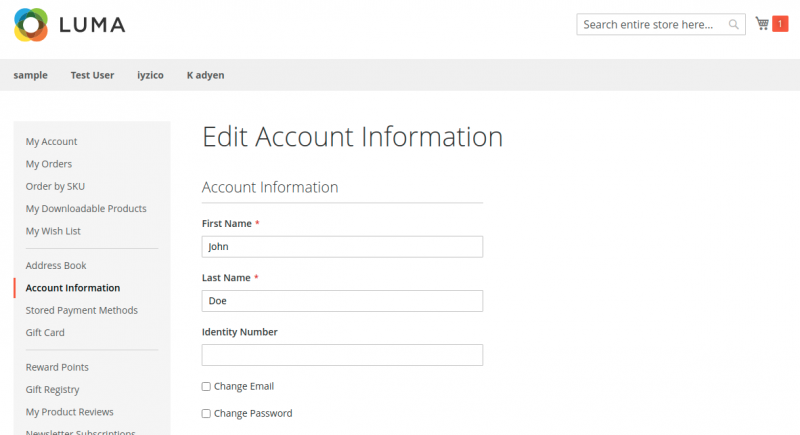
Note: The Identity Number refers to the Turkish Identification Number, a unique ID for Turkish citizens. Non-Turkish users should enter their passport number instead.
Now, the customer can, however, view the payment method at the time of checkout and choose it for safer payment.

And as the customer selects the payment gateway, it will lead to a Popup screen where he/she needs to enter the card details of the Iyzico account.

Next, the customer can select Pay with Iyzico option also from the top,
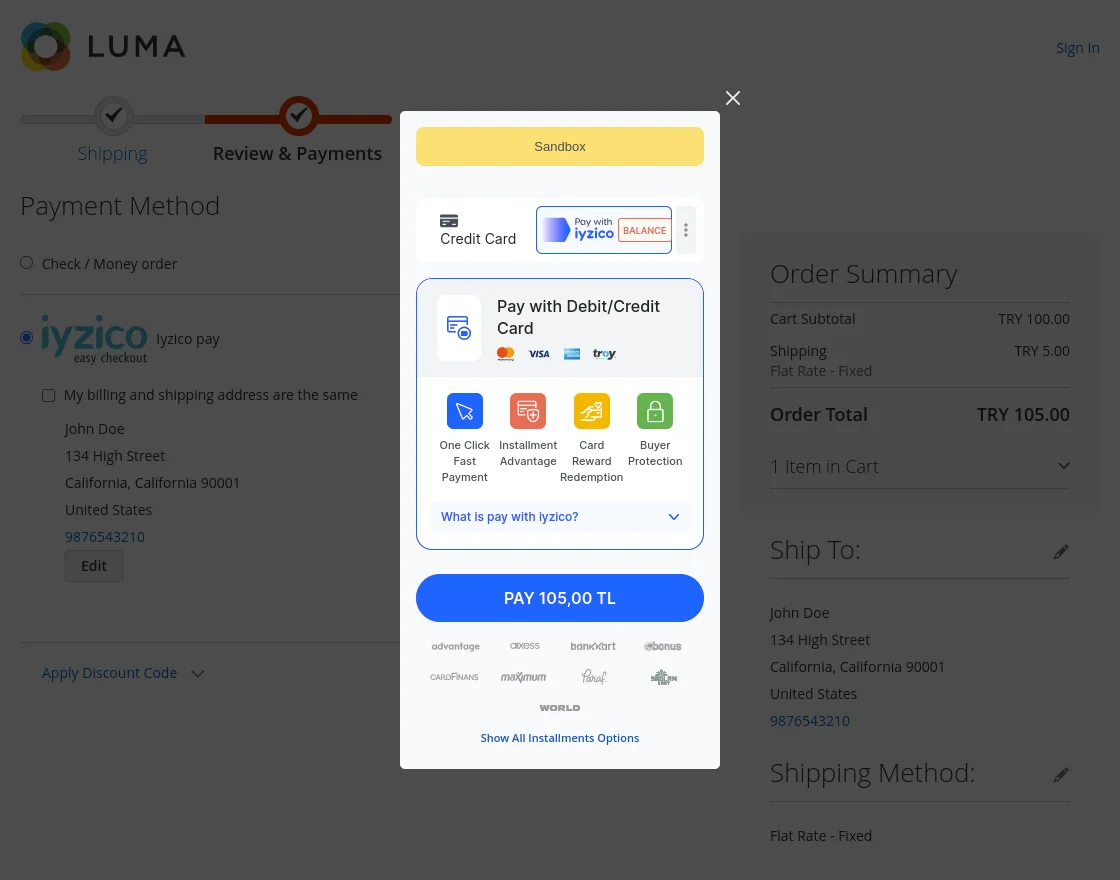
By clicking on the 3 dots provided in the top right section, customers can access other payment options as well to pay through them,
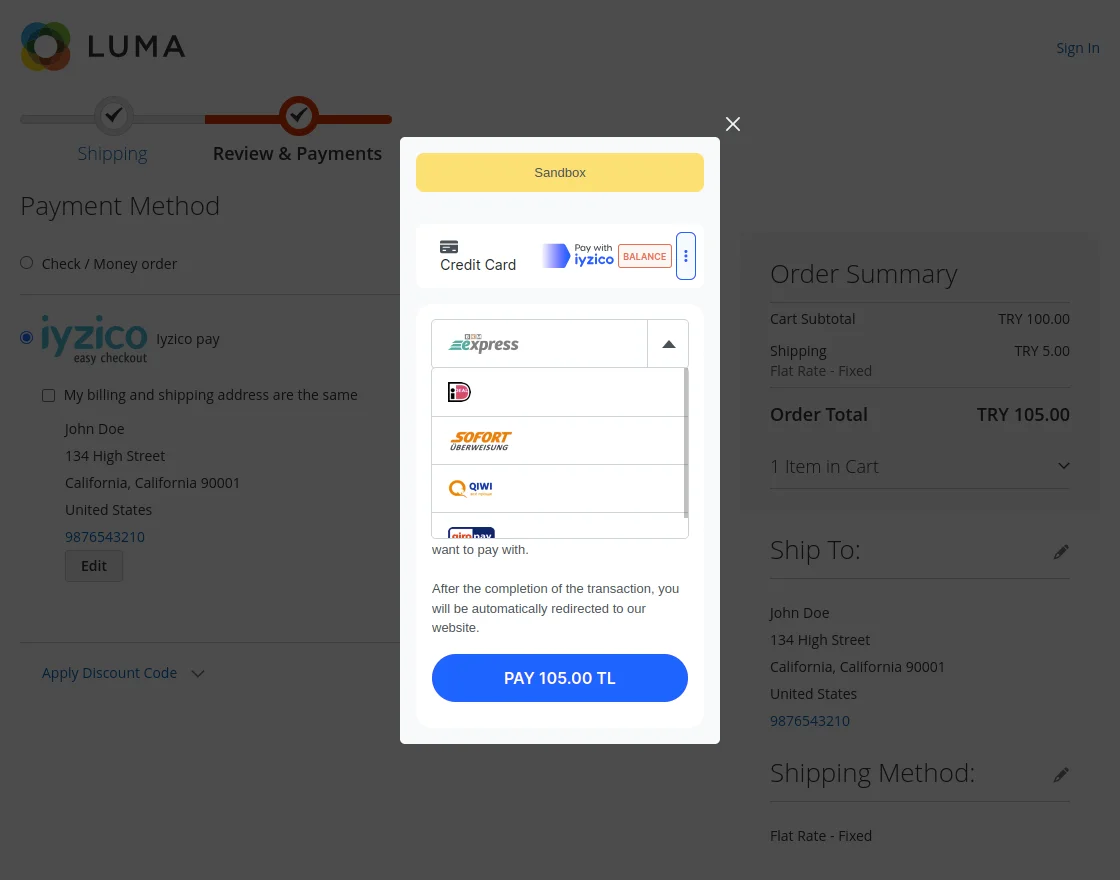
If the admin has set the Payment Form as Responsive, then a payment form will appear on the screen as shown below.

If the admin has set the layout as Redirect then, the customer will be redirected to the Iyzico secure site to complete the payment,
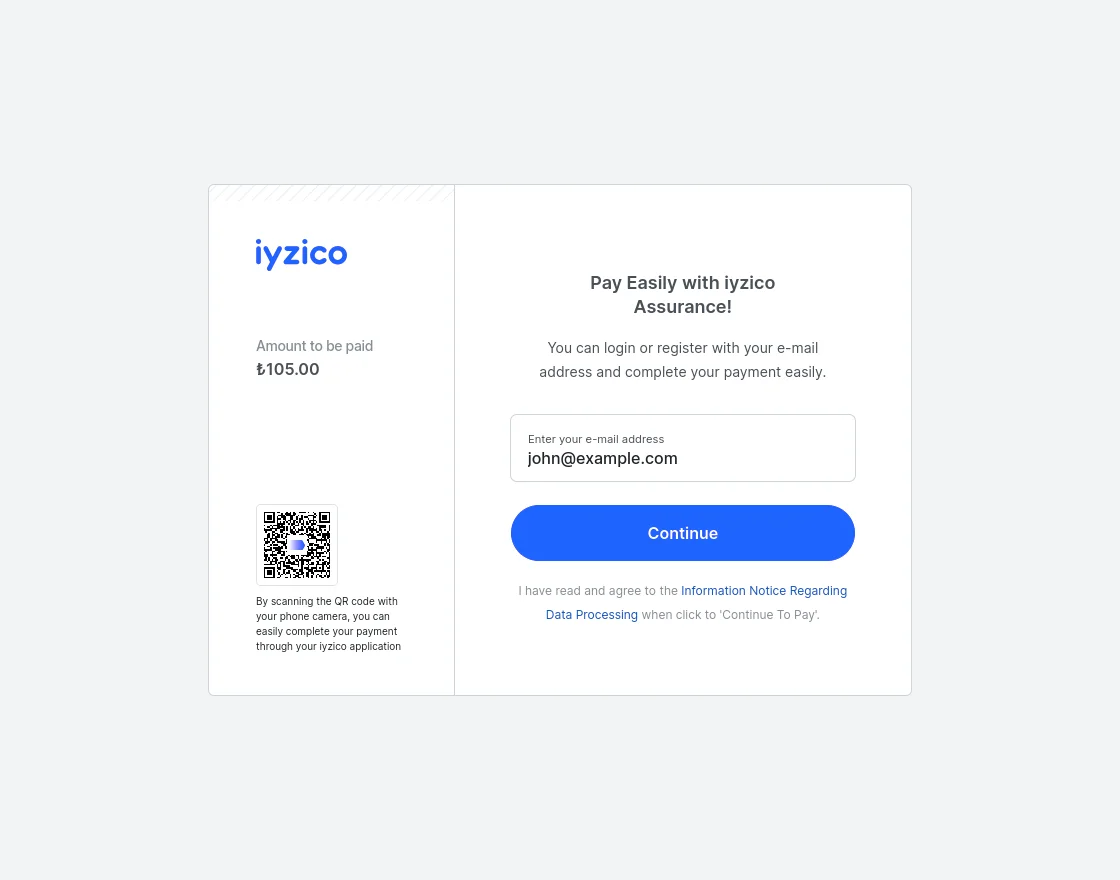
Even, the customers can pay either making a complete single payment else can pay in Installments for their purchase. Then, the customer selects the Installment plan from the list as per the choice.
Moreover, this Installment option will allow the customers to pay in easy monthly installments.
The customer will then process the 3D secure Authentication.
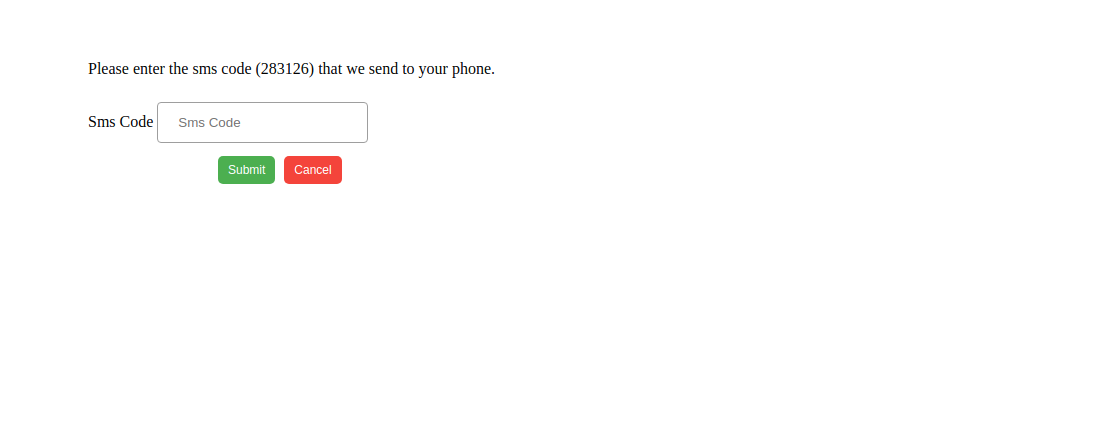
After the successful authentication, the customer will navigate to the order success page.
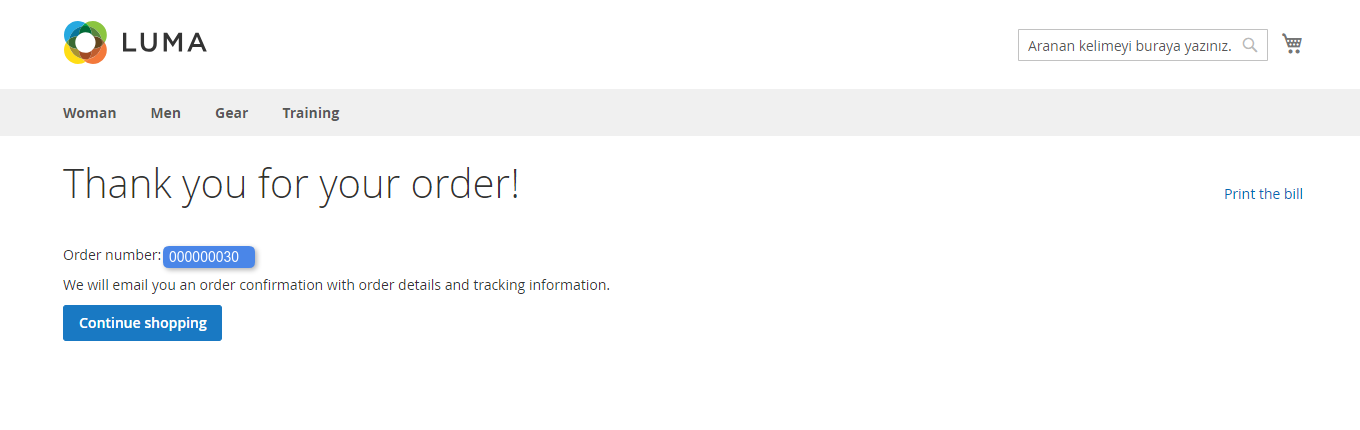
Note: And, if the customer has not configured the Identity Number. Then, the customer first needs to provide the Identity Number while making the payment.

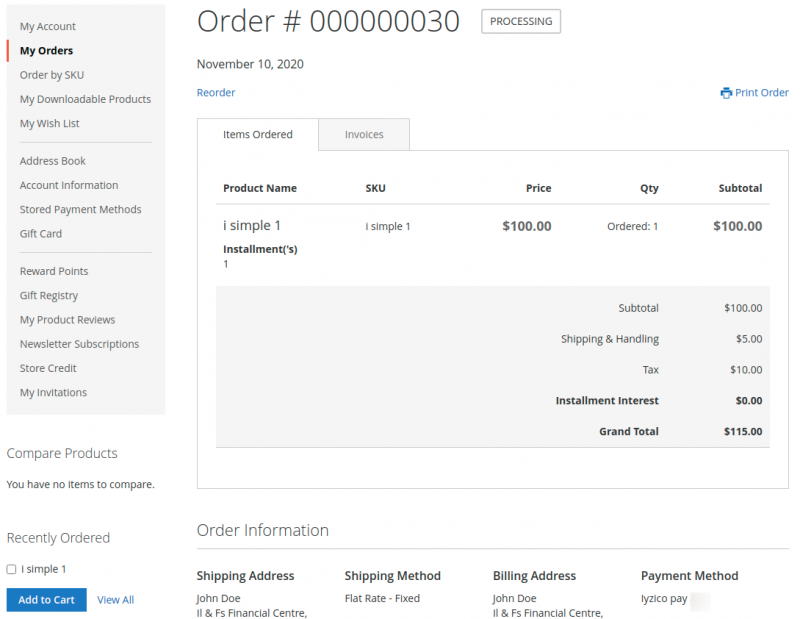
Furthermore, once the order gets placed successfully, the customer will navigate to My Orders to view the order details as per the below image:
Orders
Also, the admin can easily view and manage the orders placed through Iyzico payment method. And, for this, the admin will navigate to Orders as per the below image.

Here, the admin can view the complete order list and select any order to manage it. On clicking the View link, the order details page will open, as shown in the image below.

Now, click on the invoice section to view the invoice details.

Note: The admin also can view the Identity Number of the customer.
The admin can click on print to generate the pdf of the invoice.

And, for this, the admin needs to navigate to the Customer -> All Customer and select the customer from the list to view the Identity Number of the particular customer.
Now, under the Account Information section, the admin can view the Identity Number of that customer.

Orders In Admin Iyzico Account
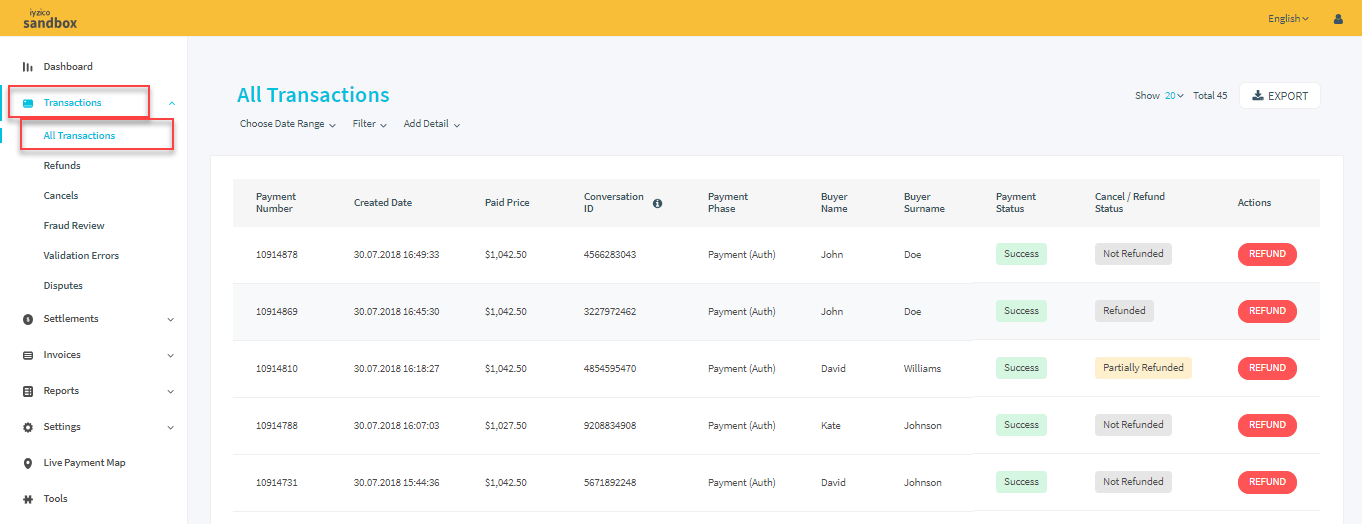
The admin can even view the orders in his/her Iyzico account under the transaction section, from where a refund can also get generated for the order.
Iyzico Payment Gateway Refund
The refund of orders in which payment method is Iyzico can also be done from admin panel- Sales>Orders>Invoices>View Orders>Credit Memo.

Here, the admin will select the items to be refunded, enter the comments for the credit memo and then lastly, click the Refund button to make a refund.
The Refunded order can be viewed in the Iyzico account of admin under the Transaction section as an individual refunded order.

Iyzico Payment Gateway Transaction
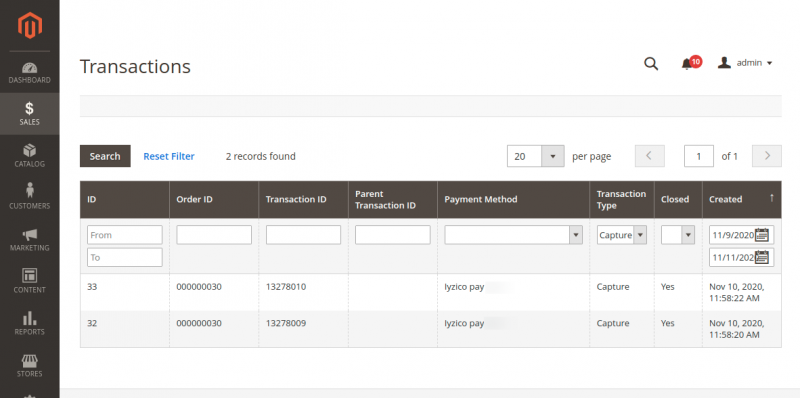
The admin can also view the transaction details of iyzico Payment method of all the orders by navigating to Sales -> Transaction as per the image:
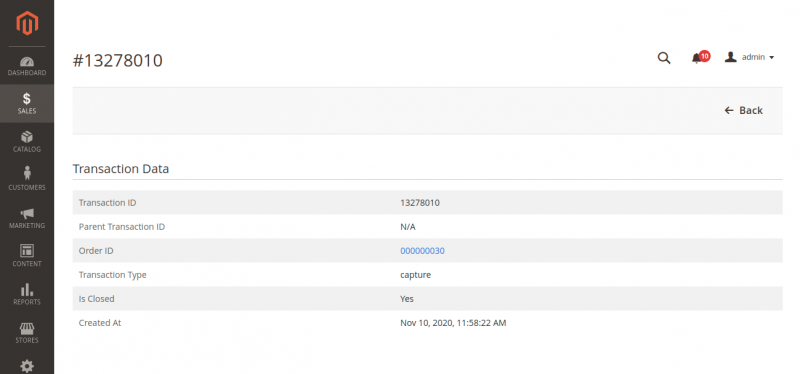
Click on the transaction for which the admin wants to see the complete transaction details:

Support
That’s all for the Magento 2 iyzico Payment Gateway.
Still, have any issues please raise a ticket or get back to us at [email protected].
Current Product Version - 5.0.5
Supported Framework Version - Magento 2.0.x, 2.1.x, 2.2.x,2.3.x, 2.4.x


Be the first to comment.