Magento 2 Fastway Shipping – Fastway is the subsidiary of the Aramex shipping company and provides Fastway Shipping method for shipping.
The products to four countries – New Zealand, Australia, Ireland, and South Africa domestically.
By using this shipping module the admin can manage the shipping and orders from his admin panel, print invoice, enter the tracking ID and complete the shipping management from the admin panel.
**Note:
- Magento 2 Fastway Shipping module works for shipping the products within the Domestic area only. for example; Australia to Australia and not the International area.
- The shipping rates are calculated according to the Regional Franchise, product’s weight, and the Zip Code of the Domestic buyer.
Watch the video tutorial below to understand the extension workflow better:
Features
- Calculate Shipping cost according to the Fastway Shipping.
- The admin can enable or disable the shipping method.
- The admin needs to enter his Fastway API.
- The name of Fastway Shipping method can be entered by the admin, which will be visible to the customers at the frontend.
- Shipping Rate depends on Admin’s Regional Franchise, Product weight, and the buyer’s destination address.
Installation
The admin will get a zip folder and they have to extract the contents of this zip folder on their system.
The extracted folder has an src folder, inside the src folder you have the app folder.
Thus, the admin needs to transfer this app folder into the Magento2 root directory on the server as shown below:

Now, after the successful installation, they admin have to run below-mentioned commands in the Magento2 root directory:
First command –
php bin/magento setup:upgrade
Second Command –
php bin/magento setup:di:compile
Third Command –
php bin/magento setup:static-content:deploy
Thus, after running the commands, the admin have to flush the cache from Magento admin panel by navigating through->System->Cache management as shown below:

MultiLingual Configuration
For Multilingual support, the admin needs to navigate through Store->Configuration->General ->Locale Options.
After that, they need to select their desired language from the Locale option.

Thus the multiligual configuration completes.
Language Translation
For module translation, the admin needs to navigate through the following path in their system; app/code/Webkul/FastwayShipping/i18n.
Now, they have to open the file named en_US.CSV for editing.

Once you they have opened the file for editing.
Thus, the admin needs to replace the words after the comma(,) on the right with your translated words.

After editing the CSV file, save it and then upload it to the same folder. Thus the module translation is complete.
Admin Configuration
After the successful installation of the Magento Fastway Shipping module;
The admin will be able to see the configuration panel under Stores> Configuration > Sales>Shipping Method > Webkul Fastway Shipping as per the below snapshot:

Thus, the admin can manage all the setting for Fastway Shipping method.
Let’s go through each of the configuration settings –
- Enabled for Checkout –
Select “Yes” to enable the method for checkout else select “No“. - Sandbox Mode –
Select “Yes” to make use of the sandbox(testing) mode else select “No” to use the production(live) mode. - Title –
Enter the title for the shipping method that will be displayed on the checkout page. - API Key –
The admin will enter his Fastway shipping account API Key. - Weight Unit –
Select the weight unit as pounds or kilograms as required. - Default Origin Country –
Select the default origin country of the store. - Default Regional Franchise –
Select the default Regional franchise for the Fastway shipping. - Ship to Applicable Countries –
Select the countries where this shipping method will be applicable to. - Ship To Specific Countries –
Select the specific countries where you want to ship to. - Displayed Error Message –
Enter the displayed error message if the “Show Method If Not Applicable” is set as “Yes“. - Show Method if Not Applicable –
Select “Yes” to show the method if not applicable. - Debug –
Select “No” to not store the debug log information else select “Yes” to store the debug log.
How to get the Fastway API Key
You can receive API Key using this link api.fastway.org.
For the Fastway API key follow the steps below –
1. Click this api.fastway.org link.
2. Then click on the Get API key as shown below in the snapshot.
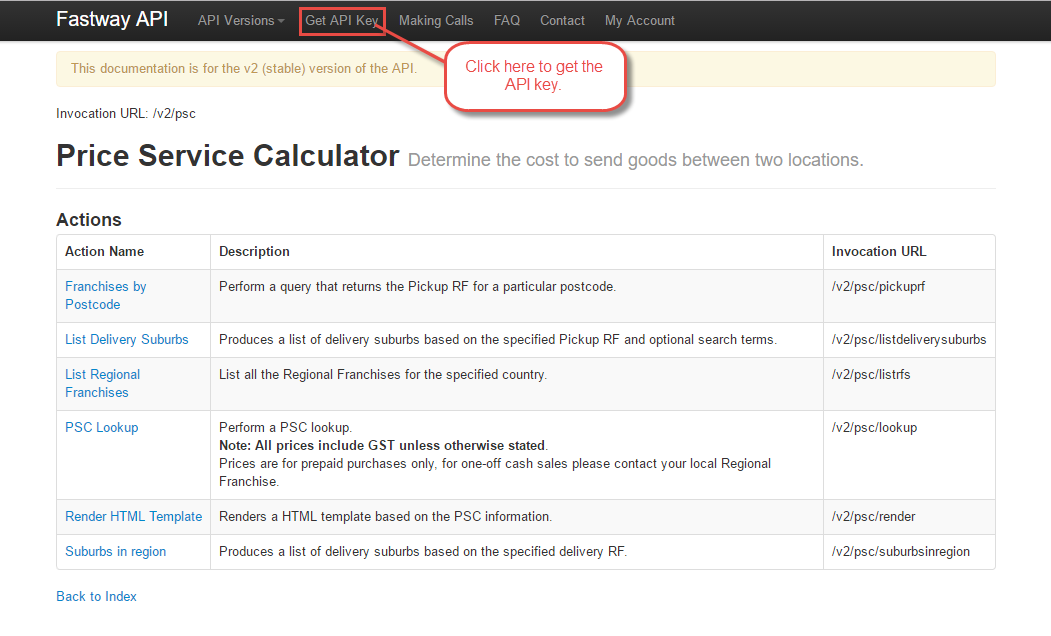
3. After clicking on the Get API key, a page will open where you need to fill in the appropriate information.
Thus after that click the “Get API Key“ button as shown below in the snapshot:

Now, after clicking the Get API Key you will see a success message and will receive the API key that you can use.

How To Use – Customer’s End
At the front-end, the buyer will add the products to the cart and then click on the Go To Checkout button.
After that, the buyer will find all the allowed Fastway Shipping methods listed under the shipping methods section.
Now after selecting their preferred method the buyers will tap the “NEXT” button to proceed further.

Thus, after tapping the next button, the customers will be taken to another page.
Moreover, having all the details of the order along with the shipping method under order summary.

**Note: In Magento Fastway Shipping module, the shipping rates are calculated according to admin’s Regional Franchise, products weight, and the Zip Code of the Domestic buyer.
Admin – Management
After the order has been placed by the customers, the admin can navigate through Sales>Orders to check the list of orders.
Thus, the admin can tap on the View link to check the order details as shown below in the snapshot:

Clicking the View link will bring up another page with the complete information regarding the order.
Thus, the admin can generate the invoice, shipments, re-order the placed order, and send email to customer and even cancel the order.
The admin can also find the shipping method chosen by the customer.

After viewing the order admin will create the invoice for the order.
The invoice will contain all the shipping information and cost of shipping for that particular order.

Thus, after creating Invoice, the admin will create the shipping for the order.

Thus, that’s all for the Fastway Shipping for Magento 2 module.
If you have any suggestions or queries regarding the extension you can get back to us at HelpDesk System.
Current Product Version - 5.0.3-p1
Supported Framework Version - Magento 2.0.x, 2.1.x, 2.2.x,2.3.x, 2.4.x


Be the first to comment.