Buy Button
This extension helps the store owner to increase the sale of the products.
It is a plugin that provides a facility to sell or display your e-commerce store’s products on any website(cms or custom websites) like Joomla, OpenCart, WordPress(blogging website), etc.
Admin just needs to generate a code for a button to buy the products to show on any website. Customers can select and customize the product on any website.
Customers can easily check out the product on any website.
Note – Additionally, if you want an extension that allows your customers to make one step checkout then you must check Magento 2 Checkout Extension.
Watch the below video tutorial to understand the extension workflow:
Features
- The store owner can create a buy button for a single product or collection of products.
- The extension supports the buy button for a simple, configurable, and virtual product.
- The admin can customize the view (font color, button background color, radius) of the buy button.
- The merchant can change all the static text on the buy button for each button.
- The button to buy a product comes with its cart(add, remove, update all operations supported).
- Checkout will be done by, default magento2 checkout in a popup window.
- The generated code can be easily embedded on any website (CMS or Custom Websites).
Installation
Customers will get a zip folder and they have to extract the contents of this zip folder on their system. The extracted folder has an src folder, inside the src folder you have the app folder.

You need to transfer this app folder into the Magento2 root directory on the server as shown below.
After the successful installation, you have to run these commands in the Magento2 root directory.
First command
php bin/magento setup:upgrade
Second Command
php bin/magento setup:di:compile
Third Command
php bin/magento setup:static-content:deploy
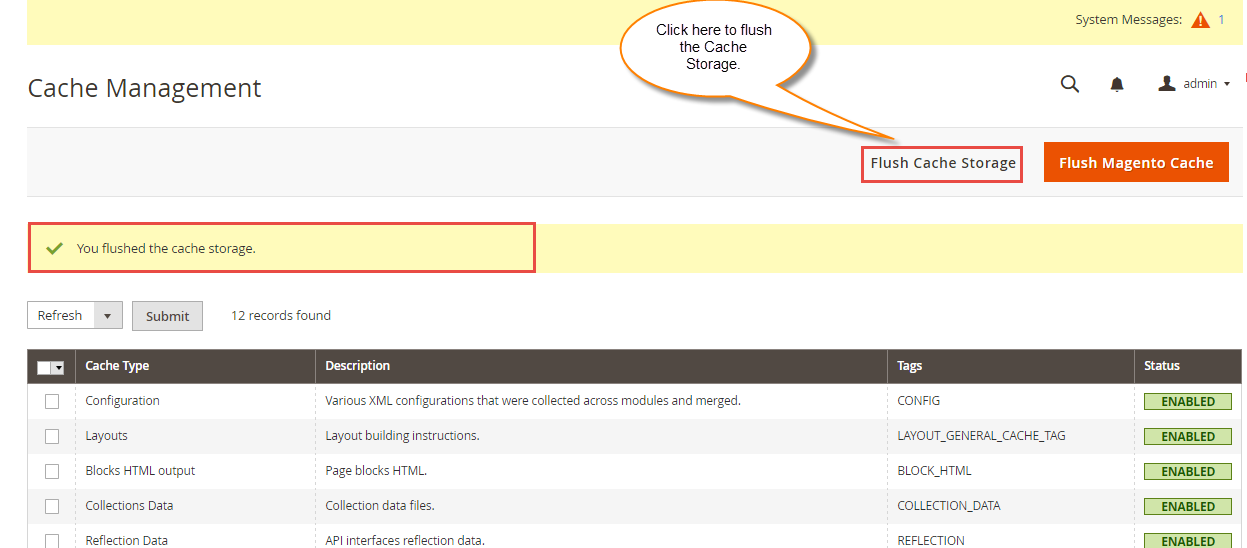
After running the commands, you have to flush the cache from the Magento admin panel by navigating through->System->Cache management as shown below.
Multi-Lingual Configuration
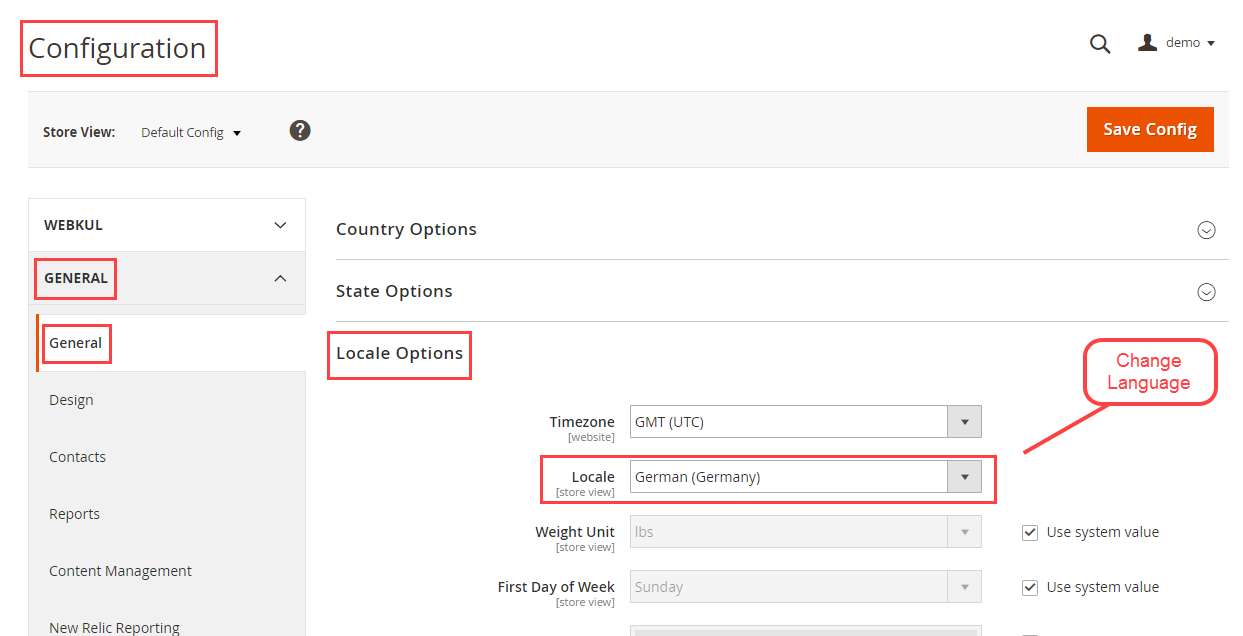
For Multilingual support, please navigate to Store>Configuration>General >Locale Options. And select your desired language from the Locale option.
Language Translation
For module translation, navigate to the following path in your system app/code/Webkul/BuyButton/i18n/en_US.csv. Open the file named en_US.CSV for editing as shown in the below screenshot.


Then replace the words after the comma(,)on the right in the file with your translated words.
After editing and translating the CSV file, you need to save the translated file name according to your region language and country code such as – de_DE.CSV.
Followed by uploading the translated file to the same folder from where you have obtained it. Now your module translation is complete.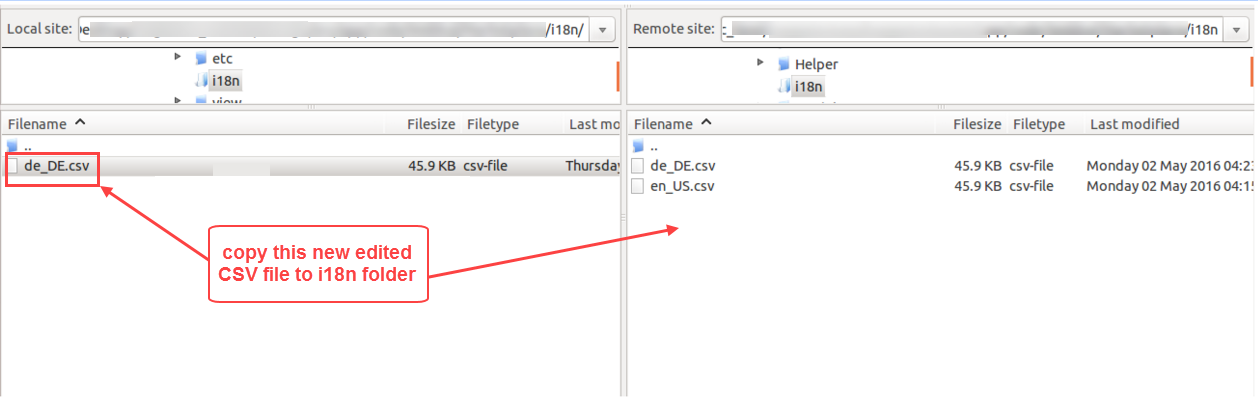
Admin Configuration
After the Buy Button for Magento 2 module installation, the admin will find the configuration settings panel.
For this the store owner will navigate through Stores->Configuration->Webkul> Buy button as per the below snapshot.

Access Key – The admin can enter Access Key which will be used to give access to the buy button javascript.
Redirect To Original Product – Admin can select Yes if one wishes the buyer redirects to the origin product page on clicking on the name in the button to buy the product. However, else select No.

The admin can create the button by following this path Buy Button> Create Buy Button.

By clicking on Create Buy Button option, the admin will get the option to select the Product.
The admin can select a single product or collection of products to create a buy button.
Buy Button for Single Product
After selecting the option for a single product, the admin will get a pop-up slider, and there, admin can select the Store, Currency, and a product.

Admin can search for products by name and can filter by the product types.
After selection, click on Create Button then admin can customize the Button to buy a product.
There, admin can change Template, Alignment, Size, Typography, Cart Button Style, and Shopping Cart.
Template- Here, the option allows the admin to select three different buy button layouts.

First Template

Second Template

Third Template

Note-Template option is available only for the single product.
Buy Button for Collection of Products
After selecting the option for the collection of products, the admin will get a pop-up slider, and there, admin can select the Store, Currency, and products.

Admin can search for products by name and can filter by the product types.
After selection, click on the Create Button then admin can customize the Buy Button. The admin can change Alignment, Size, Typography, Cart Button Style, and Shopping Cart as per below snapshot –

Alignment-Here, admin can choose three alignments(Left, Centre, and Right) of the buy button layout.
Size-Admin can change the Size (Small, Medium, Large) of the buy button layout.
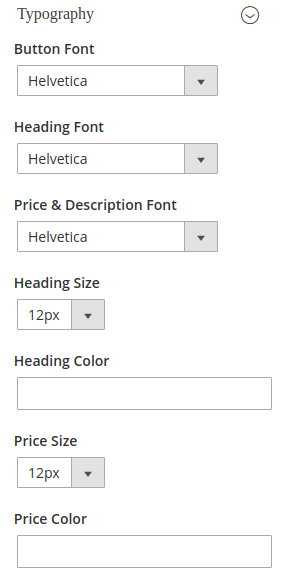
Typography
Here, admin can choose Button Font, Heading Font, Price & description Font, Heading Size, Heading Color, Price Size, and Price Color.
Cart Button Style
Admin can change Button Text Color, Button Background Color, Button Text Size, Button Border Radius, Button Text, and View Button Text.

Shopping Cart
Admin can choose Cart Heading, Text for Total, No Item in Cart Text, Item in Cart Text, Add to Cart Button Text, Button Color, and Background Color.

Generate Code
After the customization, the admin can generate code by clicking on the Generate Code button.
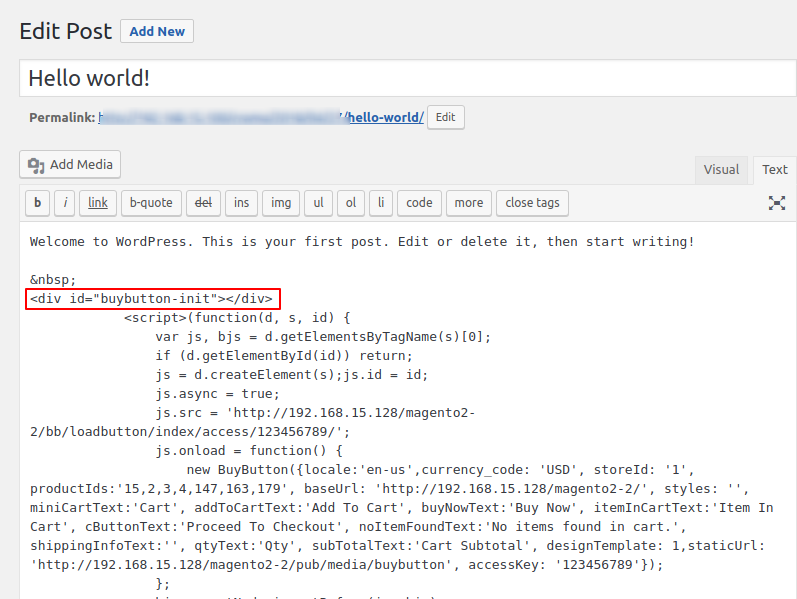
The admin can copy this code and paste it into the source code of any website. like – Joomla, OpenCart, WordPress, etc. Then all the functionality will be embedded on that website.
Customer View
Customers can add a Simple product, virtual product, and the configurable product to Shopping Cart on other websites.


The customers will be able to choose options for the configurable product.
Checkout
After products add to the Shopping Cart, Click on the Cart customer will get the “Proceed to Checkout” button.

After clicking on “proceed to checkout”, Customer will get a default Magento2 Checkout pop-up window. In the window, the customer can sign up or sign in and put his/her shipping address.
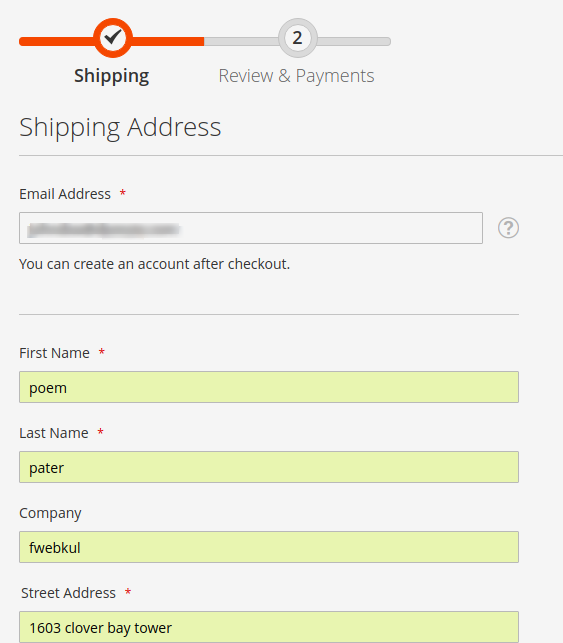
The customer can choose a shipping method and proceed to Next.

After choosing the shipping method, the customer will get the “Place the Order” option. Click on “Place the Order ” customer’s order will be placed.

That’s all for the Buy Button for Magento 2 still have any issue feel free to add a ticket and let us know your views to make the module better – http://webkul.uvdesk.com/
Current Product Version - 4.0.2-p1
Supported Framework Version - Magento 2.0.x, 2.1.x, 2.2.x,2.3.x, 2.4.x


Be the first to comment.