Magento (OpenMage) Varnish Configurator helps you integrate and manage Varnish Cache directly from the admin panel. As a result, it improves store speed, reduces server load, and handles high traffic efficiently.
Varnish Cache works as a reverse proxy that delivers cached pages without loading Magento every time. Therefore, it reduces response time and improves overall performance.
Features of Magento (OpenMage) Varnish Configurator
- Configure Varnish Cache directly from the admin panel
- Enable full page caching for faster page delivery
- Automatically purge cache when data updates
- Reduce server load with cached responses
- Improve performance for high-traffic stores
- Control caching rules without server access
Why Use Magento (OpenMage) Varnish Configurator?
Magento’s default caching system has limitations. For example, it often generates pages dynamically, which increases load time and server usage.
However, Varnish Cache solves this problem by serving preloaded pages instantly. As a result, it delivers content faster and improves store performance.
In addition, manual Varnish setup requires technical knowledge. Therefore, this module simplifies the process by allowing you to manage everything from the admin panel.
This solution is designed based on real-world Magento performance challenges faced by high-traffic and large catalog stores.
Installation
Firstly, customers get a zip folder. Then they have to extract the contents of this zip folder on their system.
The extracted folder has a src folder, inside the src folder, you have the app folder.
The extracted folder is having an src folder, inside the src folder you have the app folder.
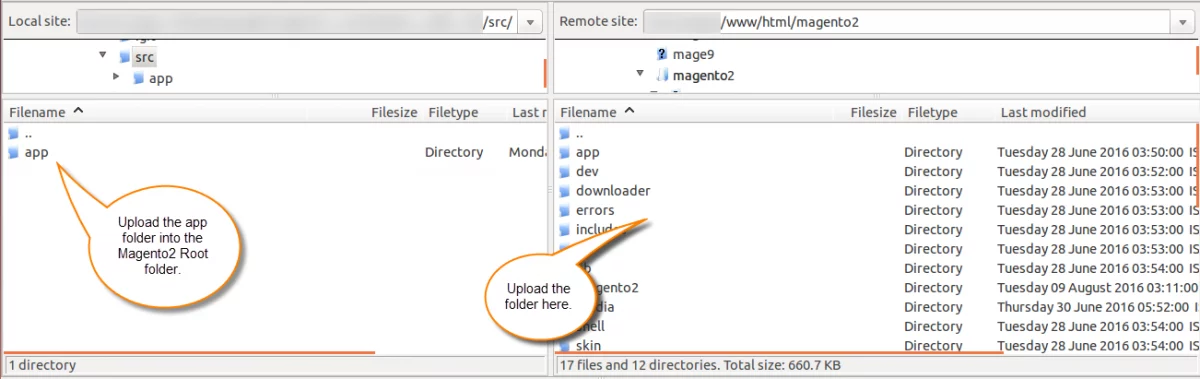
After that, you have to run these commands in the Magento2 root directory.
php bin/magento setup:upgrade
php bin/magento setup:di:compile
php bin/magento setup:static-content:deploy
php bin/magento indexer:reindex
php bin/magento cache:flush
Multi-Lingual Configuration of Adobe Commerce
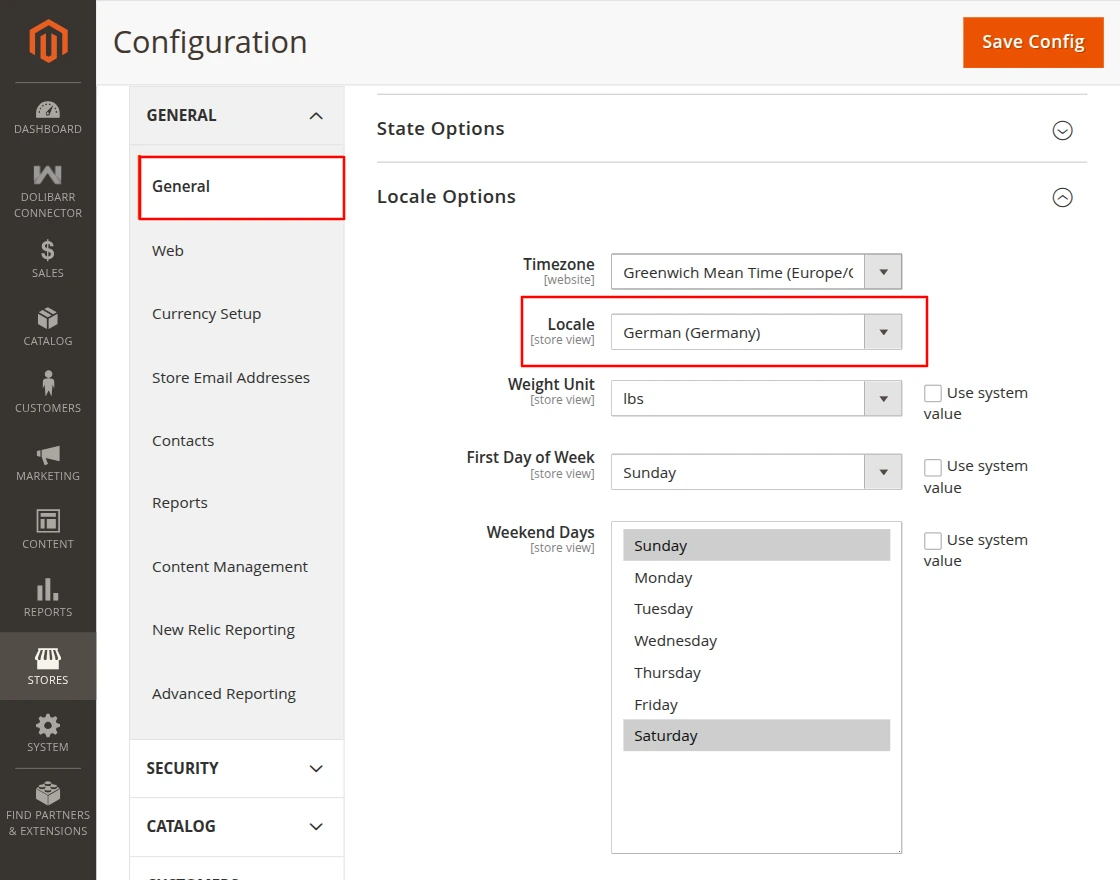
For Multilingual support, please navigate to Store>Configuration>General >Locale Options. And select your desired language from the Locale option.
Language Translation
For translating the module language, navigate through the app/code/Webkul/Varnish/i18n and edit the en_US.csv file.
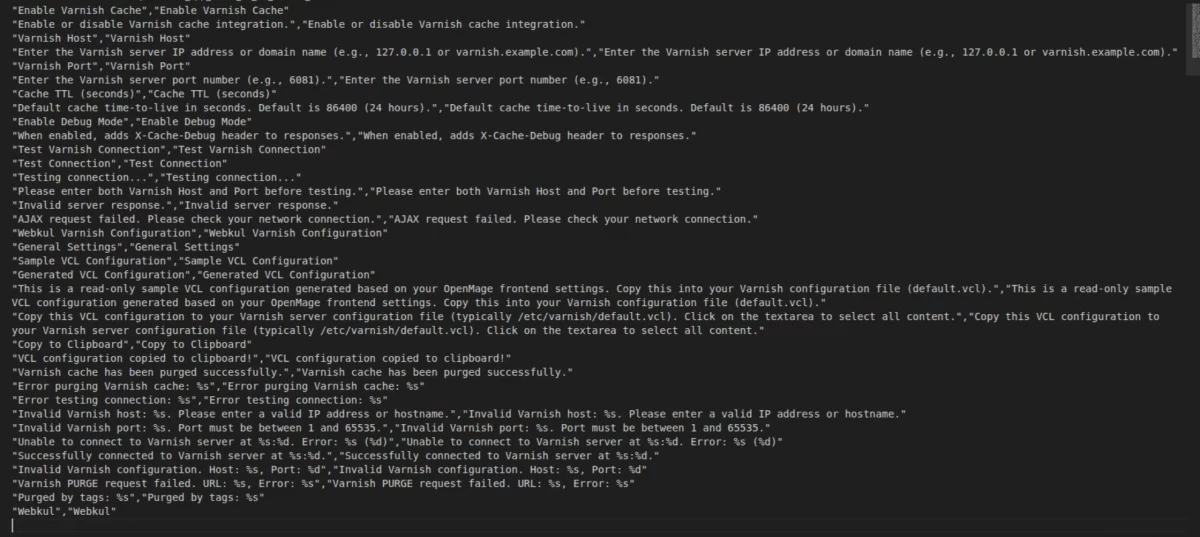
Thereafter, rename the CSV as “en_SA.csv” and translate all right side content after the comma in the Arabic language. After editing the CSV, save it.
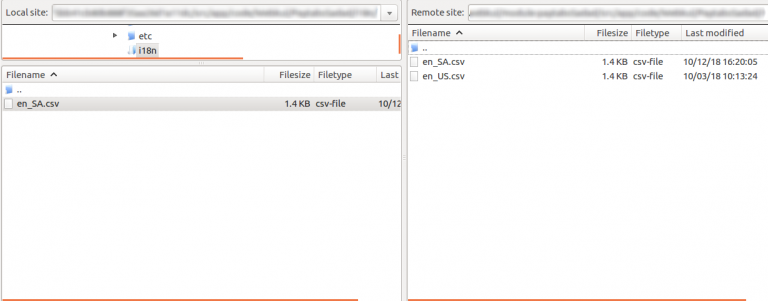
Now, upload it to the path app/code/Varnish/i18n, where the installation of Magento 2 is on the server.
Magento 2 Unit Conversion Extension will be translated into the Arabic Language. It supports both RTL and LTR languages.
The user can edit the CSV like the image below.
Engage and hire Magento developers to solely concentrate on your personalized e-commerce projects for a unique experience.
Admin Configuration of Magento (OpenMage) Varnish Configurator
After the successful installation of the extension, the admin has to configure it.
For it, they Navigate to: System → Configuration → Webkul → Varnish Configurator → General Settings, as per the image below,
General Settings:
- Enable Varnish Cache: Turn the feature on or off as needed.
- Varnish Host: Enter your server IP or hostname. This tells Magento where Varnish is running.
- Varnish Port: Enter the port Varnish listens on.
- Cache TTL (seconds): Set how long pages stay cached.
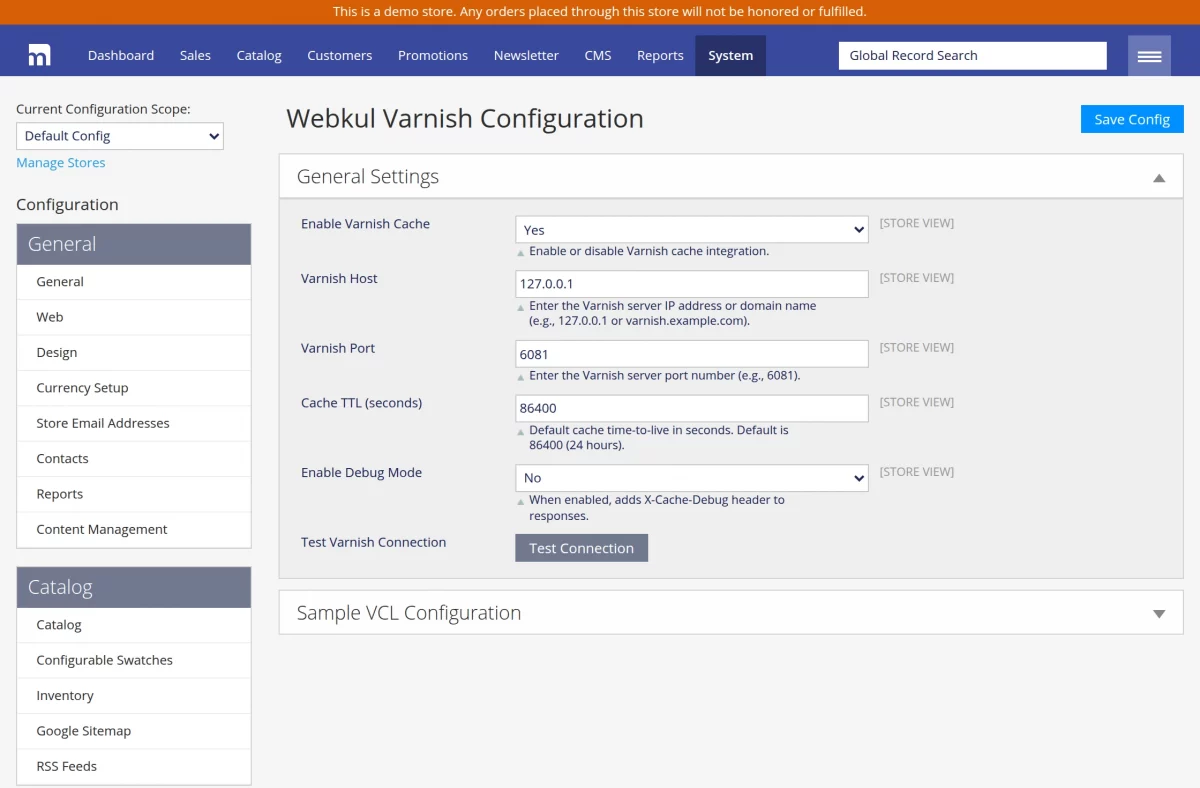
Click the “Save Config” button at the top right of the configuration page.
Now, the store admin needs to Clear Magento Cache.
For this Navigate to: System → Cache Management → Flush Cache
Now, as you can see, Varnish Cache has been purged successfully.
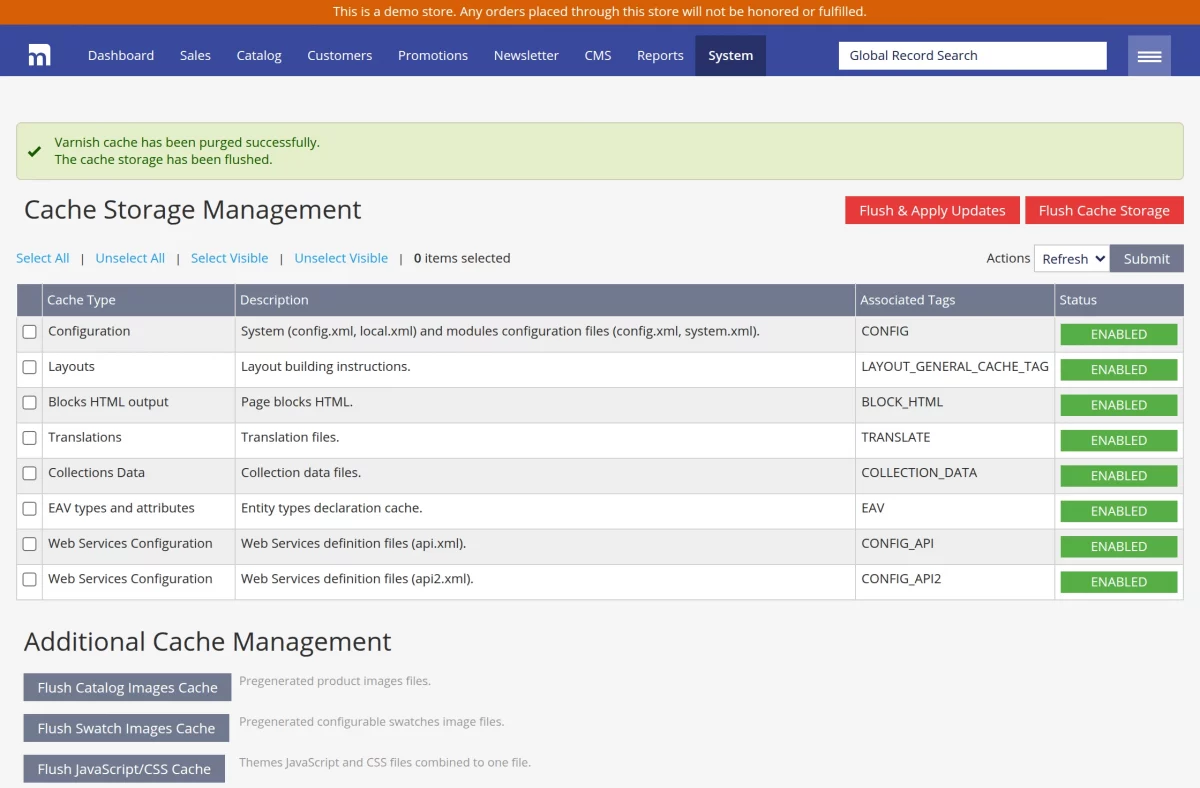
What Happens After Clearing the Cache
- Magento reloads all configuration data
- Varnish Cache starts using updated rules
- Your store reflects new caching behavior
- Performance improvements become visible
Frontend Workflow
Varnish acts as a powerful middle layer between your users and the Magento server, dramatically speeding up page delivery and reducing server load.
When a customer visits your store, Varnish first checks for cached content.
- If cached content is available, it serves the page instantly.
- However, if not, Magento generates the page.
- Then, Varnish stores the page for future requests.
For example, when a user opens the home page, the response headers show:
X-Cache: HIT
X-Cache-Hits: 2
Age: 276
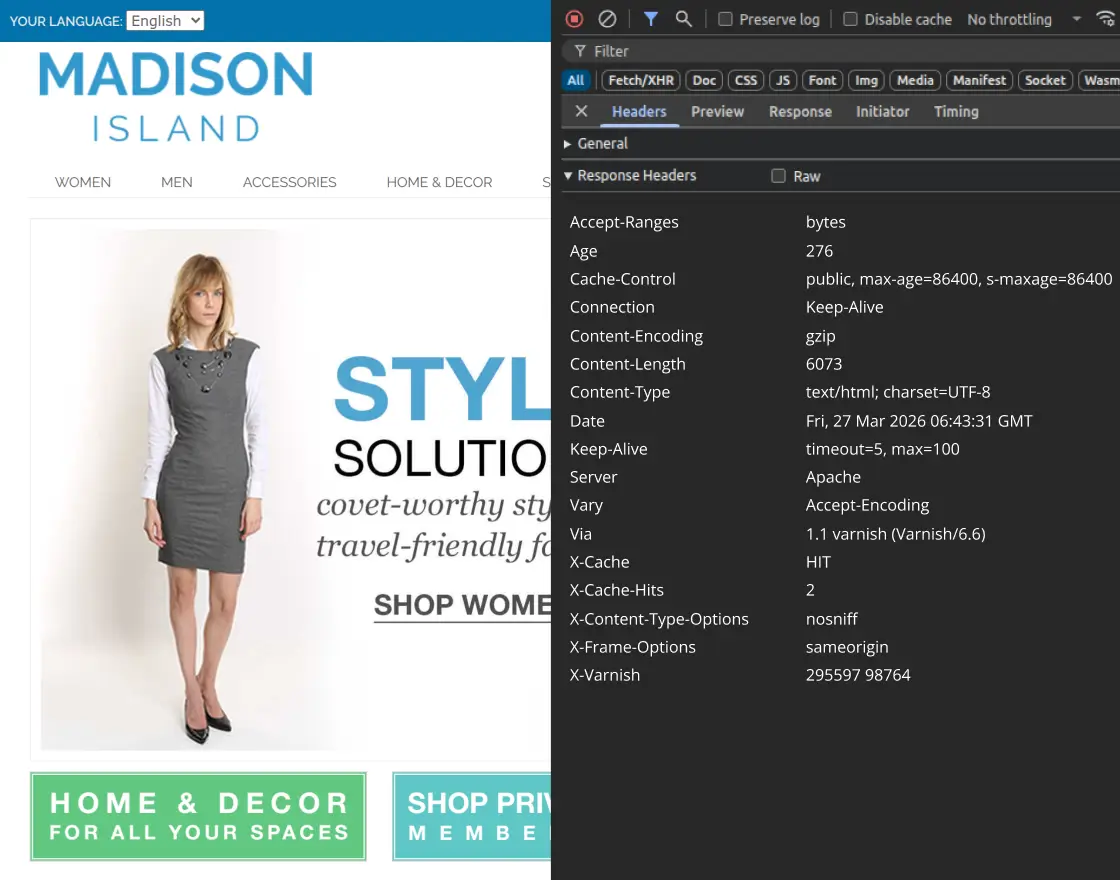
Now lets take an example, when a user opens the Category page, the response headers show:
X-Cache: HIT
X-Cache-Hits: 1
Age: 5
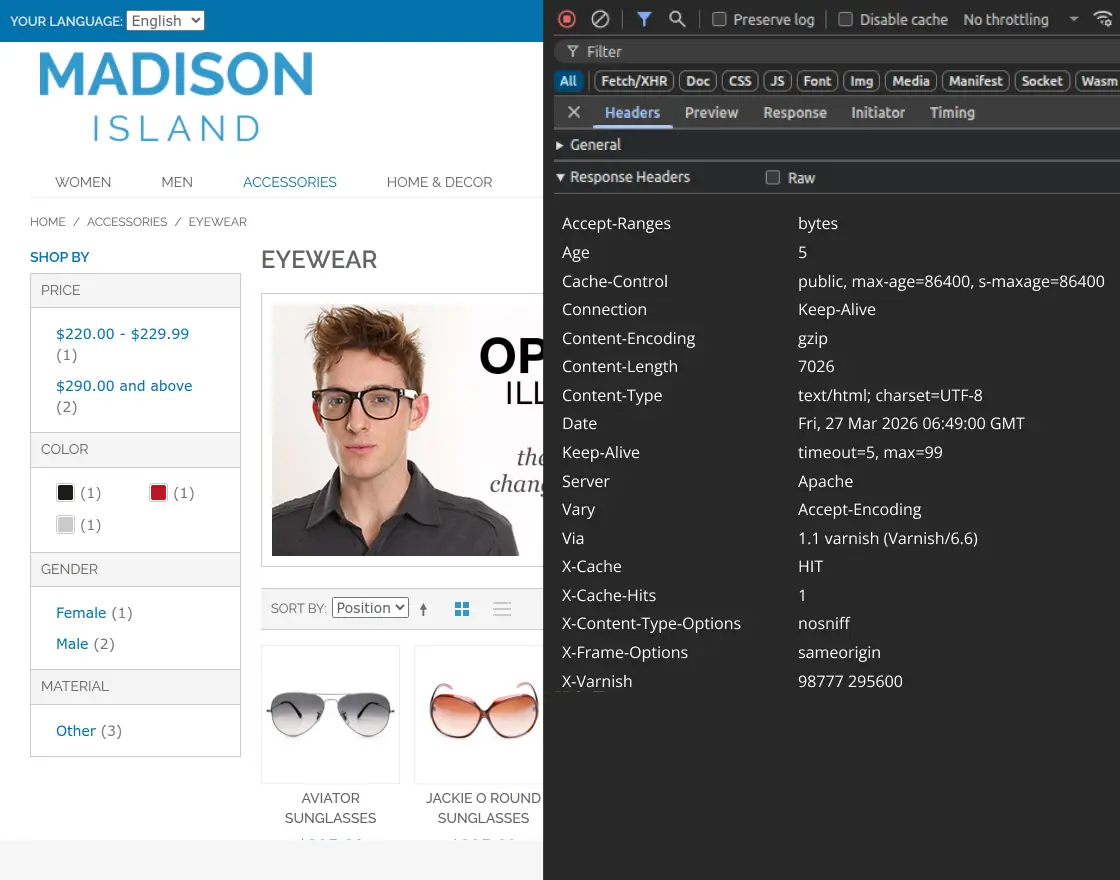
Opening the Product Page triggers these response headers:
X-Cache: HIT
X-Cache-Hits: 2
Age: 14
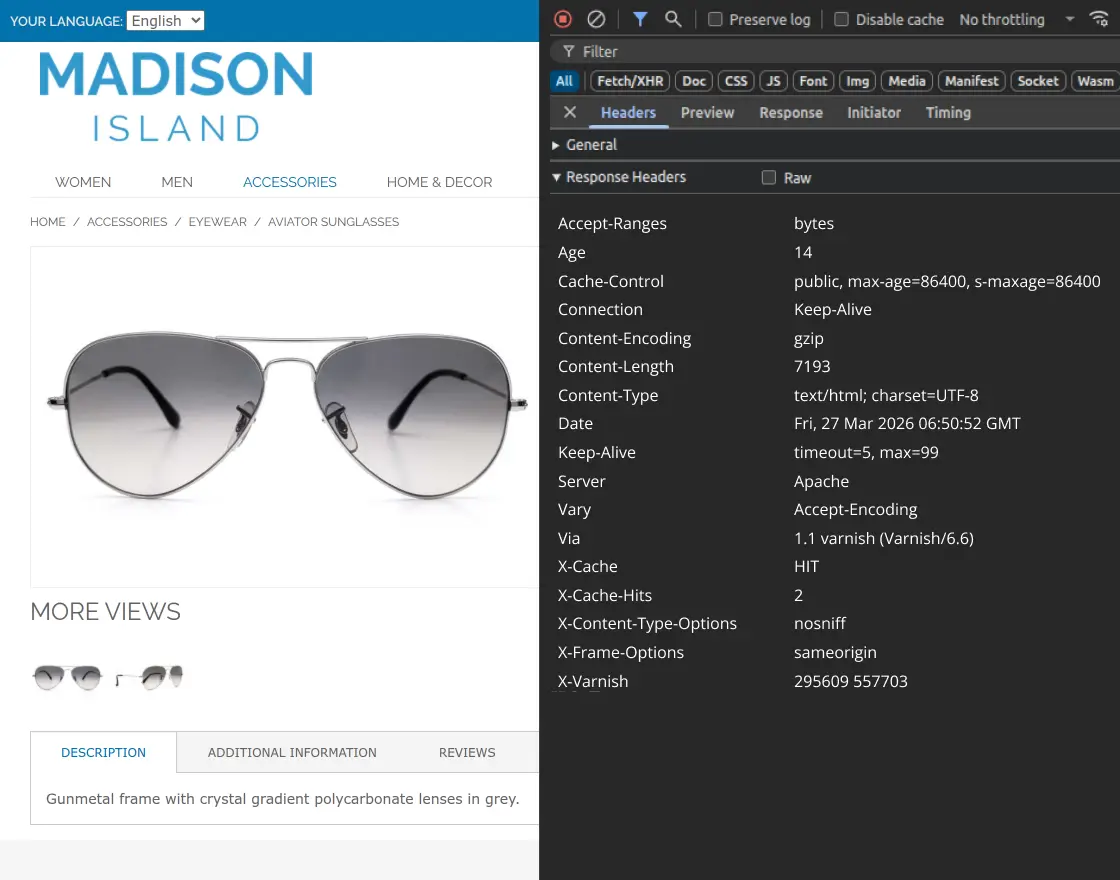
Verify Varnish connectivity with the website using command line
Curl Test for Cache Behavior
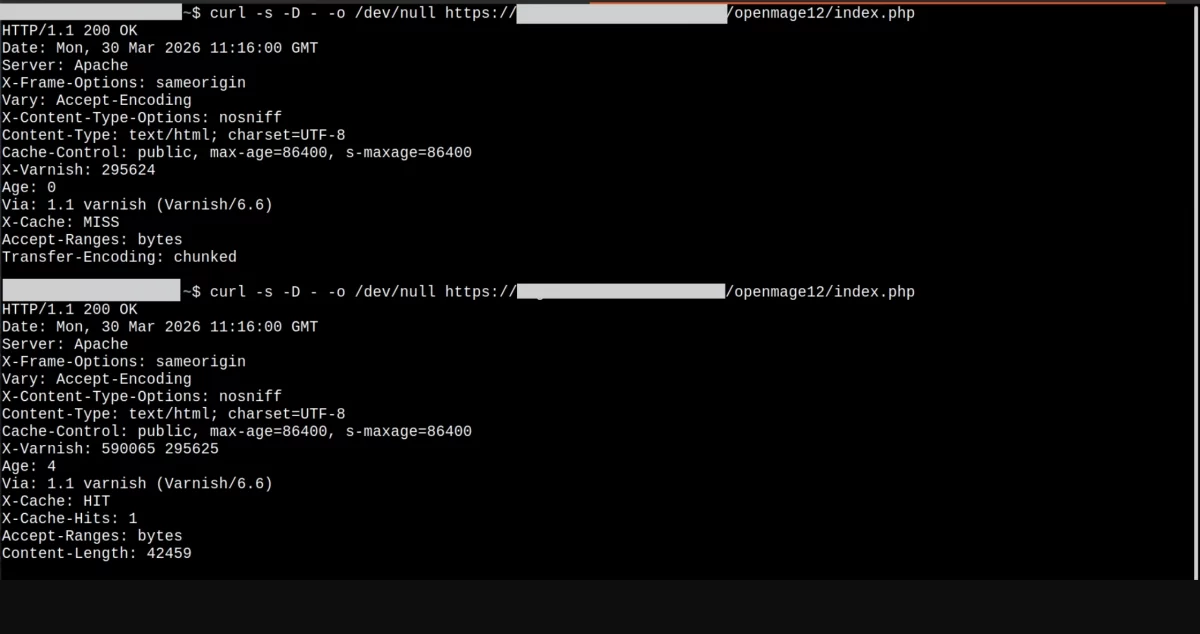
- The first
curlRequest shows: Varnish did not have the page in cache (MISS), so it fetched it from Magento.
HTTP/1.1 200 OK
Date: Mon, 30 Mar 2026 11:16:00 GMT
Server: Apache
X-Frame-Options: sameorigin
Vary: Accept-Encoding
X-Content-Type-Options: nosniff
Content-Type: text/html; charset=UTF-8
Cache-Control: public, max-age=86400, s-maxage=86400
X-Varnish: 295624
Age: 0
Via: 1.1 varnish (Varnish/6.6)
X-Cache: MISS
Accept-Ranges: bytes
Transfer-Encoding: chunked
- The second
curlRequest shows: Page is now cached (HIT) and served directly from Varnish.
HTTP/1.1 200 OK
Date: Mon, 30 Mar 2026 11:16:00 GMT
Server: Apache
X-Frame-Options: sameorigin
Vary: Accept-Encoding
X-Content-Type-Options: nosniff
Content-Type: text/html; charset=UTF-8
Cache-Control: public, max-age=86400, s-maxage=86400
X-Varnish: 590065 295625
Age: 4
Via: 1.1 varnish (Varnish/6.6)
X-Cache: HIT
X-Cache-Hits: 1
Accept-Ranges: bytes
Content-Length: 42459
Support
So that’s all about the Magento (OpenMage) Varnish Configurator. If you have any other queries or require further assistance, please email us at [email protected] or create a ticket.


Be the first to comment.