In this section, we will see how to add a customer in the Magento POS system:
After the POS user opens the login page for the POS system on the frontend, he can log in with the username and password created by the admin as shown below in the snapshot.

After the agent is successfully logged in he can see the POS user interface. Here, the agent will add the products to the cart for the customer and then click the contact button to add the details of the customer.
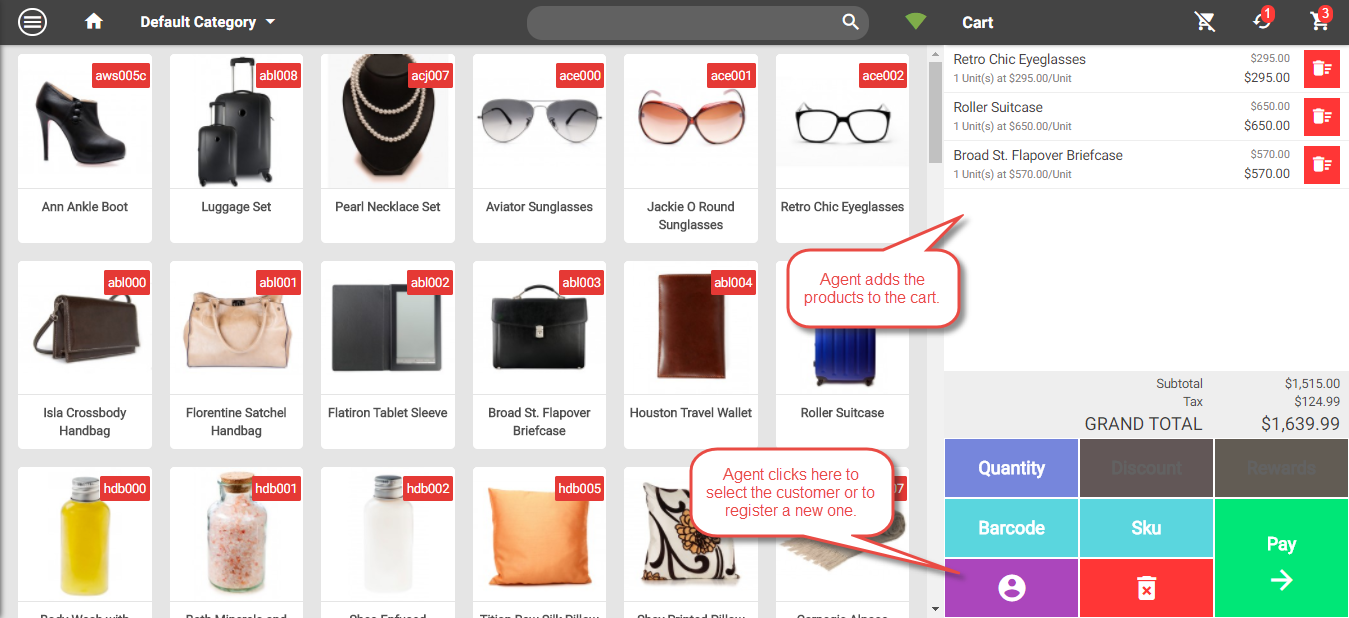
Clicking the contact button brings up the contact list. Here the agent can search the name of the registered customers to fetch their details or can click the “Add Contact” button to add a new customer as shown below in the snapshot.

Clicking the “Add New Customer” button will bring up a section to add the new customer details as shown below in the snapshot.

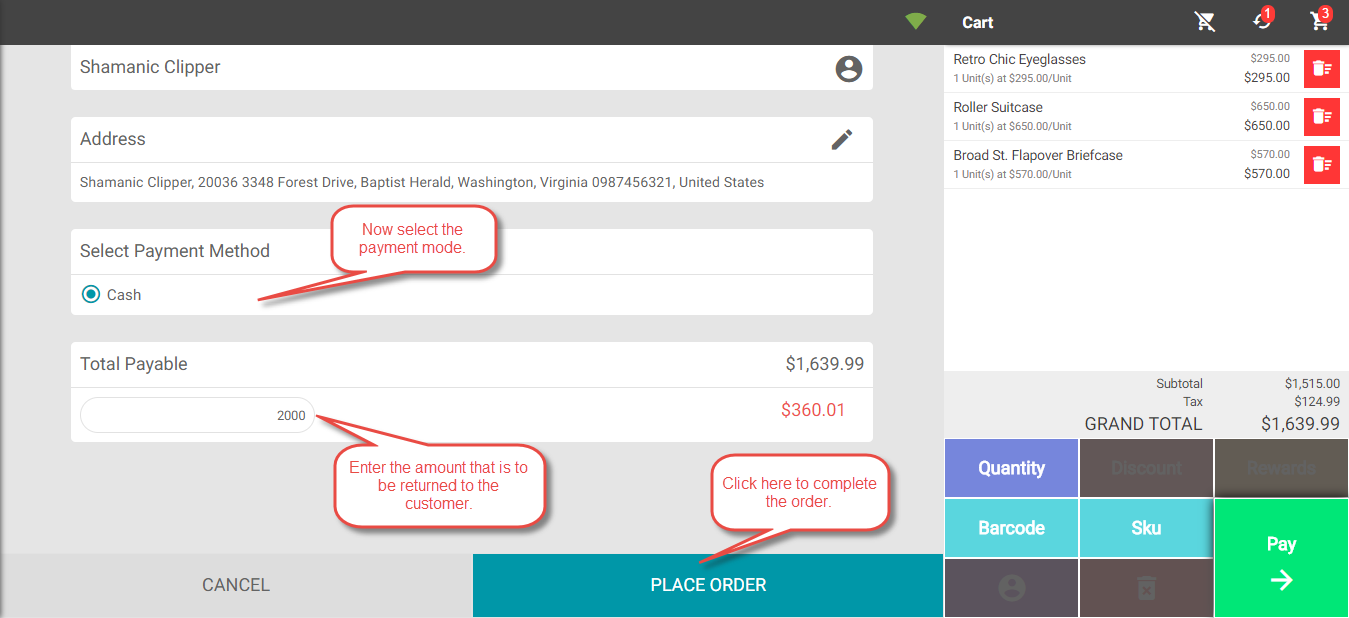
Here the agent will enter all the fields for the new customer and after that, the agent will click on “Continue” button to proceed further. This will bring up the option to select the payment method as shown below in the snapshot.
 That’s all for – How to add a Customer in Magento POS system. Want to check a live demo – Magento POS.


Be the first to comment.