Magento 2 LLMs TXT Generator enables store owners to create an llms.txt file, making their website content more accessible to AI systems like ChatGPT, Gemini, Perplexity and Claude.
By default, Magento 2 stores are invisible to AI search engines, which cannot reliably read product catalogs, pricing, or categories from complex Magento HTML pages.
This enhances the way large language models interpret and display your store’s information during AI-driven searches or interactions.
This extension is part of the AI Discovery Infrastructure category and functions as an AI SEO extension for Magento, engineered specifically for AI Search Optimization
With this extension, the Admin can select which entities—such as CMS pages, products, and categories—should be included.
Additionally, the Admin can specify the company name, write descriptions, add extra details, and define how frequently the file is generated.
Accurate scheduling and clear file status tracking help keep everything automatically updated.
Apart from this, also check out the Magento 2 AI Reporting extension, which will help you quickly fetch data from your Magento 2 store data using LLM.
Check out this video for a quick overview of the module:
Features
- Admin can choose which entities (CMS Page, Product, Category) to include in the llms.txt file.
- Admin can set the frequency for automatic llms.txt file generation.
- Enter and display the Company name and description within the generated file.
- An input field is available to add extra information.
- Admin can precisely schedule the file generation by specifying the hour, minute, and second.
- Check the file status to confirm that the
llms.txtfile is generated. - Generate the llms.txt file website-wise.
- Supports multiple store views.
- Admins can exclude specific pages, products, or categories by entering their IDs.
- Allows the admin to include additional fields like description and meta title.
- Filter products by attributes to control which product data the system includes.
- Supports handling large volumes of product data, ensuring smooth and reliable performance.
Supports Magento Multi-Website, Multi-Store, and Multi-Store View:
- The module generates an llms.txt file for each website and includes data from all stores enabled for that website.
- The module runs the cron automatically for all websites and stores where it is enabled, ensuring consistent and timely generation of the llms.txt file across your stores.
Installation of Magento 2 LLMs TXT Generator
The installation is quite simple, just like the standard Magento 2 extensions.
#Download Module
Firstly, you need to log in to the Webkul Store, go to My Account>My Purchased Products section, verify, and then download and extract the contents of this zip folder on the system.
#Upload Folder
Once the module zip extracts, follow path src>app and then copy the app folder into the Magento 2 root directory on the server as shown below:

#Run Commands
Next, You need to run the following commands,
php bin/magento setup:upgrade
php bin/magento setup:di:compile
php bin/magento setup:static-content:deploy
php bin/magento indexer:reindex
php bin/magento cache:flush
php bin/magento queue:consumers:start wkllmstxt.generate &
Language Translation
For translating the module language, navigate through the app/code/Webkul/LLMsTxtGenerator/i18n and edit the en_US.csv file.
Thereafter, rename the CSV as “en_SA.csv” and translate all right side content after the comma in the Arabic language. After editing the CSV, save it.

Now, upload it to the path app/code/Webkul/LLMsTxtGenerator/i18n, where the installation of Magento 2 is on the server.
The Magento 2 LLMs TXT Generator extension will be translated into the Arabic Language. It supports both RTL and LTR languages.
The user can edit the CSV like the image below.

Admin Configuration of Magento 2 LLMs TXT Generator
After the successful installation of the extension, the admin has to configure it. For it, they navigate to LLMs TXT Generator > Configuration Setting as per the image below,

Similarly, the admin can also navigate to Stores > Configuration > LLMs TXT Generator as per image below,
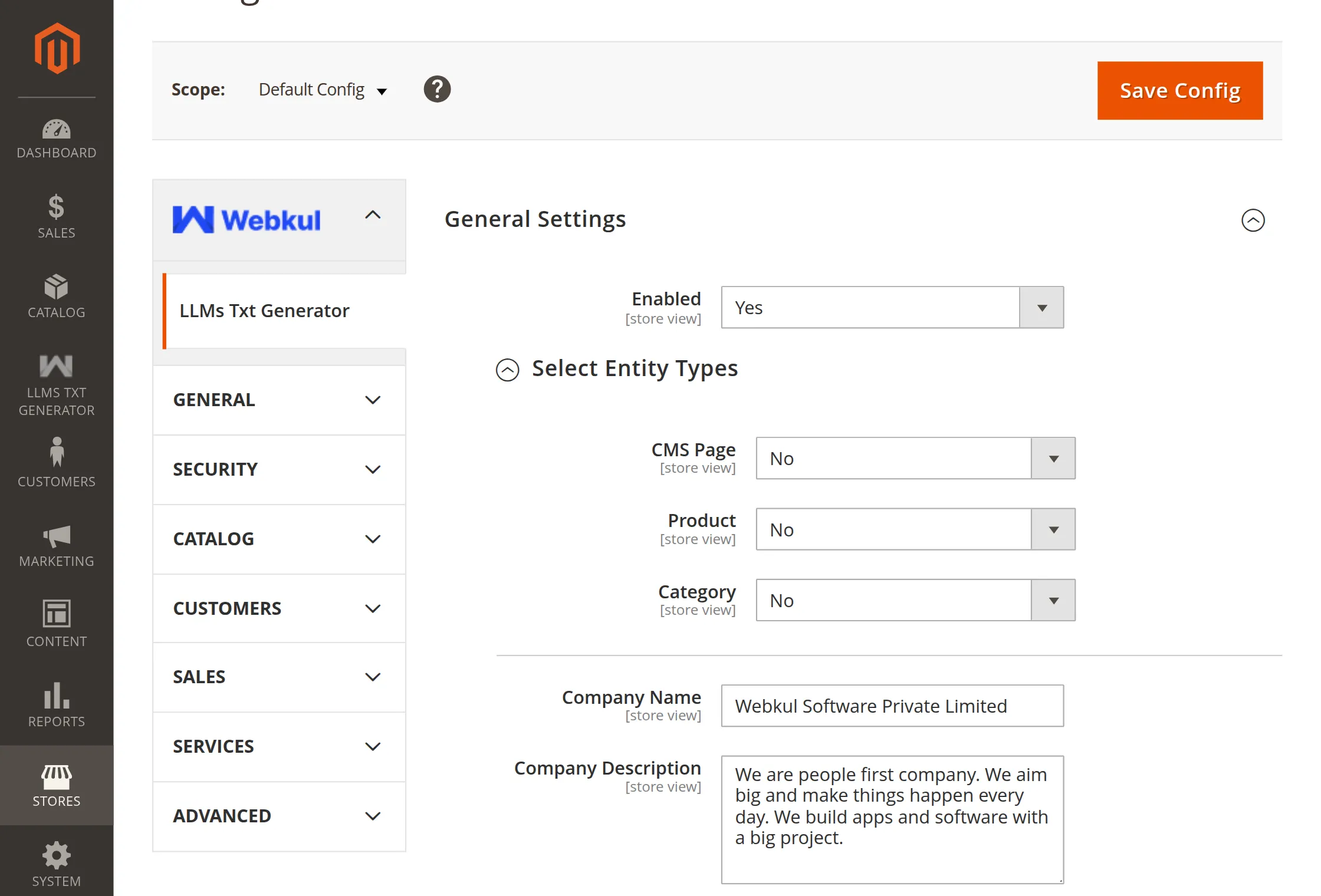
Here, Admin gets the following settings,
General Settings
- Enabled – Select Yes to Enable or No to Disable.
- Select Entity Types – Select the entity types to include in the
llms.txtfile.
– CMS Page
– Product
– Category
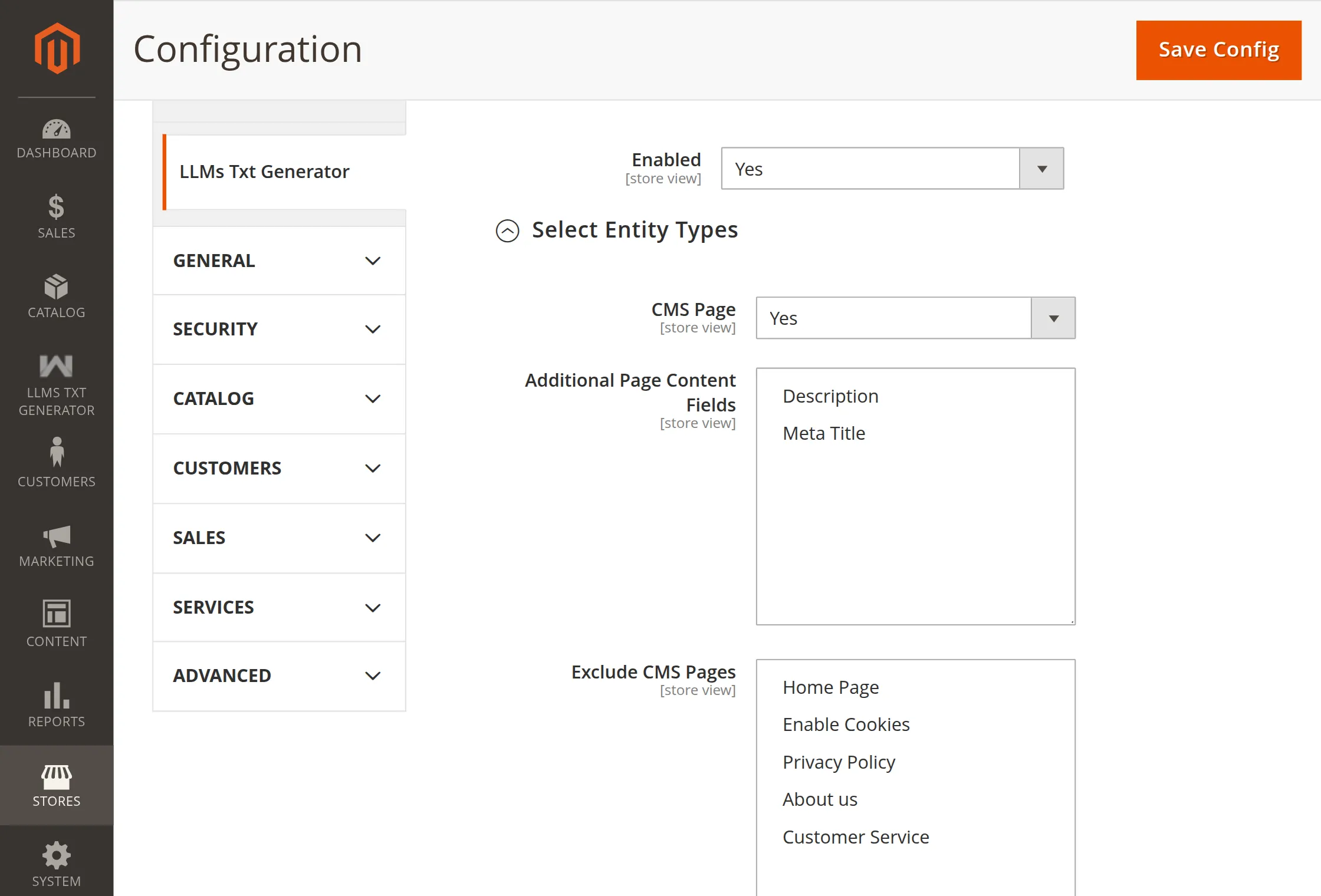
- CMS Page
– CMS Page: Enable or disable inclusion.
– Additional Page Content Fields: Select attributes (Description, Meta Title, etc.)
– Exclude CMS Pages: Add page titles to skip.
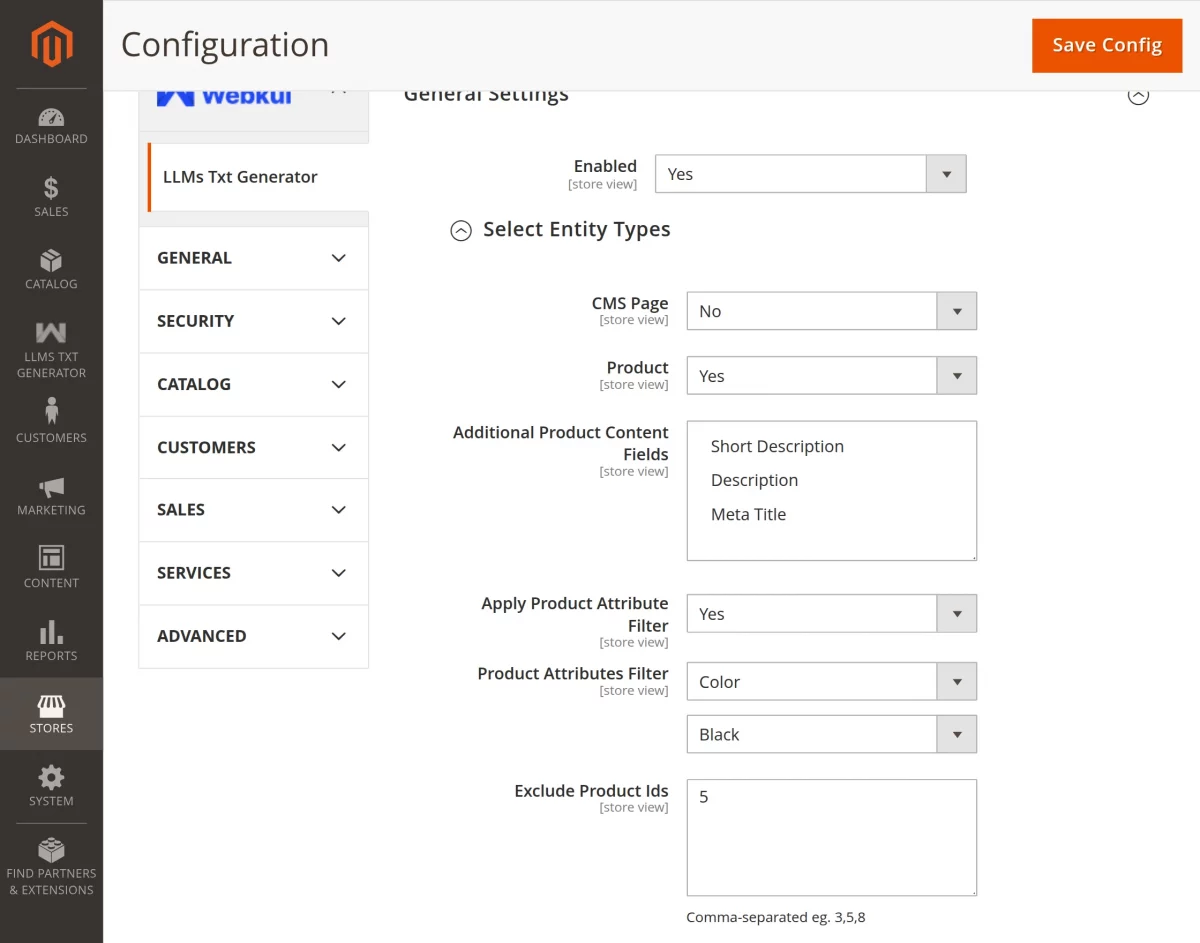
- Product:
– Product: Enable or disable including the product.
– Additional Product Content Fields: Choose fields such as Description, Short Description, or Meta Title.
– Apply Product Attribute Filter: Enable this option to filter products using selected attributes. When enabled, the file includes only matching products.
– Product Attributes Filter: Select an attribute and its value to filter products. The system includes only products that match this selection.
– Exclude Product IDs: Enter a comma-separated list of product IDs.
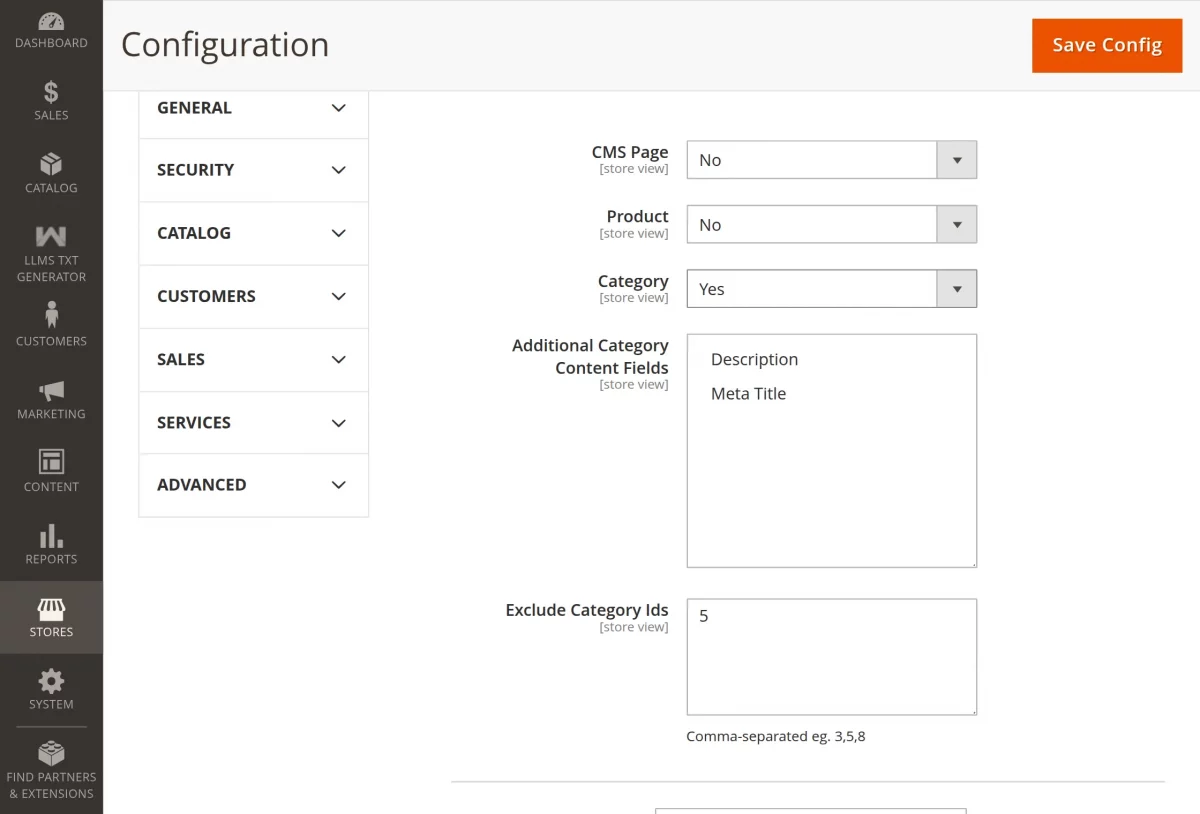
- Category:
– Category: Enable or disable, including the category.
– Additional Category Content Fields: Choose the attributes.
– Exclude Category IDs: Enter comma-separated category IDs.
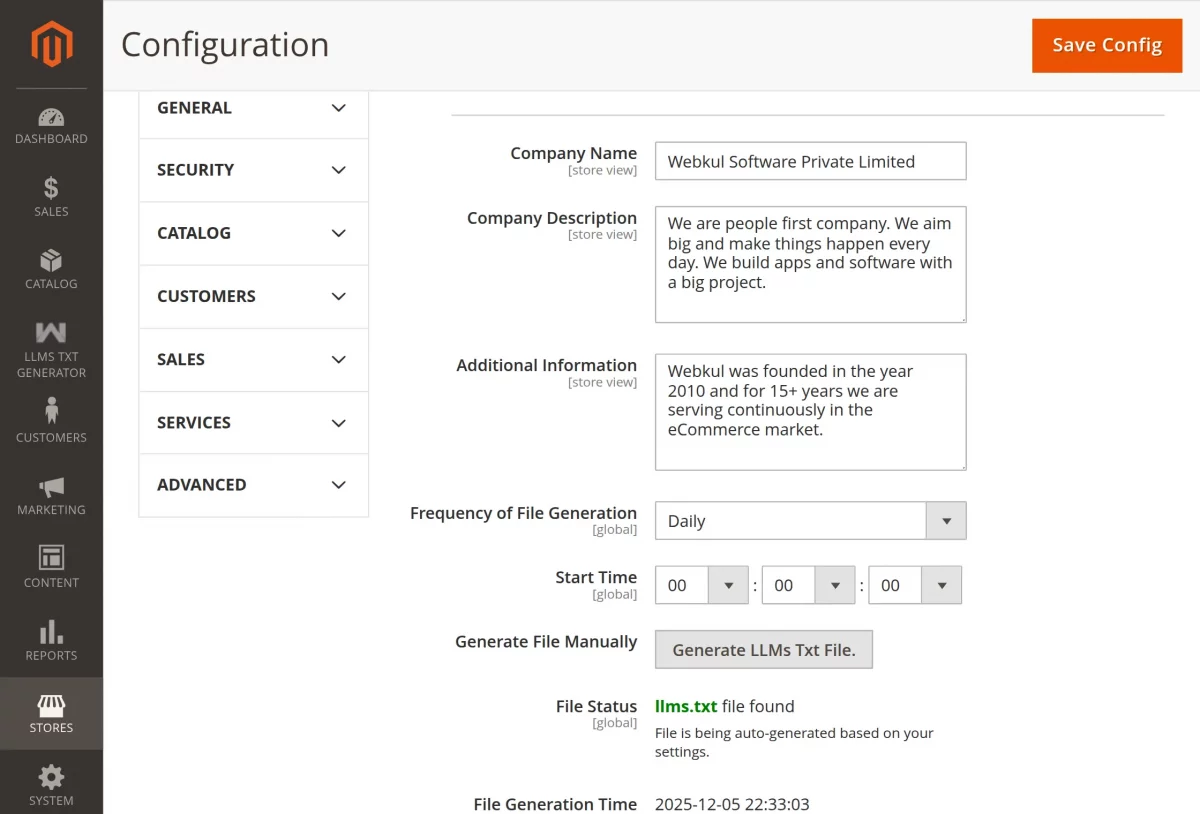
- Company Name – Field to enter the Company Name
- Company Description – Field to enter the company description.
- Additional Information – Field to add any other additional information.
Scrolling down further, Admin gets the Cron settings for generating the llms.txt file as per image below,
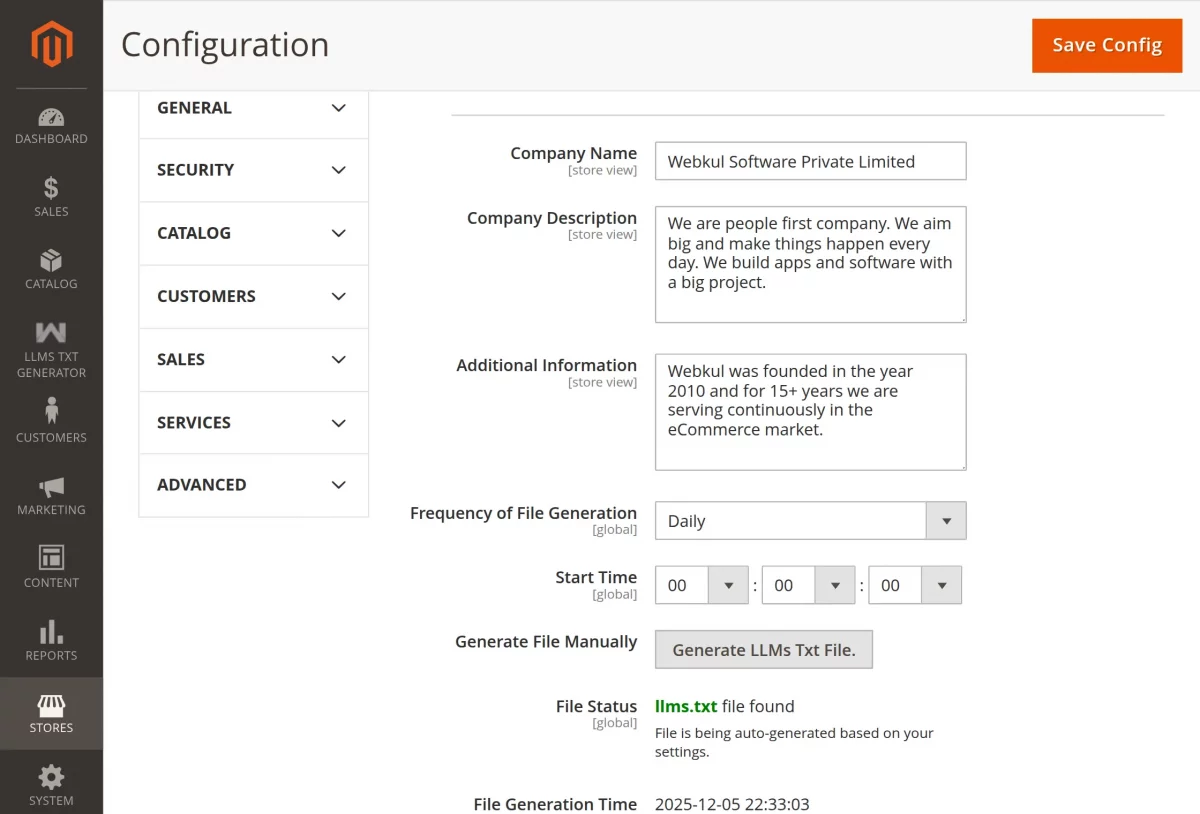
The following cron settings are available,
- Frequency of File Generation – Set the frequency of file generation as Daily, Weekly or Monthly.
- Start Time – Fix the Start time for file generation.
- Generate File Manually – Click here to generate the file manually.
- File Status – Check the status of the generated file and view it.
- File Generation Time – Last, File Generation Time
The admin clicks the Save Config button to save the settings.
Condition for Product Fetching
The llms.txt file will fetch only those products that fulfil the conditions below.
- Their Visibility is set to Catalog and Search.
- Their Status is Enabled.

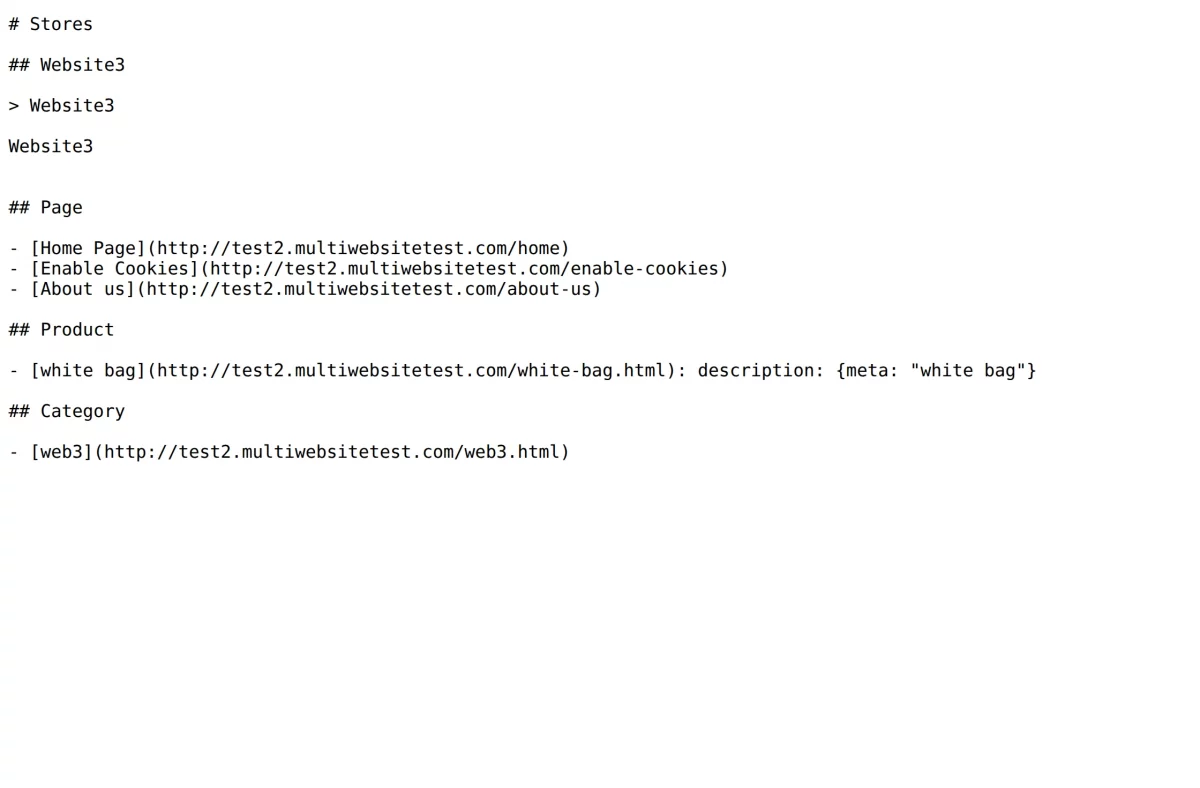
LLMs TXT File Generated
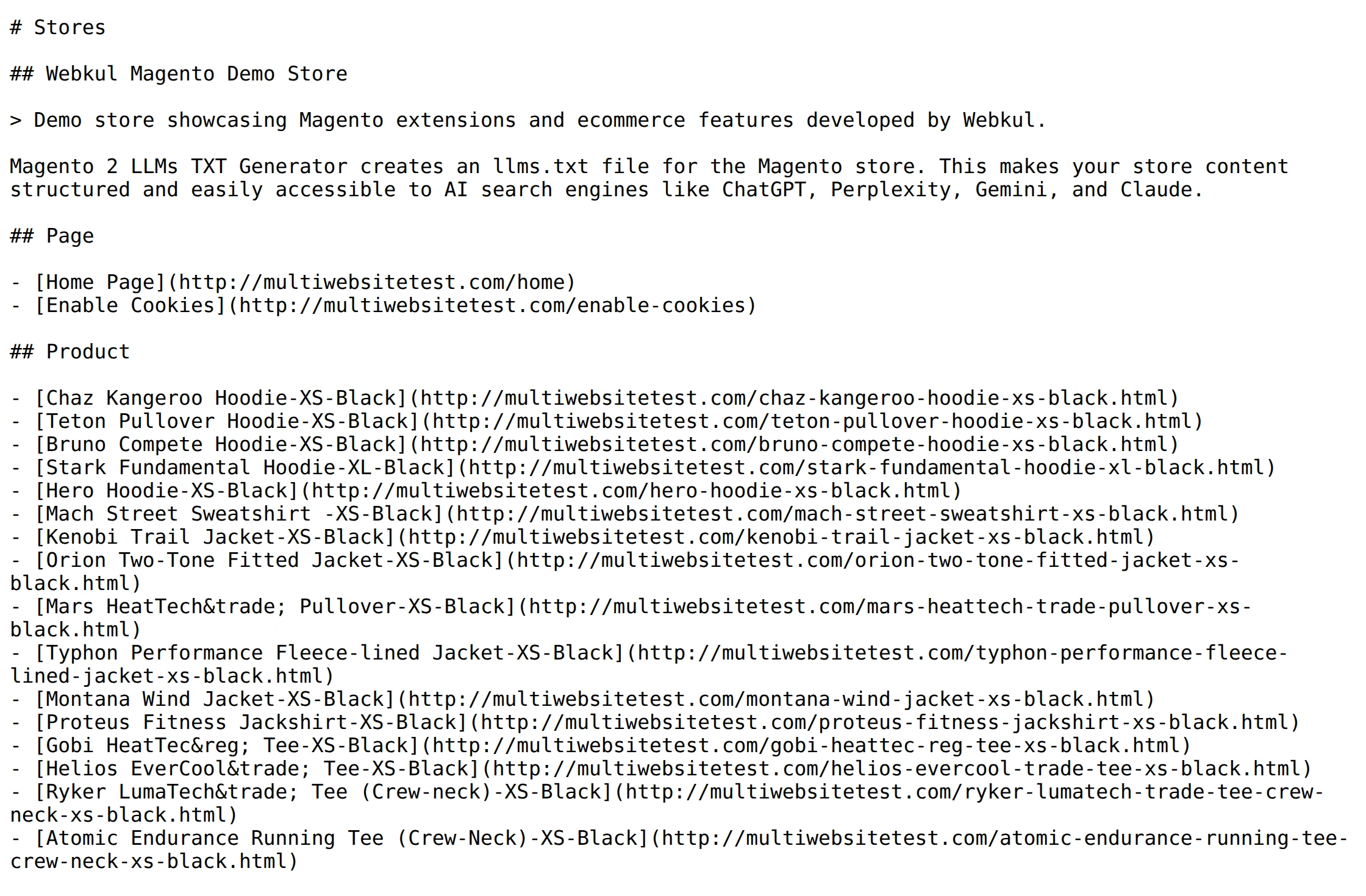
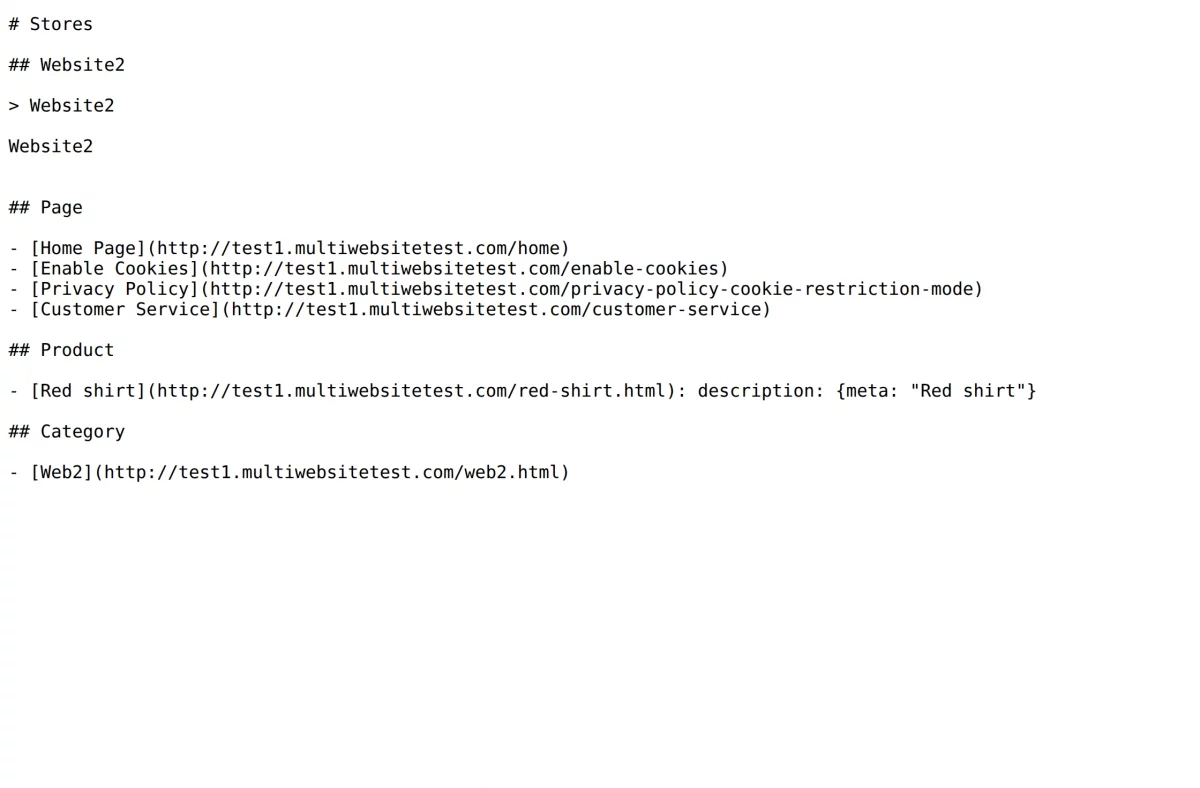
Once the admin fulfills the configuration and conditions and sets the Cron, it generates and stores the llms.txt file in the Magento directory.
Below is an example for a multi-website setup.
Here we have 3 websites, for each website, a separate file is generated
Support
So, that is much about the Magento 2 LLMs TXT Generator extension.
If you have any more queries, please feel free to reach out ot us at [email protected] or create a ticket.
Current Product Version - 4.0.3
Supported Framework Version - Magento 2.0.x, 2.1.x, 2.2.x,2.3.x, 2.4.x


Be the first to comment.