Laravel eCommerce Multi-Vendor Auction module enables the admin or seller to auction their products. One of the most effective methods of selling is an auction. The admin or seller can also set the auction option as Automatic, Reserve, or Incremental Auction for the seller’s product.
Moreover, it offers the buyer notification via mail on the auctioned product when the buyer’s bid is outbid or wins an auction. The seller can also assign the number of days till the buyer can buy the product.
Please Note – To use this extension, you must purchase and install Laravel Multi-Vendor Marketplace, first.
Feature List of Laravel eCommerce Multi-Vendor Auction
- Allows the auction feature for the marketplace sellers and admin products.
- Incremental, Automatic, and Reserve Auction Option set by the admin.
- Admin can enable or disable the Email notification option to Admin, seller, outbid buyer.
- If User bid will be outbid then the user will notify automatically by mail.
- Winners will be notified by email via Admin.
- Date time picker for date and time selection for admin/seller.
- Edit and delete feature for product auction for admin/seller.
- Support Simple, Downloadable, and Virtual type products only.
- The winner message can be set by the admin.
- The customer can check complete bid details such as bidder name, bid amount, bid status on the product.
- Both admin and seller can view the bidder list from their panel
Installation of the module: Laravel eCommerce Multi-Vendor Auction
Unzip the extension package and merge the “packages” folder into your project root directory.
Goto composer.json file and add the following line under ‘psr-4’
"Webkul\\MpAuction\\": "packages/Webkul/MpAuction/src"
Goto config/app.php file and add the following line under ‘providers’
Webkul\MpAuction\Providers\MpAuctionServiceProvider::class
Run the following commands to complete the setup
composer dump-autoload
php artisan mp-auction:install
php artisan optimize:clear
Add the following line to the crontab for automatic Auction winner and status update.
* * * * * php /project_root_folder_path/artisan auction:update:winner
Or you can run the command manually:
php artisan auction:update:winner
Note: ONLY FOR SECOND BUYER
Add the following line to the crontab for second auction winner update.
* * * * * php /project_root_folder_path/artisan auction:update:second-winner
Or run manually:
php artisan auction:update:second-winner
That’s it, now just execute the project on your specified domain.
** NOTE: To use this module customer needs to install the bagisto & bagisto marketplace.
Admin Configuration
After the successful installation of the module, the admin can navigate to Bagisto store>>Configure>>MarketplaceAuction.
The admin has an option to enable and disable the Auction module. Also, they have the option to enable and disable the other functionalities from the different tabs as shown below:-
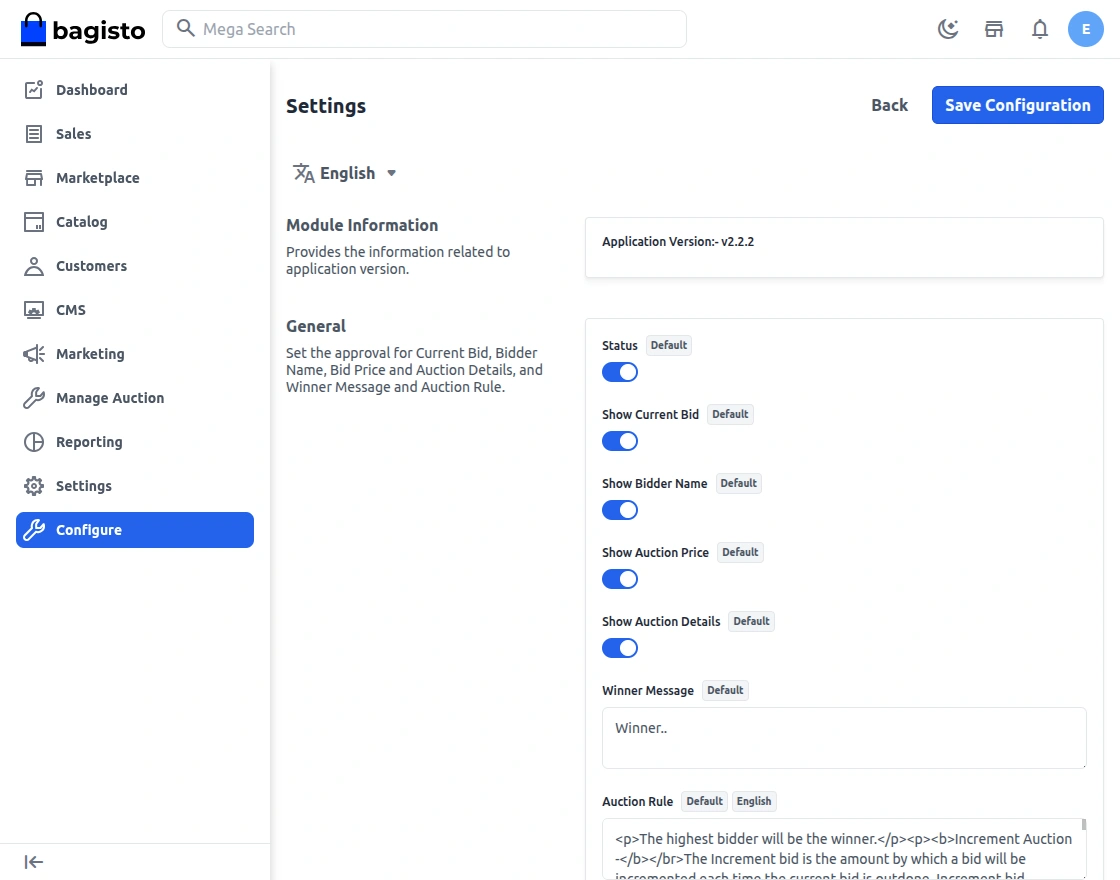
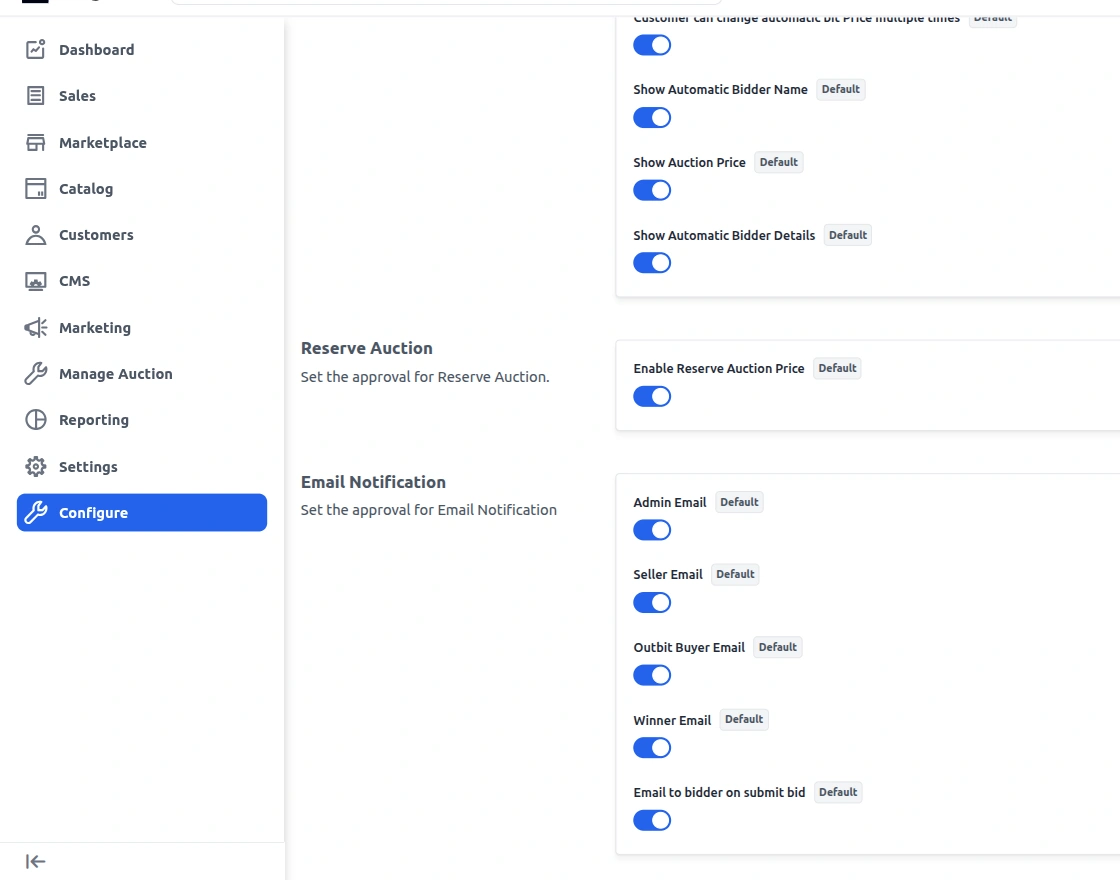
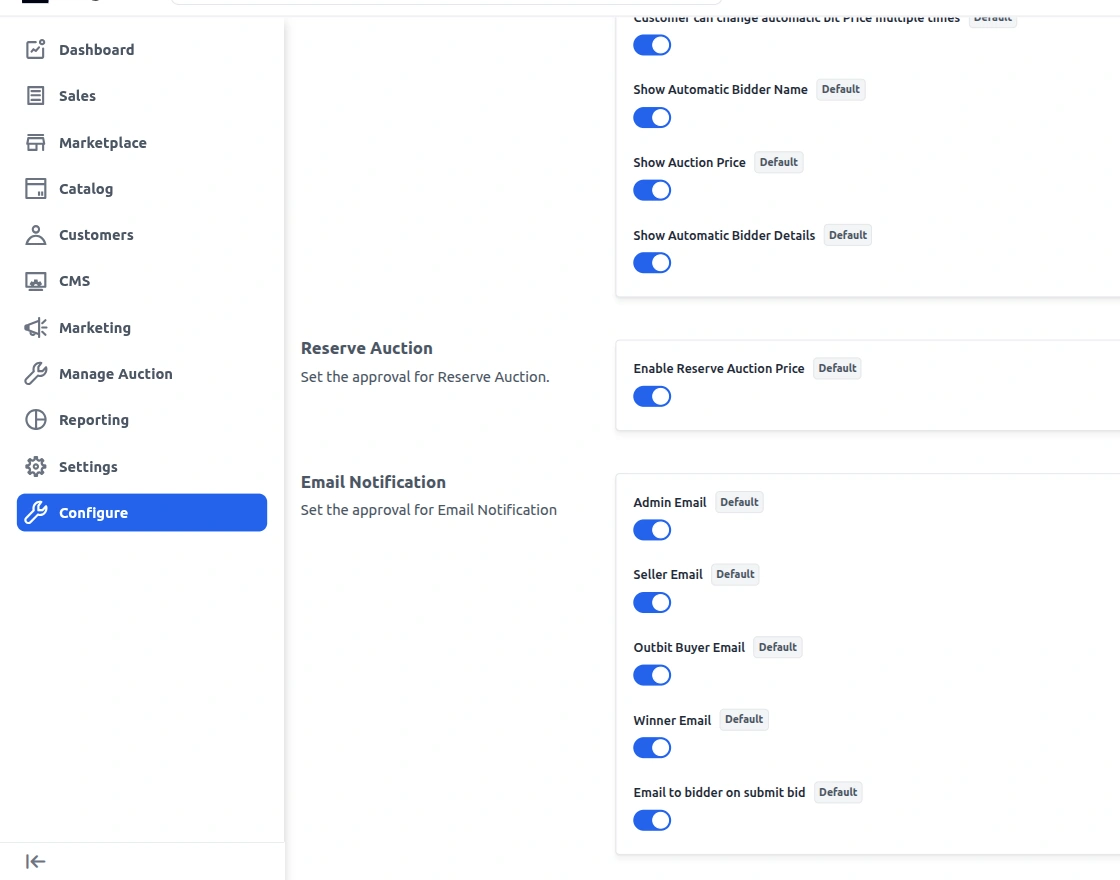
The admin also has the options to do the Automatic Auction, Reserve Auctions, and Email Notification from the back-end as shown below:-
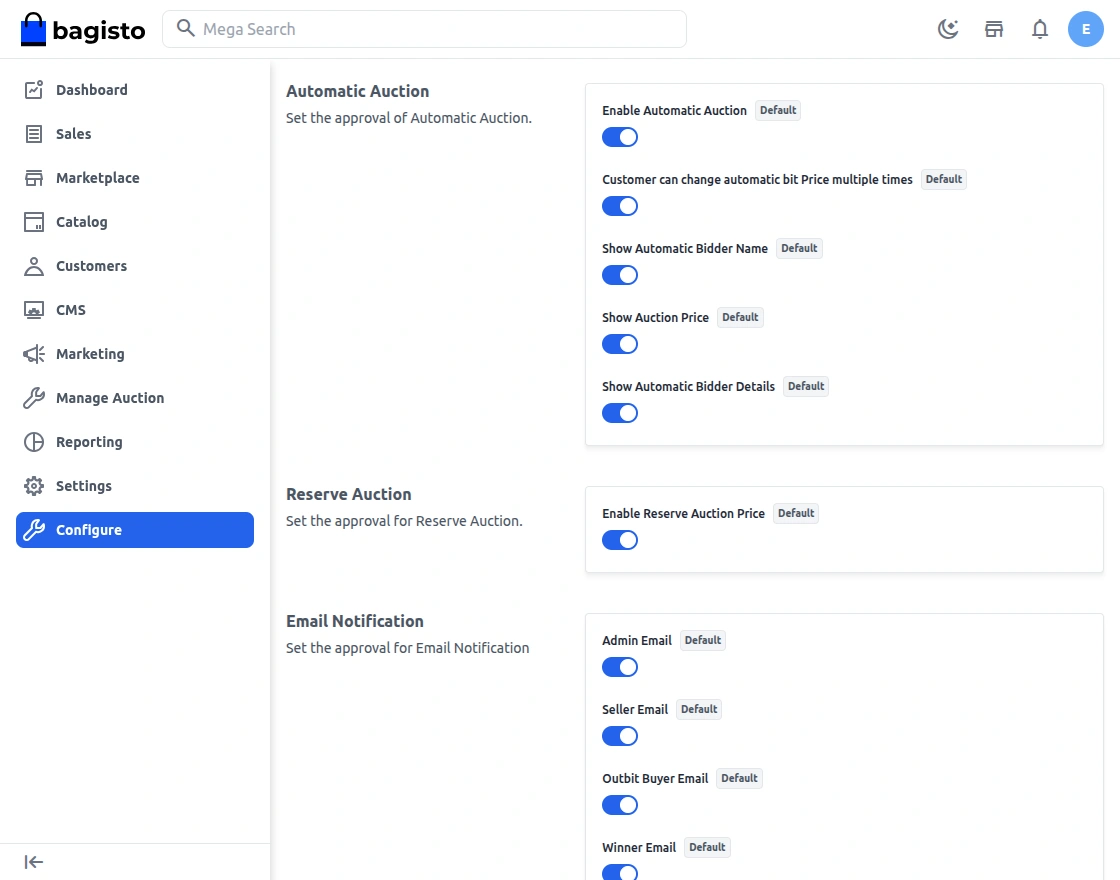
However, the admin can set any custom message as the winner message for the customer.
Reserve Auction
A reserve price is the minimum amount the seller is willing to sell an item for. If the reserve price isn’t met, the item won’t be sold.
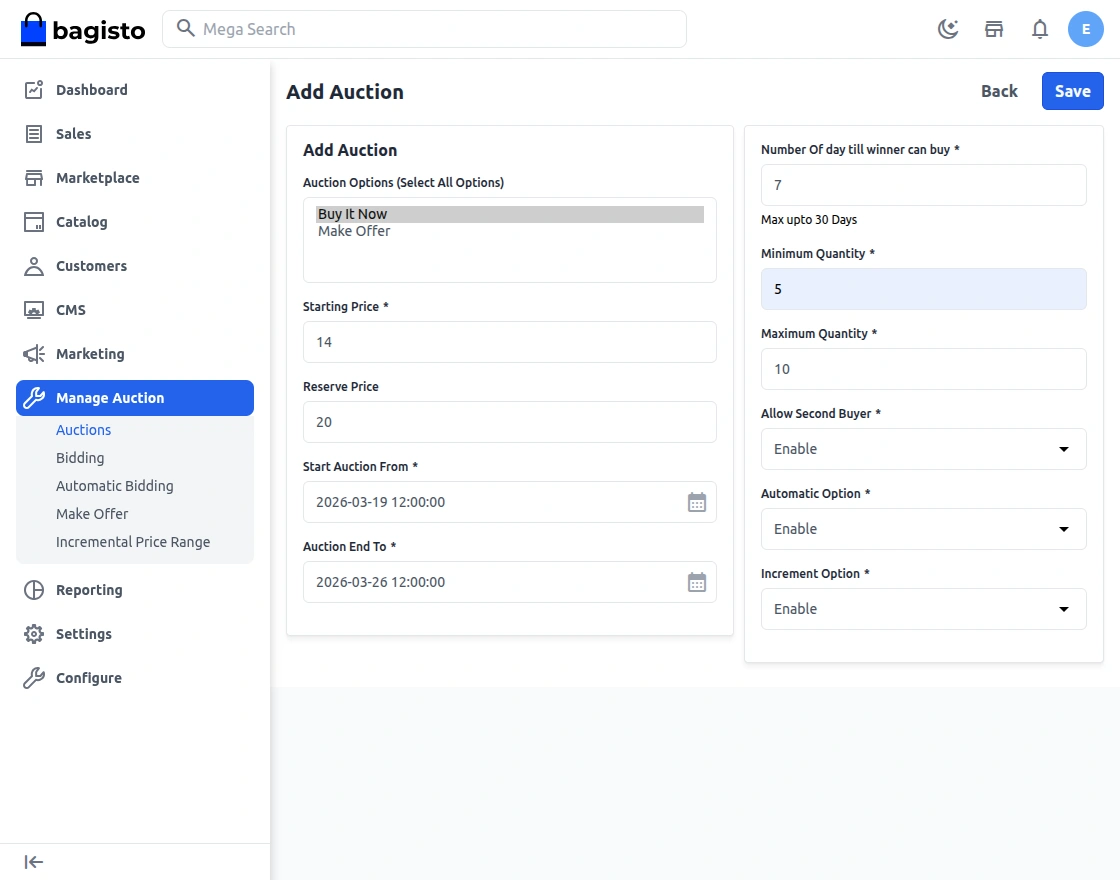
Sellers or admin can choose to add a reserve price when listing an item in an auction. Unless they state their reserve price in the listing, you won’t know what it is until you either meet it or bid above it.
If you bid below the reserve price, you’ll see a “Reserve not met” message. This means that even if you’re the highest bidder at the end of the auction, you won’t win the item.
NOTE – If the reserve price is not met and no one is the winner that case seller can reduce the reserve price and can again put the product in the auction.
Condition 1
Bidders did not reach the Reserve amount which is applied by the seller.
Even on the higher bid. No one will win if the reserve price is met.
Condition 2
The bidder reached the Reserve amount.
If the bidder crossed the reserved price then only they are eligible to purchase the product.
Now sellers can also sell the product.
Enable Reserve Price
If Reserve Auction is enabled then Seller will be allowed to win for the item once the bid amount meets or exceeds the Reserve Price.
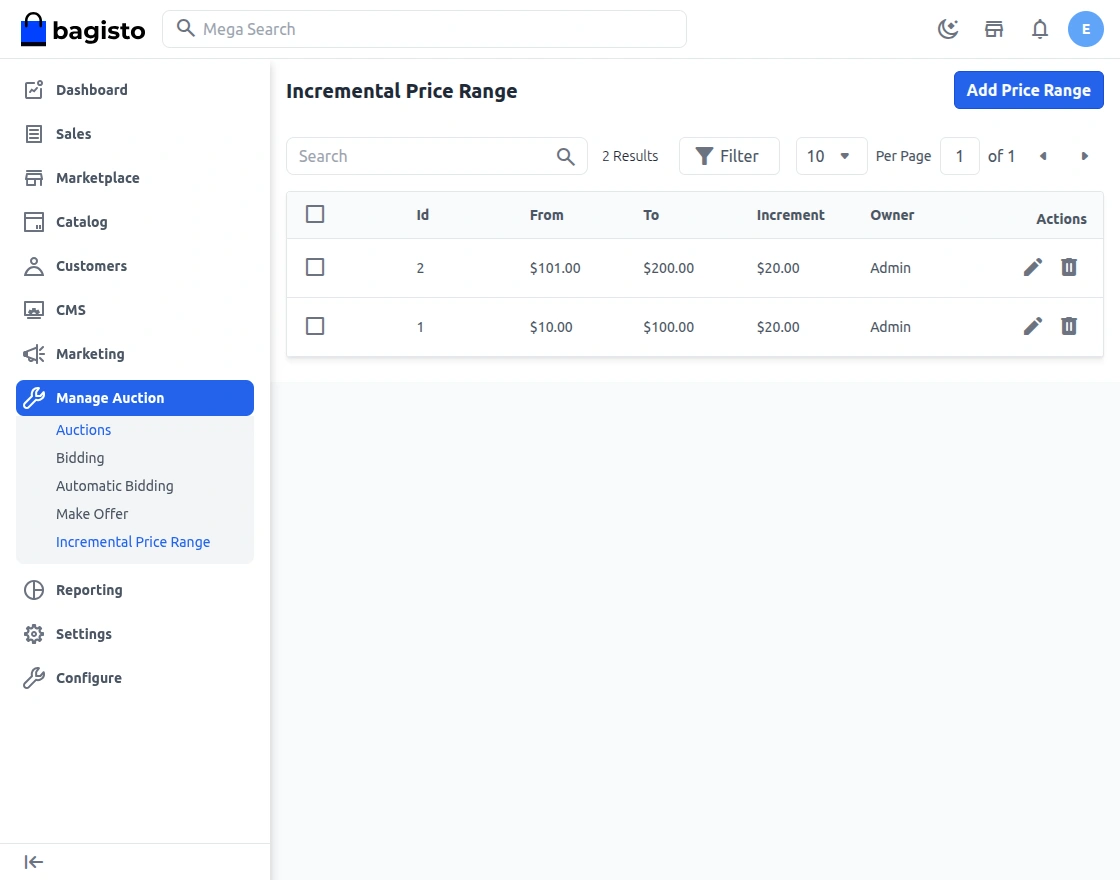
Increment Auction Option
In this type of auction process, basically what happens is that, when an auction is applied, the seller who is selling a product can set various ranges for the price with an increased amount limit.
In this basically when the price range of the bid is achieved, then the next bid should be placed more than the new amount which appears after the increment.
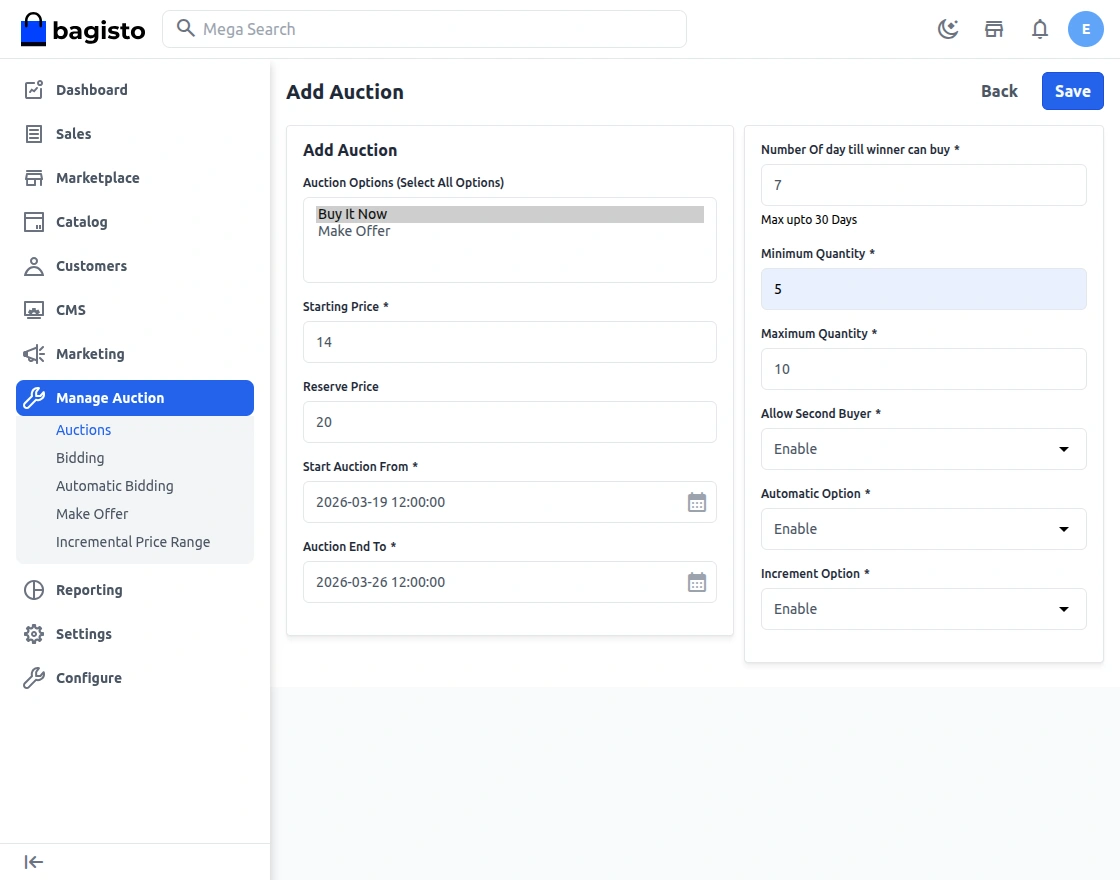
The Increment bid is the amount by which a bid will increment each time the current bid is outdone. Increment bid amount settings will be done by the seller.
In the case of incremental Auction, a bid will be raised each time. It predetermines based on the current high bid.
Example for the Increment Auction
| Current High Bid Range | Increment |
| $100 – $500 | $10 |
| $600 – $1000 | $20 |
| $1100 – $1500 | $30 |
| $1600 – $2000 | $40 |
| $2100 – $2500 | $50 |
Now brief explanation with example.
Customer A is the first bidder on a listing where the starting price is $50 and you place a maximum bid of $70.
In this case, nothing will happen.
The next Highest Bidding will be $70.01 and above.
Customer B another bidder, places a bidding amount on the same product with $120.
In this case, the increment bidding price will work.
Bidding Done by Customer B = $120
Checked the increment table – it says’s $100 – $500 increase on the current bid should be $10.
So now the highest current bid will be $120 + $10 = $130
Now the next bidder will place the bid more the $130.01.
Hence this is the complete flow of the bidding process in incremental Auction.
Result – Same as Standard Auction, Highest Bidder till the auction is over will be the winner.
Automatic Auction
Automatic bidding is the easiest way to bid on an eBay auction. Simply enter the highest price you’re willing to pay for an item.
Buyers and bidders can set automatic bids with their maximum desired price in auctions, keeping it private. These automatic bids automatically outbid others up to the minimum needed to stay on top. The bidders’ maximum bid remains hidden if the admin chooses.
Other bidders bid based on the current highest bid until they meet the reserve price or their bid expires. If someone matches or surpasses your maximum bid, you’re notified by email to place a new bid.
If your maximum bid is higher than others or the current bid, you win at the current bid. This system also works with incremental price settings if enabled by the admin.
Example Related to Different Cases.
Case A – Without Reserve Price in Auction and Incremental Price.
Seller A – Product Auction Price – $100
Customer A – Automatic Bidding applied – $600
Customer B – Automatic Bidding applied – $400
Customer C – Automatic Bidding Not Applied.
Results –
1. Customer A will win if no one reaches the highest Bidding if no one reaches till $600
2. If Customer C makes a bid of more than $600 let’s say $700.
– Customer A will receive a mail for increasing the bid, If the bid is increased then Customer A will win if no one reaches the Highest Bid.
– Customer C will win if Customer A will not increase the Bid Amount.
Case B – With Reserve Price In Auction.
Seller A – Product Auction Price – $500
Reserve Price Added – $1500
Customer A – Automatic Bidding applied – $800
Customer B – Automatic Bidding Applied – $1000
Customer C – Automatic Bidding Not Applied.
Results –
1. If the Reserve Amount is reached
– Customer B will win if the Reserve Amount is crossed if Customer B increases the Automatic Bid by more than $1000 and No other customer crosses the highest bid.
– No one will win if the Reserve Price is not met.
– If Customer C reaches the Reserve amount and also makes a bid more the automatic Bid.
– Other customers with Automatic Bid will get a mail notification, If they increase the auto bid amount one can win accordingly.
– If Other customers do not increase the limit, Customer C will win.
Case C – With Reserve Price and Increment Price.
Seller A – Product Auction Price – $1000
Customer A – Automatic Bidding applied – $5000
Customer B – Automatic Bidding applied – $4000
Customer C – Automatic Bidding Not Applied.
Incremental Price
1200 – 1500 -> 10
1600 – 2000 -> 20
2100 – 3500 -> 30
Results –
1. No One will win if any of the customers do not reach the reserved auction price.
2. Reserved Amount is reached
– Let’s say
* Customer A Initial bidding amount = $1300
then next bidding for other bidders/buyers will be increased
1300 + 10 = 1310 (Next Bidding will be more than 1310).
* Customer B Initial Bidding Amount after incremental price = 1800
then next bidding for other bidders/buyers will be increased
1800+20 = 1820
* Customer C Initial Bidding = $4000
Till now no customer reached the Reserve Amount but Customer C reached the Limit.
Results
1. A mail notification will be sent to the Automatic Bidding Customer to update the price. If the Price is not updated by any customer then Customer C is the winner.
2. Customer A increased the price
– Customer B did not increase and Customer C is also below the Highest Bid, then Customer A is a winner.
3. Customer A and Customer B both Increased the Amount.
– In this case, the highest automatic bidder will be the winner.
Email Notification Option
Using the Email Notification, the admin can enable the following options so that the email can go to the desired person.
Multi-Vendor Auction Admin View
The admin can manage the auction by clicking the marketplace tab and then proceeding with the manage auction as shown below:-
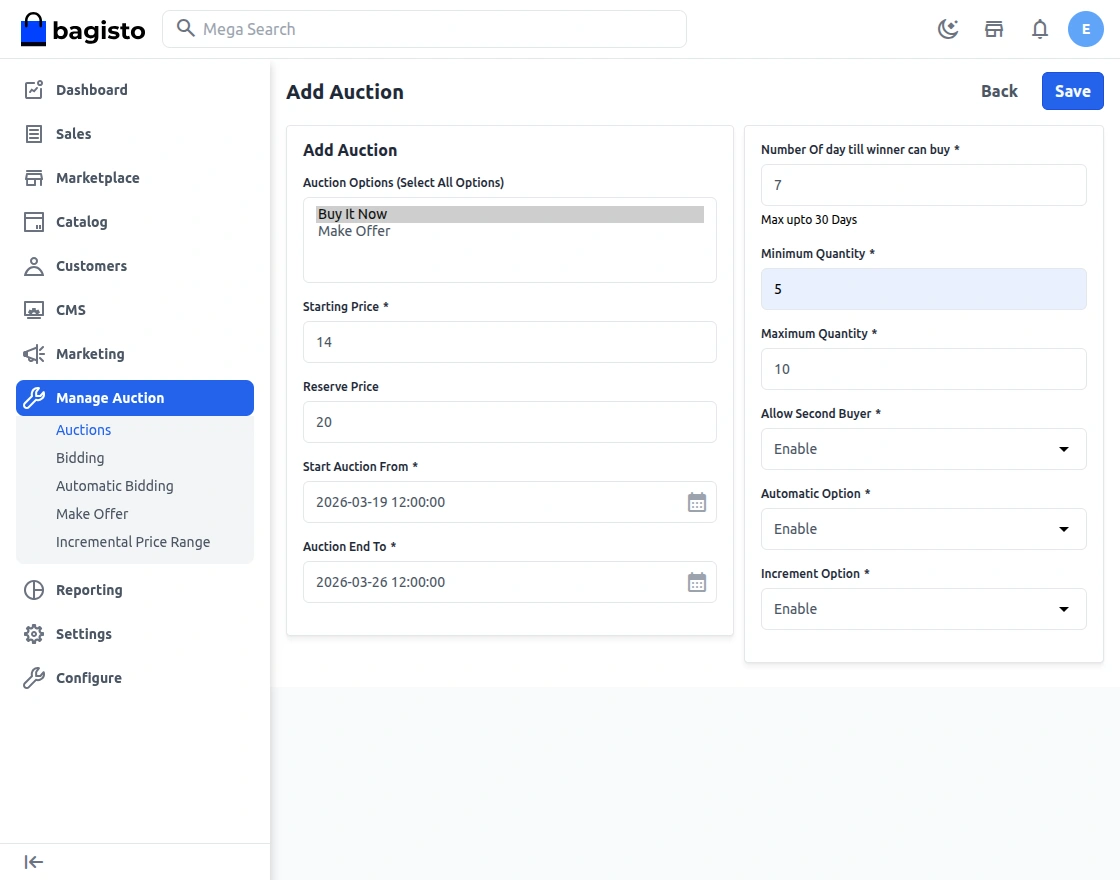
The admin can create new auctions or edit the existing ones by just clicking the action button as shown in the picture below.
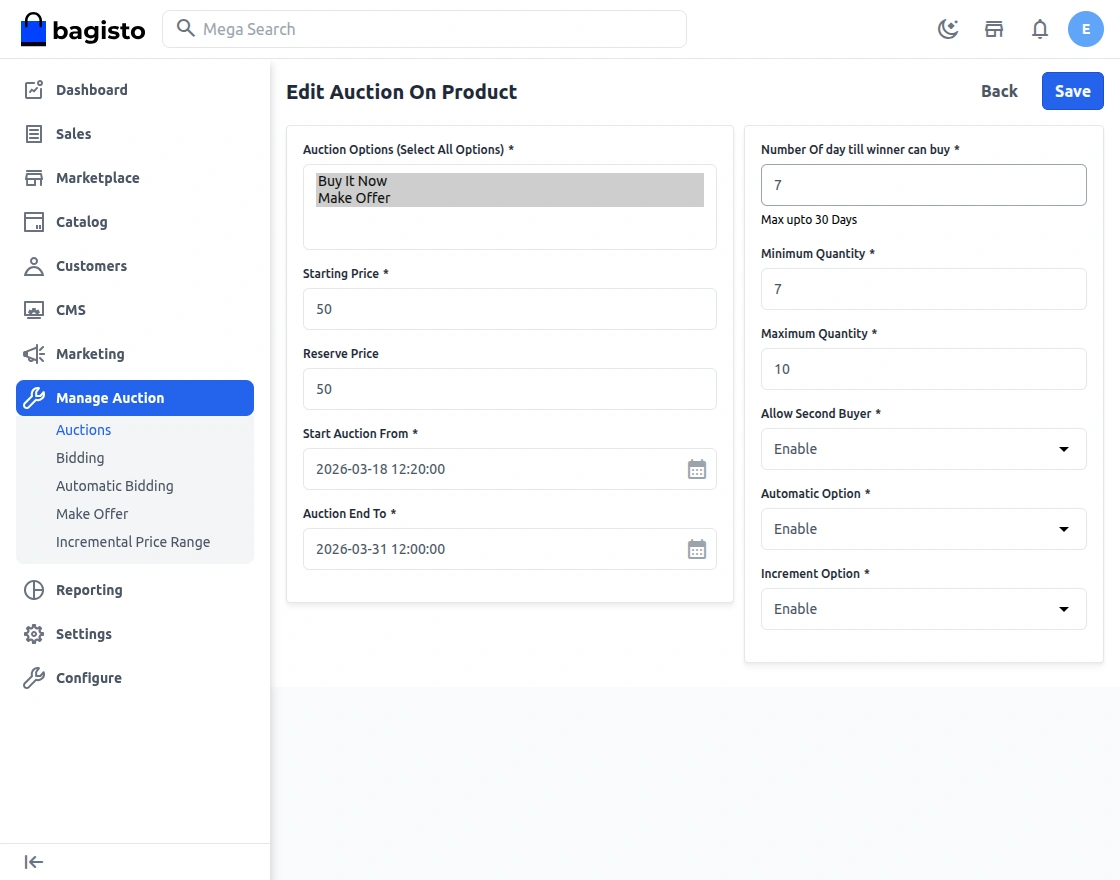
In the above picture, the admin can find the list of the products in which they want to start the auction with the listed products.
Either the Products are related to the admin and the admin can set the type of auction, starting price, reserve, or fixed price, auction starting & ending date, and other information as mentioned above.
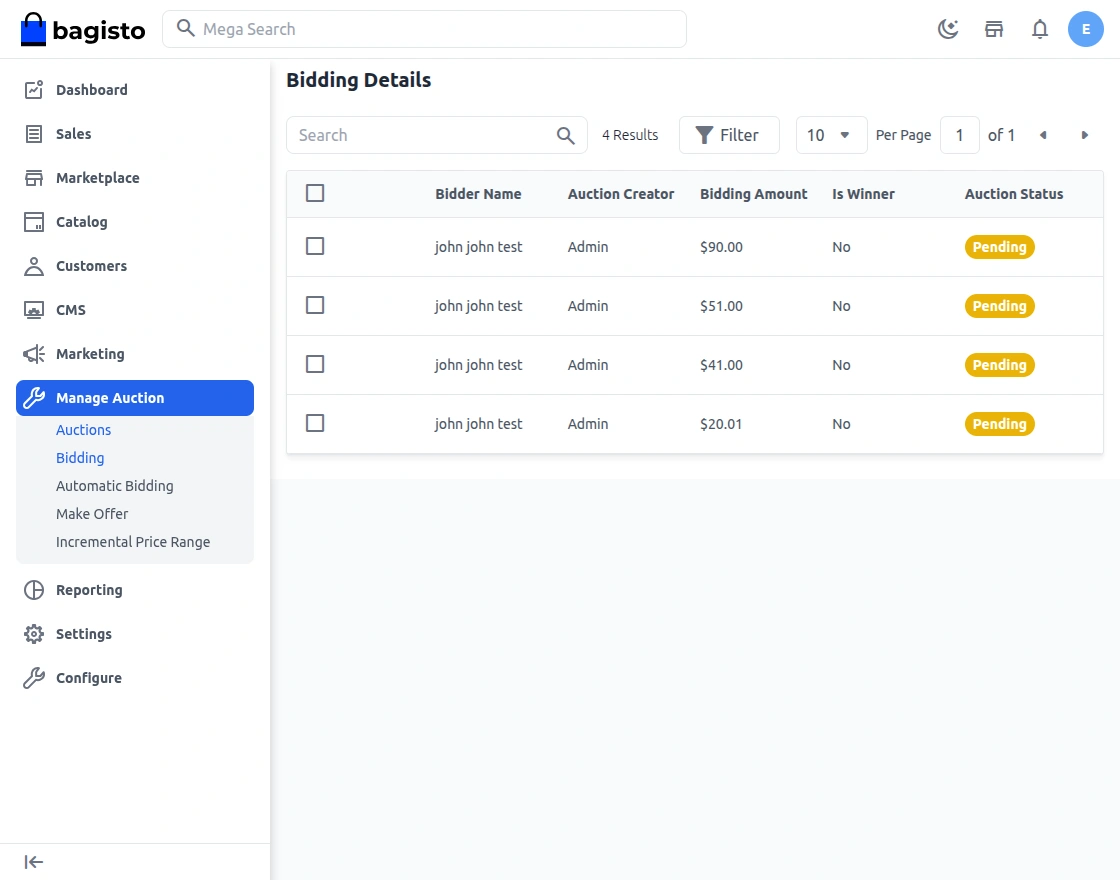
The admin has the option to see the details of the bidding and automatic bidding as shown below:
The admin has the option to do the increment price range for the bidding and they can also have the option to edit the existing one or create a new one as shown in the picture below.
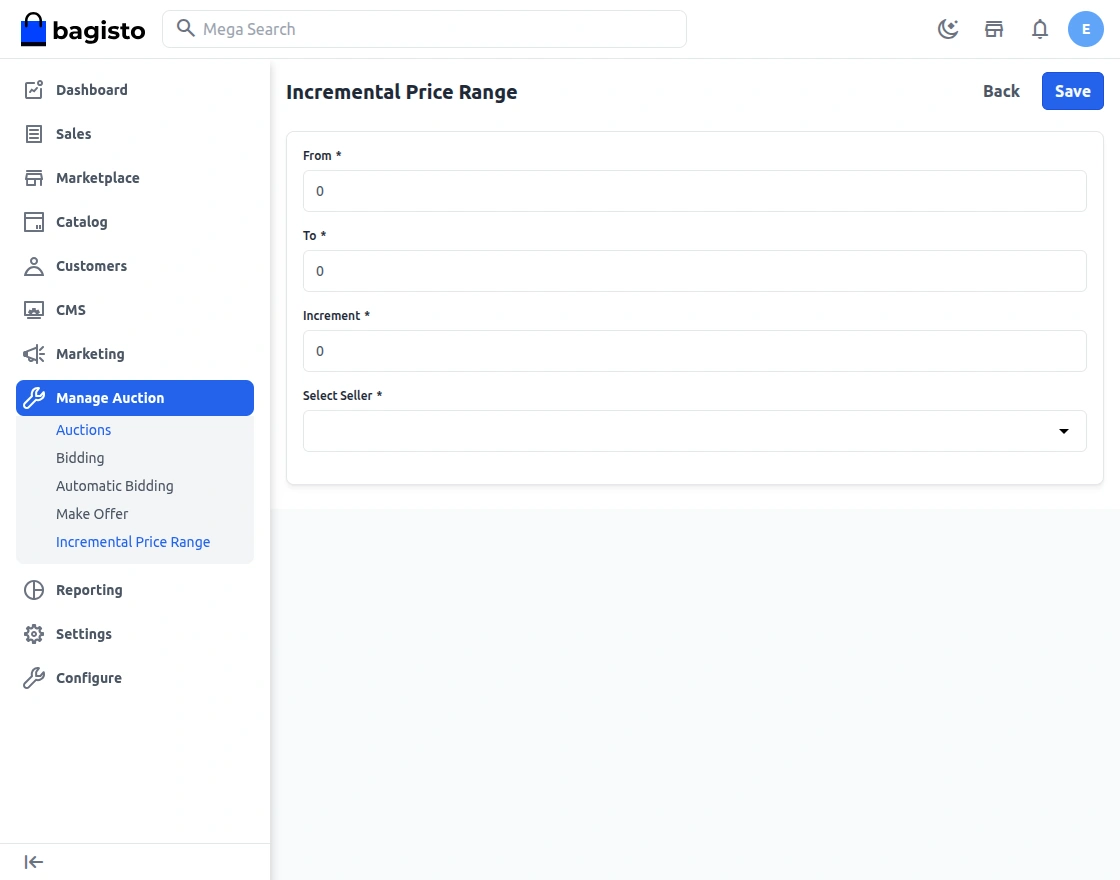
In the above picture, the admin can set the price range “From” and “To” with an increment price. The increment price will denote the gap between the initial and next bid done by the customer.
Buy it Now
The “Buy It Now” option will not appear if the product is not in an auction.
The “Buy It Now” option can be used multiple times if the product is in an auction. If the seller or admin approves the product and completes shipment and invoicing, then the auction will stop.
The “Buy It Now” price will be set at 30% higher than the current bidding price.
If a reserve price is set and both the bidding price and automatic bidding price are below the reserve price, the product’s amount will be increased to match the reserve price plus 30%.
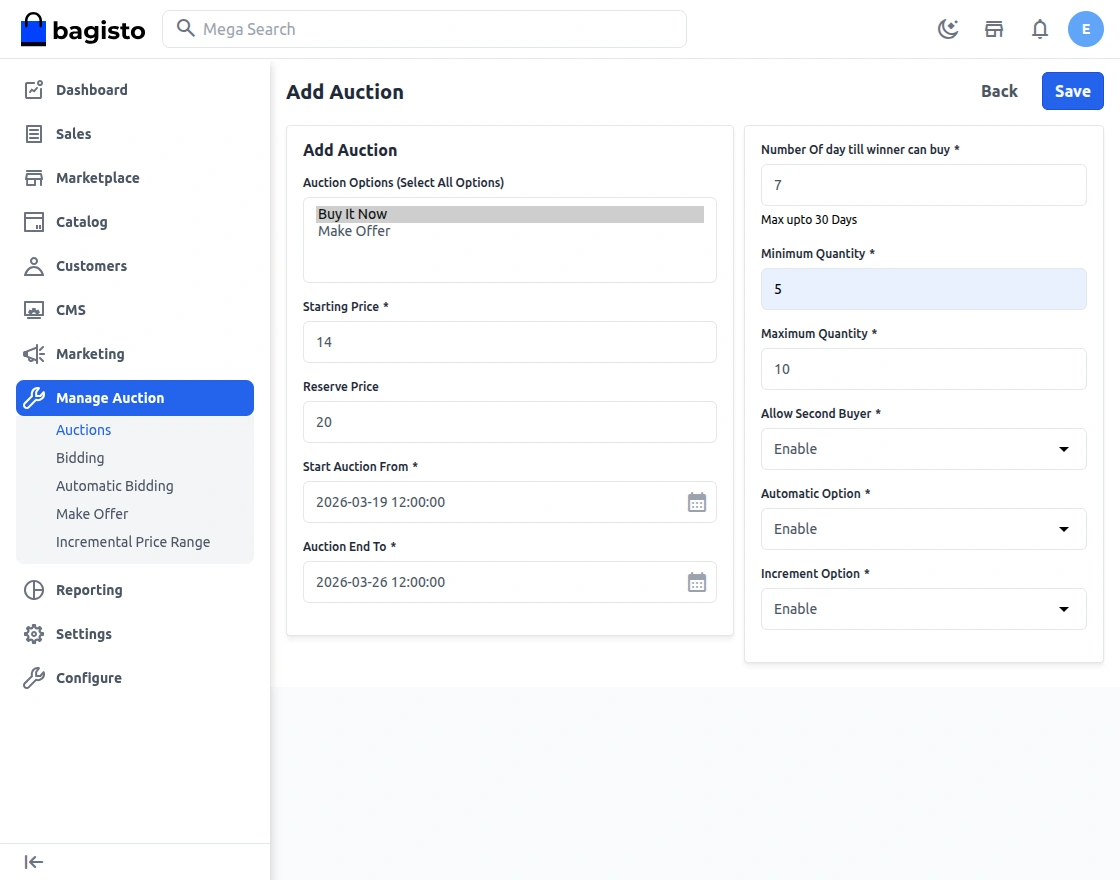
If bidding or auto bidding surpasses the reserve price, the “Buy It Now” price will be based on the current bidding price.
If a customer has set up auto bidding, they will need to purchase the product above the automatic bidding amount.
Make Offer
The price should be at least 30% higher, as customers in this case are aware of the actual product price. Seller selects make offer functionality while creating a product in Auction.
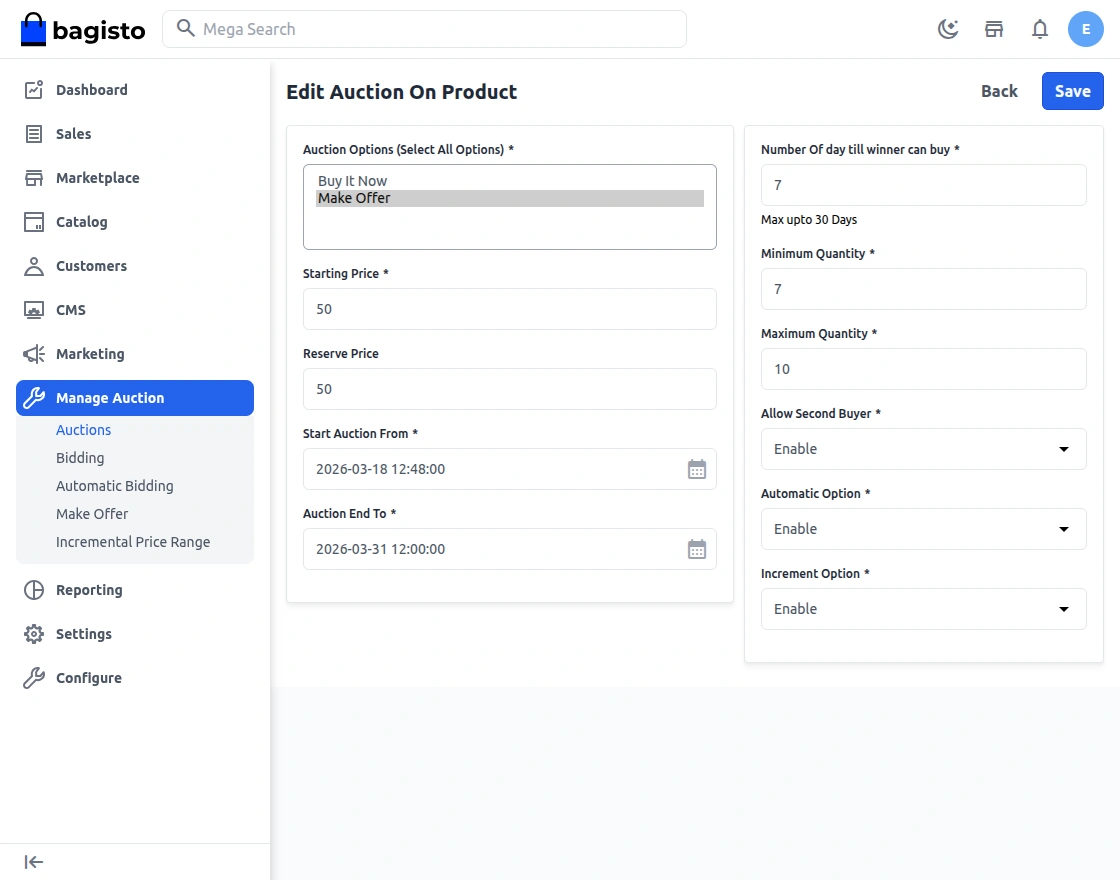
Customers need to specify a minimum quantity that applies to the auction.
Similarly, here the price will increase by at least 30% or more for the offer.
Seller approves customer offer request:
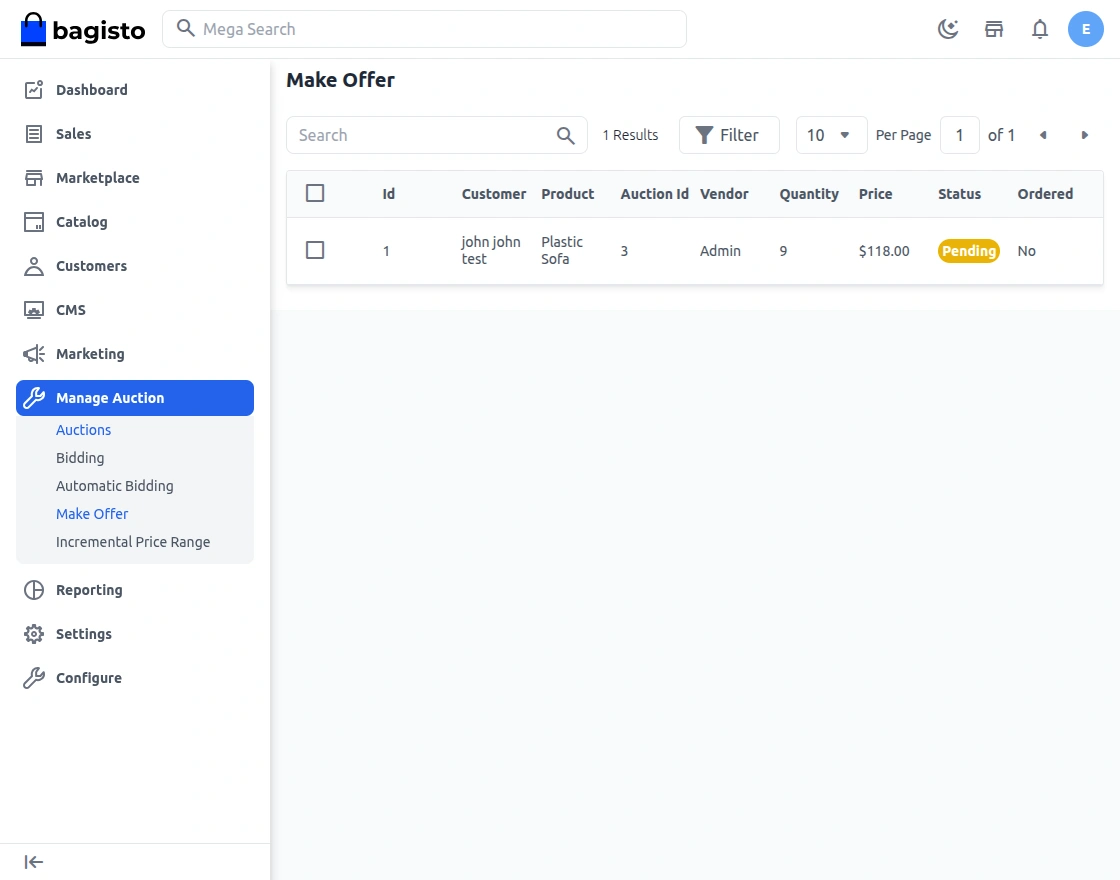
If the seller/admin approves the offer, the customer can purchase the product at the offered price.
If one offer is already pending for the product, other offers will not be processed.
If an offer is rejected, the customer can submit another request for a make offer with an increased price.
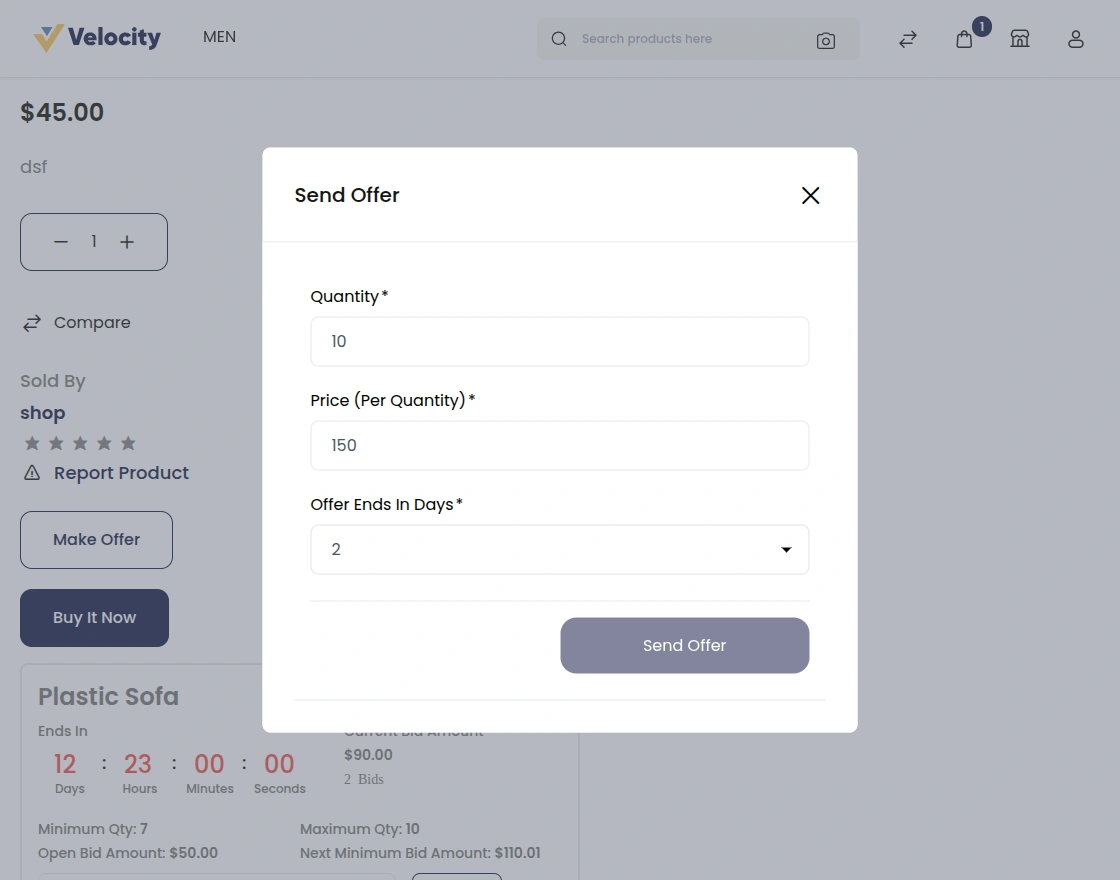
Front-end view:-
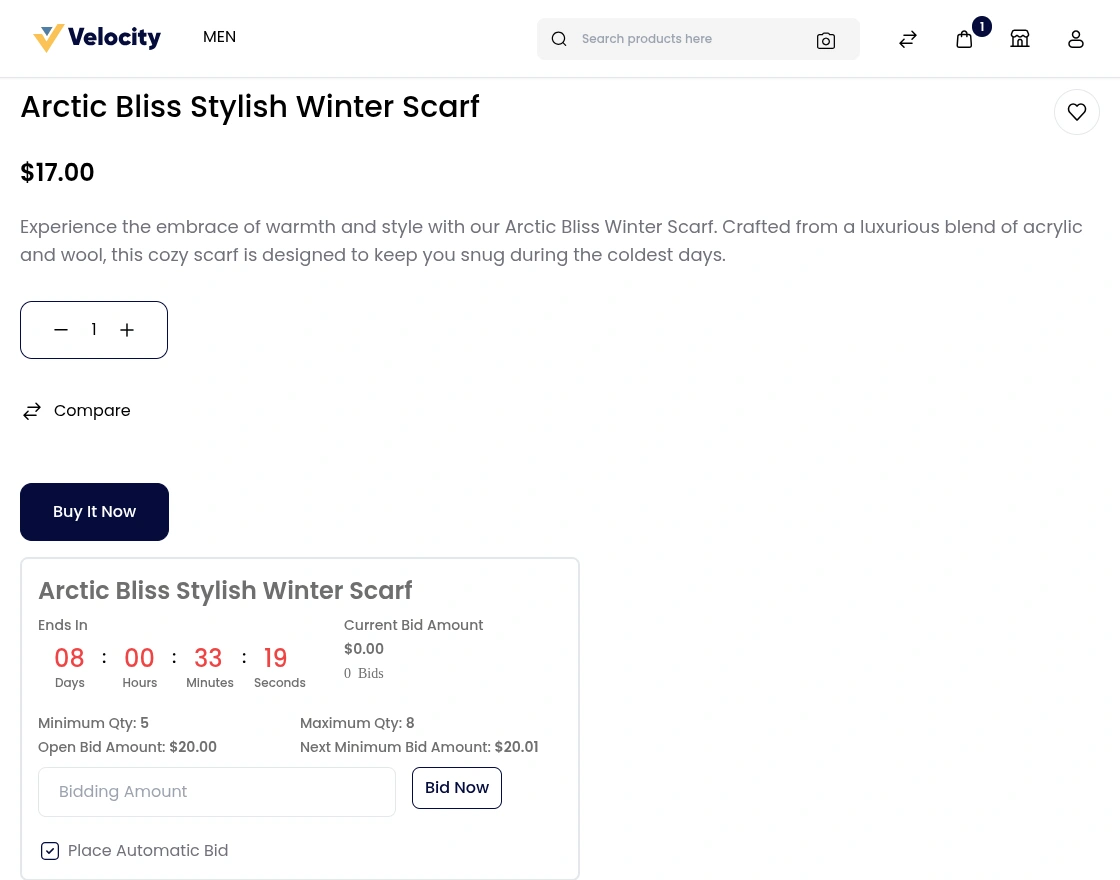
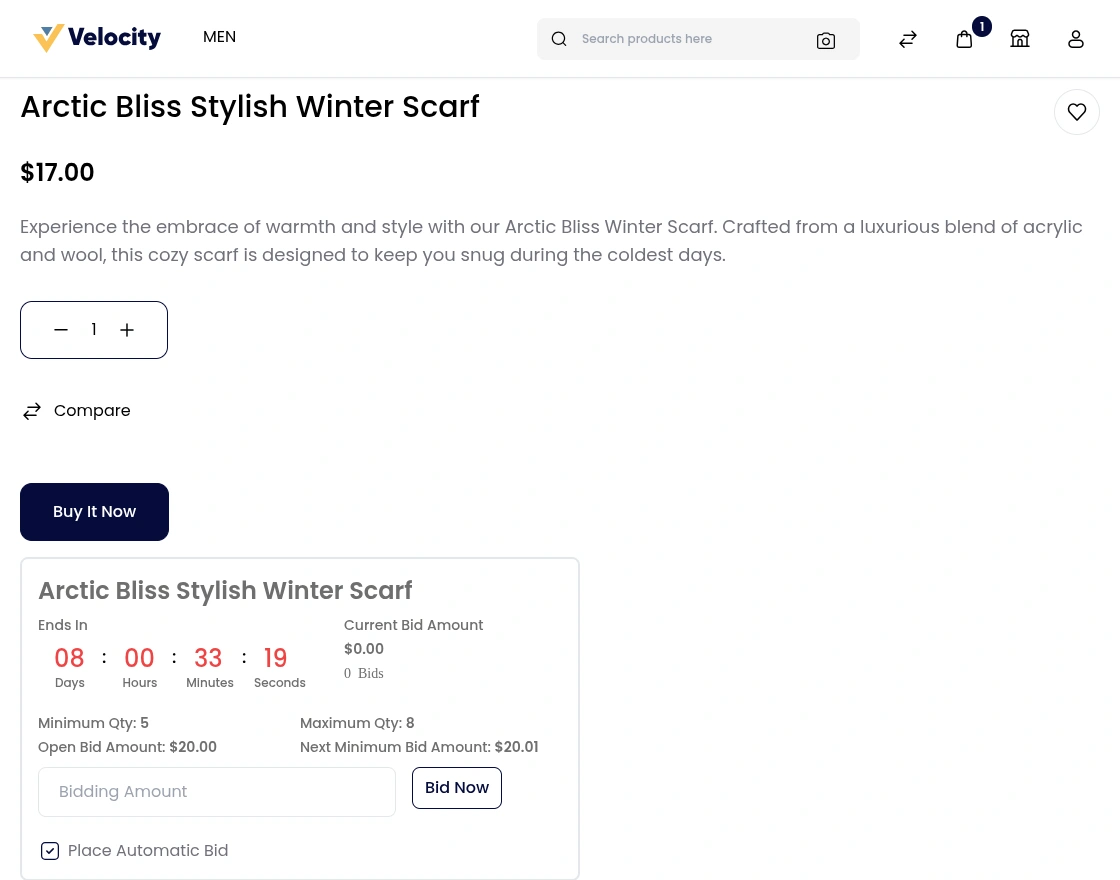
On the front end section, the customer can see the complete bid set by the admin or seller. It will include the time of the auction left, the customer bid amount, open bid, next bid, etc. and Automatic bid (if enabled)
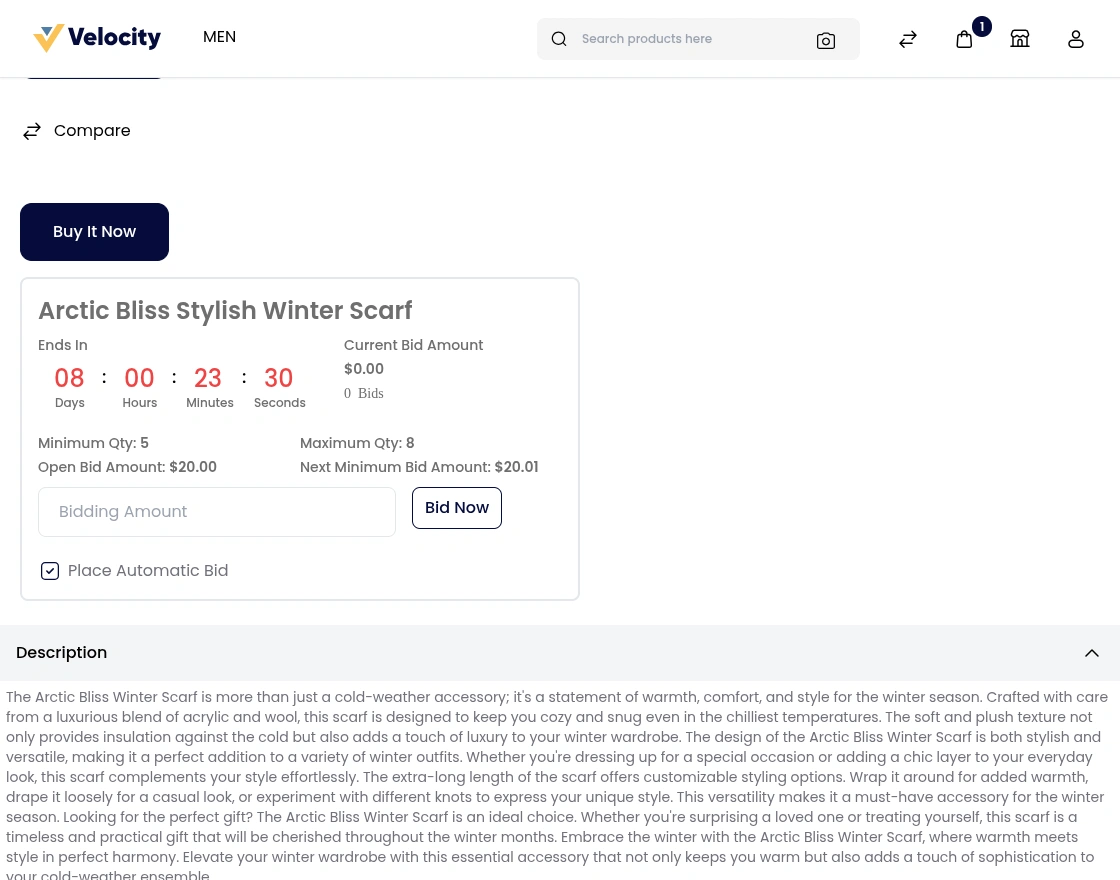
As you can see in the above picture, the customer can put the bid amount and place the order. Also, they have the option to place an automatic bid by clicking the check box.
The Automatic bid will help to place the bid automatically on the previous set bid and it will go to the maximum limit of the bid automatically.
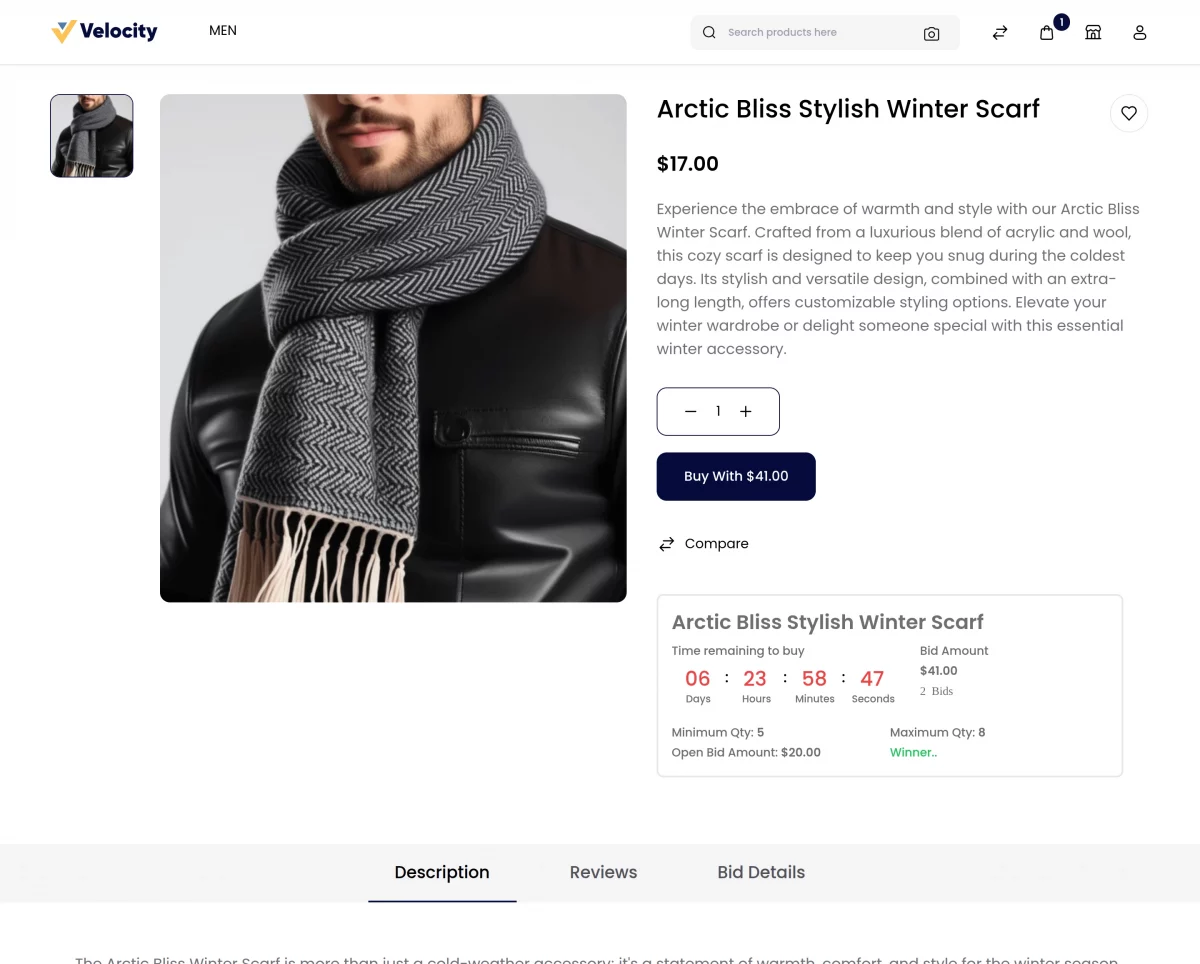
Also, a notification is published on the frontend side of the product detailed pages once the auction is being completed as shown below:-
Also, the customer can see the complete bid details as shown in the figure:-
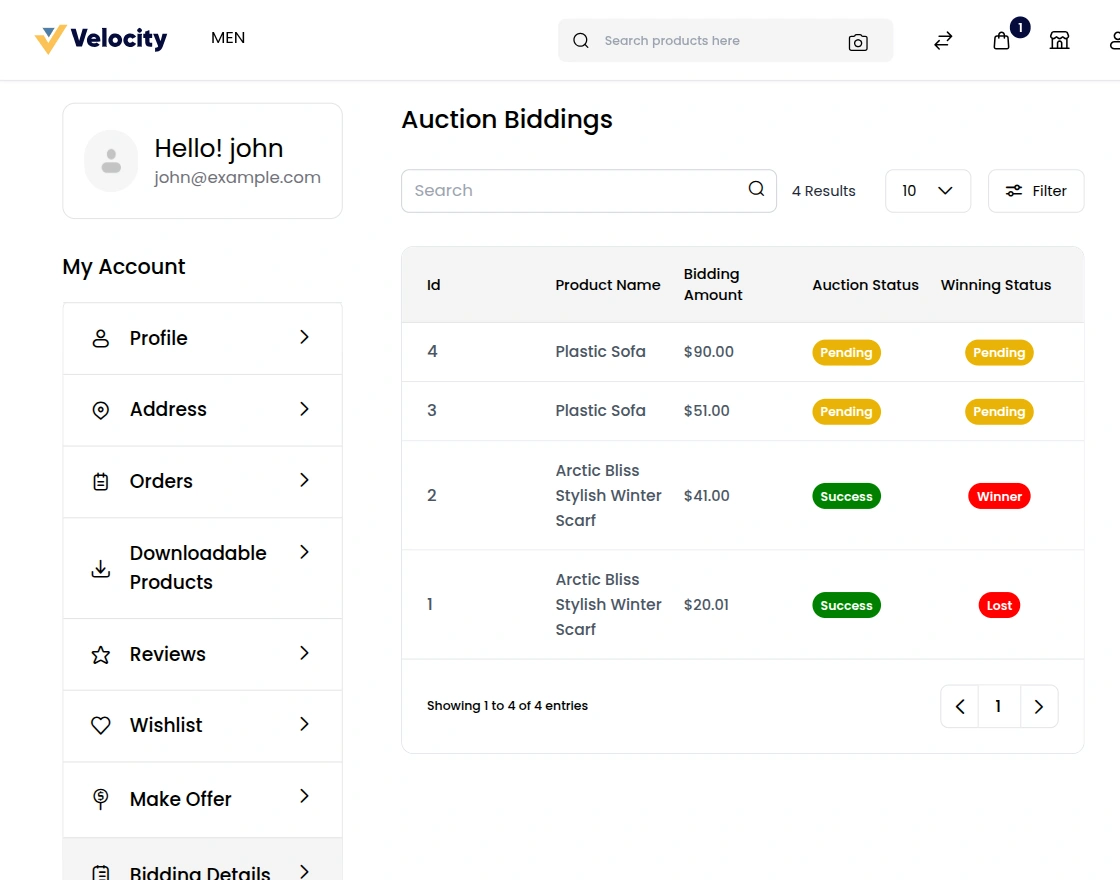
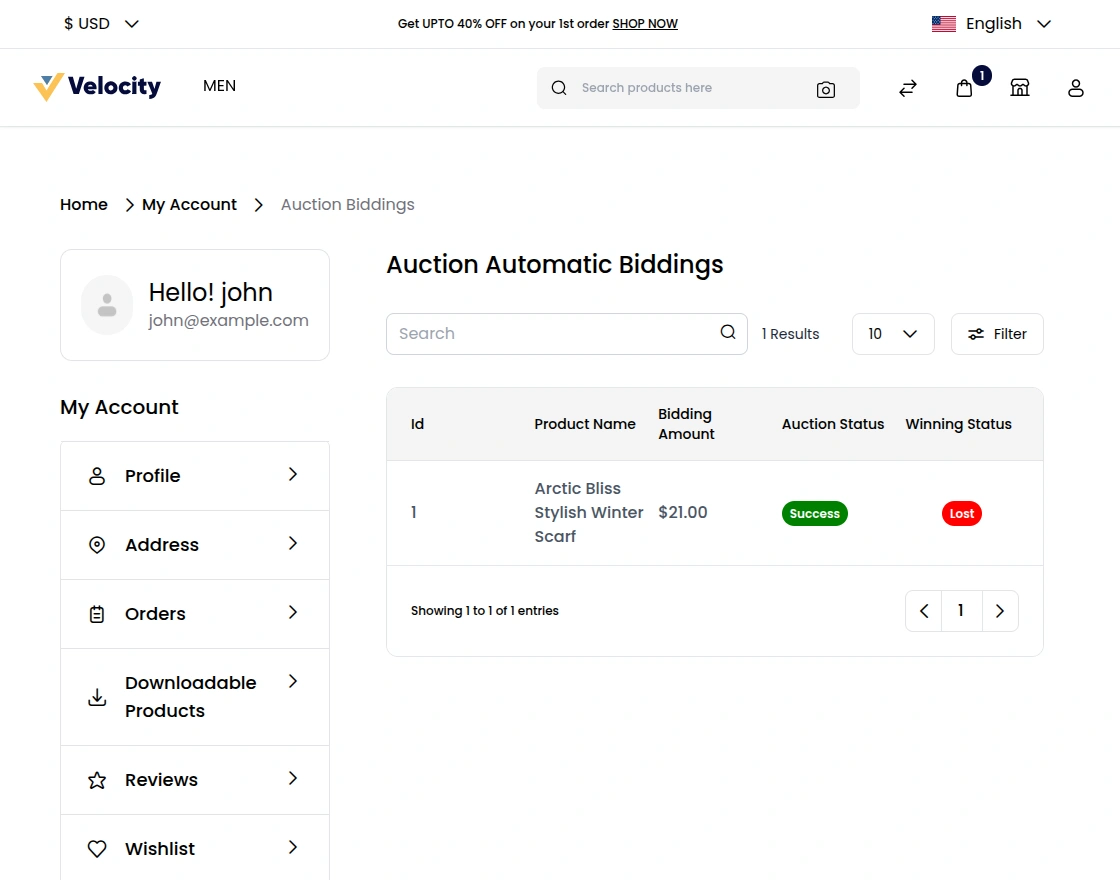
As you can see in the above picture, there are 2 options i.e Normal Bid list and an Automatic Bid list. The normal bid details will show the name of the bidder, amount, and time stamp.
The Automatic bid list will show the final amount of the bidder as mentioned in the bid as shown below:-
That’s all about the Laravel e-commerce multi-vendor auction.
If you have any issues please feel free to add a ticket and also let us know your views to make the module better https://bagisto.uvdesk.com/en/
Thanks for reading the blog.
Current Product Version - 2.2.2
Supported Framework Version - 2.2.2


Be the first to comment.