WooCommerce allows you to add your own custom cart item data by utilizing the hooks.
Here’s a step-by-step guide on how to display custom cart item data in WooCommerce:
Add the code below to your Child theme’s functions.php file
It’s recommended to create and use a child to ensure your modifications are not lost during theme updates.
Using the WooCommerce filter hook ‘woocommerce_get_item_data‘ for this purpose.
We are going to add a custom field ‘Sold By‘ that displays the product author’s nice name on the cart and checkout pages.
<?php
/**
 * Add "Sold By" info to cart item data.
 *
 * @param array $item_data Existing cart item data.
 * @param array $cart_item Cart item data.
 *
 * @return array Modified cart item data.
 */
function wk_add_sold_by_to_cart_items( $item_data, $cart_item ) {
	$prod_id = isset( $cart_item['product_id'] ) ? $cart_item['product_id'] : 0;
	if ( $prod_id > 0 ) {
		$author_id = get_post_field( 'post_author', $prod_id );
		$display_name = get_the_author_meta( 'nicename', $author_id );

		$item_data[] = array(
			'key'   => __( 'Sold By', 'wk-child-theme' ),
			'value' => $display_name,
		);
	}

	return $item_data;
}
add_filter( 'woocommerce_get_item_data', 'wk_add_sold_by_to_cart_items', 10, 2 );
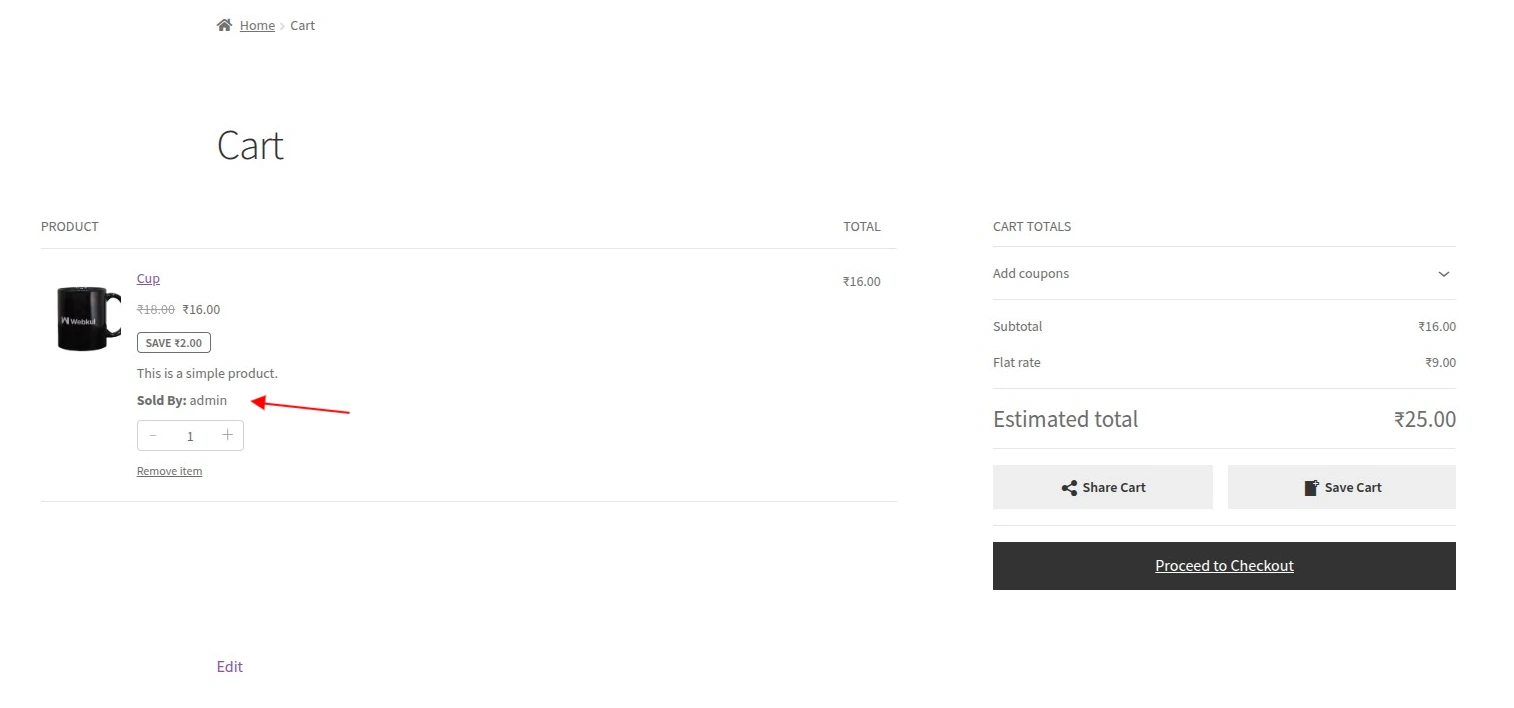
Showing the custom cart item data on the checkout page.
Note: This code will work for both classic and block (Introduced in WooCommerce version 8) cart as well as on checkout pages.
The new block-based cart and checkout pages were created using inbuild react and are really fast and optimized.
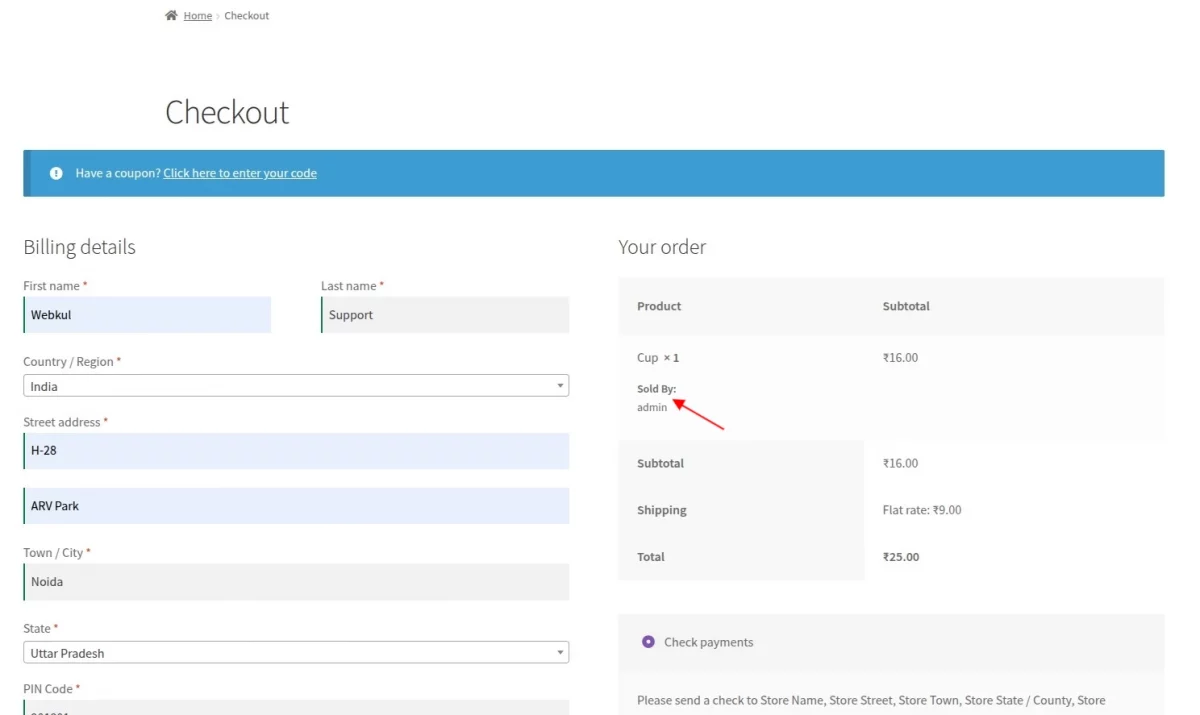
Adding the custom cart item data to the Order item
To add the custom cart item data to the order line item, we’ll use the WooCommerce action hook ‘woocommerce_checkout_create_order_line_item’.
/**
 * Adding sold by with order item.
 *
 * @param object $item \WC_Order_Item_Product Order item object.
 * @param string $cart_item_key Cart Item key.
 * @param array  $values array of values.
 */
function wk_add_sold_by_order_item_meta( $item, $cart_item_key, $values ) {
	$prod_id = isset( $values['product_id'] ) ? $values['product_id'] : 0;
	if ( $prod_id > 0 ) {
		$author_id = get_post_field( 'post_author', $prod_id );
		$item->update_meta_data( esc_html__( 'Sold By', 'wk-marketplace' ), get_the_author_meta( 'nicename', $author_id ) );
	}
}

add_action( 'woocommerce_checkout_create_order_line_item', 'wk_add_sold_by_order_item_meta', 10, 3 );
This hook adds the custom cart item data to the order line item. Thats resutls in displaying the custom data on the WooCommerce Order thank you page as well in order edit page.
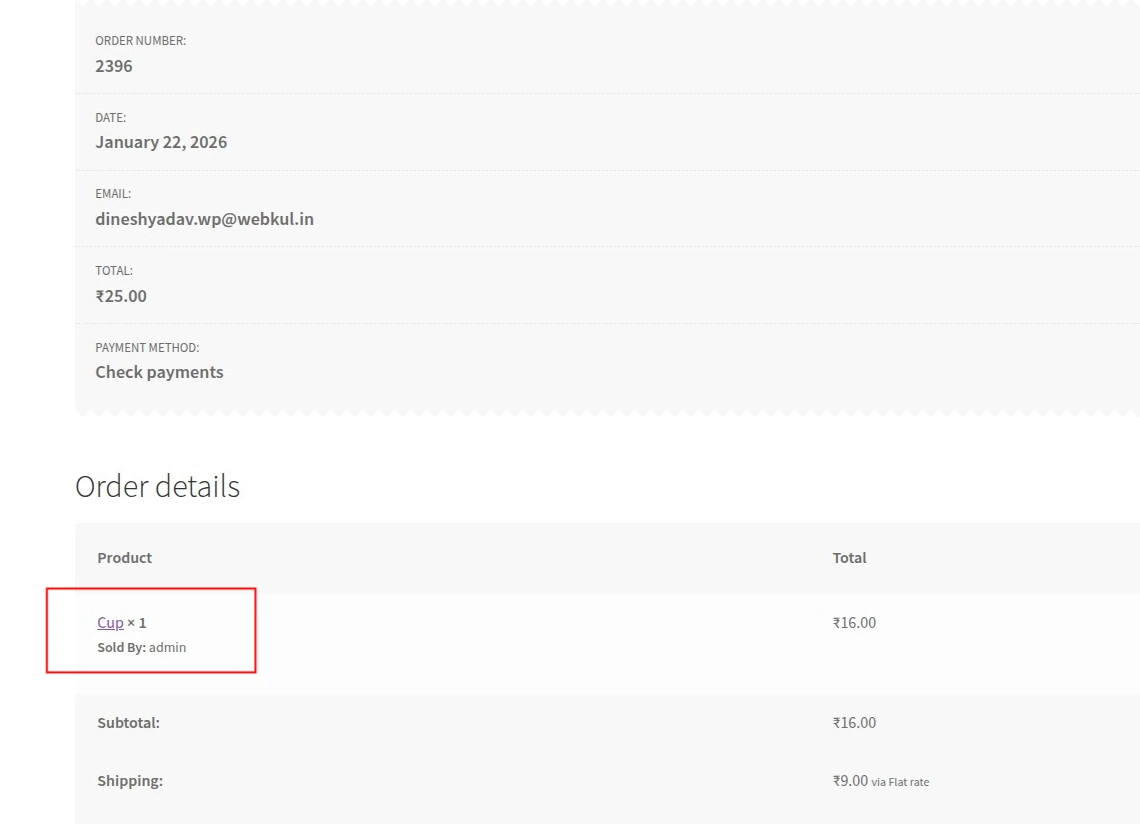
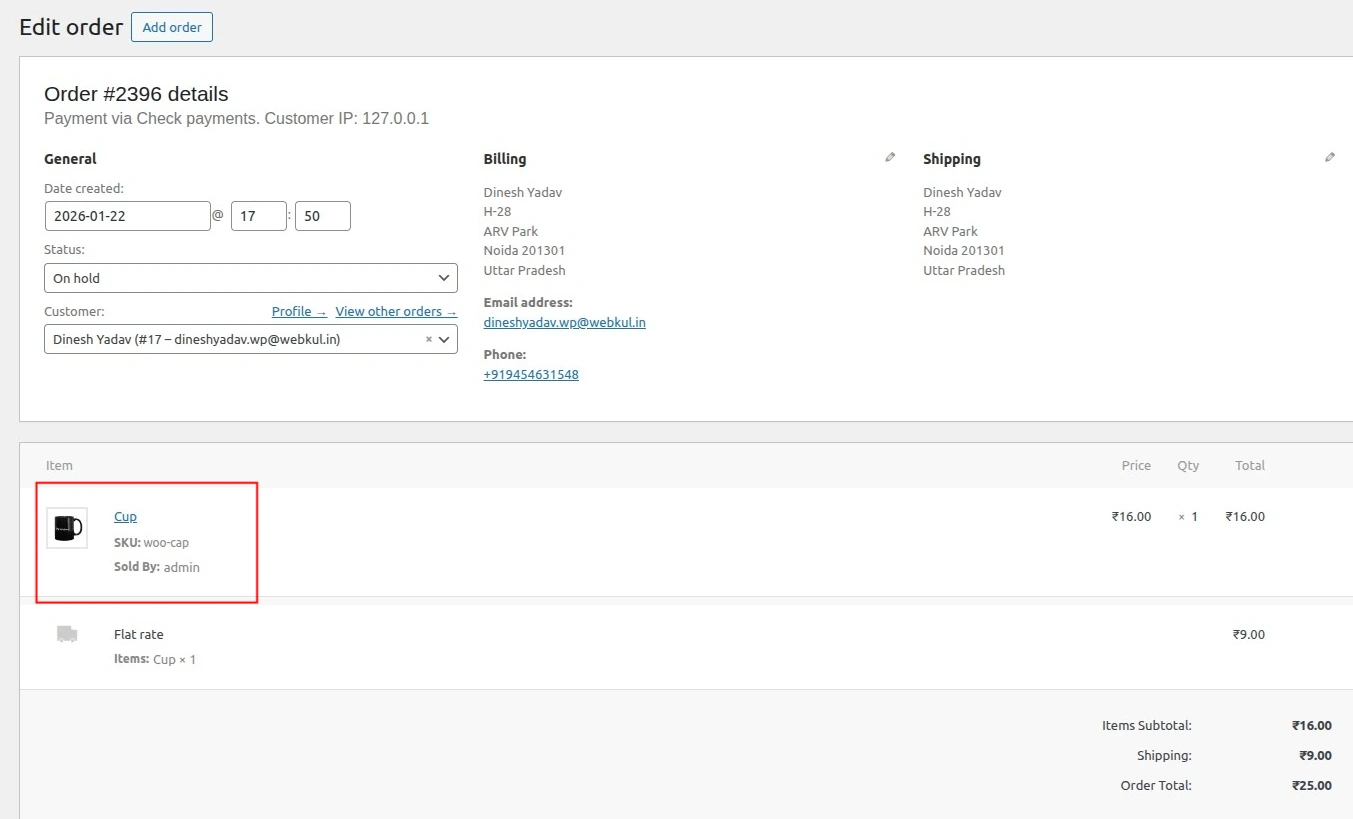
It will also add the data on admin order edit screen.
When the admin edits the order, the custom data ‘Sold By‘ will be shown along with the product title. Admin can easily identify the product listed by the shop manager from this information.
Support
Thank you for reading this dev article. For any technical assistance, please reach out to us by email at [email protected]
Kindly visit the WooCommerce Plugins page to add more features to your online store or get a Custom WordPress Theme for your store. Also, you may hire WooCommerce Developers to work on your projects.
Have a Great Day Ahead!
See you in the next post. Keep reading 🙂


1 comments