Magento 2 Marketplace TAT Driven Orders module helps streamline order processing by enforcing turn around time (TAT) for sellers.
Sellers must accept orders within the set TAT, or the orders are automatically canceled by the system.
The admin can assign different TATs to each seller and also override the process by manually accepting delayed orders.
If a seller generates an invoice or shipment, the order is marked as accepted automatically.
The module restricts sellers from accepting orders if a TAT isn’t configured, ensuring better control over the workflow.
Note- This module is an add-on to Magento 2 Multi-Vendor Marketplace, so you need to install Marketplace module first.
Features
- Admin can set individual Turn around Time (TAT) for each marketplace seller.
- Orders are automatically canceled if not accepted by sellers within the TAT.
- Admin can manually accept orders on behalf of inactive sellers.
- Sellers can automatically accept orders by generating an invoice or shipment.
- Supports cron-based order expiry to handle time-sensitive order actions.
- Sellers are restricted from accepting orders unless a TAT is configured by admin.
- Improves customer satisfaction by reducing delays and pending orders.
Now, you can also check the overview and functionality of the module –
Explore the Magento 2 Fargo Shipping add-on to connect Fargo Shipping with your multi-vendor store.
Installation
The installation is quite simple just like the standard Magento 2 extensions.
#Download Module
Firstly, you need to log in to the Webkul Store, go to My Account>My Purchased Products section, verify, and then download and extract the contents of this zip folder on the system.
#Upload Folder
Once the module zip extracts, follow path src>app and then copy the app folder into the Magento 2 root directory on the server as shown below:

#Run Commands
You need to run the following commands:
php bin/magento setup:upgrade
php bin/magento setup:di:compile
php bin/magento setup:static-content:deploy
php bin/magento indexer:reindex
php bin/magento cache:flush
Language Translation
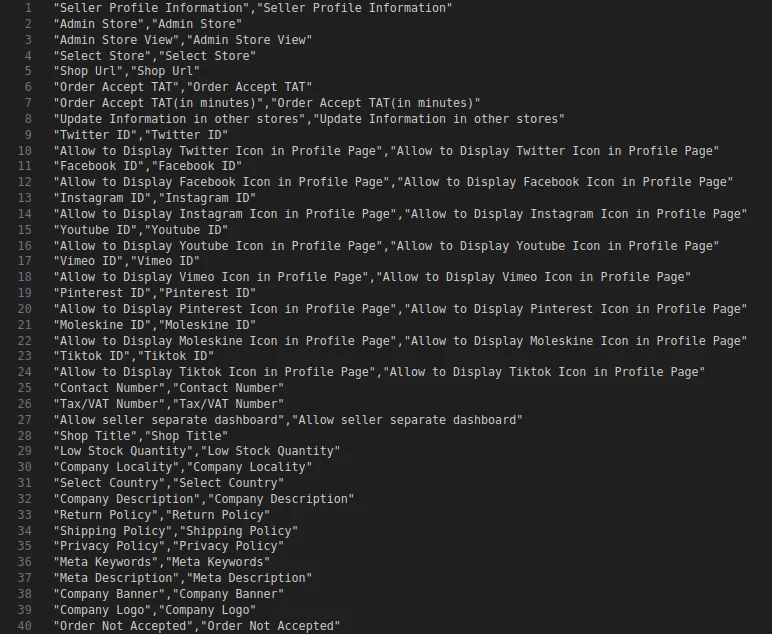
For translating the module language, navigate through src/app/code/Webkul/MpTATDrivenOrders/i18n and edit the en_US.csv file.
Thereafter, rename the CSV as “en_US.CSV” and translate all right-side content after the comma in the Arabic language. After editing the CSV, save it.

Now, upload it to the path src/app/code/Webkul/MpTATDrivenOrders/i18n where the installation of Magento 2 is on the server.
The module supports translation into Arabic, it supports both RTL and LTR languages.
The user can edit the CSV like the image below.
Module Configuration | Admin
After successful installation of the extension, the admin will navigate through Stores->Configuration->Webkul->Marketplace Turn Around Time Driven Orders.
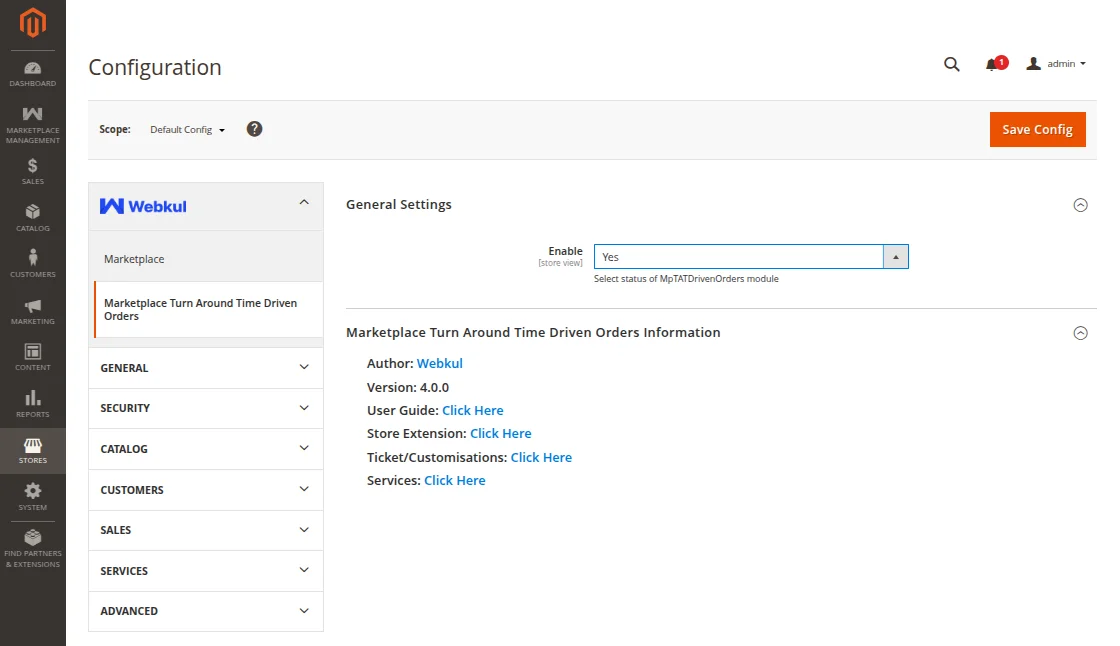
Here, the admin can manage the general settings to enable or disable the Marketplace TAT module by selecting ‘Yes’ or ‘No’ respectively.
Admin Setting Turn Around Time (TAT)
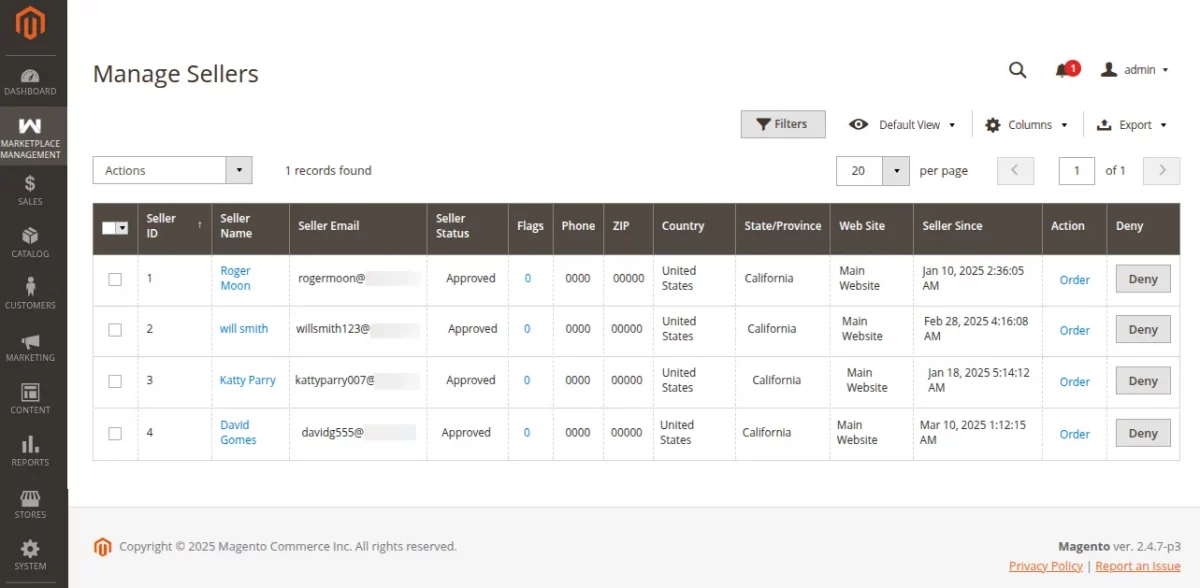
To set the turn around time (TAT) for sellers, the admin needs to navigate to Marketplace Management > Manage Seller.

This will display a list of all sellers in the marketplace. The admin can then click on the desired seller’s name.
Under ‘Seller Account Information‘ tab, there will be a field named ‘Order Accept TAT‘.
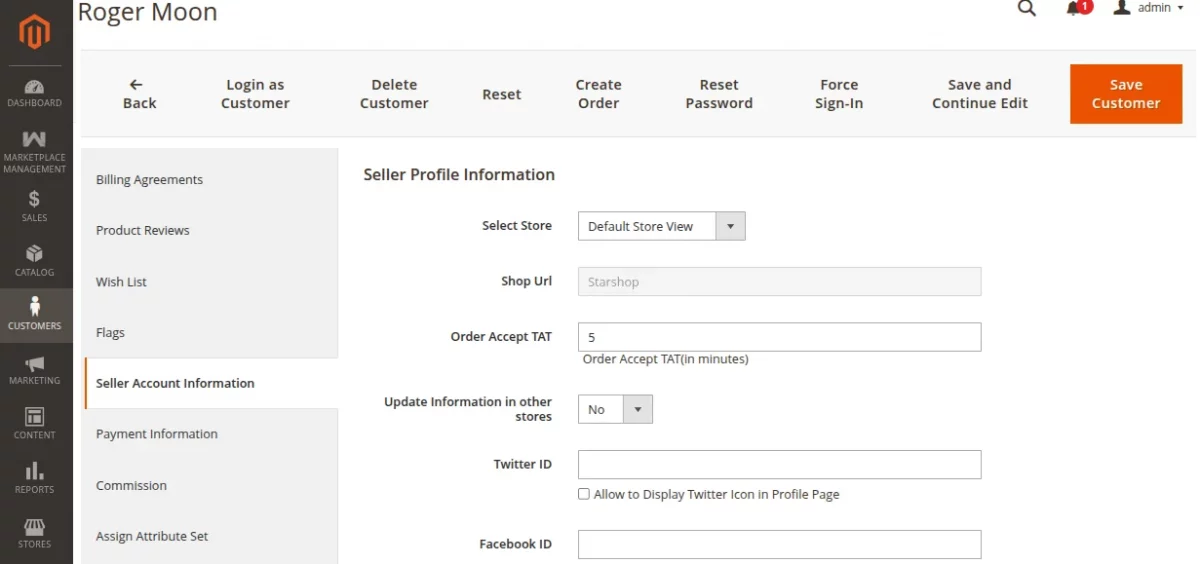
Here, the admin sets the turn around time in minutes for the seller to accept the customer orders.
Seller must accept orders within his respective turn around time set by the admin to avoid order cancellation.
Admin Managing Order Acceptance
Admins can override and manually accept orders on behalf of sellers to ensure smooth processing and prevent delays.
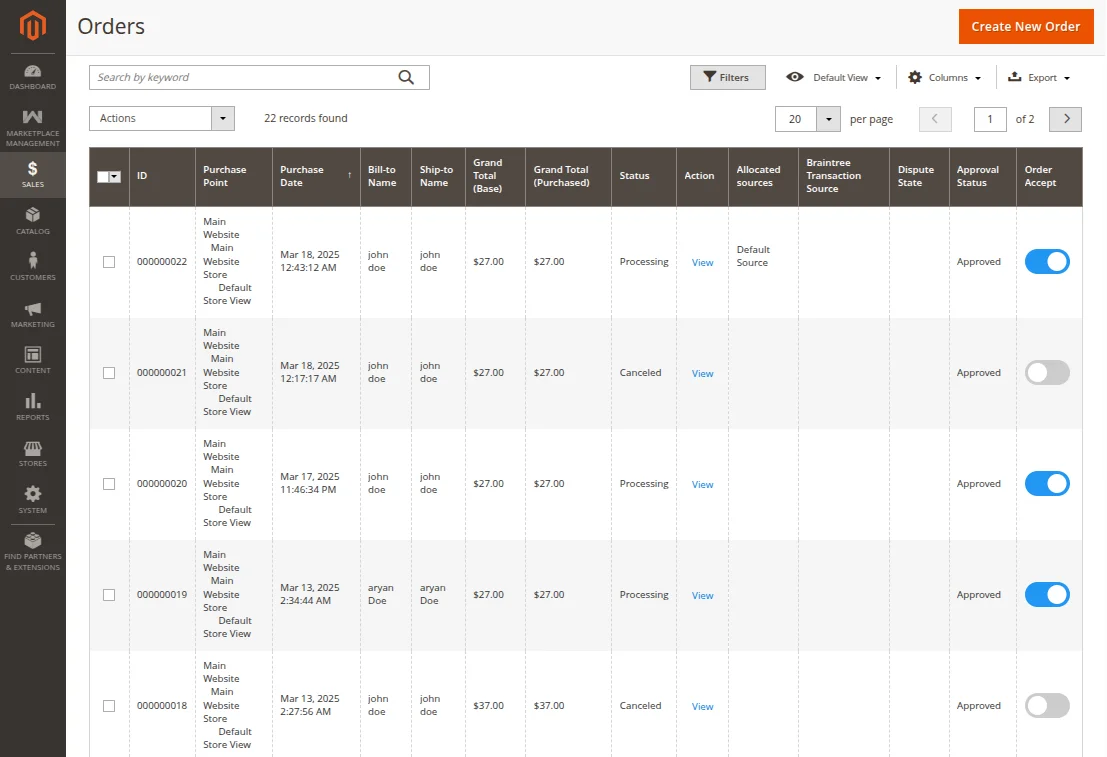
Moreover, the admin can also reject an order even after a seller has accepted it, giving the admin full control over order acceptance and management.
Seller End Workflow
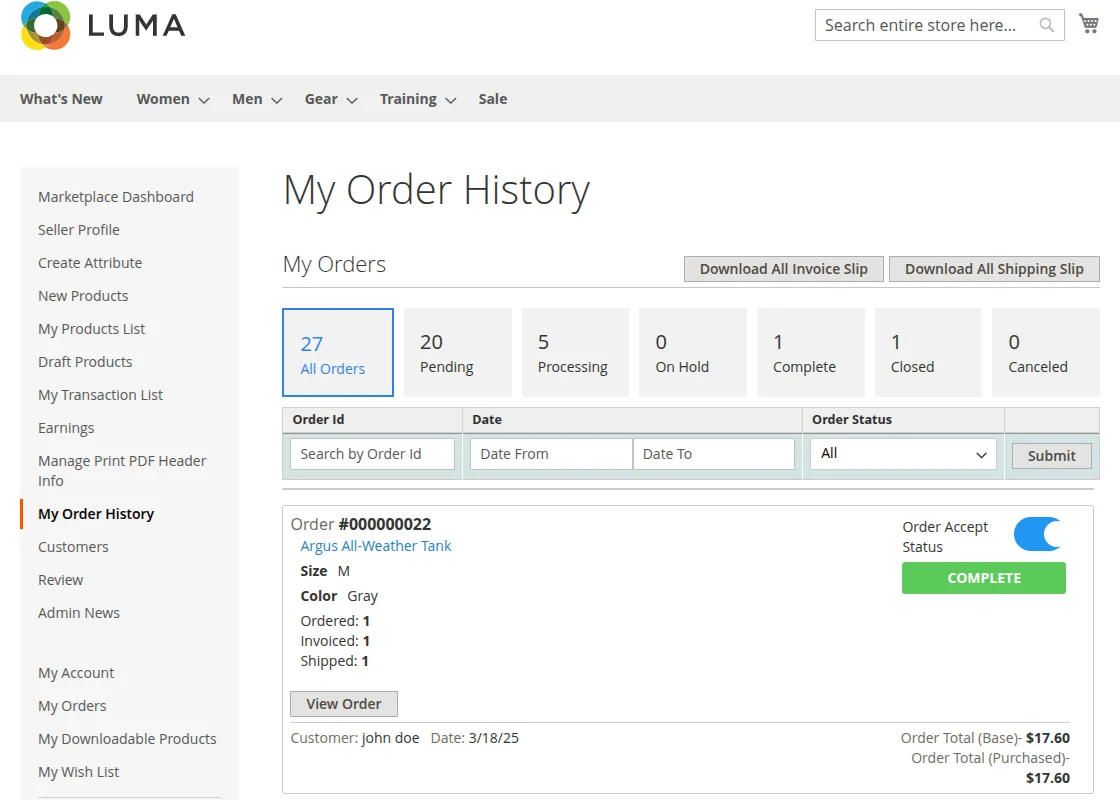
Sellers can view customer orders by navigating to Seller Panel > My Account > My Order History
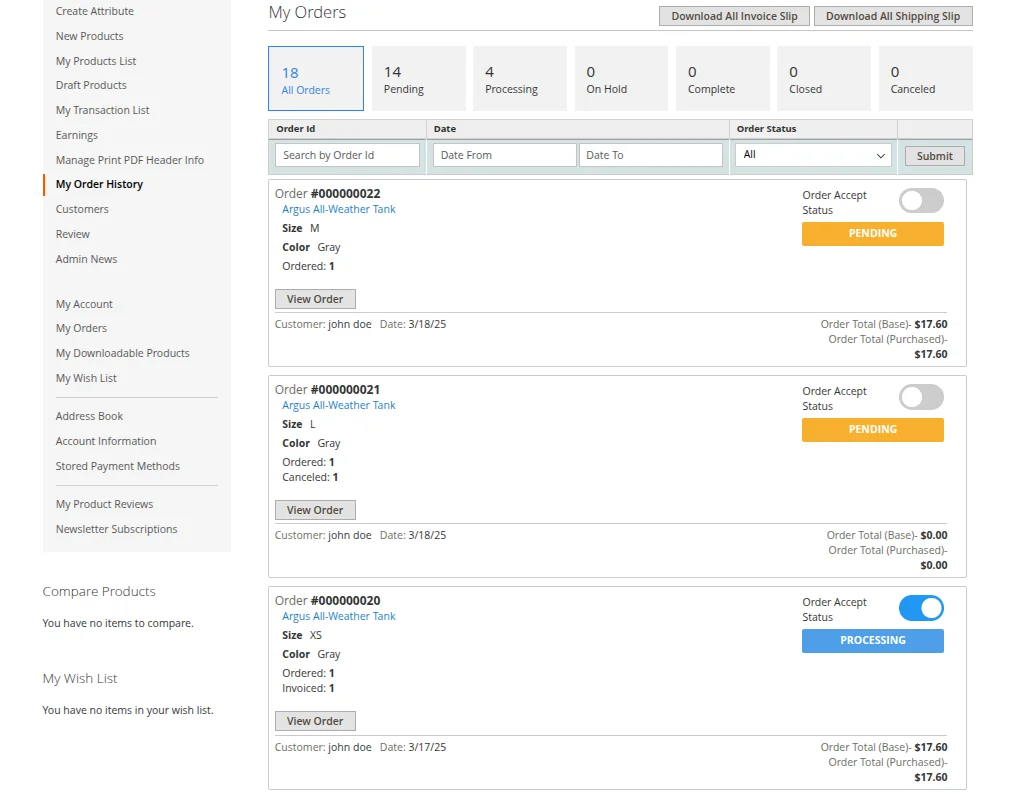
Here, sellers get to see the list of all customer orders for their listed products.
They need to accept each order within the Turn around Time (TAT) set by the admin.
If a seller doesn’t accept an order before the TAT expires, the system uses a cron job to automatically mark the order as Cancelled.
Also, the sellers can’t accept orders until the admin sets a Turn around Time (TAT) for them, ensuring the process stays organized and timely.
Seamless Invoice/Shipment Based Acceptance
This extension also offers a feature that allows sellers to accept orders automatically when they create an invoice or shipment.
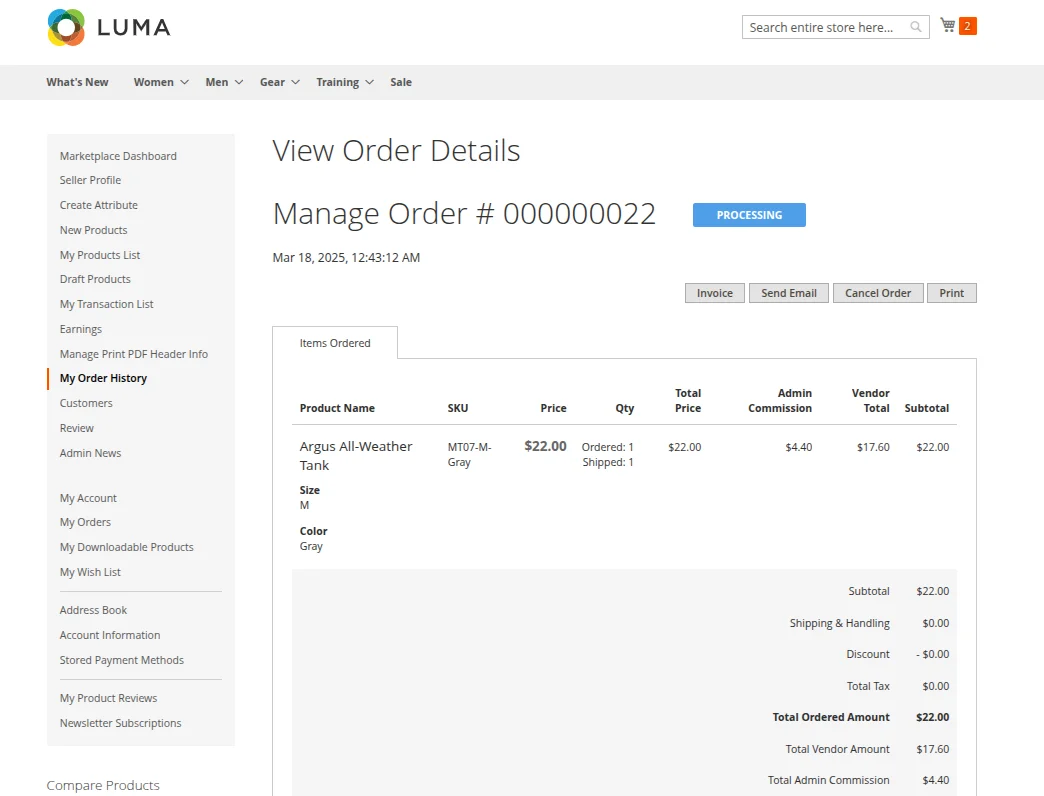
The seller can view the details of any order to create an invoice or shipment for that particular order.
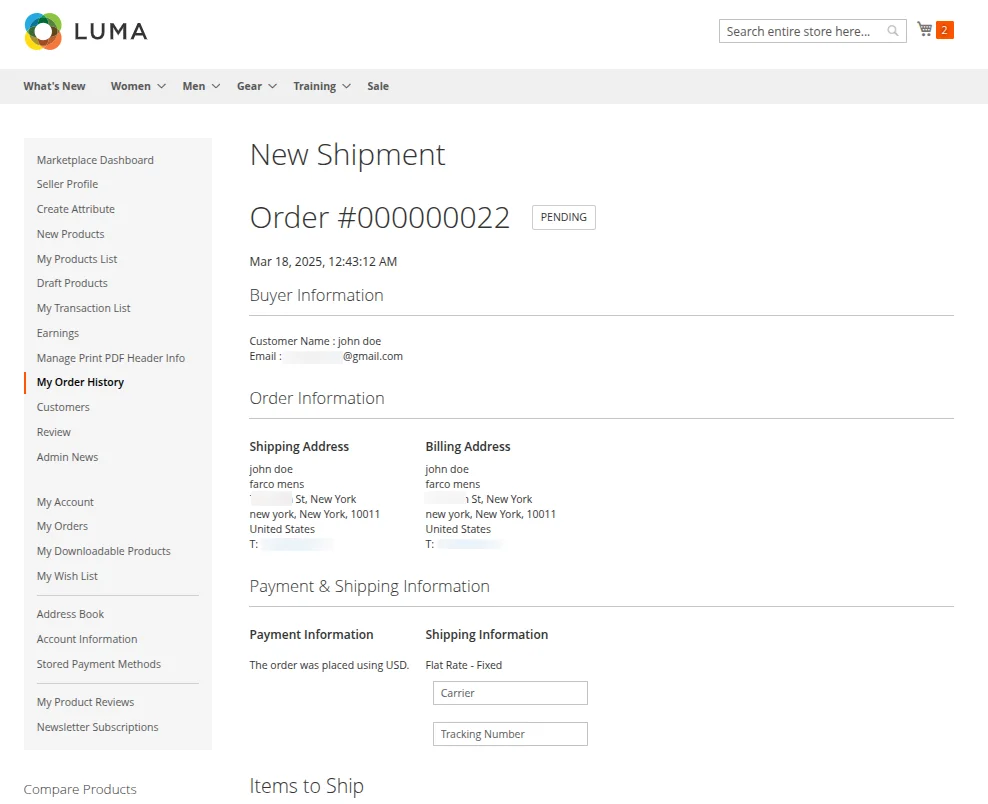
When the seller creates an invoice or shipment, the system automatically marks the order as accepted, helping to speed up the process.
As shown below, under the ‘My Order History’ page, Order #000000022 is automatically accepted.
Support
So, that’s all for the Magento 2 Marketplace TAT Driven Orders (Adobe Commerce) Extension.
Still, if you have any concerns, feel free to mail us at [email protected]
Please explore our Magento Development Services and Quality Magento 2 Extensions.
Current Product Version - 4.0.0


Be the first to comment.