CS-Cart Whatsapp login add-on allows the admin to enable the module that allows customers to sign up and log in to your website using their WhatsApp phone number or QR code.
The customer can scan the QR code displayed on the screen using any smartphone to access their account on your CS-Cart store.
Customers receive the token on WhatsApp, and upon completing an account registration, the customer will get a default email and password.
Later on, customer can modify their email address and password according to their preferences.
Features
- The admin can enable/disable the WhatsApp Login features from the admin panel.
- Customers can log in and register on your CS-Cart Store by scanning the WhatsApp QR code or by OTP on WhatsApp.
- Customers can scan the QR code using any Smartphone.
- Credentials are auto-generated – username (email) and password.
- Customer details, including user account details and contact information, will automatically integrate into the customer signup form, with no need for manual entry.
- CS-Cart Whatsapp Login enables one-tap login to the store.
- Customers can easily do WhatsApp Login during checkout.
- Instant validation on successful login.
Installation of CS-Cart WhatsApp Login
To install CS-Cart WhatsApp Login, follow these steps:
- Go to Manage Add-ons, click on the gear drop-down, and select Manual Installation.

2. Select the zip File and click on Upload&install.

After installation of the add-on, you will find Login by WhatsApp in the list of available add-ons.
Click on “settings” to enable, disable, install, or refresh.

How to get API credentials?
The admin will have to create a Facebook Meta account. Click on the Create App option as shown in the snapshots below.

Choose the other option and click on the next button to proceed further process.

Now, click on the business option to select an app type to get API credentials.

Here, the admin will enter the app name and app contact email and click on the Create app button to proceed further.

Now, the admin will click on the Setup option in WhatsApp.

The access token, phone number ID, and business account id will be displayed in the developer’s dashboard as shown in the screenshots below:

Note: Likewise, in live mode, there will be no need to add the phone number; it will be added in testing mode only
Webhook Configuration:
To enable real-time communication with WhatsApp, the admin must configure a webhook URL in the Meta Developers dashboard. Use the following endpoint with your store URL.
Webhook URL:
“https://yourstore/?dispatch=wk_whatsapp_login.wk_whatsapp_login”

Ensure the URL is publicly accessible and verified in Meta to receive the callbacks required for WhatsApp login functionality.
CS-Cart WhatsApp Login Configuration
After the module installation, the admin will configure the module.
Navigate through add-on > manage add-on > Login by WhatsApp > settings.
Here, the admin will enter the following details :
- Login via QR Code: Check the box for login through QR code.
- Login via OTP: Check the box for login through OTP
- Phone Number ID – The admin will enter the phone number id generated from the Meta Developers account.
- WhatsApp Business Phone Number- Enter the phone number
- Business Account ID -After that, the admin will enter the business account id.
- Access Token – Now, the store admin will enter the access token.
- WhatsApp login text– Fill WhatsApp login text
- WhatsApp OTP Template Name– Fill the OTP Template.
- WhatsApp Template Language Code– Language code. As shown inthe image below
- Allow Store– Check the checkbox to allow otp verification on the store.

OTP Setting
- Maximum number of retry: Select how many times a user can resend OTP Verification for a Single phone number, until the user re-enters another number. Select 0 for unlimited times of retry.
- Minutes to expire OTP: Select expiration minutes for OTP Verification for every new OTP generated, until the user resends another OTP code.
- OTP length: Leave empty to use the default length 4, or type in a custom length.
- Enable Expiry Timer: Check the checkbox to show the expiry timer.
- OTP Characters type: Select All to use all the patterns. By Default code will be a combination of all (Digits, Alphabets, lowercase Alphabets, uppercase Special Characters).
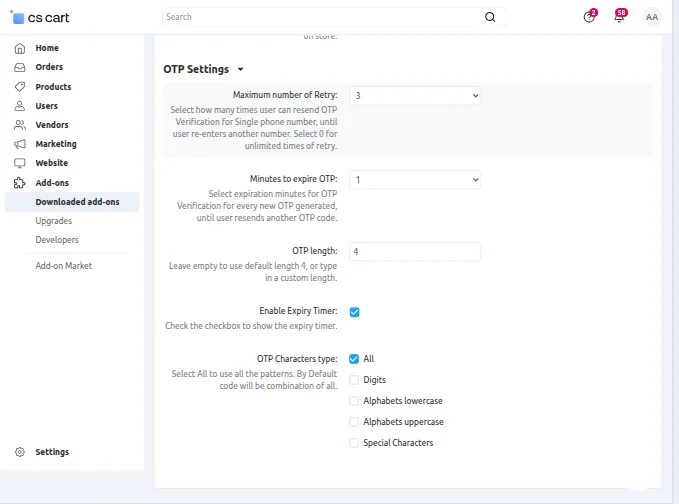
Then, Click on the Save Button.
Frontend Customer View
The customer visits the CS-Cart Store on the login page, customer can select the Login using WhatsApp option to log in to the CS-Cart store.

The customer can scan the QR code displayed on the screen using any camera app to access their account on the CS-Cart store.

Once the QR code is scanned, customers are redirected to the registered WhatsApp phone number, where they receive a message to send the registration request.
Also, Customers receive the token on WhatsApp, and upon completing an account registration, the customer will get a default email and password.

By scanning the QR code, customers can instantly input their data without the need for manual entry.
Customer details, including user account details and contact information, will automatically integrate into the checkout form. Customer can modify their email address and password.

Customers should have the option to either log in or continue as a guest if they prefer not to create an account or are in a hurry to complete their purchase.
Customers can browse for products at the time of checkout, and they can log in using WhatsApp.
Please refer to the image below for a better understanding.

Support
That’s all about the CS-Cart WhatsApp Login add-on. However, if you still have any questions regarding the CS-Cart extensions.
Please create a support ticket by clicking Webkul Support System or send an email to [email protected]
Current Product Version - 2.1
Supported Framework Version - Multivendor/ultimate (4.13.x - 4.19.x)


Be the first to comment.