CS-Cart Semantic Search is a powerful and efficient tool to enhance your store’s search functionality.
It leverages semantic understanding to deliver more accurate and relevant search results, improving the shopping experience for customers.
Store admins can configure the add-on to fetch results from ChromaDB and server endpoints instantly, and fine-tune the search accuracy with adjustable distance values.
The add-on also supports result limits, helping you control how many search results are displayed on the storefront.
You can also use the CS-Cart Advanced Vendor List Add-On alongside other integrations to improve vendor visibility and enhance the customer browsing experience.
Features
- CS-Cart Semantic Search Add-On allows users to search for products using natural language queries.
- It enables users to filter search results based on various attributes for a refined shopping experience.
- Admin can set the number of results to be displayed for matched products.
- Admin can configure the distance value to control search accuracy and relevance.
- Customers receive more relevant and accurate results based on their search queries.
- The add-on integrates with CS-Cart’s search system to enhance product discovery across the store.
Installation
After downloading the CS-Cart Semantic Search add-on, you’ll get one zip file, one install.txt file, and a relevant User Guide manual doc. Read it carefully for proper configuration.
Go to Manage Add-ons, and click on “Manual Installation” as shown below in the snapshot.

Click on “Local” to browse the zip file, and then click on “Upload & Install” as shown below in the snapshot.

Add-On configuration
After installing the add-on, you will find CS-Cart Semantic Search in the list of available add-ons.
Click on “Settings” to enable, disable, install, or refresh. Ensure you activate the add-on, as shown in the snapshot below.

Module Configuration | Admin
To configure the module, go to the Add-Ons >> Developers >> Webkul Software Pvt Ltd. >> Semantic Search >> Settings.
Completing these configurations ensures smooth setup and management of semantic search functionality directly from your CS-Cart backend, as shown in the snapshot below.

CS-Cart Semantic Search Add-on — In the Semantic Search configuration section, the admin must enter the required details to configure and activate the add-on. The necessary fields include:
Embedding URL:
- Enter the URL used to create embeddings for your product data.
- Embeddings convert product text into numerical form, enabling the AI to understand product meanings and relationships.
Query URL:
- Provide the API endpoint that handles search queries.
- This URL is used when customers search on the storefront — it sends the query to the semantic search engine and fetches results.
Token:
- Enter the authentication token for creating and accessing embeddings.
- It secures the communication between CS-Cart and the external semantic search service.
Semantic Search Collection Name:
- Specify the name for your semantic search collection.
- A collection represents a dataset or group of products stored and indexed for semantic search.
Number of Semantic Search Results:
- Set how many product results should appear on the storefront for each search query.
- Example: If you set “10,” customers will see up to 10 relevant results per search.
Distance:
- Define the accuracy level for search results.
- 1 = Most accurate and strict match
- 9 = Least accurate and broader match
- Lower values prioritize precise matches, while higher values show more varied results.
Sync All Products / Bulk Sync (Button):
- Click this button to sync all existing products from CS-Cart to your semantic search collection.
- It ensures all products are embedded and available for semantic search queries.
Admin adds Semantic Search template in Search Field
Once the Semantic Search add-on is successfully configured, the next step is to enable it on the storefront.
For that, the admin has to assign the Semantic Search template to the existing search field from the theme section.
This ensures that when customers type in the search bar, results will be fetched using semantic logic rather than standard keyword matching.
Steps to Apply the Semantic Search Template:
In your CS-Cart admin panel, navigate to: Website > Design > Themes.
- Open your active theme and go to the Layout tab.
- Locate the Search Field block that you want to update.

After clicking the Search Field block, a window will appear showing the list of available templates.
From the dropdown, select the “Semantic Search” template instead of the default template.

CS-Cart Semantic Search | Frontend
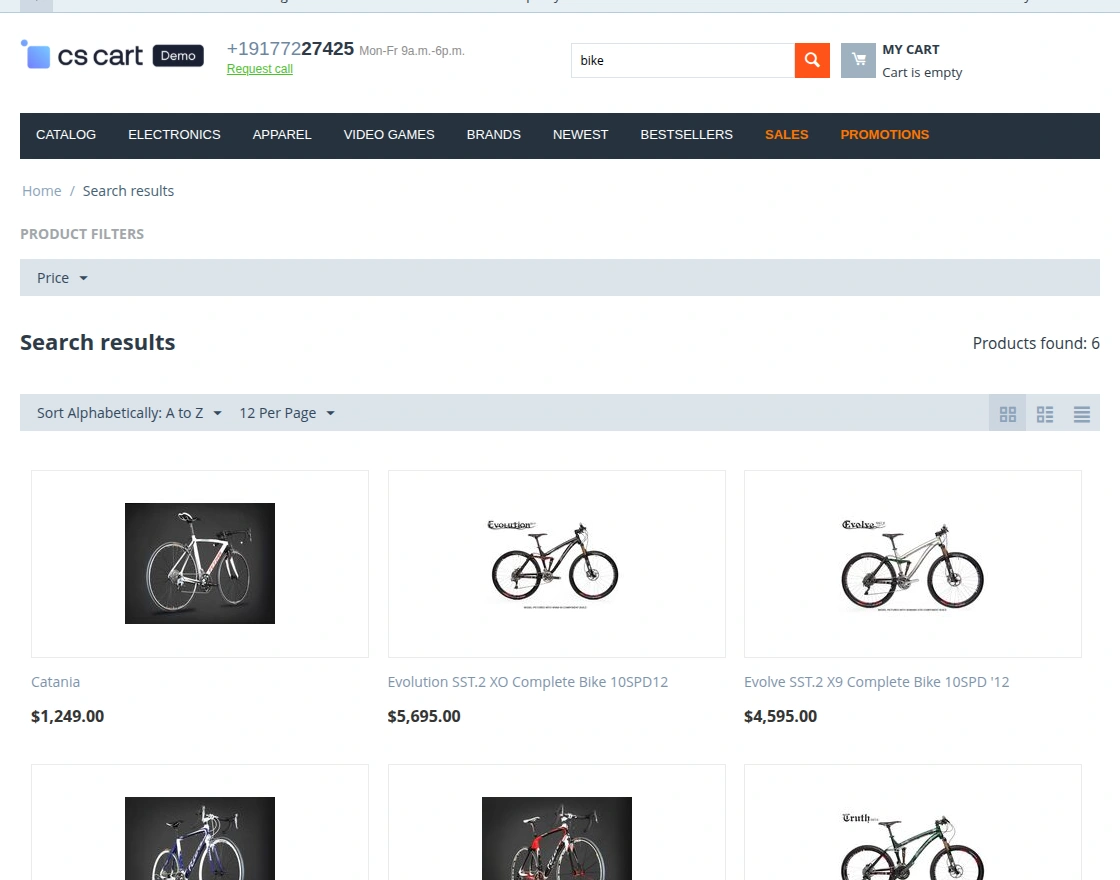
Storefront View:
After updating the search field template, the Semantic Search functionality becomes active on the storefront.
Now, when customers type their queries, the search bar will process them semantically — understanding intent rather than exact keywords.
Customers can now experience:
- Instant, context-aware search results.
- More accurate product suggestions.
- Smooth and fast search response directly from the Semantic Search engine.

Search Result Display:
Once a user enters a query, the system fetches data through the configured ChromaDB and server endpoint.
Results are displayed based on semantic relevance, not just text matching.
For example:
If a customer searches “wireless headphones for gym,” the system can show products related to Bluetooth earphones or sports headphones, even if the exact words differ.

Bulk Product Sync for Accurate Results
To ensure all products are available for semantic queries, the admin should perform a Bulk Sync from the Semantic Search settings page.
This sync process converts all product data into embeddings and stores them in the ChromaDB collection.
Once syncing is done, all new and existing products become searchable through semantic queries.
Support
If you have any questions, suggestions, or customization requests, feel free to contact us at [email protected] or submit a ticket at webkul.uvdesk.com.
Explore our premium-quality CS Cart Extensions to enhance your store functionality.
You can also explore our CS-Cart Development Services and Quality CS-Cart add-ons.
Current Product Version - 1.1
Supported Framework Version - 4.16.x, 4.17.x, 4.18.x


Be the first to comment.