CS-Cart Booking Reservation System is a magnificent add-on helps users to create and manage appointments/reservations online.
The main motive for developing such an extension is to organize the reservation systems at the CS-Cart end.
It is flexible and intuitive to use for various types of online booking services.
Features
- Well integrated with CS-Cart/CS-Cart Multivendor.
- The concept of “single booking for many days” has been provided. This functionality has the concept of sole booking for numerous days.
- Concept of ” multiple booking in one day” is available. The functionality allows admin to create numerous booking slots for a single day.
- Concept of “custom booking for many days” is available. This functionality allows customers to create and book their own slot from frontend.
- Concept of ” Multiple Booking in one day with Quantity” is available. This Functionality allows customers to set multiple booking slot per day with varying quantities.
- A splendid calendar view and table listing implemented which makes the site attractive.
- Also, The multi-store option is accessible to the admin.
- The admin can change the color of Select date range from the backend.
- Admin has been provided the option to configure calendar and booking form available at backend.
Admin Functionality
-
The admin can manually create all types of bookings directly from the backend panel —
-
Including multiple booking in one day, Single Booking for many days, custom booking for many days and Multiple Booking in one day with Quantity.
-
Admins can select available booking slots, assign customers, and place the order directly by clicking on “Create” from the Orders → Add Order section.
Additional Features
- Feature to create book and break time for “Multiple Booking in One day” is available.
- A separate tab is available for admin to manage his/her bookings based on multiple booking and single booking.
- Admins can now create bookings directly from the backend/admin panel.
- The option to book and cancel booked orders are available at vendor end.
- Dynamic event displays according to the date in case of one booking for many days.
- Functionality of checkout check is available for already booked products.
- Feature to set date and time for availability is provided to choose booking more precisely.
- Works as per the real time booking. Visitors can check the availability of property or any service as offered and make a booking.
- Function of cancellation for already booked products are available at admin end.
- Allow users to filter their search for booking-related products.
- Allow users to filter their orders for booking-related products.
- At the time of invoice printing, the customer has access to the booking information.
- Admins can now block specific dates for booking and reservation directly from the backend as needed.
Flow of Installation
Add-On Installation Steps
- Navigate to Add-Ons > Downloaded Add-Ons.
- Click the Settings (Gear) Icon and select Manual Installation.
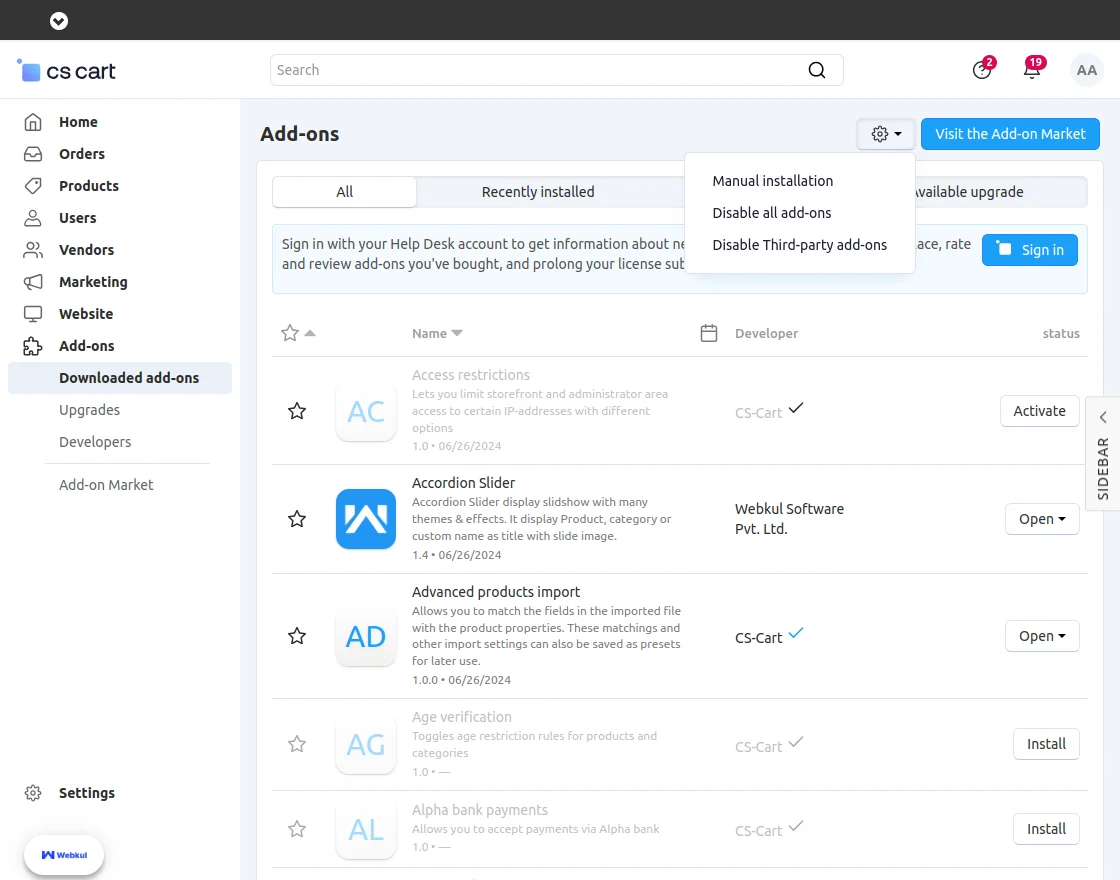
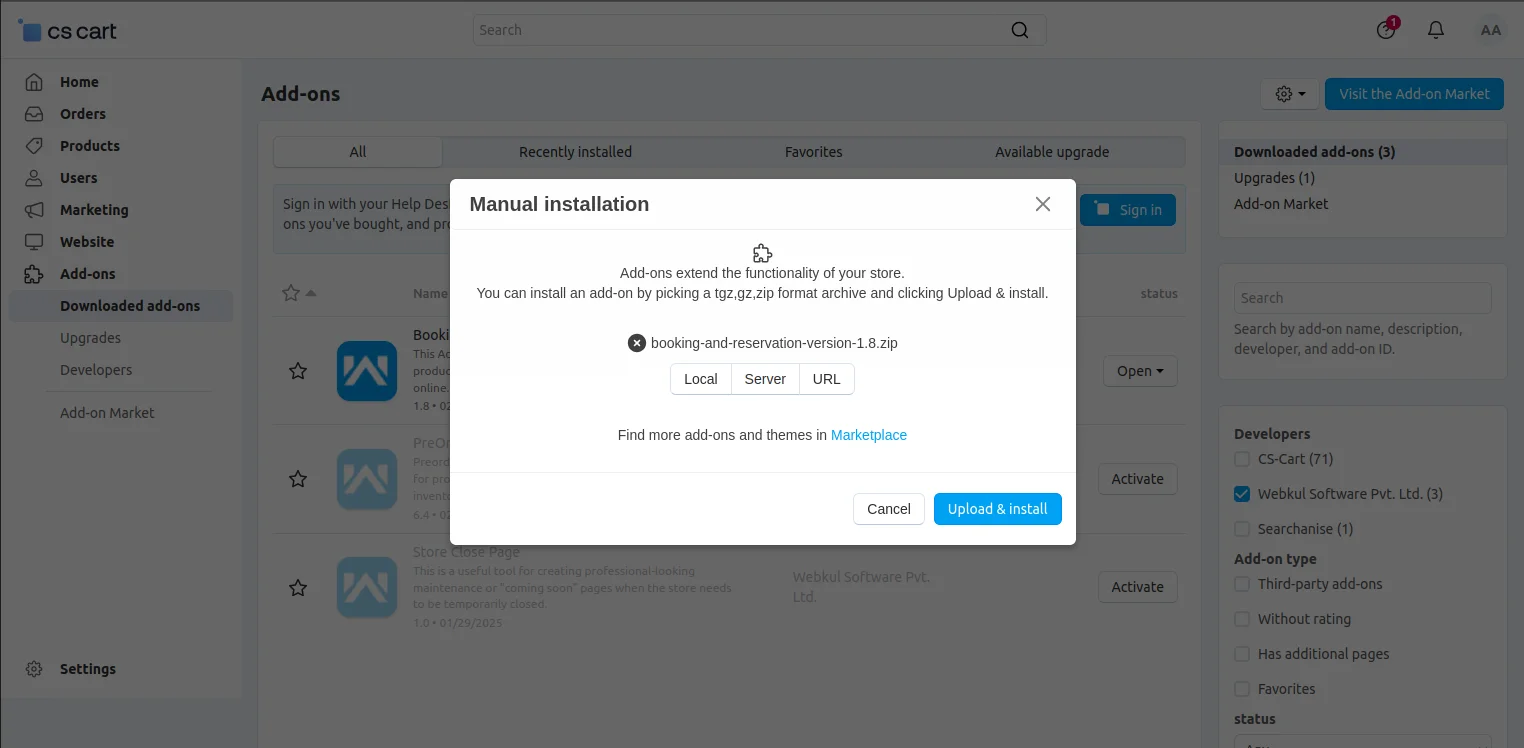
Click on “Local” to select the zip file, then click “Upload & Install,” as shown in the snapshot below.
Configuration
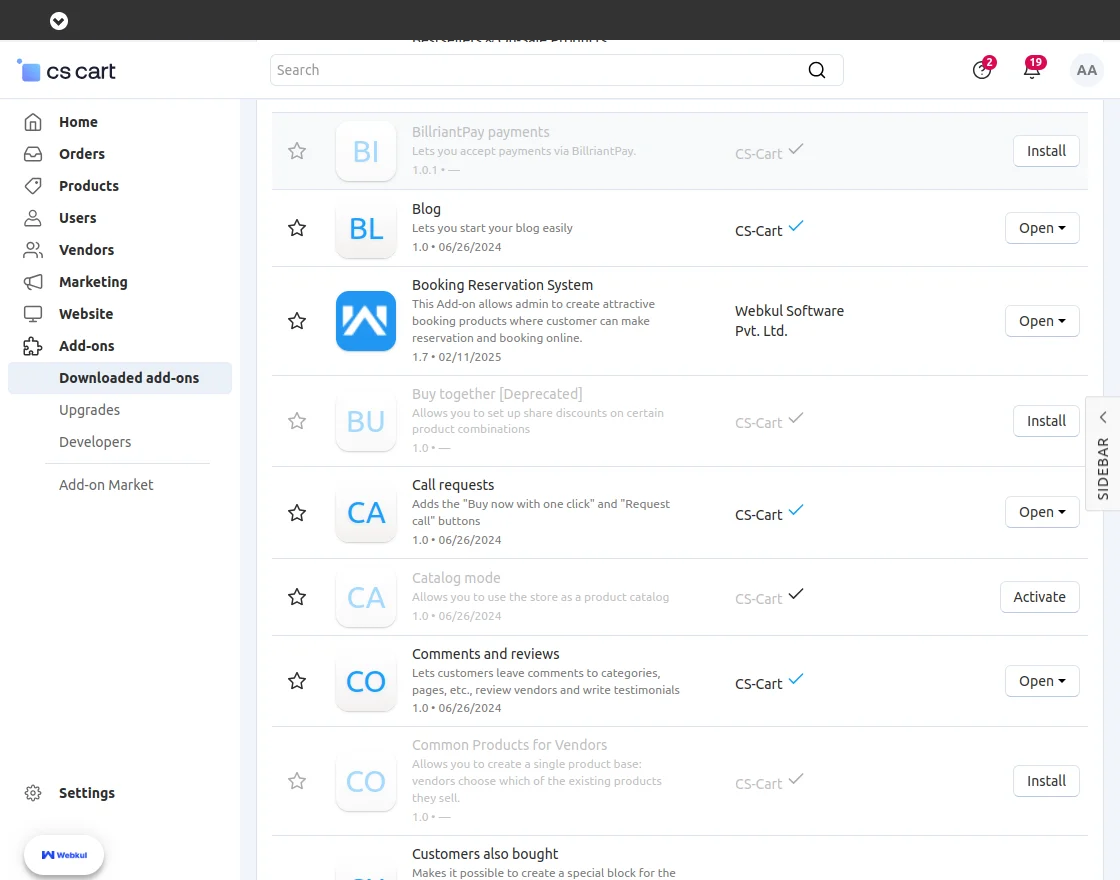
Once the add-on installed it gets automatically listed as per the below image,
The multi-store option is also accessible to the admin.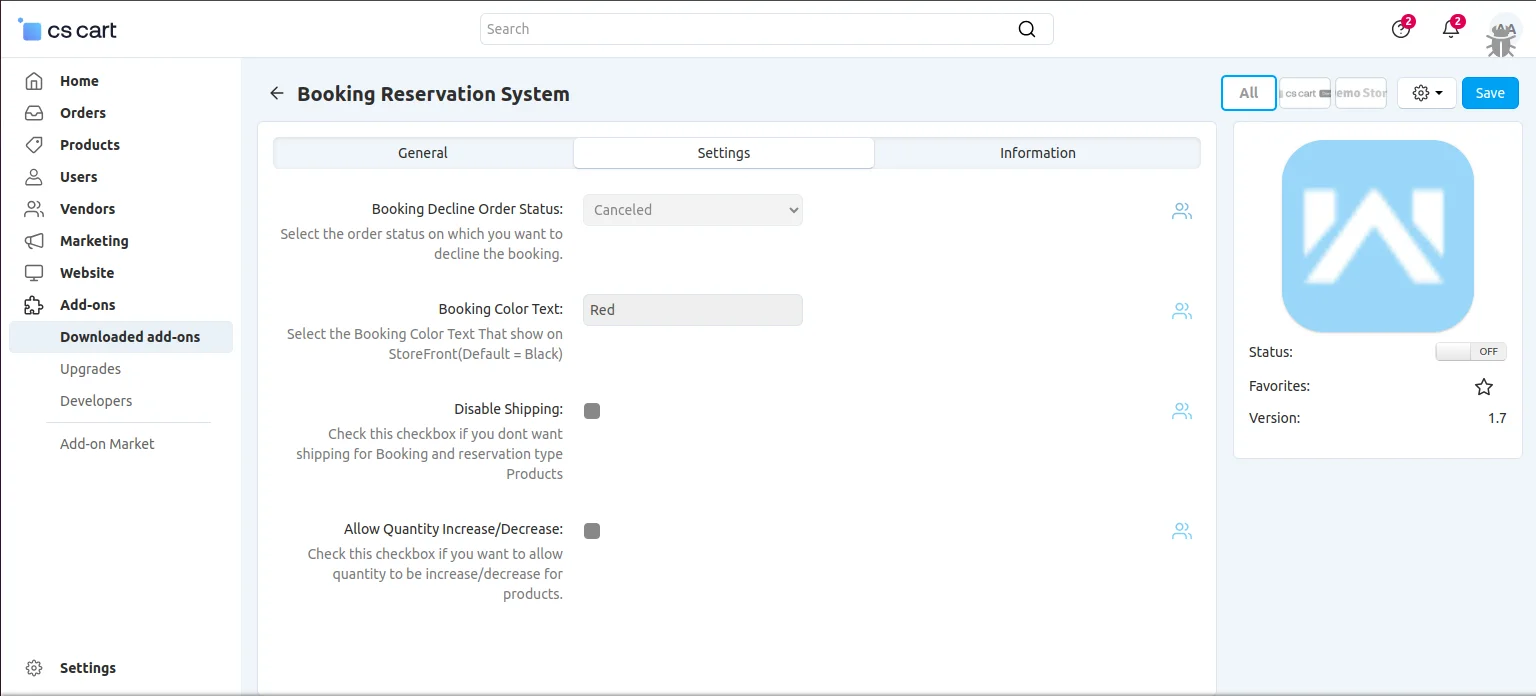
Booking Reservation System Settings
- Booking Decline Order Status: Pick the order status that will automatically cancel the booking.
- Booking Color Text: The admin can change the text color for bookings shown on the StoreFront.
- Disable Shipping: Turn on this option to stop shipping for booking and reservation products.
- Allow Quantity Increase/Decrease: Turn on this option to let customers change the product quantity.
Go to products and create a new one and click on create as shown below in the snapshot.
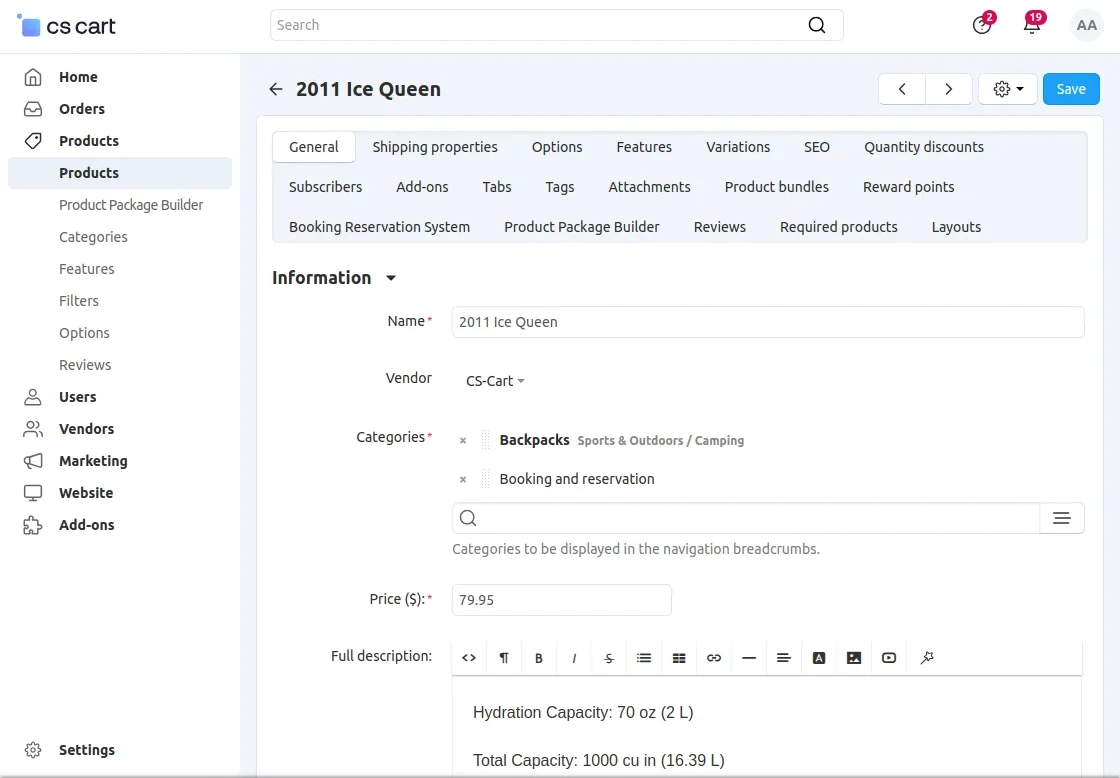
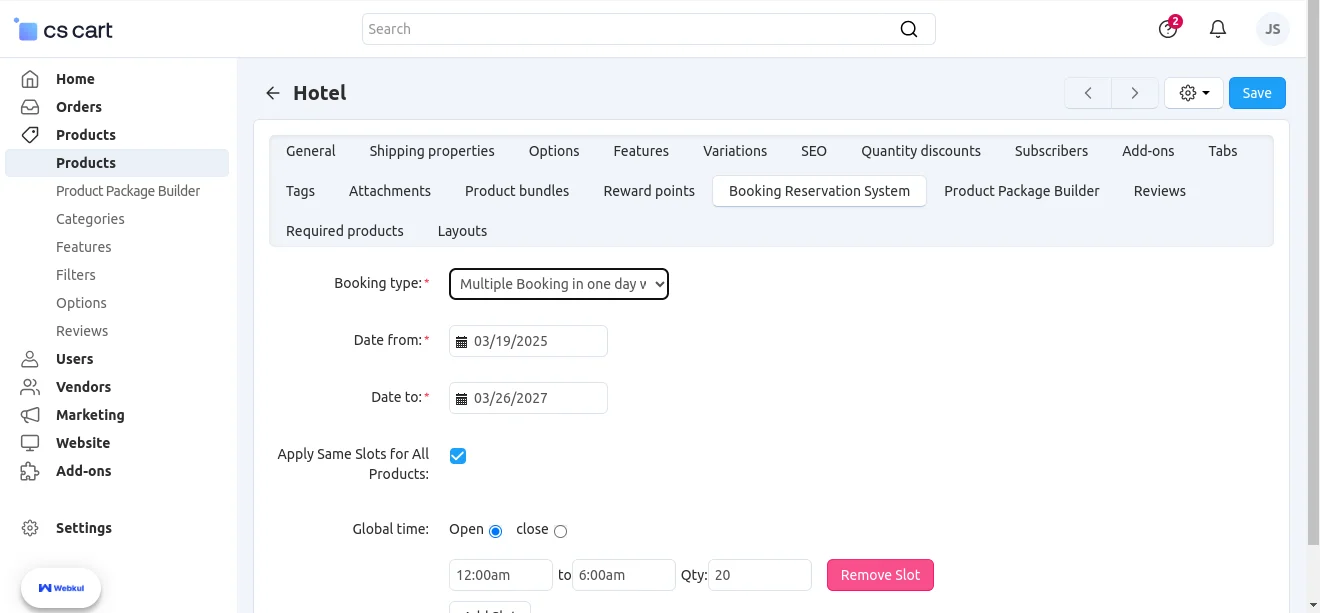
After creating product click on the “Booking Reservation System” Tab and select any of the three as per requirement shown below in the snapshot.
- Select the booking type.
- For “multiple booking in one day”, set the time frame, booking time and break time.
- Enter the slot as per requirement. The break time will automatically get adjusted.
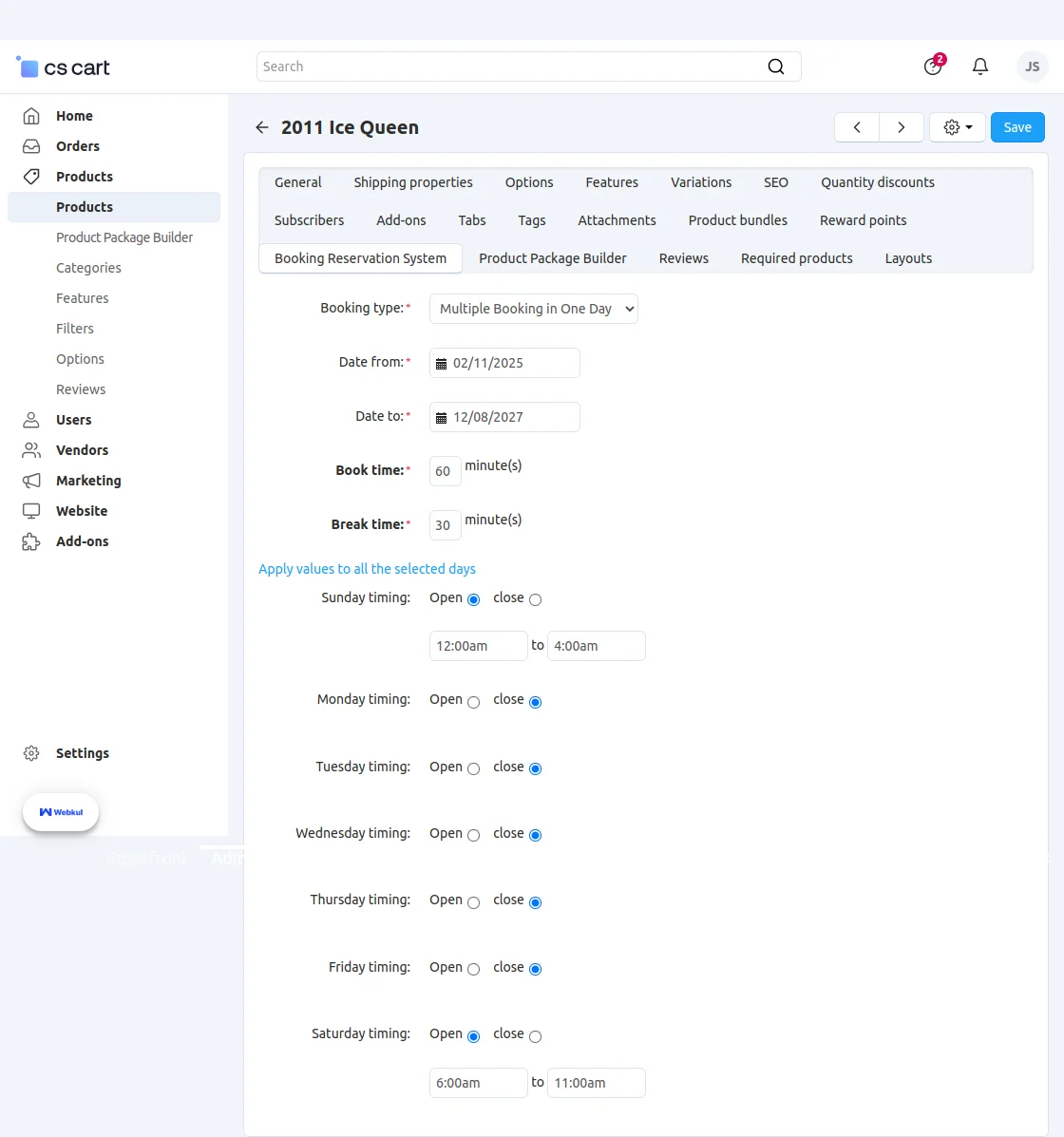
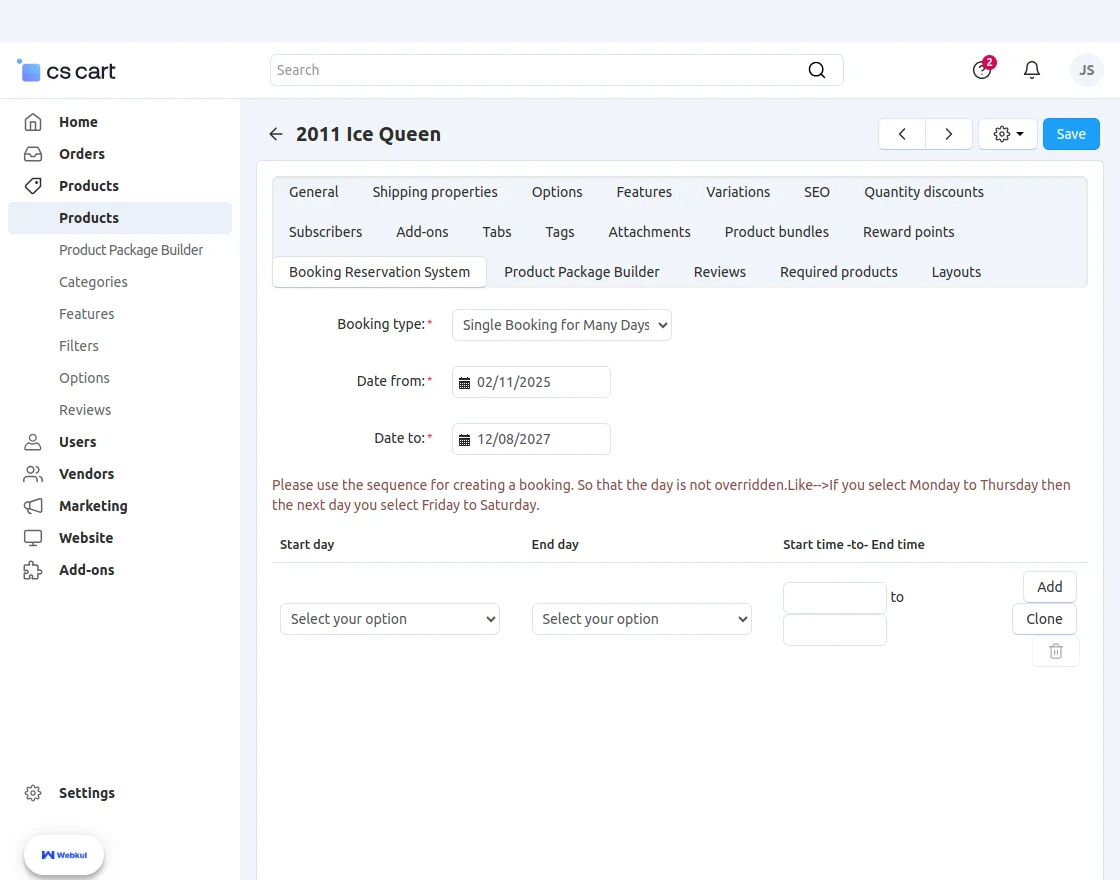
- For “single booking for many days”, set the time frame as shown below.
- Enter the slots as per requirement then click on “save”.
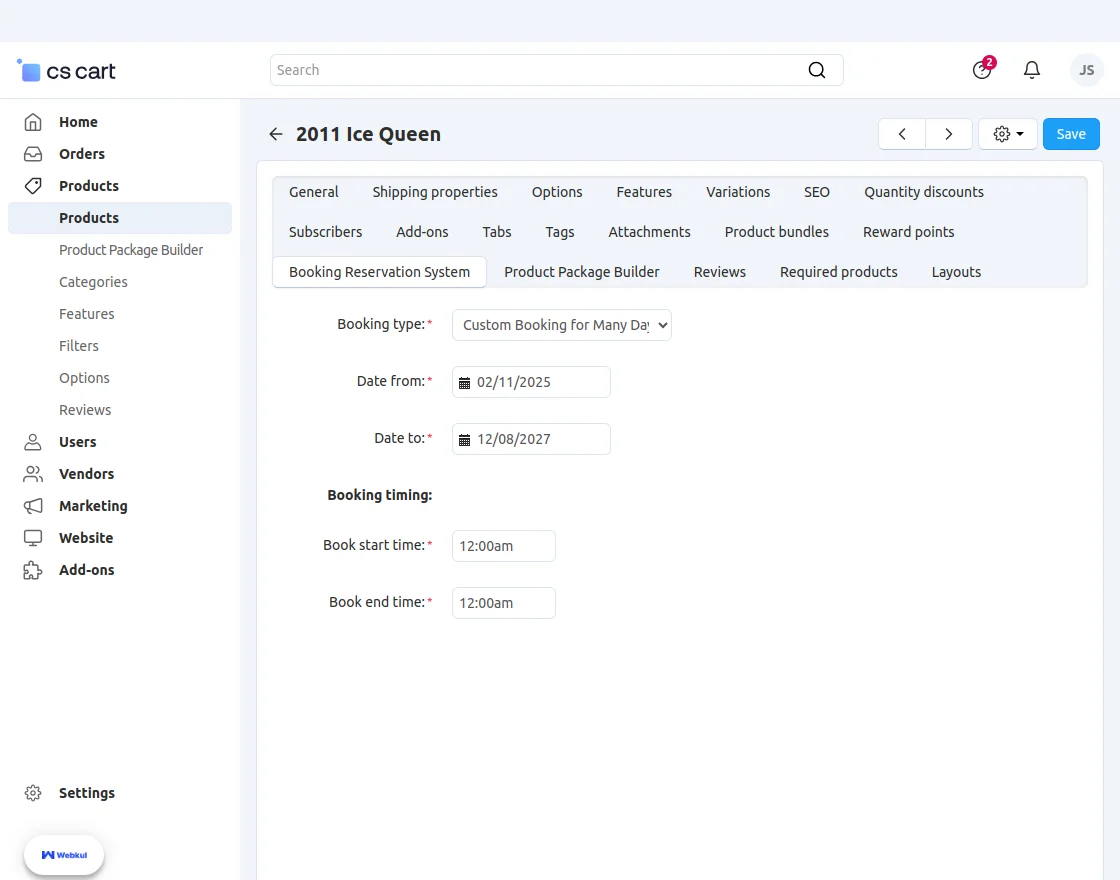
- For “custom booking for many days”, set the time frame as shown below.
- Set the booking start and end time.
- For ” Multiple Booking In one day with Quantity” set the date from to date to as shown below:
- Enter the slots and add the quantity for each slot as per requirment.
Manage Logs
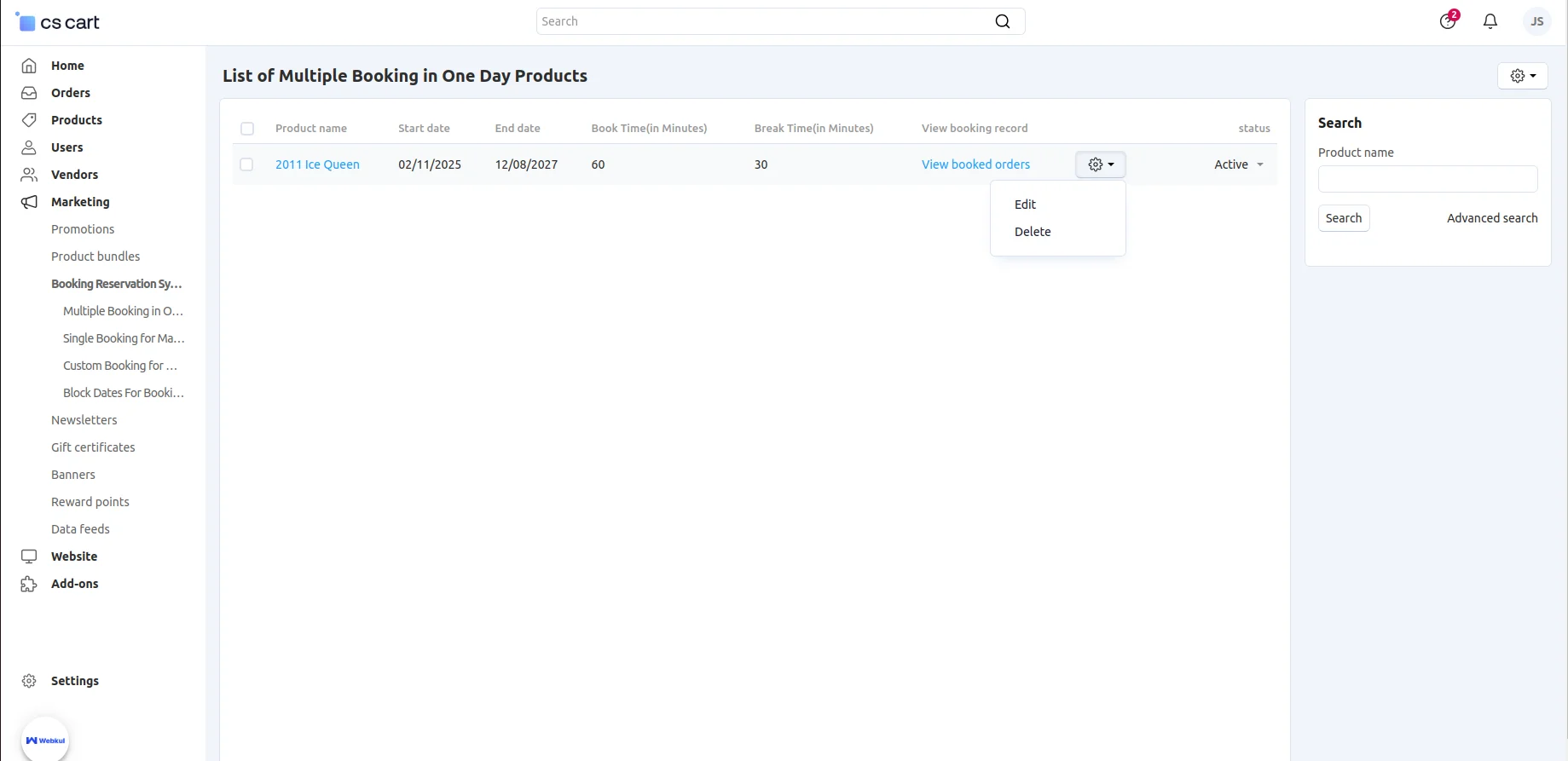
To manage logs, go to “marketing” and click on “booking reservation system”.
- To check “multiple bookings in one day”, click the field. The screenshot gives the view the logs.
- Click “view booked orders” to check the logs of orders for individual booking.
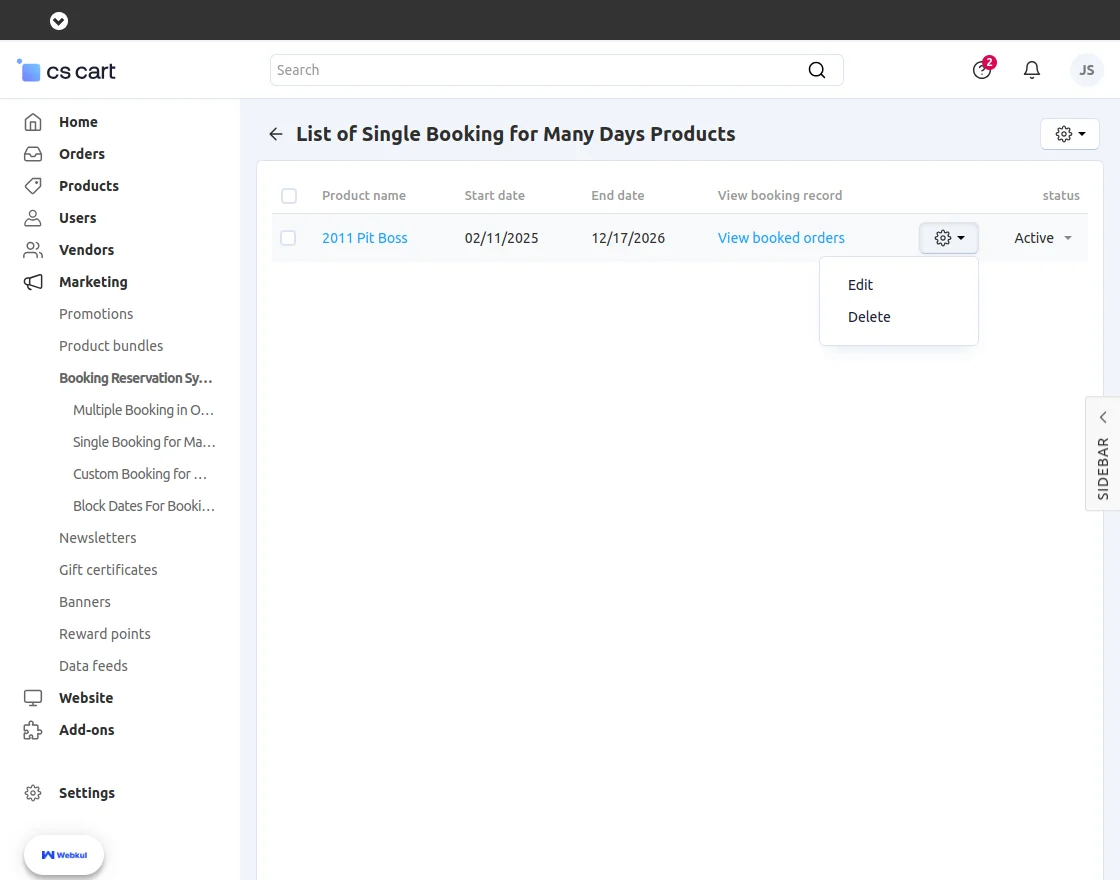
- To check “single booking for many days”, click the field. The screenshot gives the view of the logs.
- Click “view booked orders” to check the logs of orders for individual booking.
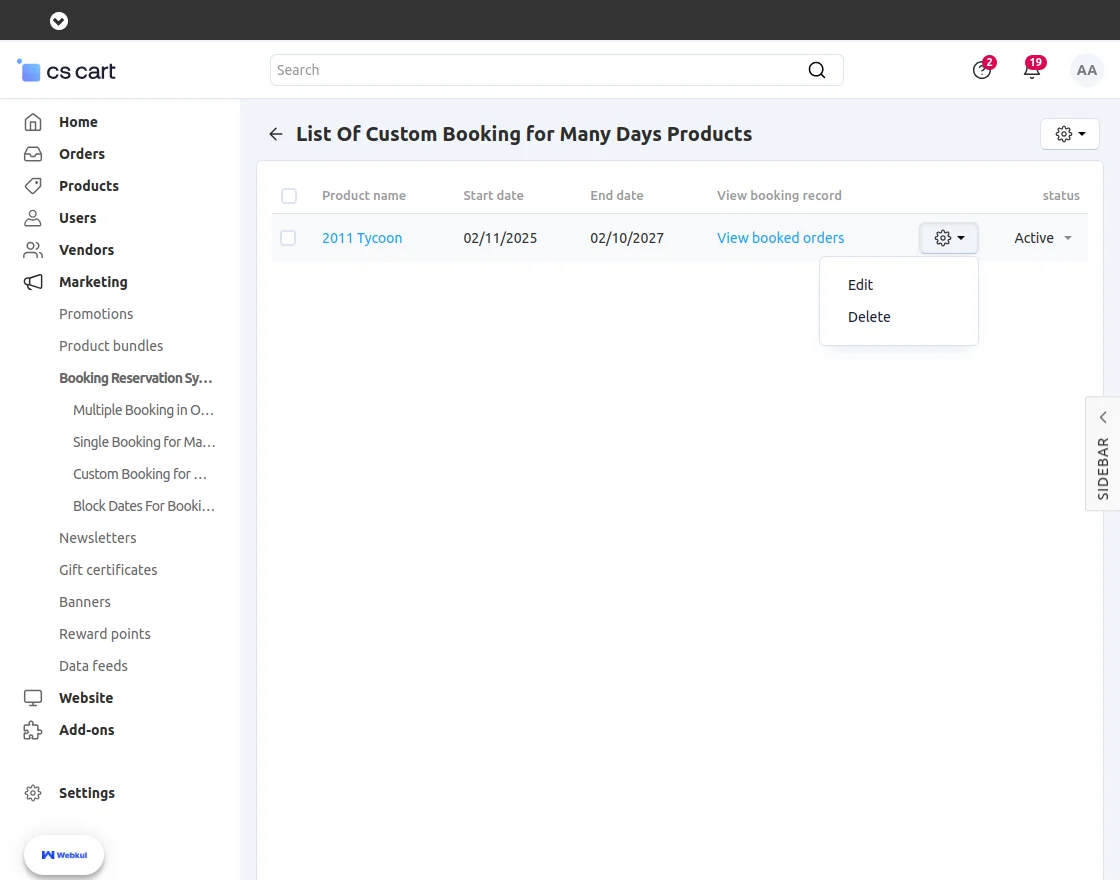
- To check “Custom booking for many days”, click the field. The screenshot gives the view of the logs.
- Click “view booked orders” to check the logs of orders for individual booking.
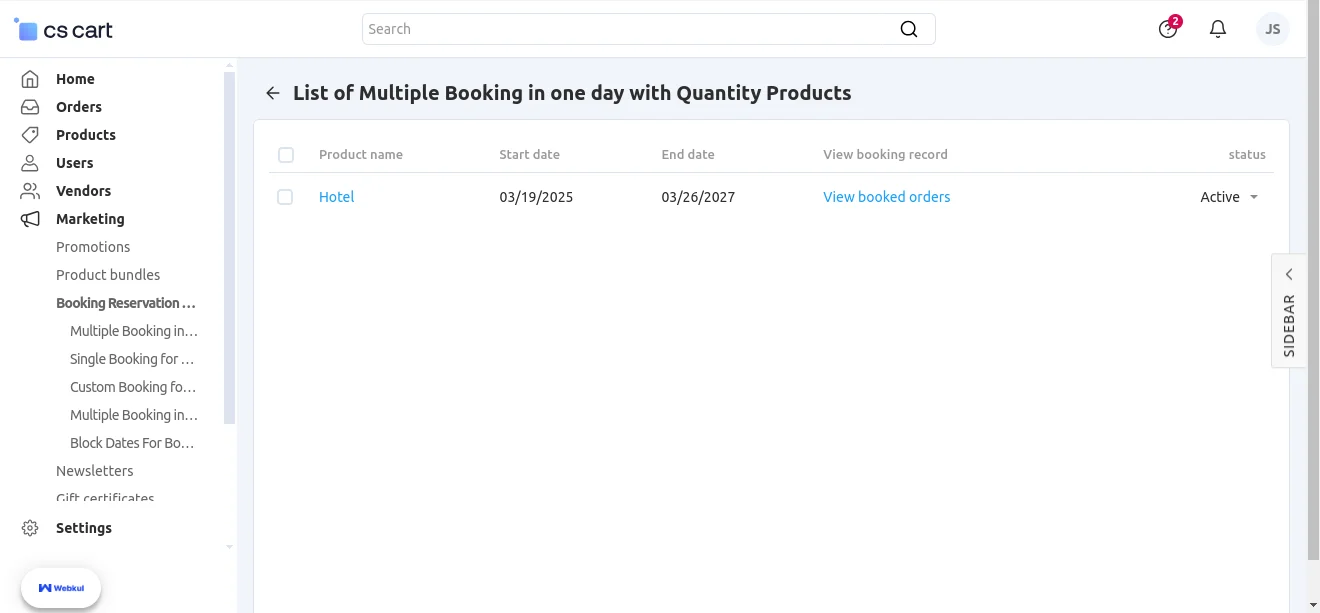
- To check ” Multiple Booking in one day with Quantity Products” click the field. The Screenshot gives the view of the logs.
- Click “View Booked orders” to check the logs of orders for individual booking.
Block date for booking and reservation
- To block specific booking dates, go to the “Blocked Dates for Booking and Reservation” page.
- Next, To add Blocked Dates, simply click on the + or add icon.
- Choose the dates you wish to block on, and then click the “Create” button.
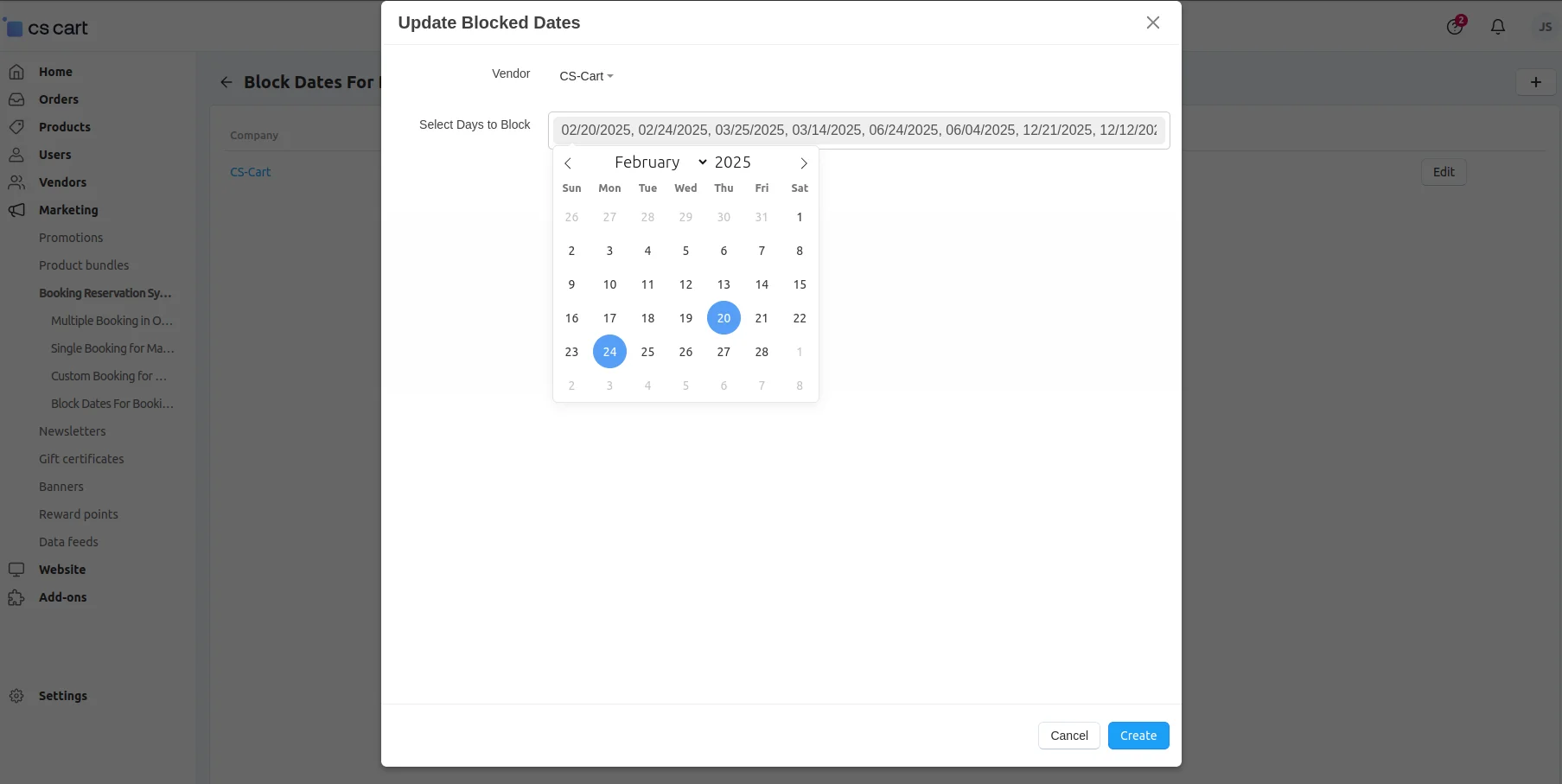
Click the “Edit” button, select the booking date, and click “Create.”
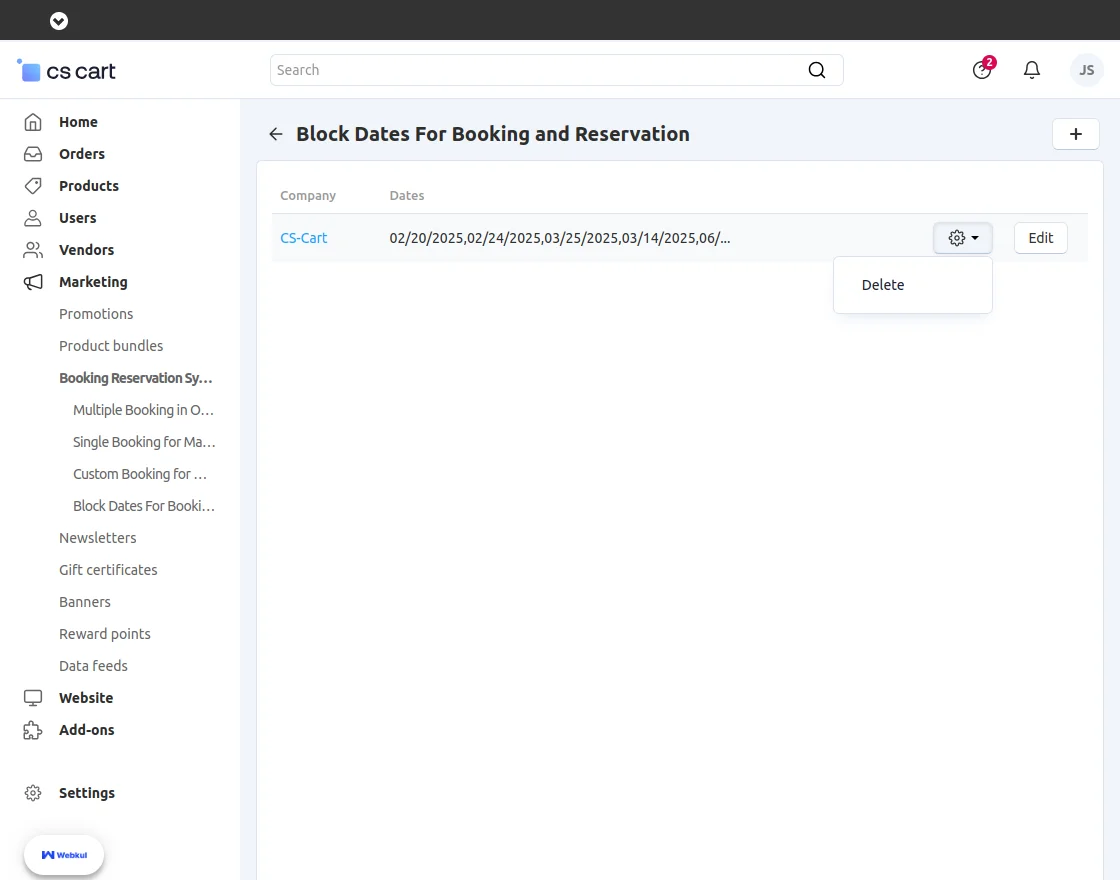
Click “setting” to delete the blog dates for booking and reservation.
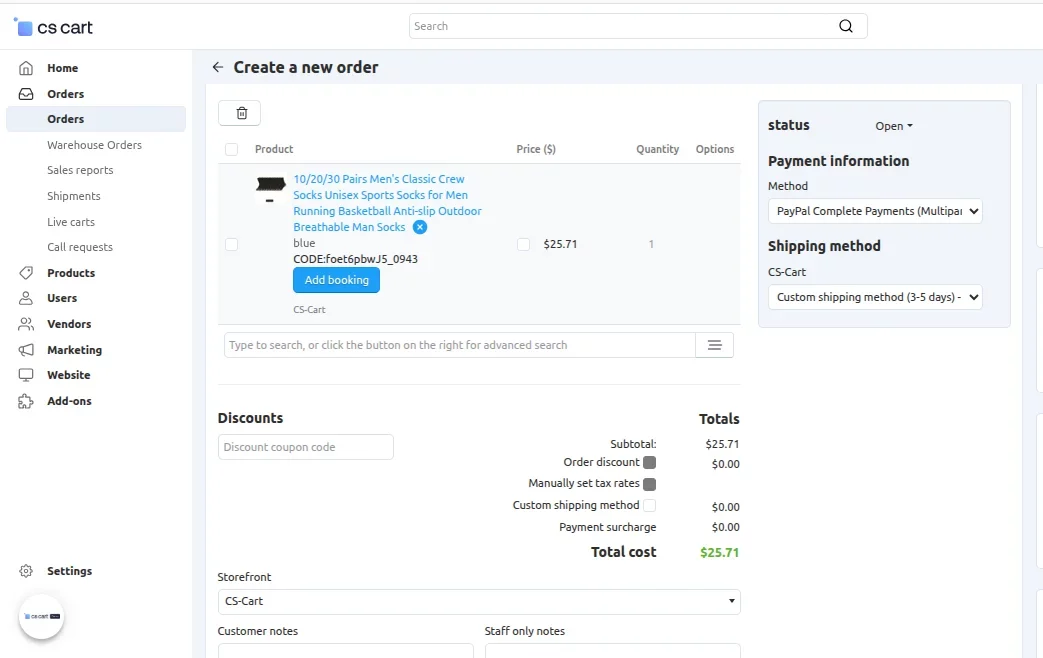
Admin can create Manually booking orders from the backend panel for any customer.
Go to the “Orders” section → Click on “Add Order” → Select booking product → Click on “Add booking”.
Now select any available date and time slot .
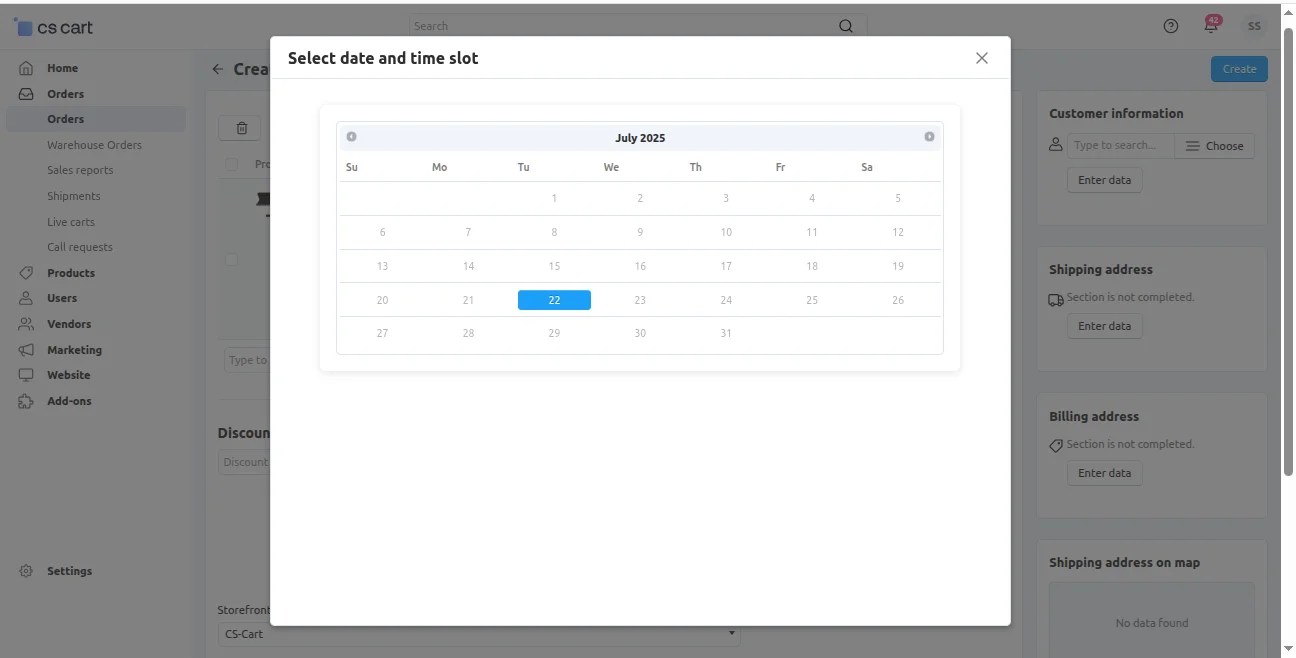
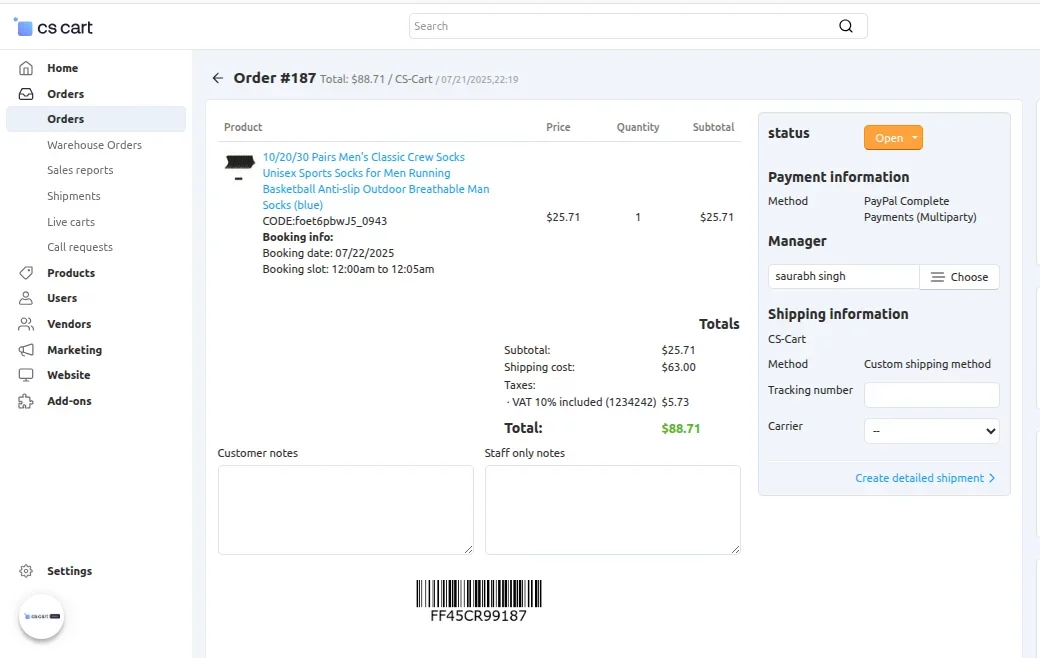
After selecting a booking slot, the admin can place the order and the order will be successfully placed as shown in the image below.
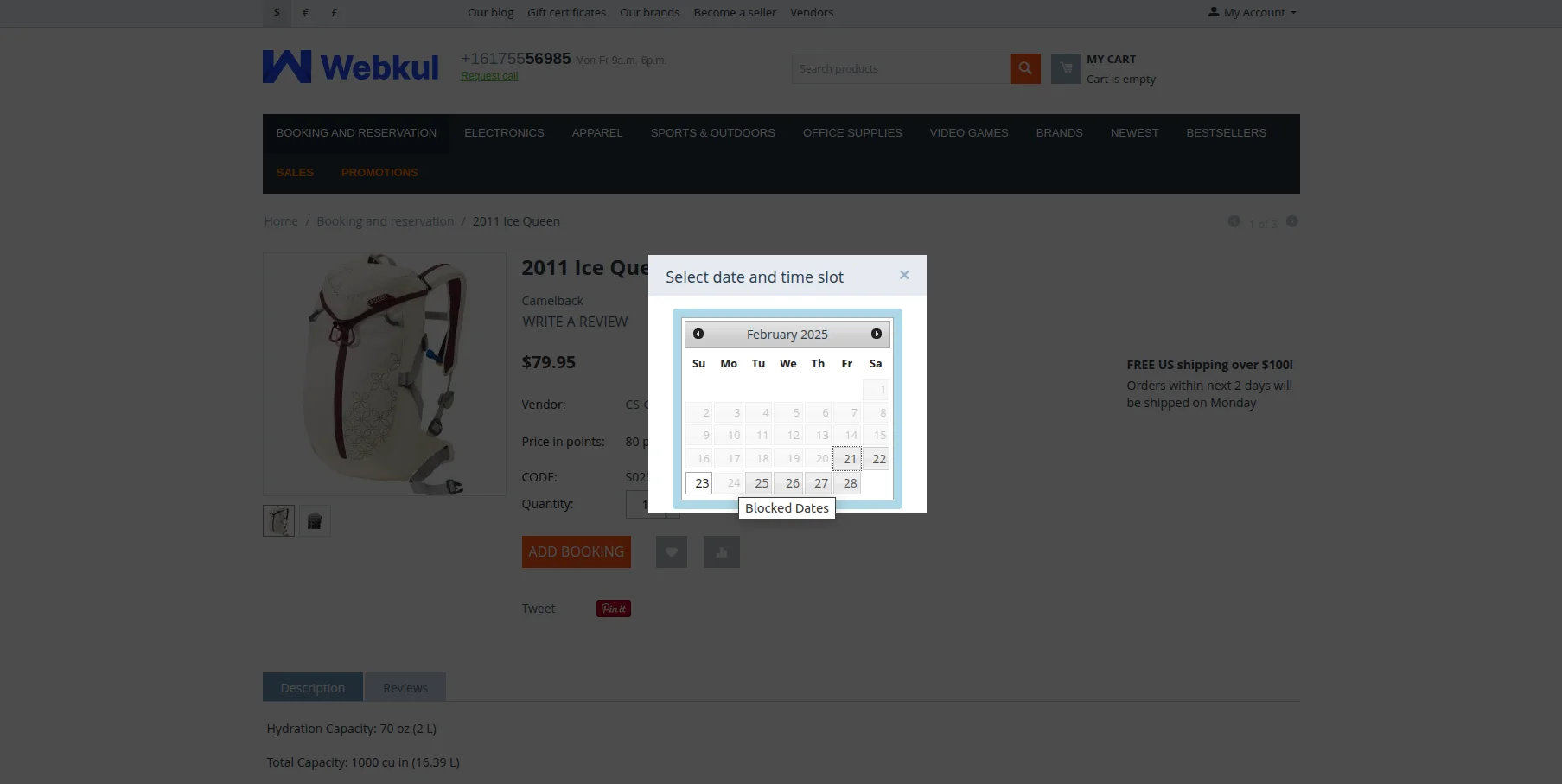
View of Block Dates for Booking & Reservation
Example of Blocked Dates for Booking and Reservation. The selected dates are designated as blocked, preventing bookings and reservations.
Admin can add or remove blocked dates from the backend as needed.
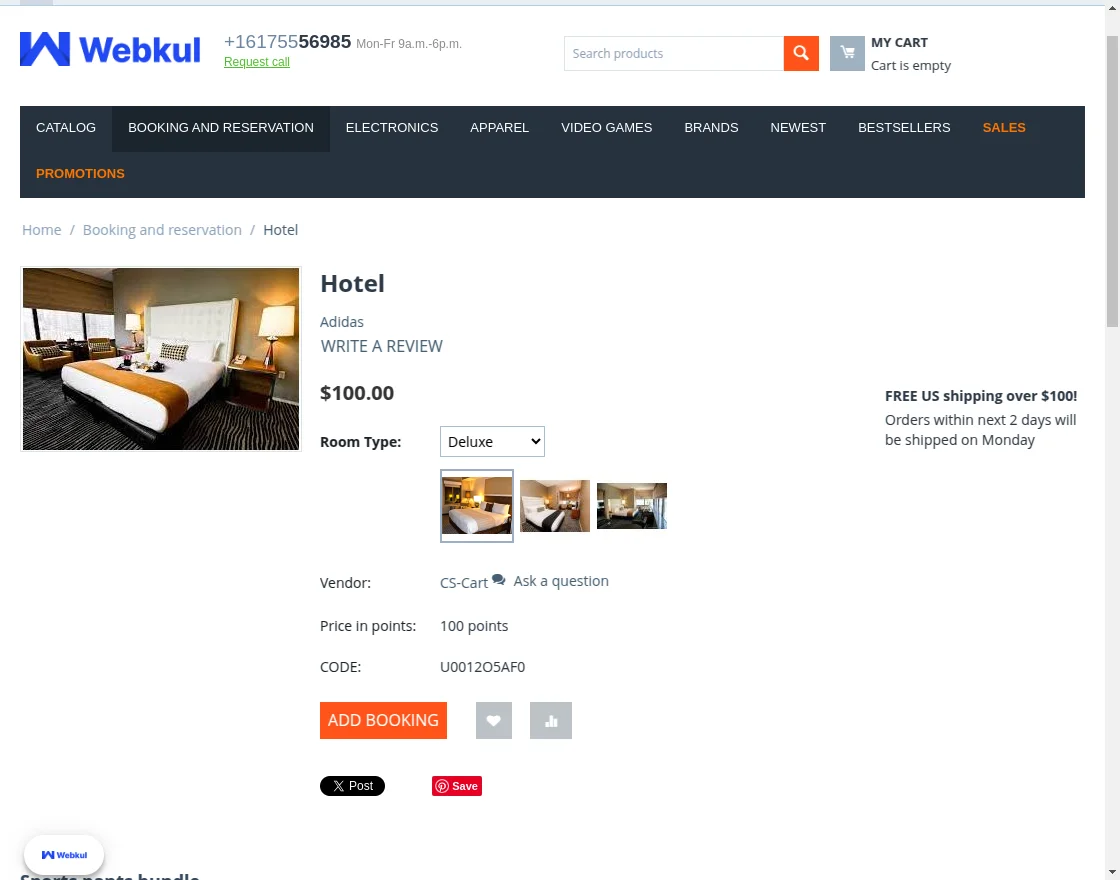
View of multiple booking in one day
Example of multiple bookings in one day. Click on “add booking”.
Select the “date” from the calendar.
Book the slot as shown below.
View of Single booking for Many days
Example of Single booking for many days. Select the date.
Select the time slot.
View of Single booking for many days.
View of Custom Booking for Many Days
Example of Custom Booking. Select the date. Here customers can create their own booking slot. The reserved slots can not be pre-booked.
The admin can change the color of the Select date range from the backend.

View for Multiple Booking in one day with quantity
Example of Multiple booking in one day with quantity. Click on “add booking”.
To create booking click on add booking and then select the available slot to book.
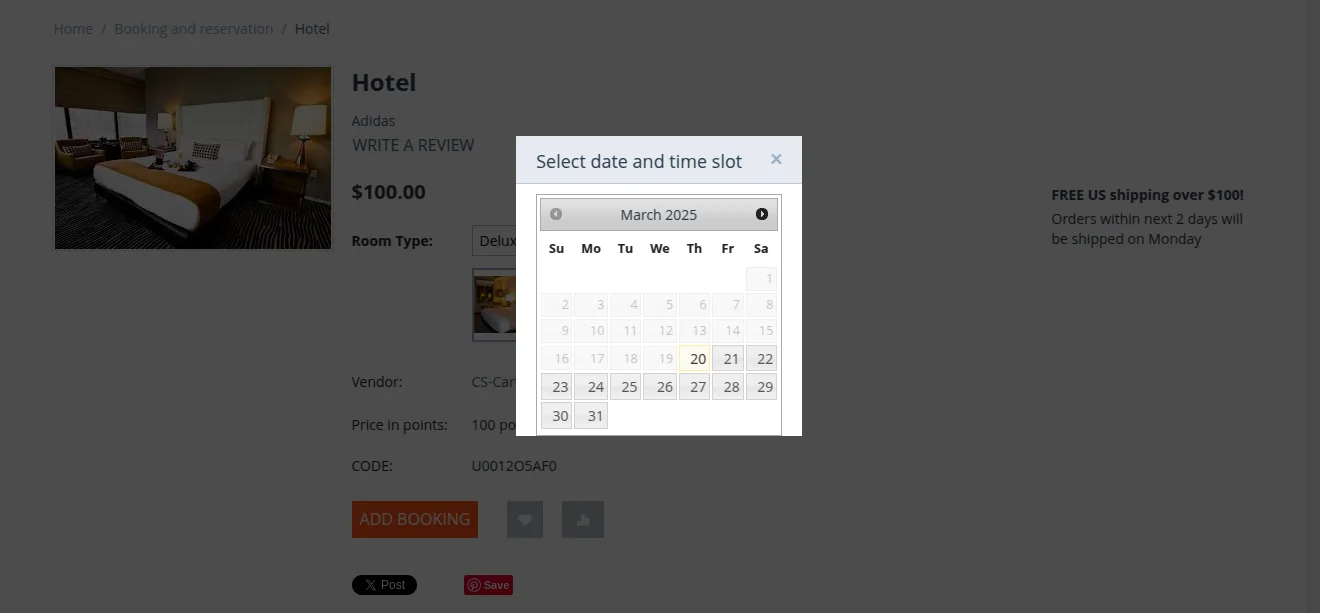
The customer need to select start time, end time and enter the desired quantity after then he/she can create booking for the product as shown in the image below.

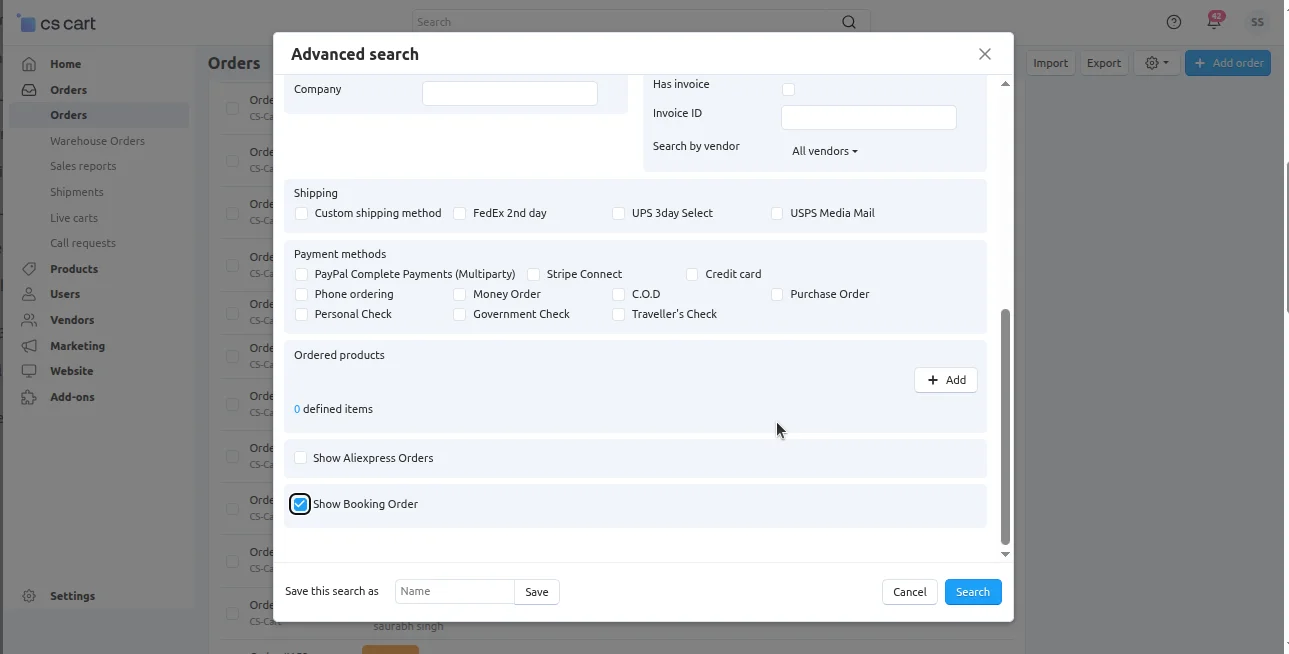
The admin can check the list of booking orders by using a filter as per the below image.
Go to Orders Click Advance search icon then check the box for “Show Booking Order”.
The invoice allows the users to review the reservation and booking information.

Support
For further any query feel free to contact us at http://webkul.uvdesk.com.
Please explore our cs-cart Development Services and Quality cs-cart add-ons
Current Product Version - 3.4
Supported Framework Version - 4.16.x - 4.19.x


Also, what about options for delivery to customer location? We offer customers to pick up from our warehouse as well as local delivery options.